
The complete monitoring experience for your phone
Get XNSPY and start tracking calls, texts, multimedia, locations and more on any phone!
Get Started Now Live DemoYou watched a video on X (Twitter) two days ago. You remember the clip, maybe the first line of the caption, but definitely not the account that posted it. You scroll back, and it’s gone. Buried under hundreds of posts and an algorithm that has already moved on.
Can you see that video again? Does X (Twitter) provide a watch history like YouTube? Well, the answer is yes and no.
The reality is that X (Twitter) provides no watch history for most of its users. But there are some workarounds. So I decided to dig up 5 popular ways to find watch history on X (Twitter), testing every single method on Android and iOS to see what actually works.
A Quick Look at How to Find Watch History on X
- X (Twitter) still doesn’t offer a full watch history for most users, though a limited History → Videos feature is gradually rolling out to some iOS accounts.
- Of the five methods tested, only the new “History” tab is a true watch history.
- Advanced search can recover videos only if you remember details like keywords, captions, or the account.
- “Likes” and “Bookmarks” only show videos you intentionally saved.
- On desktop, browser history may help recover videos you explicitly opened, and third-party tools can’t access watch history.
- Your X (Twitter) Data Archive is best for backing up your account or retracing videos you interacted with ( not for recovering ones you only watched).
Can You See Your Watch History on X (Twitter)?
Before explaining how to view watch history on X (Twitter), it’s important to understand whether X actually stores your viewing history.
The answer is no; most X (Twitter) users can’t see their watch history.
However, in May 2026, it began rolling out a “History” tab with a Videos section that automatically logs what you watch. But that rollout started on iOS and has not reached Android, the web, or even most iOS users.
Why X (Twitter) Doesn’t Show Watch History Directly
Unlike YouTube, X (Twitter) is primarily a microblogging platform, not a video-first service.
Since video is a secondary content type, X (Twitter) hasn’t prioritized a user-facing watch history feature. Though your viewing activity is still logged internally for recommendations and ads.
There’s a scale problem too. For example, an active user generates thousands of video impressions a week once autoplay is counted; therefore, surfacing all of them would produce an unreadable log.
Don’t Miss These Useful Guides

🔞  How to Block Porn on X (Twitter): A Step-by-Step Guide
👻  Does Snapchat Notify Screenshots: The Most Up-to-Date Answer
🔎  Does Someone Know if You Search Them on Instagram?
How I Tested Different Methods to View Watch History on X (Twitter)
I built a control list of 20 videos and wrote them down by hand with the account, caption, and the topic. I liked and bookmarked some of these videos. Then I tested each method against that list instead of trusting my memory.
The control list let me sort the five methods into three honest groups:
- A real watch history that shows videos even if you never saved them
- A recovery trick that can find a video if you remember something about it
- A save-for-next-time habit that only surfaces what you already saved.
I’ve labeled every method with which group it’s in. Understanding these limitations makes it easier to know how to check watch history on X (Twitter) without wasting time on methods that don’t work.
To test which method actually works, I ran this experiment across Android, iPhone, and desktop web (Chrome and Firefox). Moreover, I used both a free, four-year-old heavy-use account and an X Premium account to check for paywalls.
I then cross-checked every result against the handwritten log of videos and checked which methods just showed my likes versus which truly tracked my viewing history.
I also took into account the following factors:
- Cross-platform availability: Looked at whether a method works on iPhone, Android, and desktop web or only one. Is the approach universally accessible or locked to a single device?
- Accuracy: Evaluated each method against a fixed control list to assess reliability. Are the videos the same or are they unrelated?
- Completeness: Assessed whether any method captures the full scope of watched content. Does the approach provide a total record or only a partial snapshot?
- Time range: Examined how far back each method can reach. Can older content be recovered, or does the approach only apply to recent activity?
- Repeatability: Weighed whether any user can reliably perform these steps or if it’s a one-off trick. Which approaches are standard, repeatable processes versus temporary workarounds?
How to View Watch History on X (Twitter) Videos: 5 Popular Methods Compared and Tested
Here’s the truth up front. Only one of these five is an actual watch history, and most people can’t use it yet. The rest fall into two groups: tricks that recover a video if you remember something about it, and habits that save videos going forward but can’t bring back anything you didn’t already save.
I’ve labeled each one so you know what you’re getting before you spend time on it.
| Method | Type | Works? | Best For | Rating |
| History Tab (Videos) | True watch history | ✅ Yes (limited rollout) | Viewing videos you watched without saving them | ⭐⭐⭐⭐⭐ |
| Advanced Search (filter:videos) | Recovery method | ✅ Usually | Finding a video when you remember the account, caption, or date | ⭐⭐⭐⭐☆ |
| Likes & Bookmarks | Save-for-later method | ✅ Yes (If you liked or saved the video) | Reopening videos you intentionally liked or bookmarked | ⭐⭐⭐⭐☆ |
| Browser History | Recovery method | ✅ Sometimes | Finding X video posts you opened directly on desktop | ⭐⭐⭐☆☆ |
| X Data Archive | Account data backup | ✅ Sometimes | Downloading your account data (not watch history) | ⭐⭐⭐☆☆ |
1. Use “History” Tab
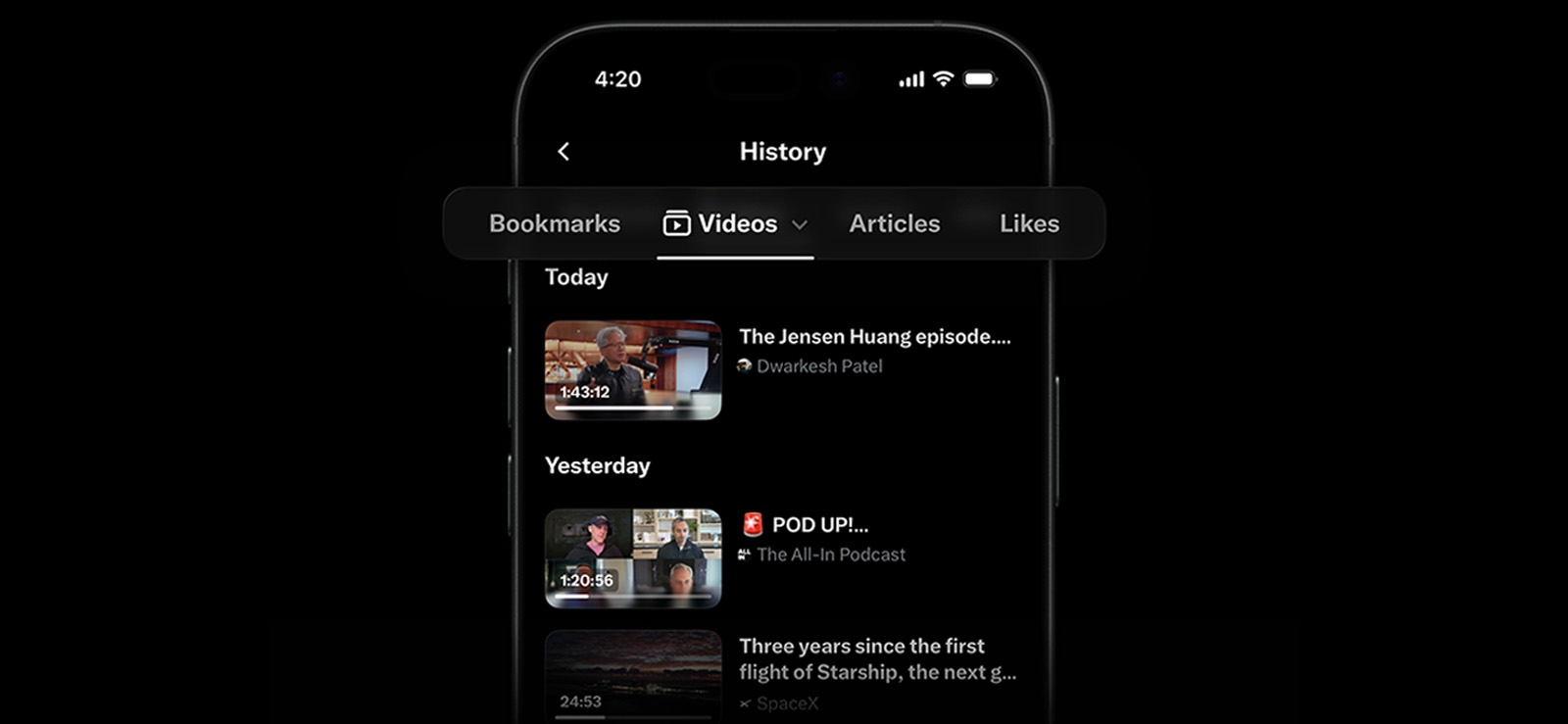
What it is: The only true watch-history feature available on X (Twitter).
In May 2026, X began rolling out a private “History” section in its iOS app. It replaced the former “Bookmarks” menu entry and organized activity into four tabs: Bookmarks, Likes, Videos, and Articles. The Videos and Articles tabs populate automatically based on content you view, making “Videos” the closest X has come to a YouTube-style watch history.
However, the feature was introduced as an iOS rollout rather than a universal release, so it may not appear on every account or device yet.
Here is how to view your X (Twitter) video history:
- Update the X app through the Apple App Store to ensure you have the latest version.
- Open X on your iPhone and tap your profile picture to display the side menu.
- Select History. It should appear where the “Bookmarks” option previously appeared.
- Tap the “Videos” tab at the top of the “History” page.
- Scroll through the recorded videos and tap one to reopen its original post.
If you still see “Bookmarks” instead of “History”, the feature has probably not reached your app version or account. In that case, move to one of the recovery methods below.
Here’s What Happened In My Testing
The videos it showed during my testing had never been liked, bookmarked, or reposted, which meant it wasn’t just recycling my saved content.
However, it was far from a complete solution. It only logged longer videos I actively spent time on, since brief clips that autoplayed while I scrolled were completely absent.
There was also no retroactive capture either. Anything I had watched before the feature reached my account was simply missing. And while the list was useful for browsing, it offered no way to export or save my history outside the app.
2. Use Advanced Search with filter:videos

What it is: A recovery method that works across desktop and mobile.
X search does not use your viewing activity. Instead, it searches public posts that match the details you provide. There is no operator for “videos I watched,” so this method works best when you remember part of the caption, the account, or the approximate date.
How to search for a previously watched video:
- Open x.com/search-advanced in a browser, or use the regular X search bar.
- Enter any words or phrases you remember from the post.
- Add filter:videos to exclude posts without video.
- Add from:username when you know which account posted it.
- Narrow the results with a date range, using:
since:2026-07-13 until:2026-07-20 - Run the search, then switch to the “Latest” tab if the “Top” results are too broad.
- Adjust one detail at a time (such as the keyword, account, or date range) until the post appears.
For example:
product launch filter:videos from:username since:2026-07-13 until:2026-07-20
Here’s What Happened In My Testing
I managed to recover 10 of 20 control videos. Those that were recovered were the ones whose caption phrase I used directly from my notes.
However, when I only used a topic, it failed because at that point you’re searching all of X (Twitter) with nothing to narrow it down.
3. Check Your Liked Posts or Bookmarks

What it is: A save-for-later method, not a watch history.
This only helps when you previously liked or bookmarked the post. It cannot recover a video you watched and forgot to save. Consistently using these features is the most reliable way to avoid losing useful videos in the future.
How to find saved videos:
- Open X and tap your profile picture to access the side menu.
- Select “Profile”, then open the “Likes” tab to review posts you have liked.
- To check bookmarks, return to the side menu and select “Bookmarks”.
- Scroll through the saved posts and open any video that looks familiar.
- Use X search to look for the account or caption keywords when the list is too long to browse manually.
When you find a video you may need again, bookmark it rather than relying only on a like. Bookmarks are private and are easier to treat as a dedicated saved-content list.
Here’s What Happened In My Testing
It found all of the control videos I’d liked or bookmarked and none of the rest. If you didn’t tap like or bookmark when you watched, the video isn’t here.
I only had to go into “Bookmarks” in the side menu or “Likes” on my profile and scroll upwards till I found the video I was looking for.

Concerned About What Your Child is Watching on X?
Don’t rely on broken features for your child’s safety. Get Xnspy instead.
– Capture ambient screenshots of their phones
– See every search term typed into Twitter
– Get specific video URLs viewed in the browser
– Know exactly what content they are consuming
4. Check Your Browser History
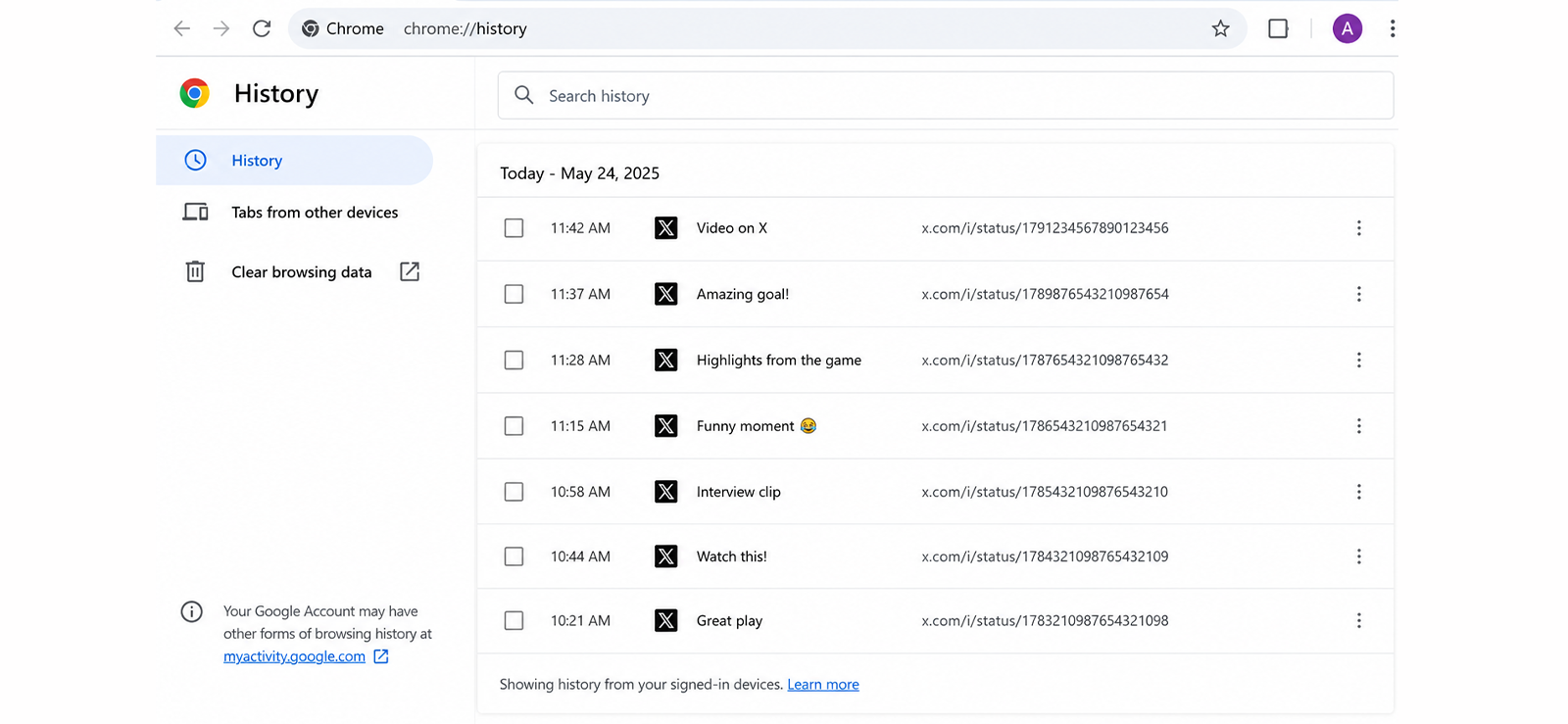
What it is: A practical recovery method for X videos you opened as individual posts.
This method only captures pages you visited directly in your browser. However, it will not show videos you watched while scrolling through the X feed.
Let’s see how to find X (Twitter) videos in your browser history:
- Open your browser history:
- Chrome, Edge, or Firefox: press Ctrl+H
- Safari on Mac: press Cmd+Y
- Search your history for: x.com/i/status
- Review the matching X post links, using the recorded dates and times to narrow the list.
- Open likely results in new tabs and check whether the posts contain the video you remember.
Note: Browser extensions and third-party watch-history tools are commonly mentioned in other guides, but they cannot retrieve videos you previously watched on X. Your browser’s own history is the only useful exception.
Here’s What Happened In My Testing
In my testing, this method recovered 9 control videos. However, it only found videos I had opened as individual posts, not videos I had merely watched while scrolling through the feed.
5. Request Your X (Twitter) Data Archive
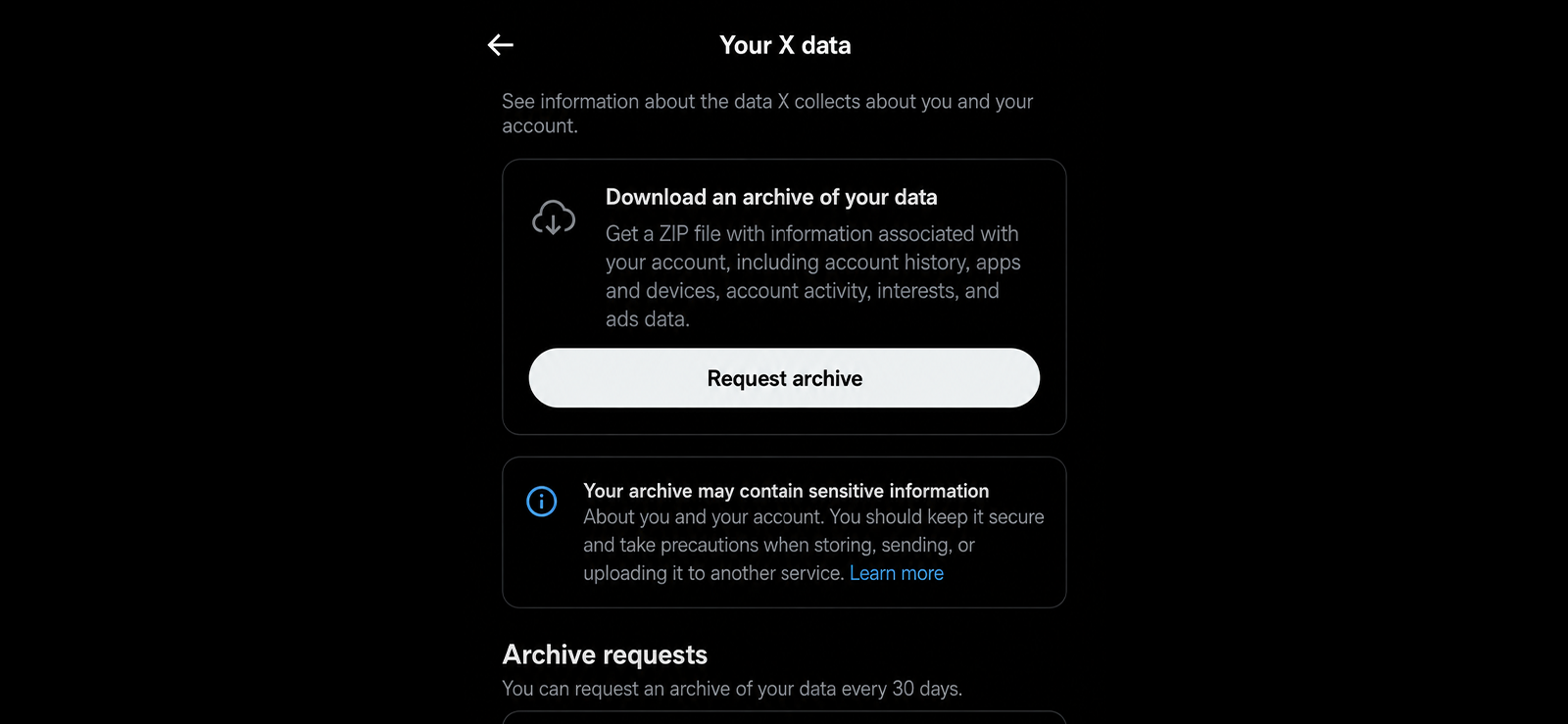
What it is: A downloadable backup of your account data, not a record of videos you watched.
The archive can be useful for preserving information such as your posts, likes, direct messages, followers, and advertising data. Although it won’t recover a video you simply watched, if you liked, posted, replied to, or bookmarked a video, that interaction (and the video with it) will appear in the archive.
Here’s how to download your X (Twitter) Data Archive:
- Open X, go to “Settings and privacy”, and select “Your account”.
- Choose “Download an archive of your data” and complete any verification request.
- Select “Request archive”.
- Wait for X (Twitter) to notify you by email or through the app when the download is ready.
- Download the ZIP file and open the included viewer file to browse the available account records.
This feature is best treated as a personal account backup. Despite claims made in some guides, the downloaded archive does not include a complete X (Twitter) video watch history.
Here’s What Happened In My Testing
None of my 20 control videos were in it. The archive recorded what I posted and saved, not what I watched. The likes file just showed the same videos I could already see in the app.
The only viewing-related file was ad data, i.e, promoted posts shown to me, from the last few months only. Handy for a privacy check but no help for finding a video.

Did You Know?
You don’t need a Twitter account to explore tweets or profiles.

Another Common Question: How to See Your Child’s Watch History on X (Twitter)
While the methods above help you see your own watch history, many parents wonder how they can monitor their child’s viewing activity on X. It’s a fair concern because kids can easily stumble across violent or explicit content simply by scrolling on X.
Since X’s native tools reveal almost nothing about this, Xnspy (a parental monitoring tool) can prove to be helpful.
Its Screen Record feature periodically captures screenshots of popular social apps, giving you a hands-off visual timeline of their activity. Also, its remote ambient screenshot tool lets you snap a live picture of whatever’s on the screen at any moment from your dashboard.
Moreover, its Keylogger feature records every search term they type into the X (Twitter) app, exposing the keywords used to find harmful content.
And if they click on a specific post via a browser, Xnspy’s Internet History feature will capture the URL. Beyond that, Watchlist Words lets you set keyword alerts for concerning phrases you’re worried about and notify you the moment those words appear in chats, searches, or posts.
Combined, these features give you a true window into what your child is watching.
Here’s how to view video watch history on X (Twitter) using Xnspy:
- Install Xnspy on your child’s phone and let it run in the background.
- Screen Record will periodically capture screenshots of social apps (including X) without you doing anything.
- For a live look, use the remote ambient screenshot command from the dashboard to grab whatever is on screen at that moment.
- Open the Keylogger to see every search term they type into X (Twitter), even if they delete it later.
- Check Internet History for any X (Twitter) post or profile they clicked via the browser.
Here’s What Happened In My Testing
To put Xnspy through its paces, I set up a burner phone with a fresh X (Twitter) account. I spent a couple of hours using X (Twitter) both ways: first through the mobile app, then through Chrome on the same phone. Moreover, I even let videos auto‑play, searched for specific terms, and scrolled as a curious teen might.
When I intentionally clicked on a video post while using X (Twitter) in the browser, the Internet History log correctly captured that specific video URL. The Keylogger also captured the exact search terms I typed into both the app and browser, including queries like “street fight” and “dark web.”
For the visual record, I relied on the Screen Record feature. It periodically captured screenshots of Twitter while the app was open on the burner phone and was automatically snapping what was on screen (whether a video auto‑played in the feed or a post I clicked on).
Those timed captures built a complete visual timeline of my entire viewing session without any manual effort.
FAQs
Can I recover a video I watched but didn’t like or bookmark?
If you’re on iOS and have the “History” tab, check the “Videos” tab first. It logs watched videos even if you never saved them. If you don’t have it, your best shot is advanced search with filter:videos plus the account name or a caption word you remember. On desktop, also check your browser history for x.com/i/status. If you remember nothing about the video and never saved it, there’s no reliable way to get it back.
Does clearing the cache delete my X (Twitter) watch history?
No. Your cache is just temporary files stored on your device to make the app load faster. Your “History” tab, likes, and bookmarks live on X’s servers, tied to your account, and are not impacted by clearing the cache. It also doesn’t delete the browser history on your computer or phone, which is stored separately.
How to see watch history on X (Twitter) from months ago?
If you’re wondering how to view watch history on X (Twitter) videos from months ago, the answer depends on when your account received the History feature. The History tab only started logging videos when it reached your account in 2026, so anything before that was never recorded. For older videos, your only options are ones tied to something you did at the time: your likes, your bookmarks, or your browser history if you opened the video on desktop. Advanced search can help too if you remember the account or caption.
How to check watch history on X (Twitter) if the video was deleted?
If the poster deleted the video, it’s gone from X (Twitter) for everyone, including you. The “History” tab, search, and bookmarks will all come up empty, because there’s nothing left to point to. The only thing that might survive is a copy someone else reposted or saved. Try searching keywords from the caption to see if another account shared the same clip.
How to view video watch history on X (Twitter) if you watched it while signed out?
X (Twitter) can’t tie a signed-out view to your account, so it never lands in your “History” tab, likes, or bookmarks. Here, your browser history might prove useful. Open it (Ctrl+H, or Cmd+Y in Safari) and search x.com or a word you remember. However, if you watched from private/incognito mode, then even your browser history can’t help. The only option left is advanced search. That too, only if you remember the account or caption.
Get Xnspy to Know What They Do Online
Keep track of what matters through smartphone monitoring

Leave a reply:
Your email address will not be published. Required fields are marked*


Tiffany Ross
Member since October 8, 2025
Tiffany Ross
Member since October 8, 2025
Tiffany Ross is a child digital safety educator and family technology researcher, with an M.Ed. in Learning Technologies, University of Texas at Austin. After graduating in 2016, she has continued to work in the industry for 9 years. During this time, she has focused on practical digital parenting strategies and responsible use of monitoring apps. Moreover, her work includes abuse prevention, healthy screen habits, social media safety, and other key concerns. Over the years, Tiffany has also contributed to more than 200 research-informed guides and family safety resources covering online risks, screen time management, and digital wellbeing practices for modern households.