
The complete monitoring experience for your phone
Get XNSPY and start tracking calls, texts, multimedia, locations and more on any phone!
Get Started Now Live DemoX (formerly Twitter) users are addicted to nonstop updates, celebrity takes, breaking news, wild threads, niche drama, and the occasional “what did I just read?” moment. And honestly, who can blame them? The platform is built to keep you hooked with a curated feed where its For You system uses a recommendation algorithm to narrow roughly 500 million daily posts into a selection displayed on each user’s device.
But not everyone wants to join the platform just to look inside. Maybe you don’t want a profile. Maybe you are dodging the algorithm. That said, since the rebrand from Twitter to X, and especially after the login-wall tightening, the platform has made it noticeably harder to view Twitter without having an account.
But tricky doesn’t mean impossible.
There are still methods and tools that can help you access tweets, hashtags, profiles, and even media without signing up. I spent time testing every common workaround on real devices to see which ones still hold up. So, if you are wondering how to see Twitter without an account, here are the 5 ways that actually work right now.
How To View Twitter Without an Account: Everything You Need to Know First
- X does not require a login to view most public tweets, profiles, and media, but it now throttles guest browsing more aggressively than before, and the login wall can appear after just a few page loads.
- Use Xnspy if you need ongoing visibility into someone’s X activity, including private accounts, DMs, and deleted content, not just a one-time public peek.
- Free X viewer tools strip out the login wall for public profiles, but most public instances are unstable, rate-limited, or offline on any given day.
- Swapping x.com for xcancel.com in a tweet URL is the fastest no-signup trick for reading a single public post or thread.
- Google search operators (site:x.com) can surface indexed public tweets, but the results are not chronological and often show old posts mixed with recent ones.
- Visiting a profile URL directly (x.com/username) still works for public accounts, but expect an app-download pop-up that becomes impossible to dismiss after your first scroll.
Before You Learn How to Use Twitter Without an Account, Understand What You Can and Can’t Do Without Logging In
Before diving into how to view Twitter without an account, it is important to set the right expectations. X has changed its guest-access rules more than once over the past years, tightening the login wall and then loosening some restrictions again. Here is what currently works and what doesn’t when you are not logged in.
You Can View Public Profiles and Tweets
If someone’s account is public, you can still see their profile, including tweets, retweets, replies, and media. Direct links to a single tweet, image, or thread shared outside the platform, like in a group chat or blog post, generally still open without a login. The difference now is how quickly the login wall appears when you start scrolling or open multiple profiles in the same session.
You Can Watch Videos and View Images on Public Posts
Videos, GIFs, and images posted by public accounts remain accessible without an account. You can click and view or zoom in without signing up, though autoplay and quality can be inconsistent for guest sessions.
You Can Still Use Search-Adjacent Tricks (With Real Limitations)
X’s own on-site search bar is largely gated behind login now, but you can approximate a search using Google with operators like site:x.com “keyword”. This surfaces indexed public tweets outside X’s internal search, though it depends entirely on how recently Google crawled that content, which is why results can feel outdated or out of order.
You Can’t View Protected or Private Accounts
If someone has locked their profile, none of their tweets, replies, or media are visible to you unless you are logged in and approved as a follower.
You Can’t Interact With Posts
Without an account, you cannot like, retweet, reply to, quote, bookmark, or add anything to a list. You are strictly in read-only mode, and that has not changed.
You Will Likely Hit the Login Wall Faster Than Before
X’s guest-access limits are now stricter and less predictable than they were a couple of years ago. The wall can appear after your first scroll, after opening a second profile, or after a handful of link clicks in the same browser session. Some workarounds below reduce how often you hit it, and we will cover those next.
You Can’t See Anyone’s Likes Tab, Logged In or Not
X made every account’s Likes tab private, and that hasn’t changed till now. This isn’t a guest-access restriction; it applies to everyone, including followers and paid subscribers. You can still see the total like count on a public tweet, but not who liked it or what someone else has liked.
There’s No “Who Viewed My Profile” Feature
X does not have a native feature that tells an account owner who viewed their public profile while logged out, so simply opening a public profile URL does not notify anyone. This applies to guests and logged-in users alike.
Bottom line: You can still browse a meaningful amount of public content, but anything that involves interacting, searching deeply, or browsing for long sessions comes with limits.
This Is What You Should Be Reading Next
🛑 How to Block Porn on X (Twitter): A Step-by-Step Guide for Parents
👩❤️👨 How to See if Someone Is on Dating Apps Without Them Knowing
📹 How to Find Out if Someone Has an OnlyFans Account
⚡ How to See Deleted Messages on Discord Without Them Knowing
How I Put Each Method to the Test
To figure out which methods actually hold up, I ran every method through a repeated testing process instead of just checking whether a page loaded once.
I tested across three devices: an iPhone, a Samsung Galaxy, and a Windows 11 laptop. I used a mix of public X accounts, including a personal test account, a news outlet, and a celebrity profile, so results weren’t tied to one account’s visibility settings.
I considered the following parameters for each method:
- Load success: Whether the profile, tweet, or search result actually opened, or redirected straight to a login screen.
- Content freshness: I tested whether the tweets shown were the most recent ones, or outdated/out-of-order results.
- Session length before the login wall: How many scrolls, clicks, or page loads happened before a login prompt appeared.
- Consistency across attempts: I repeated each method 10 times across different devices, networks, and times of day, because a single successful load isn’t proof a method reliably works.
- Browser/device variation: I compared mobile browser and desktop browser mode separately, since guest-access limits are not applied identically everywhere.
The goal was to separate methods that reliably work from ones that succeed once and then fail on the next attempt.
How To Look At Twitter Without An Account: 5 Methods That Actually Work
Below are five practical techniques to explore tweets, profiles, and media without signing in, ranked in the order I’d actually recommend trying them.
| Method | Reliability | Time Required | Limitation | Best For |
| Use Xnspy | Very High (for authorized monitoring) | 10 Minutes (setup) | Requires installation and legal authorization on the device | Ongoing visibility into private accounts and DMs |
| Twitter Account Viewer Tools | Medium | 1 Minute | Depends on X’s infrastructure; instances can be rate-limited or offline | A quick, anonymous lookup of a public profile |
| Replace X.com with xcancel.com | Medium | 1 Minute | Strictly read-only; can’t click into likes, quotes, or comments | Reading a specific tweet or thread you already have a link to |
| Visiting Public Profiles Directly via URL | Medium | 1 Minute | A persistent app-download popup blocks scrolling | A quick glance at the top of a public profile |
| Google Search Operators | Low-Medium | 2 Minutes | Results aren’t chronological and can mix old tweets with recent ones | Digging up an old tweet you can’t find any other way |
1. Use Xnspy
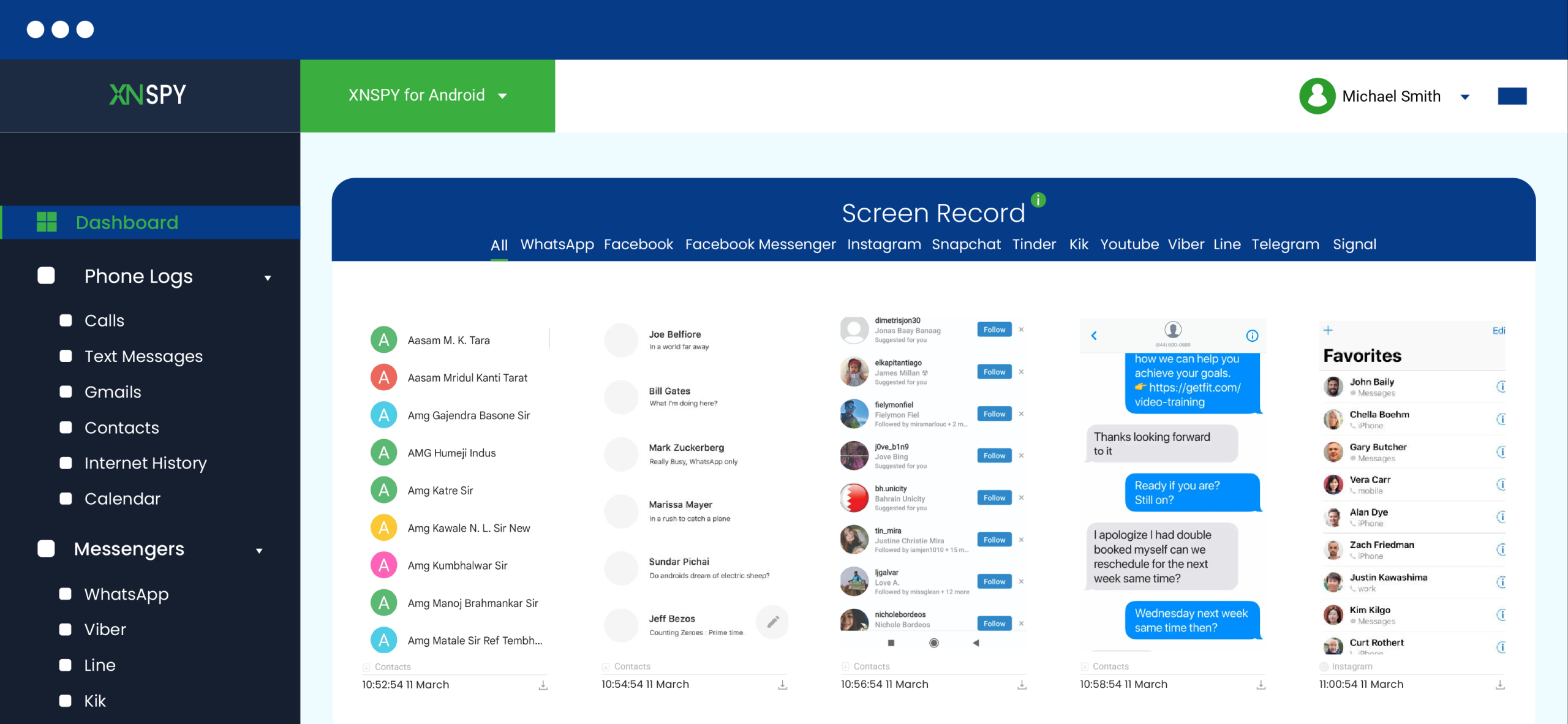
Xnspy is a phone monitoring app built for parents who want visibility into what their kids are doing on X, without needing to log into the child’s account.
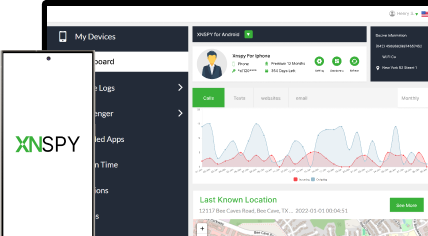
Once installed on the child’s phone with proper authorization, it runs quietly in the background and sends activity data to a private online web dashboard you can check from any browser. That gives you ongoing access to X activity, including private profiles, restricted posts, and direct messages, rather than a one-time look at a single public tweet.
What makes Xnspy useful here is how it works behind the scenes. Once installed on the target phone, it quietly logs activity without sending alerts to the device. The built-in screen recorder captures periodic screenshots every 5 to 10 seconds whenever the X app or site is open, so you see what the user is actually looking at, public or private.
Xnspy also includes a remote control feature that lets you trigger an on-demand screenshot of the target device from your dashboard whenever you want, rather than waiting for the next scheduled capture. This is useful if you want to instantly check what’s happening on X right now, rather than reviewing activity after the fact.
Xnspy also logs browser history, so if X is used through Safari or Chrome instead of the app, you’ll see every link visited. And if X notifications land in Gmail, those get tracked too.
Here’s how to use Twitter without an account using Xnspy:
- Install Xnspy on the target device by following the setup instructions provided after purchase.
- Log in to your Xnspy dashboard from any browser to view features.
- Check periodic screenshots through the Screen Recorder section, or use Remote Control to trigger an instant screenshot.
- Review visited X profiles and email alerts through Internet History and Gmail logs.
How the Testing Went
I installed Xnspy on two test devices: an iPhone and a Samsung Galaxy, both logged into an X test account I created for this review.
Over 7 days, I ran 20 test sessions total, browsing public profiles, opening a locked test account, sending DMs, and searching X, then checked the Xnspy dashboard afterward to see what was captured across the Screen Recorder, Remote Control, and Internet History features.
18 out of 20 sessions were captured accurately in the screen recorder within a few minutes of the activity happening. The 2 sessions that didn’t show up right away were both tied to a weak Wi-Fi connection on the test device, which delayed the upload to the dashboard by roughly 2 to 3 minutes rather than losing the data entirely.
I also tested the Remote Control feature 5 separate times by triggering an on-demand “Take Screenshot” command while X was open on the test device. All 5 commands did successfully capture a screenshot, but then I ran into a usability limitation. The resulting image didn’t show up where I expected it to, in the Screen Recorder feed. Instead, I had to go dig for it under the Photos section of the dashboard, which wasn’t obvious the first time and would likely trip up a first-time user expecting it to appear alongside other screen recordings.
But unlike the other four methods, this one doesn’t get blocked by X’s login wall at all, since it’s reading activity from the device itself rather than trying to load X’s website as a guest. The tradeoff is setup time and the fact that it requires installation; it’s not a quick anonymous peek at a public profile.

Reveal Twitter Secrets Without an Account
Xnspy lets you see private Twitter activity directly from any device.
2. Browsing Through Twitter Account Viewer Tools
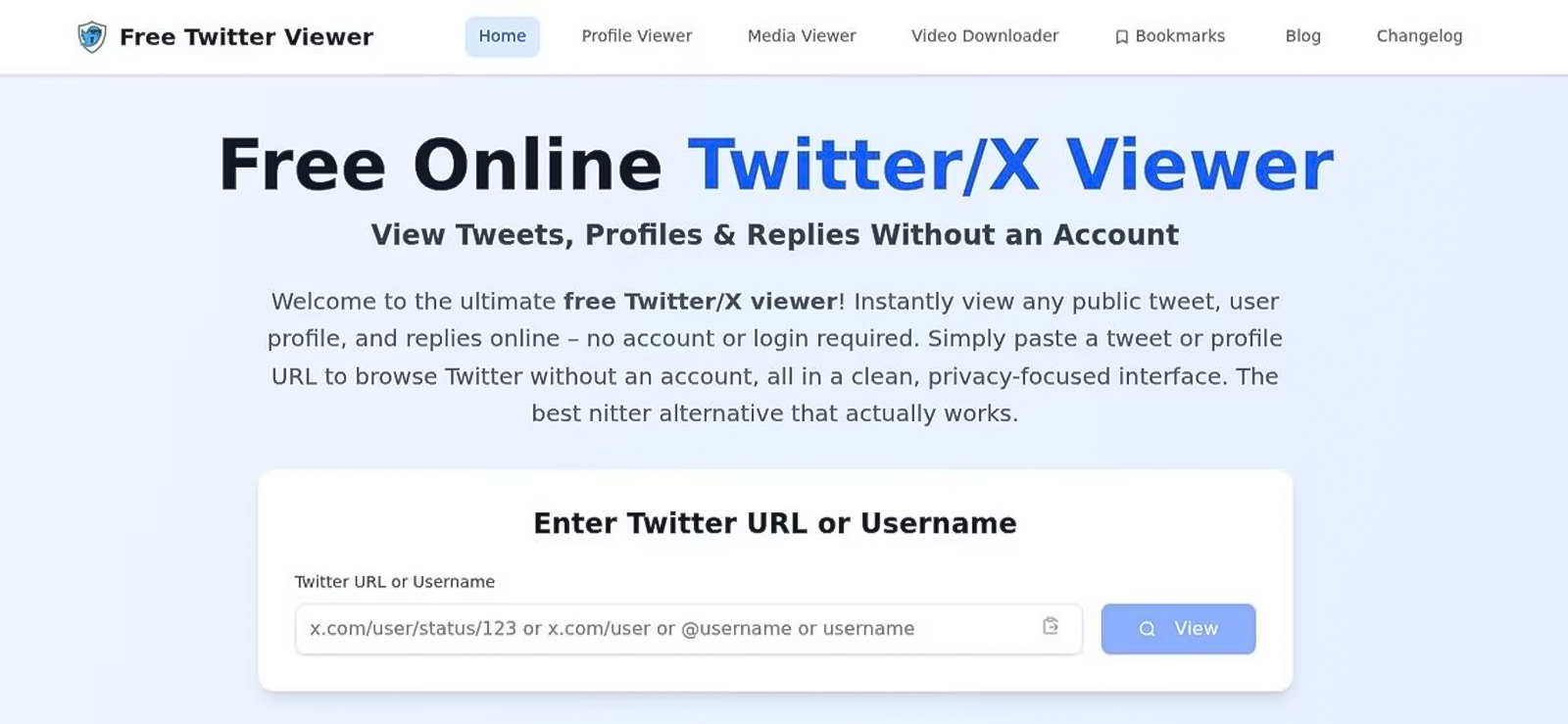
If you don’t want to install anything or memorize a URL trick, a free Twitter/X viewer tool is worth trying next. It’s built specifically to let you look up a profile or tweet without ever hitting X’s login screen, which makes it one of the simplest options on this list for a quick, one-off search.
These tools work simply: you type in a username or keyword, and the tool pulls matching public tweets and profile info from X and displays them on its own page. There’s no account to create and, usually, no ads or tracking getting in the way.
Here’s how to look at Twitter without an account through X viewer tools:
- Open your browser and search for a free Twitter/X viewer tool.
- Visit the tool’s website.
- Enter an X username or a relevant keyword in its search bar.
- Browse the results; this typically includes public tweets, images, replies, and media.
To keep this test realistic and repeatable, I used a free Twitter/X viewer tool for all trials rather than mixing several services.
How the Testing Went
I ran 10 test attempts on the Free Twitter/X Viewer tool across the iPhone (Safari) and the Samsung Galaxy (Chrome), searching a mix of public usernames and keywords each time.
7 out of 10 attempts loaded the profile or tweet results without hitting a login prompt. 3 attempts failed because a slightly misspelled username pulled up a completely different, unrelated profile instead of an error or a “not found” message. This can be a real problem if you don’t already know someone’s exact handle, since the tool won’t tell you that you typed it wrong; it just shows you the wrong person’s tweets.
Even on successful loads, the tool only pulls from publicly available profiles, so protected accounts stayed completely inaccessible, as expected. More importantly, because these tools depend on X’s infrastructure and are frequently affected by API restrictions, their availability isn’t guaranteed day-to-day; a tool that works fine today may be rate-limited or offline tomorrow, so it’s not something to rely on for consistent access.
3. Replace X.com with xcancel.com

If you already have a specific tweet or profile link in hand and just want to read it without any extra steps, this is the fastest option on the list. There’s nothing to search for and nothing to install; you just change one word in the address bar.
xcancel.com is basically a mirror of X, run by someone other than X itself. It shows the same public tweets, threads, and profiles, just without asking you to log in first. So if you take a normal X link and change “x.com” to “xcancel.com,” the same content opens up right there, no login screen in the way.
This is how to see Twitter without an account:
- Copy the X link you want to view.
- In the address bar, replace x.com with xcancel.com, keeping the rest of the URL unchanged.
- Press Enter to load the page on xcancel’s interface.
- Read the tweet, thread, or profile timeline without being prompted to log in.
How the Testing Went
I tested this separately on each of the three devices to rule out platform-specific issues, swapping the domain on the same set of 10 links (a mix of single-tweet links and full profile URLs from public accounts) each time.
On the iPhone, all 10 links loaded cleanly with no login prompt, and tweet text, images, and reply counts displayed correctly. Switching over to the Samsung Galaxy in Chrome, the same 10 links loaded just as successfully, with load times and layout matching what I’d seen on the iPhone. Finally, on the Windows laptop, I ran the same 10 links across Chrome, and all of them loaded successfully too, with no login prompts across the full 20 page loads.
Two things are worth flagging despite the clean results above. First, this method only works if you already have a profile URL or a direct tweet/status link in hand; if you only know someone’s name or a rough handle and can’t pin down the exact link, there’s no search bar to fall back on, so this method hits a wall fast for anyone who isn’t comfortable finding and editing a URL by hand.
Second, the interface is strictly read-only in a way that goes beyond just not being able to post: you can’t click into likes, quotes, or comments on any tweet either. You can view the tweet itself and scroll the profile, and that’s the extent of it.

Did You Know?
You can view someone’s incognito history on their Android without alerting the user.

4. Use Google Search Operators for Twitter Results
Not every situation starts with a link. Sometimes all you have is a name or a vague memory of a tweet you saw once and want to track down again, and that’s a gap none of the previous methods really cover.
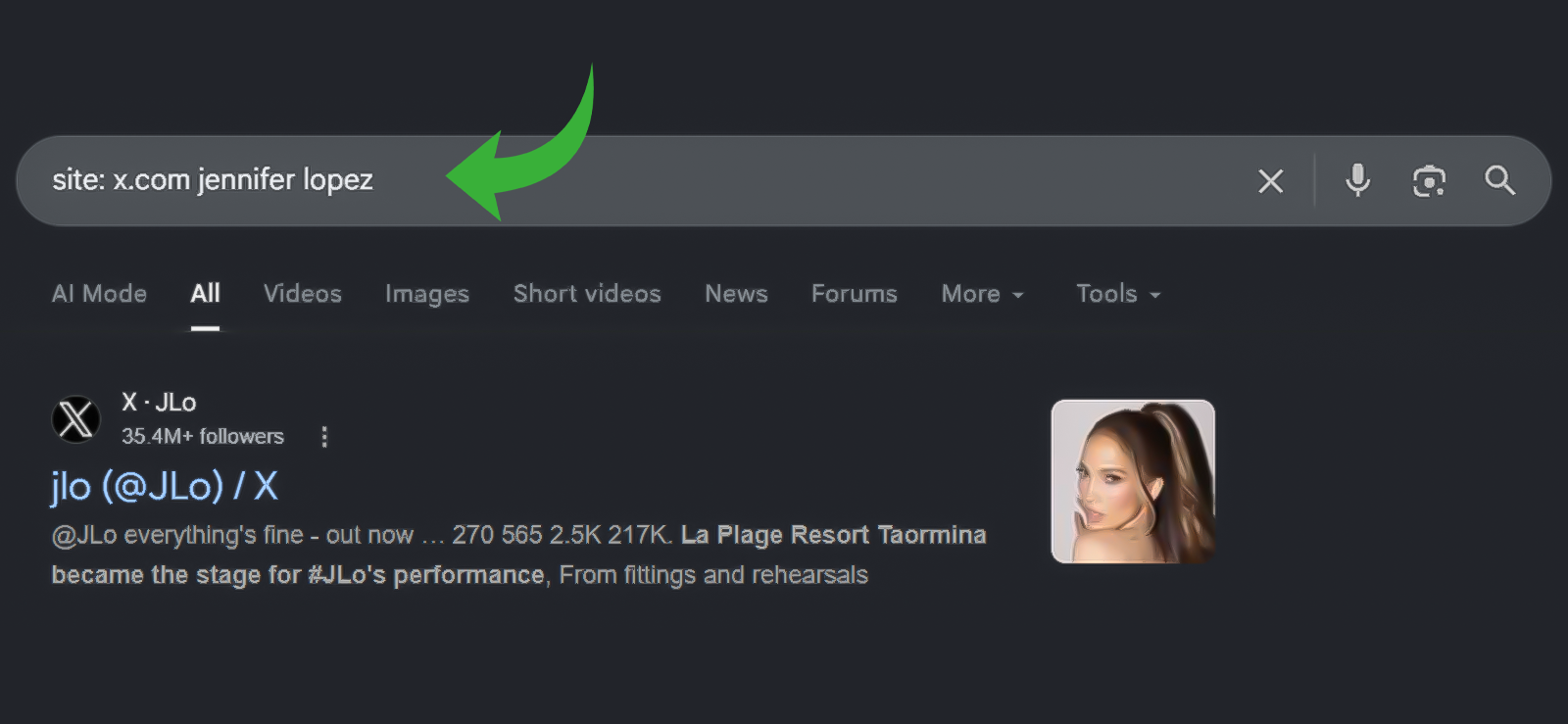
This is where Google comes in. Since X’s own search bar is mostly locked behind a login now, you can use Google’s search operators as a workaround instead. Typing site:x.com followed by a keyword tells Google to only show results from X’s site, pulled from pages Google has already crawled and indexed, so you are searching Google’s copy of the public content rather than X’s live database.
Here’s how to view X without an account using this method:
- Open Google in any web browser.
- In the search bar, type site:x.com followed by a username.
- Press Enter to see indexed tweets and related X pages.
- Click a result to view the public content directly on X or through the cached snippet.
How the Testing Went
I ran 10 searches using this method across a mix of usernames and keywords, checking whether the results were current and in order. On iPhone Safari, all 10 searches returned results, and the pattern held on the Samsung Galaxy in Chrome as well when I repeated the same 10 searches there, so this wasn’t a device-specific quirk.
All 10 searches returned some results, so the method didn’t outright fail. But the content freshness was the real problem: on one profile search, the first page of results showed a tweet from 2022 immediately followed by one from 2025, with no consistent chronological order in between. In another search, the top result was over a year old despite the account having posted that same day.
However, this does work as a Twitter viewer without account because you can browse and read what comes up, but this method does not reliably surface the latest tweets, and there’s no organized date ordering to the results, so you can’t treat it as a live or current view of someone’s activity. It’s better suited to digging up an old tweet you vaguely remember than checking what someone posted recently.
5. Visiting Public Profiles Directly via URL
Sometimes the simplest option is the right one, and this is about as simple as it gets: no viewer tool, no domain swap, no search engine detour, just X’s own site.
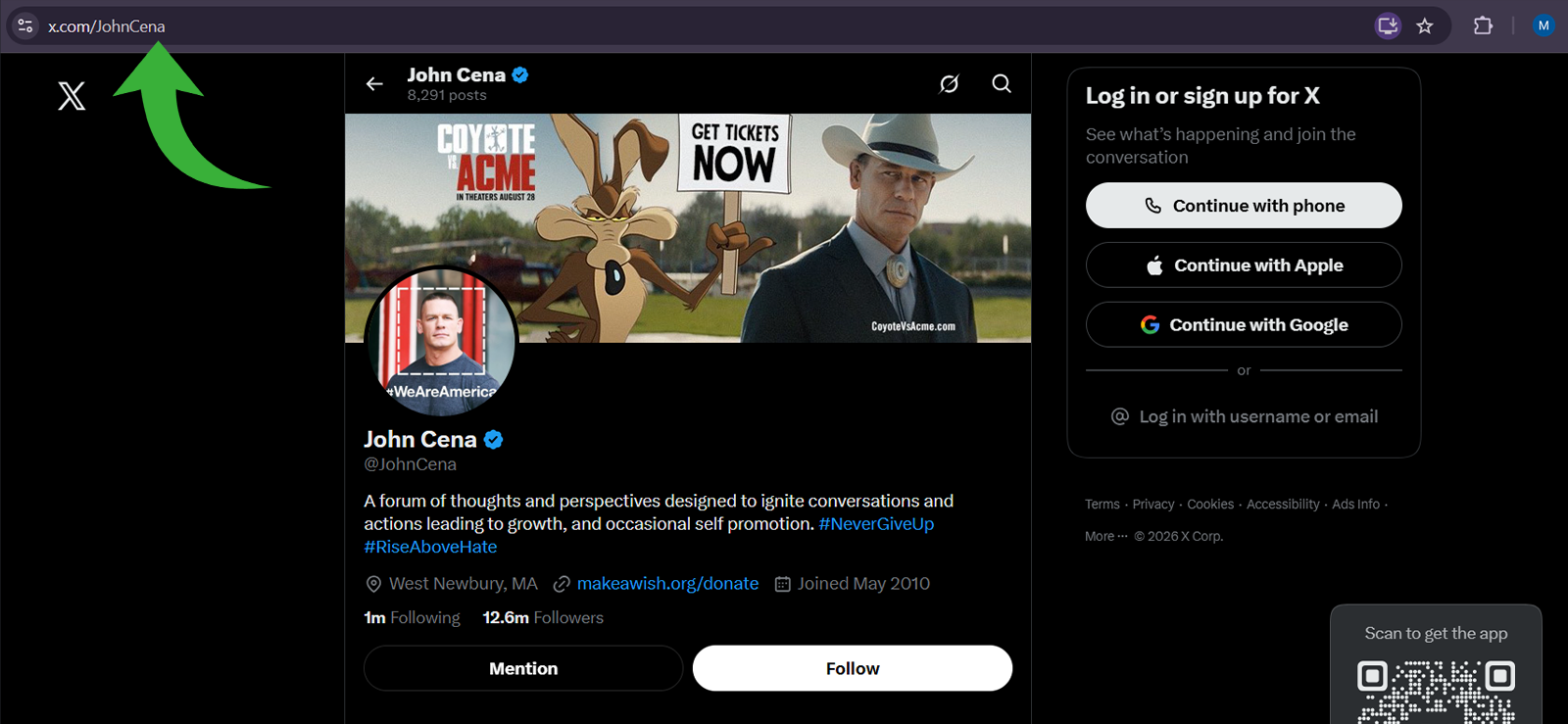
Every public X profile lives at a predictable web address, x.com followed by the person’s exact username. Typing that address straight into your browser takes you to the real profile page on X’s actual site, not a mirror or a third-party copy, so whatever loads is exactly what X is serving up for that account.
Follow these steps to know how to view X without an account:
- Open the web browser on your computer or mobile device.
- In the address bar, type x.com/username, replacing “username” with the exact X handle you want to view.
- Press Enter to open the profile.
- Scroll through public tweets and shared media.
How the Testing Went
I tested this 10 times across all three devices: iPhone, Android, and a Windows laptop on public profiles. The profile itself opened successfully in all 10 attempts; the bio, header image, pinned tweet, and the first batch of tweets all loaded without needing a login.
The real problem showed up right after that. On almost all of the attempts, a full-screen pop-up prompting me to download the X app appeared almost immediately after the first scroll.
I could dismiss it once by tapping the X or “Not now” button, but on each attempt, the same pop-up reappeared and could not be dismissed a second time; it stayed locked on screen, blocking the rest of the page. The only way past it, without downloading the app or creating an account, was to close the tab and reopen the profile URL fresh, which reset the pop-up but also reset my scroll position.
So as a Twitter viewer without account access, this method is reliable for a quick look at the top of a public profile, but it’s not practical for scrolling through someone’s timeline in any depth.
FAQs
How to view Twitter without an account?
You can still view public profiles by visiting the direct URL (x.com/username), swapping x.com for xcancel.com in the link, or using a free X viewer tool. All three work for public accounts, though X’s login wall tends to appear after a scroll or two, so expect a short, interruption-prone browsing session rather than full access.
Is there a free Twitter (X) viewer that doesn’t require login?
Yes. Free X viewer tools and xcancel.com both let you read public tweets, profiles, and media without creating an account or logging in. In testing, xcancel.com was the more consistent option, while general viewer tools were more likely to hit rate limits or downtime depending on the day.
Can I see someone’s tweets or DMs without them knowing?
Public tweets can be viewed anonymously through any of the methods above, since X does not notify users when someone views their public profile while logged out. Direct messages and protected-account content are a different story; those are private by design and can’t be accessed through a viewer tool or URL trick. Xnspy is built for this kind of visibility, but it requires installation on the target device with proper authorization, not a login workaround.
Why does X keep asking me to log in even to see public tweets?
X applies guest-access limits that restrict how much content you can view before showing a login prompt, and these limits have gotten stricter and less predictable since 2023. The wall can trigger after a single scroll, a second profile visit, or a handful of link clicks in the same session, and it can vary by device, browser, and even time of day.
Is there a private Twitter viewer that lets me see a protected X account without following it?
You can’t use a private Twitter viewer to see protected tweets, and that’s by design. Protected accounts are visible only to approved followers once you are logged in; no viewer tool, mirror site, or URL trick bypasses this because it’s enforced on X’s servers rather than in your browser. The only legitimate paths are sending a follow request and waiting for approval, or using a monitoring tool like Xnspy on a device you’re authorized to monitor.
Xnspy: Smart Monitoring Made Invisible
Know who they talk to, what they search, and where they go.
Leave a reply:
Your email address will not be published. Required fields are marked*

Mike Everett
Member since October 20, 2014
Mike Everett
Member since October 20, 2014
Mike Everett is a consumer technology journalist with expertise in hands-on testing and evaluation of iOS and Android monitoring applications. With over 11 years in the industry, he focuses on how mobile monitoring tools perform in real-world conditions, including accuracy, feature reliability, device compatibility, and practical usability for parents.
He conducts live-device testing of monitoring apps to assess how well their features function beyond marketing claims. His work primarily includes comparative reviews, feature breakdowns, and buyer-focused guides designed to help parents understand which tools actually deliver usable results in everyday scenarios.