
The complete monitoring experience for your phone
Get XNSPY and start tracking calls, texts, multimedia, locations and more on any phone!
Get Started Now Live DemoNo, Facebook does not notify screenshots except for one specific case: screenshotting Disappearing Messages (Vanish Mode) in Messenger, which does alert the other person.
Everything else on the platform- posts, Stories, profiles, photos, Dating, and regular Messenger chats is completely silent. If you have ever hesitated before capturing something on Facebook because you were not sure whether the other person would find out, this guide settles it.
Below is a section-by-section breakdown of how Facebook handles screenshots across Stories, profiles, posts, Messenger, Dating, and photos. It also covers five screenshot methods tested on real devices and concludes with a section for parents who need ongoing visibility rather than a one-time capture.
Before You Scroll: Here’s the Full Picture in 30 Seconds
- Posts, Stories, and ordinary photos: Facebook does not send screenshot notifications. Privacy settings may limit who can view the content, but authorized viewers are not reported for capturing it.
- Profiles: Facebook does not reveal profile screenshots. However, locked profiles restrict what non-friends can access, while Profile Picture Guard may block screenshots of protected profile photos.
- Messenger regular chats: No screenshot notification applies to standard messages, group conversations, or permanently shared photos and videos.
- Messenger Disappearing Messages: Messenger may notify participants when it detects a screenshot of disappearing content in an end-to-end encrypted chat.
- Facebook Dating: It does not notify users about screenshots, although screenshots may be blocked on certain Android devices or app versions.
- Five screenshot methods tested: Accessibility shortcut, standard button combo, Back Tap (iPhone), hand gesture (Android), and desktop screen-capture tool.
- Xnspy: Captures Facebook activity every 5 seconds and uploads it to a parent dashboard without notifying the device owner.
Does Facebook Notify of Screenshots?
No, Facebook generally does not notify someone when you take a screenshot. In most situations, the platform does not send an alert or show who captured the screen.
However, this should not be confused with Facebook’s privacy and content-protection features. A locked account or restricted audience may limit what you can view or, on some supported devices, prevent a screenshot from being taken. These controls restrict access, which means they do not normally notify the account owner that a screenshot was attempted.
The main exception involves certain temporary content in end-to-end encrypted Messenger conversations. So, the general rule is simple: Facebook usually does not notify users about screenshots, but specific Messenger and content-protection features can behave differently.
More Helpful Blogs for You

⛲  How to See If Someone Has a Secret Facebook Account: 5 Best Ways
⚡  Does Telegram Notify Screenshots: Myth vs. Reality
☘️  How to Find Hidden Social Media Accounts: 7 Ways
Does Facebook Notify Screenshots on Stories?
No. Facebook does not notify someone when you screenshot their Story.
The person who posted it will not see a screenshot icon or find your name marked differently in their viewer list.
However, privacy settings can still determine whether you are able to view the Story. A user may limit it to friends, selected people, or a custom audience, while a locked profile can restrict Story access for non-friends. But once you are authorized to view the Story, taking a screenshot does not trigger a notification.
Does Facebook Show Screenshots of Profiles?
No. Facebook does not notify a user that you took a screenshot of their profile.
What you are able to capture depends on the profile’s privacy settings. A locked profile shows non-friends only a limited view and prevents them from accessing full-resolution profile and cover photos, Stories, and most profile content.
Similarly, Friends-only or custom audience settings hide restricted posts and photos from unauthorized viewers.
Profile Picture Guard adds another layer of protection, where Facebook may block screenshots of a guarded profile picture.
Locked profiles and other privacy controls can also limit what someone is able to view or capture. These features are designed to reduce unauthorized access, but they do not send the profile owner a notification if someone attempts to take a screenshot.
In other words, Facebook does not report profile screenshots, but locked profiles, audience restrictions, and Profile Picture Guard can limit or block access to certain content.
Can People See if You Screenshot a Facebook Post?
No. Facebook does not notify someone when you take a screenshot of their post. The author will not receive an alert or be shown who captured it.
Worth noticing that a post’s privacy setting only determines who can view it. Public posts are visible to anyone, while Friends-only, custom-audience, group, and locked-profile posts may be hidden from people who do not have access. Once a post is visible on your screen, Facebook does not normally prevent or report a screenshot.
The same rule applies to text updates, shared links, photos, comments, and posts displayed in the News Feed. Screenshot alerts for certain disappearing Messenger content do not apply to ordinary Facebook posts.
Does Facebook Messenger Notify Screenshots?
It depends on which type of conversation you are in.
Regular Messenger chats: No notification. This covers one-on-one messages, group chats, and any photos or videos shared inside them.
Disappearing Messages (Vanish Mode): Yes. This is the one exception on all of Facebook. When disappearing messages are enabled in a Messenger chat, both users get an alert any time one of them takes a screenshot.
Mark Zuckerberg announced this feature in January 2022. To enable it, open a Messenger chat, tap the person’s name at the top, select “Disappearing messages,” and choose a timer. From that point on, screenshots in that chat notify both participants.
Does Facebook Dating Notify Screenshots?
No. Facebook Dating does not notify someone when you screenshot their Dating profile, photos, prompts, match details, or regular Dating conversation. Secret Crush also does not reveal screenshots; its notifications relate only to crushes and mutual matches.
One complication is that Facebook Dating may block screenshot attempts on some Android devices or app versions. In that case, you may see a blank screen. This is a screenshot restriction, not an alert, so the other person is not told that you attempted it.
Screenshot availability may differ on iPhone and can change after app or operating-system updates.
Dating conversations are separate from Messenger chats. However, if you move the conversation to Messenger, Messenger’s own rules apply.
So, Facebook Dating itself does not currently report screenshots, although your device may prevent certain captures.
Does Facebook Notify Screenshots of Pictures?
No. Facebook does not notify someone when you screenshot an ordinary picture they have uploaded or shared. The owner will not receive an alert or see who captured the image.
Privacy settings affect access rather than notifications. Photos shared with friends, custom audiences, private groups, or through a locked profile may be unavailable to people outside the permitted audience. A locked profile also prevents non-friends from viewing full-resolution profile and cover photos.
Profile Picture Guard is a notable exception to normal screenshot behavior. Facebook may block screenshots of a guarded profile picture, but even then, the owner is not notified about the attempt.
Pictures sent through Messenger may follow different rules. Screenshots of regular photos do not generate alerts, but Messenger may notify participants when it detects a screenshot of disappearing content in an end-to-end encrypted conversation.

Every Conversation Leaves a Trail. Xnspy Helps You Follow It
No matter how fast they delete it, Xnspy has already saved it.
– Captures their screen every 5 seconds
– Builds a timestamped record of every chat and post
– Gives you a full picture from one dashboard
How to Take a Screenshot on Facebook: 5 Methods That Are Guaranteed to Work
Taking a screenshot on Facebook sounds simple until you are mid-scroll and the moment disappears.
The right method depends on your device, what you are trying to capture, and how quickly you need to act. The five methods below cover all possible scenarios: phone, tablet, and desktop, and each one was tested on real devices across real Facebook content before making this list.
How I Tested Every Method to Screenshot on Facebook
I tested each screenshot method five times across a Samsung Galaxy, a OnePlus, and an iPhone. This gave me a mix of Android and iOS devices with different button layouts, gesture controls, and screenshot settings.
Each run used a different type of Facebook content: a feed post, a Story, a Messenger conversation, a profile page, and a Facebook Dating profile. I waited for each screen to load fully, positioned the content, triggered the screenshot, and checked the result immediately in the gallery. Repeating the process helped me identify methods that worked consistently rather than only under ideal conditions.
For desktop testing, I used Facebook on Chrome and Opera in Windows and Safari on Mac. I checked both built-in system shortcuts and browser-based capture options where available.
I evaluated every method using four practical criteria:
- Consistency: I recorded how often the method worked on the first attempt across all five runs. Methods that required precise timing or several retries were rated as less reliable.
- Speed: I tracked the time between triggering the capture and seeing the saved image in the gallery. This was especially important for temporary content such as Stories.
- Quality: I reviewed each screenshot for resolution, sharpness, cropping, visible controls, notification banners, and other interruptions. A successful capture needed to preserve the intended content clearly.
- Friction: I considered how much setup each method required and whether that setup remained active afterward. Methods that needed repeated permission changes or menu navigation added more friction.
I also noted method-specific issues such as accidental volume changes, missed button combinations, gesture conflicts, delayed saves, and floating controls covering part of the screen.
Here is the full picture across all five methods before we get into the steps for each.
| Method | Device | Speed | Notifies Facebook | Best For |
| Accessibility Shortcut | iOS & Android | Instant | Only Vanish Mode | Quick captures without button combos |
| Standard Button Combo | iOS & Android | Instant | Only Vanish Mode | Everyday use |
| Back Tap | iPhone only | Instant | Only Vanish Mode | One-handed scrolling |
| Hand Gesture | Android only | Instant | Only Vanish Mode | Captures without buttons |
| Desktop Screen-Capture Tool | Windows/Mac | 2–3 sec | Only Vanish Mode | Desktop and research use |
1. Use an On-Screen Accessibility Shortcut
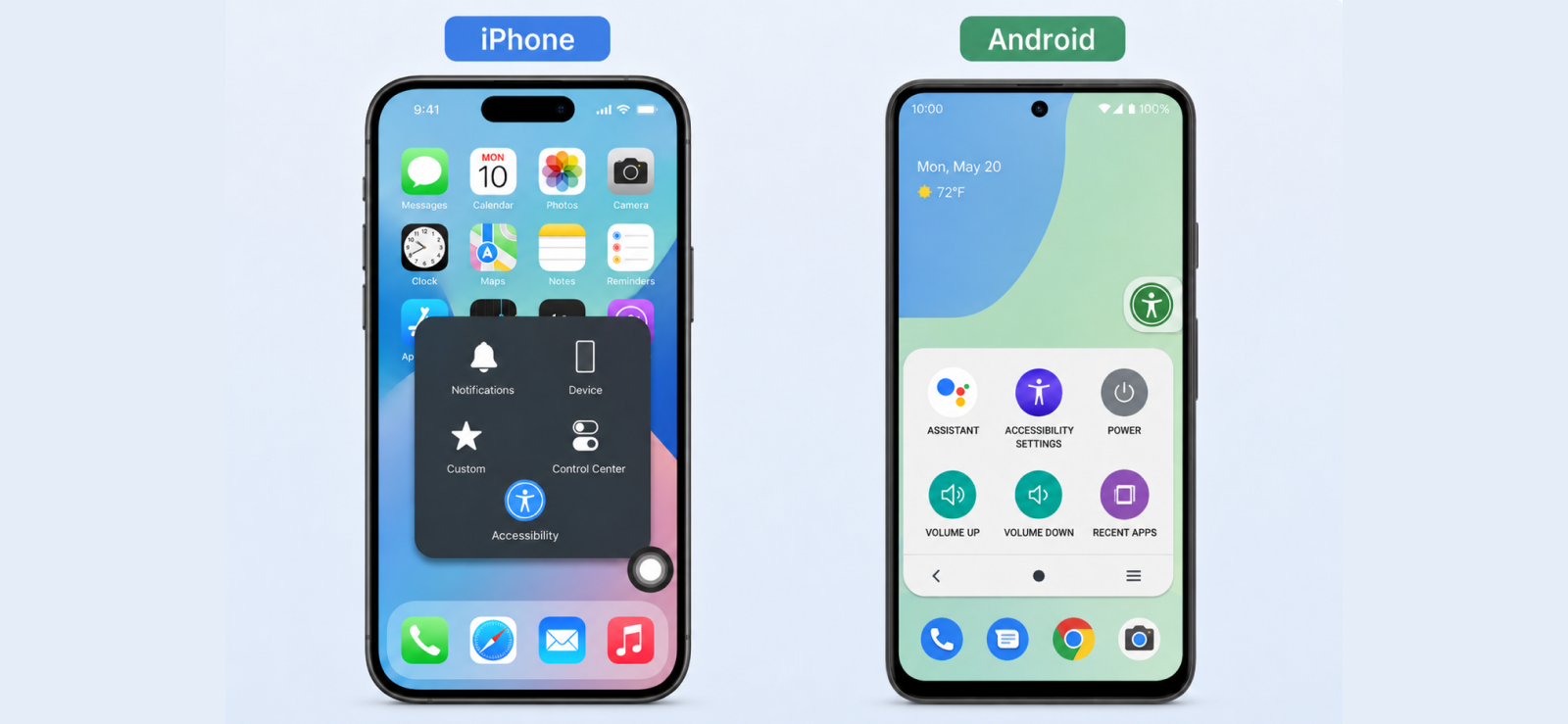
Both Android and iPhone have a built-in accessibility shortcut that puts a floating button directly on your screen.
On Android, it is called the Accessibility Menu. On iPhone, it is AssistiveTouch.
Either way, the result is the same: a visible on-screen control you can tap at any moment to take a screenshot without pressing a single hardware button. It is particularly useful when your volume or power buttons are worn out, hard to reach, or when you simply want to avoid fumbling for the right combination mid-scroll.
How to set it up on Android:
- Open Settings and go to Accessibility.
- Tap the Accessibility Menu and switch the toggle on.
- A floating square icon will appear on the edge of your screen.
- Open Facebook and navigate to the content you want to capture.
- Tap the floating icon and select Screenshot from the menu.
- The image saves automatically to your Gallery.
How to set it up on iPhone:
- Open Settings and tap Accessibility, then Touch.
- Tap AssistiveTouch and turn it on.
- A semi-transparent floating button appears on your screen.
- Open Facebook and go to the content you want to capture.
- Tap the floating button, then tap Device, then Screenshot.
- The screenshot saves to your Photos app.
My Testing Experience
Across the Samsung Galaxy and OnePlus, the Accessibility Menu icon sat cleanly on the edge of the screen most of the time. The problem showed up when Facebook’s interface used a light background; the icon blended in enough that I had to look for it rather than just tap it instinctively.
It was a small thing, but when you are trying to catch a Story before it scrolls away, that half-second search adds up
On iOS, the AssistiveTouch button was always visible and worked consistently across all test tries. One thing that caught my attention was that reaching the screenshot function required two taps: one to open the menu and one to select Device, then a third to actually hit Screenshot.
This extra navigation made taking a screenshot noticeably slower than any button-based method.
The setup itself took under two minutes on both platforms and stayed active across sessions without needing to be re-enabled.
2. Try The Standard Button Combination
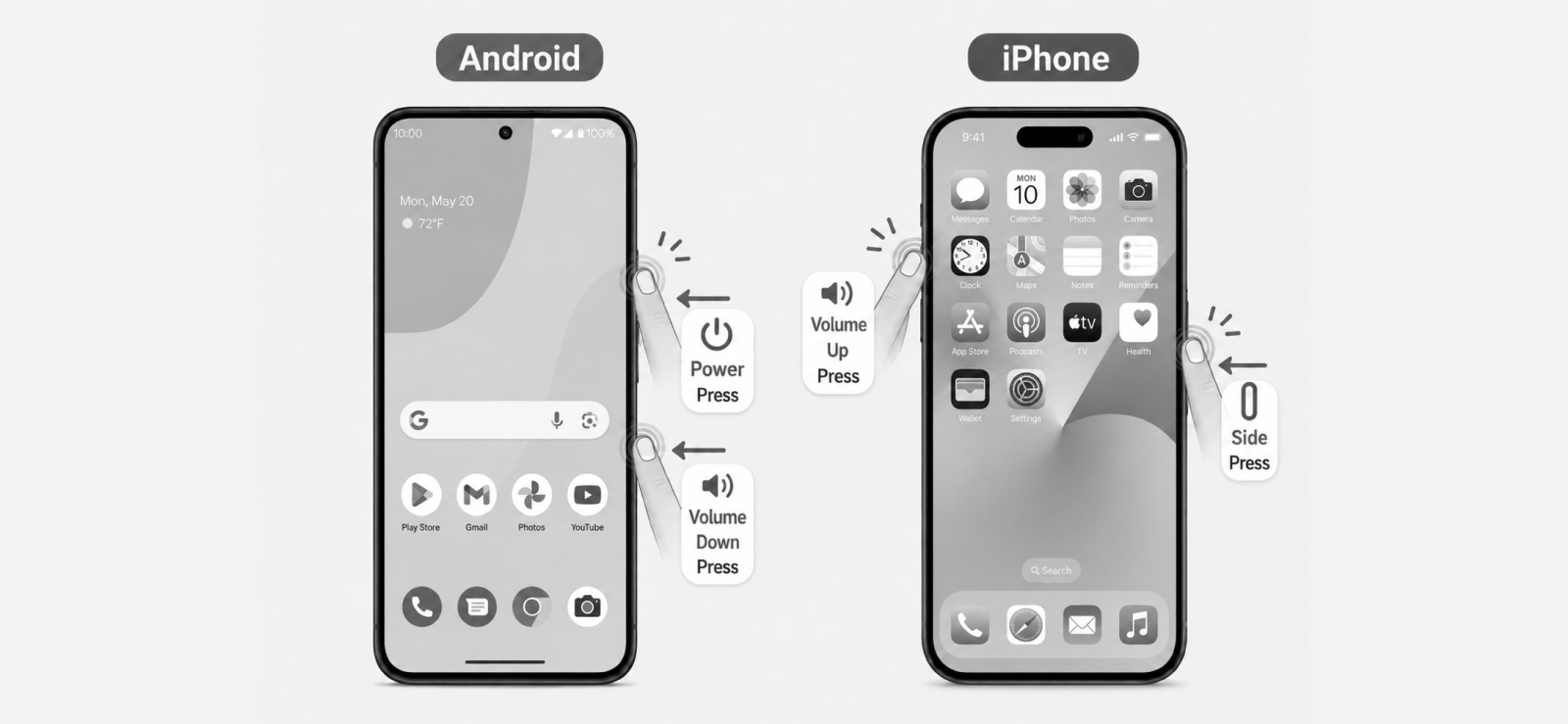
This is the method most people already know and use without thinking about it. Every smartphone ships with a hardware shortcut to take a screenshot, and it works on Facebook the same way it works everywhere else, with no configuration and no extra steps. You press two buttons at the same time, and the screen is captured.
How to do it on Android:
- Open Facebook and navigate to the content you want to capture.
- Press the Power Button and the Volume Down button at the same time.
- Hold for one second until you see the screenshot animation on screen.
- The image saves automatically to your Gallery.
How to do it on iPhone:
- Open Facebook and go to the content you want to capture.
- Press the Side Button on the right edge and the Volume Up button simultaneously.
- A small thumbnail preview appears in the lower-left corner of the screen.
- Tap the thumbnail to edit or swipe it away to save directly to Photos.
My Testing Experience
This was the method I reached for most often during testing because it requires nothing in advance and works the moment you need it. Across the Samsung Galaxy and OnePlus, it was consistent on the first try in most runs.
The issue came down to timing; pressing the two buttons slightly out of sync occasionally registered as a volume change instead of a screenshot, which meant the content was gone before I could try again.
On the Samsung in particular, the volume keys and power button sit close together, which made accidental misses more common when I was holding the phone one-handed.
On the iPhone, the bigger problem was pressing the wrong combination altogether. When I was moving quickly and trying to capture a Facebook Story before it advanced, I pressed the Side Button and Volume Down instead of Volume Up, which on the iPhone brings up the power-off slider.
It only happened once across all five runs, but it was enough to miss that capture entirely. The method is still the most reliable overall, but it rewards deliberate button placement over speed.
3. Capture the Screen With Back Tap on an iPhone
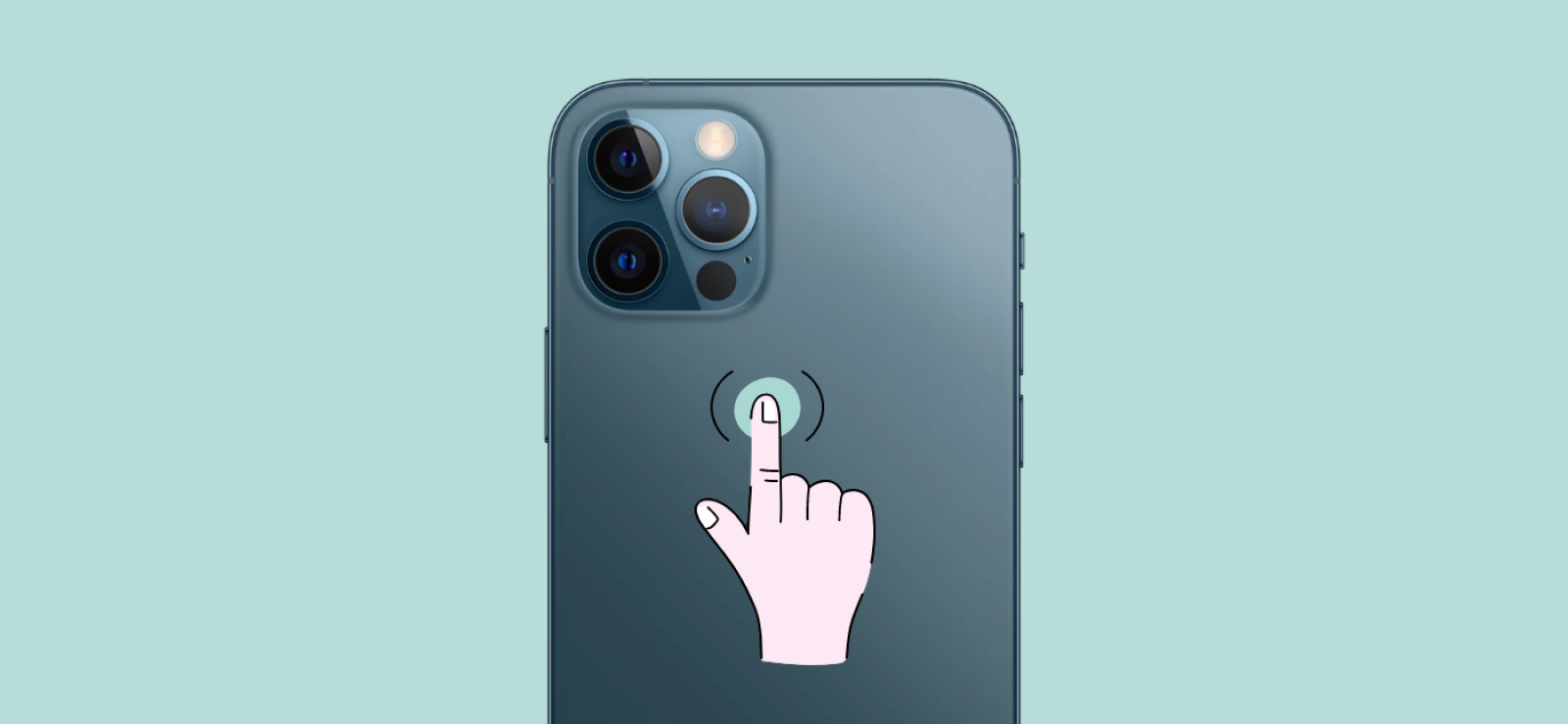
Back Tap is an accessibility feature built into iPhones running iOS 14 and later. It lets you assign an action, including taking a screenshot, to a double-tap or triple-tap on the back of the device.
Once it is set up, you can capture anything on screen with a quick tap against the glass, without pressing any buttons or reaching for any on-screen controls. It sounds like a gimmick, but in practice, it is one of the more natural screenshot methods once you get used to it.
How to set it up:
- Open Settings and go to Accessibility.
- Tap Touch, then scroll down and tap Back Tap.
- Select Double Tap or Triple Tap depending on your preference.
- Choose Screenshot from the list of available actions.
- Open Facebook, navigate to the content you want to capture, and double or triple-tap the back of your iPhone.
- The screenshot saves automatically to your Photos app.
My Testing Experience
I tested back tap on the iPhone 15 Pro Max under two conditions: once with a thin, clear case on and once with a heavier wallet-style case.
Without a case, the gesture picked up almost every time on the first tap, and I only missed it once across five runs when my finger landed too far toward the edge. With the thin case, performance was nearly identical; the small amount of added material did not meaningfully affect sensitivity.
The wallet-style case told a different story. The extra bulk absorbed enough of the tap that the feature missed the gesture more often than it caught it. Wallet-style cases can reduce back tap sensitivity to the point where it becomes unreliable. If you use a case like that, this method will frustrate you more than it helps.
Where Back Tap genuinely earned its place was during one-handed scrolling through Facebook Stories and the feed. I could keep my thumb in position, scroll with it, and tap the back with my index or middle finger without breaking my grip or repositioning the phone. For that specific use case, capturing content quickly while scrolling, it was the most natural feeling method I tested on iPhone.

Did You know?
Instagram does notify of screenshots, but only in one specific situation.

4. Use a Hand Gesture on a Compatible Android Phone
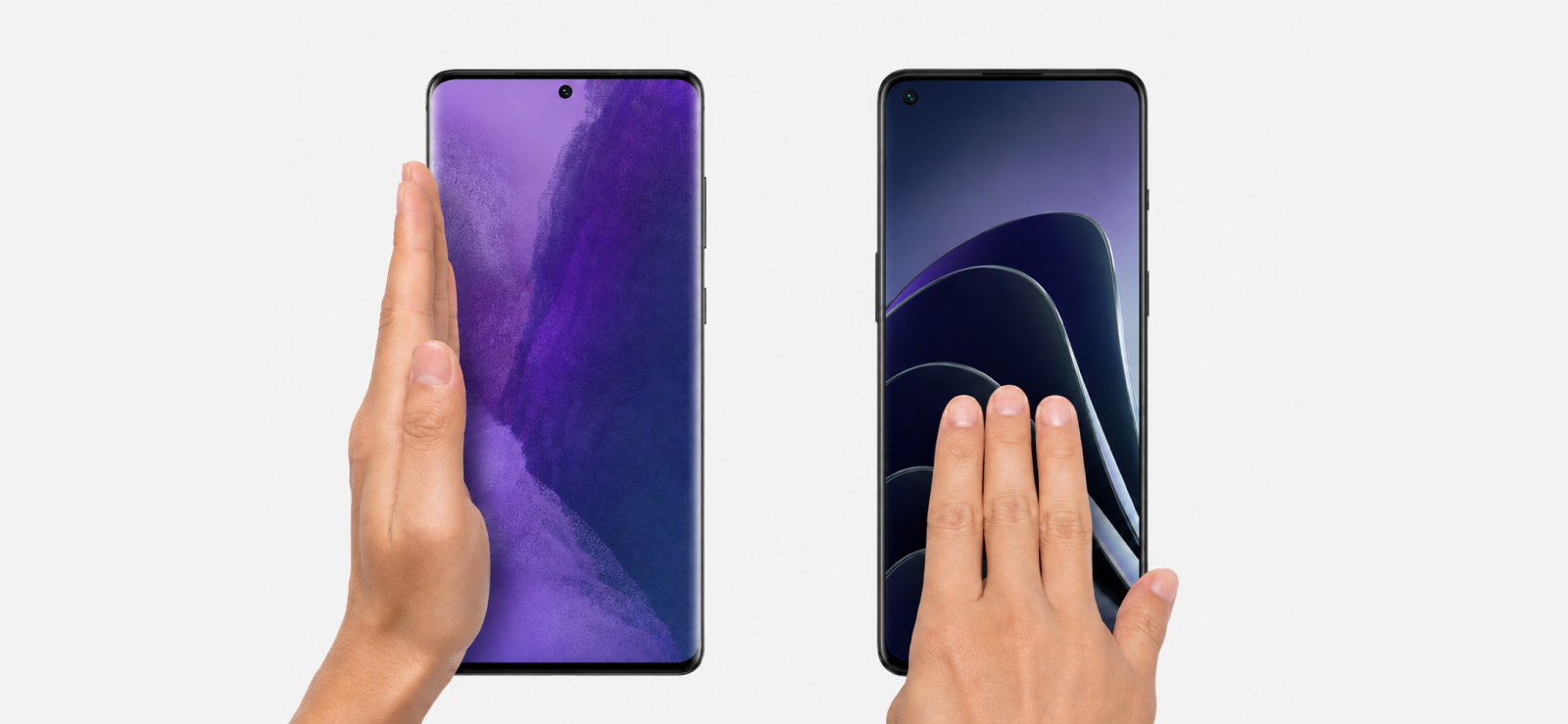
Android manufacturers have built gesture-based screenshot shortcuts into their devices for years, but the exact gesture varies depending on the brand.
On Samsung, the feature is called Palm Swipe to Capture and involves sweeping the side of your hand across the screen. On OnePlus and most other near-stock Android phones, it is a three-finger swipe downward.
Both achieve the same outcome, a screenshot without touching any hardware button, but they are found in different places in settings and feel different to use in practice.
How to set up Palm Swipe on Samsung:
- Open Settings and go to Advanced Features.
- Tap Motions and Gestures.
- Enable the Palm Swipe to Capture toggle.
- Open Facebook and navigate to the content you want to screenshot.
- Place the side of your hand vertically on the screen and swipe it horizontally across in one smooth motion.
- The screenshot saves to your Gallery.
How to set up Three-Finger Swipe on OnePlus:
- Open Settings and tap Additional Settings, then Gestures.
- Enable the Three-Finger Screenshot toggle.
- Open Facebook and navigate to the content you want to capture.
- Place three fingers on the screen and swipe them downward in a single motion.
- The screenshot saves to your Gallery.
My Testing Experience
On the Samsung Galaxy, Palm Swipe worked well when I committed to a deliberate, firm motion. Light swipes did not register at all; the phone either ignored them or scrolled the page instead.
The setting itself took a moment to find the first time, since it sits two levels deep inside an advanced feature rather than in the main display menus where you might expect it.
The three-finger swipe on the OnePlus was noticeably more forgiving. It fired at different speeds and angles without much adjustment on my part, and after a few runs, it became the fastest Android method I used across the entire test. The setup was also more accessible; the Gestures menu on OnePlus surfaces quickly without extra navigation.
Both methods became genuinely useful for capturing Facebook Stories mid-scroll once the motion felt automatic. The hand never had to leave the screen to find a button, which made a real difference when content was moving quickly.
5. Take a Screenshot with a Desktop Screen-Capture Tool
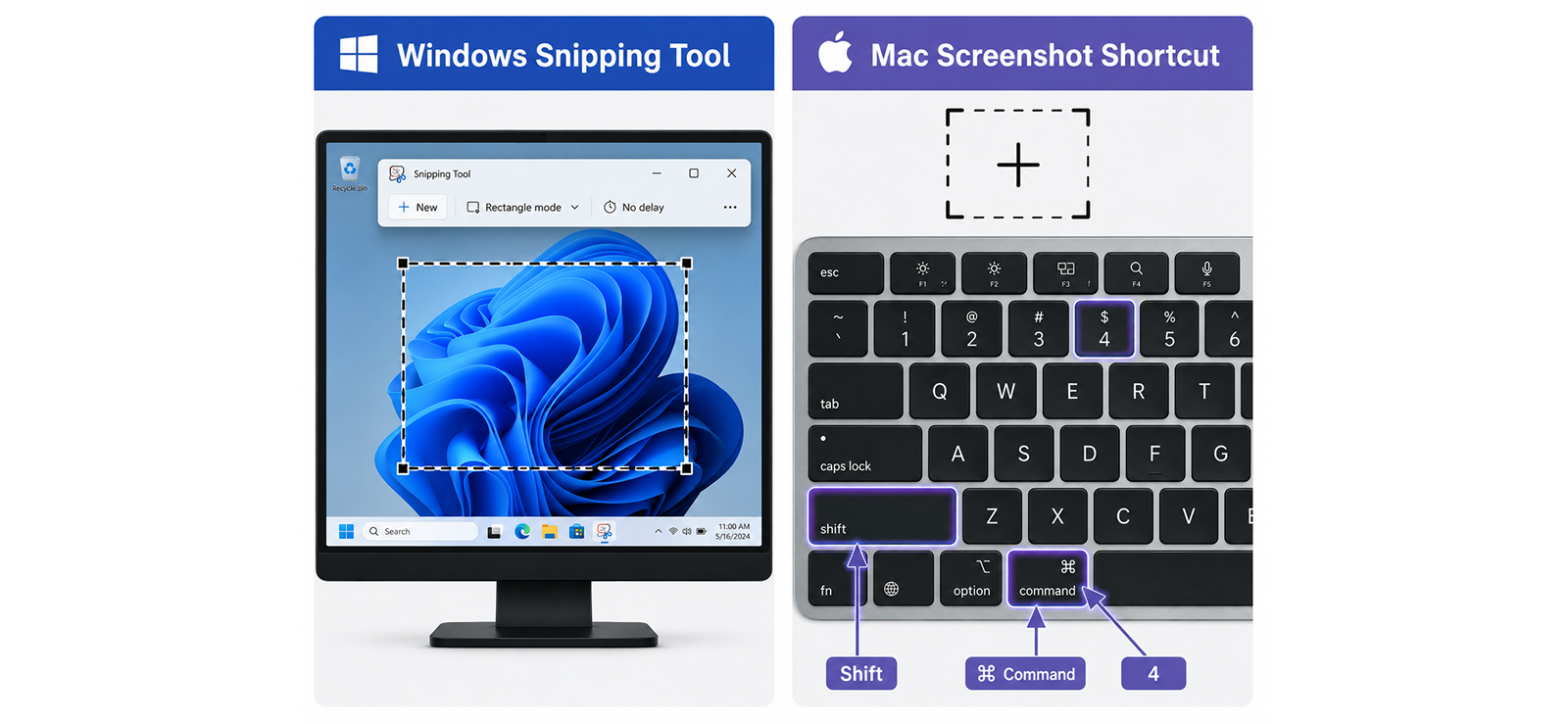
If you are using Facebook through a web browser on a computer, the cleanest approach is the built-in screenshot tool that comes with your operating system. No downloads or extra extensions are required, as Windows and Mac both ship with capable capture tools that work directly on the Facebook web interface.
How to use Windows Snipping Tool:
- Open Facebook in a browser, Chrome, or Opera.
- Navigate to the content you want to capture and let it load fully.
- Press Windows + Shift + S to open the Snipping Tool overlay.
- Your screen will dim slightly. Click and drag to draw a rectangle around the Facebook content you want.
- Release the mouse button. The capture copies to your clipboard and opens in the Snipping Tool editor.
- Click Save in the editor to store the file, or paste it directly from the clipboard into a document or chat.
How to use the Mac Screenshot Shortcut:
- Open Facebook in Safari on your Mac.
- Navigate to the content you want to capture.
- Press Command + Shift + 4. Your cursor changes to a crosshair.
- Click and drag to select the area of the screen containing the Facebook content.
- Release the mouse button. The screenshot saves automatically to your Desktop as a PNG file.
- Alternatively, after pressing Command + Shift + 4, press the Space Bar to switch to window-capture mode. Click on the browser window to capture it cleanly without surrounding desktop clutter.
My Testing Experience
I ran the desktop tests across Chrome and Opera on Windows and Safari on Mac. The Snipping Tool on Windows was consistent across every run but slower than any phone method. The two or three seconds between opening the overlay and saving the file is long enough to miss something if the content is changing.
Saving also required an extra step through the editor, which added friction that none of the phone methods had.
The Mac shortcut was the most polished of the two. The crosshair cursor made it easy to frame exactly the content I wanted, and the automatic save to Desktop meant the file was always easy to locate afterward.
One thing that caught my attention was the browser frame: window-capture mode included the tabs and address bar, so I still had to crop the image when I wanted only the Facebook content.
How Can Parents Screenshot Facebook Activity for Safety Purposes?
For many parents, the concern is not simply what their child posts on Facebook, but whether they will see troubling content before it disappears. Stories expire after 24 hours, disappearing messages may vanish after they are viewed, and posts can be removed almost instantly. In practice, a parent cannot be watching the right screen every time something important appears.
Every method above requires you to already be looking at the right screen at exactly the right moment, which is not how parenting works in practice.
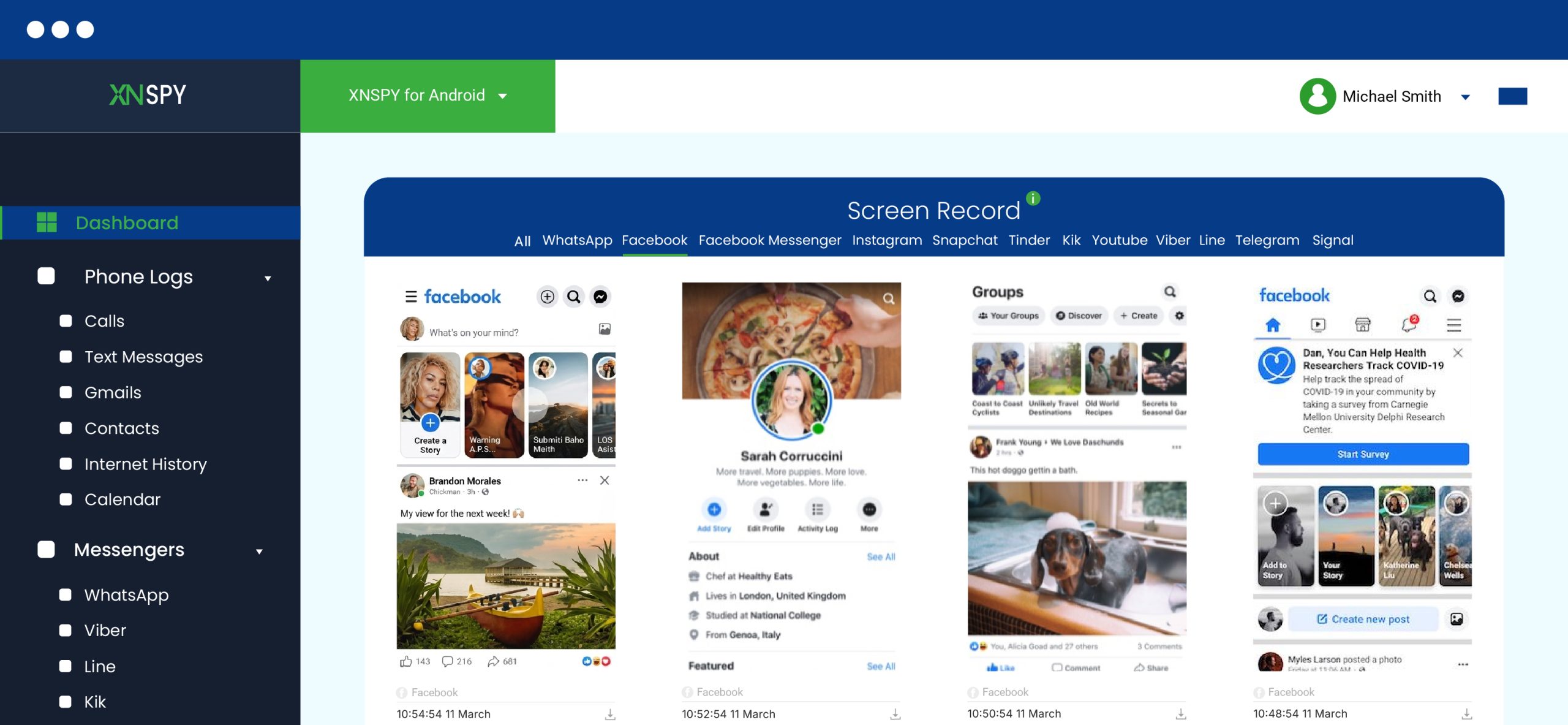
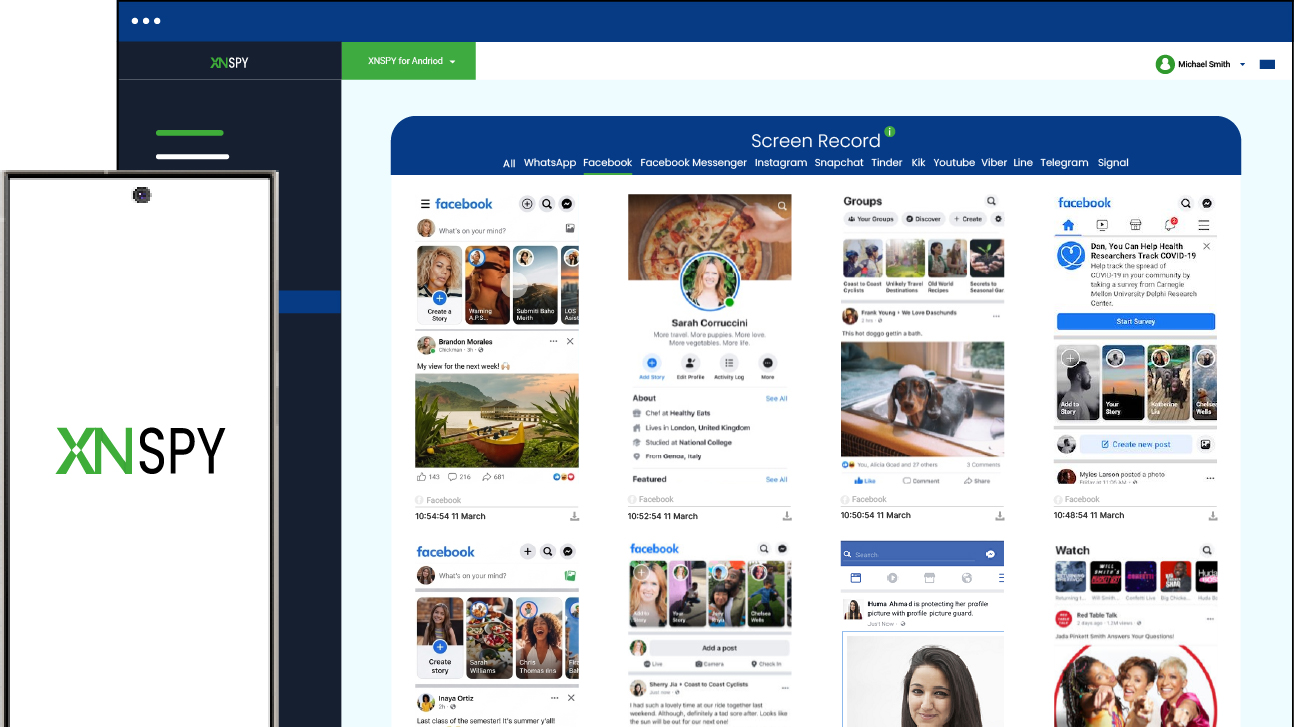
That is where Xnspy comes in. Xnspy is a monitoring tool that runs silently in the background after a one-time installation on the target device. When your child opens Facebook, the screen recording feature automatically captures a screenshot every 5 seconds and uploads it to your web dashboard. Stories viewed, messages opened, posts quickly deleted, all of it is captured without notifying the device owner.
Here’s how you can use Xnspy:
- Visit the Xnspy website and select a subscription plan.
- Get brief physical access to your child’s device and follow the on-screen setup instructions.
- Log in to your Xnspy dashboard from your own phone or computer.
- Open the Screen Record section and filter by Facebook.
- Use the timestamp and date filters to navigate to specific sessions.
My Testing Experience
I tested Xnspy’s screen record feature over 14 days on the Samsung Galaxy, simulating a parent monitoring Facebook activity. I deliberately posted and deleted content within seconds to test the limits of capture. The screenshot taken just before deletion was still visible in the dashboard, gone from Facebook, preserved in the monitoring record.
However, the setup requires physical access to the target device. The dashboard also accumulated a significant volume of screenshots over two weeks, which took time to sort through when looking for something specific. Both are manageable trade-offs for a parent who needs reliable, time-stamped visibility rather than hoping to catch something in the moment.
FAQs
Does Facebook Tell People When You Screenshot Facebook Groups?
No. Facebook does not notify anyone when you screenshot content inside a group’s posts, comments, images, or polls. Group members and admins have no way of knowing a screenshot was taken.
Does Facebook Tell When You Screenshot View-once Media?
Messenger does not have a View Once feature identical to Instagram’s, but Disappearing Messages serves a similar purpose. Screenshotting a disappearing message in an active vanish mode chat will notify the other person. Outside of vanish mode, screenshotting any shared media in Messenger triggers no notification.
Will the Other Person Know if You Screenshot Facebook Highlights?
No. Facebook does not send any notification when you screenshot a Highlight. Even though highlights are built from stories, once saved as a highlight, the content behaves like a standard profile element, and screenshot activity is not tracked.
Does FB Notify Screenshots in Marketplace Listings?
No. Screenshotting a listing item’s photos, price, description, or the seller’s profile does not alert the seller. Marketplace chats are standard Messenger conversations, so those are silent too, unless Disappearing Messages happen to be enabled in a specific chat.
Does Facebook Notify Screen Recording?
No. Facebook does not detect or notify screen recordings for any standard content posts, Stories, Reels, videos, live streams, or Messenger conversations on iPhone, Android, or desktop. The only case where a recording would trigger an alert is if you screen-record inside a Vanish Mode Messenger conversation.
The Conversation They Deleted Is Still Somewhere
Get Xnspy to capture Facebook activity as it happens.
Leave a reply:
Your email address will not be published. Required fields are marked*
Tiffany Ross
Member since October 8, 2025
Tiffany Ross
Member since October 8, 2025
Tiffany Ross is a child digital safety educator and family technology researcher, with an M.Ed. in Learning Technologies, University of Texas at Austin. After graduating in 2016, she has continued to work in the industry for 9 years. During this time, she has focused on practical digital parenting strategies and responsible use of monitoring apps. Moreover, her work includes abuse prevention, healthy screen habits, social media safety, and other key concerns. Over the years, Tiffany has also contributed to more than 200 research-informed guides and family safety resources covering online risks, screen time management, and digital wellbeing practices for modern households.