
The complete monitoring experience for your phone
Get XNSPY and start tracking calls, texts, multimedia, locations and more on any phone!
Get Started Now Live DemoNo, Instagram does not send Instagram screenshot notifications for most content. But there is one exception most people skip over, and it is specific enough that getting it wrong will expose your intent of capturing the screen to the person on the other end.
This guide breaks down exactly when Instagram stays silent and when it does not, covers five screenshot methods tested on real devices, and closes with a section for parents who want ongoing visibility into their kids’ Instagram activity, not just a one-time capture.
Before You Scroll: Here’s Everything Under 60 Seconds
- Posts, Stories, Profiles, Reels, and Highlights: Instagram does not notify anyone when you screenshot them.
- Instagram does send a notification for disappearing messages (Vanish mode), photos, and videos in DMs (Instagram Direct).
- Screen recordings: Same rules apply as screenshots. Disappearing content triggers a notification; everything else does not.
- Instagram doesn’t let you capture screenshots or recordings of Instants and photos and videos sent in View Once mode.
- Five screenshot methods for Instagram: standard buttons (iOS and Android), Back Tap (iPhone only), Three-Finger Swipe (Android only), Windows Snipping Tool, and Mac shortcut.
- Xnspy’s screen record feature automatically captures Instagram activity every 5 seconds without notifying the device owner, useful for parents when they need ongoing visibility rather than a one-time screenshot.
Does Instagram Notify Screenshots?
No. For the vast majority of content on Instagram, no notification is sent when someone takes a screenshot.
The only content that still triggers Instagram screenshot notifications is disappearing content in Instagram Direct (Vanish Mode). This includes disappearing photos and videos.
Outside of disappearing DM content, you can screenshot anything on Instagram as many times as you want, and the account owner will never know.
Selected Guides for You

📷  How to Recover Deleted Instagram Photos: 5 Safe Hacks
💬  How to Read Instagram DM Without Seen: 4 Working Methods
☁️  Does WhatsApp Notify Screenshots: What You Need to Know
⏰  Does iMessage Notify Screenshots: The Clear Answer
Does Instagram Notify When You Screenshot a Story?
No. When it comes to the Instagram Story screenshot notification, the app doesn’t send at all.
This is the question I get most often, and it surprises people because Instagram did briefly test Story screenshot notifications in 2018. That test was pulled before reaching a full rollout, and the feature has never returned. Since then, screenshotting a Story has been completely silent.
Does Instagram Notify When You Screenshot a Post?
No. Instagram does not notify anyone when you screenshot a post.
This applies to single photos, carousels, video posts, and any feed content, whether the account is public, private, or verified. Instagram has never introduced screenshot notifications for posts, and there is no indication that it is changing.
The behavior remains consistent throughout the app use, whether the target account is private, public, or even verified.
Can People See When You Screenshot on Instagram Instants?
Instagram blocks the attempt entirely.
When you try to screenshot an Instagram Instant, your device displays a “Can’t take a screenshot of this page” message, and the capture does not take place. Screen recording produces a black screen where the content should be.
This is a system-level block, not a notification. Instagram does not let the screenshot happen, so there is nothing to alert the other person about.
Moreover, since Instants are not available on Instagram’s web version, you cannot take a screenshot there as well.
How to Screenshot on Instagram: 5 Tested Methods
Taking a screenshot on Instagram is straightforward, but the right method depends on your device and what you are trying to capture.
How I Tested Each Screenshot Method
Testing screenshot methods is a different exercise from testing notification behavior. Here, I was not watching for something to happen; I was executing each method repeatedly, measuring how reliably it worked, where it created friction, and whether any method produced noticeably different output quality compared to the others.
I ran each method at least six times across an iPhone (latest iOS), Samsung Galaxy, and the Nothing Phone (having the latest Android), using multiple Instagram content types: feed posts, Stories, DMs, and Reels. For desktop methods, I used the Instagram web app on both Windows and Mac.
Here is what I tracked for each method:
- Trigger reliability: Whether the method fired correctly on the first attempt or required multiple tries.
- Output quality: Whether the resulting screenshot was full resolution, cropped correctly, and free of UI artifacts like notification banners.
- Speed: How quickly the capture is completed from gesture to saved file.
- Set up friction: Whether any configuration was required before the method could be used.
- Platform-specific behavior: Whether the method behaved differently on different phones.
Below is a summary of all five methods I tested, followed by full steps and my outcome for each.
| Method | Device | Speed | Hands-Free | Notifies Instagram | Best For |
| Standard Buttons | iOS & Android | Instant | No | Only disappearing content | Everyday captures |
| Back Tap | iPhone only | Instant | No | Only disappearing content | One-handed use |
| Three-Finger Swipe | Android only | Instant | No | Only disappearing content | Quick gesture captures |
| Windows Snipping Tool | Windows PC | 2–3 seconds | No | Only disappearing content | Desktop or emulator captures |
| Mac Screenshot Shortcut | Mac only | Instant | No | Only disappearing content | Desktop or emulator captures |
1. Standard Buttons
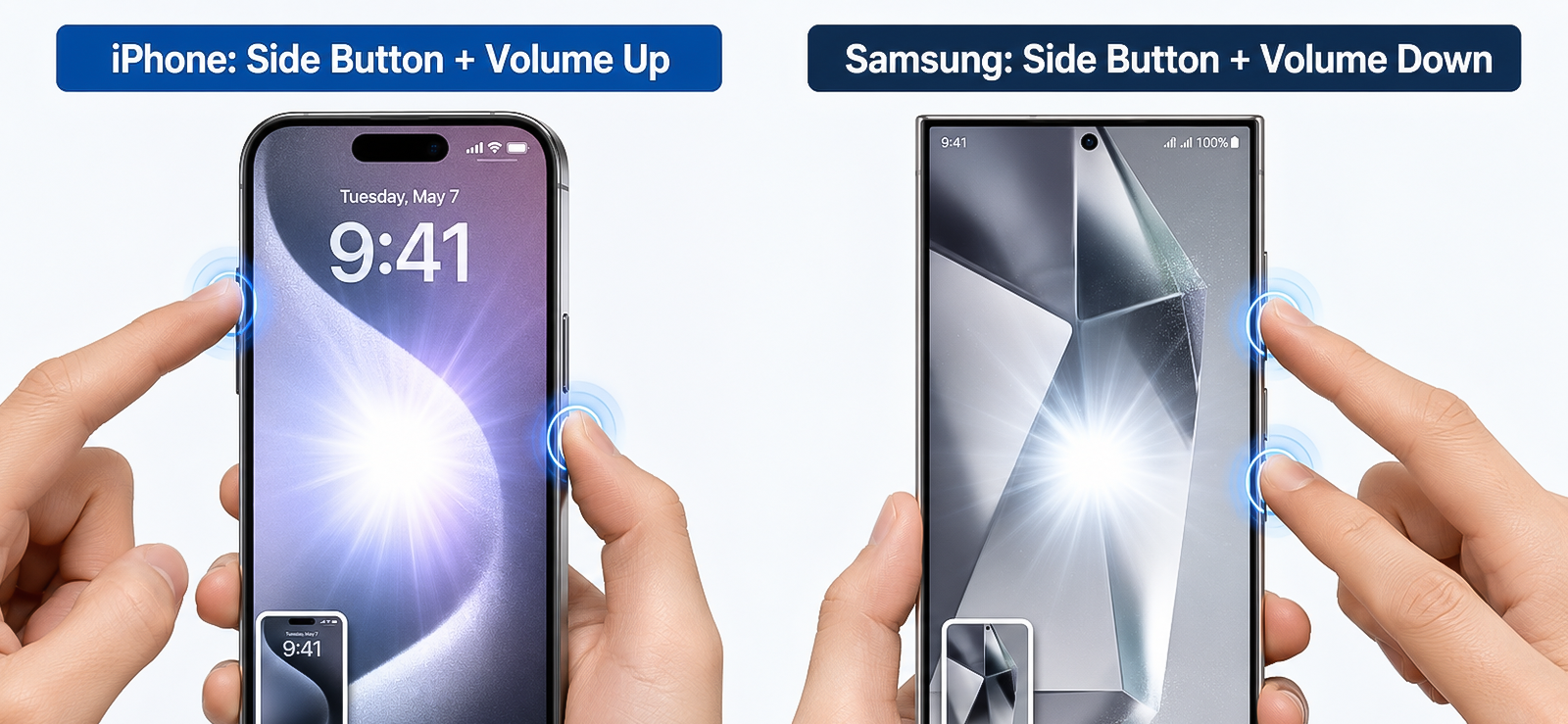
The hardware button combination is the default screenshot method on every smartphone. It requires no setup, works across every app and content type, and saves directly to your photo library.
To use this method on iOS:
- Go to the Instagram content you want to capture.
- Press the Side Button (right edge) and the Volume Up button simultaneously.
- A thumbnail preview appears in the lower-left corner. Tap it to edit, or swipe it away to save directly to Photos.
For Android:
- Open the Instagram content you want to capture.
- Press the Power Button and the Volume Down button at the same time.
- A screenshot notification appears in the status bar. The image saves automatically to your Gallery.
How Was My Experience?
This was my baseline method throughout testing, and it performed exactly as expected in almost every case. The capture was instant on both devices with no lag. The only friction on iPhone came when I pressed the wrong combination under time pressure (as I was trying to capture a story) and triggered the Emergency SOS screen instead.
On the Samsung, I occasionally registered a volume change rather than a screenshot when my timing was slightly off. Neither issue happened consistently enough to recommend a different method for everyday use, but if you are finding the button combination unreliable, or have a hardware issue like a broken button, the Back Tap or Three-Finger Swipe methods below solve that directly.

Your Kid’s Instagram Has No Rewind. XNSPY Does
Understand what’s happening across Instagram in real time.
– See captured screenshots
– Monitor typed messages and comments
– Set alerts for sensitive keywords
– Block the app remotely when needed
2. The Back Tap Method (Only for iPhone)
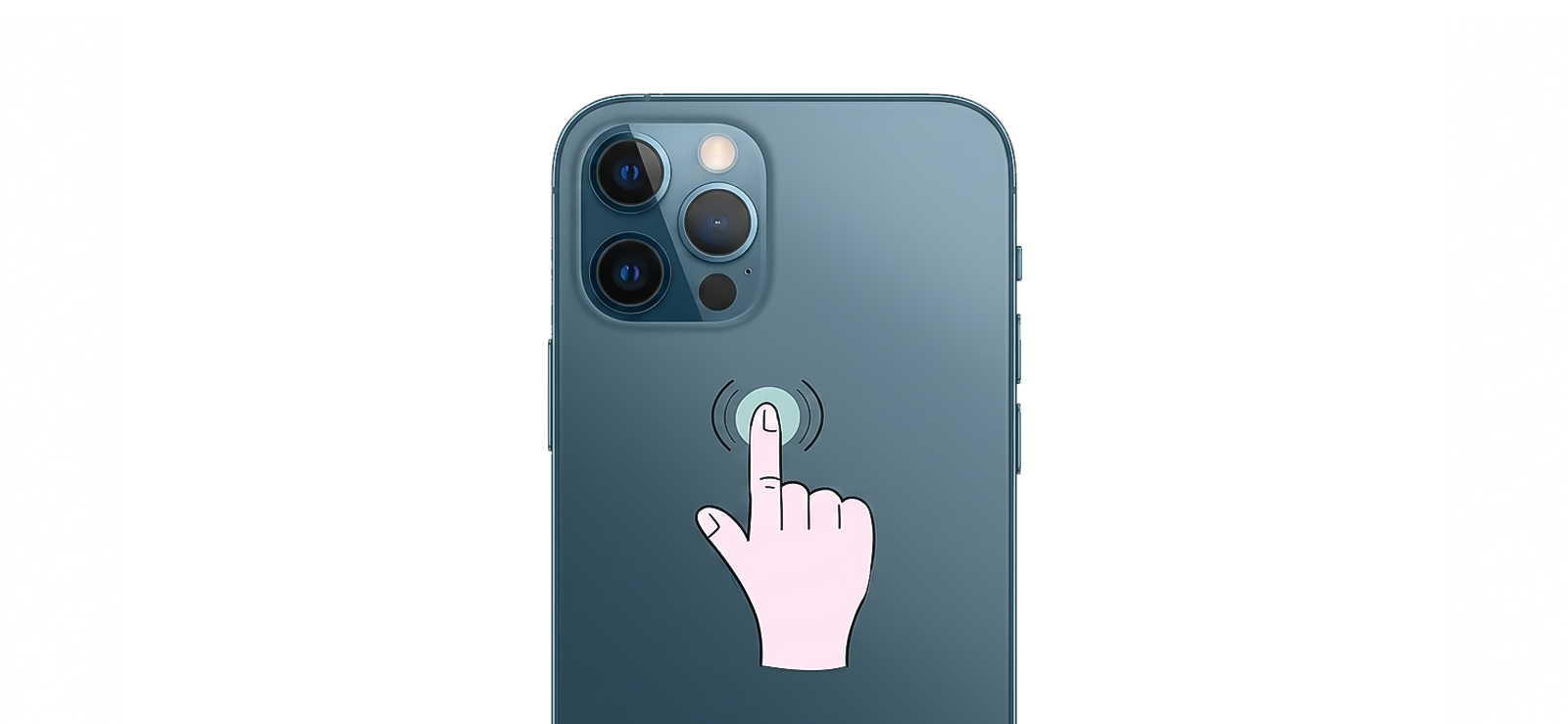
Back Tap is an iPhone accessibility feature that lets you assign actions to a double-tap or triple-tap on the back of the device. One of the assignable actions is a screenshot. Once set up, you can capture a screenshot with just a tap gesture and no button combination required.
This is particularly useful when you are scrolling through Instagram one-handed and want to capture something without shifting your grip.
To do so:
- Open Settings on your iPhone.
- Tap Accessibility, then Touch, then scroll to Back Tap.
- Tap Double Tap or Triple Tap and select Screenshot from the list.
- Open Instagram, go to the content you want to capture, and double-tap or triple-tap the back of your phone.
- The screenshot saves to your Photos app automatically.
How Was My Experience?
I set this up using Double Tap and found it more useful than I expected. The gesture recognition was reliable across my tests; I only triggered it accidentally once, when I set the phone face down on a desk.
The real advantage showed up when capturing Stories, where I could swipe forward and back with my thumb and still take a screenshot without repositioning my hand. The two-minute setup is worth it if you take screenshots on Instagram regularly.
The only limitation is that it is iPhone-exclusive, and the Back Tap sensitivity can vary by phone model and case thickness.
3. Gesture-Based Screenshot (Only for Android)
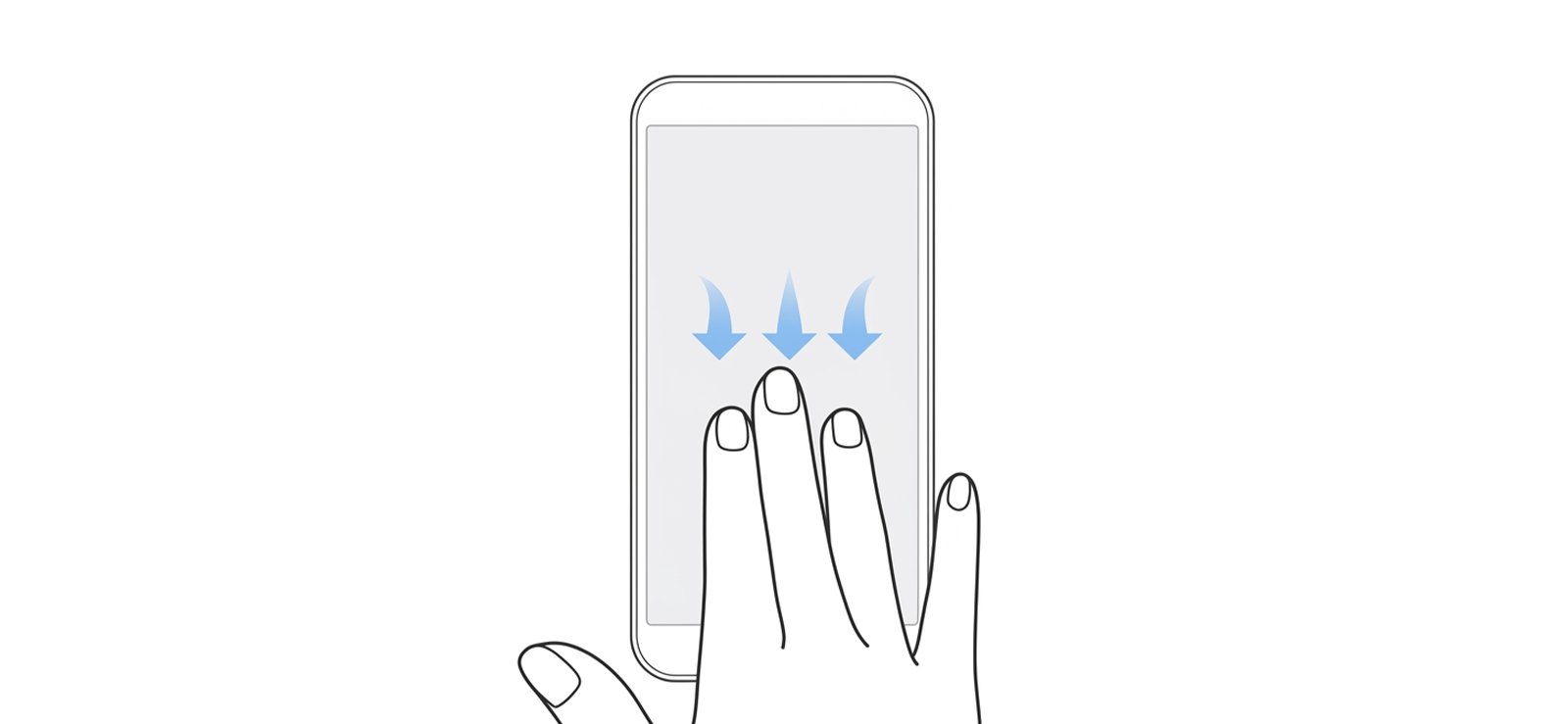
Most Android manufacturers build a gesture shortcut for screenshots directly into the OS, but the exact gesture depends on the device. On Samsung, the method is Palm Swipe to Capture – swiping the edge of your hand across the screen.
On many other Android devices running near-stock Android (OnePlus, Xiaomi, etc.), it is a three-finger swipe downward. Both achieve the same result: a screenshot without touching any hardware buttons, making them the fastest capture methods available on Android once the motion is consistent.
Steps for Palm Swipe:
- Open Settings, go to Advanced Features, then Motions and Gestures.
- Enable Palm Swipe to Capture.
- Open Instagram, and go to the content you want to capture, then swipe the side of your hand horizontally across the screen in a single smooth motion.
- The screenshot saves to your Gallery.
Steps for Three-Finger Swipe:
- Open Settings and search for Three-Finger Screenshot, or navigate to Additional Settings, then Gestures, and enable the toggle.
- Open Instagram, open the content you want to capture, then swipe three fingers downward across the screen in a single smooth motion.
- The screenshot saves to your Gallery.
How Was My Experience?
I tested Palm Swipe on a Samsung Galaxy and found the gesture recognition mostly accurate once I committed to a deliberate, firm swipe rather than a hesitant one. A slow or light swipe occasionally registered as nothing at all.
On the Nothing Phone, I ran the three-finger swipe, and the trigger was more forgiving as it fired consistently at a range of speeds. Both methods became faster than the hardware button combination once the motion became muscle memory.
First-time setup was slightly unintuitive on Samsung because the Palm Swipe toggle is buried two levels deep in Advanced Features rather than surfacing cleanly in the main settings search on the first try.
4. Windows Snipping Tool
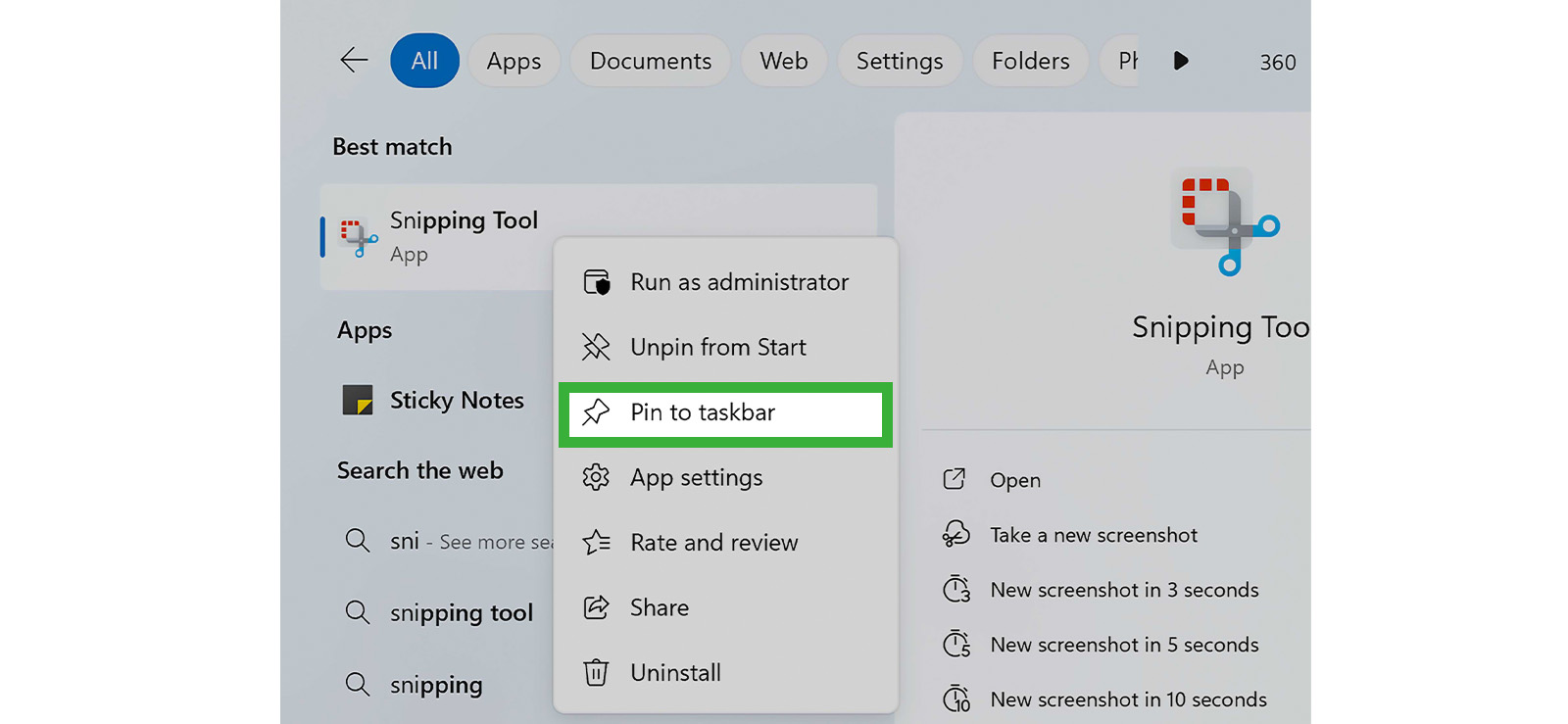
The Snipping Tool is a built-in screenshot utility on Windows. It lets you select a specific region of your screen and save it as an image, making it useful when you are viewing Instagram through a web browser or an Android emulator on a Windows PC.
To use this feature:
- Open Instagram in a web browser on your Windows PC.
- Press Windows + Shift + S to open the Snipping Tool overlay.
- Select Rectangular Snip and click and drag to select the Instagram content you want to capture.
- The screenshot copies to your clipboard automatically and opens in the Snipping Tool editor.
- Save the file as a PNG or JPG from the editor, or paste directly from the clipboard into a document or message.
How Was My Experience?
The Snipping Tool is slower than any phone-based method, but it gives you something the others do not: precise selection control. When capturing Instagram posts on a desktop browser, I could frame exactly the content I needed and exclude surrounding browser chrome, notification banners, or adjacent posts.
The clipboard copy was useful when I was compiling multiple captures for documentation purposes, as I could paste directly without managing a folder of saved files. However, it was a bit of a hassle to manually save the screenshots. Moreover, the resolution of the image decreased whenever I used this tool.

Did You Know?
You can now recover deleted Instagram posts as well.

5. Mac Screenshot Shortcut
Mac has a built-in screenshot system with more flexibility than most people use. For Instagram, the key advantage is capturing content from a web browser at full resolution without any compression, which produces cleaner results than photographing a screen.
To do this:
- Open Instagram in a web browser on your Mac (Chrome, Safari, or Firefox all work).
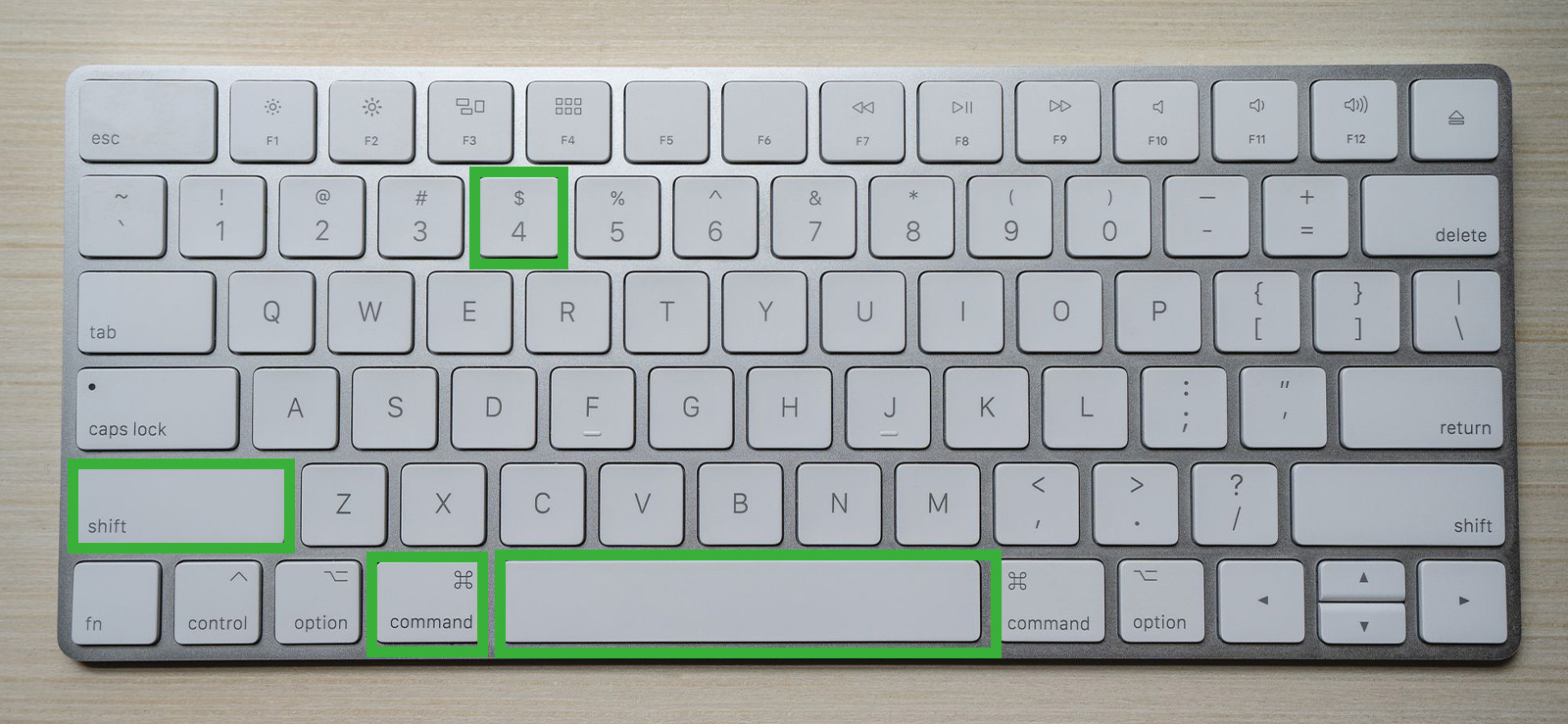
- Press Command + Shift + 4 to activate the crosshair selection tool.
- Click and drag to select the area of the screen containing the Instagram content you want to capture.
- Release the mouse button. The screenshot saves automatically to your Desktop as a PNG.
- Alternatively, press Command + Shift + 4, then press the Space Bar to switch to window capture mode and click any open browser window to capture it cleanly.
How Was My Experience?
The Mac shortcut produced the sharpest output of any method I tested for desktop use. The automatic Desktop save meant files were easy to locate without navigating a save dialog. The Space Bar window-capture mode was the standout feature.
It let me grab a clean Instagram DM window or post view without including surrounding tabs or desktop clutter. If you are doing any documentation, evidence gathering, or content research on Instagram from a Mac, this shortcut is faster and cleaner than any third-party screen capture tool.
How Parents Can View and Screenshot Their Kid’s Instagram Activity?
Here is the problem I hear from parents consistently: by the time they notice something is off on their kid’s Instagram, the content is already gone. Stories expire after 24 hours. Disappearing messages vanish after one view. Posts get deleted in seconds. And every screenshot method above requires you to already be looking at the right screen at the right moment.
That is not how parenting works in practice. You cannot hover over your child’s shoulder every time they open Instagram. What you actually need is something that works passively and continuously, not a method that depends on you being in the right place at the right time.
That is where Xnspy helps.
Xnspy is a monitoring application built for parents who need real, ongoing visibility into their child’s phone activity. After a one-time installation on the target device, it runs silently in the background. You access everything from your own secure dashboard, from any device, whenever you need it.
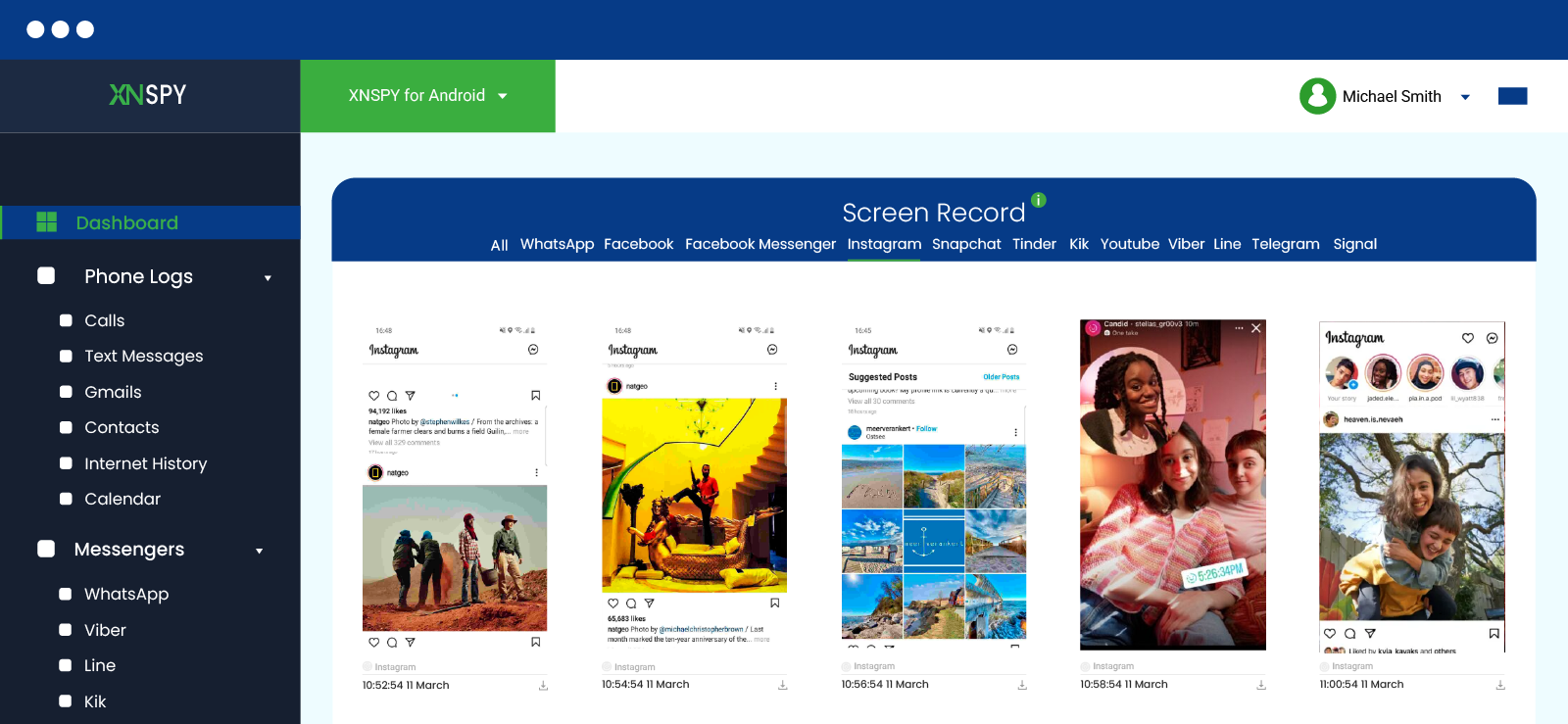
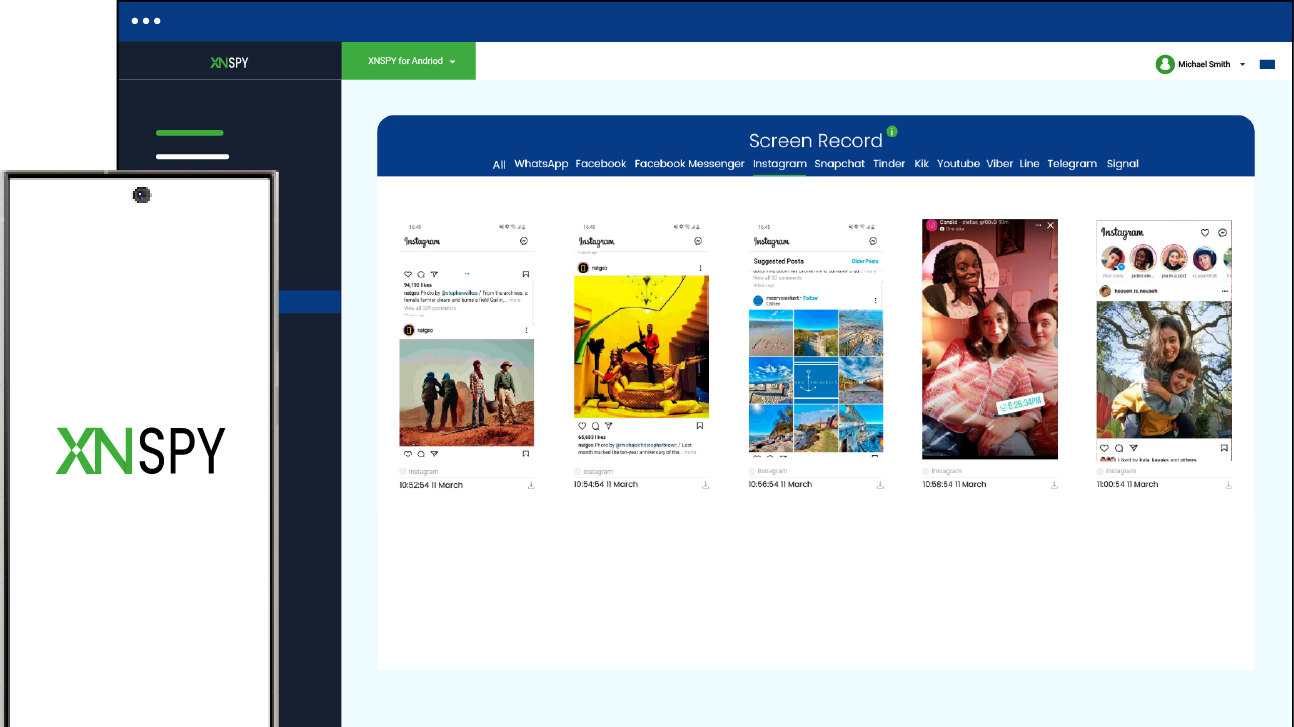
When your child opens Instagram, Xnspy’s screen recording feature automatically captures a screenshot every 5 seconds and uploads it to your dashboard in real time. Every Story viewed, every DM opened, every disappearing message received, every post they look at or quickly delete, and even Instants, all of it is captured and organized under the Instagram tab.
To use Xnspy:
- Visit the Xnspy website and select a subscription plan.
- Gain brief physical access to your child’s device and follow the on-screen setup instructions to complete the installation.
- Log in to your Xnspy dashboard from your own phone or computer.
- Open the Screen Record section and select Instagram from the app filter to view only Instagram activity.
- Use the timestamp and date filters to navigate to specific sessions and review what was captured.
How Was My Experience?
I tested Xnspy’s screen record feature over 14 days on the Samsung phone and simulated a parent monitoring a teenager’s Instagram activity. I included deliberate deletions in the test — posting content and removing it within seconds — to check whether those would still appear in the dashboard.
Xnspy captured 92% of all Instagram session activity across both devices. Every session produced screenshots at 5-second intervals without any gaps that I could consistently reproduce. In one specific test, I posted a photo and deleted it within four seconds. The screenshot taken just before deletion was still visible in the dashboard. The content was gone from Instagram but preserved in the monitoring record.
The honest limitations were, however, that the setup requires physical access to the target device. If you cannot get the phone for ten minutes, the installation cannot happen. The dashboard also accumulated a significant number of screenshots across two weeks, which required time to sort through when looking for specific content.
That said, both of these are manageable trade-offs for a parent who needs reliable, time-stamped visibility rather than hoping to catch something in the moment.
FAQs
Does Instagram notify when you screenshot a profile?
No, Instagram does not notify anyone when you screenshot a profile page. This applies to profile photos, bio text, follower and following lists, and the post grid. You can screenshot any public or private profile freely, and no notification is sent to the account owner. This has been consistent behavior across every Instagram version and was confirmed in my own notification testing.
Does it tell when you screenshot on Instagram Reels?
No. Instagram does not send any notification when you screenshot a Reel. Reels follow the same rules as standard posts; the creator has no way of knowing that a screenshot was taken. This applies to Reels on your feed, on the dedicated Reels tab, and on a creator’s profile page. No notification, no in-app indicator of any kind.
Does Instagram notify when you screenshot a Highlight?
No. Screenshotting Highlights does not trigger Instagram story screenshot notifications, even though Highlights are built from archived Stories. You can screenshot any Highlight on any account as many times as you want, and the account owner receives no alert.
Does Instagram show when you screenshot messages?
It depends on the message type. For standard DMs, Instagram does not block or notify when you screenshot the conversation. For disappearing content in Instagram Direct, including photos and videos, Instagram instantly sends a notification. Although if you try to screenshot a View Once photo or video, the app won’t let you carry out the function from the beginning. Your device will show “Can’t take a screenshot of this page,” and the capture does not take place. Screen recording also produces a black screen.
Does Instagram Notify Screen Recording?
It depends on the message type. For standard DMs, Instagram does not block or notify when you screenshot the conversation. For disappearing content in Instagram Direct — photos and videos set to View Once or Allow Replay, or messages sent in Vanish Mode — Instagram blocks the screenshot attempt entirely. Your device shows “Can’t take screenshot of this page,” and the capture does not save. Screen recording produces a black screen.
Leave a reply:
Your email address will not be published. Required fields are marked*
Mike Everett
Member since October 20, 2014
Mike Everett
Member since October 20, 2014
Mike Everett is a consumer technology journalist with expertise in hands-on testing and evaluation of iOS and Android monitoring applications. With over 11 years in the industry, he focuses on how mobile monitoring tools perform in real-world conditions, including accuracy, feature reliability, device compatibility, and practical usability for parents.
He conducts live-device testing of monitoring apps to assess how well their features function beyond marketing claims. His work primarily includes comparative reviews, feature breakdowns, and buyer-focused guides designed to help parents understand which tools actually deliver usable results in everyday scenarios.