Limited Time Offer :
after-bg after-bg after-bg

Installing XNSPY on Android Smartphones and Tablets

This guide is created to help you get insight into what the overall XNSPY installation process looks like on Android phones and tablets. However, before you start installing XNSPY, there are two prerequisites: login details from the welcome email and one-time access to the phone that you wish to monitor.

If you have met both requirements, continue installing the app on your target Android phone or tablet with the steps discussed below.


iOS installation guide slide
after-bg after-bg after-bg

Android Installation Guide

Note:

You can find a more detailed Android installation guide in XNSPY’s control panel at https://cp.xnspy.com/ after purchasing a subscription.

Step 1

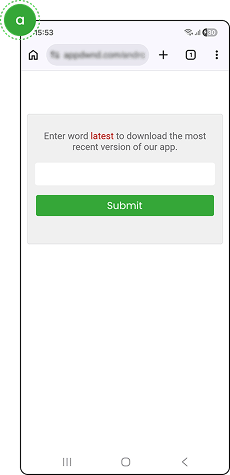
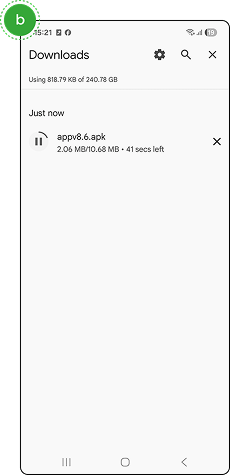
Access the target Android device and use the download URL from the welcome email to download the APK file.

Android installation guide

Step 2

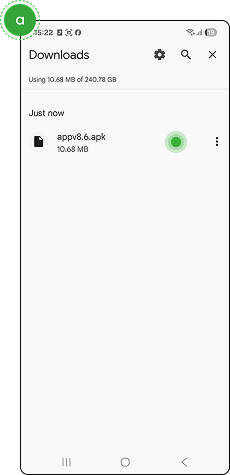
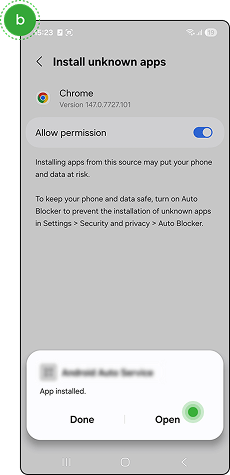
Allow installation from unknown sources in the device settings, then tap the downloaded APK file and select "Install."

Android installation guide

Step 3

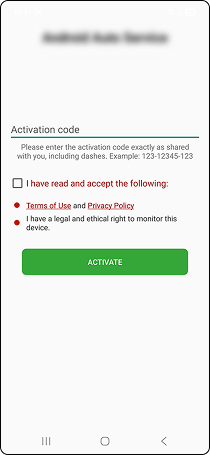
Open the installed app and enter the activation code.

Android installation guide

Step 4

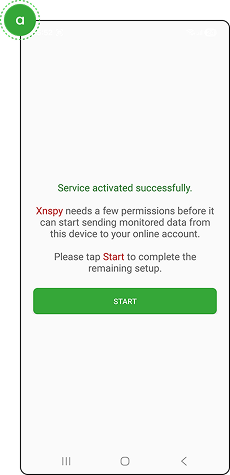
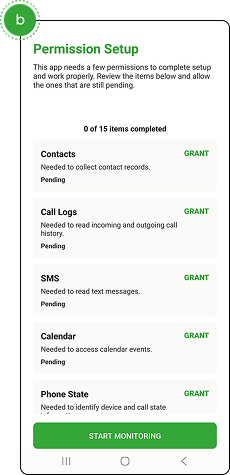
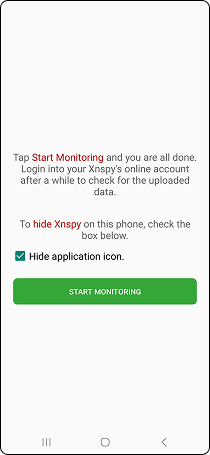
Tap “Start” to grant the required permissions, then click “Start Monitoring.”

Android installation guide

Step 5

Check the “Hide application icon” box, then click “Start Monitoring” to complete the setup. Log in to the dashboard afterwards to view the target phone’s activity.

Android installation guide
after-bgafter-bgafter-bg

We Make Installation a Breeze!

We do our best to provide the easiest way to install XNSPY. Therefore, our latest endeavor allows users to use our support team’s remote help to install the app conveniently. With this, a person only has to physically access the target Android device during installation/setup. Our support team takes care of the rest. They will not only download and install the app but also perform the entire setup.

after-bg after-bg

Frequently Asked Questions

question General Questions

  • No, XNSPY works just like other apps on a phone (but in a more concealed manner). The app doesn’t have to be reinstalled after an Android OS update.

  • Once you have installed XNSPY on Android, it’s possible to hide its icon by selecting a “hide app” box at the end of the installation process.

  • A single subscription of XNSPY works only with a single device. However, you can add multiple devices to your online account and manage them through the same dashboard.

  • If the device doesn’t prompt for “Allow from this source” during installation, navigate to the device's settings. Go to Security > Install unknown apps > Select the browser or file manager you used to download XNSPY and enable “Allow from this source.” Then, proceed to retry the installation process.

  • To verify if XNSPY is running properly after installation, log in to your XNSPY dashboard and check for data synchronization. You should see updates from the target device, such as call logs, messages, and location data. If there are no updates, ensure the device has internet access, and XNSPY is installed correctly.

  • If the APK file is not opening after download, ensure that you have allowed installations from unknown sources in your device's settings. If the issue persists, try downloading the file again or using a different browser. Ensure the file is not corrupted and is compatible with your device's operating system version.

after-bg after-bg after-bg

You Can Totally Rely on XNSPY - We’ve Got Your Back

When every other app seems to be pushing for subscriptions alone, it is XNSPY that prioritizes user experience. No matter what, your satisfaction truly rests atop everything else for us.

icon

Stealth Mode 100%

Invisible

icon

100% Secure

Satisfaction Guaranteed

icon

24/7

Live Chat

  • Home
  • android installation

Memorial Day

Use The Discount Code During Checkout

40%
OFF
  • Days
  • Hours
  • Minutes
  • Sec
BUY NOW