The complete monitoring experience for your phone
Get XNSPY and start tracking calls, texts, multimedia, locations and more on any phone!
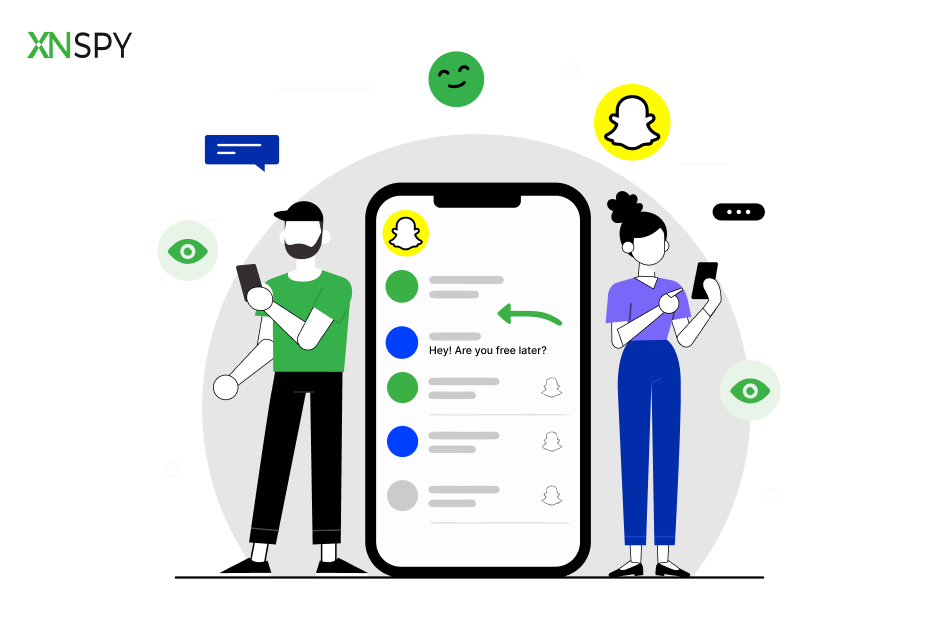
Get Started Now Live DemoMillions of teens and young adults use Snapchat, and while it can be a fun way to connect, it also exposes them to various dangers – bullying, inappropriate content, risky behaviors, and the list goes on. So it becomes essential to keep an eye on their online activities to ensure their well-being. You want to protect them without invading their privacy, and one way to do this is by monitoring their Snapchat. We’ll teach you how to take a screenshot on Snapchat without them knowing, so you can stay informed about what’s happening in their world.
Everything in a Snap: Quick Takeaways
- Snapchat notifies users whenever you screenshot a Snap, chat, or Story in the app.
- Monitoring tools like XNSPY can store Snapchat activity remotely, letting users review snaps and chats without relying on screenshots.
- Screen recording can capture longer content, but some updates may cause a black screen or trigger notifications.
- Mirroring your phone’s screen lets you capture content externally, though quality and lag may be issues.
- Screenshots of profiles or Bitmojis also trigger alerts.
- Even if a message is saved in chat, taking a screenshot is still logged in the conversation and visible to both users on Snapchat.
Why Knowing How to Screenshot on Snapchat Matters?
Snapchat is designed for fleeting content, which means that once a photo or message disappears, it’s gone for good. However, there are times when capturing moments or important information becomes necessary.
With Snapchat’s disappearing messages, harmful content can vanish before you have a chance to address it. Taking a screenshot allows you to document inappropriate behavior, bullying, or any messages that might put someone at risk. For example, parents want to monitor their teens’ activity and prevent them from potential risks.
That’s why understanding how to screenshot on Snapchat without them knowing becomes imperative. It is a way to protect your loved ones or a friend from online threats by having evidence if things go too far. Plus, if someone shares something concerning, a quick screenshot can help you remember important details to discuss later. However, remember to respect privacy and use such techniques responsibly and ethically.
Can Someone See if You Screenshot Their Snapchat Story?
Yes, taking a screenshot of a Snapchat story does alert the sender.
Snapchat employs a privacy feature designed to inform users when their content is saved by others. It will show a small double-arrow icon next to the name of the person who captured the Story. This feature applies to both individual Snaps and Stories, and also whether it is in chats or public Story feeds. It helps prevent the spread of content beyond the intended audience.
So if you want to know how to screenshot on Snapchat Story without alerting the user, you’ll need to consider some specific methods. Just keep in mind that these methods might still have their limitations, so proceed with caution and respect others’ privacy. Think about the reasons behind wanting to take that screenshot—are you preserving a moment or sharing something special?
How to Take a Screenshot on Snapchat Without Them Knowing – 6 Easy Ways
While searching, you may come across multiple ways about how to screenshot on Snapchat without the other person knowing. However, most of those won’t work because Snapchat is pretty good at detecting, and they often end up alerting the sender anyway. So, we have come up with 5 proven ways of doing it that we have tested ourselves. These methods actually get the job done while keeping it private.
1. Try XNSPY for Screenshotting Snapchat
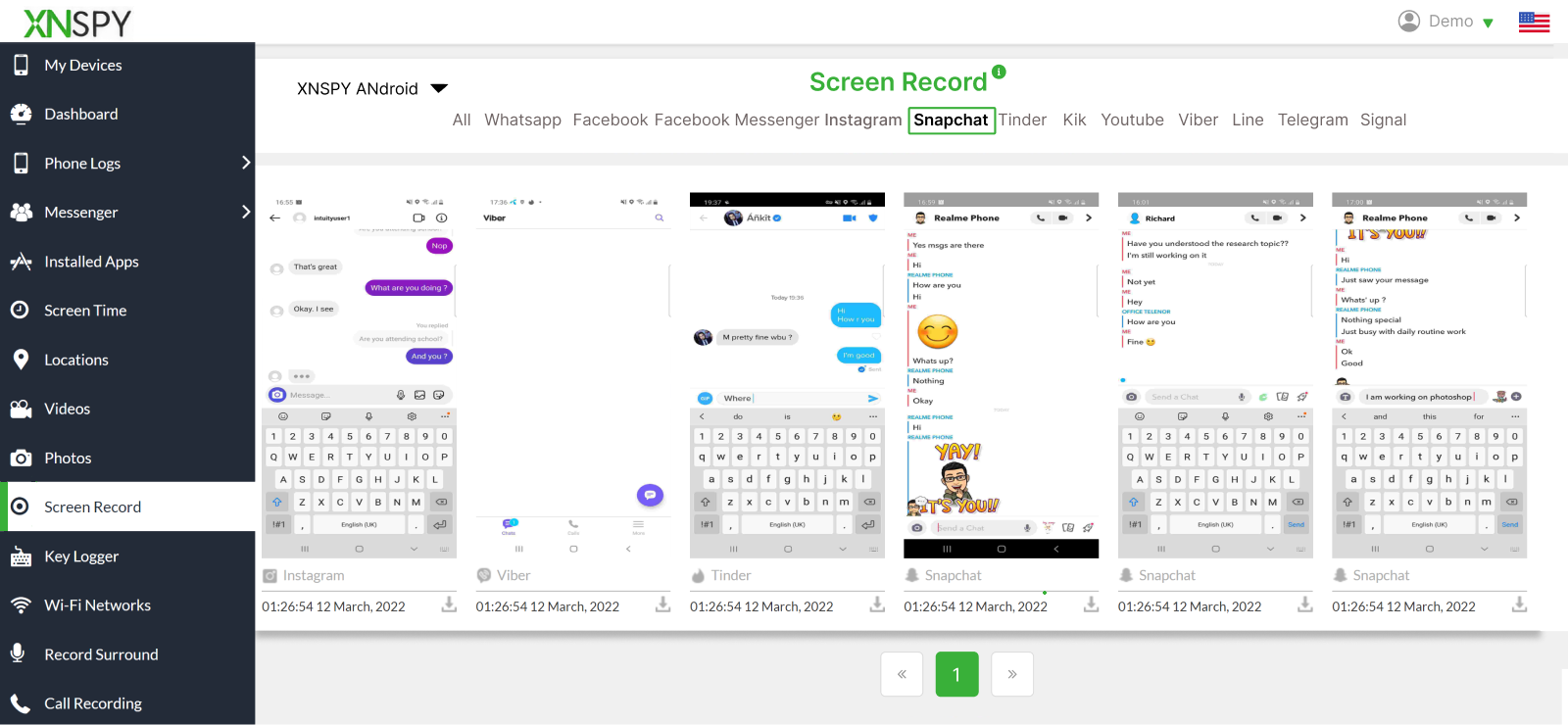
One of the best ways to take a discreet screenshot on Snapchat is to use a modern monitoring app. XNSPY is a solid option for this purpose, as it can capture screenshots without alerting the user. Once installed on the target device, it quietly gathers all Snapchat activity along with other data and uploads it to its remote servers.
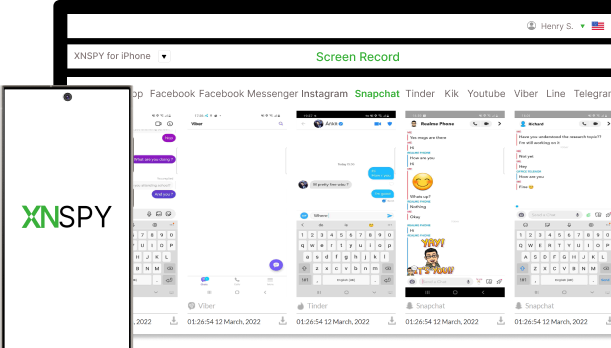
The app has a screen recording feature that automatically takes periodic screenshots when Snapchat is active on the monitored device. So, whenever any Snap or Story is opened, XNSPY captures that moment for you. The best part is that this Snapchat screenshot app works in stealth mode, which means it gathers data without alerting the user.
Here’s how you can use XNSPY to screenshot Snapchat:
- Subscribe and install the app
- Accept permission that allows XNSPY to work in stealth mode
- Log in to the user dashboard
- Tap on ‘Screen Recording’ and select ‘Snapchat’ from other apps to view the screenshots.
However, it’s important to use XNSPY ethically and responsibly, as respecting privacy is key to maintaining trust in any relationship.

Snapchat Screenshots Made Simple
With XNSPY, capturing moments stays between you and your screen.
2. Mirror Your Phone’s Screen
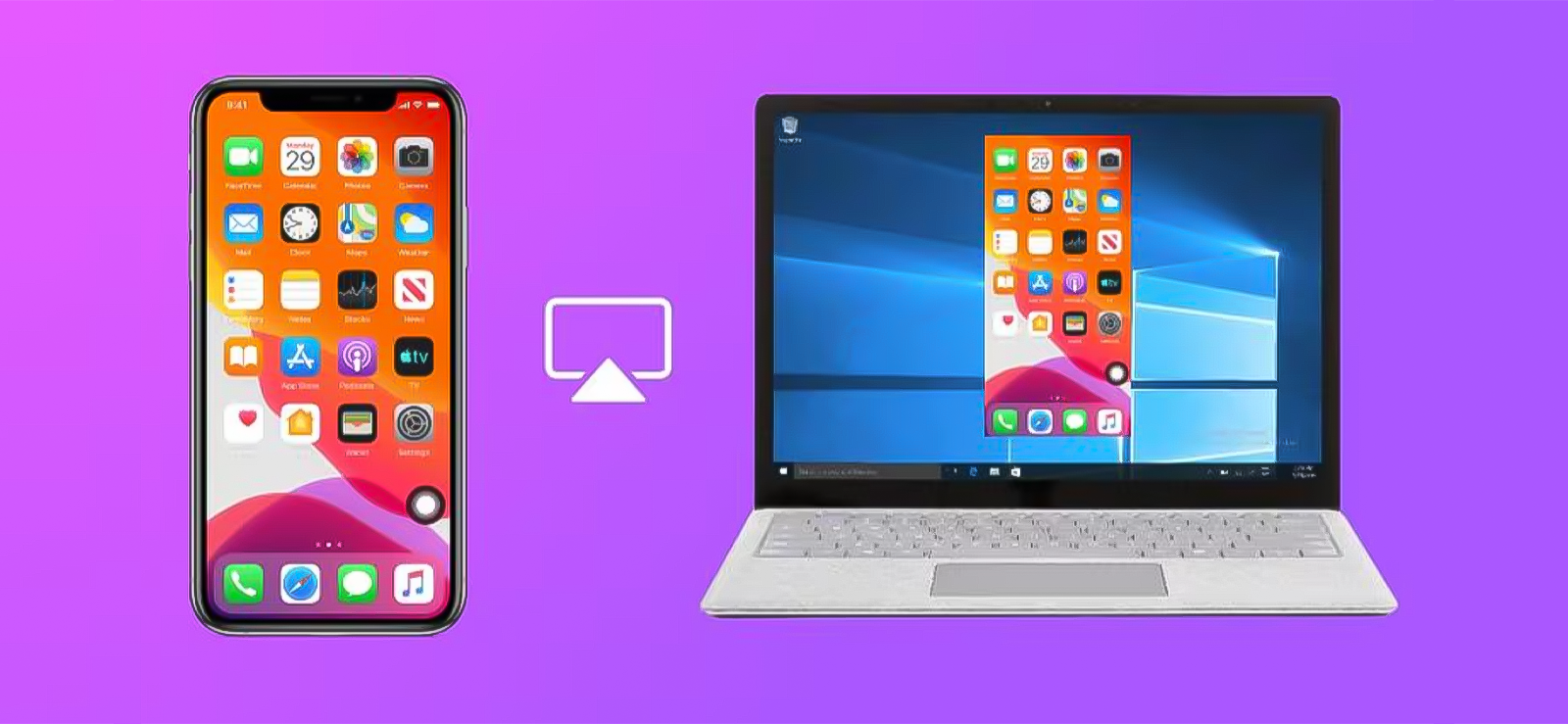
Another method sometimes used is mirroring your phone’s screen to another device, such as a computer, tablet, or smart TV. Screen mirroring works by projecting everything displayed on your phone onto a second screen in real time. Instead of capturing the screenshot directly on Snapchat, you can capture the image from the mirrored display on the secondary device. This means the screenshot is taken externally rather than through the Snapchat app itself.
To use this method effectively, follow these steps:
- Connect your phone to a computer, smart TV, or tablet using a screen mirroring feature such as AirPlay, Smart View, or a casting tool.
- Open Snapchat on your phone and view the Snap, Story, or chat you want to capture.
- Once the content appears on the mirrored screen, use the screenshot or snipping tool on the secondary device.
- Save the captured image from the secondary device.
While this method can work in some cases, it also has several limitations. The quality of the captured image may be lower depending on the resolution of the mirrored display and the stability of the connection. Screen mirroring can also introduce lag, which may make it difficult to capture disappearing snaps in time. Additionally, some devices or operating systems may restrict mirroring while certain apps are open, and updates to Snapchat could potentially change how external displays interact with the app.
3. Use Another Phone to Take Photos on Snapchat
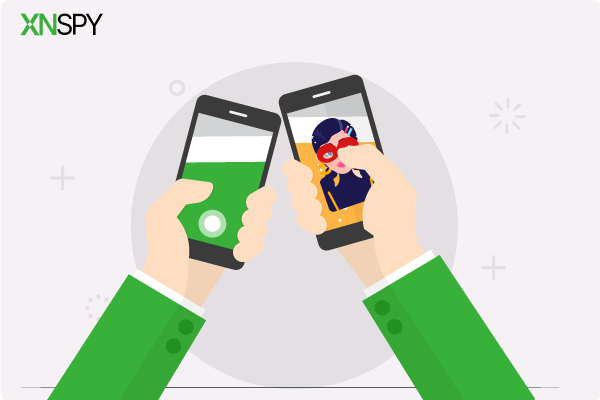
Another easy way to capture a screenshot of a Snapchat Story is by using another phone. You can perform this method by having a spare phone or borrowing one from your family or friends.
Here’s how to screenshot on Snapchat Story with this method.
- Load the Snap or Story you want to capture, but keep it paused.
- Hold the second phone’s camera steady in front of the screen.
- Press play and use the second phone’s camera to capture the screen.
This method might not be as effective as a dedicated screenshot app for Snapchat, but it is easy to use and won’t trigger any alerts. However, you need to keep ethical considerations in mind and respect privacy boundaries. Also, adjust the lighting and focus so that the content of the captured image is clear.
4. Go to Snapchat Web
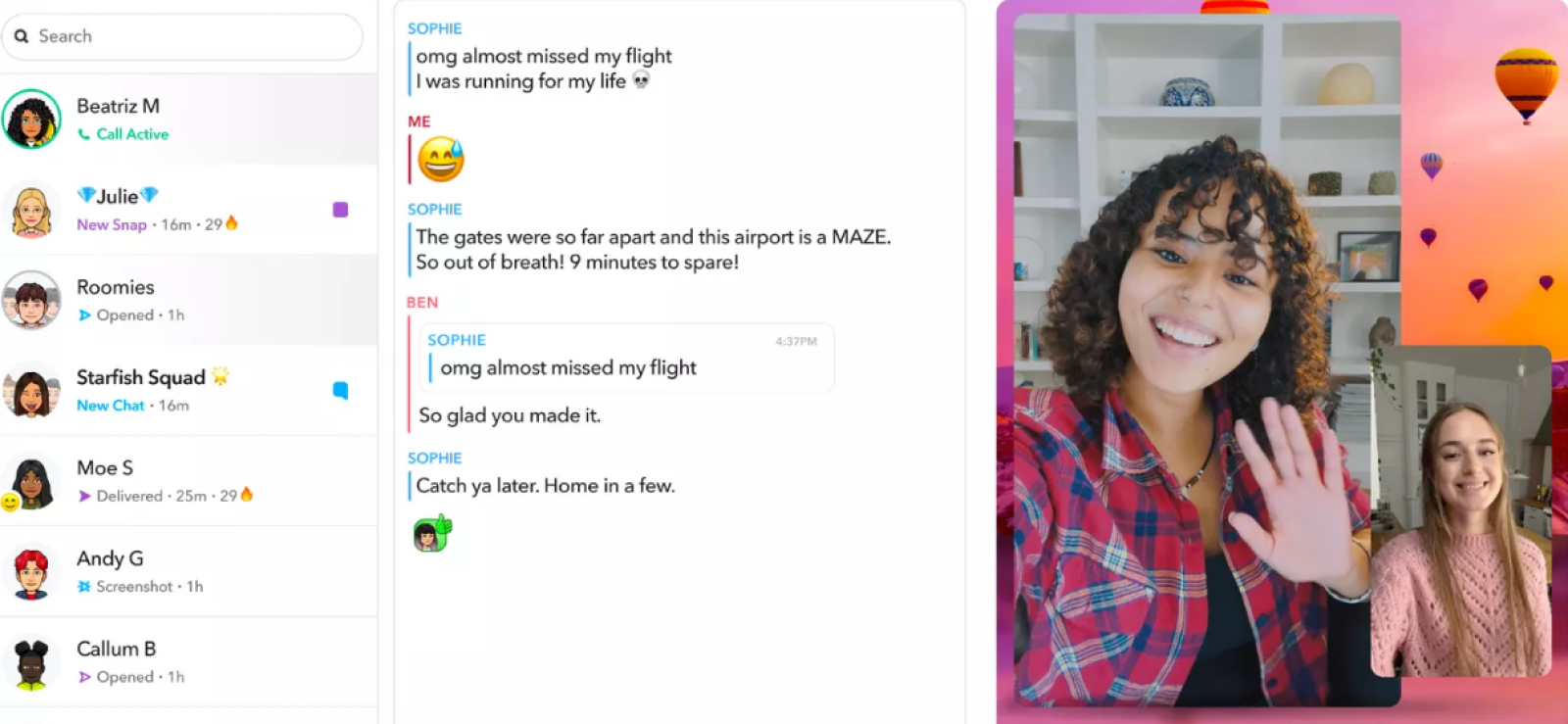
Using Snapchat Web is another clever way to capture Snaps without raising any alarms. Since Snapchat Web doesn’t notify users when you take a screenshot, it gives you a discreet option to save content.
These are the steps to follow.
- Go to web.snapchat.com and log in with your Snapchat credentials.
- Click on the Snap or Story you want to view.
- Take a screenshot by using the computer’s keyboard or Snipping Tool
- Save the screenshot to your preferred location.
One of the great things about this method is that it allows for better-quality screenshots compared to using a phone. However, there are limitations. Not all features available on the mobile app are accessible on Snapchat Web, and you can’t view Stories if the user has set their account to private. Plus, you’ll need to be at a computer, which isn’t always convenient.

Bonus Tip
If you are interested in finding a person’s location on Snapchat to ensure their safety, you have multiple ways to do it.

5. Activate Airplane or Flight Mode
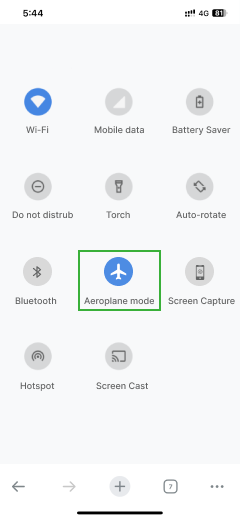
Activating Airplane or Flight Mode is a handy trick for capturing Snaps without alerting the sender. When you enable this mode, your device disconnects from the internet. You can then use this setting for screenshotting Snapchat without triggering the screenshot notification.
Here’s how you can do it:
- Open Snapchat and load the Snap or Story you want to screenshot, but don’t open it yet.
- Enable Airplane Mode, which will disconnect from Wi-Fi and mobile data.
- Open the Snap and take a screenshot.
- Close Snapchat entirely by swiping it away from your recently opened apps.
- Turn off Airplane Mode and reconnect to the internet.
This method is good because it gives you the chance to save content discreetly while maintaining image quality. Plus, it’s easy to do, as you don’t need any Snapchat screenshot app or extra devices.
However, there are some limitations to keep in mind. For one, you have to act quickly because the sender’s Snap will only be available for a short time before it disappears. Also, remember that this method doesn’t work for Stories that have already been viewed.
6. Opt for Your Phone’s Built-in Screen Recording
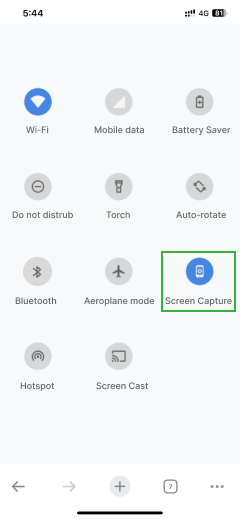
When you want to know how to take a screenshot of Snapchat without notification, screen recording offers a seamless solution. Most phones come with a built-in screen capture feature. One of the biggest advantages is that you can capture longer content without worrying about time limits, unlike standard screenshots. Plus, the video can be edited later, so you can cut out the parts you don’t need.
Let’s see how it works:
- Swipe down to access the phone settings and enable the screen recording feature.
- Start viewing the Snap or Story you want to save.
- Once finished, stop the screen recording, which will save the video to the gallery.
- Open the video and pause on the desired frame to capture a screenshot.
While screen recording can be convenient, it also comes with a major limitation. Depending on the device or software update, the app may display a blank or black screen in the recording due to screen-capture protection, preventing the content from being recorded properly.
FAQs
How Do You Know if Someone Screenshots Your Snapchat Conversation?
Snapchat notifies users when someone screenshots a conversation by displaying a small screenshot icon next to the message in the chat. For individual Snaps, the notification appears in the chat feed or story list. On some devices, the sender may also receive a timestamp indicating when the screenshot was taken. This system ensures you are aware whenever a Snap, Story, or chat message is captured without your direct consent.
Does Snapchat notify someone if you take a screenshot of their profile?
Yes, Snapchat notifies users if you screenshot a profile. When a screenshot is taken within the other person’s profile, a message like “You took a screenshot of the Friend’s profile.” appears in the conversation, and the other participant can see that the screenshot occurred. This ensures transparency for both parties, maintaining Snapchat’s focus on privacy and awareness.
Can Snapchat detect screenshots taken using third-party apps?
Yes, Snapchat can often detect screenshots taken via third-party apps, depending on the app and device. Many unofficial apps or screen-capture tools may trigger a notification if they interact with Snapchat’s content directly. However, monitoring apps like XNSPY can bypass detection. However, it is important to know that this should be done ethically and responsibly, i.e., only parents or guardians can do so for children with informed consent.
Will Snapchat notify users if you screenshot a Snap from Memories?
Yes, Snapchat notifies users if you screenshot a Snap stored in Memories that was originally sent by someone else. Even though the Snap is saved in your Memories, taking a screenshot triggers the same alert as if you captured it in chat or a Story. This ensures the sender is aware whenever their Snap is saved outside the standard viewing experience.
Does Snapchat notify users if you screenshot a chat after saving it?
No, if a chat message has been saved by either participant in the conversation, taking a screenshot afterward does not trigger a notification. Snapchat’s screenshot alerts are primarily for unsaved, ephemeral messages. Saved chats are treated as permanent records, meaning capturing them does not alert the other person, though it’s always important to respect privacy and handle saved messages responsibly.
Complete Snapchat Monitoring, Your Way
With XNSPY, track what matters most.

4 Comments
Leave a reply:
Your email address will not be published. Required fields are marked*
Jose R.
February 3, 2025 at 10:57 am🙌
Wisdom Sophia
March 7, 2025 at 9:53 amtook a pictre from another phone and it is so blur and bad
Jay P. Paulson
April 18, 2025 at 10:31 amwill airplane mode disable mobile data?
Mark
June 12, 2025 at 2:33 pmwell