
The complete monitoring experience for your phone
Get XNSPY and start tracking calls, texts, multimedia, locations and more on any phone!
Get Started Now Live DemoIf you’ve ever tried to screen record a FaceTime call and ended up with black screens and silent audio, you are in good company. The iOS has built-in restrictions that make recording FaceTime calls trickier than you would expect.
That said, there are ways to make it work, and knowing the rules can save you from frustration. So, if you want to know how to screen record FaceTime with sound, this guide will walk you through different practical methods to do so.
Can You Screen Record on FaceTime Without the Person Knowing?
Yes, you can screen record a FaceTime call without the other person being notified. iOS does not send a visible alert to the other person when you start screen recording.
However, there’s an important catch: Apple limits what the recording can capture. In many cases, FaceTime will block or mute the other person’s audio in the recording, and sometimes even display a black screen instead of their video. This is Apple’s way of protecting privacy without showing a direct warning.
So while the other person usually won’t know you started recording, the recording itself may be incomplete or unusable, especially for audio. And in some regions, recording someone without consent can be illegal as well.
Does FaceTime Notify Screen Recording?
No, FaceTime does not notify the other person if you use iOS’s built-in screen recording feature. Unlike apps such as Snapchat, which actively alert users when their content is being captured, FaceTime has no pop-up or icon to warn the person on the other end. That means you can start recording without them knowing.
Is it Illegal to Screen Record a FaceTime Call?
Whether it’s illegal to screen record a FaceTime call depends on your location and consent laws. In many countries, recording a private conversation or video call without the consent of all participants is considered a violation of privacy.
In the United States, laws vary by state. Federal law generally follows the rule of one party’s consent. As per this rule, only one participant needs to know about the recording. However, several U.S. states require all‑party consent, which implies that everyone in the call must agree to be recorded.
Since the laws differ by jurisdiction, it’s safest to always obtain explicit consent from all participants before screen recording a FaceTime call to avoid potential legal consequences.
We Handpicked These For You

🔒  Can I Lock My Child’s iPhone Remotely?
💬  How to See If Someone Read Your Text: 100% Working Methods
📲  How to See Deleted Calls on iPhone: 5 Best Methods
⚡  How to Read Messenger Messages Without Seen: 7 Methods
How to Screen Record FaceTime With Sound: 5 Best Ways
Recording a FaceTime call with sound can be tricky due to Apple’s privacy restrictions, but there are multiple ways to capture both video and audio if needed. Depending on whether you’re using an iPhone, Mac, or even a workaround with another device, you can choose the method that fits your setup. Below are five effective ways to screen record FaceTime with sound, along with step-by-step instructions and considerations for each.
1. Use iPhone’s Built-In Screen Recorder

The simplest approach is iOS’s built-in screen recording feature, which allows you to capture your screen and microphone audio simultaneously. When activated, the recorder captures everything happening on your screen, including your voice through the microphone. This makes it suitable for recording your side of the conversation.
To capture FaceTime with the built-in screen recorder:
- Open Control Center by swiping down from the top-right corner (iPhone X and later) or up from the bottom (earlier models).
- Tap the Screen Recording icon and hold it to access audio options.
- Enable Microphone Audio, then tap Start Recording.
- Open FaceTime and conduct your call; swipe up to stop recording when finished.
While this captures your voice, iOS usually blocks the other person’s audio to protect privacy. As a result, you may see the video but hear only your side of the conversation. The recording may also include a black screen for the other participant, which makes this method limited for full conversation capture.
2. Try Using Your MacBook

If you’re on a Mac, QuickTime Player allows screen recording with better audio control. QuickTime can record the Mac’s screen and your microphone, capturing clearer video and your side of the call. When paired with system audio routing tools, you can even capture both sides of the conversation.
To use this method:
- Open QuickTime Player and select File > New Screen Recording or Press Command + Shift + 5.
- Select either Record Entire Screen or Record Selected Portion.
- Click the drop-down arrow next to the record button to select Microphone and optional system audio input.
- Start recording, then initiate the FaceTime call.
- Stop recording in QuickTime when the call ends, and save your file.
By default, QuickTime cannot capture system audio directly, meaning the other person’s voice may not be recorded unless you use additional software like Loopback or Soundflower. This makes setup more complex and can require extra permissions or configuration.
3. Install a Third-Party Recording App
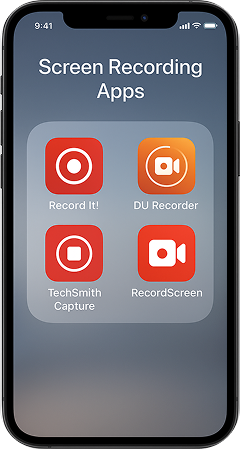
Several third-party apps allow iOS or macOS users to record FaceTime with audio more effectively. These apps often offer advanced features like capturing both microphone and system audio simultaneously to give you a complete recording experience.
Here’s how to screen record FaceTime with audio using a third-party app:
- Search the App Store or Mac App Store for trusted screen recording apps like Record it!, DU Recorder, or ScreenFlow.
- Install and open the app, granting the necessary microphone and screen permissions.
- Configure audio settings to capture both your voice and system audio.
- Start recording, open FaceTime, and conduct your call. Stop recording when finished and save.
Third-party apps may have restrictions in free versions, such as watermarks or limited recording time. Some apps may also struggle with capturing the other participant’s audio due to iOS privacy rules, and software updates can occasionally break functionality, requiring workarounds.

Take Control of Your Child’s Digital Safety with Xnspy
Monitor FaceTime and other communications effortlessly.
– Tracking all incoming and outgoing FaceTime calls
– Capturing snapshots of ongoing FaceTime calls
– Getting instantly notified if the child communicates with a flagged contact
4. Record Via Another Phone
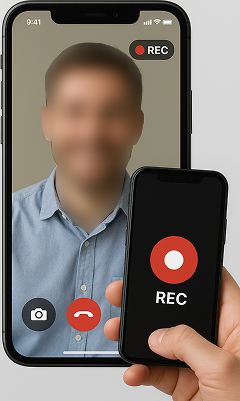
An easy workaround is to use a second device to record your FaceTime session. By positioning another phone or camera in front of your screen, you can capture both video and audio in real-time without relying on iOS restrictions.
To do so:
- Set up a second phone, tablet, or camera to face your iPhone screen.
- Adjust the angle to fully capture the FaceTime video.
- Ensure the device’s microphone picks up both sides of the conversation.
- Start recording on the second device before initiating the FaceTime call.
The main drawback is reduced video quality, since you’re recording a screen rather than digitally capturing the feed. Moreover, ambient noise can interfere with audio clarity. Furthermore, this method also lacks editing options and requires careful framing to capture both participants.
5. Share Your Screen for Recording
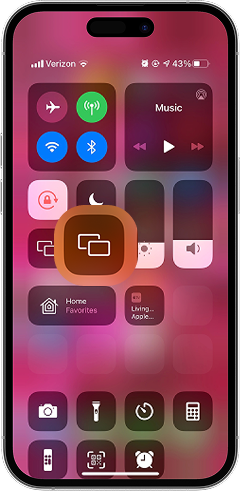
Using screen sharing apps or macOS/iOS screen mirroring, you can cast your FaceTime call to another device and record it with audio. This approach allows you to bypass iOS’s audio restrictions by recording the mirrored display.
To use it:
- Enable Screen Mirroring on your iPhone or iPad via Control Center.
- Connect to a Mac or another device capable of recording the mirrored screen.
- Use QuickTime, OBS, or a third-party recorder to capture the mirrored feed.
- Conduct your FaceTime call while recording the mirrored screen.
This method requires extra devices and setup time. Mirroring can introduce slight lag or reduce video quality. Some mirroring apps may compress audio or video, and ensuring both sides of the conversation are audible may still require microphone adjustment or external audio routing software.

Did You Know?
You can now easily fix the iPhone’s Share Location problem.

How to Know Who Your Child is Interacting with Through FaceTime?
Many parents worry about who their child is communicating with online, and FaceTime can be especially challenging to monitor. Calls happen instantly, contacts can be added without much oversight, and real-time video chats make it easy for strangers or unsafe connections to slip in unnoticed.
The risk isn’t just about inappropriate conversations; it’s also about exposure to unsafe individuals, cyberbullying, grooming, or harmful peer pressure. When you can’t physically see who’s on the other side of the screen, you need a reliable way to stay informed without invading your child’s personal space more than necessary.
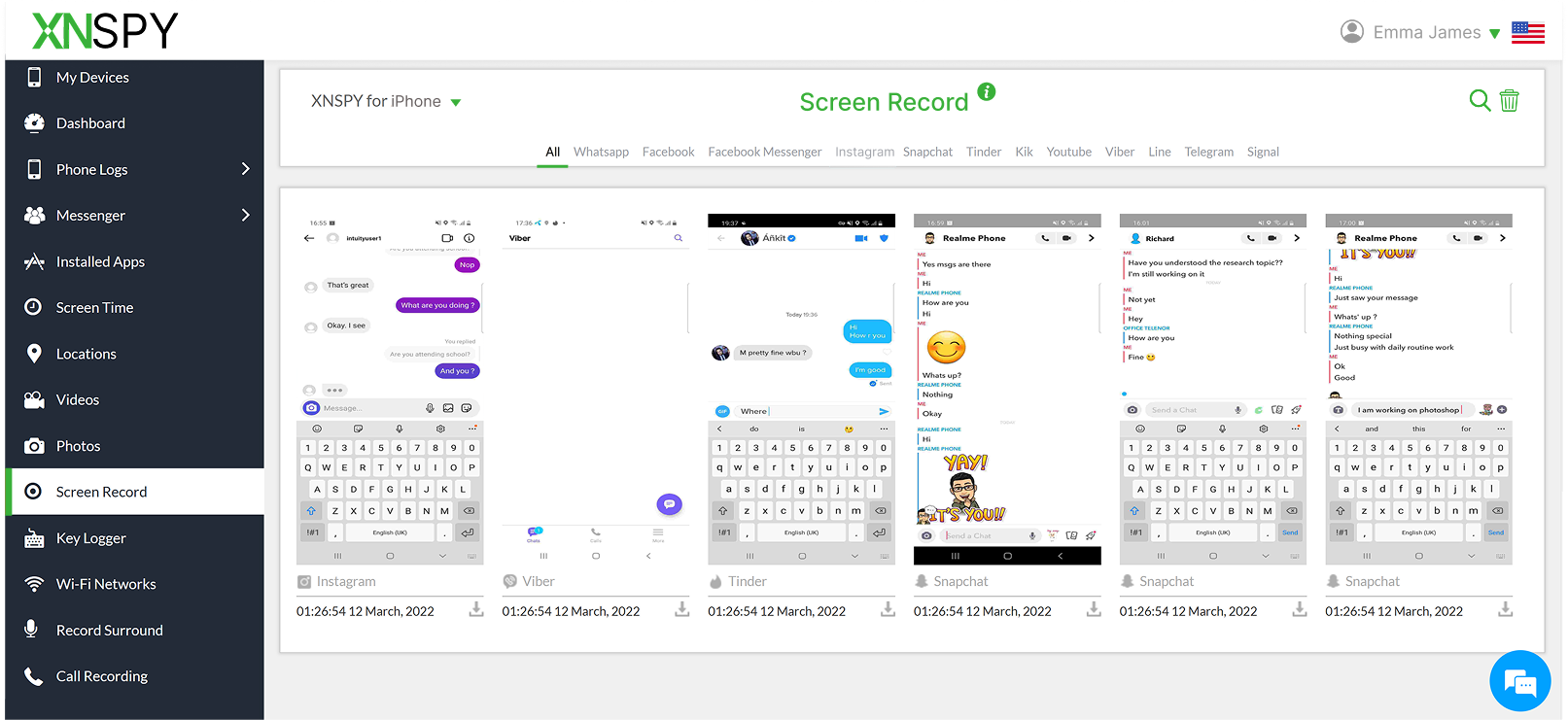
This is where Xnspy, with its ability to screen record FaceTime, becomes a practical solution. The app periodically captures screenshots of all FaceTime activities, so you can visually see your child’s communication patterns and the people they are in contact with.
These screenshots occur automatically in the background after every 2 seconds, allowing you to review callers, their surroundings, and the context of the conversation. Moreover, as Xnspy captures screenshots the entire time your child uses FaceTime, you can also see their in-app call logs to identify patterns or unexpected interactions at a glance.
Xnspy also offers contact alerts, which notify you instantly when your child communicates with a specific person you’ve flagged. You can set alerts for unknown numbers, risky contacts, or anyone you feel requires closer supervision. To know about the overall time invested in the FaceTime app, you can see the screen time analysis reports, where Xnspy displays the frequency of app launch and duration of its use as well.
FAQs
Can you screen record FaceTime with sound if the other person mutes themselves?
Yes, but you will be able to record your side of the audio only. If the other person mutes themselves, their audio will not appear in the recording because FaceTime is not transmitting sound at that moment. Even with screen recording enabled, another device being present, or a third-party app installed, you won’t be able to record their side of the audio as it isn’t being played through the call.
Can you record FaceTime with audio on a Mac?
Yes, you can record FaceTime with audio on a Mac, but not with QuickTime alone. QuickTime can record microphone input, but it won’t capture the other person’s voice unless you install system-audio routing tools such as Loopback or BlackHole. These tools create a virtual audio device that merges internal audio with your microphone; as a result, both sides of the conversation appear clearly in the recording.
How to screen record FaceTime with audio while using AirPods?
To screen record FaceTime with audio while using AirPods, you must adjust your settings so audio still routes through the device speakers or a virtual audio channel. With AirPods connected, iOS typically blocks system audio from being recorded. Switching audio output to “iPhone” or “Speaker” before recording ensures the other person’s voice is captured. You can still wear AirPods for comfort, but they cannot remain the active audio output.
Can you screen record FaceTime calls on a device with Screen Time restrictions?
It depends on the specific restrictions. If Screen Time blocks screen recording, adds communication limits, or disables access to Control Center during apps, you won’t be able to start a recording. The Screen Recording toggle may appear grayed out or missing entirely. To record FaceTime, Screen Time must allow screen recording and Control Center access. If restrictions are removed or adjusted, recording works normally again.
Stay Ahead of Digital Risks with Xnspy
Keep your child’s online interactions safe and monitored effortlessly.

2 Comments
Leave a reply:
Your email address will not be published. Required fields are marked*
Sofia Esquivel
March 9, 2026 at 10:52 amWill the other phone not be visible if I try to use it to record a face time call?
Jefferson Walsh
March 12, 2026 at 10:09 amI have tried some third-party apps, no luck, Does anyone have any recommendations>