
The complete monitoring experience for your phone
Get XNSPY and start tracking calls, texts, multimedia, locations and more on any phone!
Get Started Now Live DemoNo, X does not notify anyone when you screenshot a tweet, profile, DM, picture, or video.
Now you must be thinking, how can that be possible? And what about the new encrypted DM system? Well, I was in disbelief too when I decided to test the app’s behavior myself, so you don’t have to.
In this guide, I will walk you through my experience of triggering a screenshot at every possible feature X has to offer and noting the app’s reaction to it. Moreover, I have tested five screenshot methods on real devices.
For parents, since I found X to be one of the least protected apps, I also covered how they can view and screenshot their child’s X activities (even if their profiles are private) for safety purposes.
The 60-Second Verdict on X (Twitter) and Screenshot Notifications
- Tweets, profiles, and pictures: X does not notify anyone when you screenshot these. No icon, no alert, no analytics flag.
- Twitter Stories / Fleets: Discontinued on August 3, 2021. There is nothing left to screenshot, and Fleets never sent screenshot notifications during their run as well.
- Regular DMs: No notification, whether it’s a one-line text or a full thread.
- Photos and videos in DMs: No notification whatsoever. Moreover, most of them can also be downloaded directly.
- Vanishing/view-once DMs (XChat): Officially framed as protected, but in practice, it does not notify the other account at all.
- Screen recording: Treated the same as a screenshot everywhere on X, i.e., no alert, even with the “Protect Your Videos” setting turned on.
- 5 screenshotting methods: All five capture cleanly with no notification risk. Instant, gesture-based methods win if you’re trying to catch a tweet before it scrolls past; desktop tools win when you need a clean, cropped capture instead.
- Xnspy: Captures a child’s X activity automatically, roughly every 5 seconds, without alerting the device.
Does Twitter Notify Screenshots?
No. Across almost every part of X, taking a screenshot leaves no trace the other person can see. There’s no icon next to your name, no entry in their notifications, and nothing in their analytics that flags it.
This has been X’s approach since its earliest days as Twitter, and it hasn’t changed through the rebrand, the ownership change, or any of the platform’s recent redesigns. The entire product is built around public sharing, quoting, and resharing content, so adding screenshot alerts would work against how people already use the app.
More Useful Resources to Explore

🙈  How to View Watch History on X (Twitter): 5 Tested Methods
🥇  How to View Twitter Without an Account: 5 Methods That Work
🚨  Does Snapchat Notify Screenshots: The Most Up-to-Date Answer
⚡  Does Facebook Notify Screenshots: Clearing Up the Confusion
Does Twitter Notify If You Screenshot a Profile?
No. X does not notify a user when you screenshot their profile, and this applies whether you’re capturing their profile photo, header image, bio, follower and following counts, or their pinned tweet.
I tested this across a public account, a protected (locked) account I was already approved to follow, and a verified account, and the result was identical every time: nothing reached the account owner.
A protected account only restricts who can see the profile in the first place. Once you’re authorized to view it, taking a screenshot is completely silent, the same as it would be on any public account.
Does Twitter Tell When You Screenshot a Twitter Story or Fleets?
There’s nothing to screenshot here anymore. Twitter’s Stories-style feature, called Fleets, was discontinued on August 3, 2021, less than a year after it launched, and X has not brought back a similar disappearing-content format since.
For context, Fleets never sent screenshot notifications during the roughly eight months they existed. Unlike Instagram, which briefly tested Story screenshot alerts around 2018, Twitter never rolled out anything comparable for Fleets before pulling the feature entirely.
Does Twitter Notify of Screenshots of Tweets?
No. Screenshotting a tweet does not notify the author, whether it’s a single post, part of a thread, a quote tweet, a reply, or a tweet containing a photo or video.
This held true across every account type I tested it on: public accounts, protected accounts I had access to, and verified accounts with large followings. It also didn’t matter whether the tweet had a Community Note attached or was several years old.
The same is true for tweets viewed while logged out, tweets embedded on other websites, and tweets pulled up through a direct link shared outside the app. If a tweet is visible on your screen, capturing it doesn’t trigger anything on X’s end. This is consistent with how the platform has always worked; screenshots and reposts are treated as normal behavior rather than something to flag.
Does Twitter Tell You When Someone Screenshots DM?
No, irrespective of the kind of DM you’re looking at, X (Twitter) does not send any notification upon a screenshot.
X currently runs two message systems side by side: the original, unencrypted DM inbox, and XChat, a newer end-to-end encrypted system that also supports vanishing messages. I tested screenshot behavior separately across three scenarios, assuming they must not all behave the same way.
Screenshotting a Regular Direct Message
No. Standard text messages in X’s original DM inbox, whether it’s a one-on-one conversation or a group chat, do not trigger any notification when screenshotted. I tested this across threads several months old and ones from the same day, and got the same silent result every time.
Screenshotting Photos and Videos Sent in DMs
No. Photos and videos sent as attachments inside a regular DM thread follow the same rule as the text messages. So, screenshotting them does not alert the sender. In most cases, you don’t even need to screenshot at all, since the recipient can usually save the photo directly or use the built-in download option on a video, depending on the sender’s settings. Either way, nothing about the interaction gets reported back to the person who sent it.
Screenshotting Vanishing or View-Once Media
This is where it got interesting. XChat, X’s encrypted messaging layer, includes a disappearing-messages toggle that’s meant to work similarly to vanish mode on other apps. I turned it on inside a test conversation and started screenshotting.
The short answer is still no; the other account never received a notification. But the behavior around it was inconsistent enough to flag. Across 18 screenshot attempts split between two of my testing accounts, one specific account displayed an on-screen message reading “X has detected this screenshot” on seven of those attempts.
The second account, performing the exact same action on the same conversation, never triggered that message at all. And in every single case, all 18 attempts, including the seven flagged ones, the recipient’s account got nothing: no push notification, no in-app badge, no icon marking that anything had happened.
Does Twitter Notify When You Screenshot a Picture?
No. This applies across the board: pictures posted in tweets, pictures attached to a profile, and pictures sent through a regular DM. None of these trigger a notification to the person who posted or sent them.
It’s also worth pointing out that a screenshot isn’t even necessary in most cases. Public images on X can typically be saved directly by long-pressing on mobile or right-clicking on desktop, and this works the same way inside DM threads that I tested, where the image could be saved outright without a screenshot at all. Whether you screenshot it or download it directly, the sender is not told about it either way.
Does Twitter Notify When You Screen Record a Video?
No. Screen recording a video on X, whether it’s a tweet, a DM attachment, or a vanishing message, does not notify anyone. I tested this the same way I tested screenshots: across a regular tweet, a video sent in a standard DM, and one sent inside a vanishing XChat thread. None of them produced an alert.
I also specifically tested X’s “Protect Your Videos” setting, which is designed to stop other people from using the app’s built-in “Download video” option.
With that setting turned on for a test account’s video, I was still able to screen-record the content from a second account without the source account receiving any notification whatsoever.

Your Kid’s X Has No Rewind. Xnspy Does
Understand what’s happening across X in real time.
– See captured screenshots
– Monitor typed DMs and drafts, even ones deleted
– Set alerts for sensitive keywords
– Block the app remotely when needed
How to Screenshot on Twitter: 5 Tested Methods
Once you know X isn’t going to alert anyone, the next question is which screenshot method actually works best for the content you’re trying to capture. The right one depends on your device and whether you’re grabbing something that stays on screen or something that’s about to scroll past.
Behind Every Screenshot: How I Tested Each Method
I ran each method at least five times across an iPhone (current iOS), a Samsung Galaxy, and a Windows and Mac laptop for desktop testing. Every run used a different type of Twitter (X) content: a tweet in the timeline, a profile page, a regular DM, and a vanishing XChat thread, so I could see whether any method behaved inconsistently depending on what was on screen.
For each attempt, I let the content load fully, triggered the capture, and immediately checked whether the file saved cleanly. I judged every method against the same four criteria:
- Trigger reliability: Whether the method worked on the first try or needed repeated attempts was the main thing I noticed while testing the methods.
- Speed: Moreover, I checked how quickly the capture completed from gesture to saved file.
- Output quality: Whether the screenshot was full resolution and free of stray UI elements like notification banners or watermarks was yet another factor I gave importance to.
- Setup friction: I also noticed how much configuration, if any, was required before the method could be used.
Here’s the full comparison before the step-by-step breakdown for each.
| Method | Device | Speed | Best For | Limitations |
| Power button and Volume Down button | Android | Instant | Everyday captures | Won’t work if power/volume buttons are faulty |
| Three-Finger Swipe / Palm Swipe | Android | Instant | Hands-free, quick captures | Needs a firm, deliberate swipe to register |
| Side button and Volume Up button | iPhone | Instant | Everyday captures | Holding buttons too long triggers power-off/SOS |
| Back Tap | iPhone only | Instant | One-handed scrolling | Sensitivity drops with phone cases |
| Snipping Tool / Screenshot Toolbar | Windows & Mac | 2–3 seconds | Desktop or browser captures | Relatively slower |
On Android
1. Standard Buttons
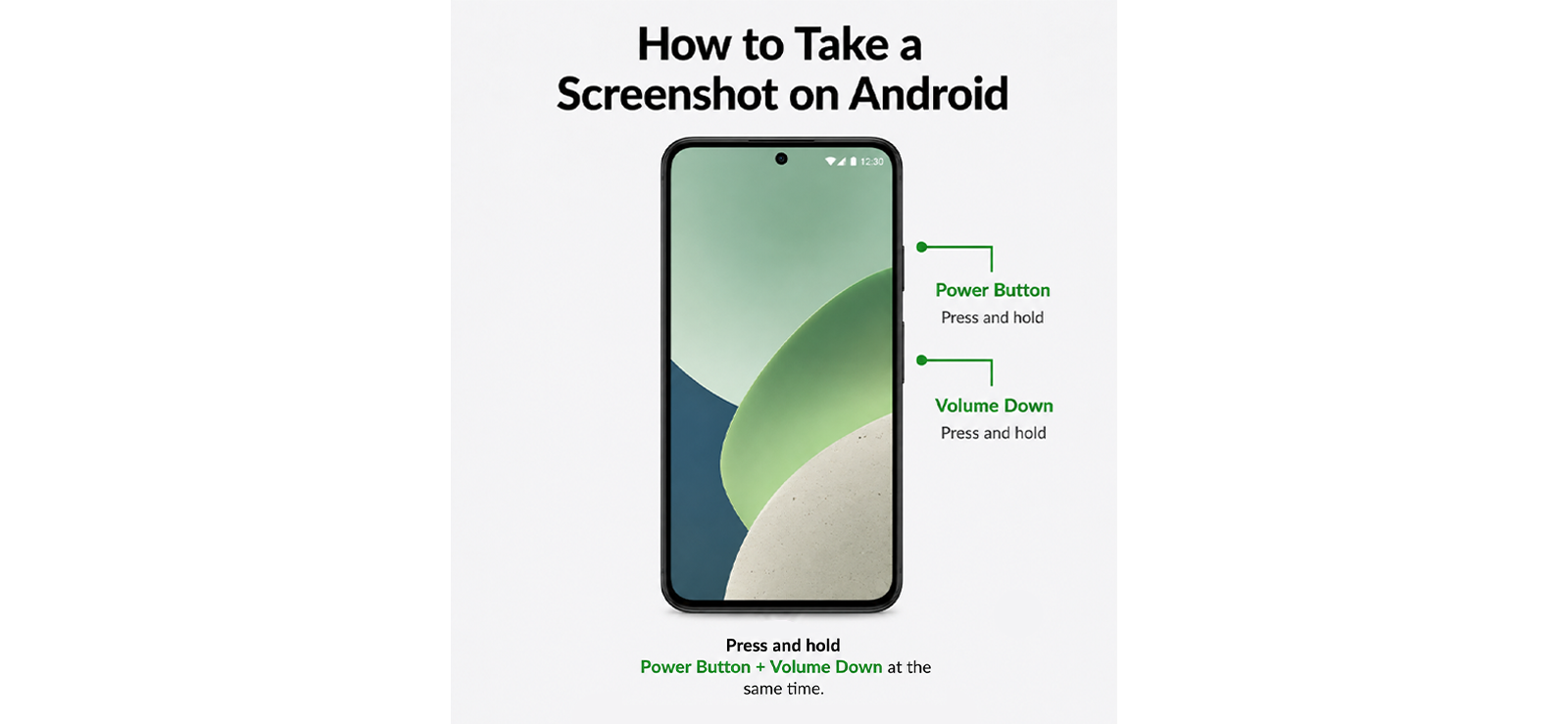
This is the default method on every Android phone. It requires no setup and saves the screenshot directly to your Gallery.
To use this method:
- Open X (Twitter) and go to the content you want to capture.
- Press the Power button and Volume Down button at the same time.
- Hold for about a second until the screenshot animation appears.
- The image saves automatically to your Gallery.
How Was My Experience?
This was my baseline throughout testing, and it worked on the first attempt in nearly every run on the Samsung Galaxy. The one real limitation isn’t about X at all; it’s hardware: if your power or volume button is worn out, unresponsive, or hard to press at the same time as the other, this method simply won’t work. That’s exactly where a gesture-based option like Palm Swipe becomes useful instead.
2. Three-Finger Swipe / Palm Swipe
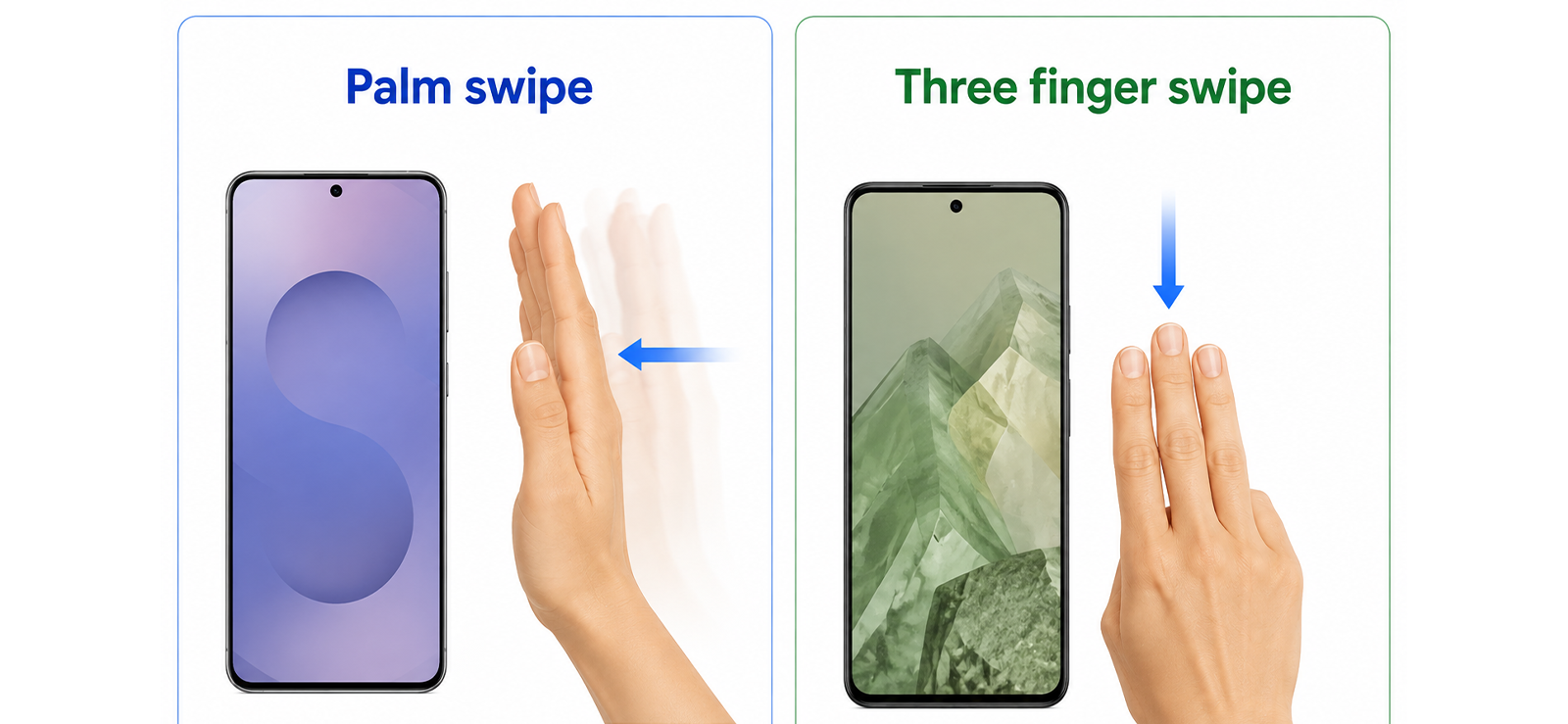
Most Android phones include a gesture-based screenshot option that skips the hardware buttons entirely. On Samsung, it’s called Palm Swipe to Capture. On near-stock Android devices, it’s usually a three-finger swipe.
- Open Settings, then go to Advanced Features (or Gestures, depending on your device).
- Enable Palm Swipe to Capture, or the three-finger swipe toggle.
- Open X and navigate to the content you want.
- Swipe the side of your hand, or three fingers, downward across the screen in one smooth motion.
- The screenshot saves to your Gallery.
How Was My Experience?
On the Samsung Galaxy, this took a firm, deliberate swipe to register consistently; light or hesitant swipes were sometimes ignored entirely. Once the motion became automatic, it was noticeably faster for catching tweets mid-scroll than reaching for the side buttons. The setting itself took a minute to track down the first time, since it’s buried a couple of menus deep in Advanced Features.
On iPhone
3. Standard Buttons
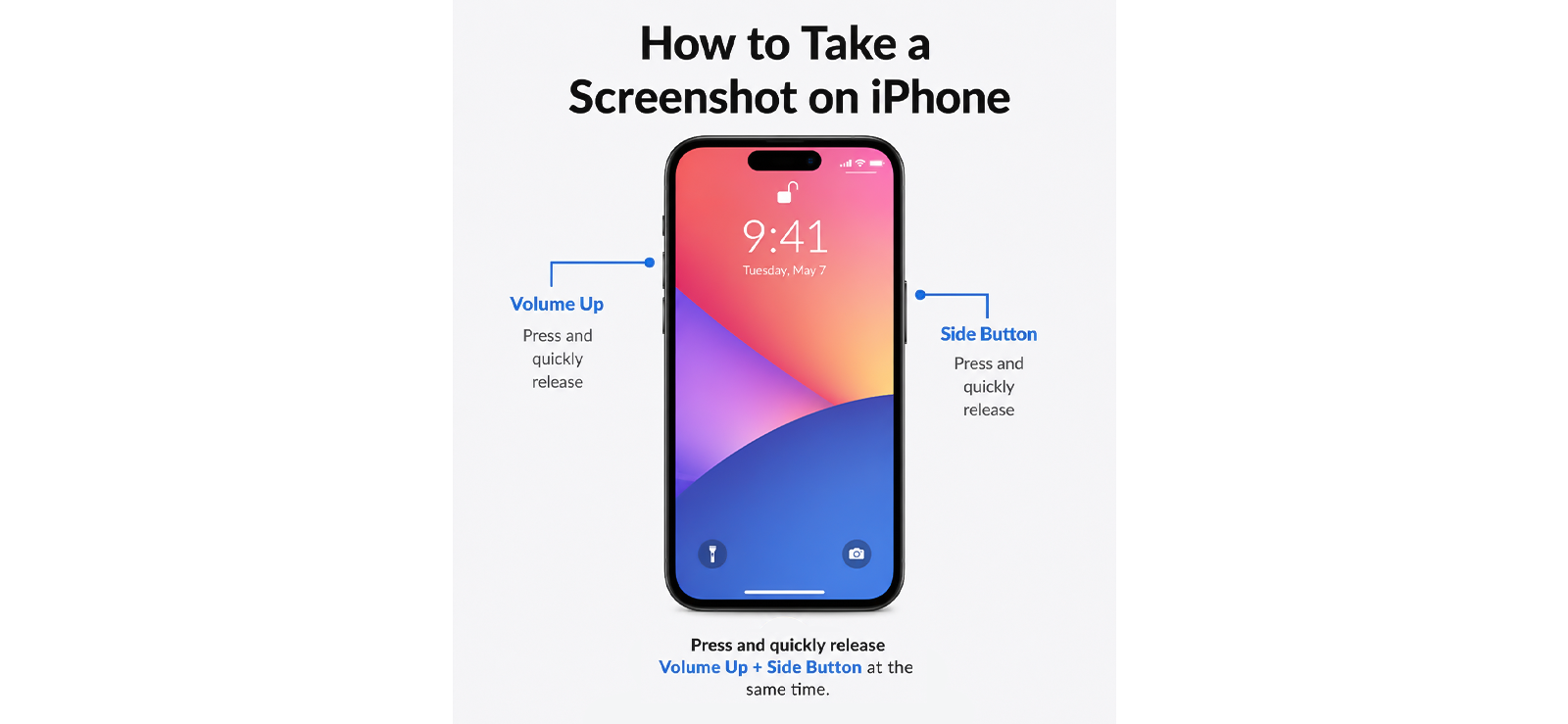
The same hardware shortcut that works everywhere else on iOS works identically inside X.
To capture a screenshot via this method:
- Open X and go to the content you want to capture.
- Press the Side button and Volume Up button at the same time.
- A thumbnail preview appears in the lower-left corner.
- Tap it to edit, or swipe it away to save directly to Photos.
How Was My Experience?
Reliable across every content type I tested, tweets, profiles, and DMs alike. The only thing to watch for is how long you hold the buttons: hold Side and Volume Up together for too long, and iOS reads it as an attempt to power off or trigger Emergency SOS instead of taking a screenshot. A quick press and release of both at once is all it takes; no need to hold either one down.
4. Back Tap
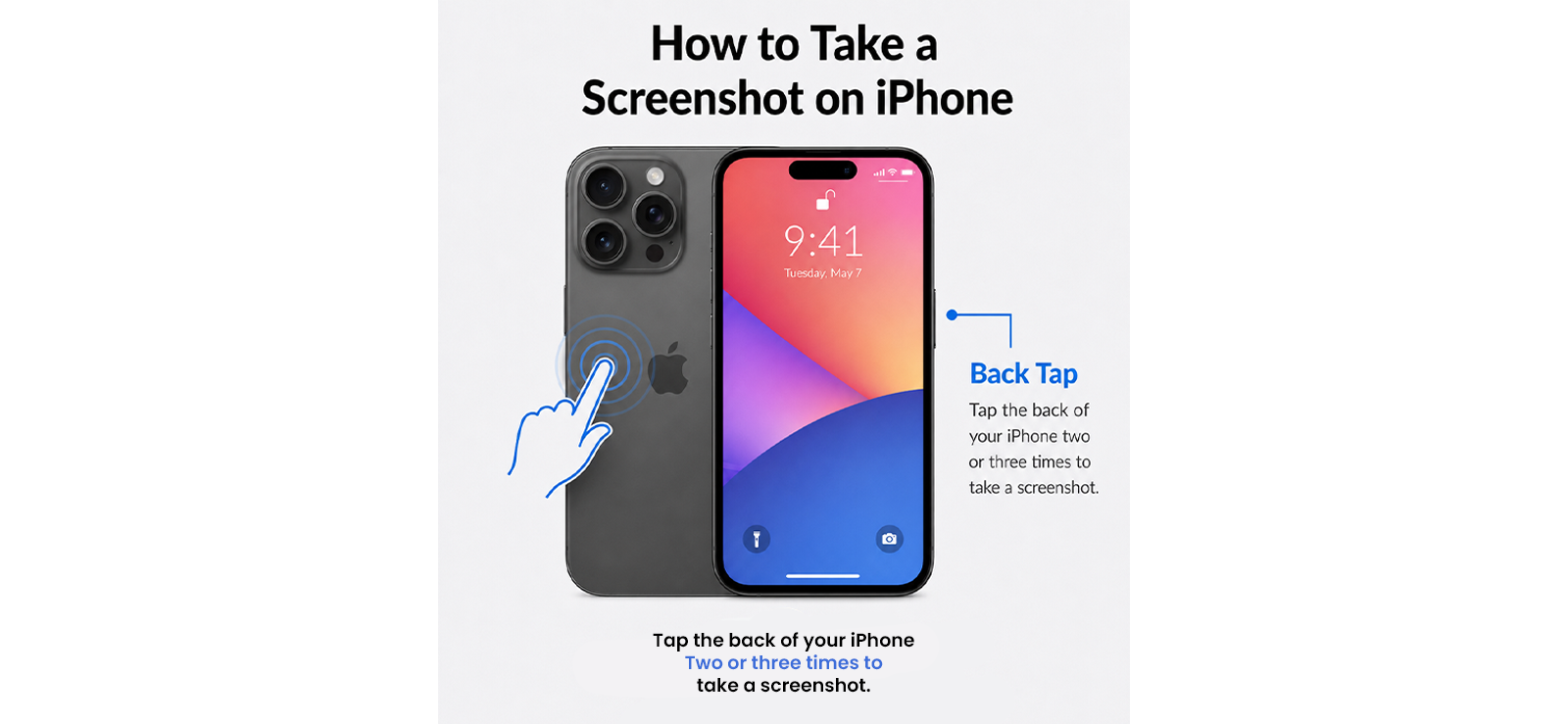
Back Tap is an iPhone accessibility feature that assigns a screenshot action to a double or triple tap on the back of the device.
To screenshot via Back Tap on iPhone:
- Open Settings, then Accessibility, then Touch, then scroll to Back Tap.
- Tap Double Tap or Triple Tap and select Screenshot.
- Open X, go to the content you want, and tap the back of your phone.
- The screenshot saves automatically to Photos.
How Was My Experience?
This turned out to be my favorite method for scrolling through the X timeline one-handed, since I could keep my thumb in place to scroll and trigger the capture with a finger on the back of the phone without shifting my grip.
Moreover, I did notice that Triple Tap felt like the safer setting for DMs specifically, since it cut down on accidental captures compared to Double Tap. However, the sensitivity dropped noticeably with a case on, and with a wallet-style case, the method didn’t work at all.
On Computer
5. Snipping Tool (Windows) / Screenshot Toolbar (Mac)
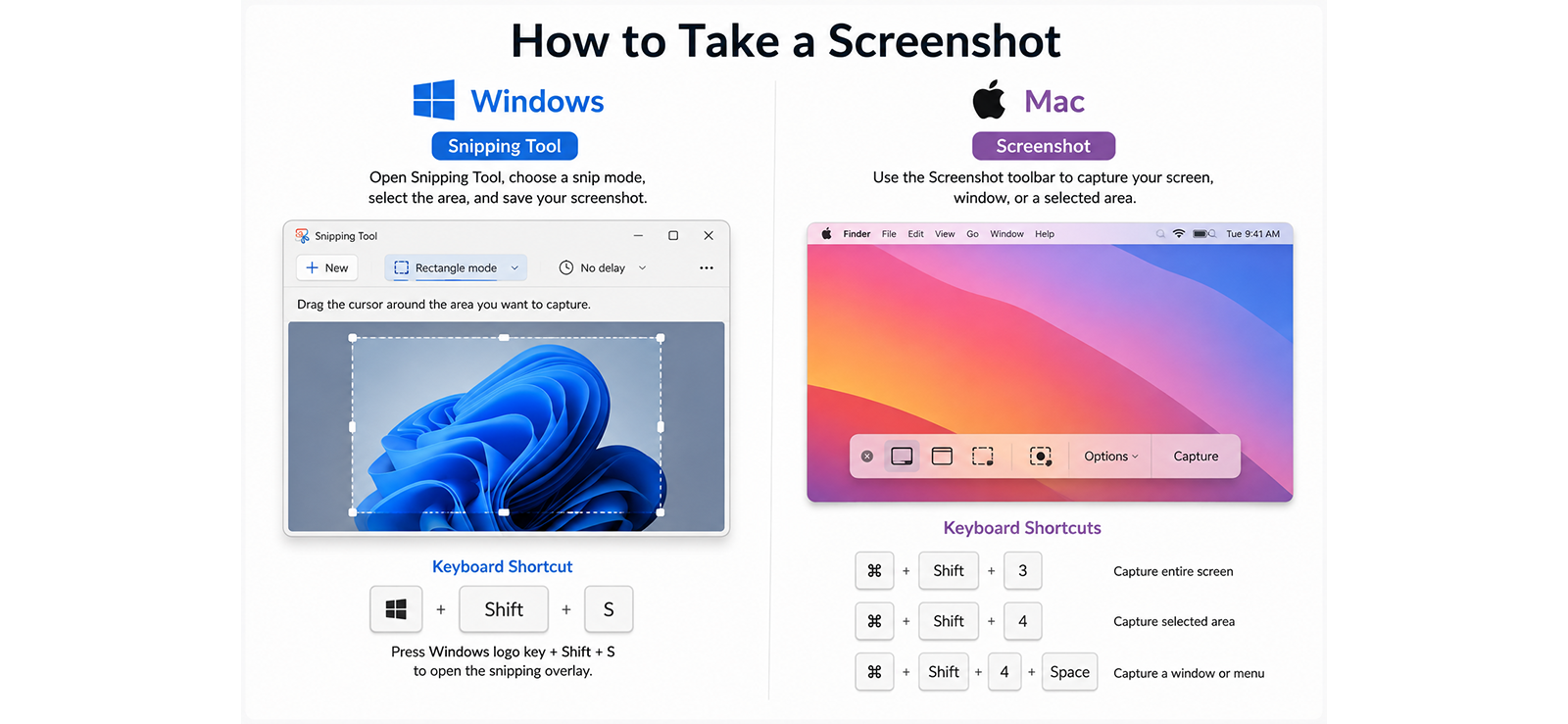
If you’re browsing X through a web browser, your operating system’s built-in capture tool gives you more control than a full-screen screenshot.
On Windows:
- Open X in a browser and let the content load fully.
- Press Windows + Shift + S to open the Snipping Tool overlay.
- Select Rectangular Snip and drag over the content you want.
- The capture copies to your clipboard and opens in the editor for saving.
On Mac:
- Open X in a browser on your Mac.
- Press Command + Shift + 4 to activate the crosshair tool.
- Click and drag to select the area you want, or press the Space Bar first to switch to window-capture mode.
- The screenshot saves automatically to your Desktop.
How Was My Experience?
The Windows Snipping Tool was consistent every time I used it, but slower than any phone method. However, I liked the fact that I could select the portion I wanted to screenshot.
The Mac shortcut produced cleaner results overall, especially with window-capture mode, which let me grab just the browser window without the surrounding desktop.
Neither method is fast enough, but both are the better choice when you want a precisely framed, high-resolution capture for documentation.
Another Side of the Question: How Parents Can View and Screenshot Their Child’s Twitter Activity
Here’s the problem with relying on the methods above: they only work if you already have access to what you’re trying to capture. If your child’s account is private, or the content in question is sitting inside a DM thread that you’re not a part of, none of the five screenshot methods can help you. Consequently, you’ll remain worried about what they are sharing with the online world.
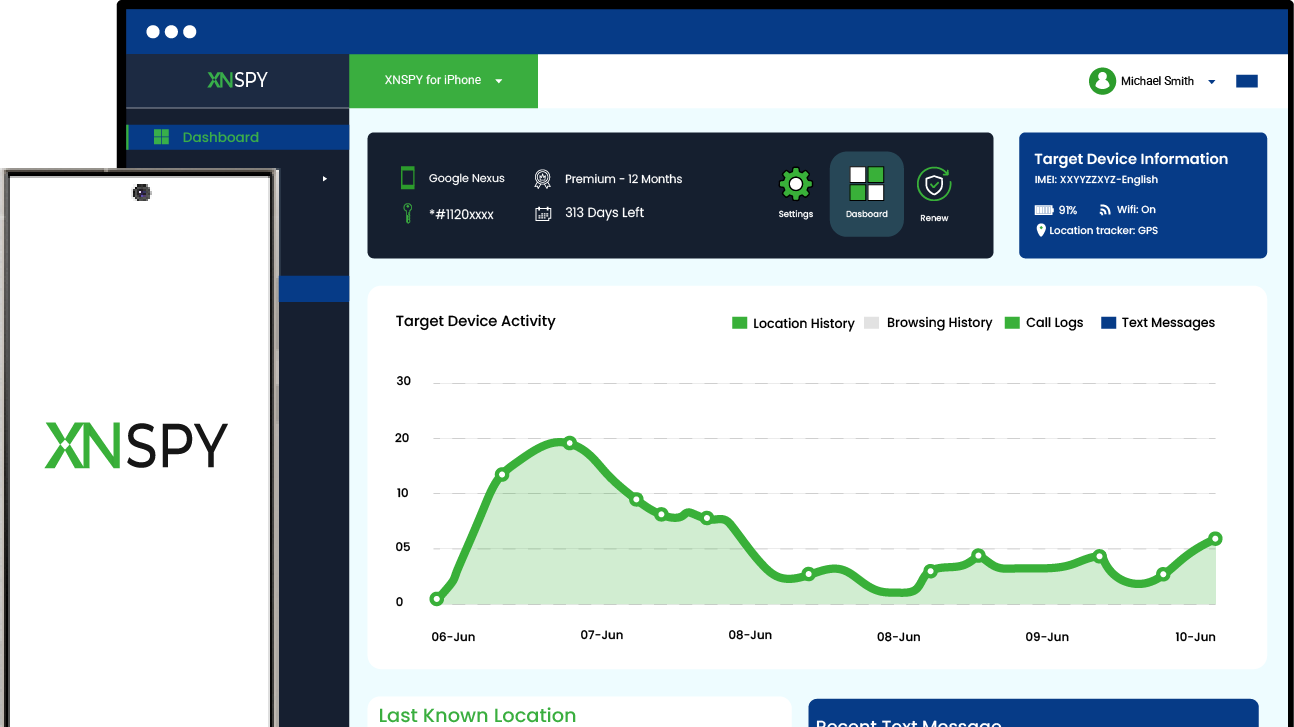
That’s where Xnspy comes in. It’s a monitoring application that runs quietly in the background on a child’s phone after a one-time setup. Once set up, it keeps sending activity to a private dashboard you can check from your own device.
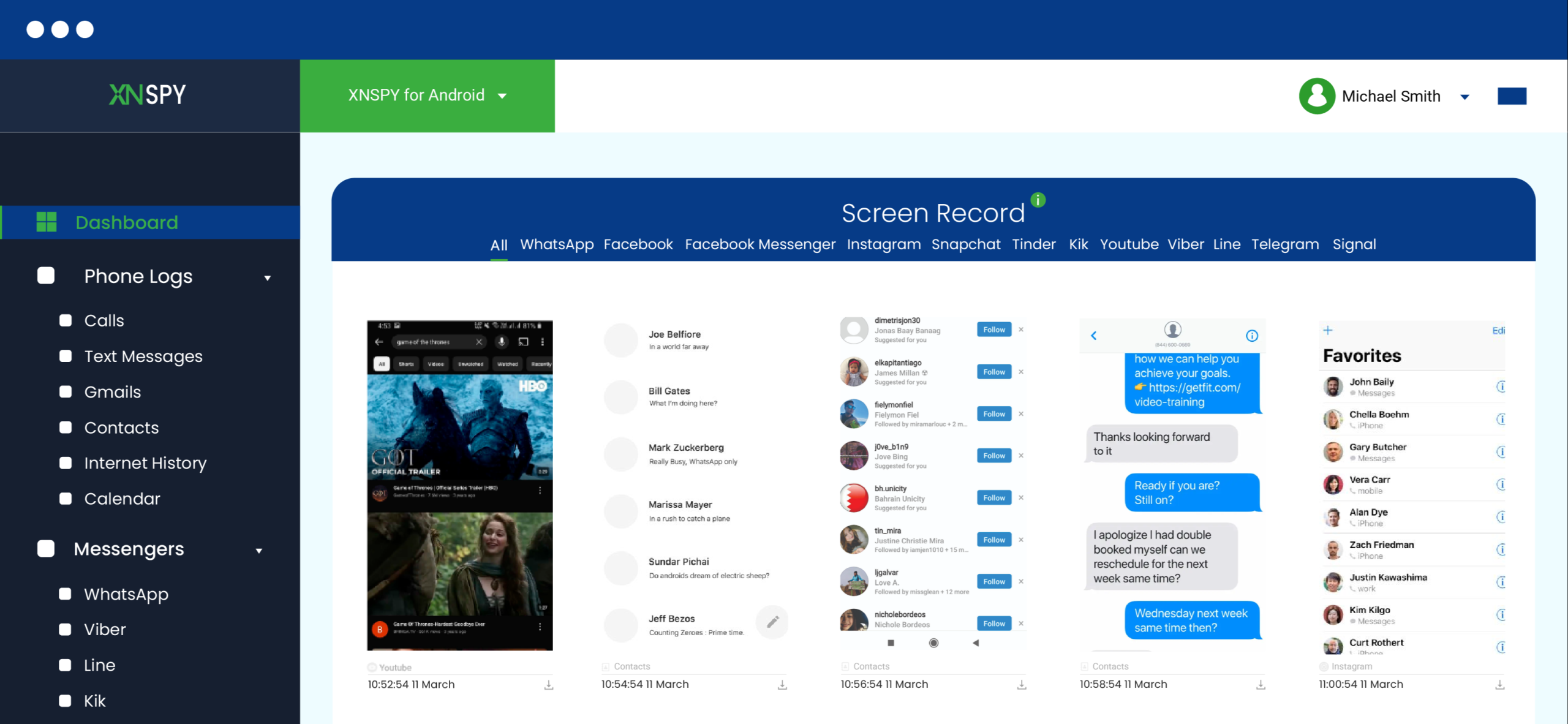
For X specifically, Xnspy’s screen recording feature captures the screen automatically, roughly every 5 seconds while the app is open, and organizes those captures under a dedicated X (Twitter) tab. That covers tweets viewed, DMs opened, profiles browsed, and content that gets deleted moments later.
Its keylogger also records what’s typed into X, including messages composed and then deleted before they’re ever sent. Moreover, you can also set keyword alerts so you’re notified the moment something concerning shows up rather than having to scroll through everything manually.
Here’s how to set it up:
- Visit the Xnspy website and choose a subscription plan.
- Get brief physical access to your child’s device to complete the one-time installation.
- Log in to your Xnspy dashboard from your own phone or computer.
- Open the Screen Record section and filter by X (Twitter).
- Use the timestamp and date filters to review specific sessions.
How Was My Experience?
I tested Xnspy’s screen recording feature over 12 days on a Samsung Galaxy, simulating a parent monitoring a teenager’s X activity. I deliberately posted and deleted tweets within seconds, sent messages in a vanishing XChat thread, and typed out DMs before backspacing them entirely, to see what the dashboard would actually preserve.
The screen recorder captured the large majority of session activity across the full 12-day testing period, and in one specific instance, I posted a tweet and deleted it within five seconds; the screenshot taken just before deletion was still sitting in the dashboard. The keylogger also picked up a deleted DM draft that never made it to the send button, which the app itself has no way of showing a parent.
However, the fact that setup required physical access to the device was a definite limitation. If you can’t get the phone for a few minutes, installation can’t happen. The dashboard also builds up a large volume of screenshots over time, which takes some effort to sort through when you’re looking for something specific. Both are manageable trade-offs if what you need is reliable, time-stamped visibility rather than hoping to catch something live.
FAQs
Does Twitter notify when you save a photo?
No. Saving or downloading a photo from X, whether it’s from a tweet, a profile, or a DM, does not notify the account it belongs to. X does not track or report image downloads to the original poster.
Does Twitter notify screenshots of disappearing content?
No. X’s vanishing DMs inside XChat sometimes display an on-screen “screenshot detected” message to the person taking the screenshot, but that message does not translate into any notification reaching the other account. However, X has changed its messaging system multiple times since it launched; the notification feature may be introduced in the near future.
Does Twitter notify screenshots of Twitter Spaces?
No. Screenshotting or screen recording a live or recorded Twitter Space does not alert the host or any speakers. Spaces are audio-first and don’t include any screenshot-detection feature.
Does Twitter notify screenshots of communities?
No. Posts, replies, and member lists inside an X Community are not reported when screenshotted. Community moderators and members have no way of seeing that a screenshot was taken, the same as with any regular tweet.
Does Twitter notify screenshots of lists and bookmarks?
No. Neither your own Lists and Bookmarks nor a public List someone else has created will notify anyone if screenshotted. These are organizational tools without any screenshot-tracking feature attached to them.
Kids Won’t Tell You What They’re Sharing. Xnspy Will
Ensure what your child shares online is safe with Xnspy
Leave a reply:
Your email address will not be published. Required fields are marked*

Mike Everett
Member since October 20, 2014
Mike Everett
Member since October 20, 2014
Mike Everett is a consumer technology journalist with expertise in hands-on testing and evaluation of iOS and Android monitoring applications. With over 11 years in the industry, he focuses on how mobile monitoring tools perform in real-world conditions, including accuracy, feature reliability, device compatibility, and practical usability for parents.
He conducts live-device testing of monitoring apps to assess how well their features function beyond marketing claims. His work primarily includes comparative reviews, feature breakdowns, and buyer-focused guides designed to help parents understand which tools actually deliver usable results in everyday scenarios.