How to See Deleted Safari History on iPhone: 5 Easy Ways
 By Mike Everett
The complete monitoring experience for your phone
Get XNSPY and start tracking calls, texts, multimedia, locations and more on any phone!
Get Started Now Live DemoThere is something uniquely unsettling about opening Safari on your child’s iPhone and finding it completely blank. No recently visited sites. No search suggestions. A clean slate that, under the circumstances, feels anything but clean.
If that is where you are, the good news is that deleted does not always mean gone. Knowing how to see deleted search history on Safari is more possible than most parents realize, because iOS leaves behind more traces than a cleared browser suggests.
This guide covers 5 methods I personally tested across two iPhones, with honest results on what each one recovered, how far back it reached, and where it ran out.
Before You Read Further: Here Is the Summary
- How much deleted Safari history is actually recoverable depends on three things: whether an iCloud backup exists from before the deletion, whether the history syncs across other Apple devices, and how recently it was cleared. Timing matters more than most parents expect.
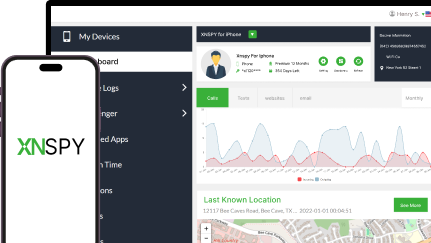
- Xnspy: Monitors Safari browsing activity in real time and logs it to a remote dashboard, capturing history before it can be deleted and making past sessions recoverable.
- iCloud Backup: Recovers deleted Safari history by restoring or reading a backup taken before the history was cleared.
- Finder/iTunes Backup: Surfaces deleted Safari history from a local encrypted backup stored on a Mac or Windows computer.
- Other Synced Apple Devices: Retrieves Safari history that synced to a shared iPad, Mac, or second iPhone before it was deleted from the primary device.
- Safari Cache: Recovers fragments of recently visited pages stored in Safari’s local cache.
How I Actually Put These Methods to The Test?
The real question I was trying to answer during testing was not just whether deleted Safari history could be recovered in theory. It was whether a parent who is not technically experienced could recover it in practice, under the conditions that actually exist.
I ran all tests across two iPhones: one with the latest iOS and one that was a few versions old. Before testing each recovery method, I established a browsing session on each device, cleared the Safari history completely, and then waited varying intervals before attempting recovery. This gave me a realistic picture of how the timing of the check affects what can still be found.
To understand how to see deleted search history on iPhone in a way that holds up beyond a single test scenario, I applied the following criteria:
- Recovery depth and recency: I prioritized methods that could surface browsing history from at least 24 hours before deletion, not just the most recent session. Methods that only returned fragments or required a same-day backup to work were ranked lower or flagged with clear timing limitations.
- Usability without technical expertise: Every method here can be completed by a non-technical parent within a reasonable time frame. Approaches requiring command-line tools, forensic software, or developer mode were excluded from the core list entirely.
- Non-alerting operation: Each method was evaluated on whether it requires interacting with the child’s device in a way that would leave visible traces or trigger notifications.
How to See Deleted History on Safari Without Alerting the User: 5 Proven Methods
Each method below operates differently and recovers from a different layer of iOS storage. I have matched each one to the scenario where it works best, because applying the wrong method to the wrong timing window will produce empty results and give a false impression that nothing is there.
| Method | Recovers From | Requires Device Access | Recovery Rate | Limitations |
| Xnspy | Real-time server-side log | No (after setup) | ~90% | Fails to recover history prior to installation. |
| iCloud Backup | Cloud backup snapshot | No | ~35–40% | Requires a very specific timing alignment that often does not occur in real use. Manual backup by the child closes the window entirely. |
| Finder/iTunes Backup | Local computer backup | Yes (computer) | ~40–45% | Most families sync infrequently. Backup is often weeks old and predates relevant browsing entirely. |
| Synced Apple Devices | Cross-device sync lag | Yes (other device) | ~25–30% | Window is minutes to hours. Most parents notice the cleared history too late for this to be useful. |
| Safari Cache | On-device cache fragments | Yes (child’s iPhone) | ~20–25% | The latest iOS flushes cache aggressively. Practically limited to a few hours and returns partial domain data, not full URLs. |
You’ve Got to Read These Blogs!

💭  How to Find Hidden Apps on iPhone Remotely: 5 Best Ways
🛑  How to Block Apps on iPhone Remotely: 5 Proven Methods
💡  How Can I Track My Child’s iPhone From My Android: 5 Best Methods
1. Use Xnspy
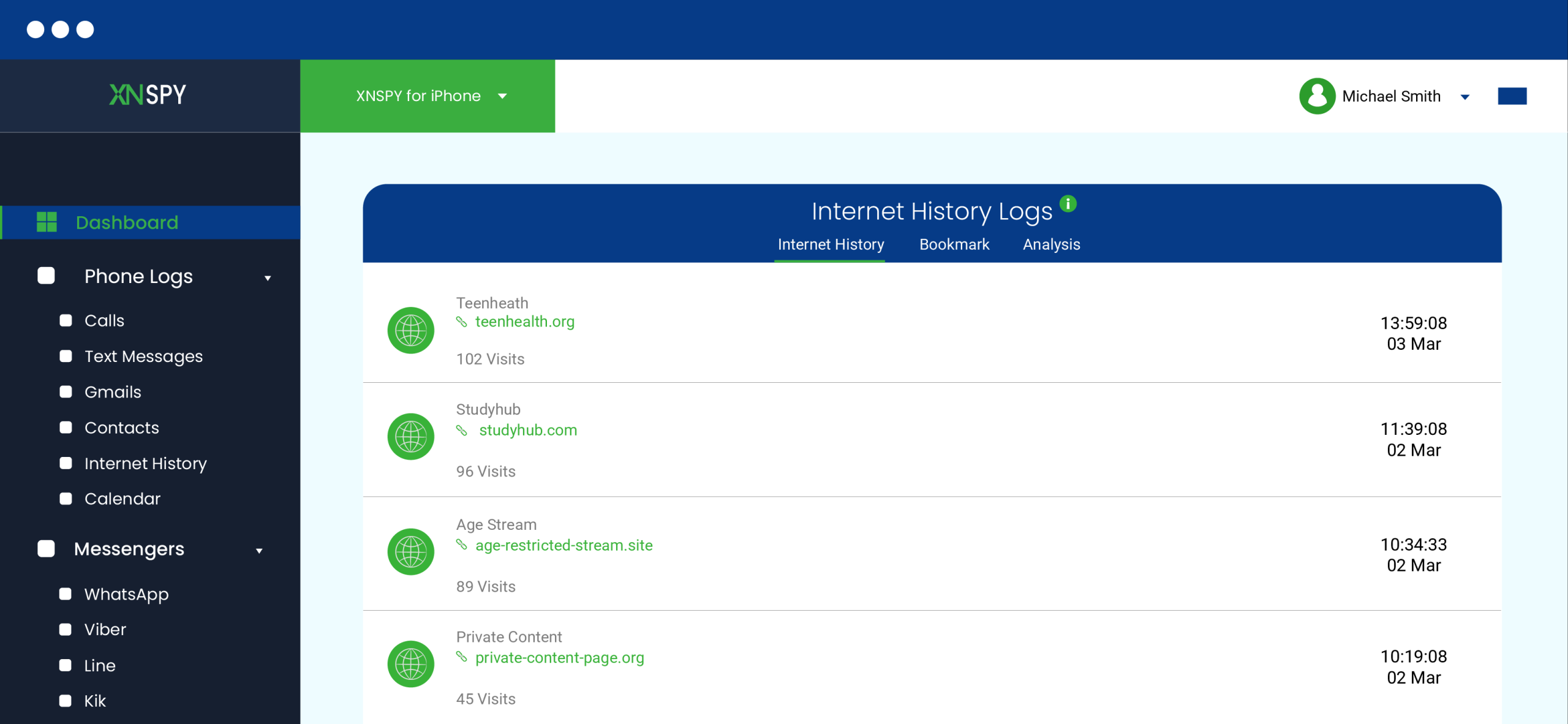
Xnspy is a parental monitoring application that, once installed on a child’s iPhone, logs browsing activity in real time and sends it to a web-based dashboard accessible only to the parent.
Every URL visited in Safari is recorded with a timestamp as it happens, not after the fact. This means that when a child clears their Safari history, they are clearing the browser’s local record. They are not clearing Xnspy’s log, because that log exists on a separate server entirely.
This is the only method on this list that does not depend on recovery timing, backup recency, or sync propagation. The log either exists or it does not, and as long as Xnspy was installed before the browsing session occurred, it exists.
Here’s how to see deleted Safari history on iPhone:
- Visit the Xnspy website and select a subscription plan.
- Complete the one-time setup on your child’s iPhone. This step requires brief physical access to the device.
- Log in to the Xnspy web dashboard from any browser on your own device.
- Go to Phone Logs > Internet History within the dashboard.
- Review the full log of Safari activity, organized by date and time. This includes clickable URLs visited before any history was cleared on the device.
Did It Work For Me?
Yes, and it was the only method that worked regardless of when I ran the check. In my testing, I cleared Safari history on both devices after establishing browsing sessions, then checked the Xnspy dashboard at 30 minutes, 6 hours, and 24 hours post-deletion.
The full browsing log was present and unchanged in all three checks. The deletion on the device had no effect on what the dashboard showed.
However, the one condition that limits this method is that the app must be installed before the browsing activity occurs. It does not recover history from before installation. For parents who are only now considering a monitoring tool, this means there will be a gap between what happened before setup and what the dashboard can show going forward. But from the point of installation onward, the browsing record is continuous and deletion-proof.

Uncover the Truth with Xnspy Browser Tracking
See exactly what they are searching for every time they browse.
2. Check iCloud Backup
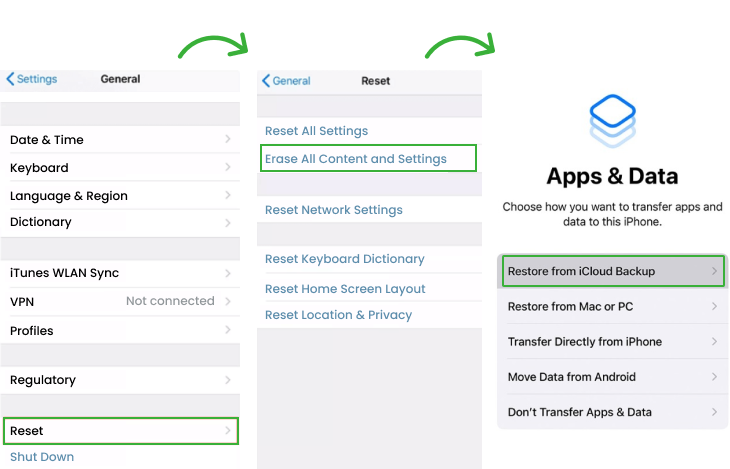
Now, when it comes to knowing how to recover deleted Safari history, iCloud can come in quite handy. Every iPhone connected to iCloud creates automatic backups when the device is charging and connected to Wi-Fi, typically once every 24 hours or upon manual backup request.
These backups include the Safari browsing database, provided it existed at the time of the backup. When a child clears their Safari history, the backup that already exists in iCloud still contains the history as it was before the deletion.
To use this method:
- On your own Mac or Windows computer, download and install iMazing from imazing.com. The free version covers what you need here.
- Open iMazing and look for the option to Connect via iCloud or Access iCloud Backups. Sign in with the Apple ID linked to your child’s iPhone.
- iMazing will display a list of devices and their associated backups. Find your child’s iPhone in the list and select the most recent backup.
- Click Browse on the backup. This opens the backup contents without touching the phone or triggering any notification on the device.
- In the left sidebar, scroll down to Safari and click it. Then select History from the options that appear.
- iMazing displays a full table of visited URLs with dates and timestamps. Sort by date to isolate the period you are investigating.
- If you want a permanent record, click Export to save the history as a spreadsheet to your computer.
Did It Work For Me?
It worked when the timing was right, and failed completely when it was not.
In my first test scenario, I established a browsing session, let an overnight backup run, then cleared the history the following morning and checked immediately. iMazing pulled the full browsing history from the previous night’s backup without issue. Every URL from the session was there with accurate timestamps because the backup had captured the history before the deletion occurred.
In my second scenario, I browsed in the evening, cleared the history within the same evening before the phone was plugged in, and checked the next morning after the overnight backup had already run. The backup that ran overnight captured the already-cleared state. The browsing session had existed entirely in the gap between the previous backup and the deletion, and it never made it into any snapshot. iMazing showed a clean Safari history because that is what the backup contained.
In my third scenario, I performed a manual backup immediately after clearing history. The manual backup replaced the previous snapshot instantly. Nothing was recoverable.
In short, this method gives you a narrow window, and it only stays open under two conditions: a backup ran after the browsing but before the child cleared the history, and the child did not perform a manual backup afterward to overwrite it.
3. Try Viewing Finder/iTunes Backup
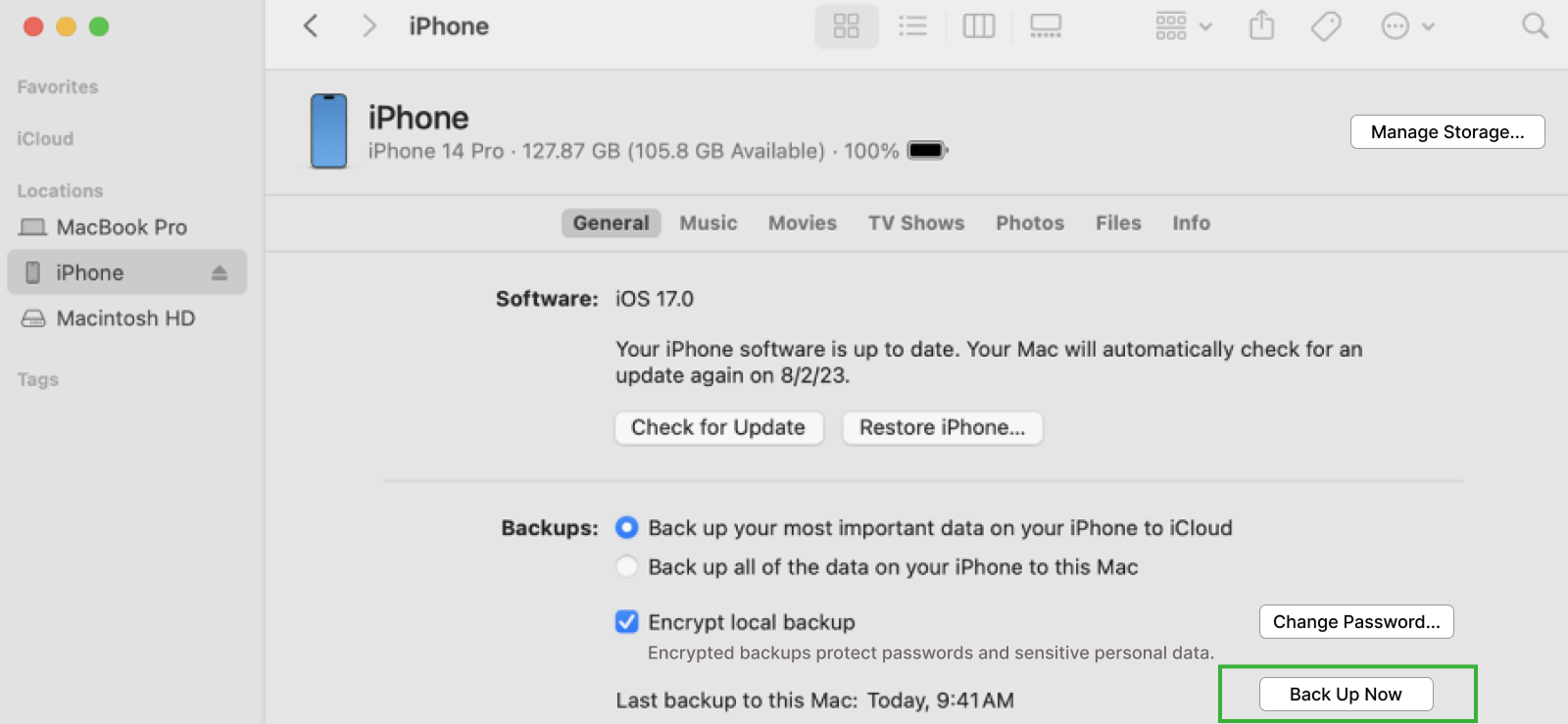
When an iPhone is synced through Finder on MacOS, or to a Windows PC through iTunes, it creates a local backup stored directly on that computer. These local backups are separate from iCloud backups and are not subject to the same 24-hour automatic cycle.
They are created on demand each time the phone is synced, which means if a child regularly connects their iPhone to a family computer, a local backup may exist from a date closer to when the history was active than any available iCloud backup.
The process is identical to iCloud backup recovery in principle: the local backup contains a snapshot of the Safari history database as it existed when the sync occurred. The difference is that local backups can be read more directly using the same third-party tools used for iCloud backups, and they do not require a cloud connection, just access to the computer that holds the backup.
If the local backup is encrypted, which Apple enables by default in some configurations, a third-party tool will need the backup password to read it. This is typically the iPhone’s device passcode or a custom backup password set during a previous sync.
To know how to see deleted history on Safari via Finder/iTunes Backup:
- On the Mac or Windows computer that has been used to sync the child’s iPhone, open Finder (Mac) or iTunes (Windows).
- On Mac: click on the device in the Finder sidebar, then select General and look under Backups to confirm a local backup exists and note its date.
- On Windows: open iTunes, click the device icon, navigate to Summary, and check the Backups section for a local backup date.
- If a backup exists from before the Safari history was cleared, open iMazing, TouchCopy, or a comparable tool on the same computer.
- In the tool, select Restore from Backup or Browse Backups and locate the local backup file, typically stored at ~/Library/Application Support/MobileSync/Backup/ on Mac.
- Go to the Safari history section within the tool and review or export the recovered browsing data.
Did It Work For Me?
Yes, but whether it works depends entirely on one thing: when the child’s iPhone was last plugged into a family computer and synced.
Unlike iCloud, which overwrites the previous backup automatically every time the next cycle runs, a local Finder or iTunes backup stays exactly as it was until the phone is physically synced to that computer again. That is actually an advantage in one specific scenario: if a child cleared their Safari history recently but the last local sync happened weeks ago, that old local backup still holds whatever browsing history existed at the time of that sync, untouched, because nothing has overwritten it since.
The problem is the flip side of the same coin. If the last sync was three weeks ago, the local backup only shows you what was on the device three weeks ago. Anything browsed and deleted in the weeks since then never made it into the local backup at all, because the phone was never plugged in during that window.
You are not recovering recent history. You are recovering old history that happened to be captured the last time someone connected the phone to a computer.
The honest reality for most families is that children’s iPhones rarely get plugged into a computer regularly. If the last sync was more than a few weeks ago, this method will show you something, but probably not what you are looking for.

Pro Tip
You now know how to access deleted Safari history, but what if you want to see private browsing history on someone’s iPhone?

4. See Other Synced Apple Devices
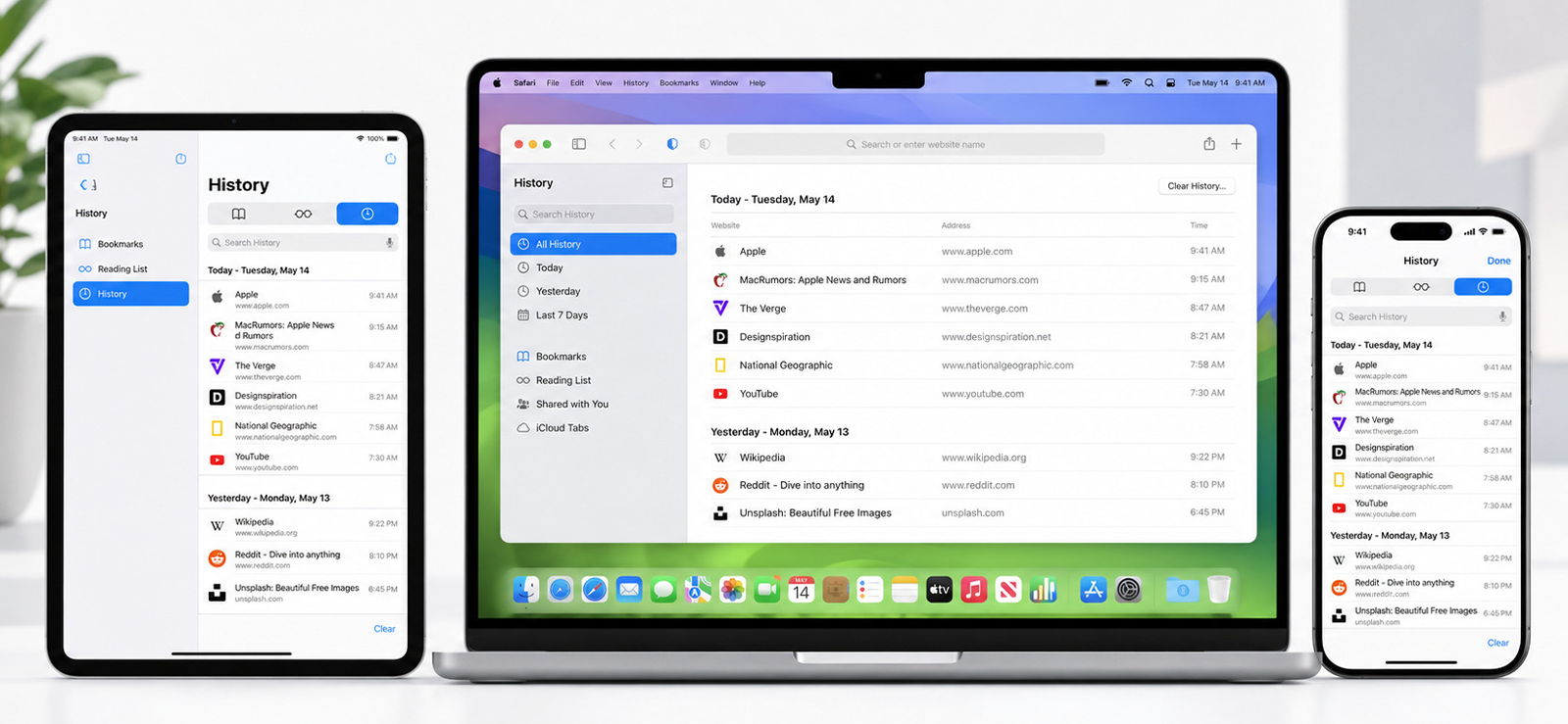
A less obvious but genuinely effective way to know how to find deleted Safari history on iPhone is to check another Apple device that was signed into the same iCloud account before the history was cleared, because Safari history syncs across devices, and deletion does not always propagate instantly or completely.
When iCloud Safari sync is enabled on multiple Apple devices under the same Apple ID, browsing history is shared across all of them in near real time. A site visited on an iPhone appears in Safari history on a connected iPad or Mac within minutes. When the child clears history on the iPhone, iCloud sends a deletion instruction to the other synced devices.
But this propagation is not always immediate, and on devices that were offline, on low battery, or running an older iOS version at the time of the deletion, the deletion instruction may arrive late or fail to execute completely.
The mechanism exploits the inherent latency in iCloud sync. A device that received the history but had not yet received the deletion instruction will still show that history in its own Safari browser. This window is unpredictable: it can be as short as a few minutes on a device with a strong Wi-Fi connection, or as long as several hours on a device that was powered off when the deletion occurred.
To do so:
- Identify any other Apple devices signed into the same Apple ID as your child’s iPhone. This includes iPads, Macs, iPod touches, or a second iPhone.
- On the secondary device, open Safari.
- On iPhone or iPad: tap the book icon at the bottom of the browser, then select the clock icon to open History.
- On Mac: click History in the menu bar, then Show All History.
- Review the history list for entries from the period you are investigating. Pay attention to timestamps that fall within the window before the deletion was performed.
Did It Work For Me?
Partially, the timing element was critical. In testing, I cleared Safari history on the primary test iPhone while a connected iPad was in Airplane Mode. When I turned the iPad’s Wi-Fi back on 45 minutes later, the Safari history was still visible on it. The deletion sync arrived approximately 8 minutes after reconnection and cleared the iPad’s history as well. That 45-minute window was the recovery opportunity.
In a second test where both devices were online and connected to the same Wi-Fi network, the history on the secondary device was cleared within 4 minutes of the deletion on the primary. As this is a narrow window, most parents might not even catch it without already knowing to look.
5. Recover Deleted Safari History from the Cache
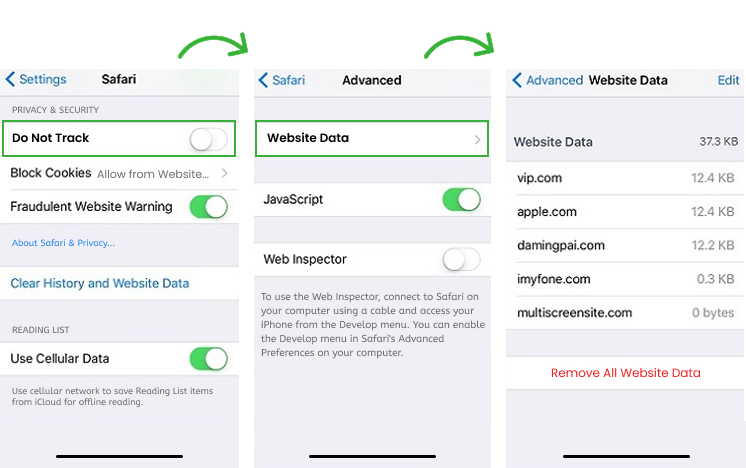
The most time-sensitive of all five methods, but also the one that requires no external tools or accounts, is checking Safari’s local cache. It retains fragments of recently visited pages for a short period after browsing history is cleared.
Safari maintains a local cache of web page data, including images, scripts, and partial page content, to speed up the loading of recently visited sites on return visits. This cache is stored separately from the Safari history database. When a child clears history through “Clear History and Website Data,” the history log is deleted, but the cache is not always fully purged at the same time.
The cache itself does not contain a readable list of URLs the way the history database does. What it contains are page fragments, stored resources, and, in some cases, DNS lookup records that can be used to infer which sites were visited. Accessing this requires either a third-party cache reading tool.
Here’s how to view deleted history on Safari using the cache method:
- Connect the child’s iPhone to a Mac or Windows computer using a USB cable.
- Open iMazing or a comparable file-access tool and select the connected device.
- Go to File System > Media > Safari or use the tool’s search function to locate the Safari cache directory, typically found at Library/Caches/com.apple.mobilesafari/.
- Browse the cache files present. Look for recently modified files, which will have timestamps from the browsing session in question.
- For DNS cache specifically, on a Mac connected to the same Wi-Fi network as the child’s iPhone, open Terminal and run sudo dscacheutil -cachedump -entries Host to view recent DNS lookups. These include domain names the iPhone resolved recently, including during the cleared browsing session.
- Cross-reference any domain names found in the DNS cache or Safari cache with the period of concern to identify which sites were visited.
Did It Work For Me?
Partially, and only within a narrow time window. In testing on the iPhone with a relatively older iOS version, I recovered partial cache data from a browsing session cleared 2 hours prior. The cache directory contained image resources from 4 of the 7 sites visited during the test session, enough to identify the domains even without a readable URL list.
On the other iPhone running the latest iOS version, the cache was substantially cleaner after 2 hours, and I could only confirm 2 of the 7 domains.
The DNS cache method on Mac was more consistent across both scenarios, recovering domain names from 5 of the 7 sites visited within the 6-hour window. After 24 hours, the DNS cache had refreshed, and the recoverable domains dropped to 1.
This method is more technical compared to the others on this list, and I would not recommend it as a first step. But for parents who have already tried the backup methods and come up empty, it can surface evidence that every other approach missed.
FAQs
How long does Safari keep history on iPhone?
Safari on iPhone keeps browsing history for 30 days by default. But you can adjust this setting to store it for a shorter or longer period. You also have the option to manually delete history from the last hour, today, yesterday, or all of it.
How to see deleted search history on Safari if the target person used private browsing?
Safari’s private browsing mode is designed to leave no trace, so once the session ends, there is no history or cache to recover. However, if the device is synced with iCloud, you can check iCloud backups for any saved history – but you will need access to the Apple ID credentials to do so.
So if you are wondering how to see deleted history on Safari, Xnspy is probably the only solution that can help, even if someone uses private browsing. It tracks all iPhone browsing activity, both in regular and private browsing modes, and lets you easily access it through the app’s dashboard.
How to recover deleted Safari history of the other person if no iCloud backup is available?
If there’s no iCloud backup, recovering deleted Safari history from someone else’s device can be tough, and in most cases, it is almost impossible. This is because Safari history is typically stored on iCloud, and without access to it, there is no easy way to retrieve it.
However, with XNSPY, it is simple to learn how to see deleted search history on Safari. The app tracks all Safari browsing activity in real-time and saves it to its secure servers, making deleted history easily accessible without any hassle.
How to find deleted Safari history on iPhone without installing the software on the target device?
If iCloud backup is enabled, you might be able to find deleted Safari history without needing any software. If the device syncs with iTunes or iCloud, you could also retrieve deleted Safari history from older backups. Another way to look at deleted history on Safari is by checking the “Recently Deleted” section in Safari, but keep in mind it only stores deleted bookmarks, not browsing history.
That said, these methods can be complicated and don’t always guarantee results. To truly understand how to look at deleted history on Safari accurately, it is best to use robust software like Xnspy, which can track and retrieve deleted history with ease.
How to view deleted history on Safari if I don’t have physical access to the target phone?
If you don’t have physical access to the target phone, you can try checking the iCloud account linked to the device. If iCloud backups are enabled, you can access Safari browsing history from previous backups, but you will need to get consent and the iCloud credentials first.
A more straightforward way to learn how to check deleted history on iPhone is by using Xnspy, which allows you to remotely access deleted history, even without physical access to the device.
How to find deleted history on iPhone if the device is reset to factory settings?
If an iPhone has been reset to factory settings, recovering deleted history can be a bit tricky since all data is erased during the reset. However, if you are still craving how to see deleted search history on iPhone, you may still have a chance.
The key is to restore the device from an iCloud or iTunes backup that was made before the reset. If such a backup exists, it could potentially contain the deleted Safari history you are looking for. Just make sure you have the correct backup that was created before the reset to access the deleted data.
Leave a reply:
Your email address will not be published. Required fields are marked*

Mike Everett
Member since October 20, 2014
Mike Everett
Member since October 20, 2014
Mike Everett is a consumer technology journalist with expertise in hands-on testing and evaluation of iOS and Android monitoring applications. With over 11 years in the industry, he focuses on how mobile monitoring tools perform in real-world conditions, including accuracy, feature reliability, device compatibility, and practical usability for parents.
He conducts live-device testing of monitoring apps to assess how well their features function beyond marketing claims. His work primarily includes comparative reviews, feature breakdowns, and buyer-focused guides designed to help parents understand which tools actually deliver usable results in everyday scenarios.