How to Find Hidden Apps on iPhone: 6 Best Ways for Parents
 By Mike Everett
The complete monitoring experience for your phone
Get XNSPY and start tracking calls, texts, multimedia, locations and more on any phone!
Get Started Now Live DemoThere is a particular kind of unease that settles in when you realize your child knows their way around a smartphone better than you do. Not in a proud way. In the way that you hand the phone back after checking it and think: if something were on here that should not be, would I even know where to look?
That question is more common than most parents admit, and it is exactly the right one to be asking. In over 11 years of testing parental monitoring tools and reviewing more than 40 apps annually, I have found that the parents who catch problems early are rarely the ones who got lucky. They are the ones who knew how to find hidden apps on iPhone before they needed to.
In this guide, I am walking you through 6 methods I personally tested across two iPhones, covering everything from a dedicated monitoring tool to native iOS features most parents have never opened. Each one gets an honest result, including what it found, what it missed, and how long it actually took.
The Short Version Before We Get Into It
- Whether a hidden app is actually findable depends on how it was hidden: removed from the home screen, tucked into a folder, disguised behind a different icon, or buried in App Library. Each hiding method requires a different discovery approach.
- Xnspy: Surfaces all installed apps on your child’s iPhone remotely through a web dashboard, including apps that have been hidden from the home screen or App Library, without requiring physical access to the device after setup.
- iCloud Backup: Pulls a full list of every app tied to the iCloud account, including ones no longer visible on the home screen, by reviewing backup contents through iCloud settings or a desktop restore.
- App Store Subscriptions: Reveals apps with active paid subscriptions that a child may be using but has hidden from view.
- Family Sharing: Surfaces purchase and download history for every app a child has ever installed on their Apple ID.
- Screen Time: Shows a detailed breakdown of app usage by time spent, revealing which apps are being actively used even if they are hidden.
- Spotlight Search: Locates apps hidden from the home screen and App Library by searching their name directly.
What Actually Happened When I Tested These Methods?
I came into this testing round with one specific goal: figure out which discovery methods hold up when a child has deliberately tried to make an app harder to find. For this purpose, I tested across two iPhones.
On each device, I set up a series of deliberate concealment scenarios before running each method. I then ran each method at least 3 times across both devices for every individual method. I recorded what each method found and what it missed.
To arrive at the final list, I applied the following criteria:
- Discovery completeness: I prioritized methods that surfaced the most installed apps, regardless of how they were hidden. Methods that only found surface-level removals but missed App Library or subscription-based apps were ranked lower or noted with clear limitations.
- Accessibility for non-technical parents: Every method here can be completed without special tools or prior experience.
- Reliability across iOS versions: With iOS updating frequently and Apple changing how App Library, Spotlight, and Screen Time function across versions, I only included methods that produced consistent results on both test devices.
Why is It Important to Know How to Find Secret Apps on iPhone?
Knowing how to access hidden apps on iPhone matters because children as young as 10 are actively hiding apps from parents. iOS makes that easier with every update, and some of those apps carry real risks that parents cannot respond to if they do not know the apps exist. All parents are looking for is to maintain enough visibility to intervene when it actually counts.
In reviewing monitoring data across more than a decade of app testing, I find that children hide apps for three reasons:
- They know the app is not allowed.
- They do not want a spending history discovered.
- They are exercising a developmentally normal privacy instinct.
Knowing which category you are dealing with changes how you respond.
The latest iOS version has made hiding apps significantly easier, and most children already know how to use it. Apple introduced App Library hiding and Face ID locks for individual apps, and has also allowed home screen removal for quite some time as well. On top of this, children today are adept at knowing their way around technological loopholes.
Because some hidden apps create genuine safety risks that compound the longer they go undetected, parents naturally feel worried. Apps like Yubo, Wizz, and Omegle are built around anonymous interaction with strangers and are regularly hidden by children who anticipate parental objection.
These Articles Are Worth Your Time!

🚨  How Can I Track My Child’s iPhone From My Android: 5 Best Methods
🔥  View Private Browsing History on iPhone Without Them Knowing
🔍 How Can I Monitor My Child’s Text Messages on iPhone
🥇 How to Block Websites on iPhone Without Having the Device
How to See Hidden Apps on iPhone: 6 Proven Methods
Some methods below work best for finding apps that have been hidden from the home screen but are still installed. Others find apps that have been deleted but leave behind a subscription or purchase trail. I have noted what each method is best at, because using the wrong tool for the wrong type of hiding will leave you thinking nothing is there when something actually is.
Here is a quick comparison before I walk through each one:
| Method | Finds Home Screen Hidden Apps | Finds Deleted Apps | Requires Device Access | Discovery Rate in Testing |
| Xnspy | Yes | Yes | Yes (for initial setup) | ~95% |
| iCloud Backup | Yes | Yes | No | ~80% |
| App Store Subscriptions | Partially | Yes (if subscribed) | No | ~75% |
| Family Sharing | Partially | Yes | No | ~80% |
| Screen Time Activity | Yes | No | Yes | ~85% |
| Spotlight Search | Yes | No | Yes | ~70% |
1. Use Xnspy
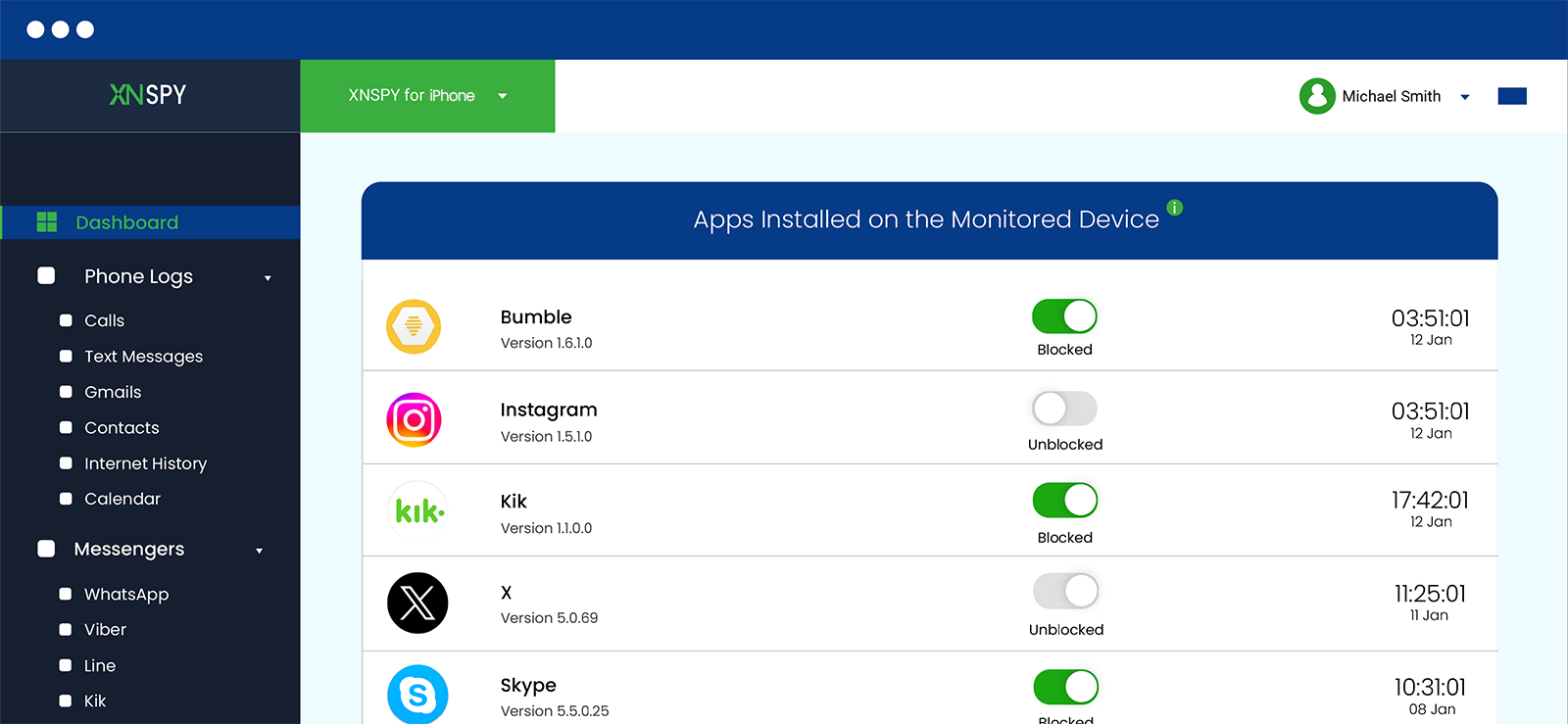
If you want to know how to access hidden apps on iPhone without physically going through the device every time, Xnspy may be the answer to your worries. It is a mobile monitoring application for parents.
Once installed on a child’s iPhone, it runs in the background and reports data to a web-based dashboard that only the parent can access. One of its core features is a complete app inventory: a real-time list of every application installed on the monitored device, regardless of whether it appears on the home screen, is hidden in the App Library, or has been moved into a folder several levels deep.
Beyond the app list, Xnspy also surfaces usage data: how long each app was open, when it was last used, and in the case of social apps, what activity occurred inside them. This gives a parent not just the what but the how much, which is often the more useful piece of information.
To use this method:
- Visit the Xnspy website and select a subscription plan.
- During setup, grant the required access.
- Log in to the Xnspy web dashboard from any browser on your own device.
- Go to the Installed Apps section to view the full list of apps on the monitored iPhone.
- Review the list and cross-reference with what is visible on the home screen if you want to identify specifically which apps have been hidden.
- Use the Screen Time section to see time-stamped activity per app, which reveals apps that are being used even if hidden from plain sight.
How Did It Go For Me?
This was the most complete result I got across all six methods. In my test setup, I had hidden 7 apps using 4 different methods: folder nesting, home screen removal, App Library hiding, and a Shortcut-based disguised icon.
Xnspy’s installed apps list surfaced all 7. The disguised icon appeared by the actual app name and even the app version, which was pretty impressive for me.
The setup process required one-time physical access to the target device. After that, I managed everything entirely from my own device. The dashboard is updated shortly after the initial sync is completed. However, I do have to report that in 3 of those 7 instances to detect the apps, I had to refresh the list again and again to load the app icons.

From Hidden to Visible – Xnspy Sees It All
Check and access all apps discreetly and remotely.
2. iCloud Backup
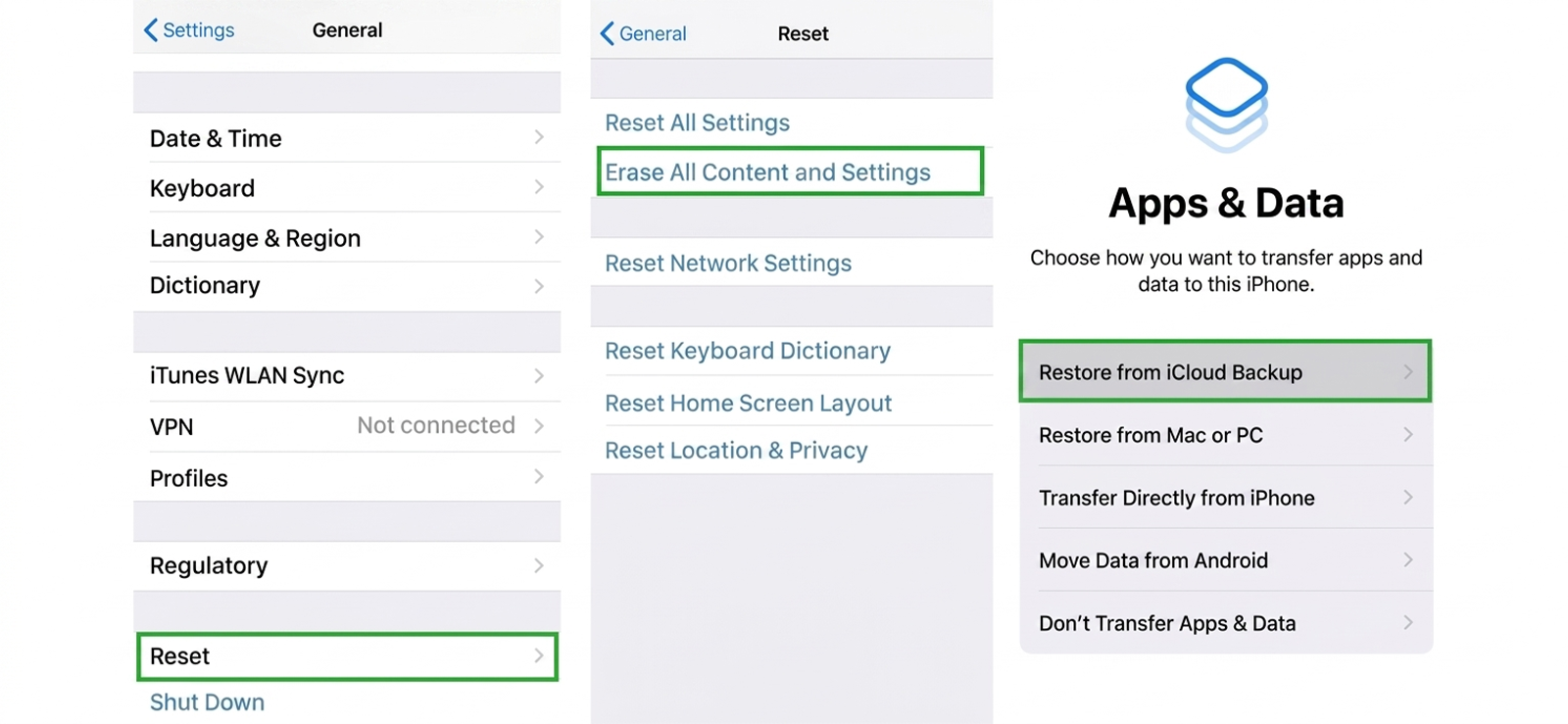
Every iPhone connected to an iCloud account creates regular backups that include the full app list associated with the device at the time of the backup. Even if an app has been removed from the home screen or hidden from the App Library, it still appears in the backup because the backup captures the installed state of the device, not its visual presentation.
The process works through iCloud’s backup architecture. When a backup is created, iOS logs the bundle ID and display name of every installed application. This list is accessible through iCloud settings on any device signed into the same Apple ID, and through iTunes or Finder on a desktop if a local backup exists.
Here’s how to get to hidden apps using iCloud Backup:
- On any device signed in to the same iCloud account as your child’s iPhone, open Settings and tap on the Apple ID name at the top.
- Tap iCloud, then Manage Account Storage or Manage Storage.
- Tap Backups and select your child’s iPhone from the list of backed-up devices.
- Scroll through the backup details. On iOS 16 and later, you can see a list of apps included in the most recent backup under the Show All Apps option within the backup view.
- Compare this app list against what you can see on the home screen and App Library to identify discrepancies.
- For a more detailed view, connect the child’s iPhone to a Mac and open Finder (or iTunes on Windows). Select the device, go to the backup section, and restore the backup to a secondary device or review its contents using a third-party backup reader tool.
How Did It Go For Me?
Mostly effective, with one important timing limitation. In testing, the iCloud backup method successfully surfaced 5 of the 8 apps I had hidden this time around. It missed the two that had been installed after the most recent backup was created.
iCloud backups run automatically when the device is charging and connected to Wi-Fi, but there can be gaps of 12 to 36 hours between backups depending on usage patterns. If an app was installed and deleted within that window, it may not appear.
The other limitation I found is that the in-settings backup view does not always show the full app list without tapping through several sub-menus, and the UI changes slightly between iOS versions.
3. Check App Store Subscriptions
When a child downloads and uses an app that requires a subscription, that transaction is tied to the Apple ID used for the download. Apple maintains a complete subscription history accessible through any device signed into that Apple ID.
This log persists even after the app is deleted and the subscription is canceled. This means that if a child has installed, used, and then removed an app to cover their tracks will still leave a trail in the Apple ID’s expired subscription history.
The mechanism behind this method is Apple’s payment infrastructure. Every in-app subscription purchase creates a record in the Apple ID’s transaction history. These records are not affected by what happens to the app on the device. Deleting an app does not cancel its subscription, and it does not erase the subscription from the Apple ID’s history.
To know how to find a hidden app on iPhone by checking app store subscriptions:
- Open Settings on your own device and tap your Apple ID name at the top.
- Tap Subscriptions. This shows all active and expired subscriptions tied to the Apple ID.
- Review the full list, paying attention to app names you do not recognize or subscriptions that do not match apps currently visible on any family device.
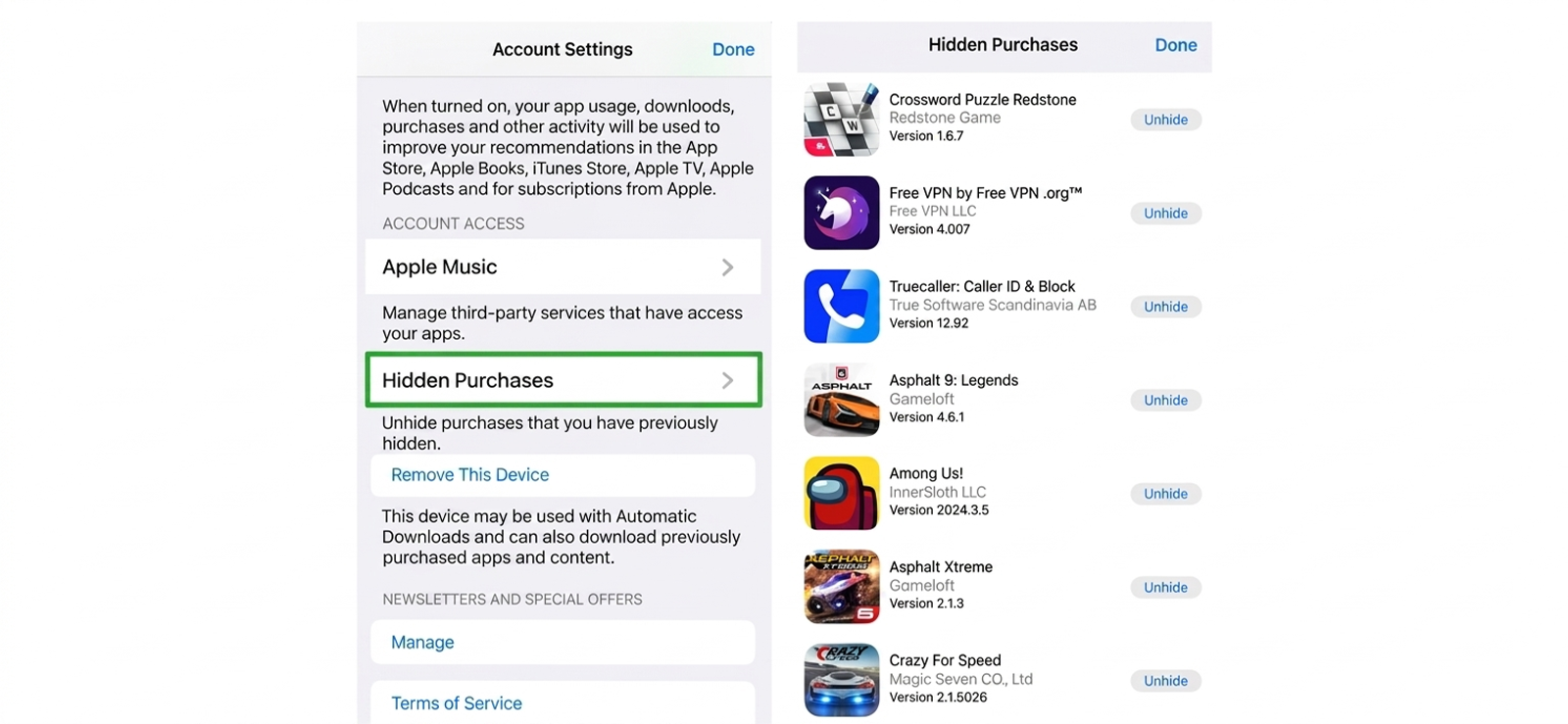
- For a more complete purchase history that includes one-time purchases and free downloads, open the App Store, tap your profile icon in the top right, then tap Purchased.
- Select My Purchases to see every app ever downloaded on your Apple ID, or Not On This iPhone to isolate apps that are no longer installed on the current device but exist in the purchase history.
How Did It Go For Me?
Effective within its specific scope. In my test setup, 3 of the 10 hidden apps had associated App Store subscriptions. The subscription view surfaced all 3 clearly, including one app that had been fully deleted from the device 9 days before I ran the check.
The remaining 6 apps were free downloads with no payment trail, and they did not appear here at all, which brings me to the downside. The free-to-use apps are not at all discoverable by this method.
Let’s say you’ve forbidden your child to use TikTok. They can easily download it and delete it after using as it will leave no transactional history. So, I’d not prefer this method as a standalone one.

Bonus Tip
You can still find hidden apps if the target is using an Android phone.

4. Use Family Sharing
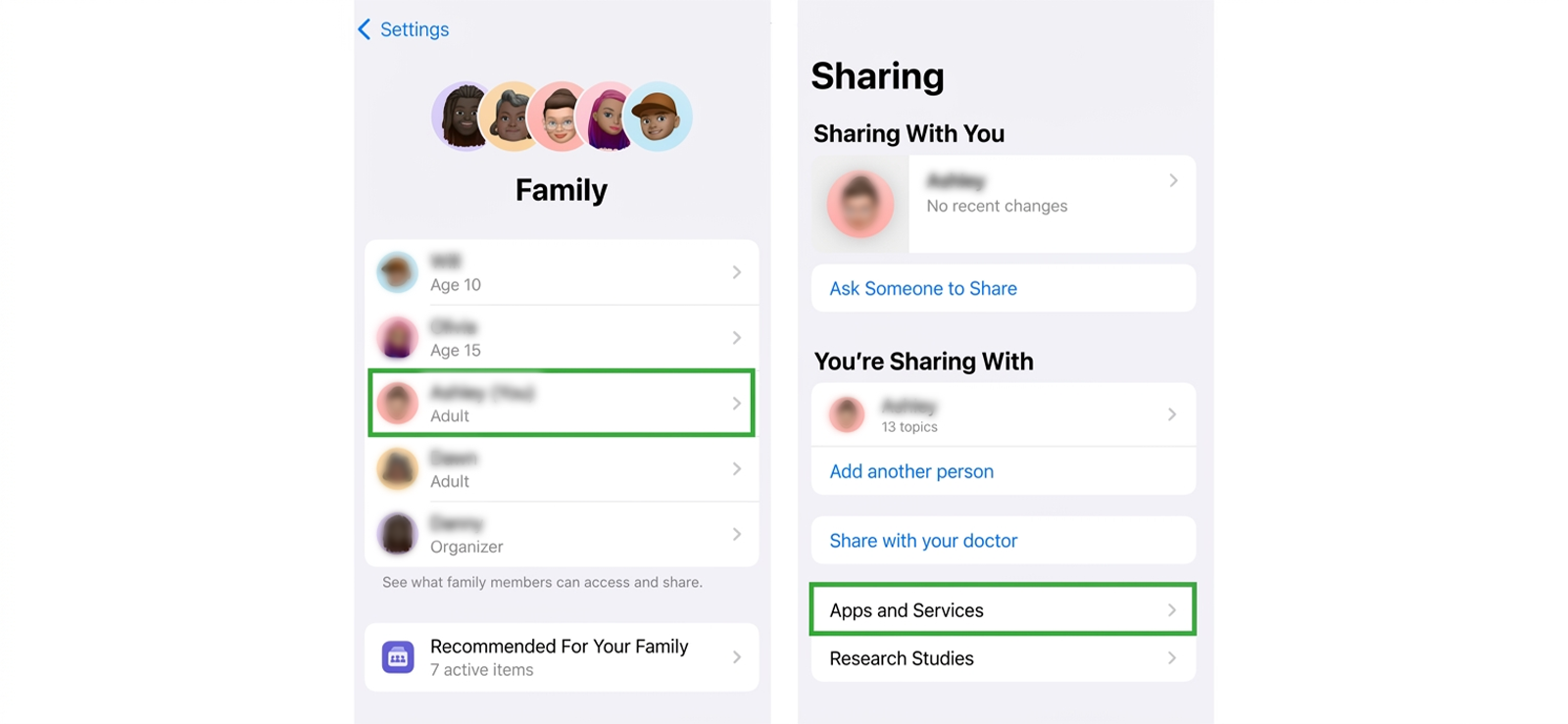
Apple’s Family Sharing feature allows up to six family members to share purchases, subscriptions, and iCloud storage under a single family group managed by an organizer, typically a parent.
When Family Sharing is active, the family organizer can view the complete App Store purchase and download history for every member of the family group, including apps that have been deleted from the device or hidden from view.
Here’s how to check hidden apps on iPhone via Family Sharing:
- Open Settings on your own device and tap your Apple ID name.
- Tap Family Sharing and confirm your child’s account is listed as a family member.
- To view your child’s purchase history, open the App Store on your own device.
- Tap your profile icon in the top right corner, then tap Purchased.
- Tap Family Purchases and select your child’s name from the list.
- Browse their full app purchase and download history, including free apps, paid apps, and apps no longer installed on their device.
- Look for app names that are unfamiliar, apps with ambiguous names that could mask their actual function, or apps downloaded at unusual times.
How Did It Go For Me?
Solid results, particularly for historical discovery. Family Sharing surfaced 7 of the 10 hidden apps in my test setup, including 3 that had been deleted from the device entirely. The purchase history view in the App Store showed these deleted apps with a cloud download icon, confirming they had been installed and removed.
The 3 apps it missed were all downloaded on a secondary Apple ID to stimulate a situation where the child can create such a profile outside of the Family Sharing group. This is worth noting for parents: if a child has created a secondary Apple ID that the parent does not know about, Family Sharing does not cover that account. It only surfaces activity tied to the Apple ID linked to the family group.
5. Check Activity Through Screen Time Sharing
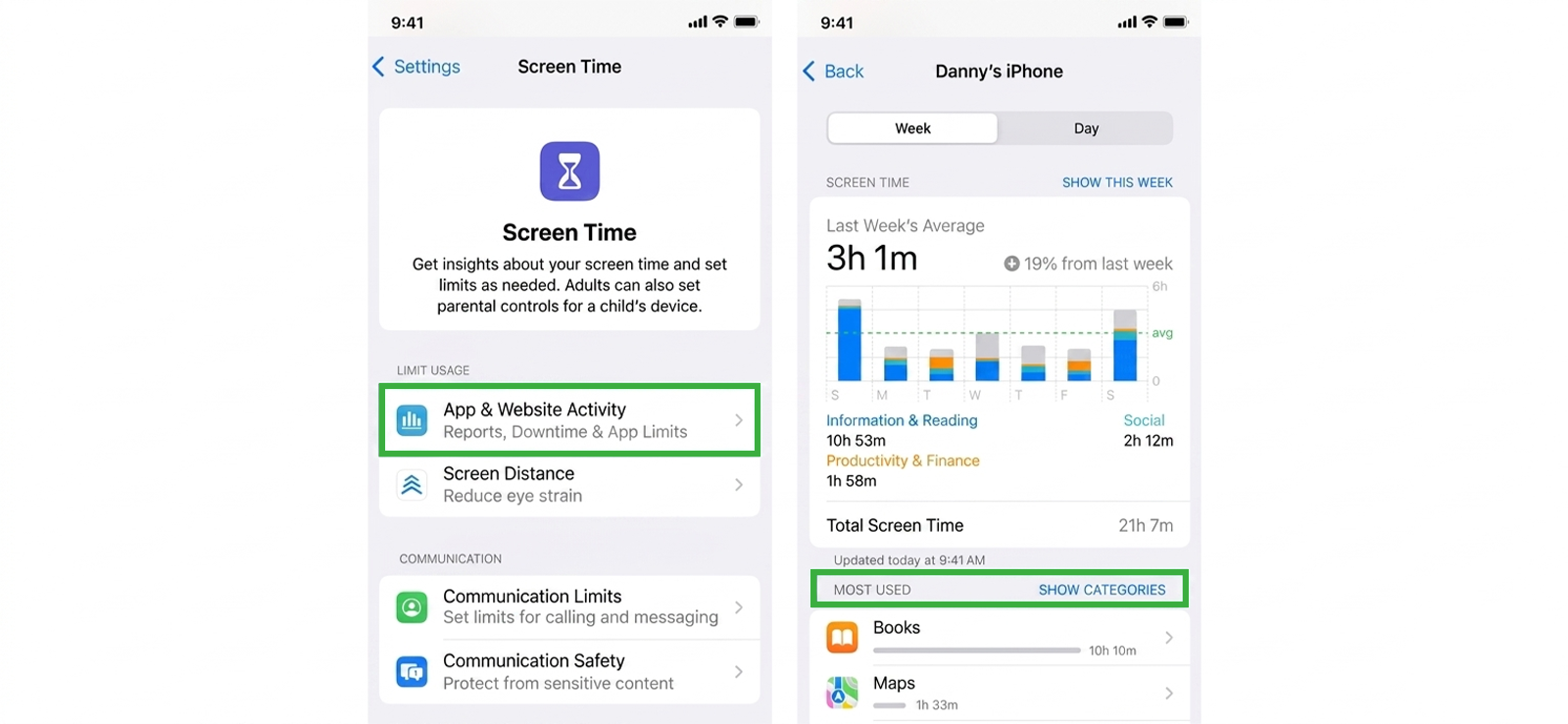
Screen Time is Apple’s built-in usage monitoring framework available on all iPhones running iOS 12 and later. Its activity report shows a detailed breakdown of how much time was spent in each app on a given day or over the past week, organized by app name and category.
Critically, this report includes apps that have been moved off the home screen or hidden from the App Library, because Screen Time logs active foreground usage regardless of where the app sits visually on the device.
To use this method:
- On your child’s iPhone, open Settings and tap Screen Time.
- If Screen Time is not yet enabled, tap Turn On Screen Time and select This is My Child’s iPhone.
- Tap See All Activity under the usage graph at the top of the Screen Time screen.
- Review the Most Used section, which lists every app by time spent in descending order. This includes apps hidden from the home screen.
- Tap Show Categories to see app usage grouped by category, which can surface unexpected categories like Social Networking or Games that do not match what you see on the device.
- Scroll down to Pickups and Notifications for additional context on which apps are generating activity and engagement.
- For remote viewing without physical device access, enable Screen Time sharing through Family Sharing: go to Settings > Screen Time > Share Across Devices on your child’s device, then view the data from your own device under Family in Screen Time settings.
How Did It Go For Me?
In discovering how to find secret apps on iPhone, I found this method very effective for active apps, less so for apps that had been installed but not used recently. In testing, Screen Time surfaced 7 of the 7 hidden apps, all of which were apps I had actively used.
However, when I repeated the test, I left 2 apps unused, and of course, the feature did not detect them at all. Moreover, I discovered that Screen Time data can be cleared by a child if they know the Screen Time passcode, or if no passcode has been set. Setting a Screen Time passcode that the child does not know is essential for this method to remain a reliable discovery tool rather than a self-reported one.
6. Try Spotlight Search
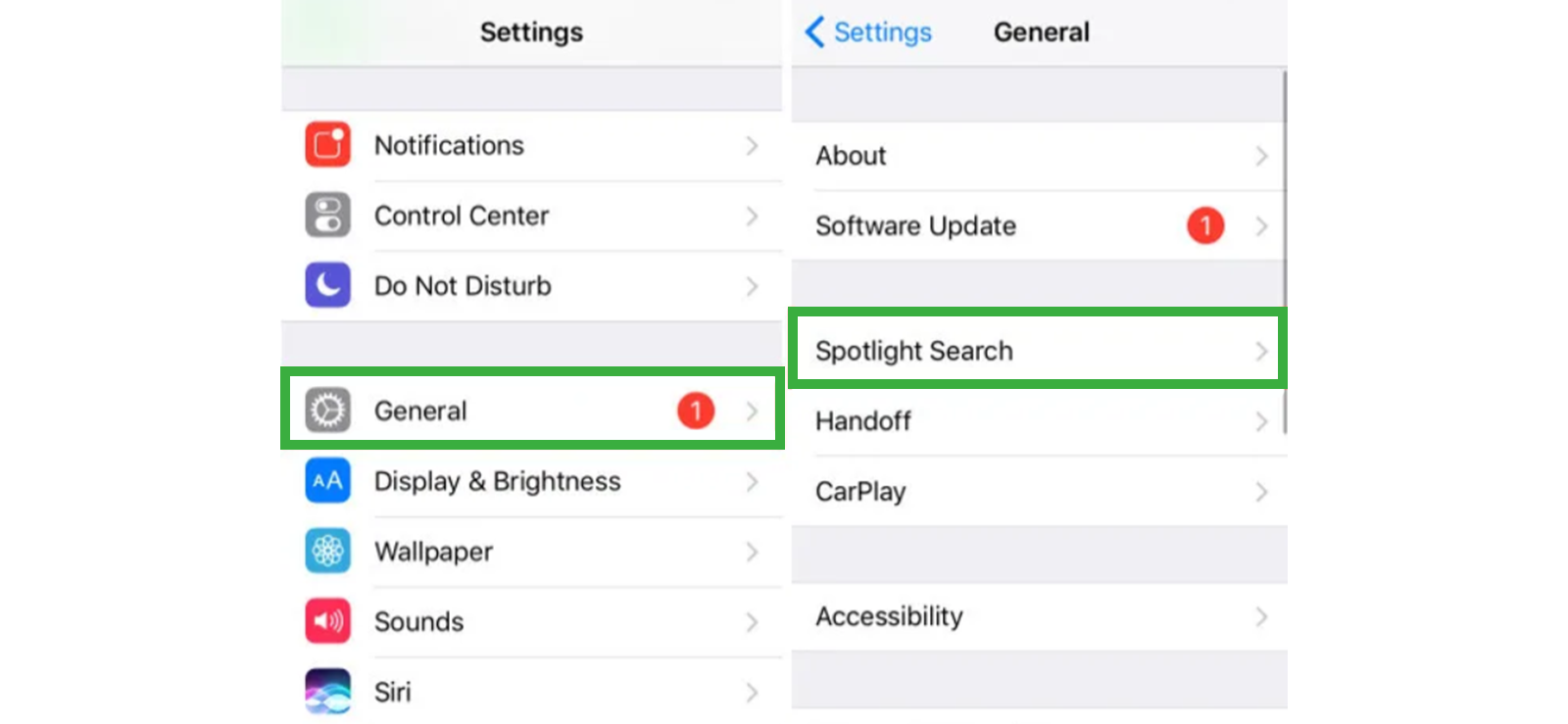
Spotlight is iOS’s universal search feature, accessible by swiping down from the middle of any home screen. Spotlight indexes every app installed on the iPhone, regardless of its visual placement, including apps that have been removed from the home screen, moved into deeply nested folders, or hidden from the App Library.
When you search for an app name in Spotlight, iOS returns the app in results even if it is invisible everywhere else on the device. This is because when any app is installed, iOS adds it to the Spotlight index so it can be found through search. Removing an app from the home screen or the App Library does not remove it from this index.
Here’s how to see hidden apps on iPhone using Spotlight Search:
- On your child’s iPhone, swipe down from the middle of the home screen to open Spotlight Search.
- Type the name of a specific app you suspect may be installed but hidden. For example: “Snapchat”, “Discord”, “Yubo”, “Wizz”, or any other app of concern.
- If the app is installed, it will appear in the search results under Applications, even if it is not visible anywhere on the device.
- To do a broader sweep rather than searching by name, type general category terms: “chat”, “video”, “meet”, or “live”. This surfaces apps whose names you may not know but whose category suggests concern.
- Tap any result to confirm the app launches, which confirms it is fully installed and functional, not just a residual icon.
How Did It Go For Me?
Reliable for what it is designed to find, but limited in scope compared to other methods. In my testing, Spotlight found 4 of the 8 hidden apps instantly: specifically, the 4 that had been removed from the home screen but were still installed. The other 4 that it missed were apps that had been fully deleted from the device, which Spotlight correctly does not index after uninstallation.
The category search approach was more interesting than I expected. Searching “chat” on the test iPhone surfaced 3 apps that could not have been found by name alone. These apps used naming conventions that obscured their actual function. For instance, one of these apps was disguised as “file manager” in its display name.
FAQs
How to access hidden apps on iPhone of another person for free?
To check hidden apps on someone’s iPhone for free, your options are limited. You could try Spotlight Search, but it only works if the app isn’t fully hidden. Then there is Family Sharing, which only works if the person is part of the same group. Another method is Screen Time, which needs to be enabled on the device, and accessing it requires their Apple ID, which can be tricky without consent.
For a more reliable, detailed, and discreet solution, XNSPY is a much better option. Though it is not free, it provides a comprehensive look at app data and phone activity. It is easy to set up and costs very little compared to the benefits it offers, making it a strong choice for anyone serious about monitoring hidden apps.
How to find a hidden app on iPhone without installing software on the target device?
If you want to avoid installing software, you can use iPhone’s built-in settings to locate hidden apps. One way on how do you find hidden apps on iPhone is to check the “Purchased” section in the App Store. Open the App Store, tap the profile picture in the top right, then click ‘’Purchased.’’ If the app is hidden but installed, it will appear here.
How to view hidden apps on iPhone if the other person’s device is locked?
It is rather tricky and complicated to view someone’s hidden apps if the phone is locked. This is because Apple employs robust user security settings. You can try to view app purchases and iCloud, but for that, you need to obtain consent and log in using the person’s Apple ID.
For a more straightforward and discreet solution, use XNSPY. It gives you remote access to the target device from anywhere, anytime. Through the dashboard, you can view both hidden and visible apps even if the phone is locked.
How to check hidden apps on iPhone if the target has changed the icons?
On iPhones, there is an option to customize app icons to hide them, which makes finding hidden apps on iPhone a bit difficult. But you can still locate them on someone else’s iPhone by going to App Library or using Spotlight search.
Swipe left to navigate to the App Library, where all apps are listed alphabetically. Or swipe down on the Home screen and search for the app name. Even if the app is renamed or disguised, the original app will still appear.
How do you find hidden apps on iPhone if the target is not connected to the internet?
It is difficult to find out how to get to hidden apps on iPhone if the other person’s device is offline. You can use the built-in features, but you may have to obtain consent to access the iPhone. On the other hand, getting to secret apps is easy with XNSPY.
The app works in stealth mode and gathers all app info and usage details of the other person, even if the iPhone is offline. Once the network is restored, all the information is uploaded to the user dashboard, which you can log in to and view without hassle.
Take Full Control of Their iPhone
Xnspy gives you complete access to their online activity.
Leave a reply:
Your email address will not be published. Required fields are marked*
Mike Everett
Member since October 20, 2014
Mike Everett
Member since October 20, 2014
Mike Everett is a consumer technology journalist with expertise in hands-on testing and evaluation of iOS and Android monitoring applications. With over 11 years in the industry, he focuses on how mobile monitoring tools perform in real-world conditions, including accuracy, feature reliability, device compatibility, and practical usability for parents.
He conducts live-device testing of monitoring apps to assess how well their features function beyond marketing claims. His work primarily includes comparative reviews, feature breakdowns, and buyer-focused guides designed to help parents understand which tools actually deliver usable results in everyday scenarios.