The complete monitoring experience for your phone
Get XNSPY and start tracking calls, texts, multimedia, locations and more on any phone!
Get Started Now Live DemoBlocking a caller can solve an immediate problem, but finding that entry later is not always as intuitive. You may remember blocking a number from Recents, a Messages conversation, or a FaceTime call, yet see no obvious “blocked” folder when you return to the app.
So, where are blocked numbers on iPhone? The good news is that iPhone keeps a manageable list of blocked contacts. This guide explains where to look, what each route shows, how blocking differs from call filtering, and how parents can approach the same question responsibly on a child’s phone.
The 30-Second Block-List Route Map
- Blocked contacts on iPhone are stored in a centralized list that reflects current restrictions, not a full communication history.
- Blocked contacts are manually restricted from reaching you.
- Silenced contacts are allowed, but their notifications are suppressed (such as with Focus or Silence Unknown Callers).
- Filtered contacts are simply organized into separate sections without being fully blocked.
- The procedure to see blocked contacts for calls, messages, and FaceTime differs.
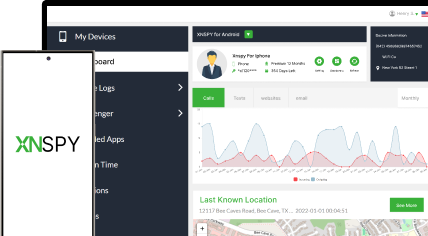
- To see blocked contacts on a child’s device, parents can use Xnspy’s screen recording feature.
Understanding Blocked Contacts vs. Silenced or Filtered Calls
A manually blocked contact is different from an unknown caller who has merely been silenced. Blocking places the relevant contact information in the Blocked Contacts controls and restricts incoming communication through supported Apple services.
Apple notes that blocked callers may still leave voicemail, but the recipient does not receive a notification. Blocked messages are not delivered, and the blocked person is not notified that the block occurred.
Blocking is also not the same as Focus or Do Not Disturb. Focus controls decide which notifications are allowed to interrupt you at a particular time. A person silenced by a Focus can still call or message; the alert is simply handled according to the active Focus rules.
Unknown-caller screening and filtering work differently as well. They can silence, screen, or organize calls from unsaved numbers without placing every caller on the manual block list.
You Wouldn’t Want to Miss These Reads

🌐  How to Block Websites on iPhone Without Having the Device
📴  How to Find Hidden Apps on iPhone Remotely: 5 Best Ways
🛑  View Private Browsing History on iPhone Without Them Knowing
🏅  How to Block Apps on iPhone Remotely: 5 Proven Methods
What Did I Check Before Recommending These Methods?
To know how to view blocked numbers on iPhone in Apple’s framework, I tested block list extraction methods across three communication channels: Phone, Messages, and FaceTime, on two different iPhones running different iOS versions. The goal was to evaluate how consistently Apple’s blocking framework behaves across devices and interfaces.
I considered the following points throughout testing:
- Whether blocked entries appear consistently across Phone, Messages, and FaceTime
- How saved contacts vs. unsaved numbers are displayed in the block list
- Whether contacts with both phone numbers and email addresses appear as single or separate entries
- If unblocking a contact from one channel reflects across all others
- Differences in menu placement or accessibility between iOS versions
- Whether any channel maintains a separate block list or all routes point to a unified system
- Visibility of blocked entries when accessed through different Settings paths
How to Find Blocked Numbers on iPhone Across Three Core Communication Channels?
You can access blocked contacts through a few different areas in Settings, depending on how your device is organized.
| Communication Channel | Best used when | What it can display | Typical time |
| Phone | The person was blocked after a call | Saved contacts and unsaved numbers | Under a minute |
| Messages | The person was blocked from a conversation | Names, numbers, and email addresses | Under a minute |
| FaceTime | The person was blocked after a FaceTime call | Phone numbers and FaceTime email identities | Under a minute |
1. See Phone Settings
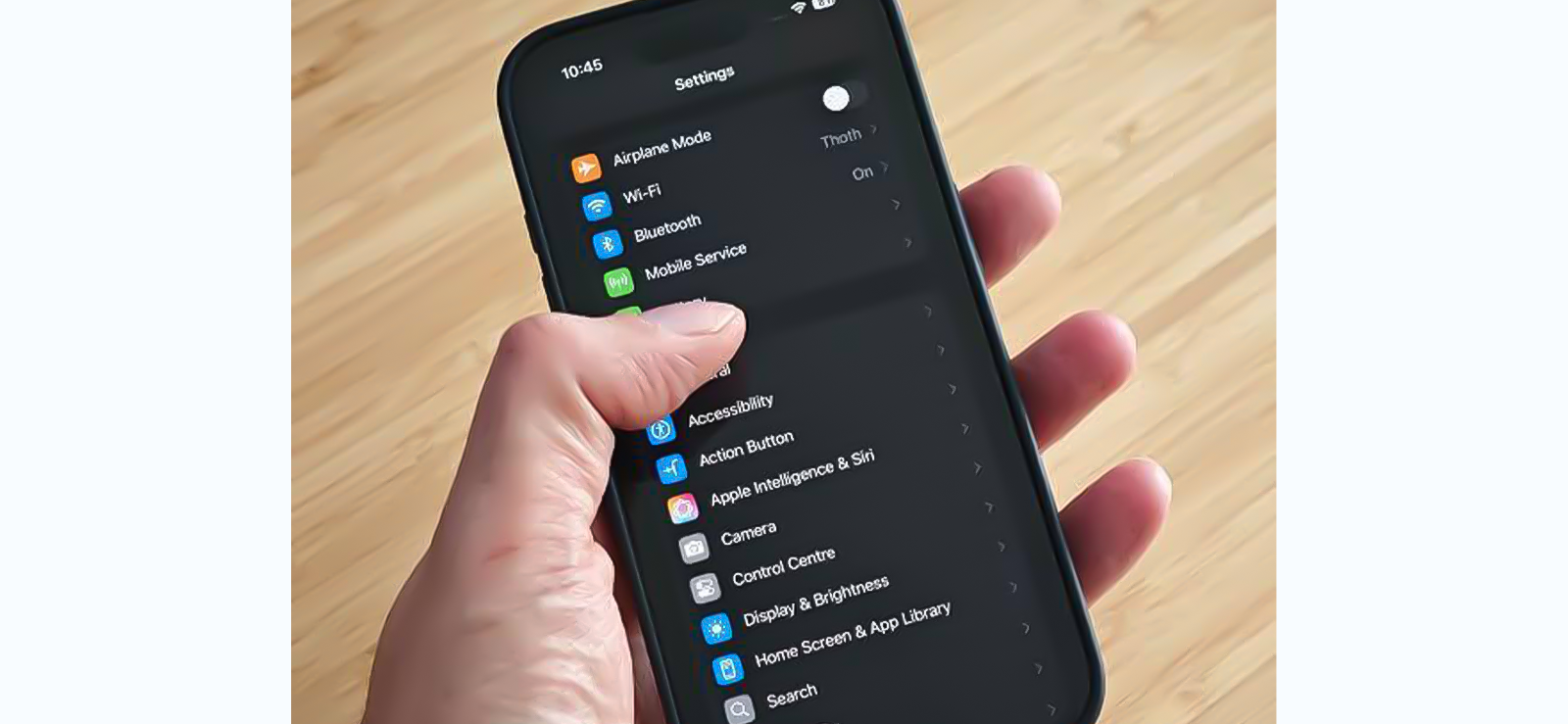
If you are wondering how to check blocked numbers on iPhone through phone settings, it is the most intuitive place to begin when a person is blocked from Recents, Favorites, or a contact card. It is particularly useful for identifying unsaved callers because those entries may appear as complete phone numbers rather than contact names.
Here is how to review the list through Phone settings:
- Open Settings.
- Tap Apps if the individual app settings are grouped there.
- Select Phone.
- Tap Blocked Contacts.
- Scroll through the displayed names and numbers.
- Compare any unfamiliar number with the details stored in Contacts.
- To remove an entry, swipe left on it or use the available editing control, then tap Unblock.
My Testing Experience
During my verification of how to see blocked numbers on iPhone, the key outcome was that the Phone route should be treated as a current-state list. A saved entry is usually self-explanatory, but an unsaved number may require checking the country code, area code, and final digits before deciding whether it belongs to the person you have in mind.
The most relevant limitation is historical visibility. The list itself does not provide a blocked-call timeline. A blocked caller may be able to leave a voicemail without triggering a notification, but the block list is not designed to catalog every attempt.

Xnspy: See the Contact List They Won’t Show You
Discover blocked, deleted, or suspicious entries they’d rather keep hidden.
2. Look Through Messages and iMessage Settings
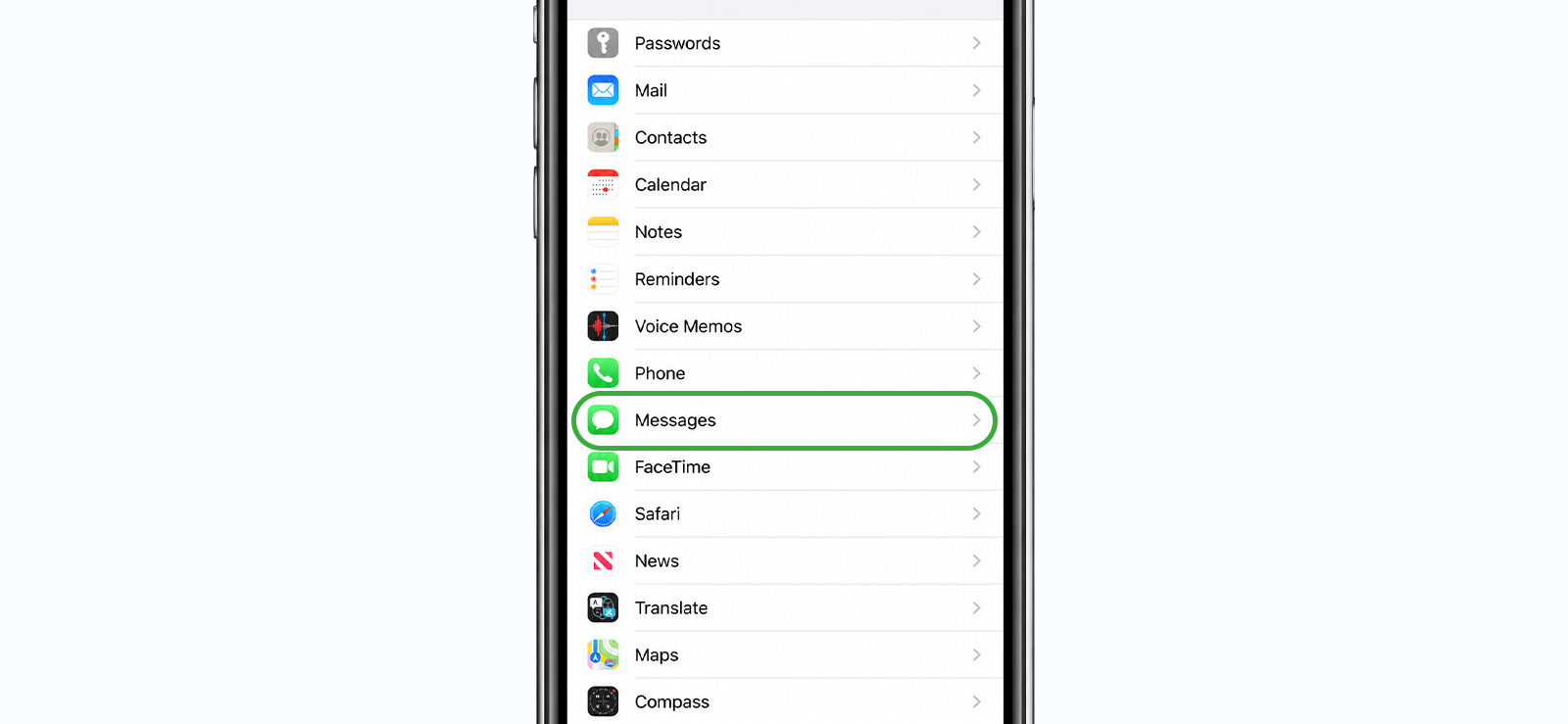
Messages are a logical route when the block begins inside a text conversation. A sender can be blocked from their conversation details, but the corresponding Settings page is for managing contact identities, not for reading texts that arrived while the block was active.
Follow these steps to inspect the list through Messages:
- Open Settings.
- Tap Apps and Select Messages.
- Find and open Blocked Contacts.
- Review the displayed contact names, phone numbers, and email addresses.
- Swipe left or use the editing option to unblock an entry.
My Testing Experience
When verifying how to find blocked numbers on iPhone through Messages, I compared the route with Apple’s Phone and FaceTime instructions rather than assuming iMessage maintained an isolated block list.
What I found was that the same person may be represented by more than one identifier, especially when a contact card contains both a mobile number and an Apple Account email address.
3. Check FaceTime Settings
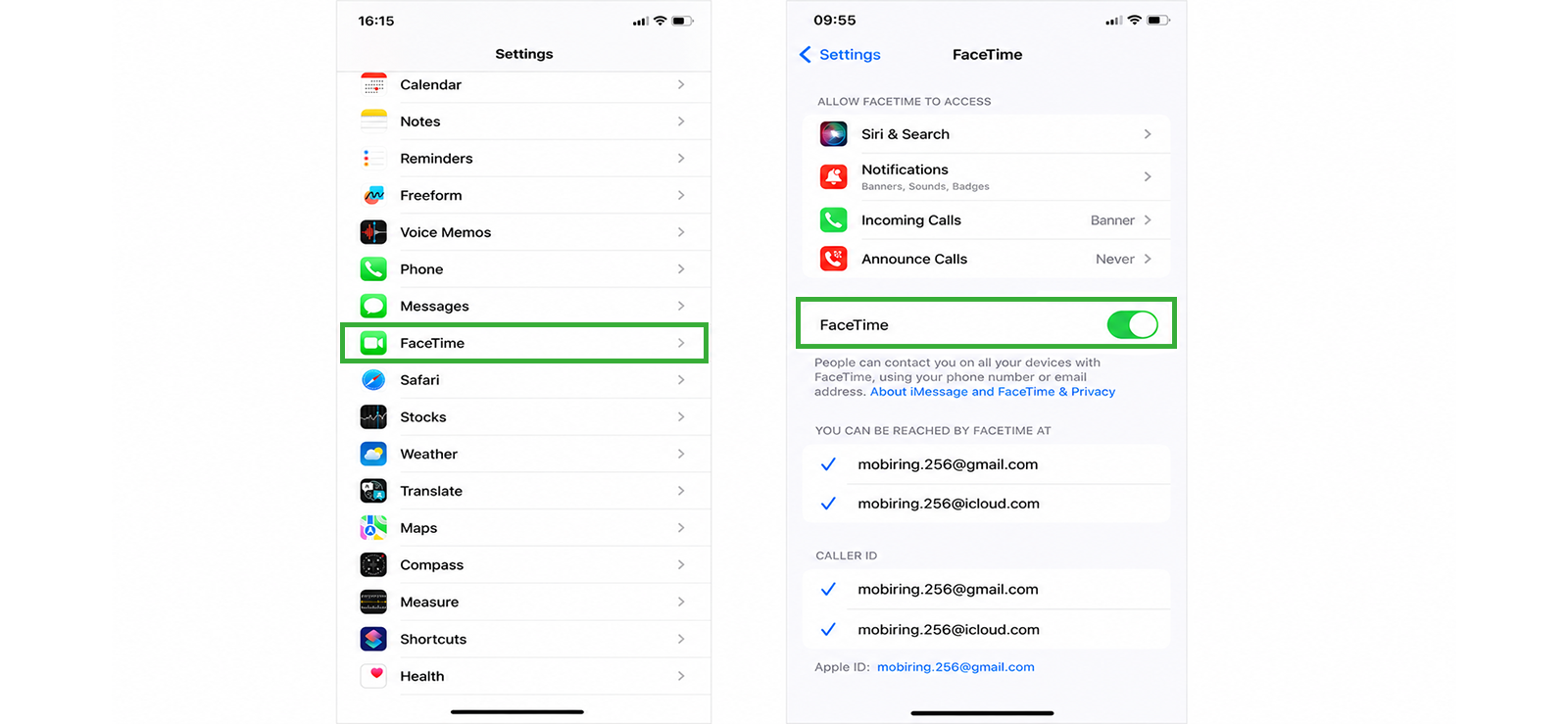
FaceTime provides another way to open the Blocked Contacts list. This method is useful when you block someone after receiving a FaceTime audio or video call.
Keep in mind that a blocked entry may appear as a phone number, contact name, or email address. When testing how to view blocked contacts on iPhone through FaceTime, I found that checking unfamiliar email addresses against saved contact cards made the entries easier to identify.
Here is how to review the list through FaceTime:
- Open Settings.
- Tap Apps if the app list is grouped.
- Select FaceTime.
- Tap Blocked Contacts.
- Review both phone numbers and email addresses.
- To remove an entry, swipe left and tap Unblock, or use the available editing control.
My Testing Experience
My verification of how to view blocked contacts on iPhone through FaceTime made it clear why email identities deserve attention. I discovered Apple’s instructions explicitly treat a FaceTime caller as a phone number, contact, or email address, so checking only recognizable mobile numbers can leave part of the list unexplained.

Did You Know?
Just like blocked numbers, you can also see deleted Safari history on someone’s iPhone.

How to See Which Numbers Your Child Has Blocked on Their Phone?
A parent may need to understand why a child blocked a family member, teacher, school contact, trusted adult, or unfamiliar caller. The block may reflect spam, harassment, bullying, pressure, or a reasonable personal boundary.
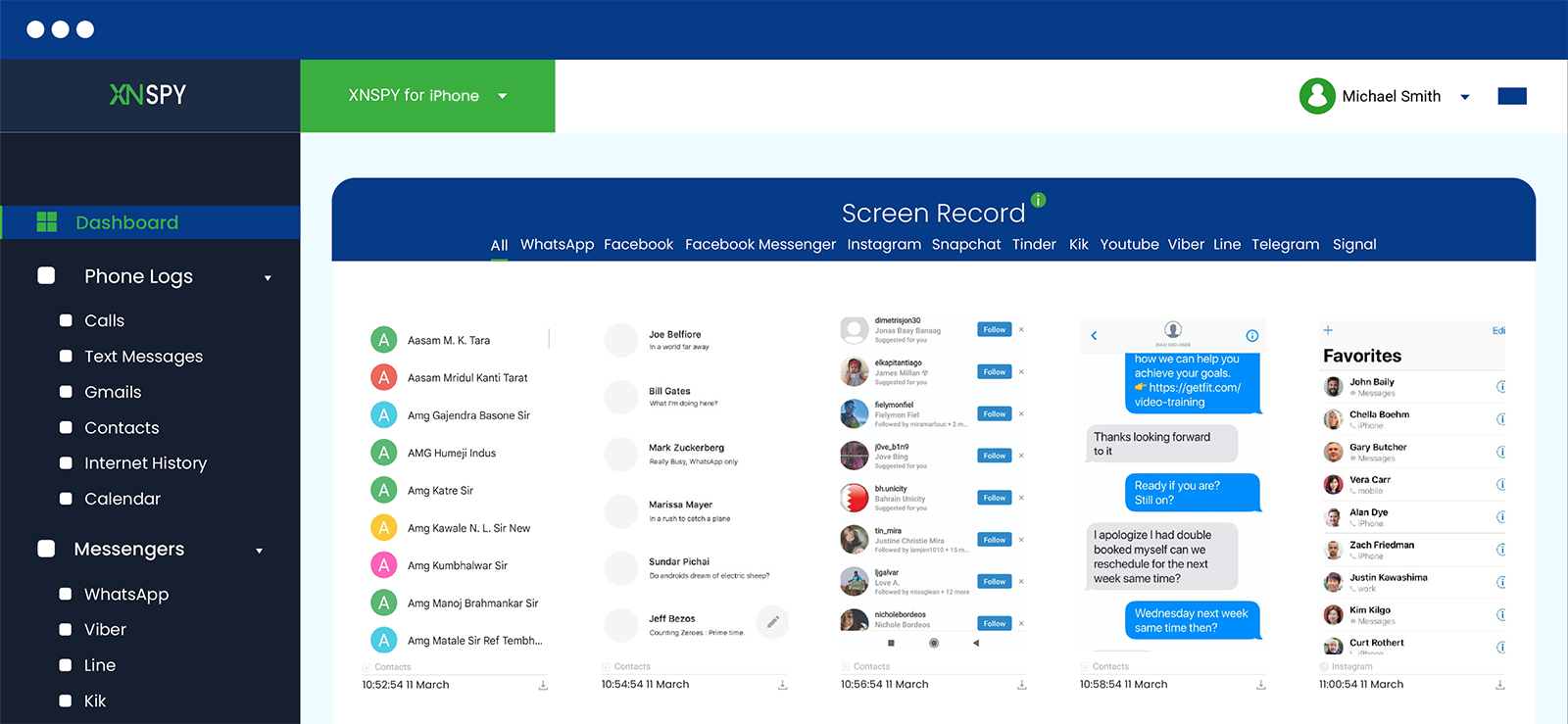
The most reliable approach is direct and contextual: review the native Blocked Contacts list on a device via Xnspy’s screen recording feature, then talk with the child before changing anything.
The screen recording feature captures periodic screenshots (after fixed 5-second intervals) and makes them available through an online dashboard. A screenshot can reveal the list when the relevant screen is opened and captured clearly, or when your child is blocking the contact.
To use Xnspy:
- Visit Xnspy’s website.
- Subscribe to a compatible Xnspy plan.
- Install and configure the service according to the vendor’s instructions.
- Sign in to the Xnspy dashboard.
- Open the Screen Recorder or screenshot area.
- Choose the relevant date and time range.
- Review captures involving Settings, Phone, Messages, FaceTime, or Contacts.
My Testing Experience
When I tested Xnspy on an iPhone, the Screen Recorder captured screenshots consistently while I opened the Blocked Contacts list and blocked a test contact. The captures were clear enough to identify the visible names and numbers, and Xnspy organized them under the relevant app, away from all social media app activities.
However, Xnspy does not generate a separate report listing every blocked contact. Since each app section can contain numerous screenshots, reviewing the collected data and locating the exact Blocked Contacts screen took me some time.
FAQs
How to check blocked numbers on iPhone of another person without unlocking it?
Without unlocking the device, you cannot access the native Blocked Contacts list directly; it sits inside Settings, which requires the device to be open and navigable. The most practical alternative for a parent is Xnspy’s screen recording feature. If Xnspy is already configured on the device, its dashboard captures periodic screenshots that can show the Blocked Contacts screen under Phone, Messages, or FaceTime without you needing to physically handle the phone.
How to check blocked contacts on iPhone if the target user has hidden their settings?
Hiding Settings on iPhone is not a native iOS feature, but parental controls or Screen Time restrictions can prevent access to certain Settings sections. In that scenario, the native Phone, Messages, and FaceTime routes described in this guide will not be reachable through Settings alone. The practical workaround is Xnspy’s screen recording feature, which captures the screen state independently of whether Settings is accessible to you. If a screenshot is taken while the device owner opens their own Blocked Contacts list, those entries become visible in the dashboard.
How to view blocked numbers on iPhone remotely if the target device is factory reset?
A factory reset wipes the local Blocked Contacts list entirely. If an iCloud backup was created before the reset and the device was set up from that backup, the block list restores along with other Settings data. If no iCloud backup exists or the device was set up as new, the block list from before the reset is unrecoverable. For a parent monitoring a child’s device going forward, the best course is to configure Xnspy before the reset so that screenshots and contact data are captured, as they remain visible on your dashboard even after the device is factory reset.
How to find blocked contacts on iPhone without installing software?
Without any software installed, the only viable approaches are the native Settings routes covered in this guide: Phone, Messages, and FaceTime, which require physical access to an unlocked device. There is no way to retrieve another person’s Blocked Contacts list without either physical access to the unlocked phone or a monitoring app already configured on it.
How to view blocked contacts on iPhone when the device is not synced to iCloud?
When iCloud sync is off, the Blocked Contacts list is stored locally on the device only. It does not appear in iCloud.com or on other Apple devices sharing the same Apple ID. The only way to view it is through the on-device Settings routes described in this guide: Settings → Phone/Messages/FaceTime → Blocked Contacts.

5 Comments
Leave a reply:
Your email address will not be published. Required fields are marked*
Sarah Jon
July 31, 2025 at 12:58 pm😍
Honore Couture
August 1, 2025 at 2:50 pm😒
Andrew Ross
August 4, 2025 at 2:44 pmHow does Xnspy exactly help with seeing blocked numbers? Kindly elaborate
Caiuslex
August 4, 2025 at 3:03 pmI cannot see who they have blocked. This is more complicated than I thought.
Melba Spencer
August 7, 2025 at 2:49 pmShe has no blocked contacts on WhatsApp does that mean she has not blocked anyone on her iPhone too?