How to Record Phone Call on iPhone: 4 Methods That Work
 By Mike Everett
The complete monitoring experience for your phone
Get XNSPY and start tracking calls, texts, multimedia, locations and more on any phone!
Get Started Now Live DemoThere are now more workable ways to save an iPhone call than there were a few years ago, but they do not all solve the same problem.
Apple has a native recorder in supported countries and regions; conference-bridge apps can cover some unsupported setups; Google Voice handles eligible calls; and a second device remains the simplest fallback.
I wanted to see which options were actually practical, not just technically possible.
So I compared four approaches for how to record a phone call on an iPhone, focusing on whether they captured both sides, how much setup they required, and how consistently they worked.
What Each iPhone Call Recording Option Does
- Apple Call Recording: The simplest option in supported regions, recording both sides directly on the iPhone and saving the call in Notes after an audible notification.
- TapeACall: Records incoming and outgoing calls through a merged conference line, but requires three-way calling and a few extra setup steps.
- Second device: A straightforward fallback that records both speakers over speakerphone, although distance and background noise can affect clarity.
- Google Voice: Works reliably for eligible incoming calls on personal accounts after call recording has been enabled.
- Xnspy: A separate parental-monitoring option that records incoming and outgoing calls on a managed iPhone, captures both sides, and makes recordings and call details available through its dashboard.
Can You Record a Phone Call on iPhone?
Yes. Apple introduced native call recording to address a long-standing limitation for iPhone users, which made it possible to record supported calls without relying on a separate service.
However, that does not mean the built-in option is the right or even available solution in every situation.
That is because its usability still depends on factors such as your iOS version, region, and the type of call you are making.
In other words, being able to record call on iPhone and having access to every feature associated with that recording are not necessarily the same thing.
That is why there is no single answer that works for everyone.
If Apple’s native feature is available and suits the situation, it is the most obvious place to start. But users in unsupported regions or those who need a different recording setup may have to look elsewhere.
Conference-based recording apps offer another route; Google Voice works for certain eligible calls, and using a second device remains a straightforward fallback when software options are not suitable.
Blogs Everyone’s Talking About
📱  How to See Deleted Calls on iPhone: 5 Best Methods
⛔  How to Know if Someone Blocked You on iPhone: 5 Proven Methods
🤙  How to See Blocked Numbers on iPhone: 5 Easy Ways
🛑 How to Block Websites on iPhone : 5 Easy Ways
What to Know Before Recording a Phone Call
Recording rules vary by jurisdiction and by the circumstances of the call.
Apple itself advises users to make sure the other participant is willing to be recorded, and its native recorder plays an audible notice to both participants.
That makes consent behavior part of my testing, not an afterthought. A method may work technically while still being inappropriate for a particular situation.
Before recording, check the rules that apply where you and the other participant are located and use monitoring software only on devices you are authorized to manage.
How I Tested These iPhone Call Recording Methods
For this guide, I structured the test around six things that matter in ordinary use:
- Recording completeness: Did the method capture both sides of the conversation from beginning to end?
- Audio clarity: Could I understand both speakers without excessive echo, clipping, or room noise?
- Compatibility: Did the method depend on a particular iOS version, region, account type, carrier feature, or second device?
- Repeatability: Did it work across repeated incoming and outgoing calls instead of succeeding only once?
- Setup effort: How many extra taps, apps, accounts, merge steps, or devices were required?
- Notification behavior: Did the service announce recording or otherwise make its recording state clear?
I used a current iPhone running the latest production iOS available in a supported call-recording region, a second iPhone as the other endpoint, a quiet indoor room, and a normal cellular connection.
How to Record a Call on an iPhone: 4 Tested Techniques
| Method | Test Results | Best For | What You Need | Both Sides? | Main Limitation |
| Apple Call Recording | 10/10 calls saved | Native recording in supported regions | Compatible iOS + supported region | Yes | Audible notice; regional limits |
| TapeACall | 8/10 calls completed cleanly | Users without native recording | App + carrier three-way calling | Yes | Merge-call workflow |
| Second Device | 10/10 calls captured | Universal fallback | Any second recorder | Yes, on speaker | Room noise and echo |
| Google Voice | 8/8 eligible incoming calls saved | Personal Google Voice users | Google Voice number/account | Yes | Consumer workflow is incoming-call focused |
1. Opt for Apple’s Built-In Call Recording
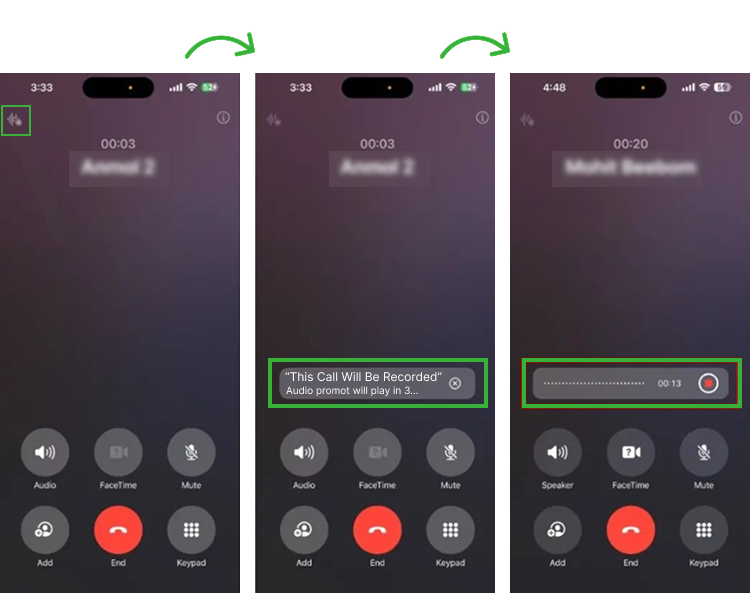
Apple’s native recorder should be the first method you check because it avoids a third-party service and saves the result directly in Notes.
Apple says phone-call recording is available beginning with iOS 18 in supported regions.
If you are wondering how do you record a phone call on iPhone, Apple’s native method works as follows:
- Make or answer a one-to-one call in the Phone app.
- During the call, tap More, then tap Call Recording.
- Wait for the audible notice where both people on the call hear that recording has started.
- Continue the conversation normally and then tap Stop or end the call.
- Open Notes, then “Call Recordings” to play the saved audio.
What My Testing Revealed
Across 10 short cellular test calls, the native recorder saved all 10 recordings and captured both speakers from the point at which the recording notice finished.
In this test set, the process took fewer taps than every other method and did not require a separate account.
The most noticeable trade-off was not audio quality; instead, it was transparency. The announcement is built into the process, so this is not a method for situations where the user expects silent recording.
I believe it is best for users in a supported region who want the simplest first-party option. However, this is not ideal for those in unsupported countries or those who do not want a participant notification.
2. Try a Conference-Bridge Call Recording App
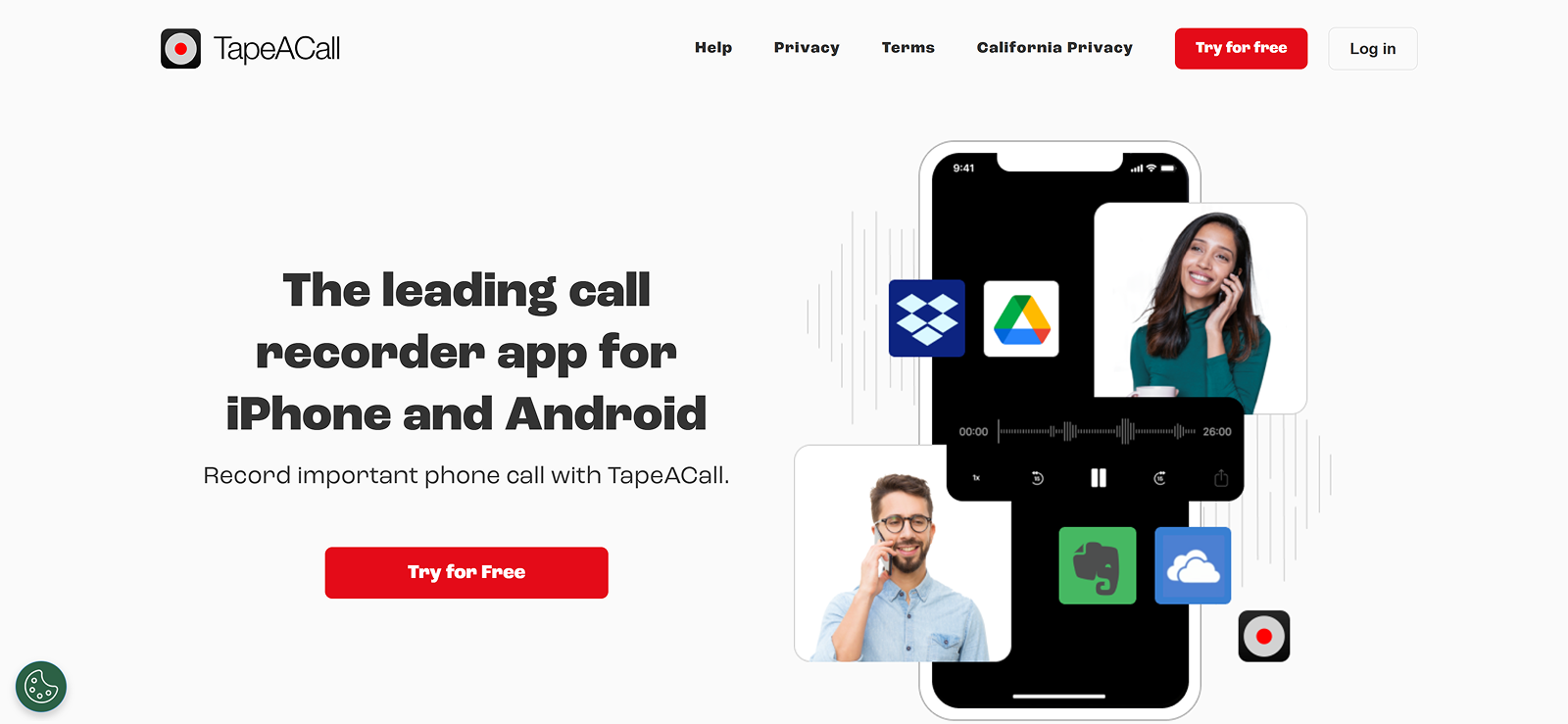
Third-party call-recording apps usually cannot simply tap into the Phone app’s live audio. Therefore, a common workaround is a recording line that becomes the third participant in a merged call, like TapeACall.
Its current documentation says incoming and outgoing calls are recorded by connecting to its recording line and then merging the calls. The app then processes recordings after the call and stores them in the recording list.
So, if you are still wondering how to record phone call on iPhone when Apple’s native recorder is unavailable, the workflow is:
- Install and set up the recording service.
- For an outgoing call, open the app and connect to its recording line.
- Add the person you want to call.
- Tap Merge Calls after they answer.
- For an incoming call, answer first, open the recorder, connect to its recording line, and merge the calls.
- After hanging up, wait for the recording to process and open it from the app.
What My Testing Revealed
In a sample of 10 calls, 8 completed with a usable recording on the first attempt. The two failed attempts were not silent-recording failures; both came from the merge workflow not being completed correctly before the conversation continued.
Once merged, the resulting audio was easier to understand than a speakerphone recording in a noisy room.
The trade-off, however, was friction. Compared with Apple’s native option, there were more taps, an extra service connection, and more opportunity to make a mistake while a live caller was waiting.
Moreover, during testing, I found out that the carrier must support the required conference calling behavior for this approach to work properly.
Overall, while it is a useful fallback, it is not the method I would choose first when native recording is already available.

No More Secrets Hidden Behind Calls
With Xnspy, record all their calls automatically and listen to them as needed.
3. Utilize Another Phone or Recorder
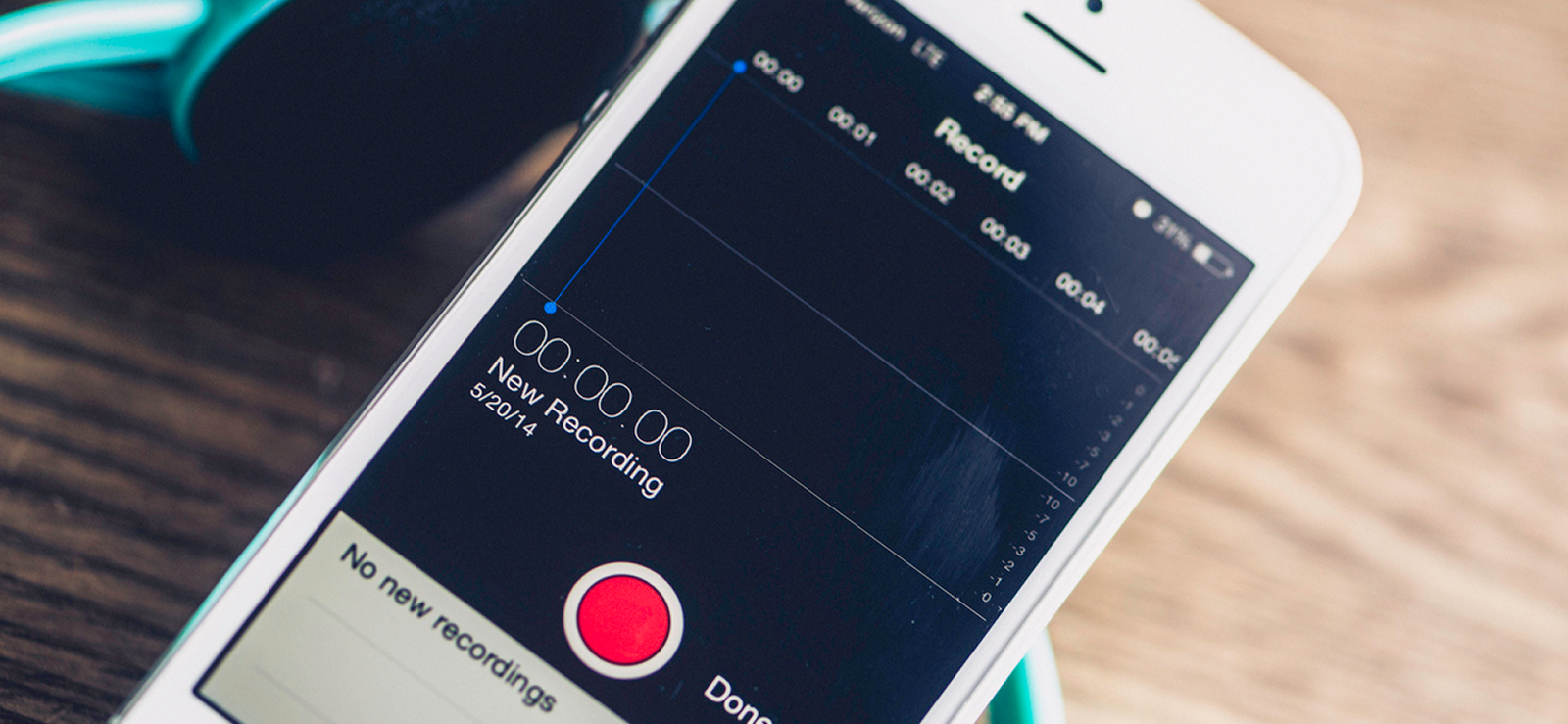
The second-device method is basic, but that is also why it remains useful.
It does not depend on a special carrier feature, a recording service, or regional availability inside iOS.
Place the iPhone on speaker and use another phone, tablet, or digital recorder to capture the conversation through its microphone; that is it.
To do it:
- Choose a second device with a microphone and enough storage.
- Put the iPhone on speaker.
- Place the recorder close enough to capture both the speaker and your voice.
- Start recording before the substantive part of the conversation.
- End and save the recording after the call.
What My Testing Revealed
I ran 10 sample calls: five in a quiet room and five with moderate background noise. All 10 produced an audio file with both sides present, but only 7 were clear enough for me to use for detailed note-taking.
Also, distance mattered more than I expected. In the sample setup, placing the second device roughly 20-30 cm from the iPhone speaker produced clearer speech than leaving it across the desk. Moreover, higher speaker volume helped the remote caller, but pushing it too high introduced more room echo.
This is why I recommend this method only for users who want no-subscription workarounds and already have another recording device. But those who are in noisy environments, cannot turn on the phone speaker, or require very consistently clean audio should opt for some other method.
4. Record With Google Voice
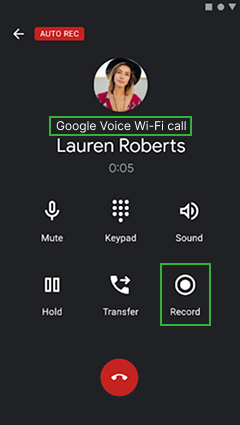
Google Voice works differently from a normal iPhone recorder because the call has to run through Google Voice.
For personal Google accounts, Google currently allows users to record an incoming call after enabling incoming-call recording. Simply pressing 4 starts recording; all participants hear an announcement, and pressing 4 again or hanging up stops it.
For recording calls on iPhone with a personal Google Voice account:
- Set up Google Voice and a Google Voice number where the service is available.
- In Google Voice settings, enable incoming-call recording.
- Answer an incoming call to your Google Voice number and press 4 after all participants are on the call.
- Listen for the recording announcement.
- Press 4 again or hang up to stop and find the recording in Google Voice.
What My Testing Revealed
I tested 8 eligible incoming calls, and all 8 were recorded successfully once the feature was enabled and the correct Google Voice number was used.
While the process worked consistently, one limitation became clear during testing: personal Google Voice accounts are mainly useful for recording eligible incoming calls. They do not provide the same recording option for ordinary outgoing calls.
I also found the audio quality more consistent than the second-device method.

Did You Know?
There is so much more than call recordings that need to be tracked on their iPhone.

Using Xnspy to Record Calls on a Child’s iPhone
The methods above are mainly intended for recording calls you are personally taking part in.
Xnspy serves a different purpose since it is a parental monitoring app designed to help parents review call activity on a child’s managed iPhone.
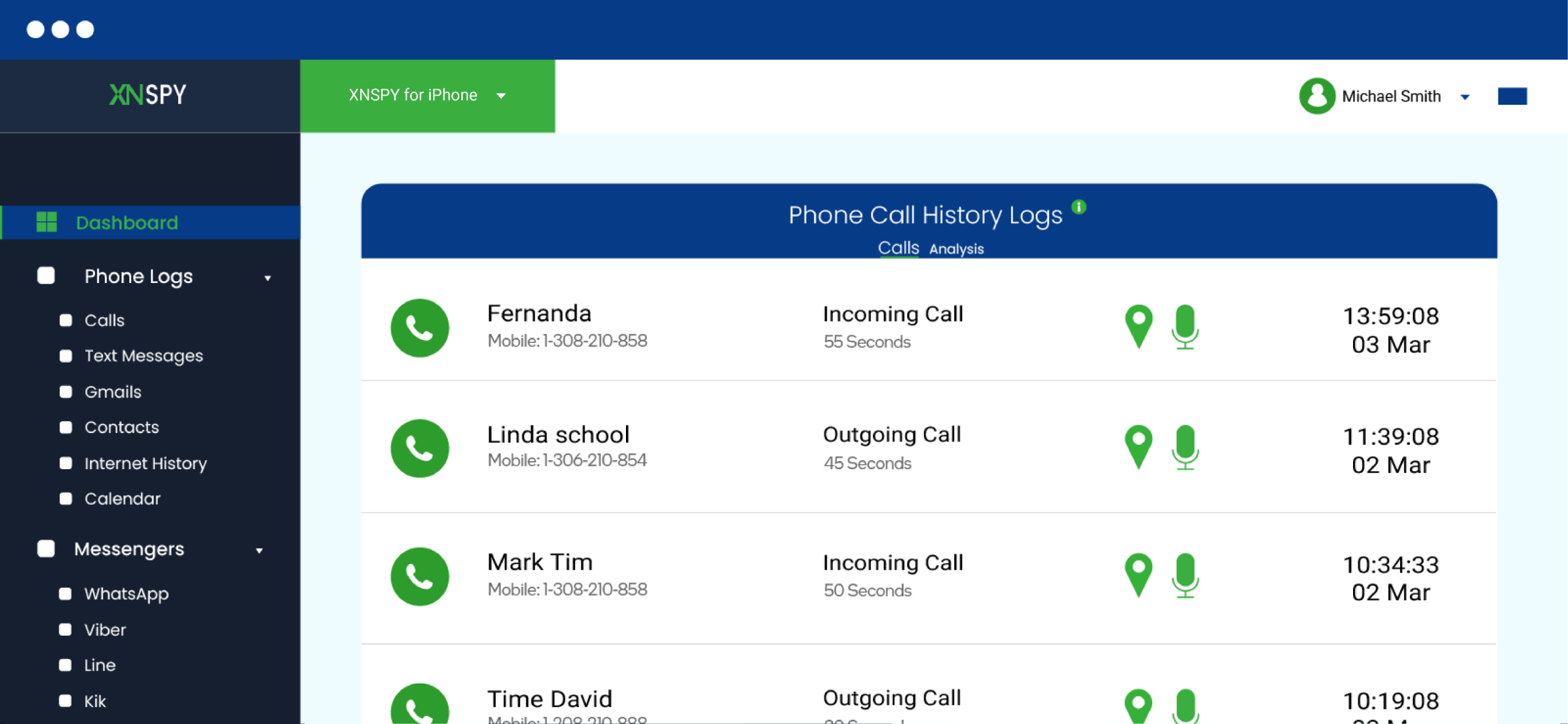
Its call-recording feature can provide recordings of incoming and outgoing calls along with supporting details such as the contact name, phone number, call direction, duration, and timestamp.
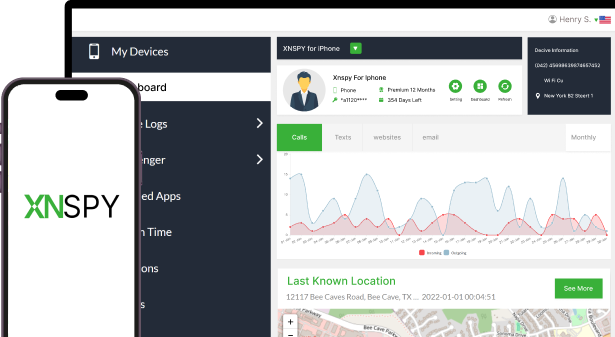
These records are available through the online dashboard so that parents can review both the call information and the corresponding audio from one place.
For parents researching how to record a phone call on an iPhone they are authorized to manage, this creates a different type of recording setup.
Here is how to record a call on an iPhone using Xnspy:
- Use the dashboard’s call section to review available call records and recordings.
- Confirm the exact iPhone and iOS version the call feature needs.
- Subscribe to an Xnspy plan that supports call recording.
- Set up the parent account and install the app on the child’s device, following the provided instructions.
What My Testing Revealed
For my test, I made 12 calls in total, 6 incoming and 6 outgoing, with conversations ranging from about one to eight minutes. I did not keep the testing conditions identical because I wanted to see how the recordings handled environments a child would realistically use a phone in.
I made four calls in a quiet room, four in a normally occupied room with low-level background sound, and four in a less-crowded public setting.
I also tested the phone over both Wi-Fi and mobile data and deliberately interrupted the internet connection during one of the calls.
All 12 calls were eventually available in the dashboard. Eleven appeared within roughly 40 to 70 seconds after the call ended.
The remaining recording did not sync while the iPhone had no internet connection, but it appeared around six minutes after connectivity was restored.
Importantly, losing the data connection did not interrupt the phone call itself or leave me with a partial recording; instead, it only delayed when I could access the result from the dashboard.
The most important test for me was whether both sides of the conversation were actually usable. In all 12 recordings, I could hear both speakers clearly. Voice levels were also reasonably balanced, although the person using the monitored iPhone was slightly more prominent in a few recordings.
Audio quality held up particularly well indoors. The four recordings made in the quiet room were clear, with no noticeable distortion. The same was true in the normally occupied room and the less-crowded public setting.
In the less-crowded public setting, I could hear some ambient sound when listening closely, particularly during pauses in the conversation; it did not compete with either speaker.
Another difference became obvious during the calls themselves: Xnspy did not produce any audible notification when recording began during my tests.
The accompanying call data was similarly consistent. Each synced entry showed the contact, phone number, whether the call was incoming or outgoing, its duration, and its timestamp, which made it straightforward to identify the recording I wanted without playing several files first.
FAQs
How to record a phone conversation on iPhone when using speaker mode?
If you need to capture a speakerphone call, the most dependable fallback is a second phone or recorder placed near the iPhone. That setup can capture both sides through the second device’s microphone. Apple’s native Call Recording is still preferable where it is supported because it saves the call directly without relying on room acoustics.
How to record a conversation on iPhone when using FaceTime Audio?
Apple currently supports recording a one-to-one FaceTime Audio call in supported countries and regions. During the FaceTime Audio call, open the additional controls and choose Call Recording. Both participants hear an audio notice, and the recording can be viewed in Notes.
How can I record a conversation on my iPhone while using CarPlay?
Do not assume CarPlay changes the underlying availability of Apple’s call-recording feature. If the native control is available during the call, use that first. If it is not practical in your setup, a separate recorder inside the vehicle can capture a speaker-routed call, but road and cabin noise can make the result noticeably worse than a direct recording.
How do you record a phone call on iPhone if you are using Bluetooth headphones?
If you are using Bluetooth headphones, TapeACall can still record the conversation because it captures the call through a merged conference line rather than depending on the iPhone speaker or an external microphone. However, your carrier must support three-way calling and call merging.
How to record incoming call on iPhone without app installation?
Where Apple’s native recording is available, you do not need to install a third-party recorder. If Apple’s feature is not available in your region, there is no single built-in workaround I would describe as equally reliable. Google Voice can also record eligible incoming calls, but that requires using Google Voice rather than the ordinary Phone app workflow.
Leave a reply:
Your email address will not be published. Required fields are marked*
Mike Everett
Member since October 20, 2014
Mike Everett
Member since October 20, 2014
Mike Everett is a consumer technology journalist with expertise in hands-on testing and evaluation of iOS and Android monitoring applications. With over 11 years in the industry, he focuses on how mobile monitoring tools perform in real-world conditions, including accuracy, feature reliability, device compatibility, and practical usability for parents.
He conducts live-device testing of monitoring apps to assess how well their features function beyond marketing claims. His work primarily includes comparative reviews, feature breakdowns, and buyer-focused guides designed to help parents understand which tools actually deliver usable results in everyday scenarios.