How to Record a Phone Call on Android: Safe & Legal Methods [2026]

The complete monitoring experience for your phone
Get XNSPY and start tracking calls, texts, multimedia, locations and more on any phone!
Get Started Now Live DemoEver hung up a phone call and thought, “I really should have recorded that”? Maybe it was an important conversation or a golden piece of advice from a loved one you will definitely need later.
Whatever the reason may be, when it comes to how to record phone calls on Android, it can feel quite tricky both legally and technically. However, it actually doesn’t have to be that complicated or risky. Therefore, in this guide, we will walk you through safe and legal ways of doing so.
Can You Record a Phone Call on Android?
Yes, you can record a phone call on Android, but how you do it depends on your device, Android version, and local laws. Some Android phones come with a built-in call recording feature, while others require a third-party app.
The way it works is that when you record a call, the app or system captures the audio streams from both sides of the conversation – yours and the person on the other end. On Android, this is usually done through the phone’s microphone and the call audio channel. Depending on the method, the recording may be saved directly to your device storage or cloud storage.
It is important to note that some newer Android versions and certain phone models restrict direct call recording for privacy reasons, which is why third-party apps or workarounds are usually necessary.
Some More Blogs You’d Love

🤙  How to Record Phone Call on iPhone: 5 Methods That Work
📲  Can You Screen Record FaceTime? The Real Answer for iOS Users
🛑  How to Record WhatsApp Video Call (Android & iPhone)
🥇  How to See Missed Calls from Blocked Numbers on iPhone
Is It Legal to Record A Phone Call?
Yes, it is legal to record a phone call, but the rules depend heavily on where you are and whether all parties consent. In the United States, the law varies by state. Most states, like New York and Texas, follow one-party consent rules, which means you can record a conversation as long as you are a participant. You don’t need to inform the other person.
However, some states require all-party consent. For example, California, Florida, Illinois, Maryland, Massachusetts, Montana, Nevada, New Hampshire, Pennsylvania, and Washington mandate that every participant must agree to the recording. Failing to comply can result in criminal charges and civil penalties.
On a federal level, the Wiretap Act generally allows recording if at least one party consents, but it strictly prohibits recording private communications without consent in situations where the speaker has a reasonable expectation of privacy. This means recording phone calls with strangers or overhearing conversations in private spaces without permission can get you into serious legal trouble.
Outside the U.S., laws differ widely. In the U.K., the Regulation of Investigatory Powers Act (RIPA) allows recordings for personal use but requires consent for sharing or using them in legal matters. In Canada, one-party consent is generally sufficient under the Criminal Code, but distributing recordings without consent can still be illegal.
So, the golden rule is to always check your local laws and, when in doubt, inform the other party before recording.
How to Record Phone Calls on Android: 5 Easy Methods
Here’s a closer look at 6 easy ways to answer your question of how to record a phone call on Android.
1. Enable Built-In Recording Features
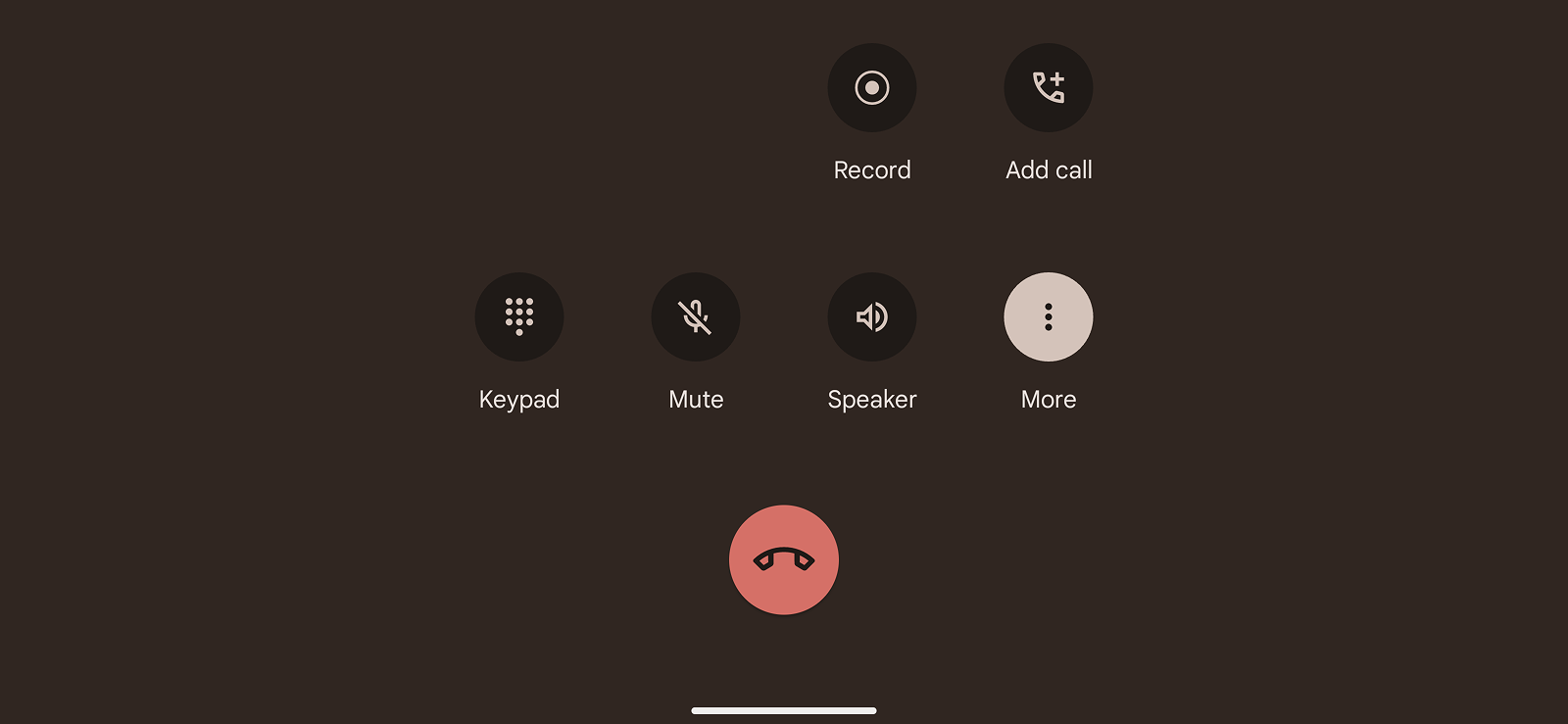
Some Android phones, particularly from brands like Samsung, Xiaomi, or OnePlus, come with native call recording features. This feature works by tapping into your phone’s audio streams during a call, capturing both sides of the conversation and storing the recording on your device. It’s simple because it doesn’t require additional apps and usually integrates with your call log.
To use this method:
- Open the Phone app.
- Tap the three-dot menu (⋮) in the top-right corner.
- Go to Settings > Record calls (or Call recording).
- Enable Automatic recording or Record calls manually, depending on your preference.
- If you choose manual recording, look for the “Record” button on the call screen when you make or receive a call.
- Tap it to start recording; tap again to stop.
- The file is saved in your device’s storage or in the Phone app’s recordings section.
While this method is convenient, it isn’t available on every Android phone or in every country, as manufacturers often disable call recording to comply with regional privacy laws. Even when the feature is present, performance can vary by device, and some phones may only capture your voice instead of both sides of the conversation.
In certain cases, recordings may also be limited by storage space or restricted during specific types of calls, such as Wi-Fi calling or calls made through certain carriers.
2. Download a Third-Party Call-Recording App

If your phone lacks a native feature, third-party apps like ACR, Cube Call Recorder, etc. offer a reliable alternative. These apps capture call audio by accessing your phone’s microphone and call channel. They often include extra features like cloud backup, automatic recording, and organization tools.
Here’s how to record a call on Android using a third-party app:
- Open the Google Play Store and install a reputable call-recording app.
- Grant permissions for the microphone, storage, and phone access.
- Configure automatic recording or manually start recording during calls.
- Recordings are saved within the app or exported to cloud storage.
However, this method can be inconsistent because newer versions of Android place strict limits on how apps access call audio, which means some recorders may not work reliably on certain devices.
Many free apps also come with ads, watermarks, or feature restrictions, and full functionality often requires a paid subscription. In addition, recording quality can vary based on phone hardware and permissions, and updates to Android can occasionally break compatibility altogether.
3. Try Google Voice

Google Voice is a free service that allows call recording for incoming calls. It works by routing calls through Google’s servers, which can then record the conversation. Since the recording happens at the service level, it doesn’t depend on your phone’s hardware or OS version.
Follow these steps to record calls with Google Voice:
- Sign up for a Google Voice account and link it to your number.
- Make sure call forwarding is enabled on your Android device.
- During an incoming call, press ‘4’ on your keypad to start recording.
- Press ‘4’ again to stop. The recording will be saved in your Google Voice account.
Although convenient, this method has several practical constraints. It only supports recording for incoming calls, which means you cannot capture outgoing conversations using this service. In addition, Google Voice automatically announces that the call is being recorded, which may feel intrusive or unsuitable for sensitive discussions.

Keep Your Child Safe with Xnspy’s Call Recording
Monitor your kid’s phone calls responsibly and stay informed.
– Capture incoming and outgoing calls automatically
– Listen to clear, distortion-free audio for clarity
– View timestamps and call duration for easy tracking
– Access recordings securely from your online dashboard
4. Use Another Phone
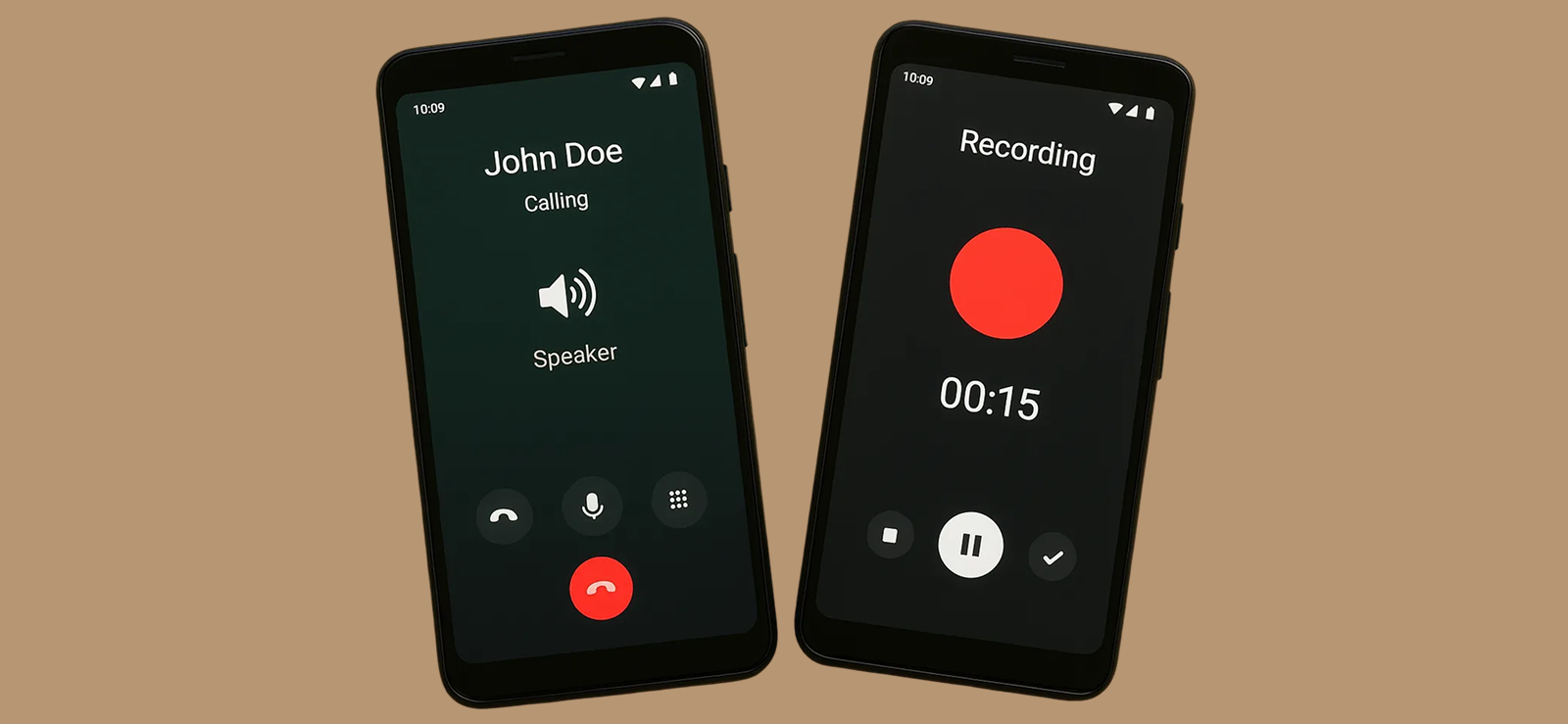
A simple, low-tech approach is to record a call using another phone or recording device. This method captures audio via the microphone of the second device and bypasses software restrictions on Android. It works for both in-person and phone conversations.
Here’s how to record calls on Android using another phone:
- Pick/Dial the call.
- Place the Android call on speaker mode.
- Open the voice recorder app on the second phone.
- Start recording and ensure the audio is clear.
- Stop recording when the conversation ends and save the file.
Despite its simplicity, this method has a few practical drawbacks. Because the audio is captured through an external microphone rather than directly from the call stream, the sound quality can be inconsistent and more sensitive to background noise or room echo. Using speakerphone also reduces privacy, especially in shared spaces.

Did You know?
You can also lock your child’s iPhone remotely.

5. Call Via a VoIP Service
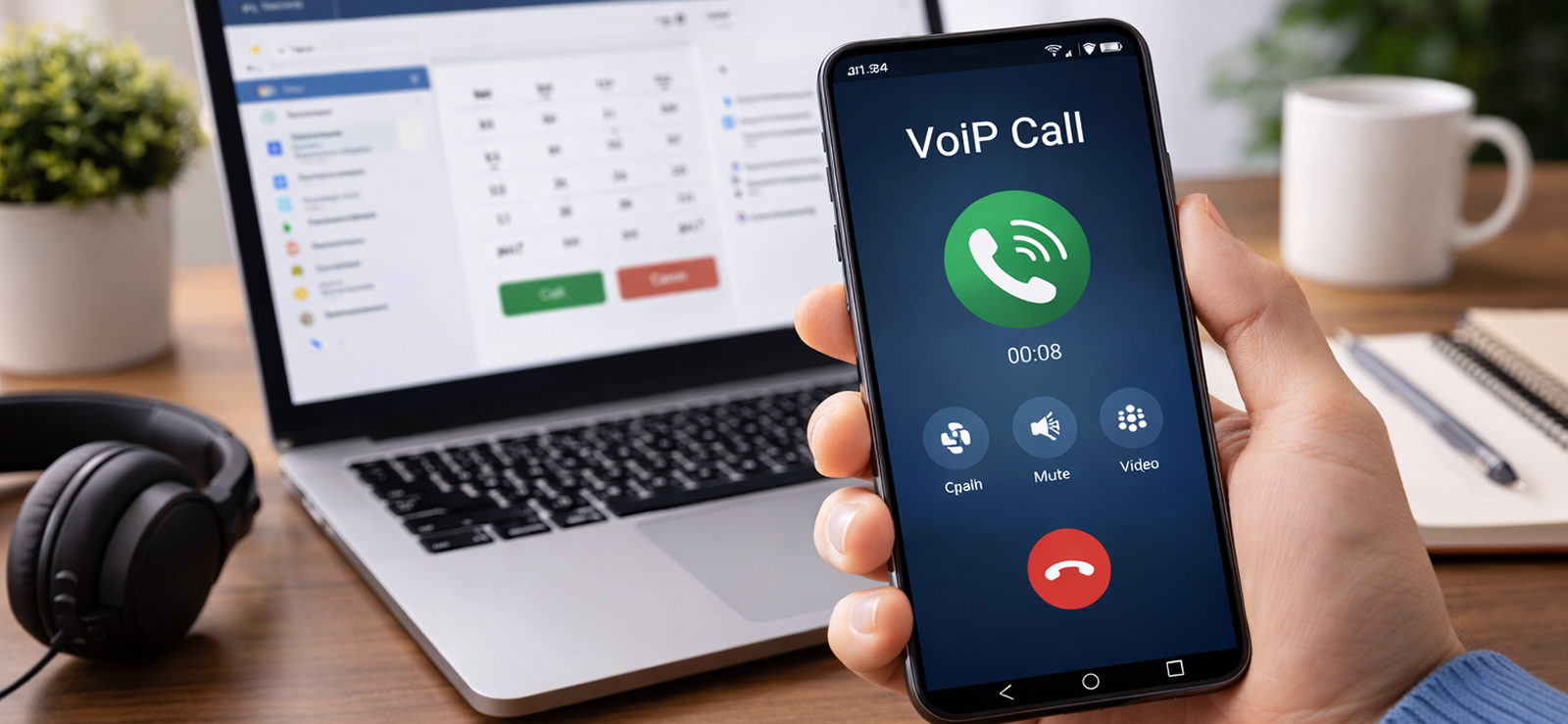
VoIP stands for Voice over Internet Protocol, a technology that allows you to make phone calls using the internet instead of traditional cellular networks. Using VoIP apps like Zoom or WhatsApp allows you to record calls digitally. These services transmit voice over the internet rather than traditional cellular networks, making recording possible through built-in app features or screen/audio capture tools.
To use this method:
- Open the VoIP app and make a call.
- Enable the app’s recording function or use a compatible screen/audio recorder.
- Save the call recording to your device or cloud.
While VoIP-based recording can be effective, it isn’t always seamless. Many apps restrict or completely disable native call recording, and some automatically notify all participants when recording begins, which may not be suitable in every situation. Moreover, audio quality can fluctuate depending on your internet connection.
What If You Need to Record Your Kid’s Phone Calls on Android?
Raising kids in the digital age can be very tiring. After all, there is just so much going on around all the time. One minute, you see them chatting with friends, the next, they could be talking to someone you have never heard of. Between online strangers and the very real risks of manipulation via digital channels, it’s only natural for parents to worry.
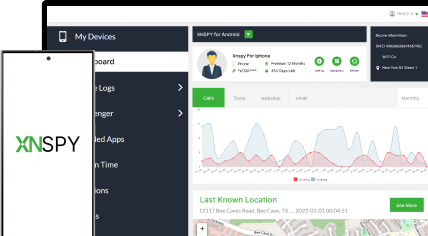
For the much-needed peace of mind, you have to have the right amount of visibility, so you can step in before a small problem turns into a serious one. And for this, Xnspy offers a practical solution. It is a parental monitoring app designed to help parents responsibly supervise their child’s smartphone activity, including communications.
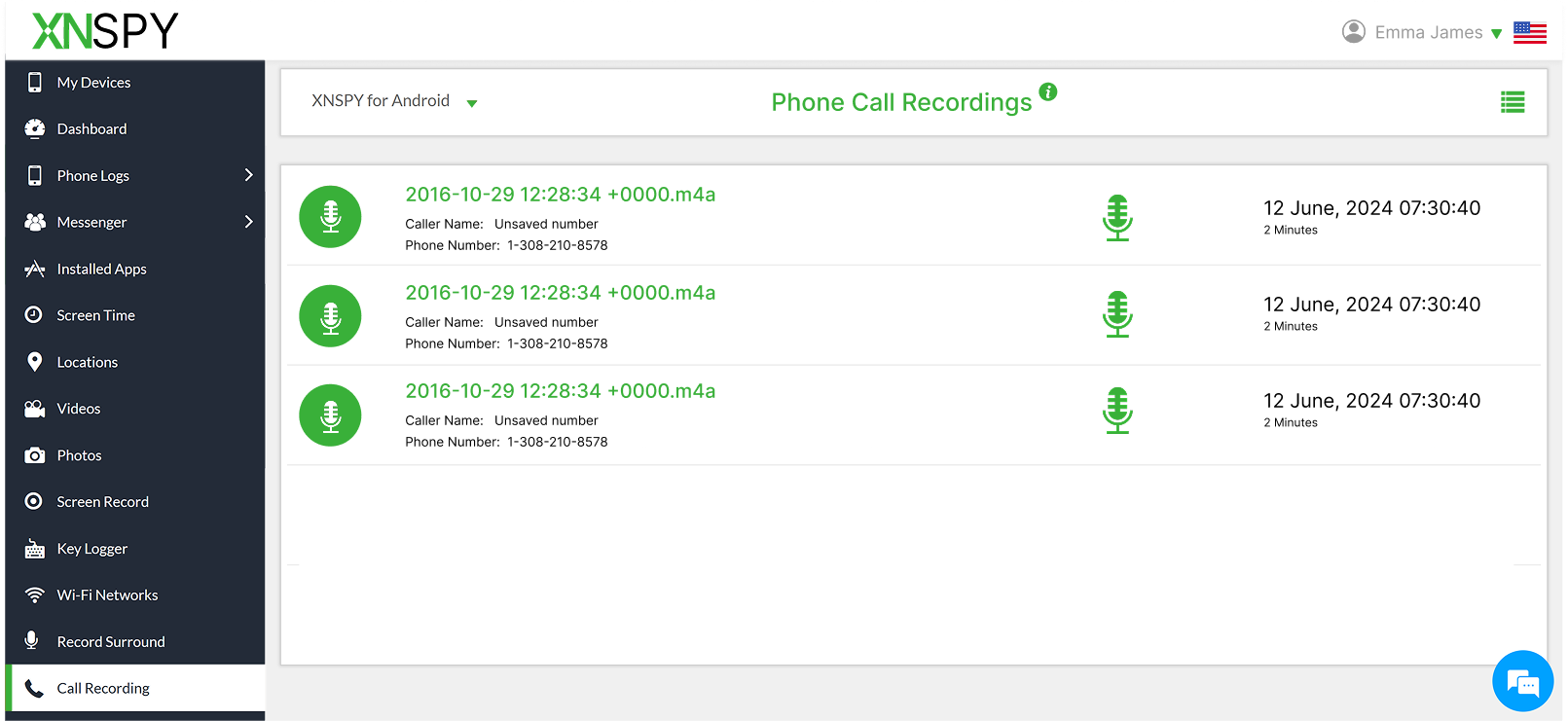
Xnspy’s call recording feature remotely captures call audio securely from the device. Once installed and configured with appropriate permissions, the software runs in the background and automatically records calls without interrupting normal phone usage. The recorded files are then securely uploaded to a private dashboard that parents can access remotely.
Here’s what the Xnspy call recording feature offers:
- Distortion-free, lag-free audio for clear conversations.
- Automatic recording of incoming and outgoing calls once you toggle the feature on.
- Easy playback through a secure online dashboard.
- Timestamps to show when each call was made.
- Call duration, showing how long each conversation lasted
FAQs
How to record a call on Android while on speakerphone?
Recording calls on speakerphone is straightforward. All you need is to put the call on speaker and turn on the recorder of another device/phone. Speaker mode ensures both sides of the conversation are captured clearly, since the microphone of the other device picks up sound from you and the other person whose call is on speakerphone. This method is particularly useful for recording group discussions or when you’re in an environment where privacy isn’t an issue.
How to record calls on Android when the default recorder isn’t working?
If your phone’s default recorder fails, using a reliable app like Xnspy is the easiest solution to record all calls automatically. These apps bypass system restrictions, automatically capture incoming and outgoing calls, and store them securely. Simply install the app, grant the necessary permissions, and it will handle recordings in the background, ensuring no call is missed, even if your Android version or device restrictions limit your built-in recorder.
How to record a call in Android without app?
You can record calls without installing an app by using speakerphone and another device’s voice recorder, or via services like Google Voice for incoming calls. However, for seamless recording and automatic saving, a tool like Xnspy simplifies the process. It records both incoming and outgoing calls in the background without manual intervention, eliminating the need for extra devices while keeping your recordings organized and accessible.
How do you record a call on Android for multiple contacts automatically?
To record calls from multiple contacts automatically, you need an app that supports selective or universal recording. Xnspy allows you to set up automatic recording rules for all your contacts at once and saves these recordings without manual input. This is ideal for professionals who need to track conversations with clients or colleagues consistently. The app organizes recordings for easy playback and offers distortion-free and lag-free audio quality.
How to record a phone call on an Android phone when you only want a portion of the call?
If you only need a segment of a call, the best approach is to use your phone’s built-in call recorder or a third-party app that allows manual start and stop during the conversation. Start recording at the moment you need to capture, and stop when finished. This avoids saving unnecessary audio and keeps storage usage minimal, while ensuring the important part of your conversation is securely saved.
Protect Your Kids with Xnspy’s Complete Monitoring Suite
Monitor calls, messages, and more to ensure their safety in the digital world.

3 Comments
Leave a reply:
Your email address will not be published. Required fields are marked*
Gracelyn Myers
March 3, 2026 at 11:14 amDo not care if it is legal or not, I am going to record my child's calls
Ronald Mills
March 6, 2026 at 10:53 amI tried recording a call from another phone but it did not give me the exact kind of results I needed and the other party guessed too that their call was on speaker.
Korbin Leach
March 17, 2026 at 10:57 amI wish Google voice did not announce that a call is being recorded, kills the purpose of the whole feature.