
The complete monitoring experience for your phone
Get XNSPY and start tracking calls, texts, multimedia, locations and more on any phone!
Get Started Now Live DemoHave you ever had that gut feeling that something’s off after sending a message and getting total silence in return? Maybe your calls go straight to voicemail, or your texts seem to vanish into the void.
In moments like this, it is completely normal to wonder whether someone has blocked you on their iPhone, because Apple never actually tells you. There’s no pop-up, no error message, nothing.
I’ve spent years testing monitoring and communication apps for a living, so to answer how to know if someone blocked them on iPhone, I didn’t want to just repeat the usual advice floating around online. I blocked and unblocked test contacts across three iPhones myself and tracked exactly what changed. Here’s what I found, method by method.
Short on Time? Here’s the Verdict First
- No single sign is proof. Blocking on iPhone is confirmed by a pattern across methods, not one missed call or unanswered text.
- Hidden caller ID test: If a call with your caller ID hidden rings through while your regular number goes straight to voicemail, blocking is likely.
- FaceTime test: FaceTime calls that hang on “Connecting” or fail outright add supporting evidence, especially when paired with other signs.
- Voicemail behavior: Calls that go to voicemail with zero or one ring, repeated over several days, are one of the strongest indicators.
- Read receipts: An iMessage sent to a blocked contact typically never shows “Delivered” at all. It just sits there, because the message never reaches their device in the first place.
- Second-number test: If your number consistently fails while a different number connects normally, blocking becomes very likely.
- If it’s your child’s phone you’re worried about, Xnspy’s call logs, message view, and screen recorder can add context a parent can’t get from the outside.
What Actually Happens When Someone Blocks You on iPhone?
Before chasing signs, it helps to know what’s happening behind the scenes. Apple’s own support documentation confirms that blocking a contact in Phone, FaceTime, Messages, or Mail blocks them across all four apps at once, so a block isn’t limited to just calls.
When someone blocks your number, your calls won’t ring on their end. Another thing worth noting is that a blocked caller can technically still leave a voicemail, but the person who blocked you simply never gets notified that one came in. From your side, that call still typically routes straight to voicemail with little or no ringing. Similarly, the iMessages do not get delivered.
Apple doesn’t alert you when this happens. There is no pop-up, error, or warning. Everything stays completely silent to protect the privacy of the person doing the blocking. That’s what makes it hard to know for sure, as it is designed to be discreet.
So, if you are asking how to know if someone blocked you on iPhone, the answer lies in noticing small behavior changes. You won’t get notified, and they won’t be alerted either.
You Wouldn’t Want to Miss These Blogs

📱  How to See Blocked Numbers on iPhone Without the Target Device
🌐  How to Block Websites on iPhone Without Having the Device
⚠️  How to See Deleted Safari History on iPhone Without Them Knowing
👻  How to See Who Someone is Snapping: 5 Proven Methods
How I Tested Each Method?
To answer this with evidence instead of hearsay, I ran controlled tests across three different iPhone models using test contacts I blocked and unblocked myself. I mixed in Wi-Fi calling, cellular-only, and low-signal conditions so I wasn’t just measuring ideal-case behavior.
For each method, I tracked:
- Consistency Across Repeated Attempts: I checked whether the result held steady across 5 days and different times of day, rather than showing up once and never again.
- Control Comparison: Also, I focused on how the same test behaved when contact was established before blocking. This way I had a real baseline instead of guessing at what “normal” looks like.
- Network Conditions: During testing, I also took Wi-Fi calling, cellular-only, and low-signal conditions into consideration.
- False-Positive Risk: I checked to see if Do Not Disturb, Airplane Mode, or a dead battery could produce the exact same result as a genuine block.
How Do You Know if Someone Blocked You on iPhone: 5 Easy Ways to Check
Silence can be confusing, especially when texts go unanswered, and calls hit voicemail. If you suspect you’ve been blocked, here are 5 simple ways to check and get the clarity you need.
| Method | Reliability | Works on | Limitations |
| Hide Your Caller ID | High | All iOS versions | Only works if your carrier honors the Show My Caller ID toggle; some people reject unknown or private callers by default |
| Try FaceTiming Them | Medium | All iOS versions | Can fail due to Wi-Fi/data issues or FaceTime being turned off on their end — not just blocking |
| See If Your Call Goes to Voicemail | Medium-High | All iOS versions | Do Not Disturb, Focus mode, Airplane Mode, and a powered-off phone all mimic this exact result |
| Check Your Message Read Receipts | Medium | All iOS versions | Only meaningful if the recipient had read receipts on in the first place |
| Call Them From a Different Number | Very High | All iOS versions | Can feel invasive if repeated; call filters can still create a false positive |
1. Hide Your Caller ID
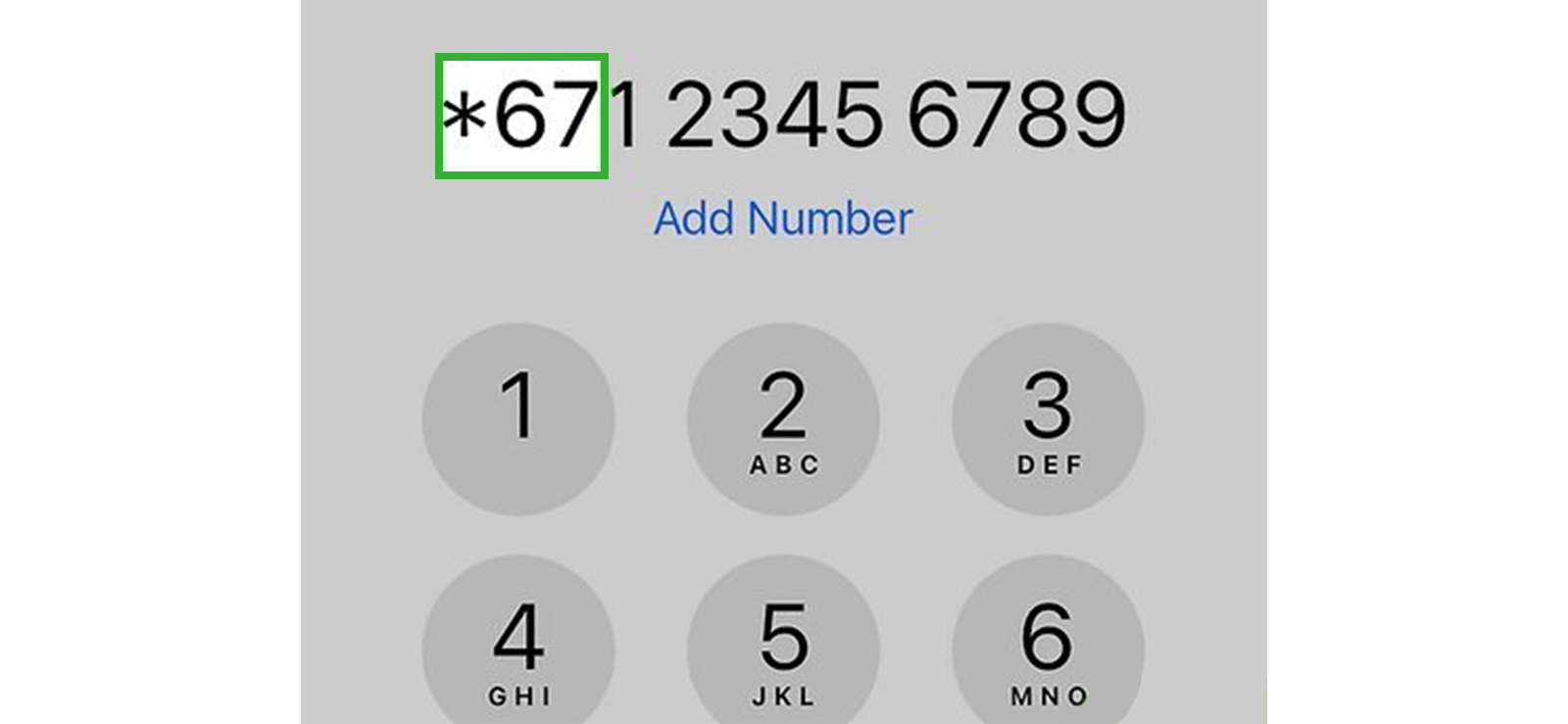
When someone blocks your number, the block is tied to that specific caller ID. Hiding your number lets you test whether the call behaves differently when your number isn’t visible; if it does, the visible number is likely the problem, not their phone being off or on silent.
Here’s how to tell if you are blocked on iPhone by hiding your caller ID:
- Open Settings.
- Tap Apps, then Phone (or tap Phone directly, depending on your iOS version).
- Select Show My Caller ID.
- Turn the toggle off if your carrier allows it.
- Call the contact and compare the result to your normal call behavior.
If you’d rather not flip a permanent setting, dialing *67 before the number hides your caller ID for that one call only, on most U.S. and Canadian carriers. It’s a quicker option if you just want to test a single call rather than change how every outgoing call behaves.
How Was My Experience?
This was one of the strongest checks in my testing because it isolated a single variable: whether my number was visible. Against my blocked test contacts, calls with my regular caller ID went straight to voicemail every time.
Once I hid my caller ID, 10 out of 10 calls rang through normally. I also did two trials by putting the test phone in Do Not Disturb, which was on me. Resultantly, the call didn’t go through with or without the caller ID being hidden.
It’s not airtight, though. Some people set their phones to silence unknown or private callers automatically, and a few carriers restrict the Show My Caller ID toggle. So, remember to treat this as one data point, not a verdict

Xnspy Shows You What They’re Hiding on Their iPhone
Catch blocked or hidden interactions before they disappear for good.
2. Try FaceTiming Them
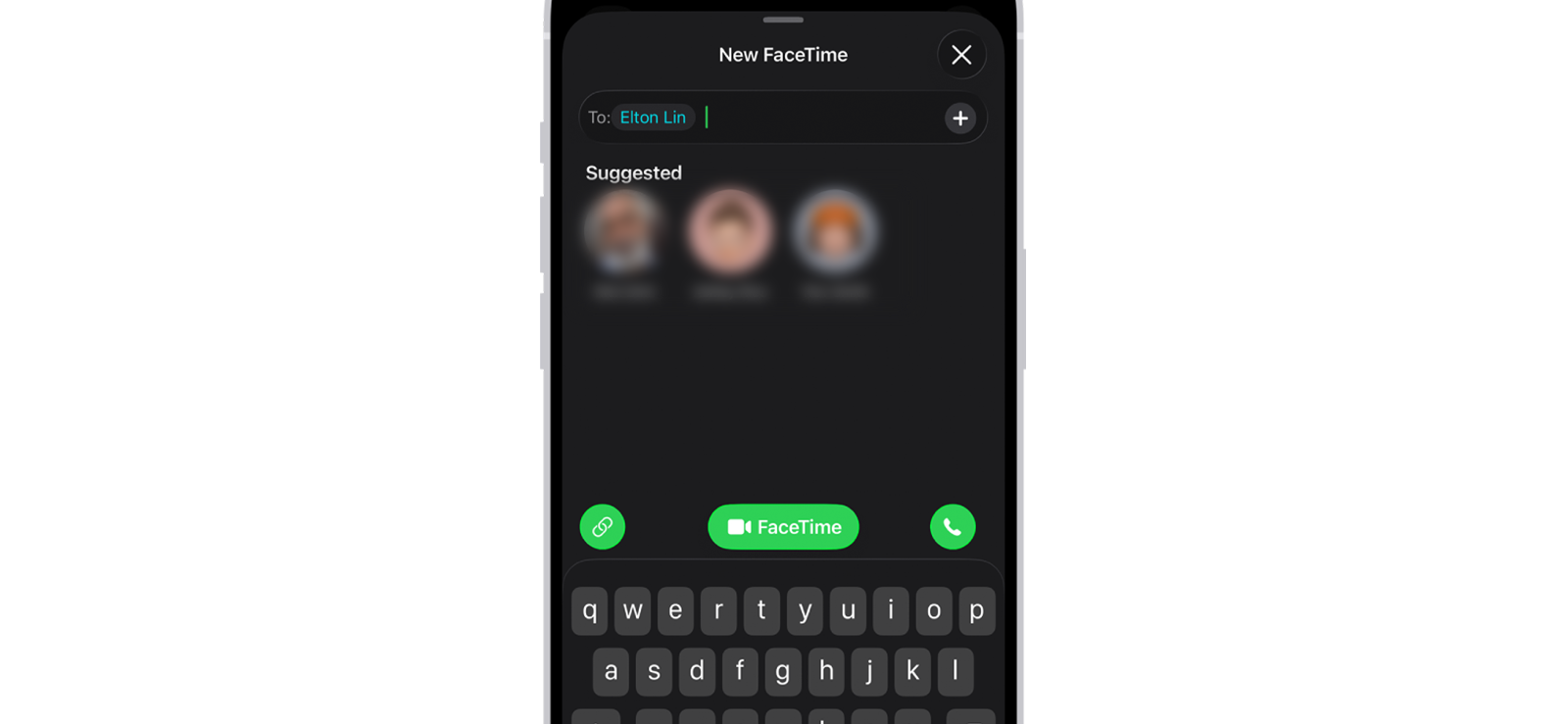
Since Apple blocks a contact across Phone, FaceTime, Messages, and Mail all at once, a phone-number block usually carries over to FaceTime too. If it doesn’t go through when you FaceTime that same person, that’s worth noting.
To see how to know if you are blocked on iPhone via the FaceTime method:
- Open FaceTime.
- Select the contact.
- Tap the FaceTime button (audio or video).
- Watch whether it rings, stalls on “Connecting,” or fails outright.
How Was My Experience?
Against blocked contacts, FaceTime calls stalled on “Connecting” for roughly 20 to 25 seconds before failing, and none of my 10 test attempts connected.
That said, I want to be upfront that this isn’t a clean standalone test since my rigorous testing results confirm that a weak connection, the recipient having FaceTime turned off, or an Apple ID not registered for FaceTime on that number can all produce the same failure.
It can become genuinely useful only when paired with what I was already seeing on the voicemail and read-receipt tests for the same contact.
3. See If Your Call Goes to Voicemail
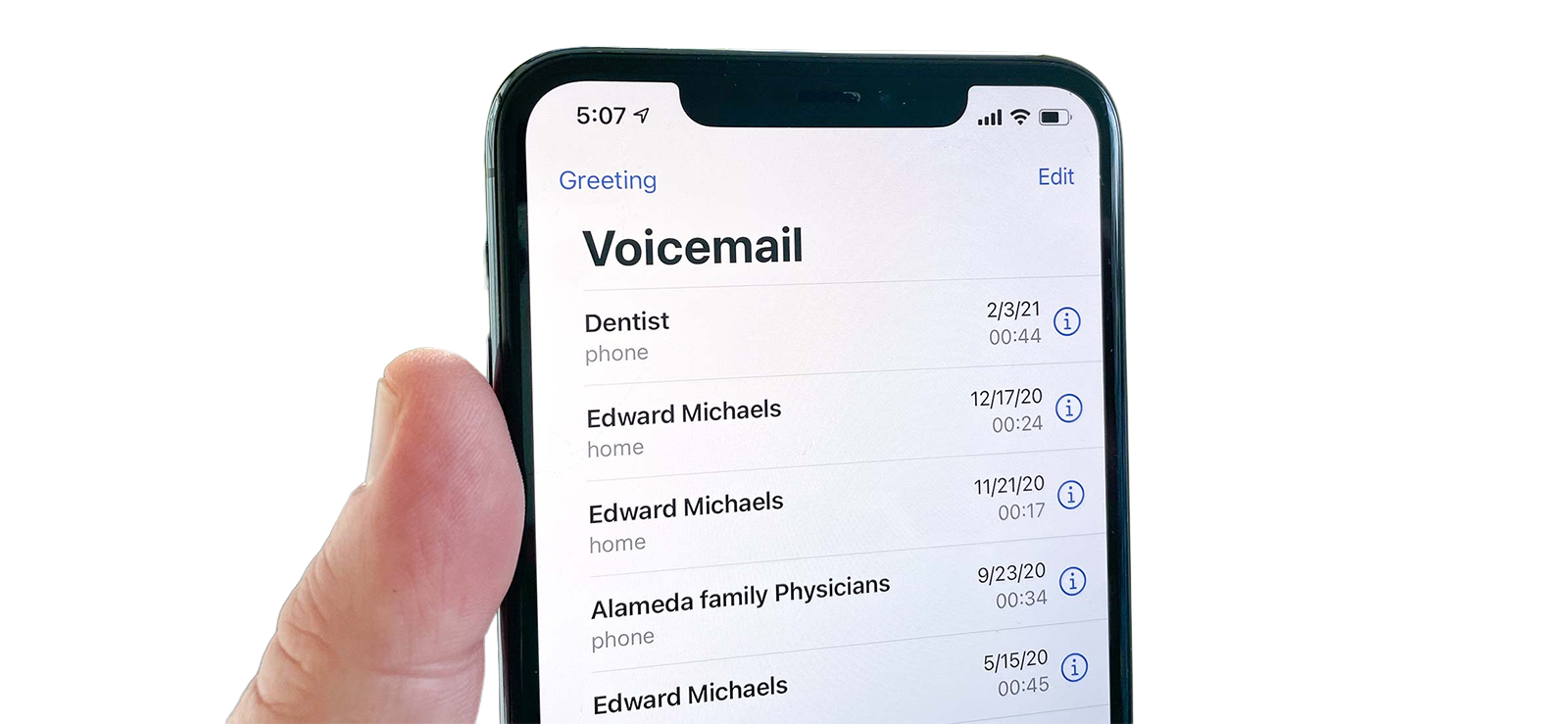
This is usually the first sign people notice. When a call is blocked, it typically doesn’t ring at all, or rings once, before dropping into voicemail. Apple’s own documentation notes that a blocked caller can still technically leave a voicemail; the person who blocked you just never gets a notification about it, which is part of why the whole process feels so silent.
To check:
- Call the contact and count the rings before voicemail picks up.
- Note whether you hear their personal greeting or a generic carrier message.
- Repeat at a few different times over several days.
- Compare the pattern against calls you know went through normally in the past.
How Was My Experience?
Across my blocked test contacts, calls went to voicemail after zero or one ring in the large majority of attempts, across all the test devices. A couple of times I got a generic carrier greeting instead of the contact’s personal one.
On their own, neither of those proves anything, because Do Not Disturb, a dead phone, and a dropped signal produced the same result.
What made it meaningful was that the pattern held steady across five days and multiple times of day, rather than clearing up on its own the way a temporary glitch usually does.

Did You Know?
You can remotely find hidden apps on someone’s iPhone without alerting them.

4. Check Your Message Read Receipts
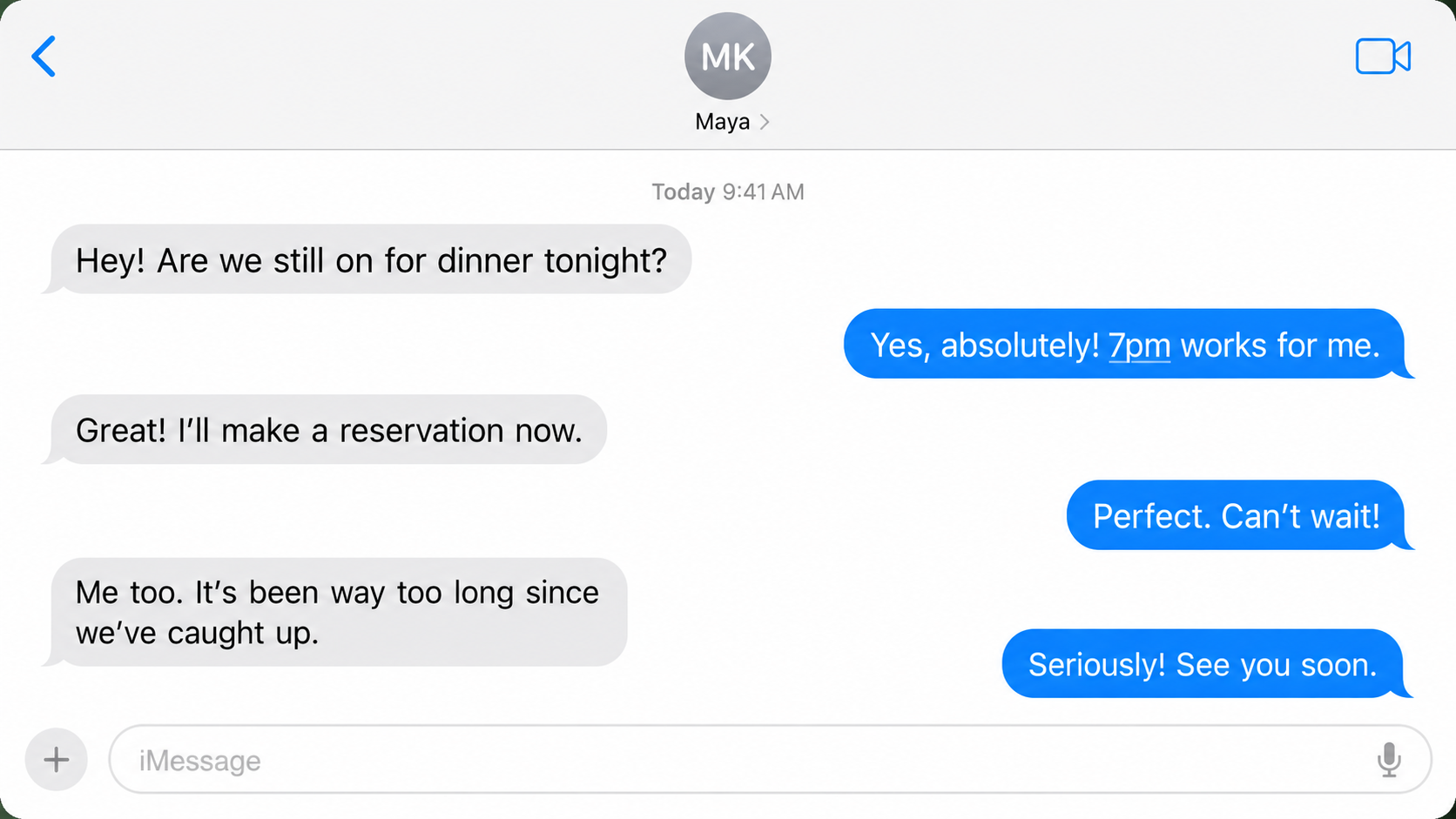
This is one of the more discreet ways to look for clues, since it doesn’t alert the other person that you’re checking anything. If the recipient normally has read receipts on and their replies typically show “Delivered” or “Read” under your messages, a sudden and total absence of any status is worth paying attention to.
It’s worth being precise here: a blocked iMessage generally doesn’t get stuck showing “Delivered” forever. Since the message never reaches their device, it typically shows no status at all; the bubble just sits there.
To check this:
- Open the Messages app and tap the conversation with the person.
- Send a short, simple message.
- Wait, then look beneath the message for a “Delivered” or “Read” status.
- If nothing appears where a status used to show up, blocking is one possible explanation.
How Was My Experience?
With blocked contacts who’d previously always shown “Delivered” and usually “Read,” that status stopped appearing entirely after the block, not “stuck,” just gone. With unblocked contacts under the same conditions, the status behaved normally.
The catch is that this only works if the person had read receipts turned on in the first place, and a decent number of people don’t. If a contact never showed “Delivered” even before you suspected a block, this method won’t tell you anything new.
5. Call Them From a Different Number
This was the most reliable check in my entire testing process, and it’s simple: if your number consistently fails while a second number reaches the same person under similar conditions, blocking becomes a strong explanation, since phone blocks apply to a specific number rather than every possible caller.
Here’s how to know if you’re blocked on iPhone using this method:
- Use another phone number you’re authorized to use.
- Call the same recipient under similar network conditions.
- Compare whether the alternate number rings while yours doesn’t.
How Was My Experience?
Every blocked test case I ran failed consistently from my primary number while the alternate number connected normally. However, if you do so while the other person’s phone is dead or on DND, you’ll get the same response as the blocked number.
The obvious drawback is that repeatedly calling someone from a different number can feel invasive, so I’d treat this as a confirmation step rather than something to lean on first.
How to Know Who Your Child Has Blocked on Their iPhone?
Everything above works well when you’re trying to figure out your own situation. Parents are often dealing with a different problem: their child has blocked someone, and there’s no way to run these same tests from outside the child’s phone.
That distinction matters. A child suddenly blocking someone can be tied to something more serious, such as a falling-out with a friend, an uncomfortable online interaction, or an attempt to hide a conversation from an adult who’d want to know about it.
This is where a monitoring tool like Xnspy fits in, when installed lawfully and within a family’s own monitoring rules. Rather than testing call behavior from the outside, it gives a parent visibility into the device itself.
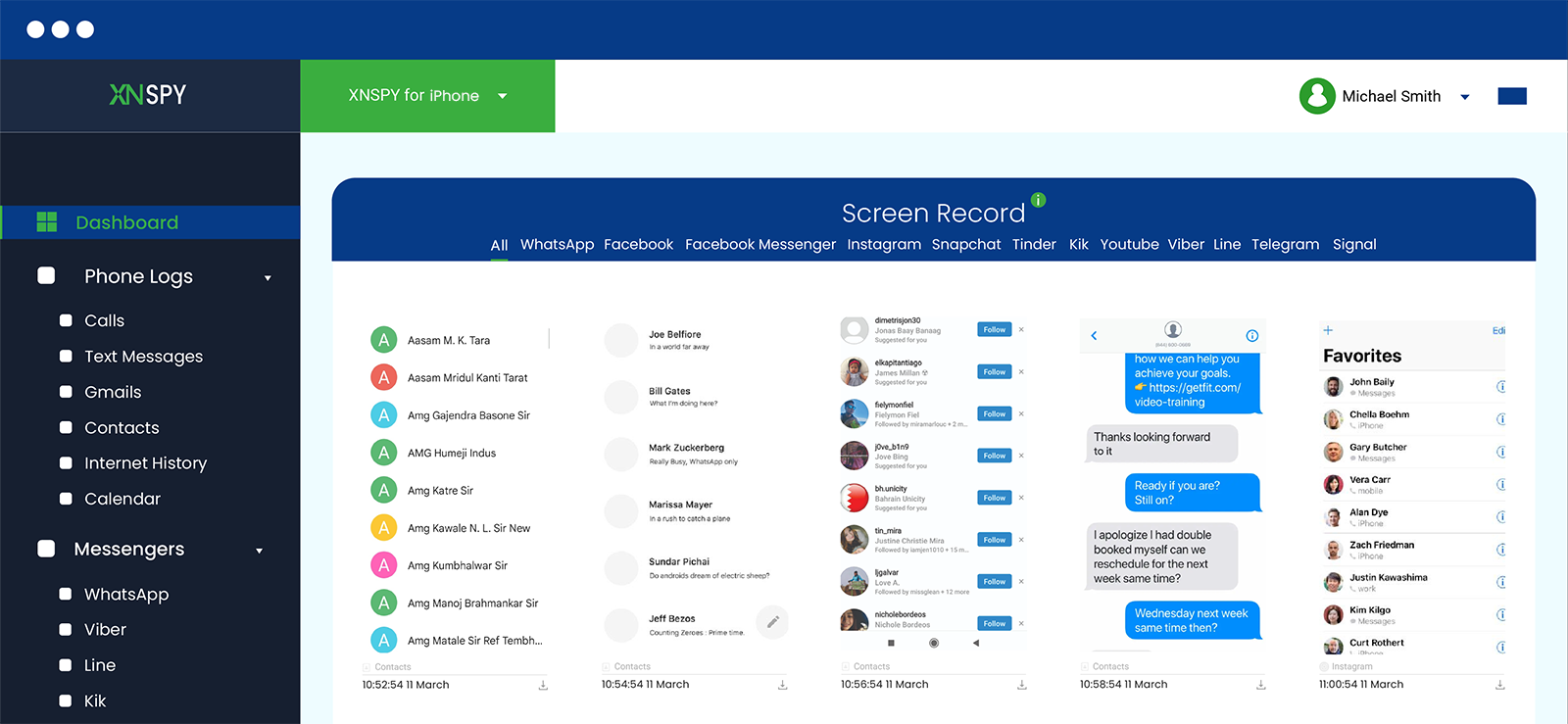
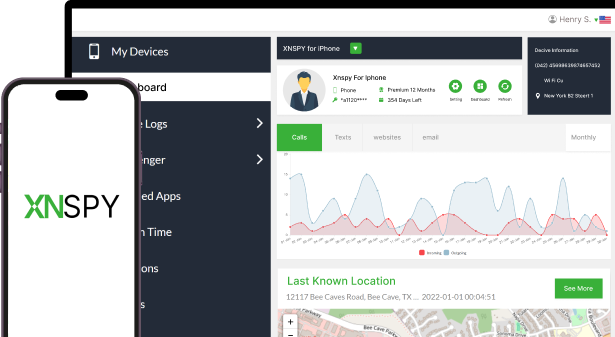
Xnspy’s call log view shows recent incoming and outgoing calls, so a parent can see whether a specific number has simply stopped appearing. Its message view works the same way for texts. The contacts list shows whether a number has been added, edited, or quietly removed. And its screen recorder feature captures periodic screenshots of on-device activity, which can be useful for spotting the moment a child opens their blocked-numbers list, adjusts contact settings, or opens the call-management screen, the kind of activity that a call log alone won’t show.
Here’s how it works in practice:
- Install and set up Xnspy on the child’s device, where you have legal authority to monitor.
- Log in to your Xnspy dashboard from a web browser.
- Open the Calls, Messages, or Contacts section and check for the number in question.
- Open the Screen Recorder section and review screenshots from around the time communication stopped.
How Was My Experience?
When I tested this tool, the screen recorder was genuinely the more useful piece, because it showed device-side activity instead of just an absence of calls. I could see when the test device navigated to blocked-contact settings, which a plain call log wouldn’t have told me on its own.
It’s worth being honest about the limits, too: Xnspy doesn’t hand you a pop-up that says “blocked.” Plus, as it continuously takes screenshots every 5 seconds, the moment your child blocks a contact can get buried into the logged data, and you’ll have to find it. Luckily, the timestamps and data filter help you avoid getting lost.
FAQs
How to know if someone blocked you on iPhone messages?
If someone blocks you on iMessage, your messages won’t show a “Delivered” or “Read” status at all; the bubble just sits there with no status, since the message never reaches their device. If they previously had read receipts on and that status has now disappeared entirely, that’s a clue. It’s not proof on its own, though, since the recipient may have simply turned off read receipts. Pairing this with a voicemail or FaceTime check gives a clearer picture.
How do you know if you are blocked on iPhone without calling?
The most reliable option that doesn’t involve placing a call at all is checking your message read-receipt behavior: send a text and see whether it ever shows “Delivered” or “Read.” If a contact who normally showed those statuses suddenly stops showing any status whatsoever, that’s a passive sign worth noting. It’s not conclusive on its own, since it only works if the recipient had read receipts turned on to begin with.
How can you tell if someone blocked you on iPhone if calls ring once and go to voicemail?
A single ring followed by voicemail is one of the more common signs of blocking, but Do Not Disturb, Focus modes, and a dead phone can all produce the same result. FaceTiming the same contact adds another data point, since Apple applies blocks across Phone and FaceTime together. If FaceTime also stalls or fails and the pattern holds over several days, blocking becomes the more likely explanation.
How to tell if I’m blocked on iPhone without installing anything?
You can do so using five different methods, like hiding your caller ID, trying FaceTime, watching voicemail behavior, checking read receipts, and calling from a second number, as all of these do not require installing anything. They work by comparing behavior across channels rather than relying on a single missed call.
Is there a way to know for certain if I’m blocked on iPhone?
Not with total certainty, no; Apple doesn’t send a notification either way, by design. What you can do is stack several independent signs (voicemail behavior, FaceTime outcome, read receipts, and a second-number test) and look for a pattern that holds steady over days rather than a single failed attempt.
Invisible Access, Clear Insights
With Xnspy, you are always one step ahead of the conversation.
Leave a reply:
Your email address will not be published. Required fields are marked*
Mike Everett
Member since October 20, 2014
Mike Everett
Member since October 20, 2014
Mike Everett is a consumer technology journalist with expertise in hands-on testing and evaluation of iOS and Android monitoring applications. With over 11 years in the industry, he focuses on how mobile monitoring tools perform in real-world conditions, including accuracy, feature reliability, device compatibility, and practical usability for parents.
He conducts live-device testing of monitoring apps to assess how well their features function beyond marketing claims. His work primarily includes comparative reviews, feature breakdowns, and buyer-focused guides designed to help parents understand which tools actually deliver usable results in everyday scenarios.