How to See If Someone Read Your Text: 100% Working Methods for Android & iPhone
 By Mike Everett
The complete monitoring experience for your phone
Get XNSPY and start tracking calls, texts, multimedia, locations and more on any phone!
Get Started Now Live DemoLife is already quite stressful nowadays, and on top of that, when you have to wait for that one reply or at least an indication that your SMS was seen, it adds to the frustration. Baffled by them not texting back, you cannot help but wish for a way to know if they have even read your text or not.
What if we tell you that there are designated ways for you to do so for text messages, too? Yes, you heard it right. So, if you’re thinking, ‘how can you tell if someone read your text?’, let us take you through the most practical methods available (for both Android and iPhone).
How Read Receipts Actually Work: Understanding the Basics
Read receipts are tiny digital acknowledgments that confirm when a message has been opened and viewed. Unlike delivery notifications, which only show that a message reached someone’s phone, read receipts indicate engagement. However, their accuracy depends on the messaging platform, network support, and whether both users have the feature enabled.
How Do Text Read Receipts Work on Android
On Android, read receipts are powered by RCS (Rich Communication Services). This is a modern protocol, kind of like an upgrade to traditional SMS.
When two users have RCS enabled, messages travel over the internet instead of cellular networks, allowing features like typing indicators, delivery updates, and read confirmations.
If either phone or carrier doesn’t support RCS, Android automatically falls back to traditional SMS or MMS, where these features don’t exist.
How Do Message Read Receipts Work on iPhone
Apple’s iMessage service uses internet-based communication to exchange messages securely through Apple’s servers. When both users have iMessage enabled, a small signal is sent back once the message is opened.
iMessage also shows a typing indicator, offering subtle feedback that your message was seen. However, users can disable “Send Read Receipts” for privacy, which means that you will only see “Delivered” even if they’ve read it.
However, it is important to know that these confirmations only work within iMessage conversations (blue bubbles); when a message turns green, it’s sent as SMS, and read receipts no longer apply.
Blogs That Deserve Your Attention

💬 How to Retrieve Deleted Text Messages on Android: 5 Easy Ways
⚠️  How to Retrieve Deleted Text Messages from Another Phone: 5 Ways
⚡  How to Get Text Messages From Another Phone Sent to Mine: 6 Ways
How to Tell If Someone Read Your Text on iPhone
Apple’s iMessage makes it surprisingly easy to know whether your text has been seen or not. Unlike traditional SMS, iMessage uses internet-based delivery. Hence, it allows you to get some feedback cues from the recipient. These built-in signals give subtle but clear hints about your message’s status in real-time.
Use iMessage Read Receipts

Read receipts are the most direct way to know if someone opened your iMessage. When both users have the feature enabled, Apple’s servers send a tiny data signal back once the message is viewed, showing “Read” under your text. It’s automatic and updates in real time as soon as the message is opened.
To enable or check this feature:
- Open Settings on your iPhone.
- Tap Messages.
- Turn on Send Read Receipts.
- To manage it for specific conversations (available on iOS 10 and later), open the chat in iMessage, tap the info (ⓘ) icon at the top, and toggle “Send Read Receipts” on or off for that person individually.
While helpful, read receipts depend entirely on the recipient’s preferences. If they’ve disabled them, you’ll only see “Delivered.” They also work only for iMessage chats (blue bubbles), not SMS (green bubbles), which limits their use outside Apple’s ecosystem.
Look for the Typing Indicator
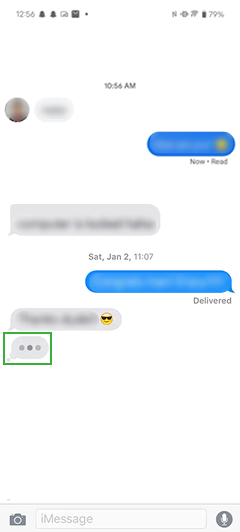
The three-dot typing indicator is a more subtle clue that your message has been seen. It appears when the recipient opens your chat and begins typing, meaning they’ve definitely read your last message. This indicator is transmitted instantly through iMessage’s live data exchange, which detects when someone’s keyboard is active in your conversation.
To notice it effectively:
- Open your messages and go to the targeted chat.
- Watch the bottom of your chat thread for the animated three dots (•••).
- This symbol appears only while the other person is typing.
While the typing indicator gives you a strong hint that your message has been seen, it isn’t always reliable. The dots only appear when the other person is actively typing in your chat, so if they open the conversation without typing anything and with their read receipts being off, you won’t see any sign at all. Likewise, typing indicators can occasionally linger or vanish due to connection delays, which may leave you confused.
See Group Chats
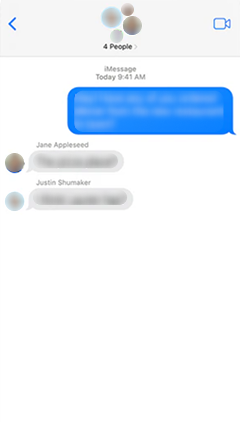
iMessage group chats make it easier to tell who has read your message. Each participant’s iMessage app sends back a read receipt once they open the thread, and you can view this beneath your sent message. This approach works quite well across all iMessage users in the group using Apple’s unified system.
To check the read status in a group chat:
- Open your iMessage group conversation.
- Send a message and wait a few moments.
- In group iMessages, a short “Read by [names]” note appears beneath your message once others have viewed it. To see the full list of readers, you can tap and hold the message, which expands the details
This method only works if everyone in the group is using iMessage and has read receipts turned on. If even one participant is on Android or SMS, the chat converts to standard texting, removing read indicators altogether.

See More Than Just “Read”
Know exactly what’s really going on with Xnspy.
– View all sent and received messages.
– Monitor messaging in real-time and see deleted messages.
– Track timestamps and contact details for each conversation.
– Get instant alerts for specific keywords or contacts.
How to See if Someone Read Your Text on Android
Android users can also enjoy read receipts and typing indicators, all thanks to RCS (Rich Communication Services). Apps like Google Messages and Samsung Messages now support this protocol to make texting feel smoother and more connected. So, if you are wondering how to know if someone read your message on Android, here are five different ways you can do so.
Try Google Messages
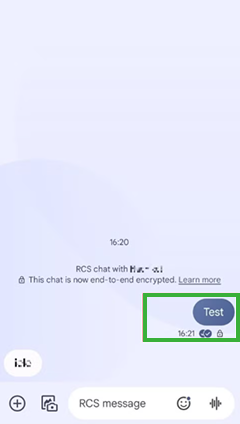
Google Messages is Android’s default texting app on most devices and the main gateway to RCS features. When both users have RCS enabled, the app sends messages over data instead of SMS. This allows it to track when your text has been delivered and when it’s actually read, similar to online chats.
To enable this feature:
- Open the Google Messages app.
- Tap your profile picture or initial in the top-right corner.
- Select Messages settings → RCS chats.
- Turn on Send read receipts and Show typing indicators.
While it is a promising method, RCS read receipts only work if both you and the other person have RCS enabled and internet access. If either side uses SMS or an unsupported carrier, messages revert to plain text with no read status available.
Use Samsung Messages
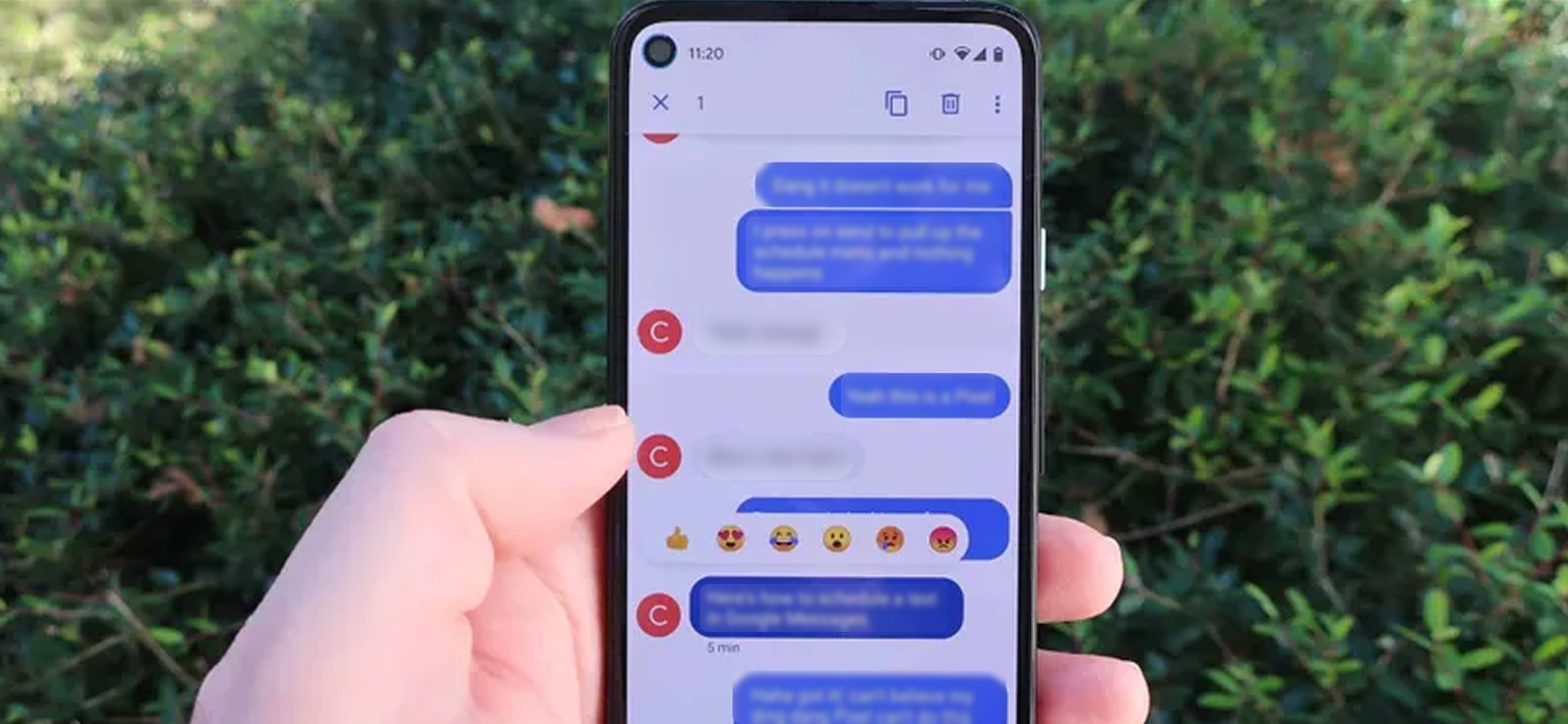
Samsung’s native Messages app also supports RCS, powered through Google’s network or carrier partnerships. When active, it works the same way and shows “Delivered” and “Read” under your messages once they’ve been viewed.
To enable or check this feature:
- Open the Samsung Messages app.
- Tap the three-dot menu → Settings → Chat settings (or Advanced messaging, depending on version).
- Turn on Show when delivered and Show when read.
However, just like Google Messages, this only works for RCS chats, not SMS or MMS. If your recipient isn’t using an RCS-enabled app or carrier, your messages will send as regular texts, without delivery or read confirmations.
Find the Typing Indicator
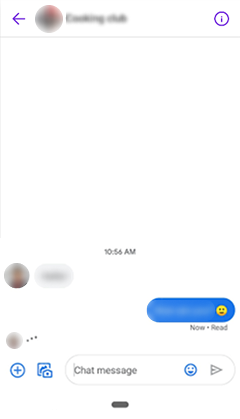
The typing indicator is another subtle hint that your message has been seen. When RCS is active, Android can detect when the other person is typing a reply and briefly shows three moving dots or a “typing…” message below their name. This means they’ve likely opened your message and are composing a response.
To see this in action:
- Open your default messaging app (such as Google Messages or Samsung Messages).
- Go to Settings → Chat features (or Advanced messaging) and make sure RCS chat features are turned on.
- Open the conversation with the person you want to message.
- Watch for the “Typing…” indicator or the three moving dots below their name when they start replying.
This feature isn’t foolproof. It depends entirely on both users having RCS active and a stable internet connection. If the person opens your message but doesn’t start typing, and has the read receipts off, you won’t see any sign at all.
View RCS Group Chats
RCS also extends to group conversations, showing who has received or read your messages within the group. Each participant’s app sends a small confirmation back once they open the chat, and the status updates automatically under your message.
To check read receipts in an RCS group:
- Open your group conversation in Google or Samsung Messages.
- Send a message and wait a few moments.
- Look beneath it for “Read by [names]” or “Delivered to [names]” updates.
This only works if everyone in the group uses RCS. If even one person’s phone or carrier doesn’t support it, the conversation falls back to MMS, disabling these read-tracking features entirely.
Go for a Third-Party Messaging App

If your phone or carrier doesn’t support RCS, you can install a third-party SMS app that offers similar features. Apps like Textra SMS, Pulse SMS, or Chomp SMS can be set as your default messaging app and provide delivery reports or cloud-based syncing.
To try one out:
- Download a third-party SMS app from the Google Play Store.
- Open Settings → Apps → Default apps → SMS app, and select your new app.
- Check its notification or delivery settings for read or delivery options.
However, even these apps can’t overcome SMS’s basic limitation. Carrier texts don’t actually support read receipts. Some apps can only simulate this with delivery reports, and those, too, depend on the carrier and the recipient’s device settings. In most cases, both users need to be using the same app and have read receipt options enabled for these features to function reliably.

Did You Know?
You can also recover deleted Telegram messages.

How Can You Tell If Someone Read Your SMS (Carrier Messages)
If you want to know how to see if someone read your text (carrier messages), it becomes a little tricky. Traditional SMS, or Short Message Service, was designed for basic text delivery over cellular networks. This service was invented long before internet-based messaging existed.
Unlike iMessage or RCS chats, standard carrier texts don’t have built-in ways to confirm if someone opened or read your message. However, with RCS-compatible carriers and certain settings, you can still get limited insight.
Use RCS-Based Carriers
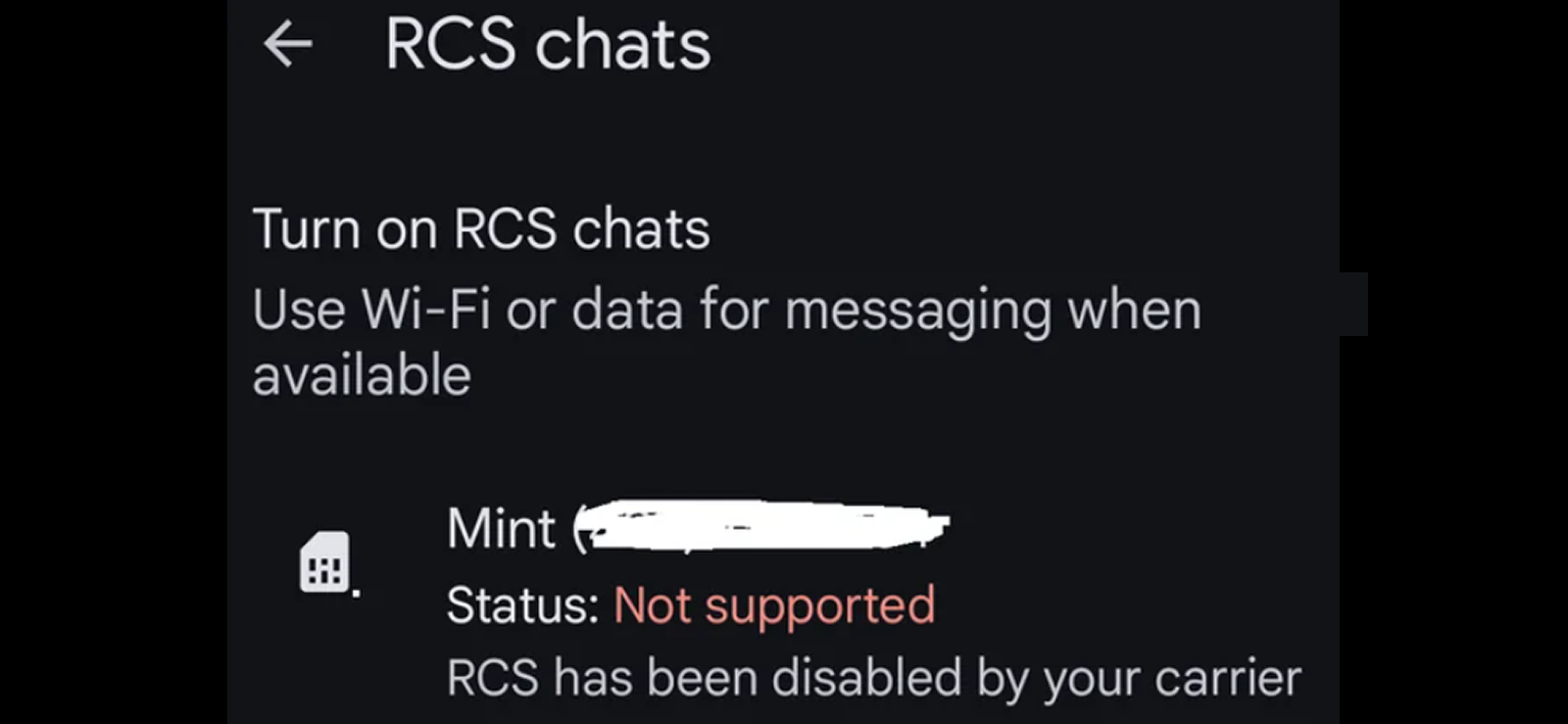
Some mobile carriers now support RCS (Rich Communication Services) directly within their SMS infrastructure. When both users are on an RCS-enabled network and use compatible messaging apps, their messages are upgraded from basic SMS to RCS. This way, they get all the features like read receipts, typing indicators, and delivery confirmations.
In the U.S., most major networks now support Rich Communication Services (RCS). Such carriers include AT&T, T-Mobile, and Verizon.
To enable or check this feature:
- Open your default messaging app.
- Tap your profile picture or menu icon → Settings → RCS chats (sometimes called Chat features).
- Here, you’ll see if your carrier supports RCS protocol.
- Once confirmed, ensure Chat features and Send read receipts are turned on.
Even with carrier RCS, these features won’t always work seamlessly. Both you and your recipient must be on RCS-enabled networks, use compatible messaging apps, and have read receipts turned on. If either side falls back to SMS or MMS, all advanced features disappear, reverting to standard text delivery.
How to Find Out Which Texts Your Child Reads on Their Phone
Kids nowadays are pretty much hooked to texting themselves. But are all of these text exchanges safe?
Think about it. A place where anyone can contact you and even delete messages after sending cannot really be secure for your child. Now, can it be? But, despite the potential risks being present, you cannot possibly hover over your child’s shoulder all the time. So, how do you make sure their interactions are safe and age-appropriate?
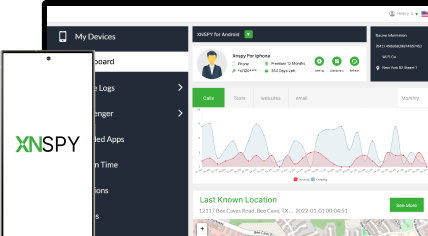
The solution to this question is the use of monitoring apps. Xnspy is one such option that operates on the targeted cell phone 24/7 without disrupting its normal functioning. It gives you all updates from the chats in question in real-time. Moreover, the application is not a hassle to install and offers a user-friendly dashboard as well.
Xnspy comes with designated features for tracking text messages on both iPhone and Android devices. The features work irrespective of the chats being traditional or RCS-based. Here’s all you need to know about Xnspy’s message tracking.
Text Messages Monitoring
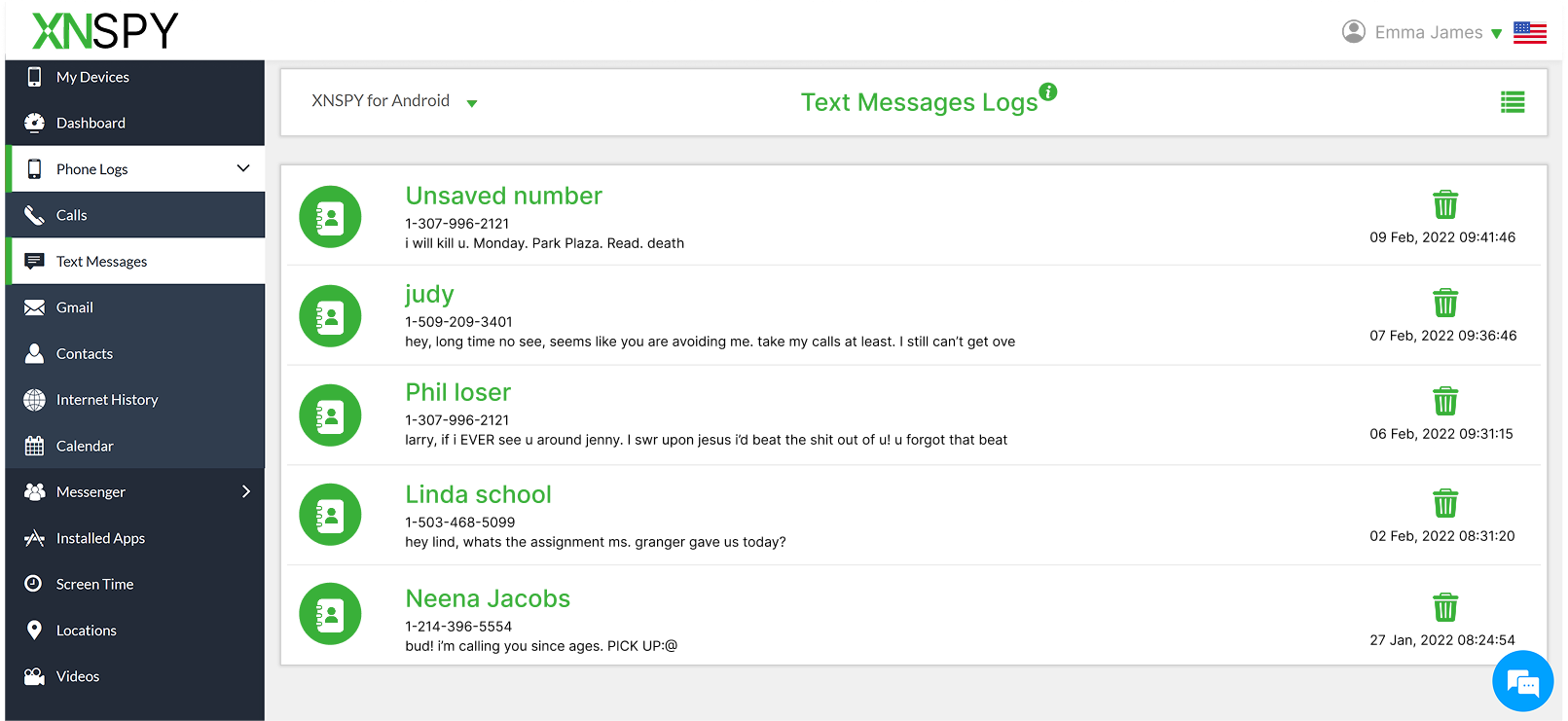
With Xnspy, you get complete logs of text message exchanges in conversational view. This information comes with complete context, i.e., contact name, contact number, date, and time. Moreover, as the application updates every text in real-time, you can even see deleted messages and spot red flags in a timely manner.
iMessage Tracking
Under the ‘Messenger’ option on the side menu of your online dashboard, you will get to see an option for iMessages. Selecting this, you can see all the iMessage conversations that your child has had in a thread layout. Along with the texts, you’ll also receive timestamps and contact information.
Screen Recording
Another, rather indirect way Xnspy offers you to see text message exchanges is the screen recording feature. Xnspy takes screenshots of the targeted device after regular intervals and uploads them to the dashboard. As this feature covers all activities, you can easily see the textual interactions your child is having with the other person. Moreover, to give you more ease in seeing these screenshots, the app classifies them in relevant app tabs.
Keylogging
Keylogger is yet another feature of Xnspy that helps you see things from a deeper angle. This feature captures all the keystrokes from your targeted device and uploads them to the dashboard with the icon of the relevant app. This helps you see what your child has typed, even if they have later deleted it.
Keyword Alerts
To aid you in intervening timely manner, Xnspy also offers keyword alerts against customizable flagged words. In this way, whenever a flagged word appears in the messaging chat, you’ll get an email notification with the detected word and the complete text for better context.
FAQs
How to know if someone read your message if you have an Android and they use an iPhone?
When texting between Android and iPhone via SMS or MMS, read receipts aren’t supported because the systems use different messaging platforms. Android uses RCS or SMS, while iPhone relies on iMessage. You’ll only see “Delivered” or nothing at all. To check if they’ve read your message, switch to a cross-platform app like WhatsApp, Messenger, or Instagram DM, which provides built-in read indicators across devices.
How can you tell if someone read your text without read receipts turned on?
Without read receipts, there’s no way to confirm the message was opened. Your text may show as “Delivered,” meaning it reached the phone, but that doesn’t prove the recipient opened it. Some apps show last active or online status to offer indirect hints, but standard texting apps don’t track message opens. For precise confirmation, you can use a monitoring app like Xnspy and use it to know if they’ve read your texts or not.
How to tell if someone read your text on a Samsung?
On Samsung devices, you can see if a message was opened by enabling Chat features (RCS). Go to Messages → Settings → Chat features, and turn on “Send read receipts.” When both users have RCS active, the message will display “Read” once opened. If the recipient doesn’t use RCS or it’s disabled, the text reverts to traditional SMS or MMS, which cannot confirm whether it’s been opened.
How do you know if someone read your text but blocked your number afterward?
If someone opened your message before blocking you, you’ll only see the “Read” indicator if read receipts were active at that time. After blocking, you won’t get any new updates, and future messages won’t be delivered. If the last message shows “Read” and subsequent ones never deliver, it likely means they opened it before blocking you. If there’s no read mark, you can’t confirm they opened it. However, with Xnspy’s screen recording feature, you can catch if your number shows up as blocked on their phone or if they have/haven’t read your text.
How to tell if a text has been read if they deleted the conversation?
If the recipient deleted the conversation after opening your message, the read status remains visible on your side (if they were enabled on both your and their devices). Deletion only removes the thread from their device, not the record of having opened it. However, if receipts were disabled or the message was sent as SMS/MMS, there’s no system log showing it was opened.
Don’t Just Guess – Know for Sure with Xnspy
Get complete visibility into text messages and chats with one monitoring solution.
4 Comments
Leave a reply:
Your email address will not be published. Required fields are marked*
James Joke
December 17, 2025 at 2:45 pmCan I get a few more bonus methods since I do not want to use Xnspy or any other tools to check the read receipt
Nicolas Jack
January 14, 2026 at 1:53 pmInteresting take on the whole topic, nice work
Sarah Johns
January 21, 2026 at 12:06 pmTried everything but I cannot find out if they have read my message, is there a chance that they might have blocked me?
Monk John
January 26, 2026 at 2:43 pmWHY IS EVERYTHING SO COMPLICATED THESE DAYS? SO SO UNNECESSARILY COMPLICATED