How to Retrieve Deleted Text Messages on Android Without Access to the Phone: 6 Easy Ways
 By Mike Everett
The complete monitoring experience for your phone
Get XNSPY and start tracking calls, texts, multimedia, locations and more on any phone!
Get Started Now Live DemoThere is a particular kind of dread that comes with opening a conversation thread and finding it empty. You know something was there. Maybe it was deleted on purpose, maybe by accident, but either way, the messages that mattered are suddenly gone, and you are left wondering whether that is actually the end of it.
As someone who has spent years testing how these phones actually behave behind the marketing claims, I can tell you it usually is not the end. A deleted text message on Android does not vanish the second you tap delete. It sits in a kind of limbo, marked as free space, until something else overwrites it.
That window is exactly what makes recovery possible, and exactly why most generic advice on this topic falls apart the moment you try it. The methods that work depend heavily on whether a backup existed, how recently the phone was used after deletion, and which Android version you are dealing with.
So to find out how to recover deleted text messages on Android, I tested six recovery methods across three devices, with backups both on and off, to see which ones actually hold up.
Recovering Deleted Android Texts: Quick Overview
- Deleted SMS messages are marked as inactive storage, not erased instantly, which is why recovery can be possible.
- Xnspy: Logs messages in real time before deletion, and keeps them intact even if they are erased from the target device.
- Trash or Recycle Bin: Some default and Samsung messaging apps quietly hold deleted texts for up to 30 days.
- Google Backup: Works if SMS backup was enabled before the messages were deleted.
- Device Backup: Samsung Cloud and similar OEM backups can restore texts if a recent backup exists.
- Notification History: Android’s built-in notification log can resurface message previews even after the text itself is gone.
- SIM Card Extraction: Only works on older devices that still store SMS on the SIM rather than internal memory.
Can You Retrieve Deleted Text Messages on Android? Here’s the Final Answer
The short answer is yes, in most cases, though “deleted” on Android does not mean what most people assume it means.
Unlike the iPhone, Android does not have a universal built-in “Recently Deleted” folder for text messages. There is no single safety net baked into the OS itself. But a deleted message is not immediately erased from the phone’s storage either; it is marked as inactive space and remains physically present until new data overwrites it. That creates a window for recovery.
Why You Should Know How to See Deleted Messages on Android?
Knowing how to retrieve deleted text messages on Android without the user knowing can be crucial for ensuring the safety of your loved ones.
Kids today are practically glued to their phones, with teens aged 13-18 averaging about 7 hours and 22 minutes daily screen time. And that constant connection comes with risks. If they are deleting messages, it might be nothing – or it might be something worth looking into. Being able to recover those texts can help you spot red flags, whether it is signs of bullying, troubling conversations, or risky behavior.
In short, having this knowledge gives you a way to step in when it counts, without waiting for things to spiral.
How I Tested Text Retrieval Methods on Android?
Before getting into the actual method to know how to retrieve deleted text messages, I want to walk you through how I actually tested the workarounds.
I ran each method on three Android devices: a Samsung Galaxy S series device, a Google Pixel (stock Android), and a slightly old Motorola phone, since SIM-based storage and notification retention can vary across OEMs and Android versions.
For each device, I sent and deleted a batch of test text messages under two conditions: once with cloud/device backup enabled, and once with it switched off, since that single variable changes the outcome for most of these methods entirely. Here’s the criteria I used:
- Recovery Success: I checked whether the deleted message could actually be retrieved in full, not just whether the method seemed plausible on paper.
- Backup Dependency: Furthermore, I also checked to see if the method only works because a backup already existed before the message was deleted.
- Time Sensitivity: Then I focused on how much time can pass after deletion before the message becomes permanently unrecoverable.
- Technical Difficulty: I also saw how easily one could pull off the message and whether it needs to be specially rooted or not. I excluded any method that needed rooting.
Just for You: Our Top Blog Picks

📣 How to Retrieve Deleted Text Messages from Another Phone
🚨  How to See Deleted Messages on Messenger Without Them Knowing
🏃  How To Recover Deleted Snapchat Messages Without the Target Device
👻 How to Block Inappropriate Content on Snapchat Without the Phone
How to Recover Deleted Text Messages on Android: 6 Methods Tested
With deleted text messages holding important missing clues, parents must know how to find deleted messages on Android secretly. Keeping this in mind, we have compiled 5 useful methods that do not require access to the target Android phone.
| Method | Requires Backup? | Works Without Root? | Time-Sensitive? | Difficulty |
| Use Xnspy | No | Yes | No (logs in real time) | Easy |
| Trash/Recycle Bin | No | Yes | Yes (30-day window) | Very Easy |
| Google Backup | Yes | Yes | No, if backup exists | Easy |
| Device Backup | Yes | Yes | No, if backup exists | Easy |
| Notification History | No | Yes | Yes (limited retention) | Easy |
| SIM Card Extraction | No | Depends on the device | Yes (high) | Moderate |
1. Use Xnspy
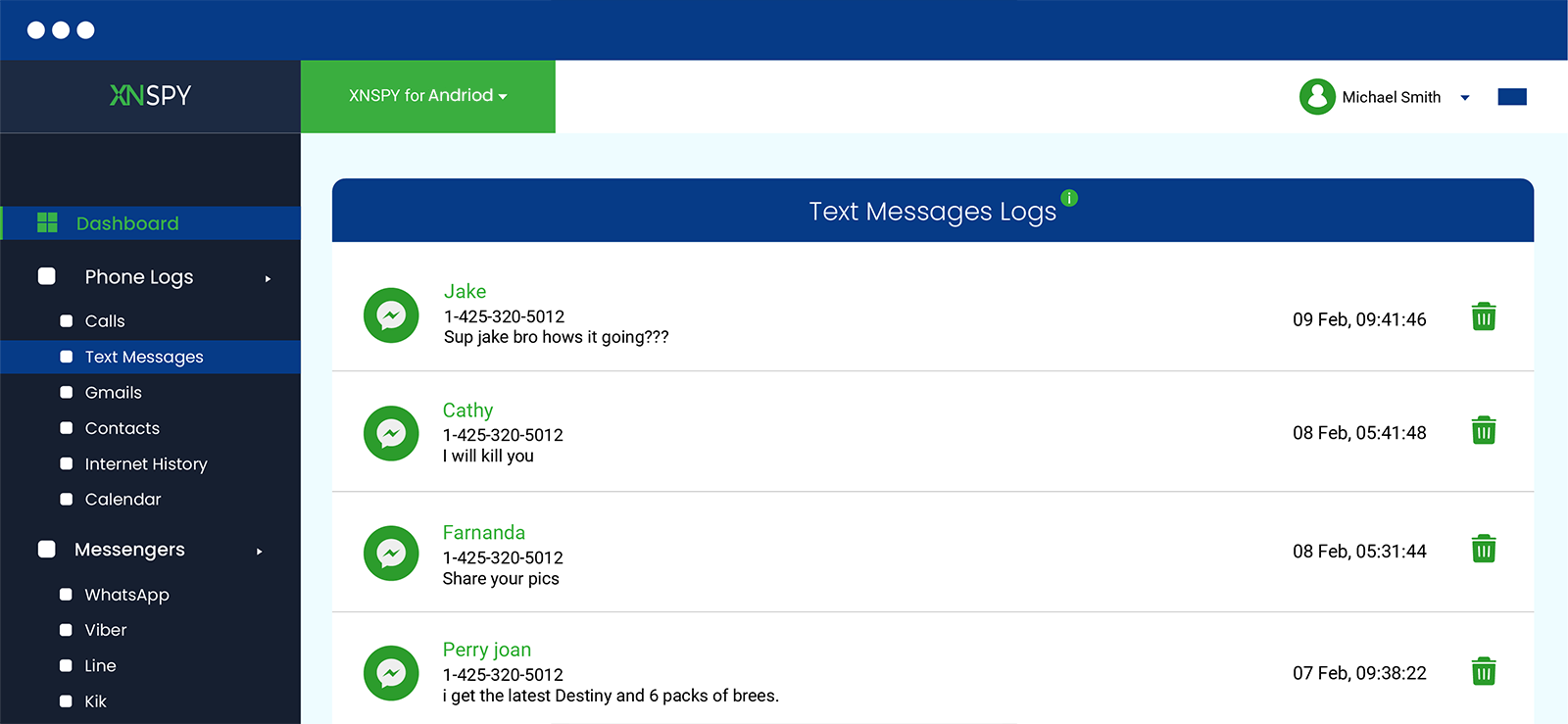
Xnspy is a phone monitoring app built for parents who need ongoing visibility into a child’s phone activity, including text messages. The way it handles “deleted” messages is fundamentally different from every other method on this list: instead of trying to recover something after it is gone, it logs messages as they happen, so deletion on the target phone does not actually remove anything from your side.
Once installed on the monitored Android device, Xnspy captures incoming and outgoing texts in real time and syncs them to a web dashboard. If a message is deleted on the phone moments later, it has already been logged and stored separately, meaning there is nothing left to “recover” in the traditional sense.
Here’s how to see deleted text messages by using Xnspy:
- Subscribe to Xnspy and complete the installation on the target Android device.
- Log in to the web dashboard using the credentials sent to your confirmation email.
- Go to Phone Logs, then Text Messages, to view the full message history, including anything that has been deleted from the phone itself.
- Use the Screen Recorder feature if you want visual confirmation of when and what was deleted.
How Was My Experience With This Method?
I set this up on the Pixel and the Samsung S series, sent a batch of test texts, deleted half of them within minutes, and checked the dashboard afterward. Every deleted message was already logged and viewable, since the capture happens before deletion, not after.
The setup itself took a few minutes longer than the other methods on this list, since it requires installing the app on the target device first. That is the trade-off: it is not a quick fix for a message you already deleted in the past with nothing in place beforehand, but for any deletion going forward, it is the most reliable method I tested by a wide margin. The other five methods are genuinely about recovery; this one is closer to prevention.

See Everything, Even What’s Deleted
Access all their deleted text messages without touching their phone.
2. Check the Message App’s Trash or Recycle Bin

When it comes to actually knowing how to recover permanently deleted text messages on Android, this is the method most people skip. Why? Well, because they assume Android does not have anything like a “Recently Deleted” folder, which isn’t universally true.
Several default and OEM messaging apps quietly hold onto deleted texts for a set window before actually purging them.
Samsung Messages, for instance, has a Recycle Bin tucked into its settings that retains deleted texts for up to 30 days. Google Messages versions and a handful of other OEM apps run similar logic, though the feature is inconsistent across manufacturers and not always labeled the same way.
To check for it:
- Open your messaging app and tap the three-dot menu in the top corner.
- Look for an option labeled Recycle Bin, Trash, or Recently Deleted, depending on the app.
- If found, open it to view messages still pending permanent deletion.
- Select the message and tap Restore to move it back to your inbox.
How Was My Experience With This Method?
On the Samsung, this worked exactly as expected. Deleted texts showed up in the Recycle Bin immediately and were restored cleanly back into the conversation thread.
On the Pixel running stock Google Messages, the same thing happened. I found an option called ‘Bin’ that holds deleted messages for 30 days. I simply restored the messages from here. were simply gone from the interface.
The Motorola device had nothing comparable. So this method is essentially a coin flip depending on your phone’s manufacturer and messaging app, and it is the first thing worth checking specifically because it costs nothing and takes under a minute.
3. Try Google Backup
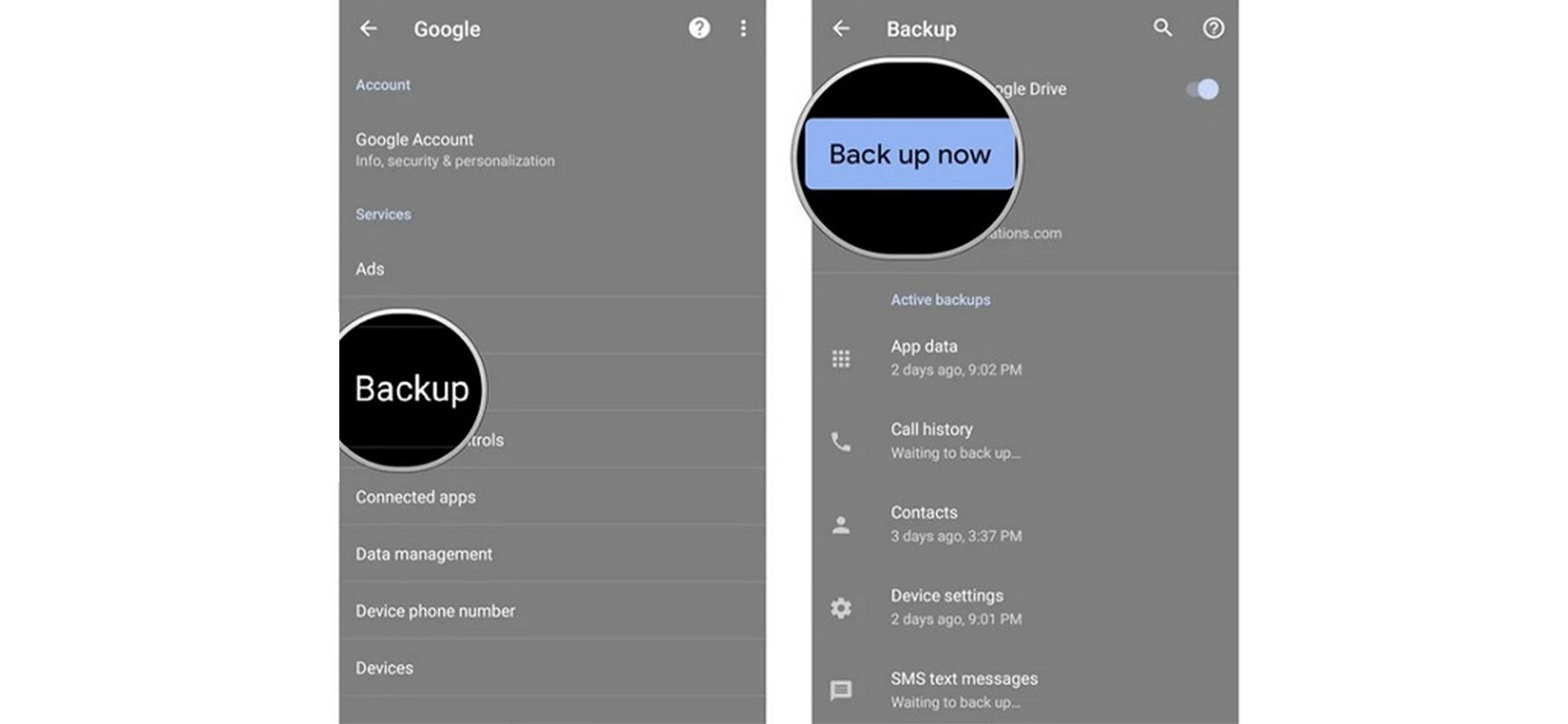
Google Drive automatically backs up SMS messages on Android, provided that the setting was turned on before the messages were deleted. This is the most commonly cited recovery method, and also the most misunderstood, since it only restores messages that existed at the time of the last backup.
To use this method, you need to sign into the same Google account as the target device, and during setup, restore from the most recent backup that predates the deletion.
Let’s see how to restore deleted text messages on Android via Google backup:
- Sign in using the Google account linked to the target phone.
- When prompted, choose to restore from backup and select the most recent one available.
- Confirm the backup date falls before the messages were deleted.
- Complete the setup and check the Messages app for the restored conversation.
How Was My Experience With This Method?
With backup enabled before deletion, this worked cleanly on all my test devices. The restored messages matched exactly what was deleted, timestamps included.
With backup disabled, which was my second test condition across all three devices, this method produced nothing. There is no partial recovery here; either the backup exists and contains the message, or it does not. That dependency is the entire story with this method, so before relying on it, it is worth checking your backup settings now, not after something gets deleted.

Pro Tip
Why only see deleted text messages on Android when you can recover deleted WhatsApp messages too?

4. Get Device Backup
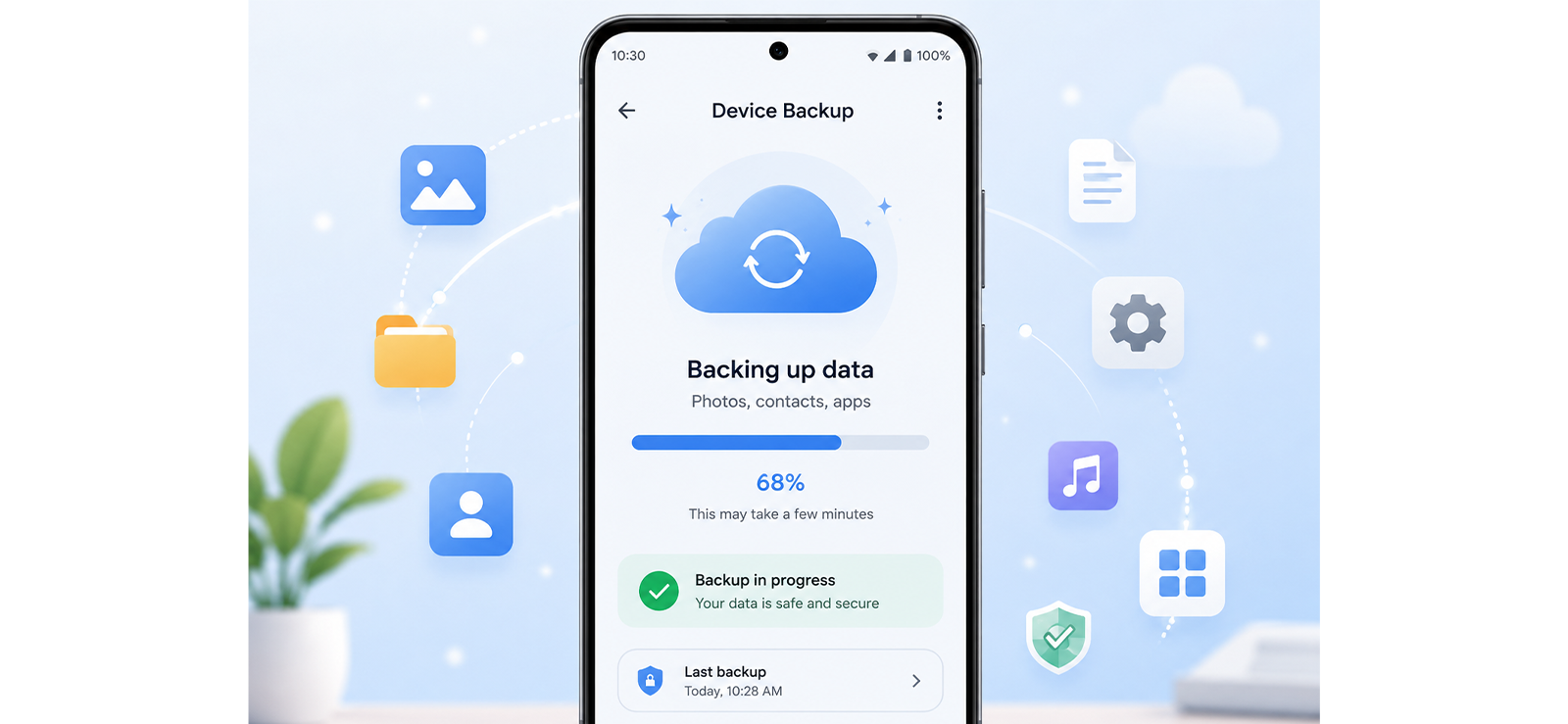
Separate from Google’s own backup system, several Android manufacturers run their own backup service. Samsung Cloud is the most common example, and it can independently back up text messages depending on what is enabled in the phone’s settings.
This matters because some users have Samsung Cloud enabled without Google’s SMS backup turned on, or vice versa, so checking both is worth doing rather than assuming one covers the other.
To know how to recover deleted messages on Android with device backup:
- Confirm whether the original device has a manufacturer backup service enabled, such as Samsung Cloud, under Settings, then Accounts and Backup.
- On another device, sign in to the same account.
- Go to Backup and Restore, then look for a Messages category.
- Select Restore to pull the backed-up texts onto the new device.
How Was My Experience With This Method?
On the Samsung with Samsung Cloud enabled, this worked independently of whether Google’s own SMS backup was on or off, which was a useful distinction to confirm. The restored messages were complete and intact.
This method obviously does not apply to the Pixel or the Motorola, since neither runs Samsung Cloud, so its usefulness depends entirely on your phone’s manufacturer. If you are on a Samsung device, it is worth checking as a second, independent backup path alongside Google’s.
5. See Notification History
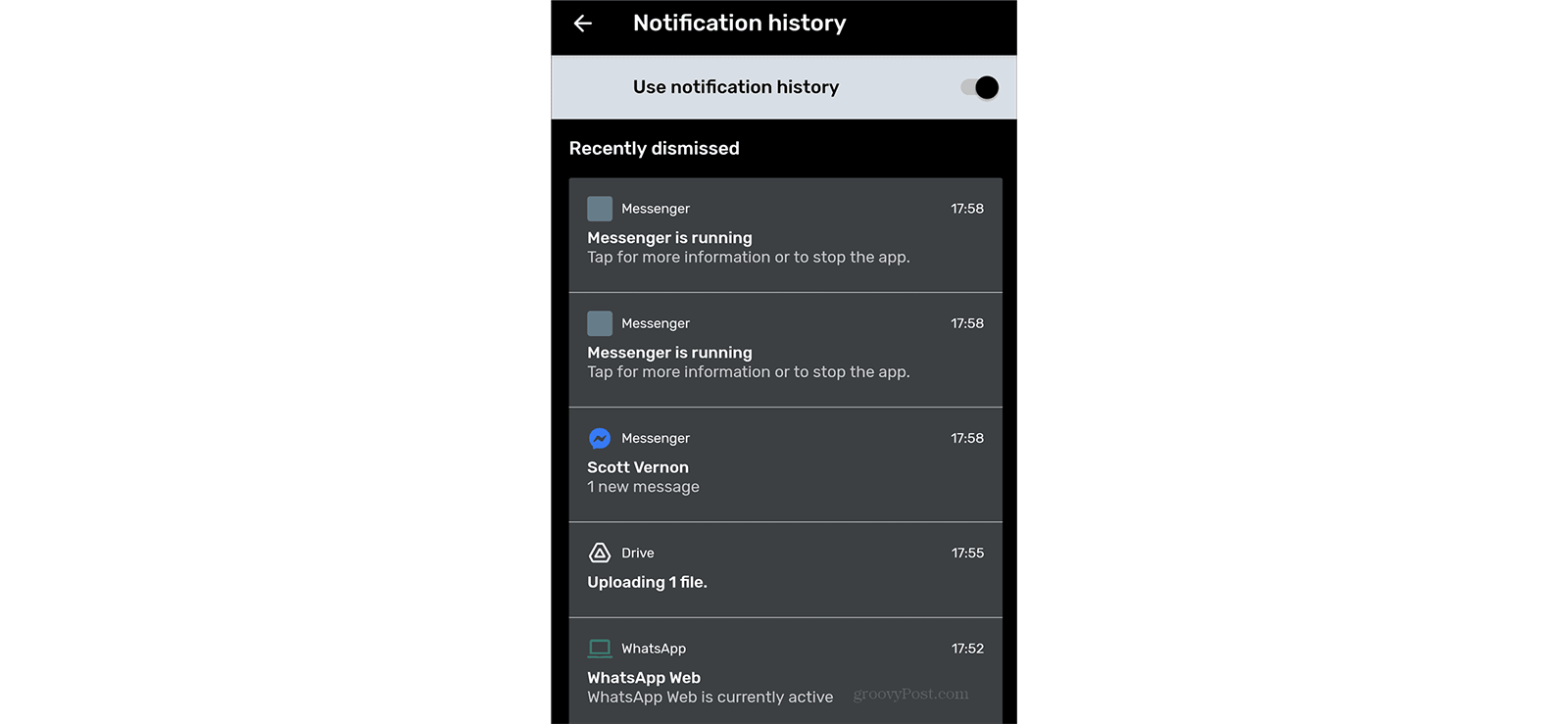
This one is easy to overlook, and it does not require any backup to have existed beforehand. Android keeps a running log of past notifications, including message previews, in a feature called Notification History, which is separate from the actual storage of the message itself.
The catch is that this only shows what was visible in the original notification, meaning long messages get cut off, it only shows you one side of the chat, and the feature has to be manually enabled in many cases before it starts logging anything.
To check it:
- Go to Settings, then Notifications, then Notification History.
- Toggle on Use Notification History if it is not already active.
- Scroll through the log to find the deleted message’s original notification preview.
- Tap on the entry to see what text was captured, keeping in mind that longer messages may be truncated.
How Was My Experience With This Method?
On the Pixel, this surfaced short test messages cleanly, full text, correct sender, and correct timestamp. Longer messages were cut off exactly where the original notification preview would have ended, so this is genuinely a preview recovery method, not a full-message one.
On the Samsung, the feature existed but was disabled by default, and since it logs going forward rather than retroactively, none of my already-deleted test messages showed up there. That is the real limitation; this only helps if the feature was already turned on before the deletion happened, which most people will not have done in advance.
Lastly, on Motorola, the feature didn’t exist at all. So, if you want to know how to look at deleted messages on Android, make sure to check for the availability as well as the default settings of this feature.
6. SIM-Card Extraction
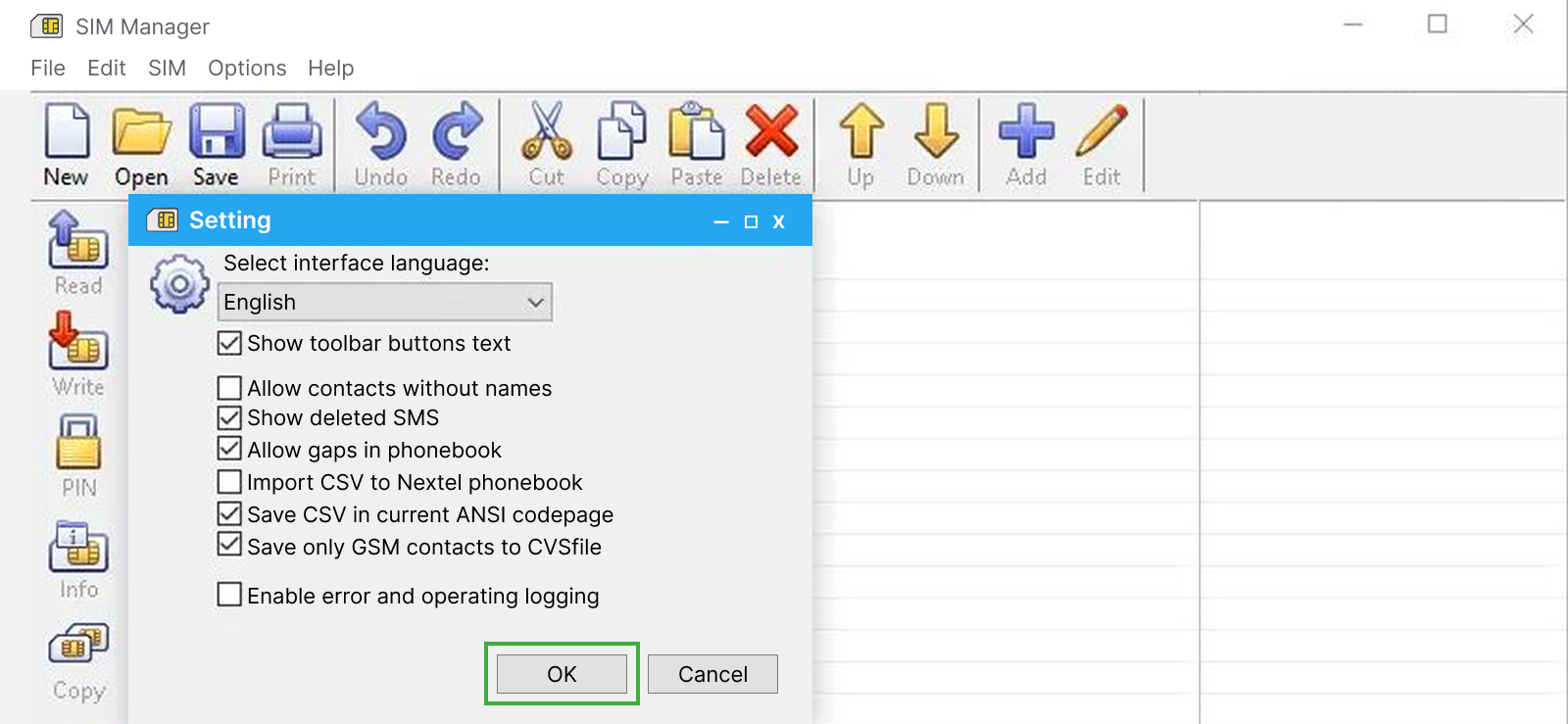
This is the most hardware-dependent method on the list, and the one most likely to fail on a modern phone. Some Android devices, particularly older ones, store SMS messages directly on the SIM card rather than in internal phone memory. If that is the case, a deleted message might still be retrievable from the SIM itself before it gets overwritten.
The big caveat is that most phones manufactured in the past several years no longer store messages on the SIM at all, so this method is really only relevant for older devices or default messaging app configurations.
To attempt this:
- Power off the device and remove the SIM card.
- Insert the SIM into a SIM card reader connected to a computer.
- Install the reader’s accompanying software and launch it.
- Use the SMS extraction option within the software to scan the SIM for stored messages.
- Save any recovered messages as text files for review.
How Was My Experience With This Method?
On the Motorola, which is the oldest device in my test set, the SIM card reader picked up a handful of older stored texts, though notably not all of the messages I had sent during testing, since modern carriers and messaging apps increasingly default to internal storage even on older hardware.
On both the Pixel and the Samsung device, the SIM reader found nothing related to my test messages at all. Both store SMS data internally by default, with no SIM-based fallback. So this method is really a long shot unless you are working with an older device and know its messaging app was configured to use SIM storage, which is increasingly rare.
FAQs
How to find deleted messages on Android without installing the software?
To learn how to see deleted messages on Android without installing the software, you can try Google or phone backups and SIM card extraction. Checking the recycle bin or notification history may also help if you have phone access. However, all these methods have their limitations. A more effective solution is installing a tool like Xnspy, which provides real-time updates and complete oversight of text messages exchanged. Therefore, you get access to deleted messages without relying on inconsistent recovery methods.
How to recover deleted messages on Android if the target device has been reset?
If the target device has been reset, deleted messages on Android can still be recovered through Google or phone backups. However, what makes it challenging is that you need the target user’s account credentials to gain access. Without it, recovery becomes nearly impossible. In such cases, Xnspy offers a more reliable solution by storing a complete text message history, including deleted messages. Therefore, with this application, you can still retrieve important conversations even after a reset.
How to recover permanently deleted text messages on Android without them knowing?
Even if certain text messages on Android are deleted from the device, it is highly likely that they are still stored elsewhere. Therefore, let’s see how to find deleted text messages on Android without the user knowing. To do so, you can try to check out the “Your Phone” app connected to their PC to see if deleted messages are still available. If that fails, SIM card extraction can help recover deleted texts if they were stored on the SIM.
How to recover deleted messages on Android without backup?
Recovering deleted messages on Android without backup is challenging, but not impossible. If no built-in or Google Drive backup for deleted messages on Android exists, check out the connected device’s Your Phone app for these messages. In case that fails, your best option is tracking applications like Xnspy. Since the app provides real-time updates and access to complete phone activity, deleted messages remain accessible, even if they are removed from the target Android.
How to retrieve deleted messages on Android if the internal storage was wiped?
If you are wondering how to view deleted messages on Android after the internal storage has been wiped, your best bet is to check whether the messages were backed up before the wipe. Google Drive backups, if enabled, can help you restore SMS during device setup. In some cases, messages might also be stored on the SIM card or synced with a connected device, like a PC using the “Your Phone” app. Another option is using advanced tools like Xnspy, which can monitor and retrieve deleted messages in real time, provided it was installed before the data was erased.

4 Comments
Leave a reply:
Your email address will not be published. Required fields are marked*


Jonney Jones
September 15, 2025 at 2:39 pmI cannot find the conversation I was keeping an eye on on my husband's phone. It is not there anymore, I do not really know when exactly he deleted it.
Helene Joseph
September 16, 2025 at 2:57 pmWhat about iPhone? I want to see someone's deleted messages on iPhone, please help
Allen
September 18, 2025 at 2:50 pmOh god this is so stressful
Scout Sorn
September 22, 2025 at 2:34 pmIf I can somehow get my hands on the phone, will their trash bin still have the deleted messages?