
The complete monitoring experience for your phone
Get XNSPY and start tracking calls, texts, multimedia, locations and more on any phone!
Get Started Now Live DemoYes, in most cases, Snapchat notifies the other person when you take a screenshot; this is one of the platform’s oldest and strictest privacy features.
That said, Snapchat’s screenshot notifications do not work the same way everywhere in the app. Snaps, Chats, Stories, and Friendship Profiles can all trigger an alert, but the rule is not universal. Public content, the Snap Map, and standard Public Profiles are exceptions where no notification is ever sent.
Below is a section-by-section breakdown of exactly when Snapchat tells the other person and when it stays silent, plus five tried-and-tested ways to take screenshots on Android and iPhone devices, and a section for parents who need ongoing visibility rather than a one-time capture.
What to Know Before Taking a Snapchat Screenshot
- Stories, Private Stories, and Shared Stories: Screenshotting these notifies the poster. A double-arrow icon appears next to your name in their viewer list.
- Chats: Screenshotting a chat, including group chats, notifies everyone in that conversation with an in-chat alert.
- Snaps: Screenshotting a direct Snap sends the sender an instant push notification and leaves a permanent icon in the thread.
- Screen recording: Treated the same as a screenshot for Snaps, Chats, and Stories. Our own testing found a device-specific gap on Android that Snapchat does not publicly document (details below).
- Profiles: Public Profiles and data related to public profiles, such as profile pictures, cover photos, etc., do not alert the account owner when a screenshot is taken. However, Friendship Profiles are the exception, as screenshotting them will notify the other person.
- Snap Map and Discover: Neither one notifies anyone, since this content isn’t private.
- Screenshot Methods Tested: Standard buttons, AssistiveTouch, Back Tap, Palm Swipe, and desktop screenshots were tested to compare capture options across devices.
- Xnspy: Captures Snapchat activity automatically and uploads it to a parent dashboard without alerting the device owner.
Does Snapchat Notify When You Screenshot a Story?
Yes, Snapchat does notify the other person when you screenshot a Story, but not via direct push notification. Instead, it shows this activity within the app itself. This stays true whether the Story is private, public, shared, or on Close Friends.
However, Snapchat shows screenshot activity differently depending on whether the Story is personal or public. For private, shared, or Closed Friends stories, Snapchat shows a screenshot icon next to your name in the Story viewer list, indicating who took the screenshot. This means the person has to open the list of people who viewed the Story to see that you took a screenshot.
And if you screenshot a Public Story, Spotlight video, or Discover content, the creator will only see the number of screenshots or activity in their analytics. Snapchat does not show the exact name, unlike a private Story, where your name appears directly in the viewer list with a screenshot icon.
Does Snapchat Notify When You Screenshot a Chat?
Yes. Taking a screenshot of a Snapchat chat notifies the other person immediately.
A bold in-app message appears directly inside the conversation, visible to both parties involved, stating that a screenshot was taken. Depending on the recipient’s notification settings, they may also get a push alert on their lock screen at the same time.
This applies to text, photos, and videos shared inside the chat, whether the message has already disappeared or is still on screen.
You May Also Enjoy These Guides

😱  Does Facebook Notify Screenshots: Clearing Up the Confusion
💡  Does Instagram Notify When You Screenshot: The Straight Answer
🚨  How to Block Snapchat on iPhone: 5 Effective Methods
⏳  How to Monitor Your Child’s Snapchat: 7 Simple Methods
Does Snapchat Notify When You Screenshot a Snap?
Yes. This is the most tightly monitored type of content on the platform.
The moment you screenshot a direct Snap, a photo or video sent to you privately, the sender gets an instant push notification, usually reading something like “[Your Name] took a screenshot!” A small icon also appears next to that Snap inside the chat thread as a permanent record, so even if the sender misses the alert, they’ll see it later when scrolling back.
This applies no matter how the Snap was set to disappear, whether standard view-once or set to replay. There is no built-in way to screenshot a direct Snap inside the normal app without the sender finding out.
Does Snapchat Notify When You Screen Record a Video?
Generally, yes. Snapchat treats screen recording the same way it treats a screenshot for Snaps, Chats, and Stories: the other person is alerted, usually with the same icon or in-app message used for a regular screenshot.
However, screen recorder detection works differently by operating system. On iPhone, Snapchat uses Apple’s system-level screen capture API, which flags a recording the instant Control Center starts, regardless of which app is doing it. On Android, detection relies on a broadcast signal sent when the native or a third-party recorder starts, and it has historically been described as less consistent than Apple’s method.
We tested this directly rather than relying on secondhand reports. Screen recording a Snap-sent video on a Samsung device running Android 16 did not trigger any notification or in-chat alert to the other account, even after waiting several minutes and reconnecting to Wi-Fi. The identical test on an iPhone running the current iOS version notified the other person within seconds, exactly as expected.
One thing worth keeping in mind is that Snapchat’s own support documentation does not state that Android skips screen-recording detection, and the company doesn’t confirm this. What we’re reporting is a gap found through hands-on testing on our own devices, not a guaranteed behavior.
Snapchat updates its detection regularly, and a gap present today on one Android build may be patched on the next update, so this shouldn’t be treated as a reliable workaround.
Does Snapchat Notify When You Screenshot a Profile?
Yes, in most cases, but which profile you are looking at makes a real difference.
Snapchat’s own support documentation states plainly that screenshotting a Friendship Profile, the profile you land on when you swipe right from the camera screen and tap a friend’s Bitmoji, will notify that friend if you take a screenshot. This is the profile view most people actually mean when they talk about “screenshotting someone’s profile.”
Public Profiles, on the other hand, which belong to creators and businesses and are visible to anyone on the platform, are not reported when screenshotted. Capturing a public profile’s bio, Snap Score, or Bitmoji does not send an alert to the account owner.
So the actual answer depends on context: if you are screenshotting a profile from your friend’s list on Snapchat, treat it as something that will notify them. But if you are capturing a Public Profile that anyone can see, it typically will not.

What Snapchat Deletes, Xnspy Remembers
Every Snap disappears in seconds. What happened doesn’t have to.
– Capture Snaps, Chats, and Stories before they disappear
– View all photos and videos sent or received
– Read messages, even ones edited or deleted before sending
– Set up watchlist alerts for instant notifications
How to Take a Screenshot on Snapchat: 5 Reliable Methods
Whether or not a screenshot notifies the other person, actually capturing the screen at the right moment is its own challenge, especially with content that disappears in seconds. That is why we tested the methods below in both mobile and desktop environments to assess their practicality in real use.
The five methods were tested on a Samsung Galaxy, a Google Pixel, and an iPhone, as well as on Windows and Mac devices.
How I Tested Every Screenshot Method
I ran each method five times, alternating between a Snap, a Chat, a Story, and a Friendship Profile as the content captured. I let each screen load fully before triggering the screenshot, then checked the gallery immediately to confirm it saved cleanly.
For each run, I opened the Snapchat screen first, waited for it to load properly, and then used one screenshot method at a time. Right after taking the screenshot, I checked the phone’s gallery to confirm whether the image saved, whether the frame was clear, and whether anything important was cut off or covered.
I judged every method using four practical checks:
- Reliability: Whether the method worked on the first attempt or required repeated taps, swipes, or button presses.
- Speed: How quickly the phone captured and saved the screenshot, especially on temporary Snapchat content like Snaps and Stories
- Screenshot Quality: The clarity of the image, proper framing, and absence of interruptions such as floating buttons, notification banners, or gesture marks.
- Setup Friction: The amount of setup required, including whether additional phone settings needed to be enabled before use.
I also kept notes on anything that made the method harder to use on Snapchat, such as accidental volume changes, missed button timing, delayed gesture response, floating accessibility icons covering the Snap, or one-handed use becoming awkward during a short-lived Story.
Here’s a side-by-side look at the five methods before we get into the detailed instructions.
| Method | Device | Speed | Notifies Snapchat | Best For |
| Standard Buttons | iOS & Android | Instant | Yes, for private content | Everyday use |
| AssistiveTouch | iPhone only | Instant | Yes, for private content | Worn-out buttons |
| Back Tap | iPhone only | Instant | Yes, for private content | One-handed scrolling |
| Palm Swipe | Samsung Galaxy | Instant | Yes, for private content | Gesture-based capture |
| Desktop Screenshot Tool | Windows/ Mac | 2 – 3 seconds | Yes, for private content | Quick screenshots on desktop |
1. Take a Screenshot with the Standard Buttons
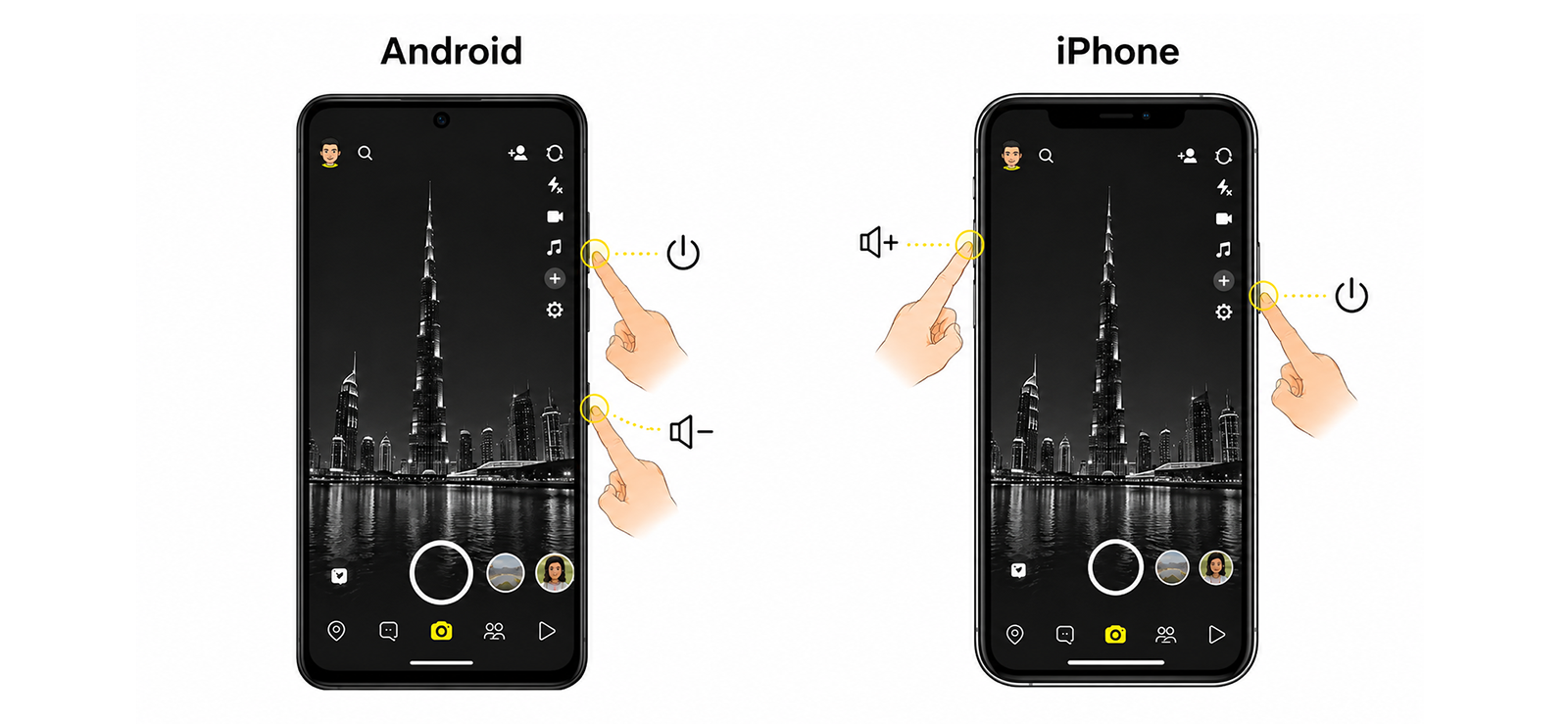
The standard button combination is the fastest and most familiar way to take a screenshot on Snapchat. It does not require any setup, works on both iPhone and Android, and saves the capture directly to your Photos or Gallery app.
That said, Snapchat is different from most apps because some content disappears quickly, and some screenshots can be reported to the other person. So while this method is simple, timing matters more here than it would on a regular webpage or photo.
On Android:
- Open Snapchat and go to the Snap you want to capture.
- Press the Power button and the Volume Down button at the same time.
- Release both buttons once the screenshot animation appears.
- The screenshot saves automatically to your phone’s Gallery or Photos app.
On iPhone:
- Open Snapchat and navigate to the content you want to capture.
- Press the Side button and Volume Up button at the same time.
- Release both buttons immediately.
- A thumbnail preview appears in the lower-left corner.
- Tap the preview to edit the screenshot, or swipe it away to save it directly to Photos.
How It Worked During Testing
This was the baseline method I used across all Snapchat tests because it is built into both Android and iPhone. On the Samsung Galaxy and Pixel, it worked on the first attempt in nearly every run. The screenshot saved instantly, and the image quality was clean enough for Snaps, Chats, Stories, and profile screens.
The only issue on Android was button timing. If I pressed the Power button slightly before Volume Down, the phone sometimes locked the screen. If I pressed Volume Down first, it occasionally changed the volume instead of taking the screenshot. That small delay matters on Snapchat, especially when capturing a short Snap or a Story that is about to move forward.
Also on iPhone, the method was just as fast but required the same level of precision. When I was rushing through a Story, I once pressed the wrong button combination and brought up the power-off screen instead of capturing the content. The screenshot preview also stayed on the screen for a moment, so I had to swipe it away quickly before moving to another Snap.
For everyday Snapchat screenshots, this is still the most practical method. It is quick, does not need setup, and works across almost every phone. The main drawback is that it gives you very little room for error when the Snapchat content is temporary.
2. Capture the Screen With AssistiveTouch on iPhone
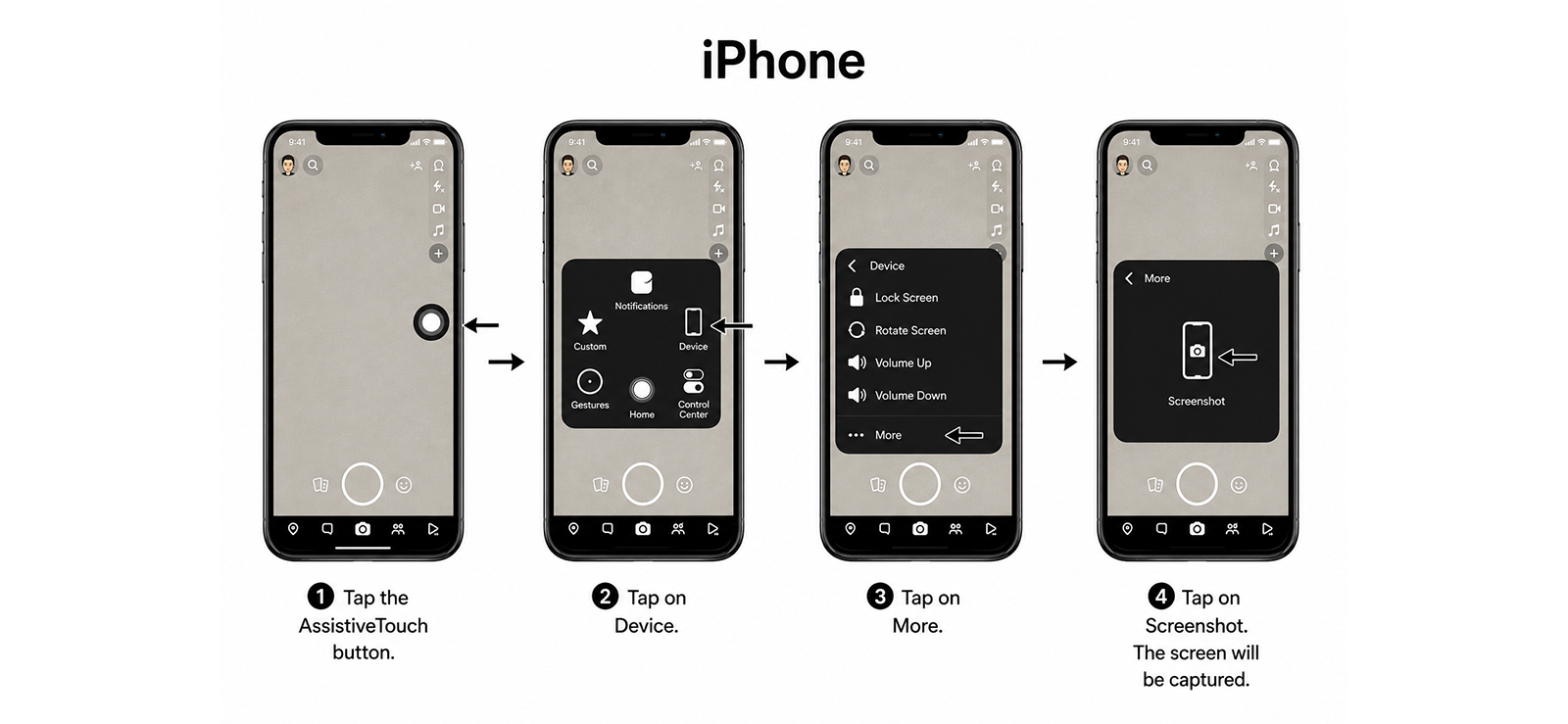
AssistiveTouch is useful when you want to take a Snapchat screenshot without pressing the physical Side and Volume buttons. It places a floating button on your iPhone screen, and that button can be used to trigger a screenshot from the accessibility menu.
This method is especially helpful if your phone buttons are difficult to press together, or awkward to reach while holding the phone one-handed. It also reduces the risk of pressing the wrong button combination while moving quickly through Snapchat.
The trade-off is speed. AssistiveTouch usually takes more taps than the standard button method, so it is better for Snapchat screens that stay open long enough, such as Chats, Stories, profiles, or Friendship Profiles. For very short Snaps, it may feel slower unless you customize the shortcut first.
How to set it up:
- Open Settings on your iPhone and go to Accessibility.
- Tap Touch, then select AssistiveTouch.
- Turn AssistiveTouch on to enable the floating button.
- Open Snapchat and navigate to the Snap, Chat, Story, or profile you want to capture.
- Tap the floating AssistiveTouch button, then go to Device and More if needed.
- Select Screenshot, and the image will save automatically to the Photos app.
How It Worked During Testing
AssistiveTouch stayed visible and responsive throughout every Snapchat test. I used it on a photo Snap, a video Snap, a Chat, a Story, and a Friendship Profile, and the screenshot saved successfully each time.
The biggest limitation was speed. It worked better on Snapchat screens that did not disappear immediately. For example, it was easier to use on Chats, Stories, profiles, and Friendship Profiles because I had enough time to open the floating menu and trigger the capture without rushing.
Overall, AssistiveTouch was reliable but not the fastest method. It is a good option, but not the best choice for quick-disappearing Snaps.
3. Assign Screenshot Through Back Tap on iPhone
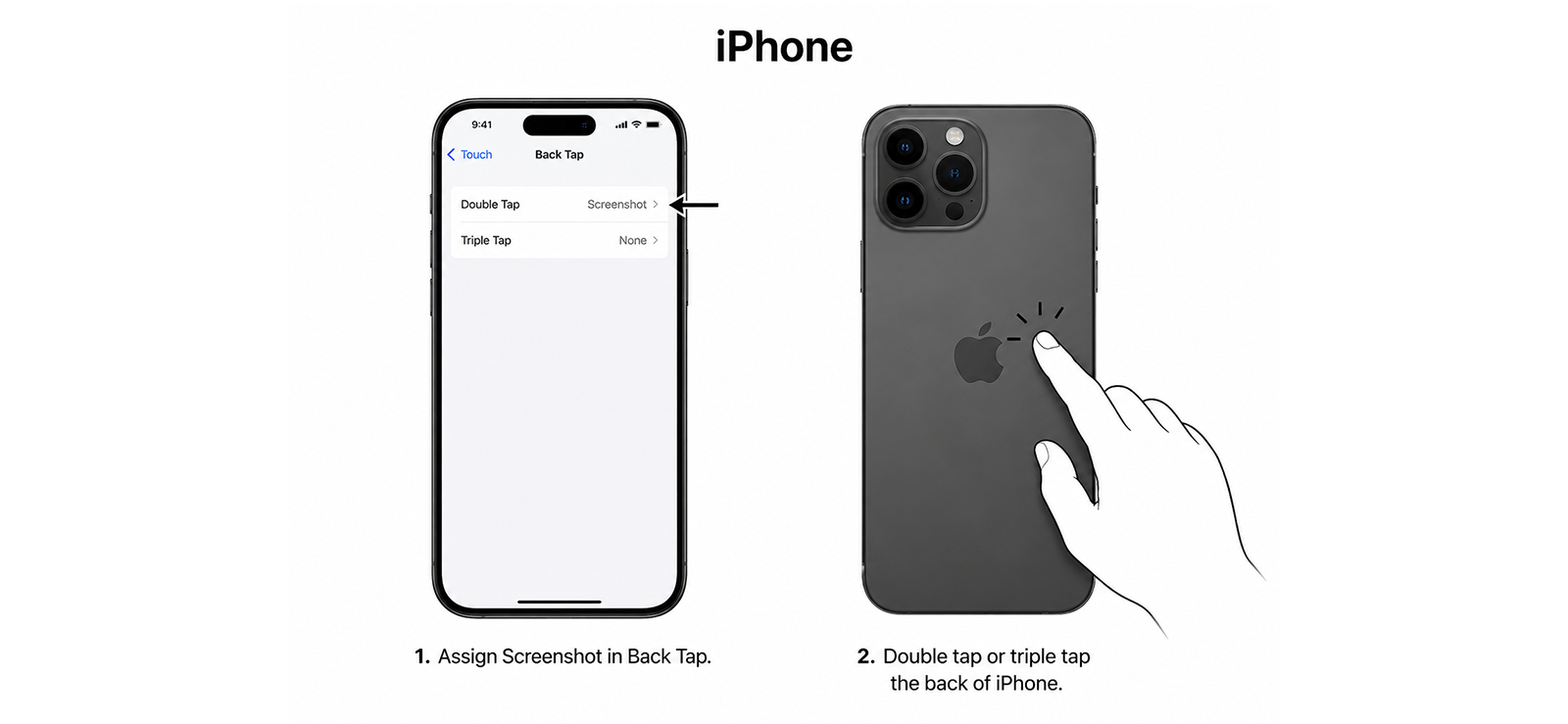
Back Tap is a built-in iPhone accessibility feature that lets you trigger actions by double-tapping or triple-tapping the back of your phone. When you assign Screenshot to Back Tap, you can capture Snapchat content without pressing the Side and Volume buttons or opening an on-screen menu.
The main thing to know is that Back Tap depends on gesture recognition. It works well when the phone picks up the taps clearly, but it can be less predictable if your grip is loose or your hand is moving.
.
How to set it up:
- Open Settings on your iPhone and go to Accessibility.
- Tap Touch.
- Scroll down and select Back Tap.
- Choose Double Tap or Triple Tap.
- Select Screenshot from the list of actions.
- Open Snapchat and navigate to the Snap, Chat, Story, or profile you want to capture.
How It Worked During Testing
Back Tap was one of the smoother iPhone methods once it was configured. I tested it across a photo Snap, a video Snap, a Chat, a Story, and a Friendship Profile, and it saved the screenshot cleanly in most runs without needing the physical buttons.
This method came in handy, especially while viewing Stories. I could keep my thumb near the screen for tapping forward or going back, then trigger the screenshot from the back of the phone without changing my grip. That made it feel quicker than AssistiveTouch and less awkward than reaching for both side buttons.
The limitation I noticed was not setup or image quality; it was control. Because Back Tap reacts to movement on the back of the phone, it occasionally fired when I adjusted my grip or placed the phone down too firmly. On Snapchat, that matters because an accidental screenshot can still be recorded if it happens on content that Snapchat normally reports.
That’s why I found Triple Tap safer than Double Tap for Snapchat because it reduced accidental captures, although it took a fraction longer to trigger. Double Tap felt faster for Stories and profiles, but Triple Tap was the better choice for private Snaps or Chats where an unintended screenshot would be more noticeable.
Overall, Back Tap is a strong option if you want a fast, one-handed iPhone screenshot method.

Did You Know?
You can’t always tell who’s active on Snapchat, but there are clues.

4. Use Palm Swipe on a Samsung Galaxy Phone
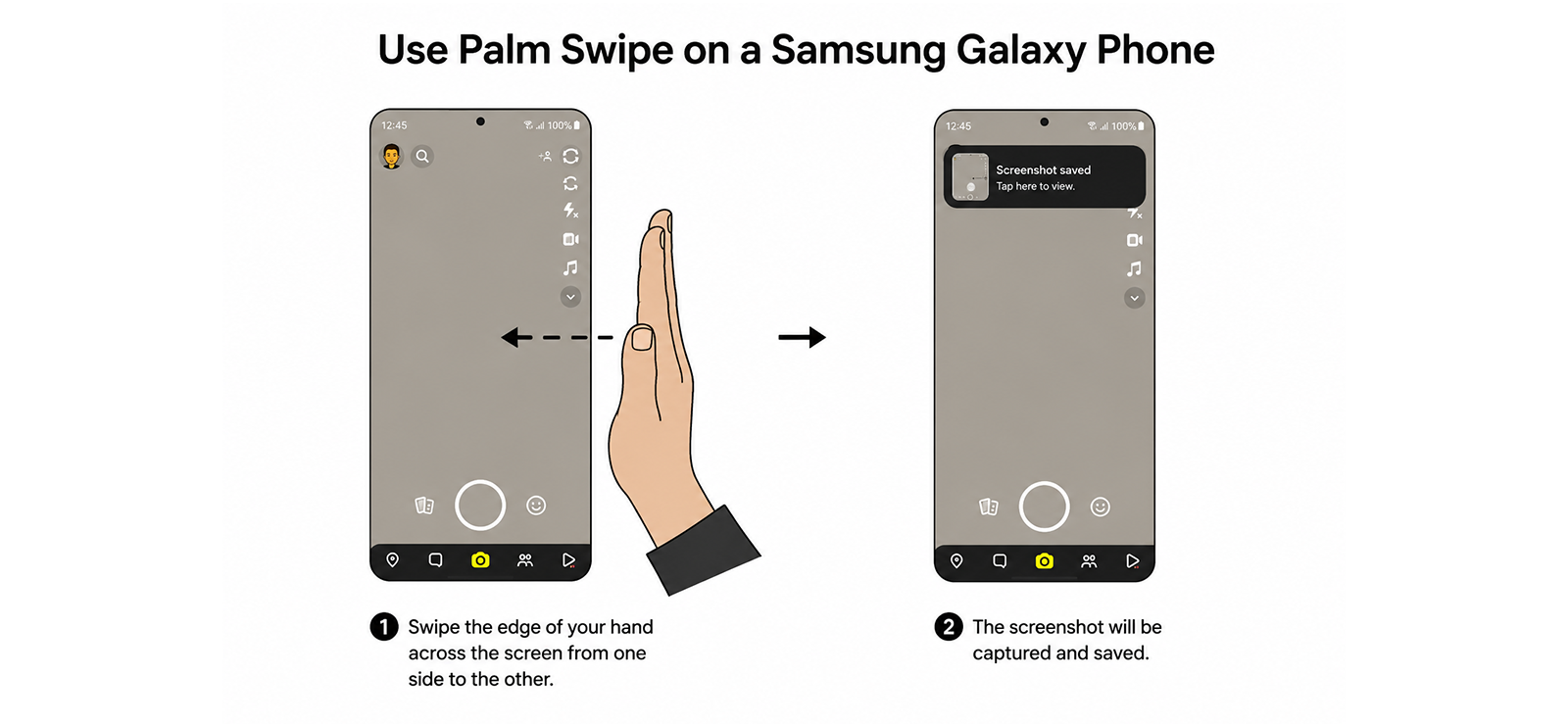
Palm Swipe to Capture is a built-in Samsung gesture that lets you take a screenshot by swiping the side of your hand across the screen. It is useful if you do not want to press the Power and Volume buttons together, especially when the phone is already in your hand and you are moving through Snapchat content quickly.
On Snapchat, this method works best for screens that stay open long enough. It can also capture Snaps, but it requires a clean swipe at the right moment, so it may feel less controlled than the standard button combination when the content disappears quickly.
How to set it up:
- Open Settings on your Samsung Galaxy phone.
- Go to Advanced features.
- Tap Motions and gestures.
- Turn on Palm swipe to capture.
- Open Snapchat and go to the content you want to capture.
- Place the side of your hand vertically on one edge of the screen and swipe across in one smooth motion.
How It Worked During Testing
Palm Swipe worked well once I slowed down and made the gesture more deliberate. I tested it on a photo Snap, a video Snap, a Chat, a Story, and a Friendship Profile. The screenshot saved successfully in most runs, and the final image quality was clear when the gesture registered properly.
Once I got used to the motion, the gesture felt more natural and consistent, especially when moving between different types of Snapchat content.
What I found less convenient was that with button screenshots, I could keep the same grip and press both buttons quickly. With Palm Swipe, I usually needed my other hand to make the gesture, which made it slower when I was trying to catch a Snap before it disappeared.
Another small issue was accidental movement inside Snapchat. If the swipe was not straight enough, the screen sometimes reacted before the screenshot happened, especially on Stories where swiping can move to the next piece of content. Because of that, Palm Swipe felt better for stable screens like Chats and Friendship Profiles than for time-sensitive Snaps.
Overall, Palm Swipe is a useful Samsung-only method if you prefer gesture controls or have trouble pressing physical buttons. It is reliable after a little practice, but it is not the cleanest option when the Snapchat content is fast-moving or positioned near the edge of the screen.
5. Use a Desktop Screenshot Tool on Windows or Mac
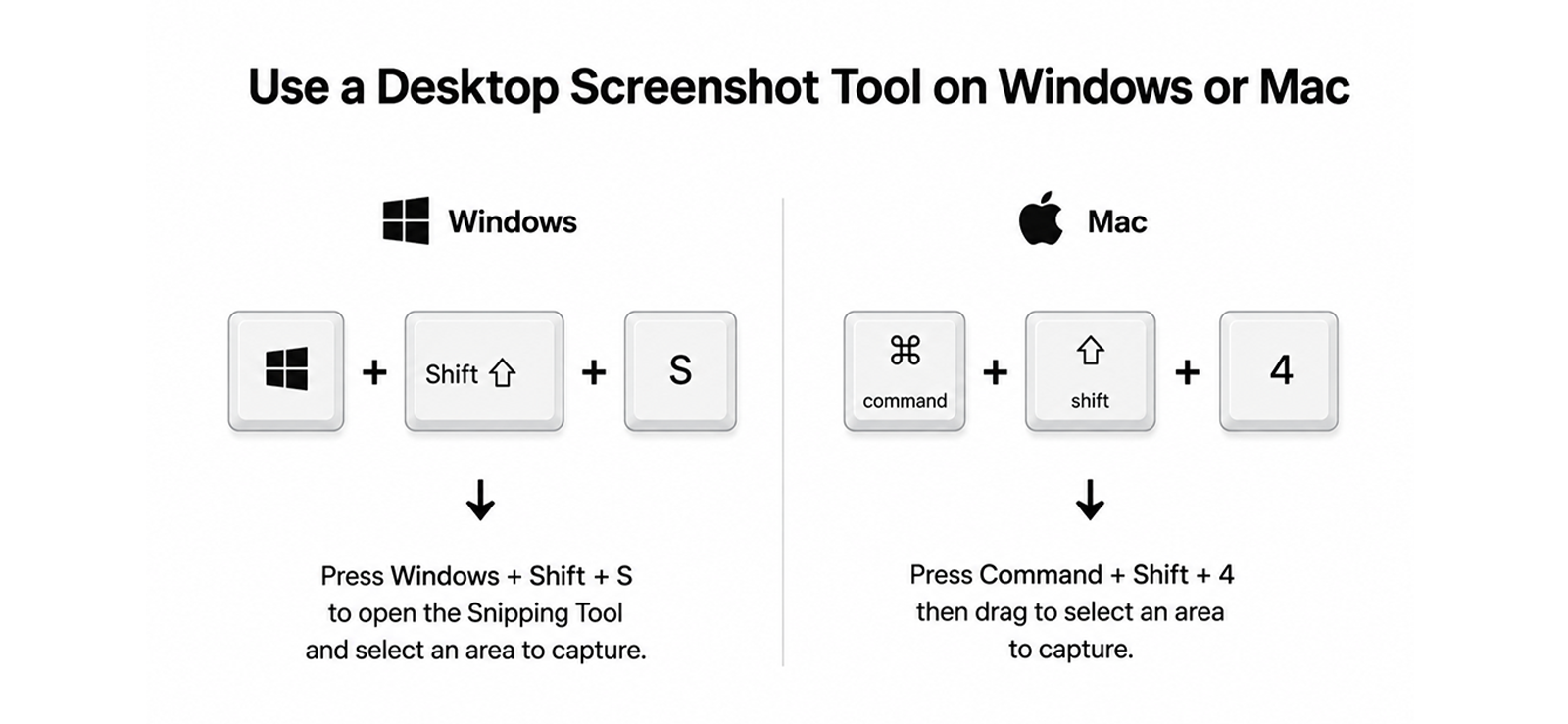
A desktop screen-capture tool is useful when you are using Snapchat on a computer or viewing Snapchat-related content through a desktop browser. It gives you more control over the capture area than a full-screen screenshot because you can select only the part of the screen you want to save.
This method works best for stable Snapchat screens, such as profiles, web conversations, public content, or anything that gives you enough time to drag and select an area. It is not as fast as phone shortcuts, so it can feel less practical for content that changes quickly.
How to do it on Windows:
- Open Snapchat or the Snapchat-related screen you want to capture on your computer.
- Press Windows + Shift + S to open the Snipping Tool overlay.
- Choose the rectangular snip option.
- Click and drag over the part of the screen you want to capture.
- Release the trackpad to save the capture to the clipboard.
- Click the preview notification if you want to edit or save the screenshot as a file.
How to do it on Mac:
- Open Snapchat or the Snapchat-related screen you want to capture on your Mac.
- Press Command + Shift + 5 to open the screenshot toolbar.
- Choose whether you want to capture the full screen, a selected window, or a selected portion.
- Drag around the area you want to capture if using the selected-portion option.
- Click Capture.
- The screenshot saves automatically to your desktop unless you have changed the save location.
How It Worked During Testing
The desktop method gave me the most control over framing. On Windows, the Snipping Tool made it easy to capture only the Snapchat window or a specific part of the screen without including extra browser tabs or desktop clutter.
And on Mac, the screenshot toolbar was even more flexible because I could switch between a selected window and a custom capture area.
But one main drawback I noticed was speed. Unlike phone methods that capture the screen instantly, desktop tools take a few extra seconds because you need to open the capture overlay, select the area, and save the image.
Also, the cursor and selection delay could get in the way. If the screen changed while I was dragging the capture box, the final screenshot did not always show the exact moment I meant to save. On Mac, the selected-window option reduced this problem, while on Windows, rectangular snip worked best when the screen stayed still.
However, framing was the biggest advantage. I could crop out unnecessary parts of the desktop before saving the screenshot, which produced cleaner images than a full-screen capture. This was especially useful when Snapchat was open inside a browser window, and I did not want the address bar or taskbar included.
All in all, desktop screen-capture tools are best for controlled screenshots rather than quick captures. They are not the fastest option, but they are useful when you want a neatly framed Snapchat image on Windows or Mac.
How Can Parents Keep Up With Their Kids’ Snapchat Activity?
Given its popularity, Snapchat is clearly not a side app for many teens. In fact, 55% of U.S. teens say they use Snapchat, with usage even higher among teens ages 15 to 17.
That matters here because Snapchat is built around fast-moving and temporary communication. A child may open a Snap once, reply in Chat, watch a Story, or move through a conversation before a parent ever sees the screen. By the time you ask what happened, the content may already be gone from the app.
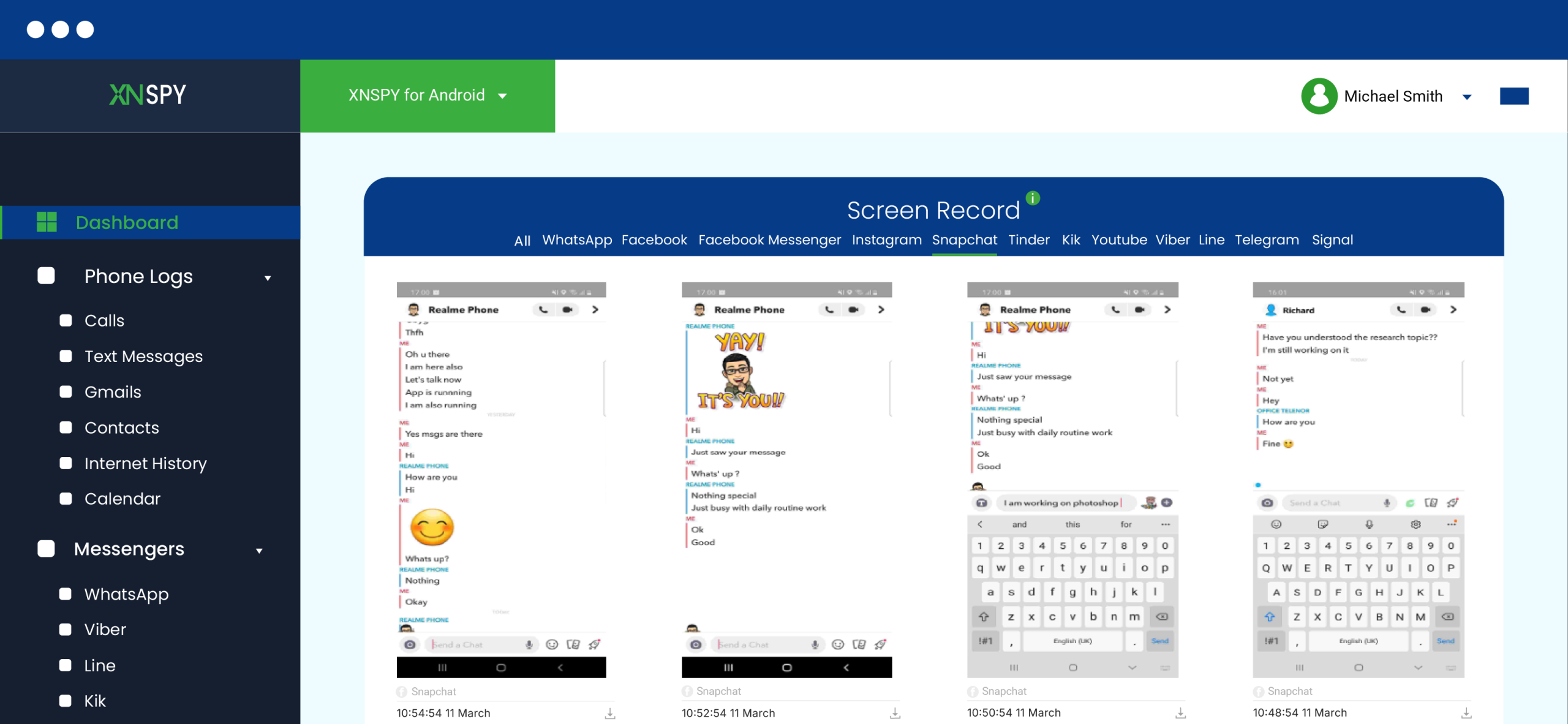
This is where Xnspy can help. It works in the background after a one-time setup on the device and sends data to a secure dashboard. For Snapchat, this means parents can review activity later, even if the content has already disappeared from the app.
Xnspy’s screen recording feature captures the screen at 5-second intervals and uploads those snapshots to your web dashboard. This gives parents a clearer view of what happens on Snapchat, even if the content later disappears from the app.
In addition, its keylogger records what is typed on the monitored phone, including messages that are written and deleted before being sent. Parents can also set keyword alerts for specific words or phrases, so they are notified when something concerning appears instead of having to review everything manually.
Here’s how to get started:
- Visit the Xnspy website and choose a subscription plan.
- Get brief physical access to the child’s phone for the one-time setup.
- Log in to your Xnspy dashboard from your own phone or computer.
- Open the screen recording or keylogger section.
- Review Snapchat-related activity by date and time.
- Set keyword alerts for terms you want to be notified about.
How It Worked During Testing
I tested Xnspy on a Samsung Galaxy phone for 10 days, using a Snapchat account to simulate the kind of activity a parent might want to review. During that period, I opened Snaps, moved through Stories, typed and deleted messages, viewed profiles, and later returned to conversations to see whether the dashboard preserved enough context to understand what had happened.
The screen recording logs gave a clearer timeline than a one-time screenshot. I could see when Snapchat was opened, which screens appeared, and what activity surrounded a Snap before it disappeared from the app. The keylogger was also useful for typed text because it recorded words even when I deleted them before sending.
The limitation I noticed If the monitored phone has an unstable internet connection, screen recording logs may take longer to appear on the Xnspy dashboard. But once the connection is restored, the captured screenshots are uploaded in batches, so the activity record can still be reviewed without gaps.
FAQs
Does Snapchat Notify When You Screenshot Snap Map?
No. Screenshotting the Snap Map, including a friend’s Bitmoji or Actionmoji location on it, does not send any notification. Snapchat does not monitor screen activity on the Map at all.
Does Snapchat Notify When You Screenshot Discover Feed Story?
No. Content from verified publishers and creators on the Discover tab is treated as public, broadcast content rather than a private Story from an individual friend, so screenshotting it does not trigger an alert.
Does Snapchat Notify When You Screenshot a Group Chat?
Yes. Screenshotting a message inside a group chat notifies the conversation the same way a one-on-one chat does, with an in-app alert visible to every participant in that group, not only the two people involved in the exchange.
Does Snapchat Notify When You Screenshot a Private Story?
Yes. A Private Story shared with a smaller, selected group of friends is still a personal Story, so the same rule applies: screenshotting it shows a double-arrow icon next to your name in the poster’s viewer list, visible to them alone.
Can You Remove a Snapchat Screenshot Notification After It Appears?
No. There is no official setting, account action, or workaround that removes a screenshot notification once Snapchat has sent it. Deactivating your account, clearing the app’s cache, or blocking the other person afterward does not undo an alert that has already been delivered, since the notification is generated and stored on Snapchat’s servers rather than on your device.
Peace of Mind Doesn’t Need to Wait for a Screenshot
Xnspy gives parents a clearer picture of their child’s digital world.
Leave a reply:
Your email address will not be published. Required fields are marked*
Tiffany Ross
Member since October 8, 2025
Tiffany Ross
Member since October 8, 2025
Tiffany Ross is a child digital safety educator and family technology researcher, with an M.Ed. in Learning Technologies, University of Texas at Austin. After graduating in 2016, she has continued to work in the industry for 9 years. During this time, she has focused on practical digital parenting strategies and responsible use of monitoring apps. Moreover, her work includes abuse prevention, healthy screen habits, social media safety, and other key concerns. Over the years, Tiffany has also contributed to more than 200 research-informed guides and family safety resources covering online risks, screen time management, and digital wellbeing practices for modern households.