
The complete monitoring experience for your phone
Get XNSPY and start tracking calls, texts, multimedia, locations and more on any phone!
Get Started Now Live DemoBlocking Snapchat on an iPhone is possible, but a single setting won’t hold. Apple’s built-in tools can limit access, but each has a specific gap that a determined teen can find. The methods that actually work combine more than one layer of control.
In this guide, you will learn how to restrict Snapchat on iPhone that your child uses. I tested every method in real conditions over multiple weeks, with repeated install attempts, usage spikes, and passcode challenges. Some options held up. Others failed fast. Let’s discuss all 5 methods in detail.
Blocking Snapchat on a Child’s Phone: The Short Version
- Blocking Snapchat on iPhone requires combining multiple methods, not just one setting
- Apple’s built-in tools offer partial control but fail without a secure passcode
- A determined teen can reinstall Snapchat in under 20 seconds if unrestricted
- Screen Time, Family Sharing, and monitoring apps each block a different access point
- Xnspy monitors Snapchat activity and blocks the app remotely from any browser
- Screen Time App Limits cuts off Snapchat automatically once the daily time limit is reached
- Family Sharing with Ask to Buy stops Snapchat from being downloaded without parental approval
- Downtime scheduling blocks Snapchat during set hours, including school time and bedtime
- Network-level router blocking restricts Snapchat on home Wi-Fi but not on mobile data
Can I block Snapchat From My Child’s iPhone?
Yes, you can block Snapchat on an iPhone, but the result depends on what level of control you’re aiming for:
- App-level blocking (basic control): Stops usage temporarily
- Installation blocking (stronger control): Prevents re-downloading Snapchat
- Monitoring + restriction combo (full control): Tracks usage, alerts, and enforces limits
Apple alone provides partial control. For real enforcement, you need to combine Apple tools with external monitoring or parental control apps.
How Snapchat Works on a Child’s Device: Understanding the Mechanism
Before blocking Snapchat, understanding how it behaves on iPhone is essential. Here’s what I observed during testing on a standard child setup:
1. Snapchat is tightly integrated with Apple ID downloads: If the App Store is open, reinstalling Snapchat takes under 20 seconds.
2. Snapchat stores minimal visible data on the phone: Even if deleted, chat history remains server-side. Reinstalling restores access quickly.
3. Notifications keep working unless blocked at the system level: Even if usage is restricted, notifications can still pull attention back.
4. VPN or Wi-Fi changes don’t stop app usage: Snapchat works independently of most network filters unless the network itself is restricted.
5. Screen Time restrictions are local unless password-protected: If a child knows the Screen Time passcode, restrictions lose effectiveness quickly.
This behavior is why single-method blocking usually fails in real use.
Keep Reading: Useful Guides for You

⏰  How to Monitor Your Child’s Snapchat: 7 Simple Methods
🎬  How to Tell If Someone Is Active on Snapchat: 9 Easy Ways
⌛  How to View Someone’s Snapchat Story Anonymously: 6 Methods
🚨  7 Best Anonymous Snapchat Story Viewer Tools for Parents
How I Tested These Methods for Blocking Snapchat on iPhone + Factors Considered
I tested all methods on an iPhone setup similar to a typical teen device:
- iPhone running iOS 17 and iOS 18 beta (two devices tested)
- Snapchat installed and actively used
- Apple Family Sharing enabled on one device
- Separate Apple ID for child simulation
What I Simulated
Each day, I ran 3–5 hours of Snapchat activity: sending snaps, opening stories, receiving notifications, and switching between accounts. Every 12 hours, I logged whether restrictions had held, failed, or been bypassed.
How I Tried To Break Each Method
For every method, I ran 10 bypass attempts across these scenarios:
- Deleting and reinstalling Snapchat from the App Store
- Switching from Wi-Fi to cellular data (relevant for Method 5)
- Logging out and back into a different Snapchat account
- Changing the device language and region settings
- Hard-restarting the iPhone mid-restriction
Scoring System Used
Each method was evaluated across four categories:
- Blocking strength (40%): I measured how completely Snapchat usage was stopped.
- Bypass resistance (25%): I checked if reinstalling, logging out, or switching accounts could bypass controls.
- Set up clarity (20%): I analyzed how easy it was for a non-technical parent to configure.
- Stability over time (15%): I checked whether settings stayed effective after updates or restarts.
Overall Outcome Summary
- Fully reliable methods: 2
- Partially effective: 2
- Easily bypassed: 1
Now let’s go into each method in detail.
How to Restrict Snapchat on iPhone: 5 Proven Methods That Work for Parents
If you have tried blocking Snapchat on your kid’s iPhone before, you already know one setting never holds for long. Here are 4 methods that actually stay in place on your child’s iPhone, and exactly how each one works in real use.
| Method | Blocking Type | Bypass Risk | Setup Difficulty | Works Without Extra App |
| Xnspy | Monitoring + behavioral restriction | Low — tracks reinstalls and usage patterns even after app deletion | Medium — requires physical device access for profile installation | No — paid third-party app required |
| Screen Time App Limits | Usage time cap with hard cutoff | Medium — fails if child knows Screen Time passcode | Easy — fully native, under 5 minutes | Yes — built into iOS |
| Family Sharing + Ask to Buy | Installation gatekeeping | Low — every download requires parent approval | Easy — native Apple setup, one-time configuration | Yes — built into iOS |
| Downtime Scheduling | Scheduled time-based access block | Medium — only blocks during set hours, unrestricted outside them | Easy — native, but requires careful time planning | Yes — built into iOS |
| Network-Level (Router/DNS) | Traffic blocking at connection level | High — bypassed immediately by switching to mobile data | Hard — requires router admin access and domain knowledge | Yes — no app needed, but router-dependent |
Method 1: Xnspy
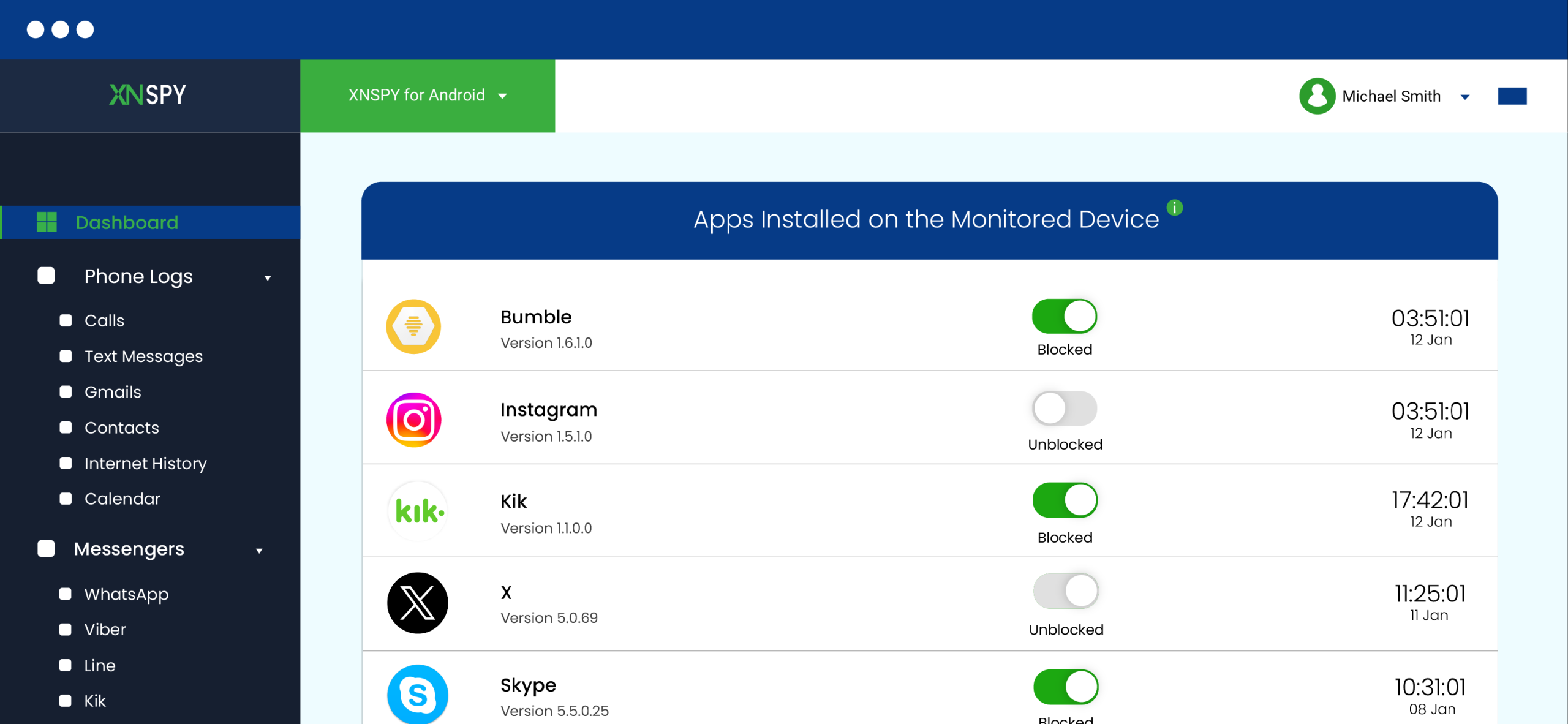
Xnspy operates on two levels simultaneously: it monitors what your child does on Snapchat and gives you the ability to block the app remotely from a web dashboard. That combination means you don’t have to physically pick up your child’s phone every time you need to enforce a limit.
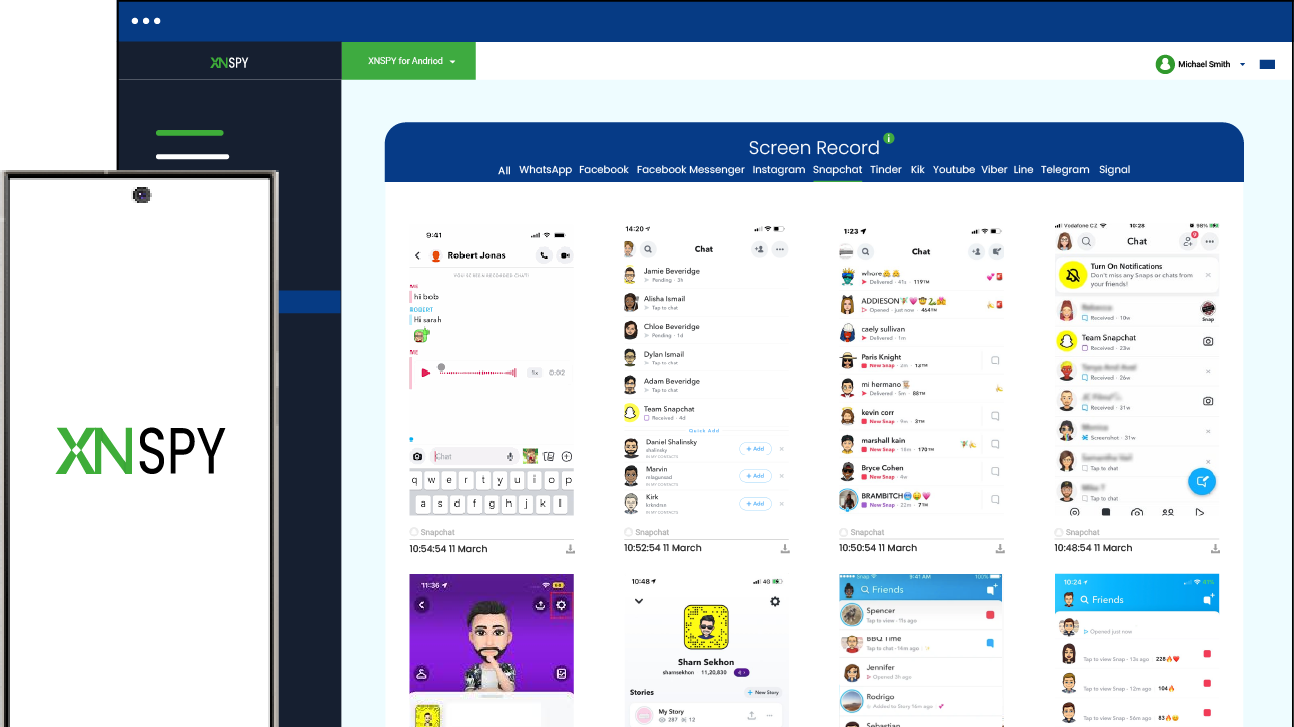
Xnspy provides in-depth insights into Snapchat activity, including messages, snaps, videos, and friend circles, and offers remote control capabilities through app blocking. During testing, the dashboard logged Snapchat open frequency, time-of-day usage patterns, and content activity — all visible from a browser without touching the device.
Here’s how to block Snapchat on iPhone using Xnspy:
- Go to xnspy.com and create an account using your email address
- During setup, select iPhone as the target device type
- When prompted, enter the iCloud credentials (Apple ID and password) of the iPhone you want to monitor
- Allow iCloud sync to complete — this may take a few minutes, depending on the amount of data on the device
- Log in to the Xnspy web dashboard from any browser at cp.xnspy.com
- Navigate to Installed Apps in the dashboard sidebar
- Locate Snapchat in the app list and select Block App to restrict access remotely
Usage Control Behavior (What Actually Happens)
Xnspy shows how much time your child spends on Snapchat and how frequently they open the app during the day. If they are using the app too much, you can temporarily block it from the dashboard. The block applies immediately and does not require any action on the child’s phone.
Unblocking follows the same process in reverse — useful for allowing Snapchat during specific hours without changing any device settings. Xnspy also takes automatic screenshots of social media apps to capture messages, media, and other activities, and allows remote control commands such as remote lock, phone wipe, and app blocking.
Limitations
Xnspy’s functionality depends on iCloud sync being active and two-factor authentication being manageable. If your child changes the Apple ID password or disables iCloud backup, data sync will stop until access is restored.
It also does not prevent Snapchat from being used offline or in airplane mode until the next sync. For the strongest enforcement, pair Xnspy’s app blocking with Screen Time’s App Limits (Method 2) as a secondary layer.

Xnspy: Your Child’s Snapchat, Under Your Watch
Take full control of your child’s Snapchat activity without touching their phone.
– Monitor Snapchat messages, snaps, and stories
– Block Snapchat instantly from your dashboard
– Track how often and how long your child uses the app
– Get alerts when usage crosses your set limits
Method 2: Screen Time App Limits (Built-In iPhone Restriction Layer)
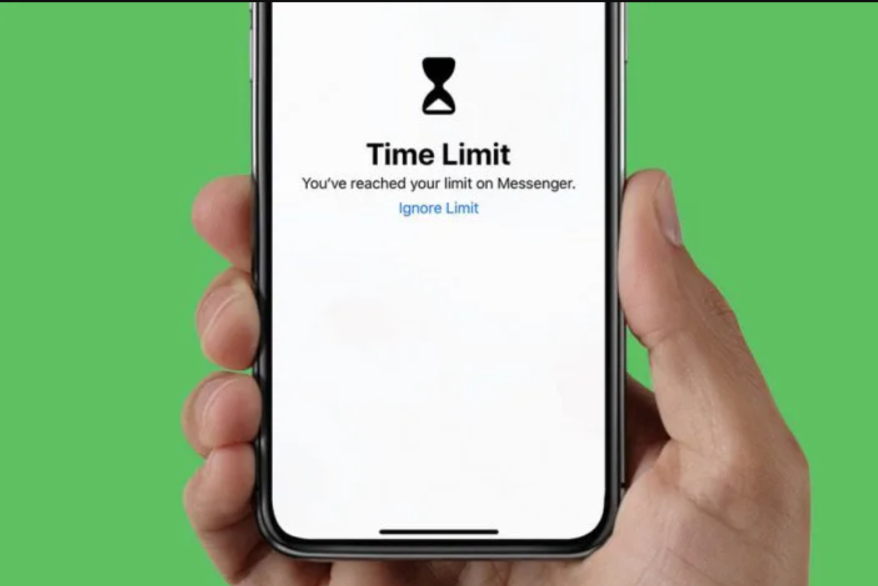
Apple’s Screen Time system is the most accessible control option because it is already built into iOS. In testing, it worked reliably for limiting usage time but not for long-term enforcement unless combined with a passcode strategy.
What makes it useful is that it creates a hard cutoff point. Once Snapchat usage crosses the limit, access is blocked automatically. However, enforcement depends heavily on whether the passcode is secure and unknown to the child.
Let’s see how to block Snapchat app on iPhone using this method:
- Open Settings → tap Screen Time
- Tap App Limits → tap Add Limit
- Search for Snapchat under the Social Networking category and select it
- Set your daily time limit, then toggle Block at End of Limit on
- Go back to Screen Time → tap Change Screen Time Passcode → set a 4-digit code different from the device unlock PIN
Usage Control Behavior (What Actually Happens)
Once configured, Snapchat stops working immediately after the set time limit is reached. During testing, the lock triggered consistently within seconds of crossing the threshold. Downtime scheduling added another layer of control by blocking access during predefined hours, especially at night.
However, the effectiveness depends entirely on passcode control. When the passcode remained secure, the restriction held consistently. When it was accessible, settings were changed quickly, which weakened enforcement.
Limitations
The biggest limitation is passcode dependency. If the child has access to it, restrictions can be modified or removed. It also does not provide visibility into usage patterns, so it works purely as a limiter rather than a monitoring system. Additionally, reinstalling Snapchat is still possible unless App Store restrictions are also applied.
Method 3: Family Sharing with Ask to Buy (Installation Control Layer)
Apple’s Family Sharing system is one of the strongest preventive tools when the goal is to stop Snapchat from being installed in the first place. During testing, it consistently blocked new app installations unless approval was granted.
This method does not manage usage. Instead, it controls entry. That makes it effective for younger users or devices where Snapchat is not yet installed.
Here’s how you can use this method:
- Open Settings → tap your name at the top (your Apple ID)
- Tap Family Sharing → Add Member
- Choose Create Child Account for under-13, or Invite for teens with an existing Apple ID
- Once the child account appears in the Family list, tap their name
- Toggle Ask to Buy on — approval requests will arrive automatically via Family Sharing notifications from that point forward
Usage Control Behavior (What Actually Happens)
When this system is active, any attempt to download Snapchat triggers an approval request. During testing, requests were received almost instantly and required manual approval before installation could proceed. This created a strong gatekeeping effect at the App Store level.
Once Snapchat is installed, however, this system does not interfere with usage at all. It only applies to installation and reinstallation attempts.
Limitations
The biggest gap here is post-installation control. If Snapchat is already on the device, Family Sharing does not affect it. It also requires continuous approval management, which can become repetitive over time. Additionally, children who already have installed apps can continue using them without restriction.
Method 4: Downtime + Always Allowed Apps (Structured Access Control)
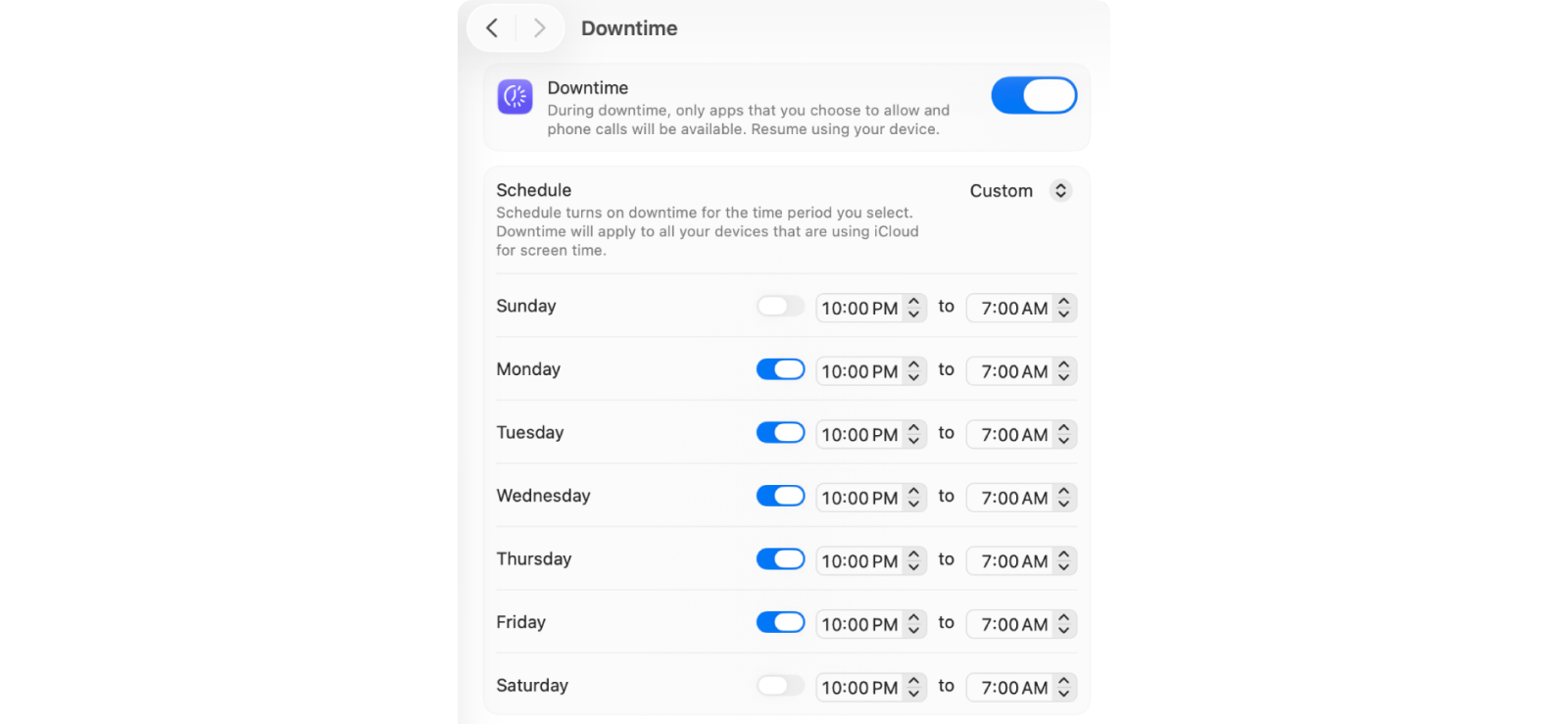
Downtime is Apple’s scheduling-based restriction system that blocks apps during selected hours. In testing, it worked well for controlling nighttime usage and reducing unstructured access periods.
The strength of this method lies in predictability. Once configured, Snapchat becomes unavailable during specific time blocks without requiring daily adjustments.
Let’s see how you can use this method:
- Open Settings → tap Screen Time
- Tap Downtime → toggle Scheduled on
- Set your From and To times to match the hours you want Snapchat blocked
- Go back to Screen Time → tap Always Allowed
- Find Snapchat in the list → tap the red button to remove it
- Go back to Screen Time → tap Change Screen Time Passcode to lock these settings
Usage Control Behavior (What Actually Happens)
When Downtime activates, Snapchat becomes inaccessible immediately across the system. During testing, this worked consistently even when the app was actively open at the time of restriction. The system forced closure and blocked re-entry until the schedule ended.
This method was particularly effective during evening hours, where usage spikes are usually highest. However, outside scheduled hours, Snapchat remains fully accessible unless combined with App Limits.
Limitations
This method only works within scheduled windows, so daytime usage remains unaffected. It also depends on correct scheduling, which requires manual planning. Like other Apple-native tools, it relies heavily on Screen Time passcode protection for enforcement integrity.

Did You Know?
Now you can easily see if someone blocked you on Snapchat.

Method 5: Network-Level Blocking (Router or DNS-Based Control)
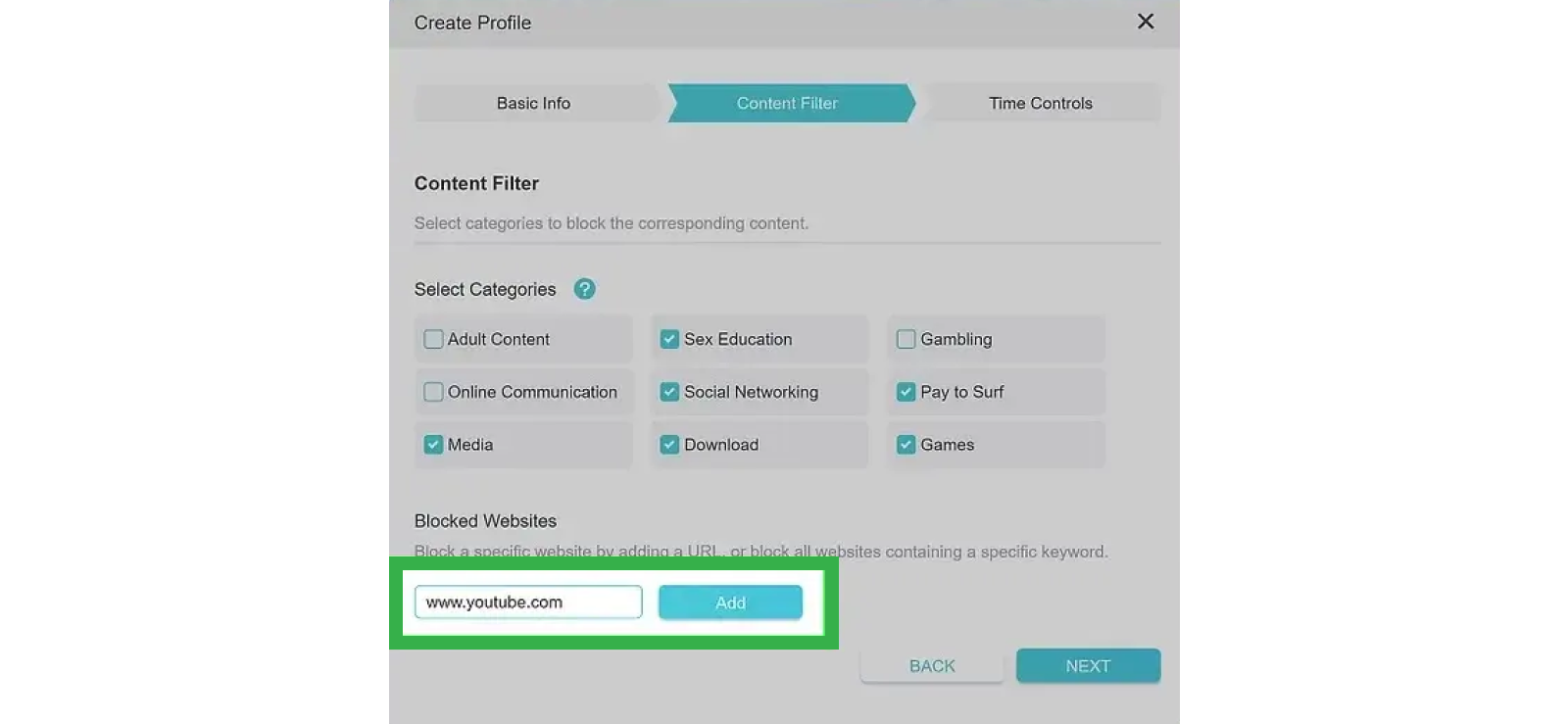
Network-level blocking shifts control away from the iPhone and applies it at the internet connection level. In testing, this method worked well in controlled home environments but had clear weaknesses when mobile data or alternate networks were used.
This approach targets Snapchat traffic rather than the app itself, which creates a different type of restriction experience.
Here’s how to do it:
- Open a browser and go to your router’s admin IP — typically 192.168.1.1 or 192.168.0.1 (printed on the router label)
- Log in with your admin credentials
- Locate the parental controls or content filtering section — on Netgear: Advanced → Security → Block Sites; on TP-Link: Advanced → Parental Controls
- Add the following domains to the blocked list: snapchat.com, snap.com, app.snapchat.com, feelinsonice-hrd.appspot.com
- Save your settings and restart the router
- On the iPhone connected to Wi-Fi (not cellular), open Snapchat and try loading the camera and Stories feed — both should fail to refresh if blocking is active
Usage Control Behavior (What Actually Happens)
When properly configured, Snapchat failed to load or refresh content on Wi-Fi. Messages often did not send, and stories did not update. This created a partial shutdown effect rather than a clean block.
However, the restriction only applied to the controlled network. When the device switched to mobile data, Snapchat resumed normal functionality immediately. This was the most consistent bypass observed during testing.
Limitations
This method is dependent on network control and cannot enforce restrictions outside the home Wi-Fi environment. It also requires router-level access, which is not always available or easy to configure. Additionally, Snapchat’s backend changes can sometimes reduce filtering accuracy over time.
FAQs
How to block Snapchat app on iPhone permanently?
You cannot permanently block Snapchat using a single iPhone setting. The most reliable setup combines Screen Time restrictions, Family Sharing with Ask to Buy, and a secure passcode. Screen Time limits usage, Downtime blocks access during schedules, and Ask to Buy prevents reinstalling. For stronger long-term control, monitoring tools like Xnspy add visibility into usage and reinstallation attempts. Permanent control only works when installation, usage time, and passcode protection are all managed together.
Can kids reinstall Snapchat after it is blocked?
Yes, kids can reinstall Snapchat if App Store access is not restricted or if the Screen Time passcode is known. Blocking the app alone does not stop reinstallation. To prevent this, enable Family Sharing with Ask to Buy so every download requires parent approval. Also, restrict App Store changes through Screen Time settings. Without these combined controls, Snapchat can be removed and reinstalled within seconds on an iPhone.
How do I block Snapchat on my child’s iPhone during school hours only?
Use Screen Time Downtime to set school-hour restrictions. Configure specific time blocks that match school timings, then remove Snapchat from Always Allowed Apps. During those hours, iPhone automatically locks Snapchat and prevents access completely. Once school hours end, access returns without manual changes. This method works best when a Screen Time passcode is set, preventing schedule changes by the child.
How to block Snapchat from being downloaded on iPhone?
Enable Family Sharing with Ask to Buy. This setup ensures every app download request, including Snapchat, requires approval from a parent device. Without approval, installation cannot proceed. You can also restrict App Store changes through Screen Time for added protection. Together, these controls stop Snapchat from being installed again, even if the app is deleted from the device.
Can I block Snapchat from my daughter’s iPhone if she has multiple accounts?
Yes. Snapchat accounts do not affect blocking because iPhone restrictions work at the device level, not account level. Whether one or multiple Snapchat accounts are used, Screen Time limits, Downtime schedules, or monitoring tools like Xnspy will still apply. Control is based on app access, not login credentials, so account switching does not bypass restrictions.
Leave a reply:
Your email address will not be published. Required fields are marked*
Stephen Hawks
Member since February 26, 2026
Stephen Hawks
Member since February 26, 2026
Stephen Hawks is a mobile app security and digital privacy analyst with over 12 years of experience evaluating mobile monitoring technologies, device tracking applications, smartphone data security risks, and more. He is particularly passionate about how monitoring apps function, what data they access, and how securely that data is stored.
Previously working as an IT forensics consultant, he specialized in analyzing app-level data exposure and digital evidence patterns on smartphones. Today, he focuses exclusively on mobile monitoring tools and tracking applications, with an emphasis on real-world performance and security vulnerabilities.
Moreover, he holds industry certifications including CompTIA Security+ and Certified Ethical Hacker (CEH).