
The complete monitoring experience for your phone
Get XNSPY and start tracking calls, texts, multimedia, locations and more on any phone!
Get Started Now Live DemoYou get a Snapchat message at the worst possible time. Maybe you are working or simply do not feel like replying yet.
Still, curiosity gets the better of you.
Can you read the message without giving the sender an immediate “Opened” status? And more importantly, does the old half-swipe trick still work after all the Snapchat updates?
The answer is yes, but with a few caveats. To figure this out, I went through the current approach, the differences on Android and iPhone, and four backup methods worth knowing if half-swiping doesn’t do it for you.
Quick Facts About Half Swiping on Snapchat
- Half-swiping still works for text Chats, although Snapchat does not officially document it as a standard feature.
- The current method starts by pressing the sender’s Bitmoji and slowly dragging the Chat toward the right.
- To avoid fully opening the conversation, slide the Chat completely back before lifting your finger.
- Snapchat+ users may notice a live half-swipe through the Peek a Peek feature if they are viewing the Chat at the same time.
- Snapchat Web does not support the same mobile half-swipe gesture, so browser users have to rely on other preview options.
- Chat Preview and standard notification previews can help you read part of a message without entering the full conversation.
- Airplane Mode can temporarily prevent the viewed status from syncing, but reopening Snapchat after reconnecting sends that information.
- A connected smartwatch can display part of a new Snapchat Chat notification without opening the full conversation on your phone.
- For parents who need broader context around a child’s Snapchat activity, Xnspy can provide phone-level visibility beyond a single unread Chat.
What Is Half Swiping on Snapchat?
Half swiping is a way to partially pull an unopened Snapchat Chat into view without fully entering the conversation.
Instead of tapping the Chat, you press the sender’s Bitmoji and drag slowly toward the right.
The conversation slides onto the screen while your finger stays pressed down. Once you have seen enough, you move your finger back toward the left before releasing it.
There is no dedicated Half Swipe button or setting inside Snapchat. It is simply a gesture people use within the Chat interface.
Can You Still Half Swipe on Snapchat?
Yes, you can still half swipe on Snapchat in 2026. Snapchat hasn’t announced that the gesture is scheduled for removal.
That said, half swiping has changed before.
A Snapchat update in 2021 made many users think the technique had disappeared. The old swipe no longer behaved the same way, and users instead had to start from the friend’s Bitmoji to pull the Chat into view.
That Bitmoji-based approach is the one still associated with the current method.
Snapchat’s own current documentation also confirms that “peeking” remains part of the Chat experience because Snapchat+ still includes Peek a Peek. The feature lets subscribers see when someone is peeking into a one-on-one or Group Chat.
So while Snapchat does not officially promote half-swiping as a standard Chat feature, there is no indication that the feature has disappeared.
Guides We Picked for You

⌛  Does Snapchat Notify Screenshots: The Most Up-to-Date Answer
👻  How to Block Snapchat on iPhone: 5 Effective Methods
⏰  How to Monitor Your Child’s Snapchat: 7 Simple Methods
🚨  Does Someone Know if You Search Them on Instagram?
Why Do People Half Swipe on Snapchat?
Mostly because they want context before committing to the conversation.
You may want to see whether someone sent a simple “yes” or a three-paragraph message. You might be busy and want to know if a reply can wait. Or you may simply want a little time to think before the sender sees that you opened the Chat.
A Snapchat half swipe is useful for exactly that.
It gives you a brief look at the message while keeping you on the Chat screen rather than moving completely into the conversation.
Of course, it is not completely risk-free. Letting go in the wrong place can open the Chat, and Snapchat+ has made the gesture easier to notice under the right circumstances.
How I Tested Half Swiping and the Alternative Methods
When testing the half swipe and alternative message viewing methods, I started with two test devices: a Galaxy A series phone for Android testing and an iPhone for iOS testing. Then I logged in to my own account and a dummy account on both devices to check which method works and to what extent.
For each method, I focused on the following factors:
- Amount of text visible: Could it show enough of the message to be useful?
- Read status: Would the Chat remain unopened during the preview?
- Ease of use: Could an average Snapchat user repeat it?
- Device limitations: Was it tied to iPhone or Android?
How Do You Half Swipe on Snapchat: The Easiest Ways
The basic movement is almost identical on Android and iPhone.
Still, I prefer separating the two because Android’s system gestures can occasionally interfere with where you start the swipe.
| Method | Type | Works? | Best For | Limitations |
| Half Swipe on iPhone | Chat gesture | Yes | Seeing more of an unread text Chat | Releasing too early can open the Chat; Peek a Peek may expose the swipe |
| Half Swipe on Android | Chat gesture | Yes | Seeing more of an unread text Chat | System navigation gestures can interfere; releasing too early opens the Chat |
Half Swipe on iPhone
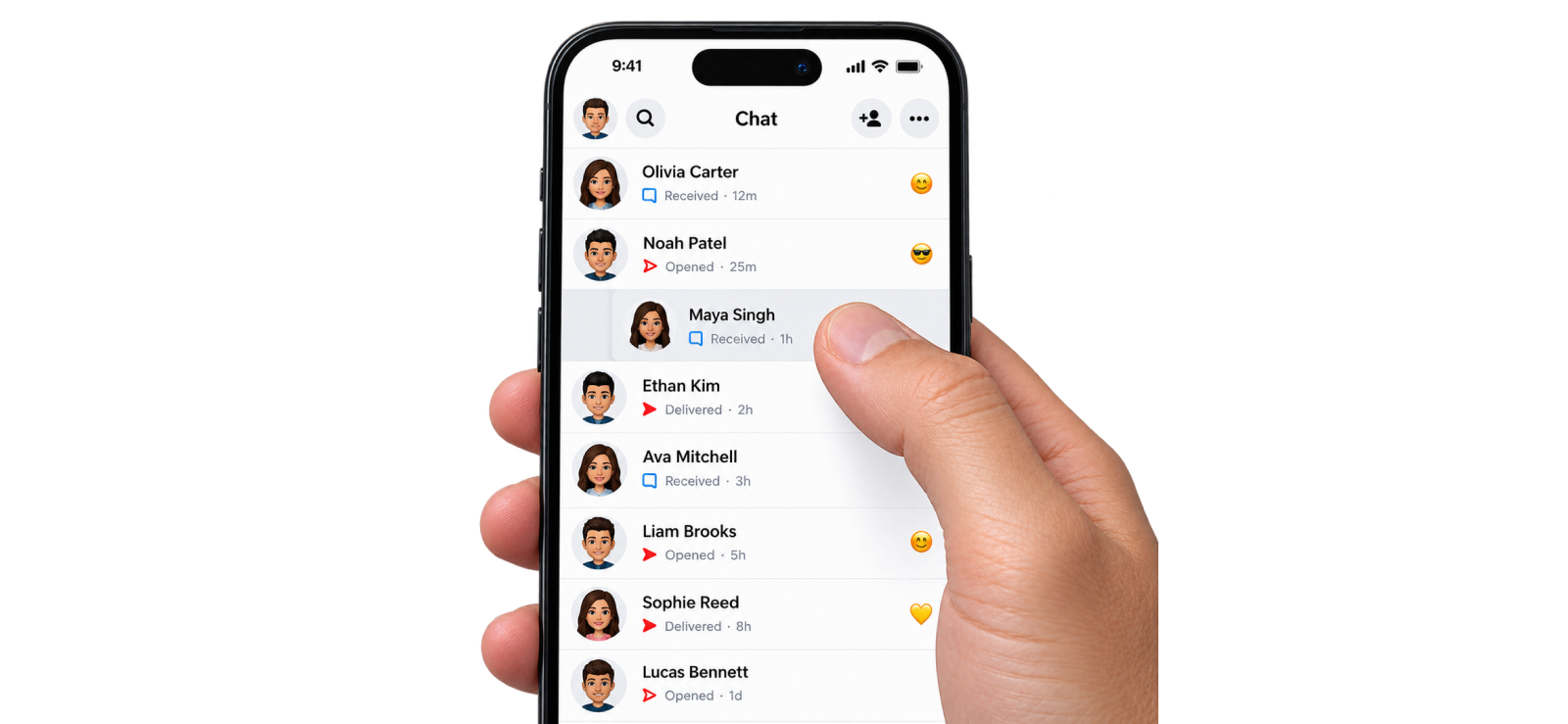
The important part here is not swiping particularly fast or reaching a specific percentage of the screen. It is keeping your finger down and returning the conversation to its starting position before letting go.
Here is how to do it:
- Open Snapchat on your iPhone.
- Swipe right from the Camera screen to reach Chat.
- Find the unread conversation you want to preview.
- Place your finger directly on the sender’s Bitmoji.
- Slowly drag your finger toward the right.
- Keep your finger touching the screen while the Chat becomes visible.
- Read as much of the exposed text as you need.
- Slowly drag back toward the left.
- Wait until you are completely back on the Chat feed.
- Lift your finger.
Here’s What Happened In My Testing
The Bitmoji is the key starting point for the current version of the technique.
Starting there gives you control over how much of the conversation comes into view while your finger remains down.
The biggest problem for me was not how far I could pull the Chat across the screen. It was letting go too early. Returning fully to the Chat list before releasing was what kept the gesture from turning into a normal Chat opening.
I tried the method more than 20 times, and I can confidently say that you’re only safe to lift your finger once you’re 90% on the chat feed.
Half Swipe on Android
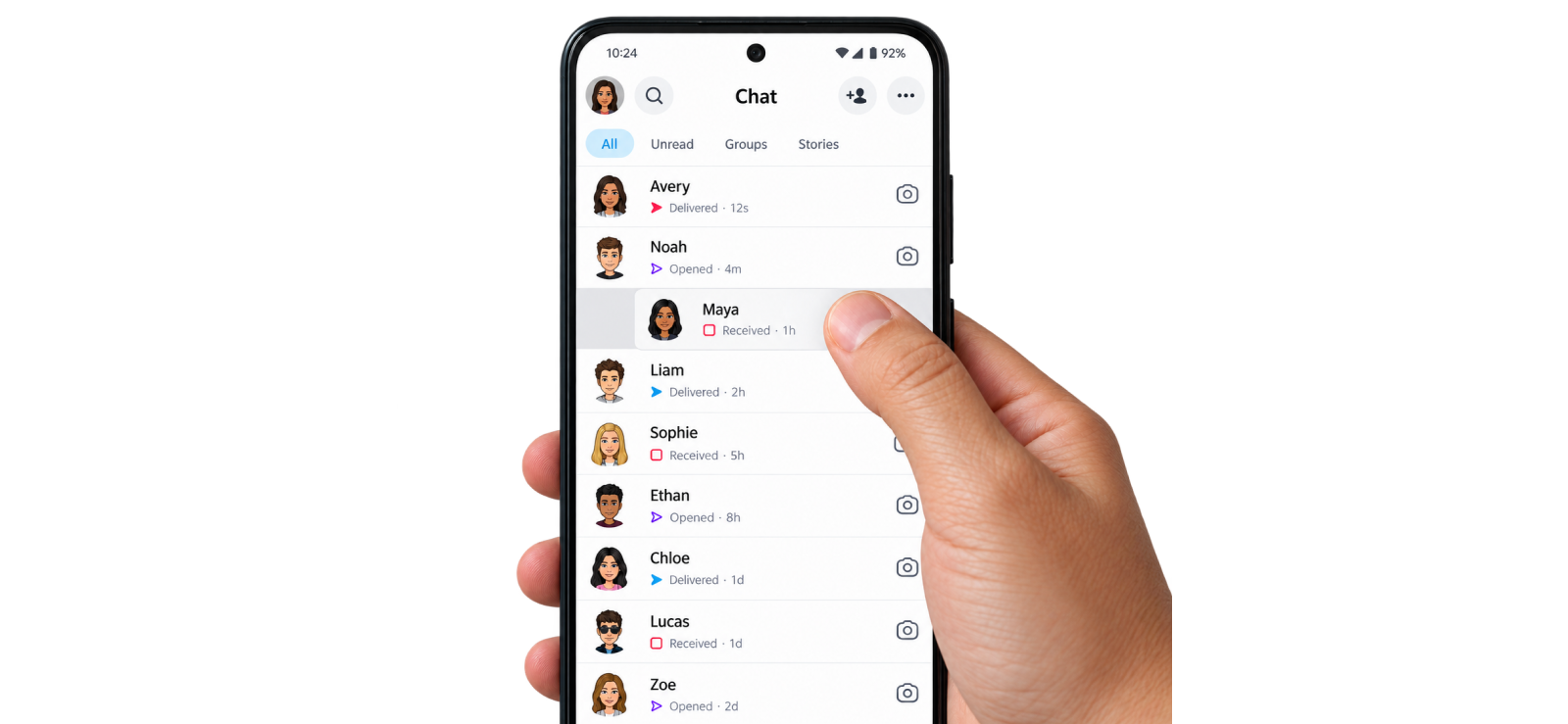
Android phones can add another variable because many models use an edge swipe for system navigation. However, the actual Snapchat movement remains the same.
Here is how to do it:
- Launch Snapchat.
- Open the Chat screen.
- Find an unread conversation.
- Put your finger directly over the sender’s Bitmoji.
- Slowly drag toward the right.
- Keep holding while you read the visible text.
- Drag all the way back toward the left.
- Release after the Chat list is fully visible again.
Here’s What Happened In My Testing
The Snapchat half-swipe itself behaved the same way conceptually: hold, drag, read, return, and release.
However, Android’s navigation was the extra variable. If the phone interpreted the movement as Back instead of revealing the conversation, I’d have to start again, which, to be honest, became annoying after a while. Moving my starting point farther onto the Bitmoji made the gesture easier to control.
How to Half Swipe on Snapchat Web?
You cannot half swipe on Snapchat Web the same way you can on a phone.
The desktop version does not use the Bitmoji-drag gesture that makes half swiping possible on iPhone and Android. Instead, selecting a conversation opens the Chat normally.
So, if you are using Snapchat Web, there is no direct desktop equivalent of the mobile half-swipe method.
How to Half Swipe on Snap?
You cannot half-swipe an unopened photo or video Snap the same way you can a text Chat.
Half-swiping only works with conversations in the Chat screen because the gesture partially reveals the message thread. Photo and video Snaps open through a different interface, so tapping them counts as viewing the Snap.
In short, you can half-swipe Chat messages, but not unopened photo or video Snaps.

Concerned About Your Child’s Snapchat Conversations?
One half-swipe only shows one piece of one Chat. With Xnspy:
– See conversations through screen recording
– Review Snaps, Stories, and Discover activity
– See text entered on the phone with logging feature
What to Try If Snapchat Half Swipe Stops Working: 4 Proven Methods
Half swiping is convenient when the gesture behaves properly. But if it stops working, there are four other approaches worth knowing.
| Method | Type | Works? | Best For | Limitations |
| Chat Preview | Snapchat feature | Yes | Sender-triggered preview | The sender must activate it; the recipient cannot request it directly |
| Notification Preview | Phone feature | Yes, with limits | Short new messages | Only shows the text Snapchat includes in the notification |
| Airplane Mode | Offline method | Yes, with sync limitation | Temporary offline viewing | Reopening Snapchat after reconnecting can sync the viewed status |
| Connected Smart Watch | Notification preview | Yes | Quick glance at new messages | Limited to new notifications and the amount of text shown on the watch |
1. Try Chat Preview Option
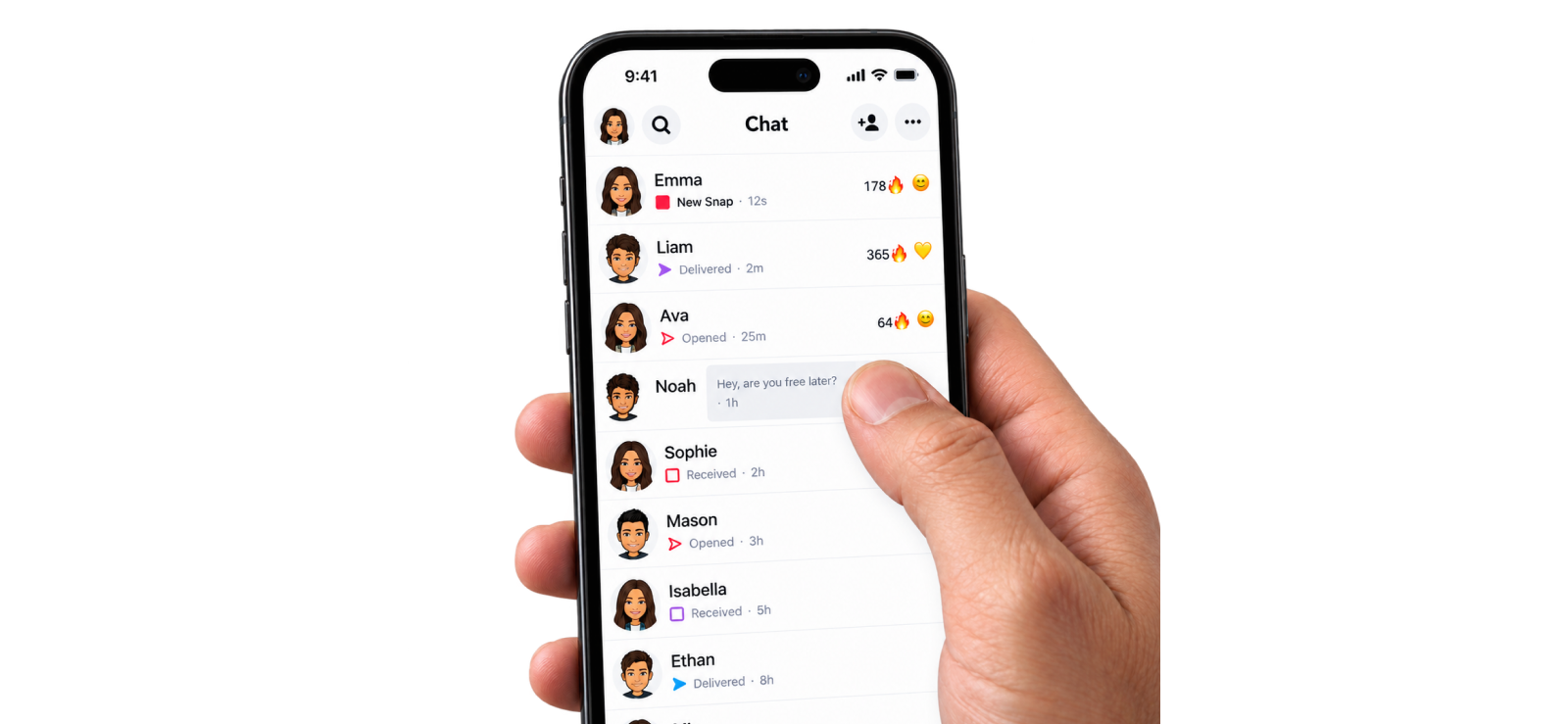
Chat Preview is an official Snapchat feature that lets the sender place part of an unopened Chat inside a second notification.
Unlike half-swiping, Snapchat directly documents Chat Preview. However, the major limitation is that the sender, rather than the recipient, has to trigger it.
Here is how it works:
- The sender locates the Chat message they already sent.
- The message must still be unopened.
- They press and hold the message.
- They tap Notify with Chat Preview.
- Snapchat sends the recipient another notification containing some of the message text.
- The recipient reads the preview without entering the full conversation.
Here’s What Happened In My Testing
This had the clearest outcome of the alternatives because Snapchat explicitly confirms how the read status behaves.
Seeing the preview text does not mark the Chat as opened. The recipient still has to open the conversation in Snapchat’s mobile or web application for that to happen.
The only real drawback was control. If the sender does not use Notify with Chat Preview, there is no button on the recipient’s side that forces Snapchat to create one.
2. Use Notification Preview
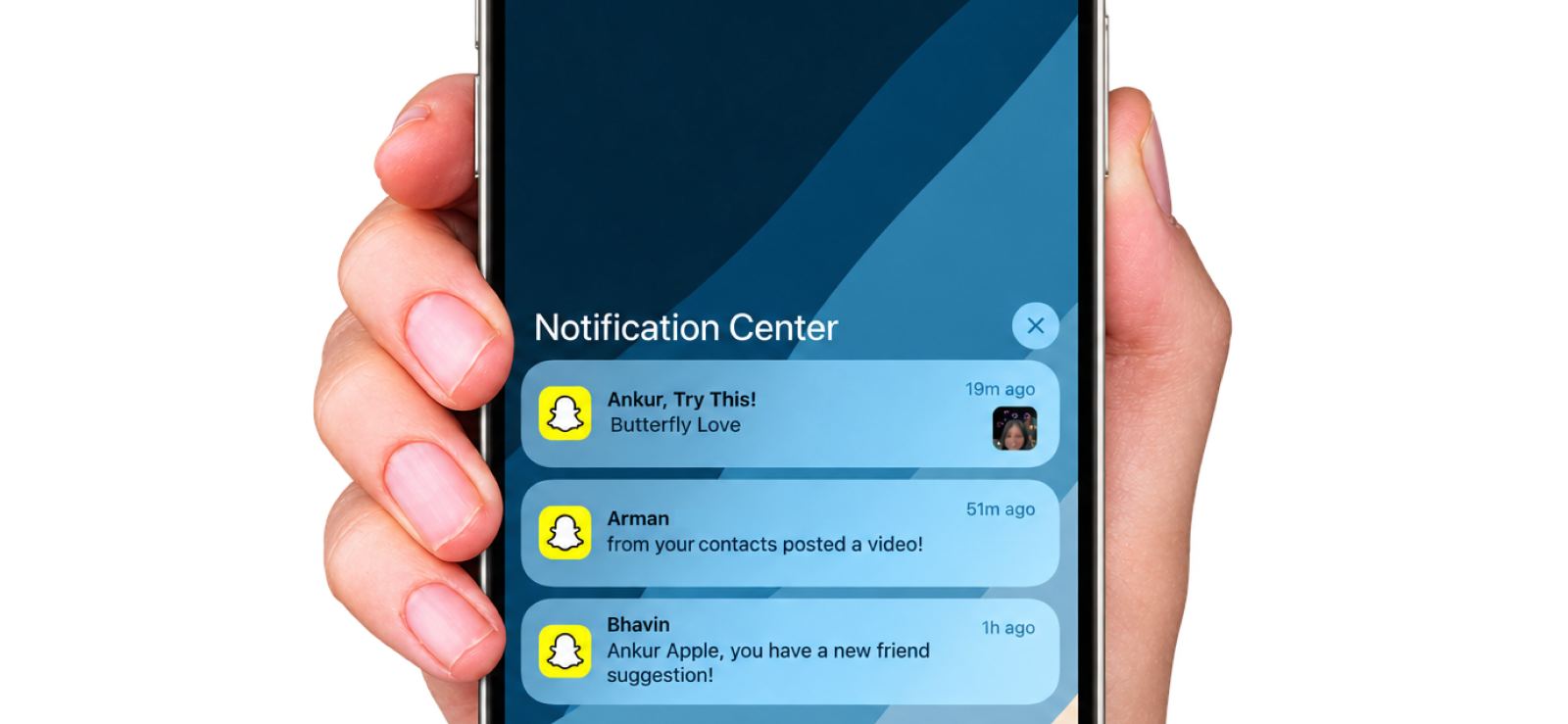
This method involves reading whatever message information Snapchat already sends to your phone without opening the application.
This includes both iPhone and Android notifications, including lock screen previews, expanded notifications, notification shade previews, and notification history as well.
Here is how to use it on iPhone:
- Open your phone’s notification settings.
- Make sure Snapchat notifications are enabled.
- Allow notification previews.
- Wait for a new Snapchat Chat notification.
- Read the text directly from the Lock Screen or Notification Center.
On Android:
- Open Settings.
- Go to Notifications.
- Make sure Snapchat alerts are enabled.
- When a Chat arrives, pull down the notification shade.
- On supported phones, use Notification History if you dismissed the alert before reading it.
Here’s What Happened In My Testing
I tested this method with 10 Snapchat messages of different lengths: 3 short messages of around 3–6 words, 4 medium messages of roughly 15–25 words, and 3 longer messages of 40+ words.
The short messages were the easiest to read because most or all of the text appeared directly in the notification preview. Medium-length messages were less consistent, with only part of the message visible in some cases.
The limitation became clear with longer messages. The notification only showed part of the text, so I still had to open the Snapchat Chat to read the complete message.
Based on my testing, Notification Preview worked well for quickly checking short messages, but it was not a reliable replacement for half-swiping when someone sent a longer Chat.
3. Turn on Airplane Mode

The idea behind this method is simple: disconnect the phone from the internet so it can’t send chat activity back to Snapchat’s servers. Once done, you can view the message while the device is offline, and close Snapchat before restoring the connection.
Here is how to do so:
- Open Snapchat and let the Chat list load.
- Do not open the conversation yet.
- Turn on Airplane Mode.
- Make sure Wi-Fi and mobile data are both disconnected.
- Return to Snapchat.
- Open the Chat you want to read.
- Read the message.
- Close Snapchat completely.
- Go to App settings and Force Stop the app.
- Leave the application closed when you turn Airplane Mode off.
Here’s What Happened In My Testing
The method did keep the viewed signal from being sent while Snapchat remained disconnected.
But the limitation appeared as soon as I opened Snapchat again after restoring the internet connection.
At that point, Snapchat synced the information, and the Chat changed to its viewed state for the sender.
I repeated the test 16 times with variable times between turning Airplane mode off and reopening Snapchat, but the results remained the same. So, to sum it all up, this is not a permanent way to read a message and then continue using Snapchat normally.
4. View Via a Connected Smart Watch
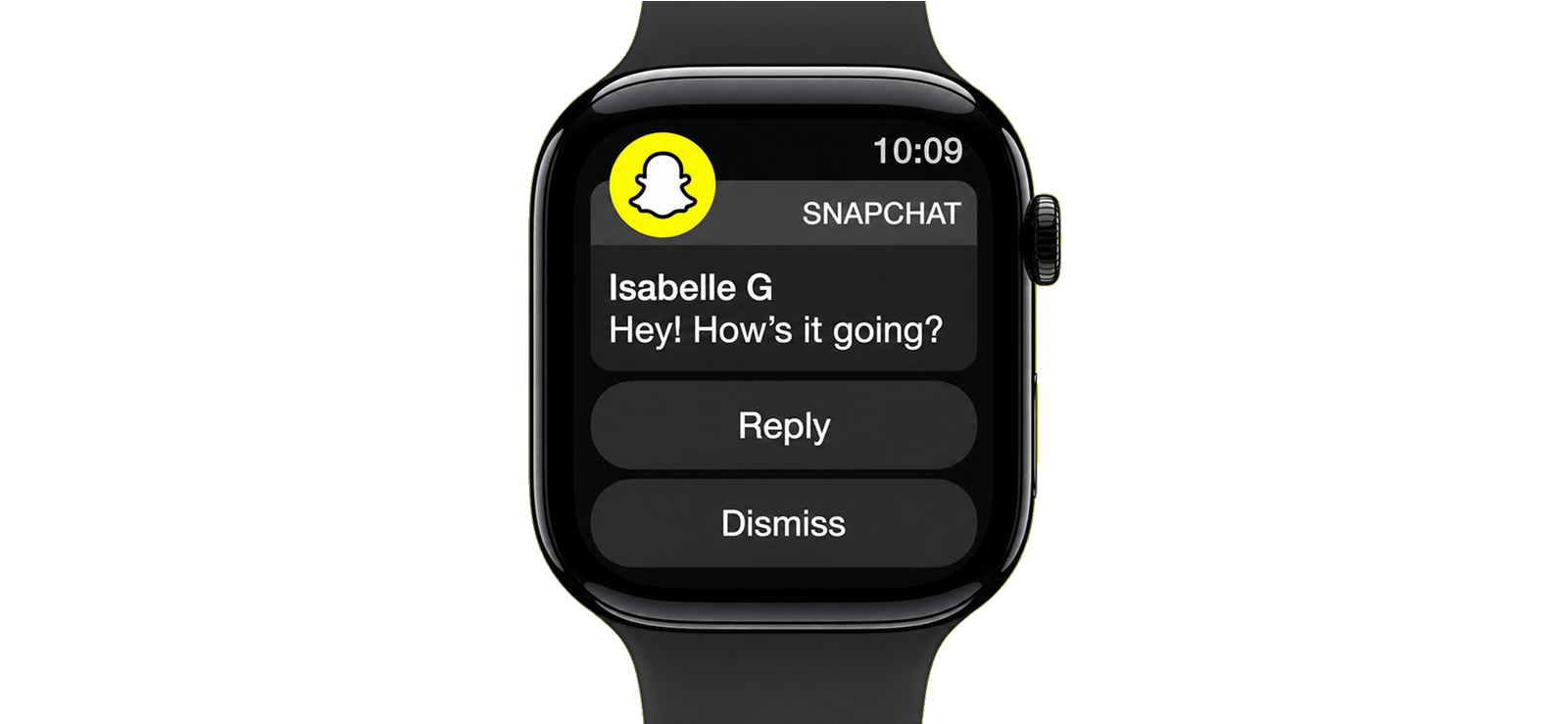
Snapchat provides a dedicated Watch experience for Chat text notifications. So, if you have a smartwatch with notification sync enabled, you will be able to read the incoming messages on Snapchat without actually opening the whole chat.
Here is how to set it up:
- Pair your smartwatch with your phone.
- Make sure Snapchat notifications are enabled on the phone.
- Open your watch or companion app notification settings.
- Allow Snapchat notifications to appear on the watch.
- Wait for a new Snapchat Chat to arrive.
- Raise your wrist or open the notification on the watch.
- Read the available message preview.
Here’s What Happened In My Testing
The smartwatch method was best for short, new messages, as it displayed only 100 characters.
The limitation was obvious when I tested with longer messages, as it trimmed down the text after 100 characters. Moreover, it did not show snaps or videos on the watch at all.
So I would only treat this method as a convenient glance tool.
A Separate But Relevant Consideration: How Parents Can Approach Their Kids’ Snapchat Conversations
Half-swiping can help reveal part of an unread Chat, but it only gives you a brief look at one conversation at a time.
For parents concerned about their child’s Snapchat activity and engagement, that limited view may not provide enough context. The bigger concern may be who their child is communicating with, what kind of conversations are taking place, or whether potentially concerning content is appearing and disappearing before they become aware of it.
In such situations, repeatedly checking individual Chats is neither practical nor particularly informative.
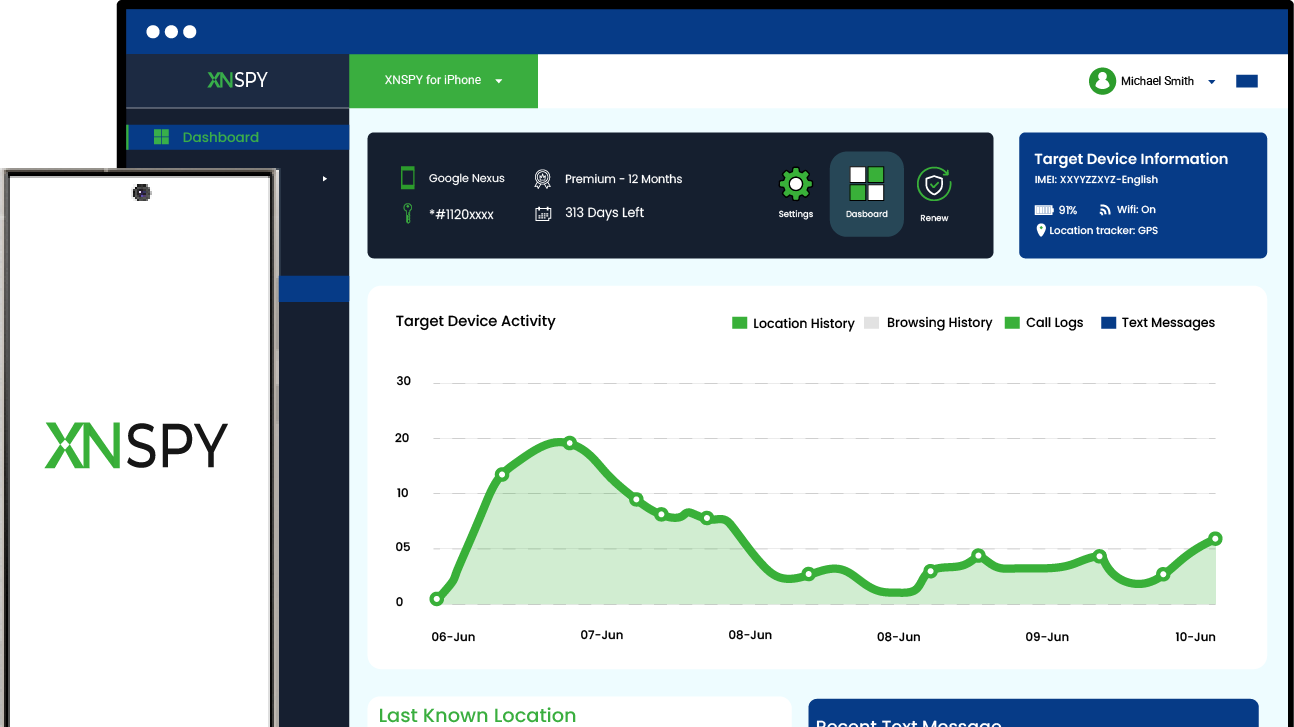
This is where a parental control application such as Xnspy takes a broader approach. Instead of focusing on a single unread message, it can help authorized parents review Snapchat-related activity captured from the child’s phone over time.
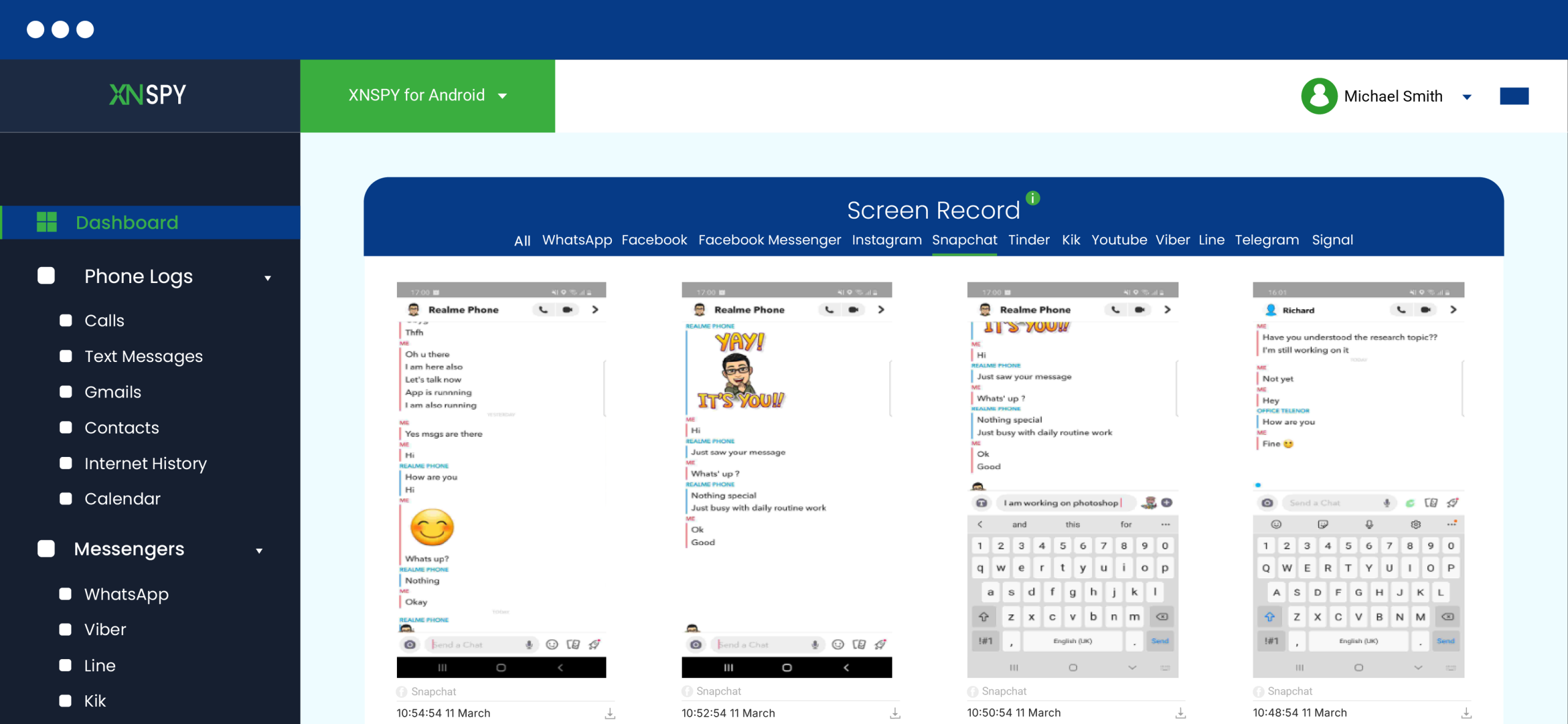
It uses screen recording and keylogging to capture activity occurring while Snapchat is being used. That can include conversations, visible Snaps, Stories, Discover activity, and other information displayed on the phone.
Here is how to check Snapchat activity using Xnspy:
- Get Xnspy for a phone you are legally authorized to supervise.
- Follow the installation instructions on the child’s phone.
- Complete the required permissions and setup.
- Allow Xnspy to collect activity while the phone is being used.
- Log in to your Xnspy dashboard from your own phone or computer.
- Open the Snapchat or screen-recording information.
- Review the captured screenshots alongside their timestamps.
- Use the supported keylogging and watchlist features when you need additional context on what was typed.
Here’s What Happened In My Testing
The biggest difference I noticed was that I was no longer relying on a single unread Chat. With half-swiping, I had to choose one conversation, manually perform the gesture, and hope the important part of the text was visible.
Xnspy’s screen-based approach provided a broader record instead.
When Snapchat activity appeared on the test phone, the relevant visual information could be reviewed through captured screens rather than requiring me to repeatedly pick up the phone and open individual conversations.
That also made disappearing content less of a blind spot because the useful record was the screen capture itself rather than the Snapchat message remaining available forever.
Still, there were some limitations as well.
The information you get depends on what is actually visible while Snapchat is being used. Moreover, while it is highly unlikely, if anything slips between the 5-second window after which Xnspy captures screenshots, you won’t be able to see those details on the dashboard.
FAQs
How to half swipe Snapchat group chats?
From the Chat feed, press the Group Chat avatar, drag slowly toward the right, read the exposed text, and slide fully back before releasing your finger. Remember that Snapchat says Peek-a-Peek also applies to Group Chats. A Snapchat+ subscriber may notice the peek if they are looking at the relevant Chat screen at the same time.
How to half swipe on Snapchat with the new update?
Start from the sender’s Bitmoji. Press and hold it, slowly drag right, keep your finger down while reading, and slide completely back before releasing. If Snapchat changes the interface again, the gesture may behave differently because half-swiping is not an officially documented feature.
Does Snapchat Plus change how half-swiping works?
It does not significantly change the physical swipe. What it changes is how easy the peek is to notice. Snapchat+ subscribers have the Peek-a-Peek feature, which can display an eyes emoji or the peeking user’s Bitmoji while the peek is happening.
Can someone tell if you half-swiped their chat?
Yes, but only if they have Snapchat+ and are viewing their Chat feed or the conversation at the same time. Peek a Peek can reveal that someone is currently peeking. Snapchat does not describe it as a permanent list of past half swipes.
Can you half-swipe a message more than once?
Yes, you can attempt the gesture again as long as the Chat has not been opened normally. Snapchat does not publish an official limit on the number of times you can peek. However, every attempt gives you another chance to accidentally complete the swipe, and another opportunity for a Snapchat+ subscriber to notice Peek a Peek if they happen to be looking at the Chat at the same time.
Leave a reply:
Your email address will not be published. Required fields are marked*
Jenny Nicole
Member since October 23, 2014
Jenny Nicole
Member since October 23, 2014
Jenny Nicole is a teen psychology and digital behavior specialist with an MSc Developmental Psychology & Psychopathology from King's College London, graduated 2017. Her work revolves around how adolescents communicate and make decisions in digital environments, particularly on social media and messaging platforms. Over the past 5 years, she has written extensively on teen smartphone behavior, online peer dynamics, the psychological impact of social media, and the need for oversight. Her work has helped parents and educators interpret not just what teens are doing online, but why they are doing it. Overall, she has not only authored over a hundred guides breaking down child psychology for parents but also regularly spoken at family safety and internet governance conferences across the UK and US.