How to Block Websites on iPhone Without Having the Device: 5 Easy Ways
 By Mike Everett
The complete monitoring experience for your phone
Get XNSPY and start tracking calls, texts, multimedia, locations and more on any phone!
Get Started Now Live DemoYou know that feeling when you just know your kid or loved one is spending way too much time on the wrong corners of the internet, but you can’t exactly snatch their iPhone away? Yeah, frustrating. But guess what? You don’t need their phone in your hands to shut down access to certain websites. You can block them remotely on their iPhones!
It could be endless social media scrolling when they should be sleeping. Or it is sketchy sites you definitely don’t want them stumbling upon. Whatever it is, you are about to learn how to block websites on iPhone in the easiest way possible – just 5 simple ways that work.
Everything At a Glance
- The internet is full of dangers like scams and inappropriate content, and children can easily drift away to harmful websites while surfing the internet.
- Xnspy is an effective way to monitor and control iPhone browsing without touching the device, as it gives you full visibility into web activity, keyword alerts, and browsing history logs across all browsers.
- Apple Screen Time is the easiest built-in option for parents managing a child’s iPhone through Family Sharing, but it can be bypassed if the child knows the passcode.
- Router-level blocking restricts websites for every device on the home Wi-Fi network, but it has no effect when the iPhone switches to mobile data.
- Carrier content filtering blocks inappropriate content at the network level for mobile data, but it doesn’t cover Wi-Fi usage and varies by carrier and region.
- An iCloud Configuration Profile is the most tamper-resistant method available and works best in MDM or supervised device environments, but setup requires technical steps and ideally one-time access to the device.
How I Tested These Methods for Blocking Websites on iPhone?
Before diving into the methods, here is how I verified that each one actually works.
I tested every method on my own iPhone, along with my wife’s, over multiple weeks using a dedicated setup.
Some methods required router access; others required an iCloud account or carrier login. I ran each one at least twice and deliberately tried to bypass the restrictions to check how easy it was to work around them.
Here are the key factors I evaluated during testing:
- Setup Difficulty: I tracked how many steps each method required and whether non-technical users could realistically complete them without support.
- Effectiveness Across Networks: I also wanted to see whether each method works on both home Wi-Fi and mobile data, since the target iPhone might not always stay on one network.
- Bypass Resistance: Moreover, I attempted to work around each restriction using a VPN, a different browser, and private browsing mode to measure how easy it was for a tech-savvy user to undo the block.
- Remote Control: I verified whether each method could be managed remotely, without holding the target iPhone, after the initial setup.
Why You Should Know How to Block Sites on iPhone?
Knowing how to block a website on iPhone is all about keeping your loved ones from landing on pages they shouldn’t be on. The internet is full of distractions and things that are just not meant for younger eyes. You can’t always be there to monitor every tap and swipe, but you can make sure certain websites never load in the first place.
Maybe your kid is supposed to be doing homework, but YouTube or gaming sites keep pulling them in. Maybe you are trying to cut down on social media doom-scrolling in your loved one’s life. Or perhaps you just want peace of mind knowing certain corners of the internet are completely off-limits.
It is also about responsibility. If someone you care about is spending too much time on social media or other places that could be harmful, learning how to block website on iPhone gives you the ability to step in without confrontation. At the end of the day, you need to make sure the internet works for you, not against you.
But keep legality in mind. If you are blocking websites on a child’s iPhone and they are under 18, it is allowed, especially if you are the parent or guardian. However, restricting websites on an adult’s iPhone without their consent could be a legal issue. If you need to do this for someone over 18, it is best to have an open conversation and get their permission first.
These Blogs Are Too Good to Skip!

🚨  How to Find Hidden Apps on iPhone Remotely: 5 Best Ways
☀️ How to Block Apps on iPhone Remotely: 5 Proven Methods
🏅  How to Block Inappropriate Content on YouTube: 5 Best Ways
How to Block a Website on iPhone Without the User Knowing: 5 Proven Methods
So, you need to figure out how to block sites on iPhone without alerting the user? Here are 5 proven ways to get it done without tipping them off. Analyze each one of them and pick a method that works best for you.
| Method | Works On | Requires Physical Access? | Blocks on Mobile Data? | Bypass Resistance | Best For |
| Xnspy | All browsers | One-time install | Yes | High — no blocklist to work around | Parents who want full browsing visibility |
| Apple Screen Time | Safari + most browsers | No (via Family Sharing) | Yes | Medium — bypassable with passcode reset | Parents managing a child via Family Sharing |
| Router-Level Blocking | All browsers on Wi-Fi | No | No | Low — bypassed by switching to mobile data | Families wanting home network control |
| Carrier Content Filtering | All browsers on mobile data | No | Yes | Medium — bypassed by switching to Wi-Fi | Blocking adult content over cellular |
| iCloud Configuration Profile | Safari + restricted browsers | One-time access recommended | Yes | High — very difficult to remove | MDM / supervised device environments |
1. Use Xnspy
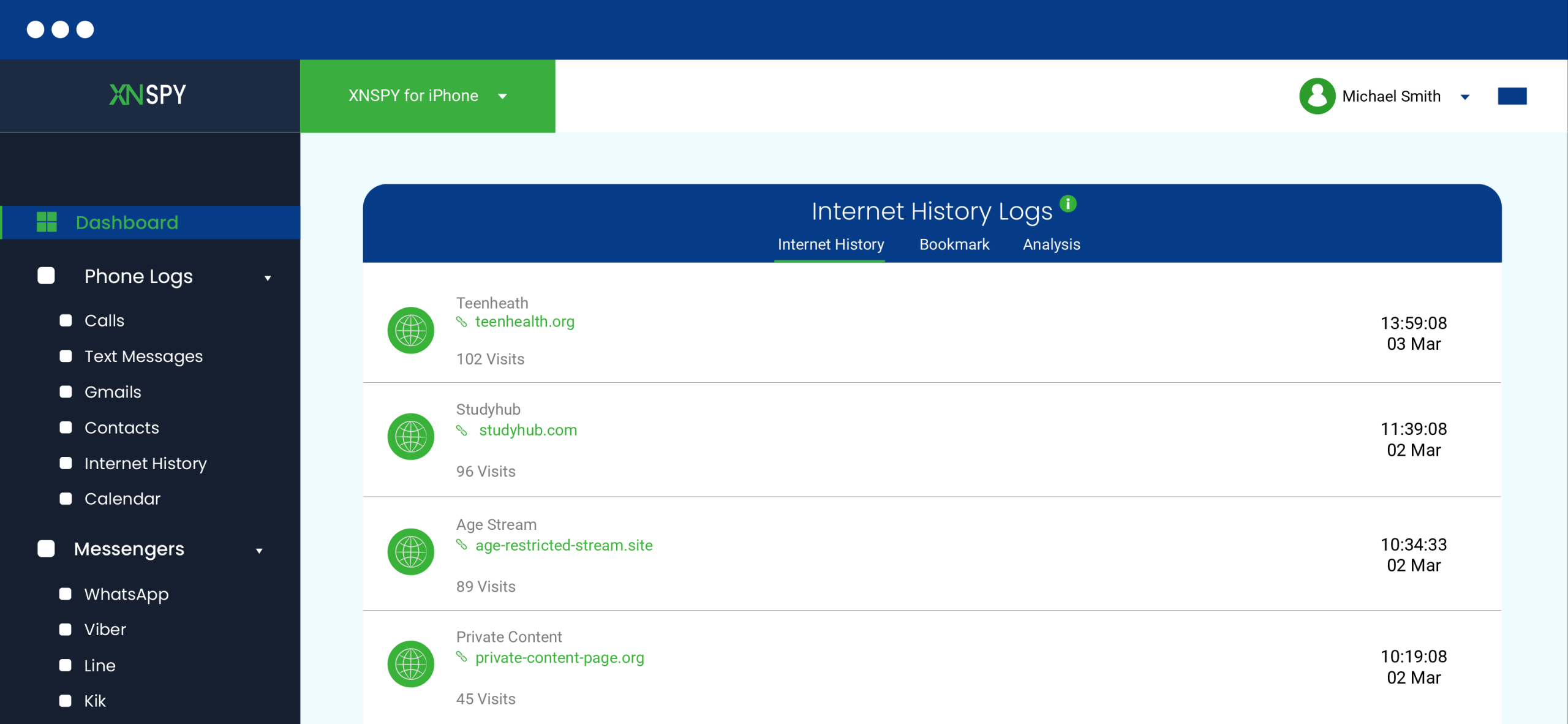
Knowing how to block websites on an iPhone is helpful, but website filters alone are often easy to bypass through different browsers, apps, or VPNs. Xnspy goes beyond simple blocking by giving you visibility into browsing activity and additional controls to manage device access when needed.
With detailed web-history logs, you can review visited websites, searches, and timestamps to understand browsing habits. Xnspy also captures periodic screenshots or screen recordings, providing visual context for what was actually viewed and helping you identify concerning content more accurately.
If unwanted content is being accessed through apps instead of websites, Xnspy lets you block selected applications such as browsers, VPNs, social media, or streaming apps. For more serious situations, you can remotely lock the iPhone to temporarily restrict access until the issue is addressed.
Here’s how you can use Xnspy:
- Set up Xnspy on the child’s or authorized managed iPhone by following the installation instructions.
- Sign in to the Xnspy dashboard from your own device.
- Open the web-history section to review visited websites, searches, and timestamps.
- Check periodic screenshots or screen recordings to understand what appeared during browsing sessions.
- Identify any browser, VPN, social media, or streaming app being used to access unwanted content.
- Use the app-blocking controls to restrict the relevant applications.
- Lock the iPhone remotely when a temporary, device-wide restriction is necessary.
- Continue reviewing activity to determine whether the restrictions are working or need adjustment.
Did This Method Work for Me?
The strongest advantage of this approach is that it does more than block individual websites. Detailed browsing history identifies the sites being accessed, while periodic screenshots provide context about what was actually displayed. App blocking can then restrict alternative access routes, and phone locking provides wider control when immediate intervention is required.
This makes Xnspy more comprehensive than a standard website blocklist. However, setup requirements and the availability of particular monitoring or control features may depend on the iPhone’s configuration, iOS version, subscription plan, and installation method.
Xnspy should only be used on a child’s device or another iPhone you own, manage, or have explicit authorization to monitor. Local privacy and consent laws should also be considered before installation.

Know Their Browsing Habits Before It’s Too Late
With Xnspy, web activity is never a mystery.
2. Set Up Apple Screen Time
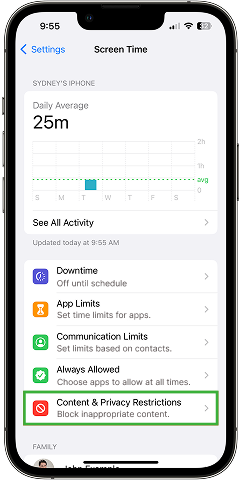
Apple Screen Time lets you remotely restrict website access on someone’s iPhone if it is part of your Family Sharing group. It allows you to block specific sites, limit adult content, and control browsing access through Content & Privacy Restrictions. This is a built-in solution that doesn’t require third-party apps. However, the target iPhone user can reset Screen Time settings if they know or guess the passcode.
Here’s how to block bad websites on iPhone using this method:
- Go to Settings > Screen Time and select the child’s iPhone from Family Sharing.
- Tap Turn On Screen Time, then go to Content & Privacy Restrictions and enable it.
- Navigate to Content Restrictions > Web Content and choose Limit Adult Websites or Allowed Websites Only.
- Under Never Allow, enter the URLs of websites you want to block.
- Tap Back, ensure restrictions are set, and use a strong Screen Time passcode to prevent changes.
Did This Method Work for Me?
I tested Screen Time on two iPhones linked through Family Sharing. Adding sites to the “Never Allow” list worked immediately, as the sites got blocked in Safari within seconds of saving the settings. Chrome and other browsers that use Apple’s web content filtering APIs also respected the block.
However, when I tried using a VPN on the target device, I was able to bypass the restrictions entirely. A tech-savvy teen who knows the Screen Time passcode can also reverse all settings in under a minute. For younger children who are not looking for workarounds, this method works well.
3. Block Websites at the Router Level for iPhone
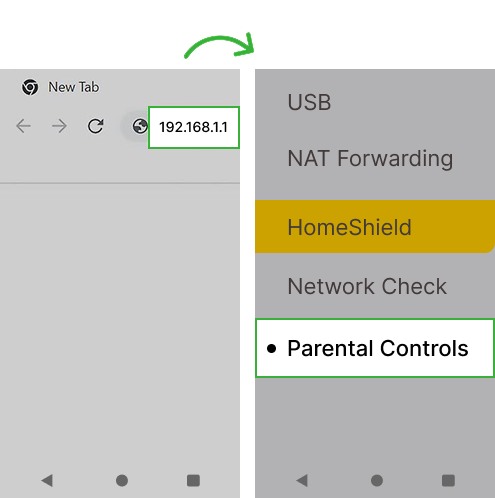
Figuring out how to block certain websites on iPhone at the router level ensures that any iPhone connected to your Wi-Fi cannot access restricted sites. This method works across all iPhones in the home and doesn’t rely on individual phone settings.
Even though it is great for preventing access to unwanted sites on all Apple devices using the same network, this method only works when the iPhone is connected to your Wi-Fi. Mobile data or another network can bypass the restrictions.
Let’s see how you can restrict website access on iPhones using a router
- Log in to Your Router’s Admin Panel – Open a browser and enter the router’s IP address (usually 192.168.1.1 or 192.168.0.1) to log in to your router’s admin panel.
- Go to the Parental Controls, Access Restrictions, or Website Blocking section.
- Add the URLs of the sites you want to restrict. Some routers allow blocking entire categories.
- Click Save or Apply to enforce restrictions across all connected devices.
- Restart the router if needed. Some routers require a reboot for changes to take effect.
Did This Method Work for Me?
I tested this on two different routers, a standard ISP-provided model and a third-party router with dedicated parental controls. On the ISP router, adding individual URLs to the block list worked, but the interface was clunky and didn’t support category-based blocking.
The third-party router was significantly easier to configure and allowed me to block entire content categories in a few clicks.
The blocking worked flawlessly while the target iPhone was on Wi-Fi. The moment I switched to mobile data, every blocked site loaded immediately. This is the core limitation that makes router-level blocking a partial solution rather than a complete one, effective at home, but completely irrelevant outside of it.
4. Enable Carrier Content Filtering to Restrict Web Access
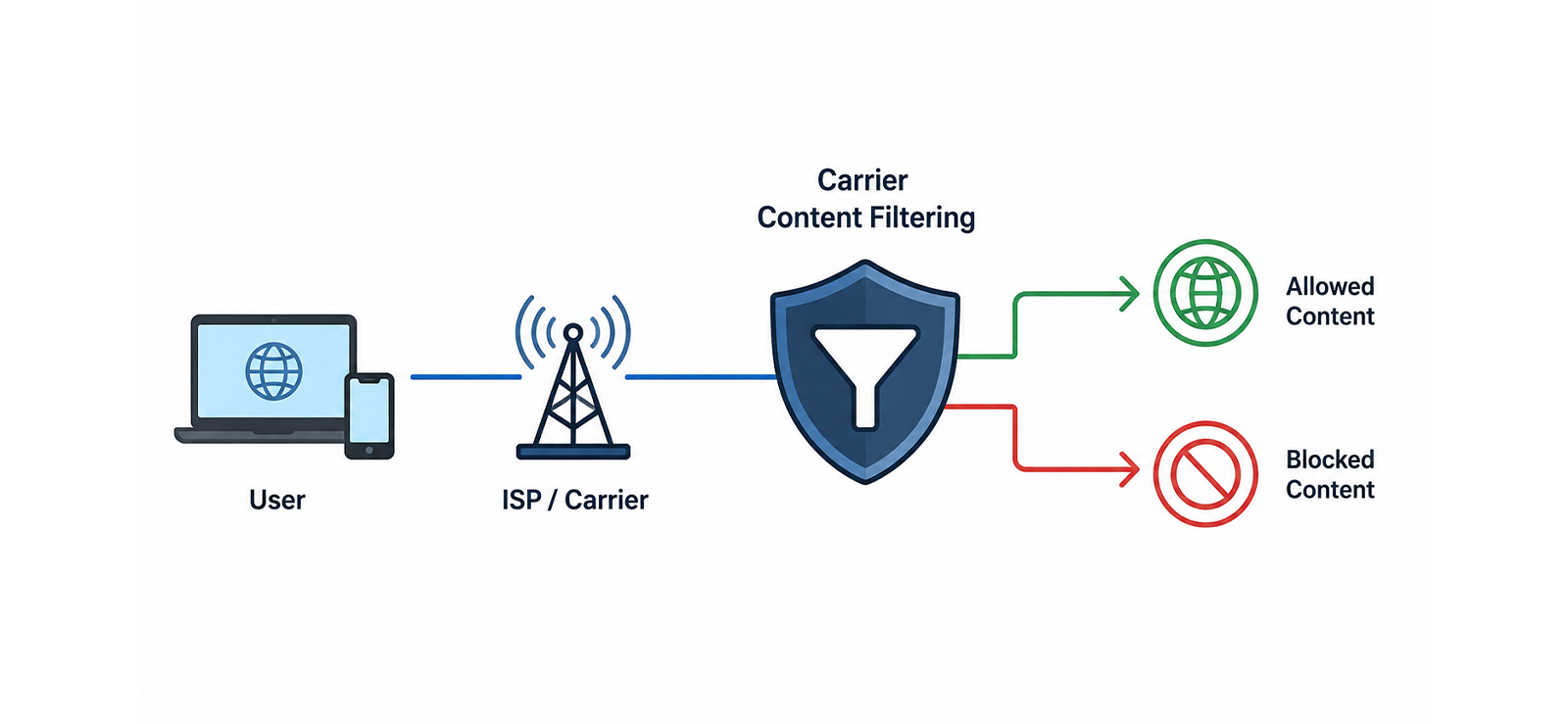
Many mobile carriers offer content filtering to block adult sites, gambling, or other restricted content at the network level. This means that regardless of Wi-Fi or VPN usage, the iPhone will be restricted while using mobile data. This is useful when blocking websites without needing physical access to the device.
That said, this method only works when the iPhone is using mobile data; switching to Wi-Fi may bypass these restrictions.
Here’s how to block inappropriate websites on iPhone with this method:
- Visit your carrier’s website (AT&T, Verizon, T-Mobile, etc.) and log in to the account managing the target iPhone.
- Go to the Parental Controls, Family Safety, or Content Filtering section.
- Select the appropriate content filter (e.g., “Restrict Adult Content,” “Block Social Media,” or “Custom Blocklist”).
- Choose the specific phone number linked to the iPhone and apply the changes.
- The carrier will enforce the restrictions at the network level, and they may take effect within minutes or require a phone restart.
Did This Method Work for Me?
I tested carrier content filtering with two major carriers. Enabling the filter through the carrier’s online portal was straightforward and took under five minutes, with no physical access to the iPhone required. Adult content was blocked reliably when the phone was on mobile data.
However, the moment the iPhone connected to any Wi-Fi network, the carrier filter stopped applying. I also found that the category options varied significantly between carriers; one offered granular controls with a custom blocklist, while the other only offered broad categories like “Adult” or “Violence.”
Availability of this feature also depends on your plan tier. It is a useful layer of protection, but it works best when combined with router-level blocking for complete coverage.

Pro Tip
Believe it or not, you can also block websites on any Android without even holding the phone.

5. Apply iCloud Restrictions via Remote Configuration Profile
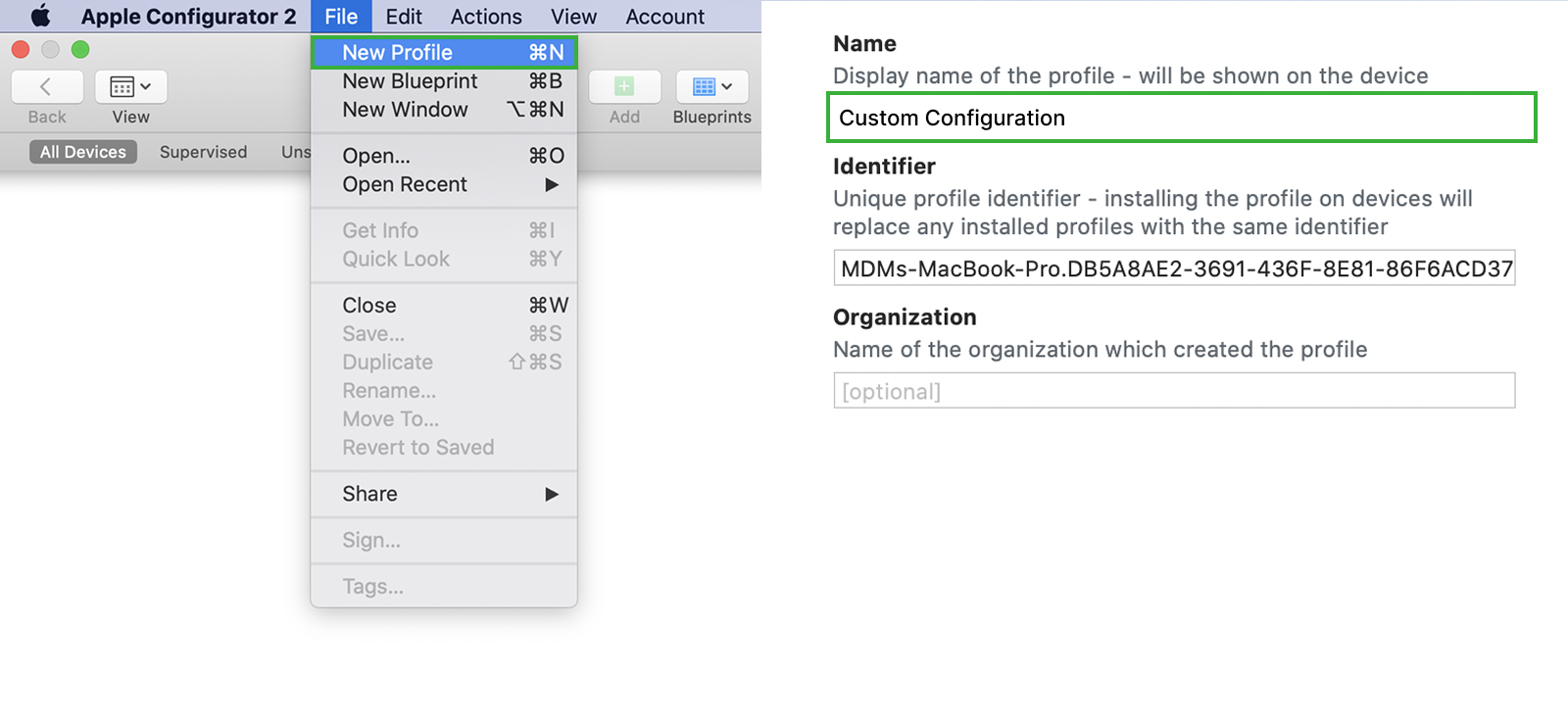
If you are trying to learn how to block websites on Safari iPhone, an iCloud Configuration Profile is an advanced method you can use. It lets you remotely enforce restrictions on an iPhone by installing a profile file. IT admins use this in corporate settings, but parents can also use it to block websites, disable Safari, and enforce browsing limits.
For this method to work, the target iPhone user must accept and install the profile, so this method works best if you can get temporary access to their iCloud account.
Let’s see how you can apply iCloud restrictions via Configuration Profile:
- Use Apple Configurator 2 (Mac) or a third-party tool to create a Configuration Profile that restricts web access.
- In the profile settings, add websites to block under Content Restrictions and configure Safari limitations.
- Save the profile and upload it to the iCloud account associated with the iPhone.
- The iPhone will receive a notification to install the profile via iCloud.
- Once accepted, the restrictions take effect immediately, and changes can only be made by removing the profile (which may require a passcode).
Did This Method Work for Me?
I tested this method using Apple Configurator 2 on a Mac. Creating the profile took about 20 minutes the first time due to the setup learning curve — it is not a method designed for non-technical users. Once the profile was installed on the target iPhone, the restrictions were applied immediately and held up to every bypass attempt I made, including VPN usage and private browsing.
Unlike Screen Time, the profile could not be turned off from the device itself without the removal passcode. This makes it the most tamper-proof method on this list. The main challenge is the initial setup: it requires either a Mac with Apple Configurator 2 or an MDM platform, and realistically benefits from one-time physical access to the target iPhone. For parents managing a household device long-term, the effort is worth it.
FAQs
How to block websites on iPad without having access to the device?
To block websites on an iPad remotely, use Apple Screen Time if the device is linked to Family Sharing. Another option is router-level website blocking, which prevents access to specific sites for all devices on the network. If the iPad uses mobile data, enable carrier content filtering via the network provider’s parental controls. These methods restrict browsing without needing physical access to the iPad, but they may not work if the user switches networks or resets settings.
How to block website on iPhone without installing the software on the target phone?
If you want to know how to block websites on Safari iPhone without installing any app, one way of doing so is to use router-level blocking, which restricts access to specific sites for iPhones on the same Wi-Fi network. Another method is carrier content filtering, which blocks adult content and specific categories at the network level for mobile data.
However, router settings only work at home, and carrier filters don’t cover Wi-Fi usage. Instead of partial restrictions, XNSPY provides full browsing history, letting you see what is accessed and when. This gives better control without relying on rigid blocks that can be bypassed with VPNs or different networks.
How to restrict websites on iPhone discreetly if they are using private browsing mode?
You can use Screen Time’s content restrictions to block adult websites or create a custom blocklist, and Wi-Fi router settings to restrict sites across all connected iPhones. Another option is third-party apps that filter content. However, these methods aren’t foolproof – private browsing can still bypass some blocks, and router-level controls don’t work on mobile data.
A better solution is Xnspy, which monitors browsing activity on the target iPhone even in private mode. Instead of just blocking access, it gives you real-time insights into what is being searched and accessed, allowing for smarter intervention rather than relying on restrictive measures alone.
How to block bad websites on iPhone if the target is using multiple browsers?
You can block sites using Screen Time restrictions, set up DNS-based filtering (like OpenDNS), or use network-level blocks via your router. However, these solutions don’t work across all browsers. Someone using Safari, Chrome, Firefox, or Brave on an iPhone can easily switch to a different browser that isn’t restricted.
Instead of constantly updating blocklists, Xnspy lets you track browsing history remotely across all browsers on their iPhone, regardless of which one is being used. This way, you get full visibility into their online activity without having to block every possible access point manually.
How to block certain websites on iPhone remotely if multiple users share the device?
For a shared iPhone, Screen Time’s website restrictions allow you to block specific URLs while keeping other content accessible. Wi-Fi router settings can also restrict access to certain sites, applying the block to all connected users. Another option is DNS-based filtering, which prevents unwanted websites from loading on the other person’s iPhone.
However, these methods may affect all users on the target iPhone, including those who don’t need restrictions. To keep controls flexible, consider setting up multiple Screen Time profiles for different users, so that only those who need limitations are affected while others can browse freely on the target iPhone.
Leave a reply:
Your email address will not be published. Required fields are marked*
Mike Everett
Member since October 20, 2014
Mike Everett
Member since October 20, 2014
Mike Everett is a consumer technology journalist with expertise in hands-on testing and evaluation of iOS and Android monitoring applications. With over 11 years in the industry, he focuses on how mobile monitoring tools perform in real-world conditions, including accuracy, feature reliability, device compatibility, and practical usability for parents.
He conducts live-device testing of monitoring apps to assess how well their features function beyond marketing claims. His work primarily includes comparative reviews, feature breakdowns, and buyer-focused guides designed to help parents understand which tools actually deliver usable results in everyday scenarios.