How to Block Websites on Android Without Having the Phone: 6 Best Ways
 By Mike Everett
The complete monitoring experience for your phone
Get XNSPY and start tracking calls, texts, multimedia, locations and more on any phone!
Get Started Now Live DemoYou can’t keep an eye on your kids 24/7, but you can make sure they don’t stumble onto websites they shouldn’t be on.
Whether it is inappropriate content or just plain old time-wasters, blocking certain sites on their Android devices is the easiest way to set boundaries, without having to physically take their phone.
Sounds impossible? Well, it is not. There are tools and tricks that let you do it remotely, keeping things simple and stress-free.
And that is exactly what we are going to explore today. In this guide, I will show you how to block websites on Android phone discreetly and ensure your child only sees what they should.
Know Everything in The Guide in Under 60 Seconds
- Most parents want to block websites on Android to protect children from adult content, unsafe pages, gambling sites, distractions, and other age-inappropriate material.
- Xnspy: A monitoring-focused method that helps parents see visited websites, searches, keyword activity, and repeated risky behavior.
- DNS Settings: A device-level filtering method that blocks unsafe websites before they load and works across common browsers.
- Router Controls: A home Wi-Fi method that blocks websites across multiple connected devices.
- Google Family Link: A child-account management tool for Chrome browsing, app access, screen time, Google Search, and device rules.
- Web Extensions: A browser-specific option for blocking selected websites, which is useful for quick restrictions.
- Carrier-Level Content Filtering: A mobile-data filtering method that helps protect children outside home Wi-Fi.
Things I Considered When Testing How to Block a Site on Android
I tested each method before adding it to the guide because website blocking on Android is rarely as simple as turning on one setting and assuming everything is safe.
To keep the testing practical for parents, I focused on how easy each method was to set up, how consistently it blocked harmful websites, and how quickly a child could bypass it.
I also compared whether each method served as a complete solution or only as a single layer of protection.
Overall, the factors I took into consideration are given below:
- Blocking success rate: I checked how often each method blocked obvious adult websites.
- Ease of setup for parents: I looked at whether an average parent could set up the method without needing advanced technical knowledge.
- Coverage across browsers, apps, and networks: I further tested whether the method worked only in one browser or across the child’s wider internet use.
- Bypass risk: I considered how easily a child could avoid the restriction by switching browsers, using mobile data, installing a VPN, or opening content inside apps.
Check Out These Blogs

🚨  How to Block Apps on Android Remotely: 5 Best Ways
⚡  How to Retrieve Deleted Text Messages from Another Phone
📱   Does Tinder Notify Screenshots? Answer, Tips, and 4 Best Ways
Common Mistakes Parents Make When Blocking Websites on Android
Before I get into how to block inappropriate websites on Android, you first need to be well-versed in what possible mistakes you are prone to.
Well, one common mistake parents make is relying on just one method and assuming it will block everything. In reality, children may still access websites through another browser, mobile data, apps, or VPNs.
Another mistake is focusing only on websites while ignoring apps like YouTube, TikTok, Instagram, or Reddit, where unsafe content can still appear.
Parents should also test every setup after applying it. A filter may look active but fail because of a wrong setting or a network change.
Lastly, parents should avoid setting restrictions without explanation. Children are more likely to accept limits when they understand that the goal is safety, not punishment. Clear rules and regular checks make website blocking more effective.
How to Block a Website on Android Without Accessing the Target Device: 6 Proven Methods
Here are the 6 methods you can use to block any website on Android without even touching it.
| Method | Success Rate | Best For | Can Be Paired With | Appropriate Age | Limitations |
| Xnspy | 82% for monitoring visibility | Seeing what children search for, which websites they visit, and whether risky behavior repeats | DNS settings, router controls, and carrier filtering | 12+, especially older children and teens | Not a complete website blocker. Requires one-time phone access for setup. |
| DNS Settings | 88% for blocking obviously unsafe websites | Blocking adult, gambling, malicious, etc., across common browsers | Xnspy, Google Family Link, router controls | 8-15 | Can be bypassed with VPNs or proxy apps. |
| Router Controls | 92% on home Wi-Fi | Blocking websites on all child devices connected to the home internet | Xnspy, DNS settings, web extensions | Under 8-14 | Only works on home Wi-Fi. Drops to 0% effectiveness when the child switches to mobile data. |
| Google Family Link | 86% for younger children using Chrome and Google services | Managing Chrome browsing, app access, screen time, Google Search, and device rules | DNS settings, router controls, Xnspy | Under 13 | Strongest within Google services. Effectiveness may drop to 65-70% if the child uses unsupported browsers. |
| Web Extensions | 68% when used in a supported browser | Blocking specific websites inside one browser | DNS settings, router controls, Xnspy | 9-13 | Browser-specific. Effectiveness can drop by 35-45% if the child uses another browser. |
| Carrier-Level Content Filtering | 80% for mobile data protection | Blocking or limiting unsafe websites when the child is not on home Wi-Fi | Router controls, DNS settings, Xnspy | 10-16, particularly children with mobile data | Depends on carrier. Some filters need an app or VPN profile. |
1. Use Xnspy
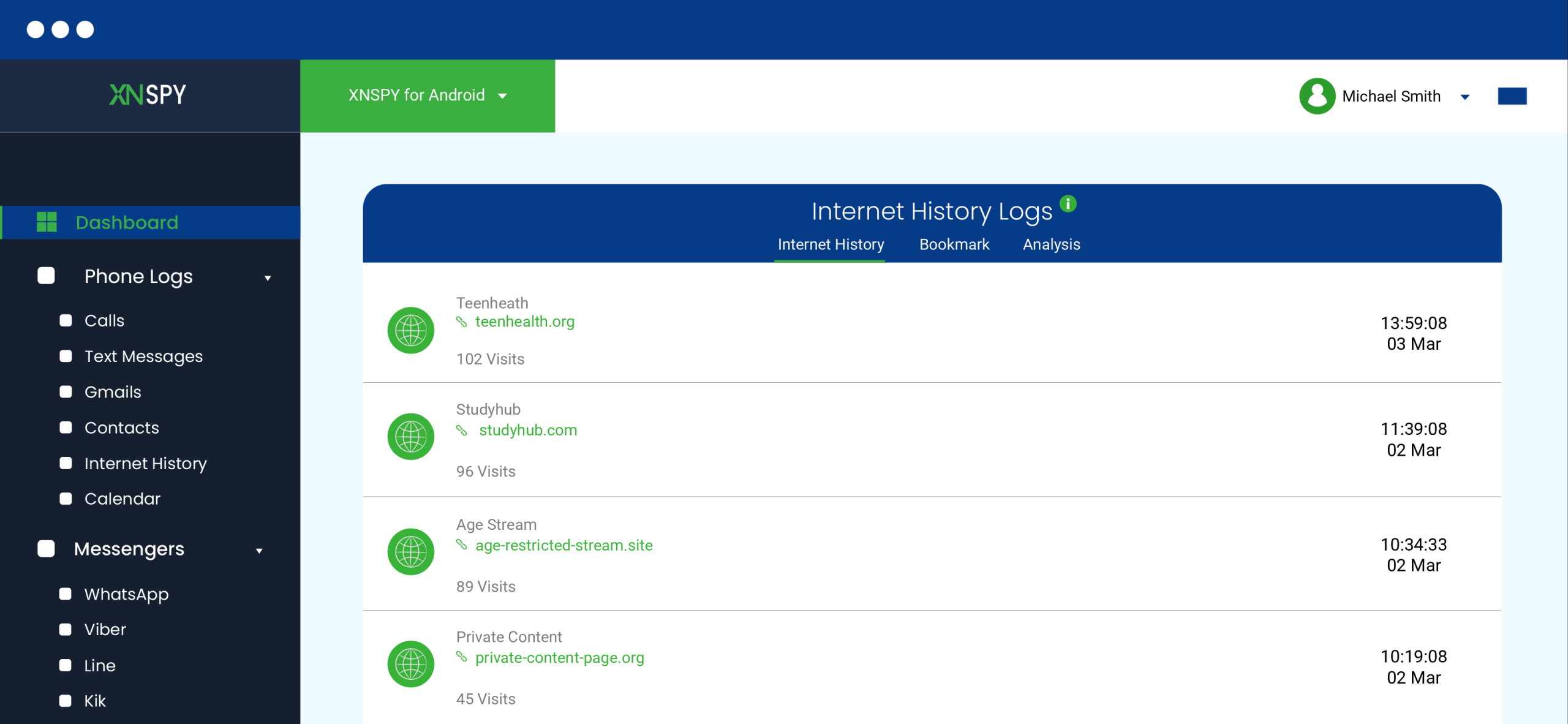
Xnspy is best used as a monitoring and awareness method, not as the only website-blocking solution. For parents, its main value is that it helps show what a child is searching for and repeatedly returning to online.
That matters because website blocking alone does not always tell you what the child was trying to access, whether they used another browser, or whether concerning searches happened inside apps.
For these details, Xnspy includes browser data, keylogs, screen records, and keyword alerts. While browser data consists of visited URLs, page titles, and timestamps, keylogs provide insight into their search queries, both in browsers and in apps.
To further offer context into the child’s activity on a specific browser, you can check screen records that are captured by Xnspy every 5 seconds.
Lastly, for specific details, you can set up keyword alerts and receive notifications when your child looks up a specific term.
Want to know how to block websites on Android phone using Xnspy? Here’s how:
- Subscribe from the official Xnspy website and log in to your account.
- Install it only on a child’s device after gaining physical access to their phone once.
- Add keywords related to adult content, drugs, violence, self-harm, etc., so the dashboard can flag risky searches.
- Review activity to look for frequent searches, repeated domains, late-night browsing, or sudden changes in browser use.
- Upon detecting anything risky, block apps using Xnspy or combine it with DNS filtering, router controls, or a carrier filter to block access.
Everything I Found Out
When I tested this method as a parent-focused monitoring layer, I found that its success rate was strongest for visibility. I would rate it around 82% effective for detecting concerning browsing behavior after setup. Overall, its biggest strength was context. Instead of only seeing that a site was blocked, I could understand what the child was trying to look up and whether the behavior repeated.
I would say the method was particularly useful for older children and teens because it gave more insight than a simple router block.
However, its limitations are important. For starters, it requires installation access and cannot be described as a complete website blocker.

Xnspy: Smart Monitoring, Not Just Restrictions
Even Incognito mode can’t hide their browsing history from Xnspy.
2. Configure DNS Settings
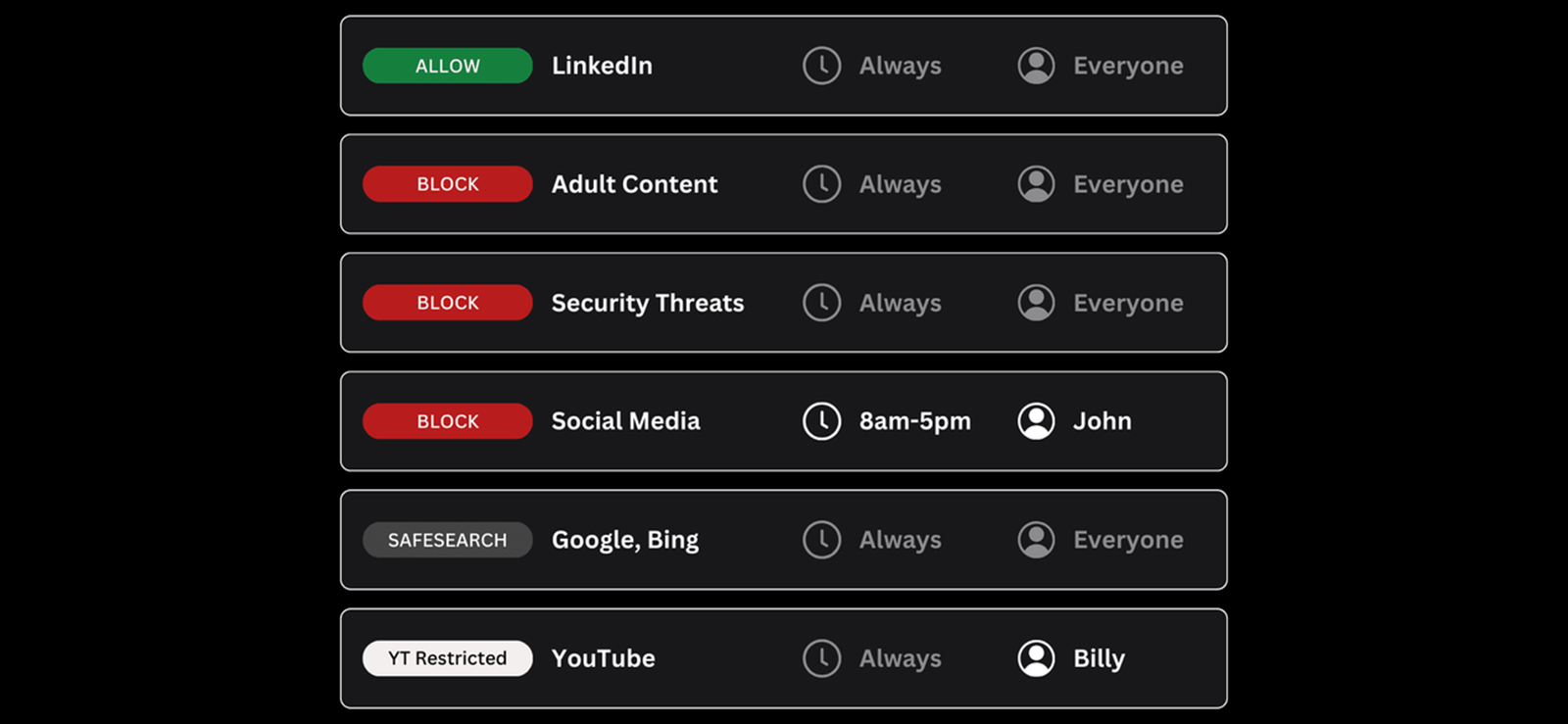
Every time your child types a website name, the phone uses DNS to find and open that website. Therefore, by changing the DNS settings to a family-safe option, parents can stop the phone from opening many unsafe websites before they even load.
Once set up properly, it can help filter websites across commonly used browsers on the child’s Android phone.
But, for child safety, the key is not simply changing DNS to any public resolver. Parents should choose a family-safe DNS provider that blocks adult, malicious, or high-risk categories. Services such as CleanBrowsing and NextDNS are considered reliable options.
However, this method usually needs one-time access to the child’s phone for setup. It is also not perfect, as older children may still try to bypass it using VPN apps or other tools.
Let’s see how to block sites on Android through DNS settings:
- Choose a provider that offers features like adult-site blocking, unsafe-site blocking, SafeSearch support, and custom website blocking.
- Open the child’s Android settings and look for Network & Internet, Connections, or More Connection Settings, depending on the phone model.
- Tap Private DNS and choose the option that lets you enter a provider hostname.
- Copy the DNS hostname from the provider and paste it into the Private DNS field.
- Once saved, the phone will start using that safer filter when opening websites.
Everything I Found Out
I found DNS filtering to be one of the easiest one-time setup methods for parents.
Once I set it up, it did not need daily checking, which makes it practical for busy families. I would rate it around 88% effective for blocking obvious unsafe websites on a child’s Android phone. Not only that, but it also worked across multiple browsers, so if a child switched from Chrome to another browser, the filter still had a good chance of blocking the same unsafe sites.
However, it was not perfect. First, I still needed access to the child’s phone once to set it up. Second, I found that the method was less effective if the child could install a VPN app. In that case, the chance of bypassing the filter increased by around 30-40%.
3. Modify Router Controls
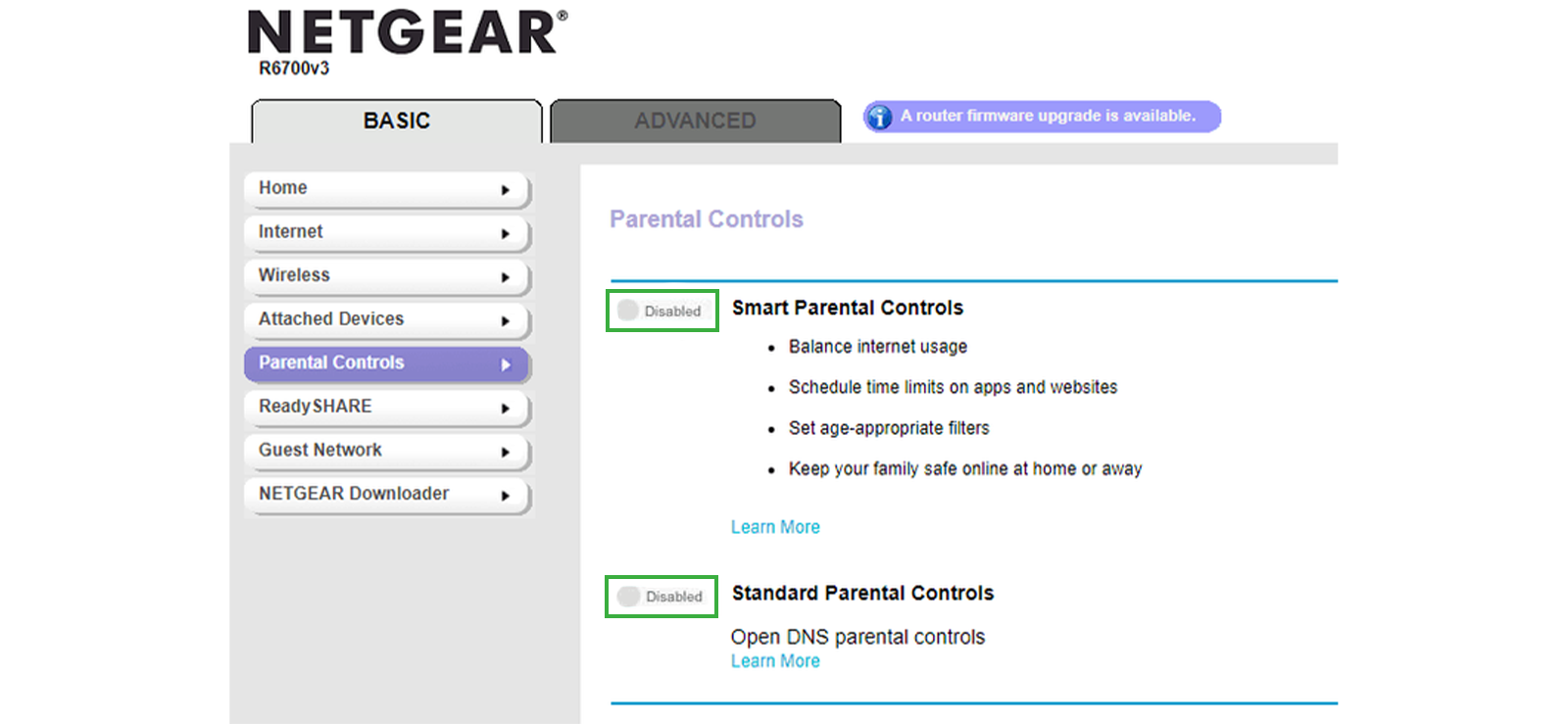
Router controls are among the best methods for families because they protect every child’s device connected to the home Wi-Fi network. Instead of setting rules one phone at a time, parents can create profiles, block websites, set schedules, pause internet access, and restrict categories from the router dashboard.
Overall, the method works for younger children, shared tablets, gaming devices, and school-night routines.
Still wondering how to block a site on Android with router controls? Follow the steps below:
- Use the router’s admin page or official app, such as TP-Link Tether, ASUS Router, Orbi, or Nighthawk, depending on the router model.
- Assign the child’s phone, tablet, laptop, gaming console, and smart TV to one profile so the same rules apply across devices.
- Block categories and specific domains that you already know are a concern.
- Use time limits or offline windows for school nights, homework hours, meals, and sleep routines.
Everything I Found Out
Router controls gave me the highest success rate inside the home. I would rate this method at 92% effective on home Wi-Fi when the router supported modern parental controls and the child’s devices were correctly assigned to a profile.
Its biggest strength was coverage. For example, one setup during testing protected 3-8 household devices at once. It was also easier to enforce screen-free times because the router could pause access at the network level.
Nonetheless, the limitations were equally clear. The method dropped to 0% effectiveness once the child left the home Wi-Fi or switched to mobile data.
I also found that router controls varied a lot by brand and model. Some routers offered category blocking and reporting, while others only offered basic URL blocking.
4. Try Out Google Family Link
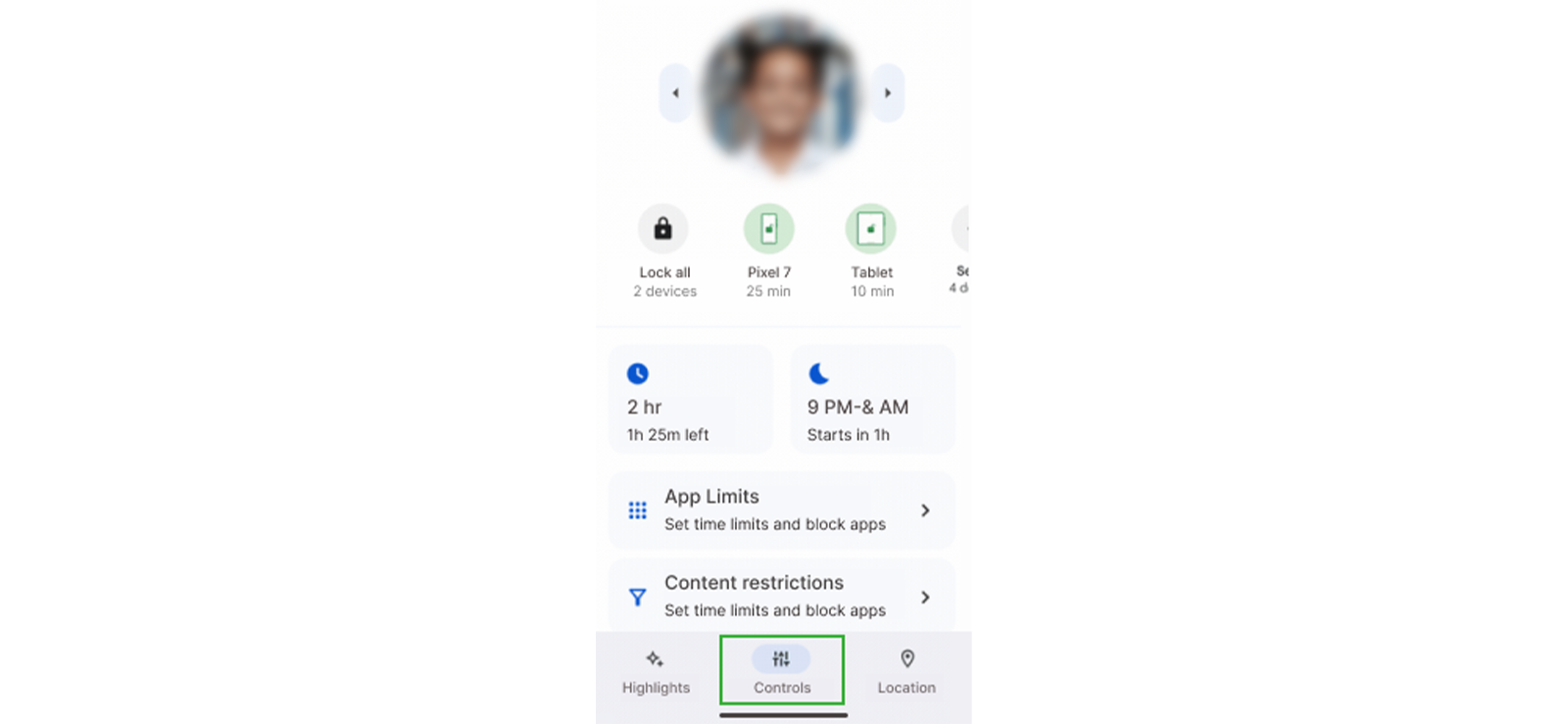
Google Family Link is a tool that manages a child’s Google account, Chrome browsing, Google Search settings, app access, screen time, and device rules from the parent’s phone.
Using the tool, parents can choose content filters for Chrome, block explicit sites, allow or block specific sites, and approve or deny a child’s request to visit blocked websites.
Here’s how to block a website on Android with the help of Google Family Link:
- Use Family Link to link the child’s account to the parent’s account and confirm the child is signed in on the Android device.
- Choose whether to block explicit sites, allow only approved websites, or manually add blocked websites.
- Apply Family Link’s screen-time controls to notice whether the child is spending too much time in browsers, social apps, or video platforms.
Everything I Found Out
Google Family Link worked best as the account-control layer. I would rate it around 86% effective for younger children using Chrome and a supervised Google account.
Its main strength was that it gave parents several controls in one place, i.e., Chrome filtering, app approvals, screen time, device locking, Google Play restrictions, and search protections.
However, it was not a perfect system-wide website blocker. Its website controls are strongest inside Chrome and Google services, which means the success rate can drop to around 65-70% if the child can install unsupported browsers or use another search engine.
But before using the app, remember that it can only be employed for children less than 13 years old, which felt like a huge limitation to me.

Did You Know?
You can even access someone’s deleted Safari history on their iPhones remotely.

5. Add Web Extensions
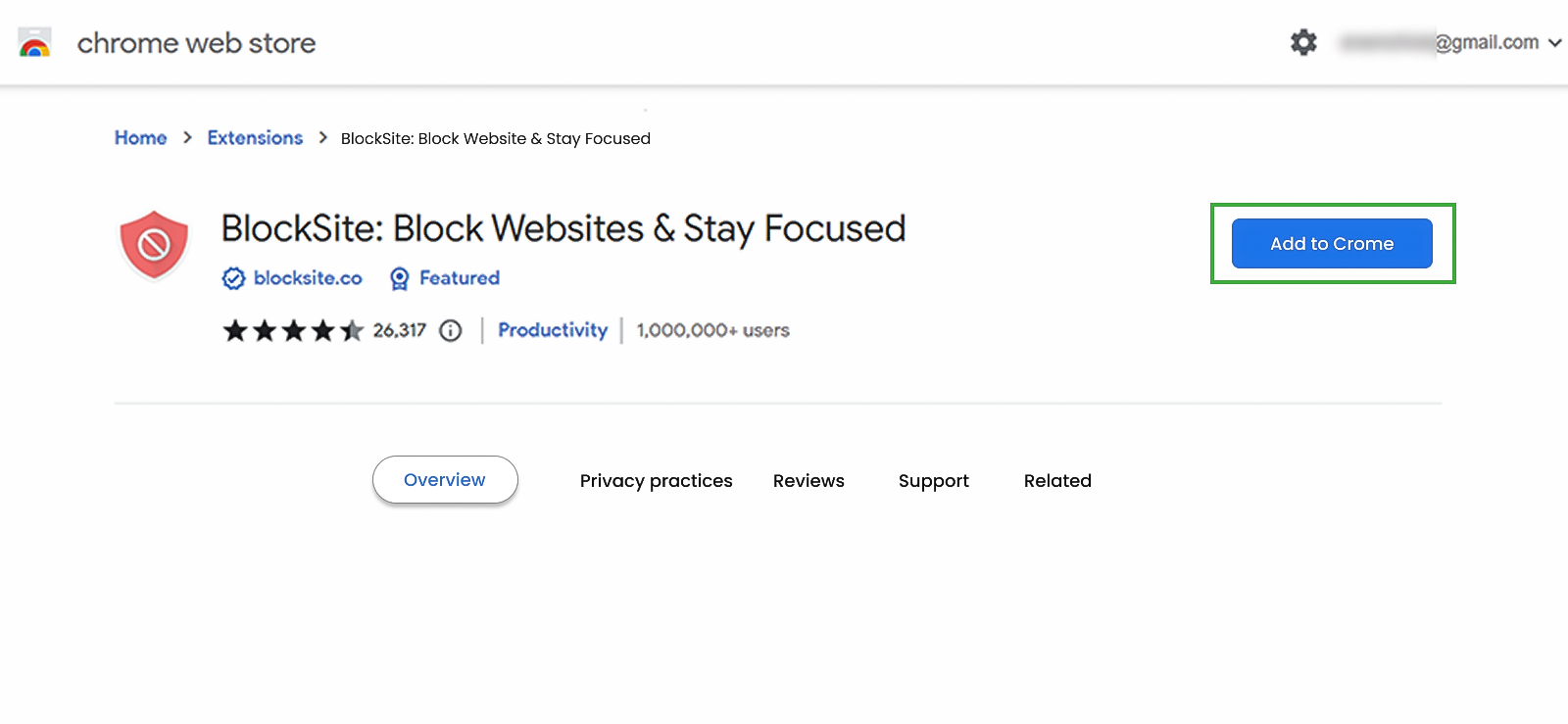
Web extensions are small tools that add extra features to a browser. Some of them can help parents block adult unsafe websites directly inside the browser their child uses.
However, parents should know one important thing before using this method, i.e., web extensions do not work the same way across all Android browsers.
That means this method works best when the child uses a mobile browser that supports add-ons or extensions. Once the extension is installed, parents can usually add blocked websites, set rules, or restrict certain pages from opening inside that browser.
Let’s see how to block websites on Android without app:
- Before setting anything up, make sure the child’s browser allows mobile extensions or add-ons.
- Choose a website blocker that lets you add specific URLs or keywords.
- In it, enter the sites you do not want your child to access.
- Set rules and keep them simple so they are easier to manage.
- For better website blocking, remove or restrict extra browsers from the phone.
Everything I Found Out
I found web extensions useful, but only as a light browser-level method. I would rate this method at around 68% effective when used in a browser that supports extensions and when the child mainly uses the same browser.
What I liked most about the method was that I could block a specific website in just a few minutes, and the rule started working inside the browser right away.
Though, needless to say, web extensions are inherently limited. If the extension is installed in one browser, it does not automatically control every other browser on the phone.
In my experience, the effectiveness dropped by around 35-45% if the child had access to another browser.
Another thing I noticed was that extensions can vary in quality. Some are easy to use, while others have too many ads, limited free features, and broad permissions that parents may not be comfortable with.
For that reason, I would not recommend this as the main website-blocking method. Overall, it works better as a small extra layer for parents who want to block a few specific websites within a single browser.
6. Apply Carrier-Level Content Filtering
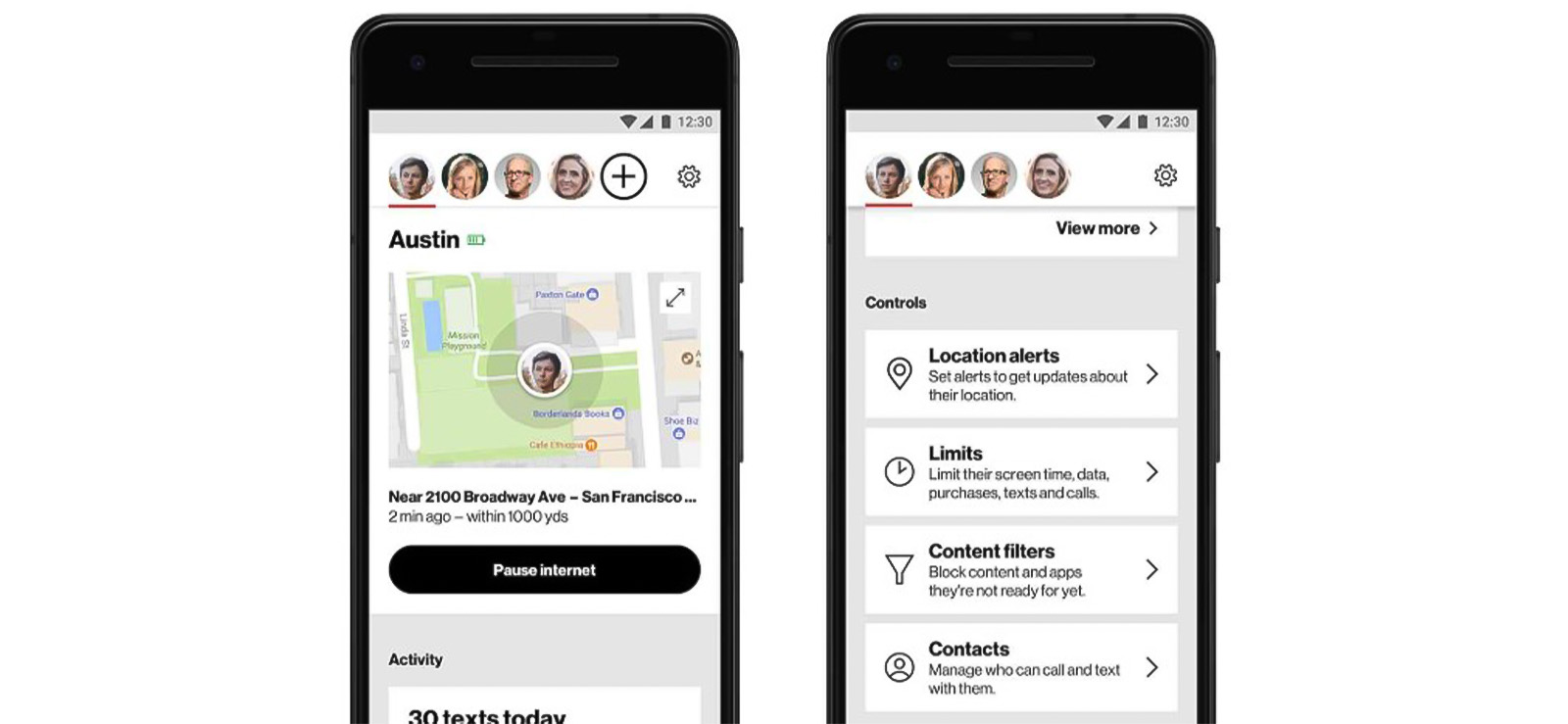
Carrier-level content filtering covers website blocking when the child’s phone is using mobile data. Therefore, they bridge the gap left behind by router-level filters.
All in all, carrier parental controls can include content filters, time restrictions, location features, app rules, and mobile data limits, depending on the provider
Regardless, parents should check how their carrier’s system works before relying on it.
When wondering how to block websites on Android, carrier-level content filtering can help:
- Open the carrier account and look for settings such as Family Controls, Content Filters, Child Line Controls, and Smart Family.
- Apply rules to the child’s number or device profile instead of the whole family plan.
- Turn on age-appropriate content categories and add custom blocked and allowed websites.
- Turn Wi-Fi off and try blocked categories using cellular data to confirm the filter is working.
Everything I Found Out
I would rate carrier-level filtering around 80% effective for mobile data protection, though it depends heavily on the carrier.
If done right, I could see that it protected the target device outside the home, too. I also liked that the rules were tied to the child’s line or family account, which made them harder for younger children to change.
The limitations, however, were more noticeable. For example, some carrier tools required an app, some required VPN mode, and some had weaker URL-level blocking than dedicated DNS filters.
Therefore, in practice, the success rate fell by 15-25% when the VPN profile was disabled, battery restrictions were in effect, or the carrier offered only broad categories.
FAQs
How to block websites on Android phone permanently?
For long-term website blocking, use Google Family Link with carrier-level content filtering. When in use, Family Link helps manage Chrome browsing and Google Search rules, while carrier filtering protects the child when they use mobile data.
How to block websites on Android without app?
To block websites on Android without installing an app on the child’s phone, use router controls. Most modern routers let parents block websites and categories from the router dashboard. Once applied, the rules apply to devices connected to the home Wi-Fi. However, this method only works on that network, so it will not block websites when the child switches to mobile data or another Wi-Fi connection.
How to block sites on Android if the child is using Incognito Mode?
If the child uses Incognito Mode, use Xnspy with router controls. Since Incognito may hide browser history on the phone, Xnspy helps parents see browsing behavior, searches, and repeated risky activity after setup. Meanwhile, router controls can still block unsafe websites on home Wi-Fi. Together, the two methods provide visibility while the other adds actual blocking at the network level.
How to block websites on Android phone if the target person uses multiple browsers?
If the child uses multiple browsers, use Google Family Link with Xnspy. Family Link can help limit or block browser apps, while Xnspy gives parents visibility into browsing behavior across the device.
How to block inappropriate websites on Android when your child keeps switching between Wi-Fi and mobile data?
If your child keeps switching between Wi-Fi and mobile data, use router controls with carrier-level content filtering. While router controls help with blocking websites on Android when the child is connected to home Wi-Fi, carrier filtering applies restrictions when they use mobile data outside the house. This pairing works better than relying on a single setting because it covers both common internet paths that children use to bypass website blocks.
Leave a reply:
Your email address will not be published. Required fields are marked*
Mike Everett
Member since October 20, 2014
Mike Everett
Member since October 20, 2014
Mike Everett is a consumer technology journalist with expertise in hands-on testing and evaluation of iOS and Android monitoring applications. With over 11 years in the industry, he focuses on how mobile monitoring tools perform in real-world conditions, including accuracy, feature reliability, device compatibility, and practical usability for parents.
He conducts live-device testing of monitoring apps to assess how well their features function beyond marketing claims. His work primarily includes comparative reviews, feature breakdowns, and buyer-focused guides designed to help parents understand which tools actually deliver usable results in everyday scenarios.