Does iMessage Notify Screenshots: The Clear Answer You’ve Been Looking For

The complete monitoring experience for your phone
Get XNSPY and start tracking calls, texts, multimedia, locations and more on any phone!
Get Started Now Live DemoSay you are having a heated discussion, or maybe a fun, lighthearted conversation with your friend over text. At some point, you feel the urge to screenshot the chat. Maybe you want to keep proof of an important detail or simply capture a funny moment to look back at later. Whatever the reason, just as your fingers move toward taking that snapshot, you pause.
What if iMessage notifies them? You think. With so many apps today sending alerts for screenshots, it is a valid concern. Some social media platforms have made users hyper-aware of digital footprints, and constant software updates from Apple only add to the uncertainty.
So, does iMessage notify when you screenshot? Will they know instantly, or at all? In this article, we will break down exactly how iMessage handles screenshots and clear up common misconceptions.
What You Need to Know – At a Glance
– iMessage Does Not Notify Screenshots: Regular text messages, emojis, links, images, and videos captured via screenshot or screen recording do not alert the sender.
– Disappearing Media Is an Exception: Screenshots of disappearing photos or view-once videos may trigger a notification in newer iOS versions.
– Screenshot Methods Vary: iPhone users can capture iMessages using standard buttons, Back Tap, Assistive Touch, Siri, or third-party apps, each with pros and limitations.
– Invisible Ink Messages Require Timing: Screenshots of messages with Invisible Ink only capture what is temporarily visible when revealed on-screen.
– Parental Monitoring Tools Work Differently: Apps like Xnspy can capture iMessage activity and screenshots automatically, including disappearing media.
Does iMessage Notify When You Screenshot? Here’s What You Should Know
The short answer to your question, “does iMessage notify screenshots,” is reassuringly simple: No, iMessage does not notify the other person when you take a screenshot. So, that moment of hesitation, when your fingers freeze, and you start wondering if they’ll know, turns out to be unnecessary.
How so? Well, when you take a screenshot on an iPhone, you’re not really interacting with iMessage at all. You’re triggering a system-level function built into iOS. The phone quietly captures whatever is on your screen and saves it to your Photos app. iMessage screenshot notification doesn’t go through, Apple doesn’t send a signal, and the other person remains completely unaware.
You might think that it can show when you’ve read a message or when you’re typing a reply, but that’s it. iMessages have no insight into what you do with your screen. Screenshots, screen recordings, and saved images all happen outside of iMessage’s view.
There is, however, a small detail worth keeping in mind. If someone sends a disappearing photo or video through iMessage, newer versions of iOS may notify the sender if that specific content is screenshotted. But for regular chats, texts, emojis, links, and standard photos, nothing changes.
Articles We Think You’ll Love

🚨 Can You Screen Record FaceTime? The Real Answer for iOS Users
💬  How Can I Monitor My Child’s Text Messages on iPhone: 5 Easy Ways
🚸  How to See Someone’s iMessages: 6 Best Methods
🛑  Does Telegram Notify Screenshots: Myth vs. Reality Explained Simply
How to Screenshot iMessage Conversation?
Taking a screenshot of an iMessage conversation can be more than just a simple press of a button, especially if you want to capture more than a single screen or use iPhone features that make the process easier. Fortunately, Apple offers multiple ways to capture your chats, each with its own benefits and quirks. Let’s explore them in detail.
1. Standard Button Screenshot
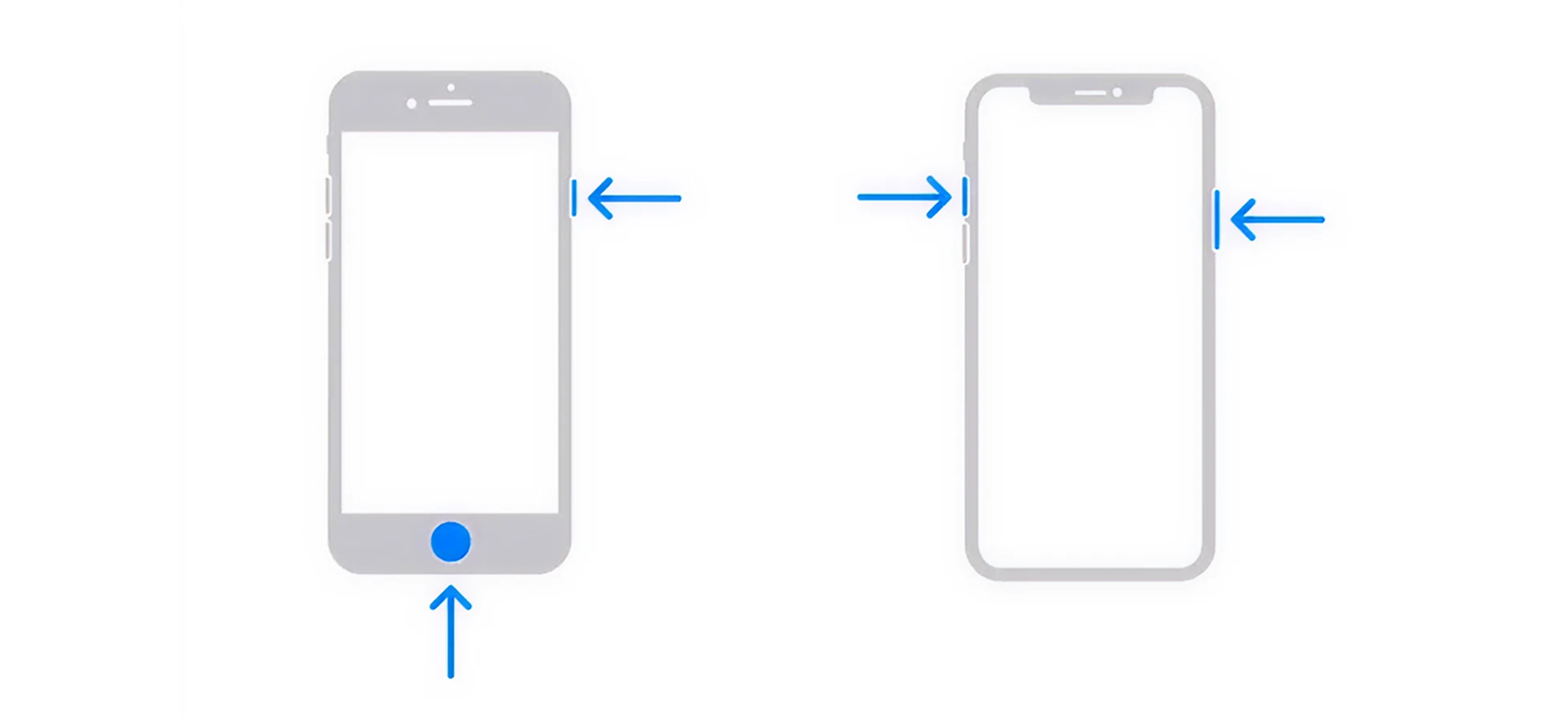
The standard button screenshot is the simplest way to capture exactly what appears on your iPhone screen at a given moment. When you press the Side button and Volume Up button simultaneously on newer iPhones (or the Home and Side button on older models), iOS takes a snapshot of the visible screen and saves it to your Photos app.
To use this method:
- Open the iMessage conversation you want to capture.
- Position the screen to include the messages you want.
- Press the Side button and Volume Up button at the same time.
- Release the buttons quickly, and a thumbnail will appear in the corner. Tap it to edit or swipe to save it directly.
The main limitation of this method is that it only captures what is visible on the screen. If your conversation is long, you’ll need to take multiple screenshots and manually stitch them together if you want the entire chat.
2. Scrolling (Long) Screenshot
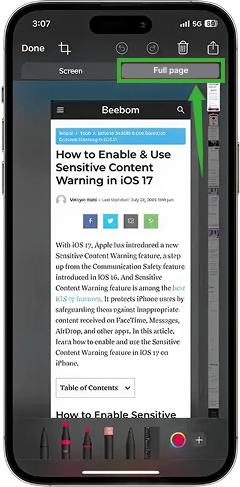
Sometimes a conversation is too long to fit in a single standard screenshot. While iOS doesn’t allow native long screenshots in iMessage like some Android devices, you can use the “Full Page” option when viewing screenshots in apps that support it, such as Safari or Notes, after copying messages there. This method lets you capture an entire conversation in one continuous image or PDF, rather than multiple segmented screenshots.
For this method:
- Open the iMessage conversation you want to capture.
- Tap and hold a message, then select Copy.
- Paste the messages into a Notes or Mail document.
- Take a screenshot of the conversation in that app.
- If the app supports it, select Full Page and save as a PDF to capture the entire conversation.
- Select “Full Page” if available, then save it as a PDF.
- Scroll through the conversation within the editor to ensure all messages are included.
While this method works fine, the limitation here is that this method is not natively integrated for iMessage conversations, so it requires extra steps like copying messages to a compatible app. Also, the output is often a PDF rather than a standard image, which may not be convenient for sharing.
3. Use a Third-Party App
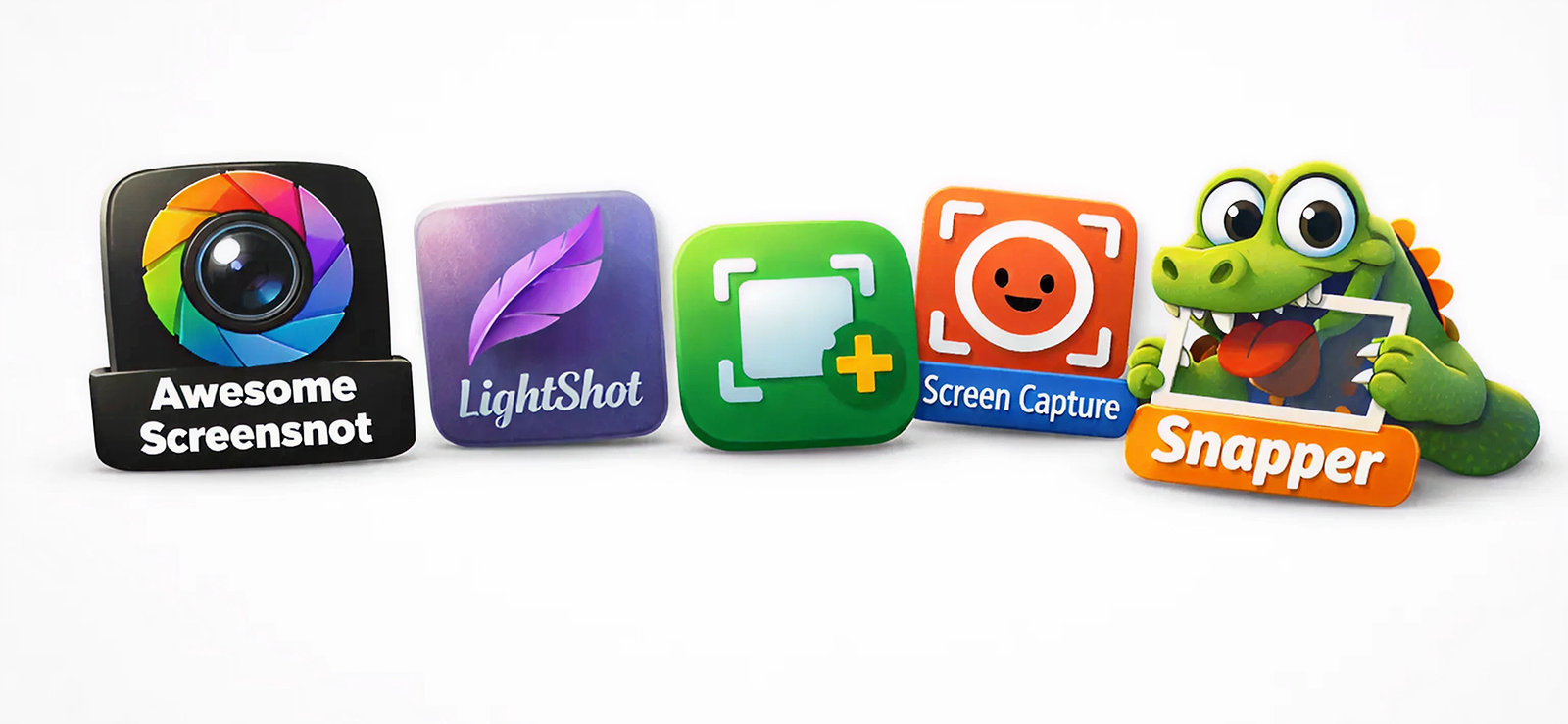
If you want more control over how an iMessage conversation is captured, third-party apps offer an alternative that goes beyond iOS’s built-in tools. These apps are designed to capture long conversations in a single image or document by recording the screen as you scroll or by stitching multiple screenshots together automatically.
For this process:
- Open the App Store and download a reputable screenshot or screen-capture app.
- Grant the required permissions, such as screen recording or accessibility access.
- Open the iMessage conversation you want to capture.
- Start the capture process within the app and scroll through the conversation.
- Save the final image or document to your Photos or Files app.
The main drawback of third-party apps is privacy. Since these tools require elevated permissions, you’re trusting an external developer with on-screen content. Some apps may also add watermarks, limit features behind paywalls, or struggle with formatting messages exactly as they appear in iMessage.

Stay Informed About Your Child’s iMessage Activity
Xnspy gives you the tools to protect your child online.
– View sent and received iMessages
– Automatically capture periodic screenshots
– Monitor conversations with full context
– Stay aware of potential risks with keyword alerts
4. Back Tap to Capture iMessage Conversation
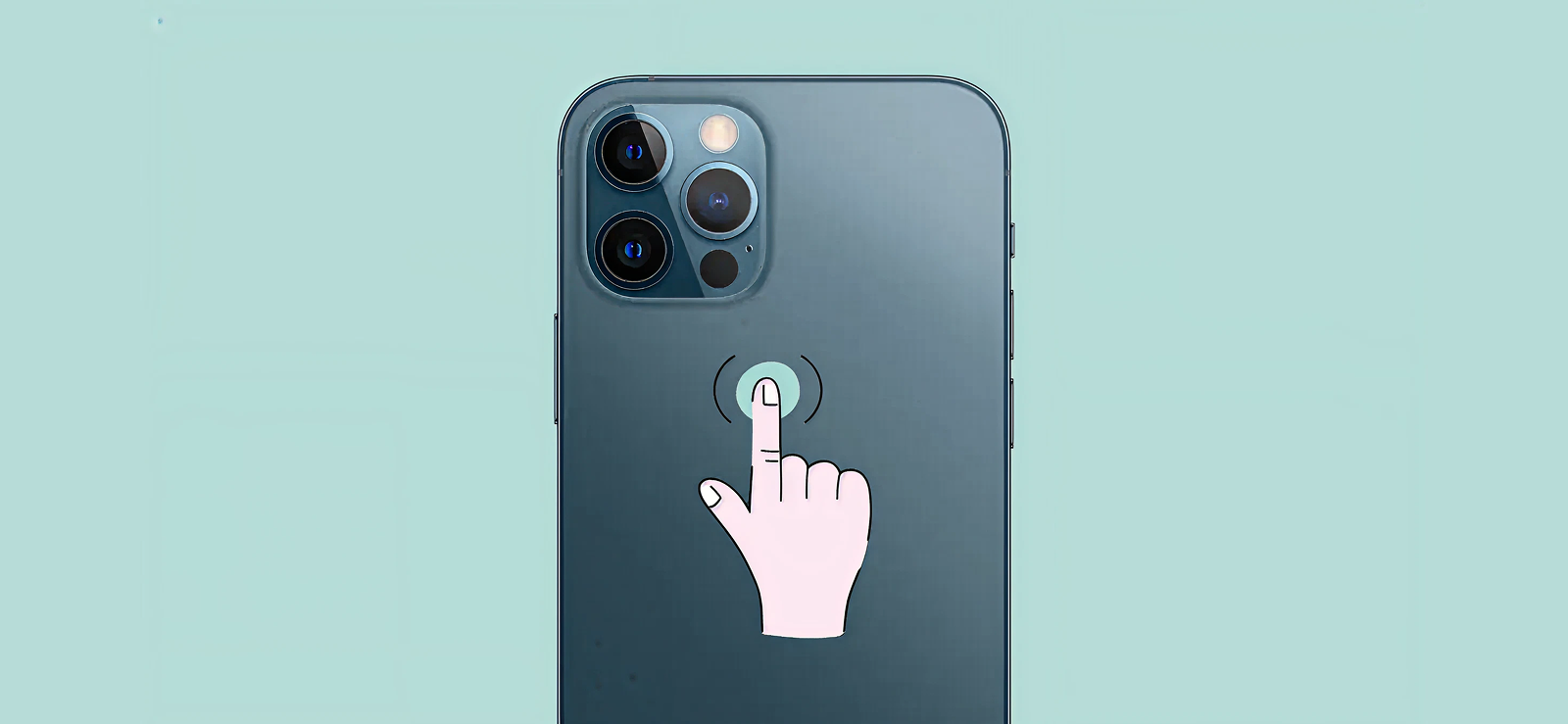
iOS includes an accessibility feature called Back Tap, which allows you to perform actions by double-tapping or triple-tapping the back of your iPhone. One of the actions you can assign is taking a screenshot, which can be particularly handy if you find the physical buttons hard to press or want a faster alternative to the standard screenshot method.
Enable and use the back tap feature by following these steps:
- Go to Settings > Accessibility > Touch > Back Tap.
- Select Double Tap or Triple Tap and assign it to “Screenshot.”
- Open your iMessage conversation and tap the back of your iPhone according to your selection.
However, do know that this method requires a compatible iPhone (iPhone 8 or later) to work. Moreover, it will only allow you to screenshot the messages that are currently showing on the screen. Other than this, it may not work reliably if the phone is in a case that absorbs taps or if your tap isn’t firm enough to trigger the sensor.
5. Using Assistive Touch
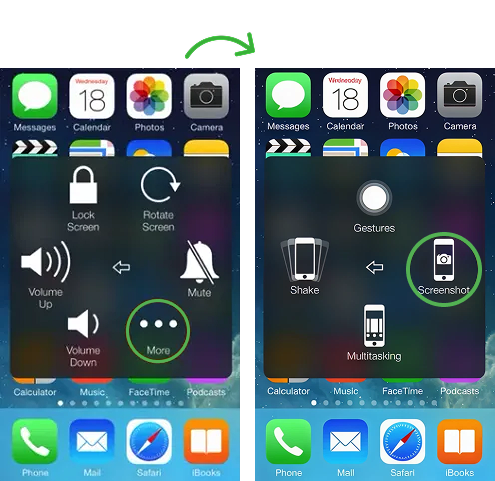
Assistive Touch is another accessibility feature that provides a floating on-screen menu to access hardware functions. You can configure it to take screenshots without pressing any physical buttons. It is ideal for users with limited dexterity or for those who want to preserve the device’s hardware buttons.
To use Assistive Touch:
- Go to Settings > Accessibility > Touch > AssistiveTouch and turn it on.
- Customize the menu to include “Screenshot” or assign it to a double-tap or long press.
- Open your iMessage conversation and tap the AssistiveTouch button, then select Screenshot.
While this method works just fine, it does have a downside to it as well. It slightly slows down the process since it requires opening a menu and selecting the function, which is not ideal for taking a screenshot of invisible ink. Other than this, again, you won’t be able to take a scrolling screenshot of iMessages via this method.
6. Ask Siri to Take a Screenshot
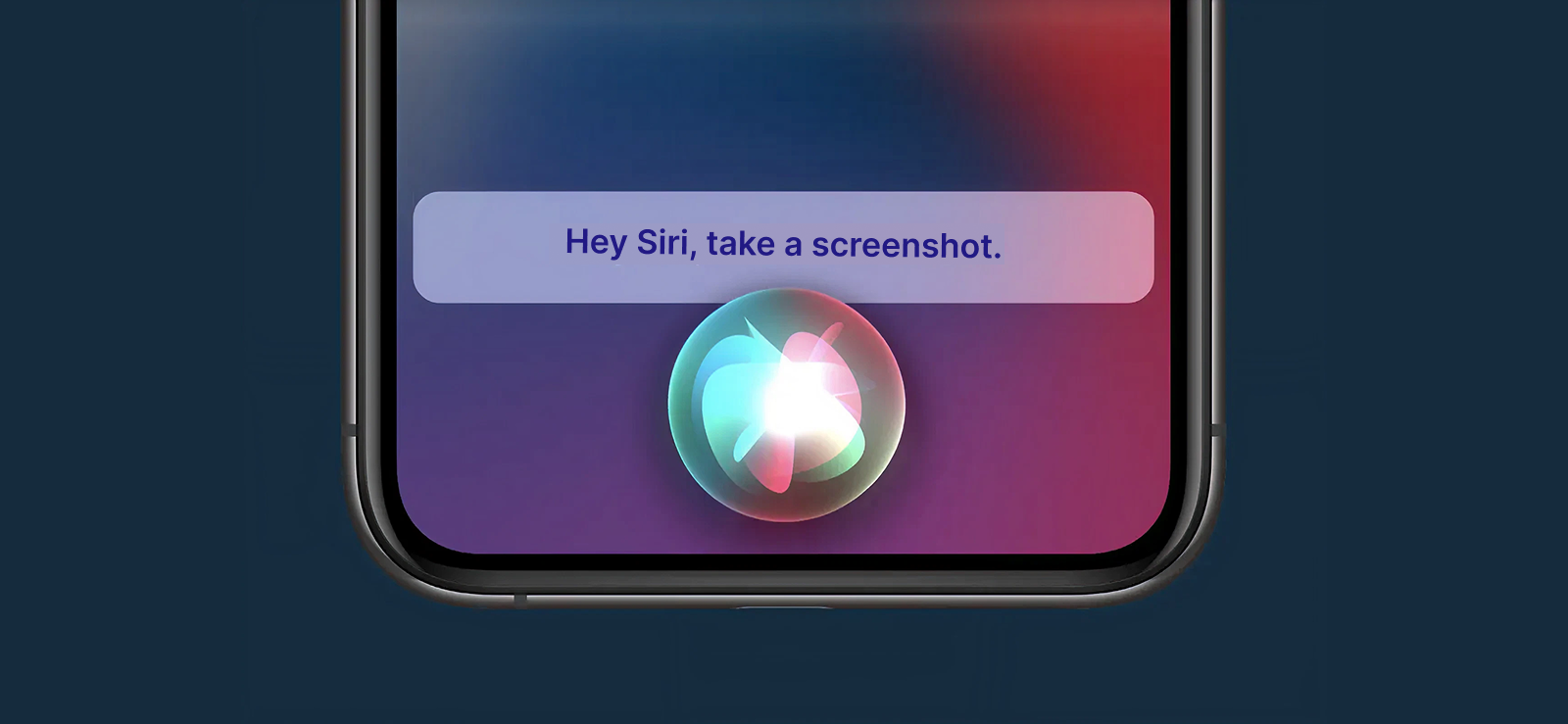
Siri can take screenshots hands-free, which is perfect when you’re multitasking or can’t reach your buttons. By issuing a simple voice command, iOS handles the capture automatically. The mechanism works through iOS system commands, with Siri triggering the screenshot action without needing physical interaction.
To command Siri for a screenshot of an iMessage conversation:
- Activate Siri by saying “Hey Siri” or holding the Side/Home button.
- Say “Take a screenshot” while in the iMessage conversation.
- The screen is captured and saved to your Photos app automatically.
To use this method, Siri must be enabled and listening for voice commands. However, the command may not work in noisy environments or when the phone is locked. Additionally, you won’t be able to take a long screenshot this way; also, hands-free screenshots cannot be edited immediately through the thumbnail interface.

Did You Know?
You can track your child’s iPhone location even if you use an Android.

7. Screenshotting iMessage with Invisible Ink
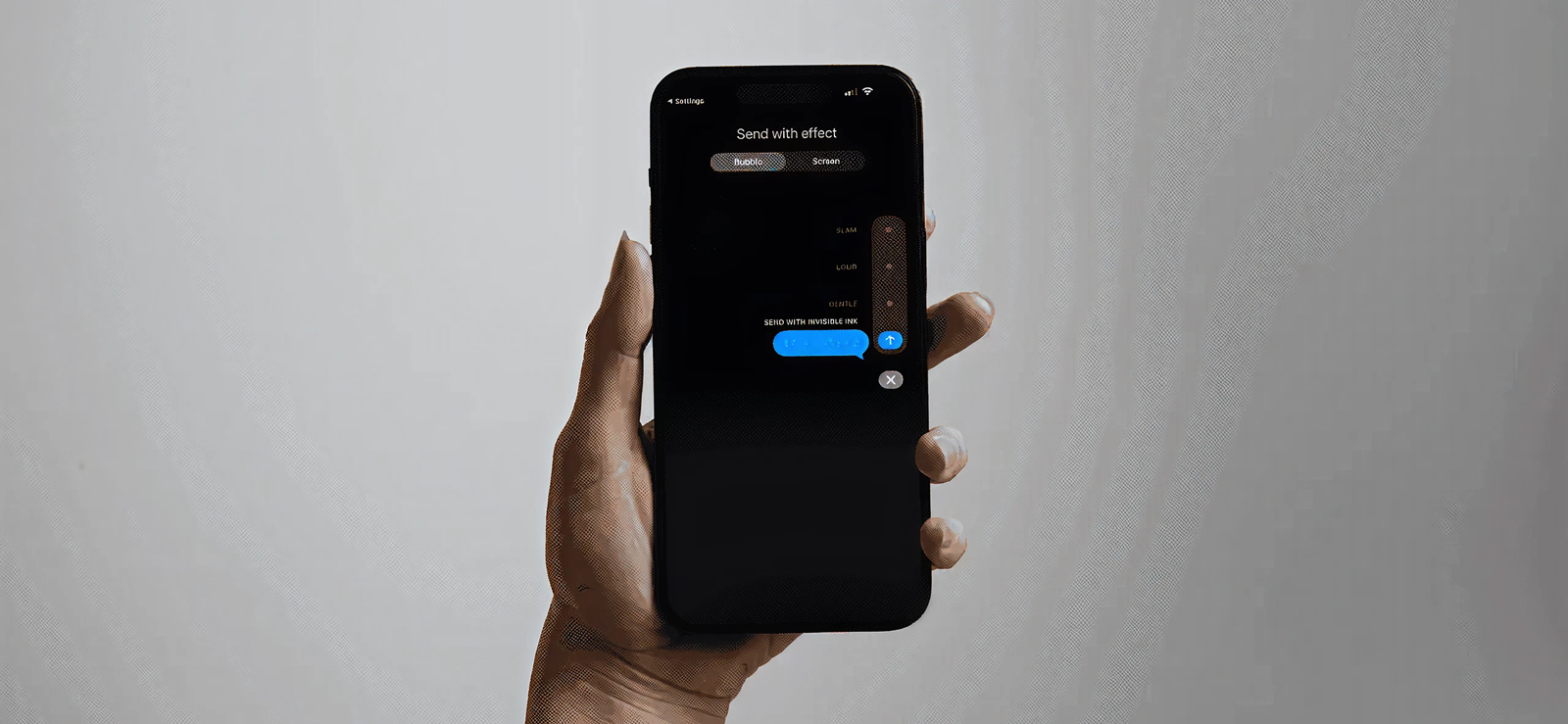
Invisible Ink is a special iMessage effect that hides messages until the recipient swipes over them. Screenshots can capture these hidden messages, but the mechanism is slightly different: the invisible ink is temporarily revealed on your screen when you interact with it, and your screenshot captures the visible state.
To capture a screenshot of an iMessage with invisible ink:
- Open the message with invisible ink.
- Swipe on it to reveal the hidden content.
- Use any screenshot method (standard, Back Tap, Assistive Touch) while the message is revealed.
But the limitation here is that the screenshot only captures what is currently visible. If the invisible ink message reverts or isn’t fully revealed, the screenshot may be incomplete. So, this method requires careful timing, since the hidden content disappears again after a short interaction.
How to See and Screenshot Your Kid’s iMessage Activity?
At some point, every parent reaches the same uneasy realization: so much of their child’s world now lives behind a screen. Conversations that once happened at the dinner table now unfold quietly on iMessage, out of sight and often impossible to revisit. You may trust your child, but the digital world doesn’t always deserve that same trust. Messages can disappear into long threads, and sensitive conversations can happen at any hour.
This is why many parents start looking for ways not just to see their child’s iMessage activity. In this way, parents can step in early, before misunderstandings turn into serious problems like cyberbullying, inappropriate contact, or emotional distress.
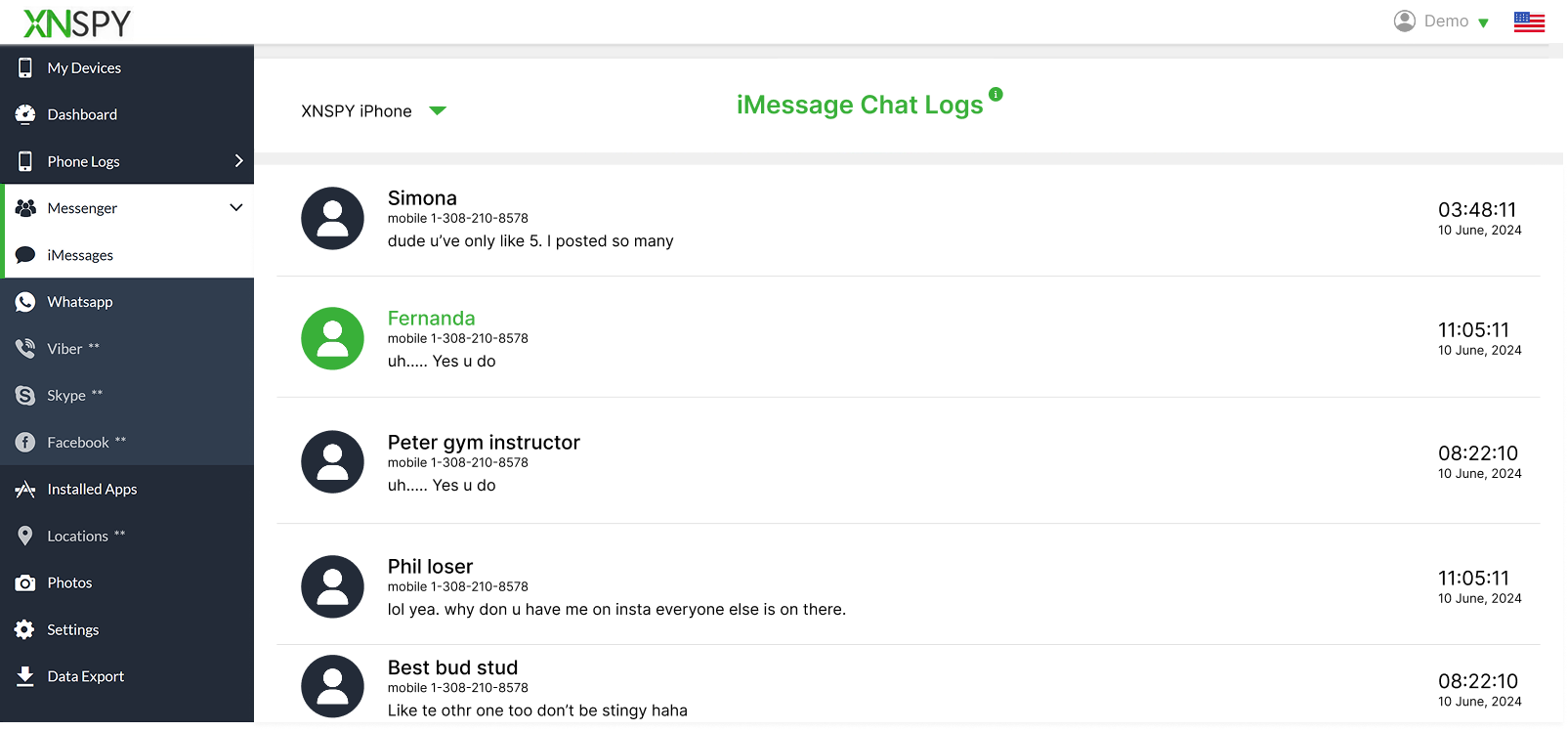
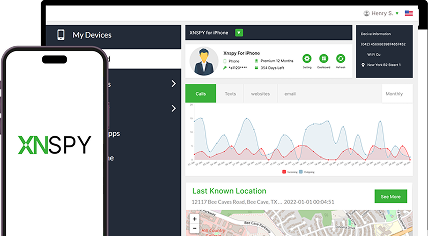
Monitoring apps like Xnspy are there to help you in this regard. Designed specifically for parental monitoring, this app offers dedicated iMessage tracking features that allow parents to view sent and received messages in a conversational thread layout.
Instead of scrolling endlessly through a device, Xnspy logs conversations that are accessible from a secure dashboard. The feature makes it easier to understand who your child is talking to and what’s being said.
Beyond message logs, Xnspy also includes a screen recording feature that adds valuable context. The app periodically and automatically captures screenshots of device activity, including iMessage conversations as they appear on the screen.
These captures happen in the background, without requiring manual intervention, ensuring that important moments aren’t missed. As Xnspy updates logs in real-time, you won’t have to worry about deleted texts as well.
FAQs
Does iMessage notify when you save a photo?
No, iMessage screenshot notification does not go through when you save a photo from a chat. When you tap “Save” or long-press an image and store it in your Photos app, the action is handled entirely on your device by iOS. iMessage doesn’t send alerts or indicators for saved media. The only time it may become visible is with disappearing photos, where interaction may be limited or logged differently.
Does iMessage show when you screenshot videos sent in chat?
For regular videos sent through iMessage, taking a screenshot does not trigger any notification. The screenshot is treated the same way as capturing text or images, locally and silently. However, if the video was sent as a disappearing message (view-once media), iOS may notify the sender that a screenshot was taken. Outside of those specific cases, video screenshots remain private.
Can people see when you screenshot iMessage on an iPad?
No, screenshots taken on an iPad behave exactly the same way as on an iPhone. iMessage does not differentiate between Apple devices when it comes to screenshot detection. Whether you’re using an iPhone, iPad, or iPod touch, screenshots of regular iMessage conversations do not notify the other person. The underlying iOS mechanism remains local, with no alert sent through iMessage.
Can iPhone users see when you screenshot texts using screen recording instead?
No, screen recording does not change the outcome. iMessage cannot detect or notify others if you record your screen while viewing messages. From iOS’s perspective, screen recording is still a device-level function, separate from iMessage’s messaging features. The other person won’t see any alert, indicator, or warning, unless the content involved is disappearing media, where limited notifications may apply.
Does iMessage alert screenshots of a voice message?
No, iMessage does not alert users when a voice message is screenshotted or recorded. Voice messages, like standard texts and media, do not have screenshot detection built in. Any screenshot or recording action is handled entirely by iOS at the device level, and iMessage does not detect or notify the sender. Unless the voice message is sent with a special effect like Invisible Ink, the sender remains unaware.

3 Comments
Leave a reply:
Your email address will not be published. Required fields are marked*

Emmy Drake
February 23, 2026 at 10:33 amI do not want to read, can someone just mention what I need to do?
Alivia Joseph
February 25, 2026 at 10:57 amThank God, I had screenshotted a message from my annoying boss and was worried whether he was notified.
Berkley Hammond
April 2, 2026 at 2:41 pmWhich third-party apps can I trust? The image in that section shows a few but I am not sure if I can go with them.