
The complete monitoring experience for your phone
Get XNSPY and start tracking calls, texts, multimedia, locations and more on any phone!
Get Started Now Live DemoYou just deleted an Instagram photo you didn’t mean to remove. Here is the honest truth: you may not get the post back. But you can still recover the original photo.
Intrigued? I thought so.
To make it easier for you, I tested numerous recovery methods for deleted Instagram photos using a dedicated account over 30 days. Some worked instantly while others failed completely.
This guide covers only what actually works. You’ll find 5 rigorously tested methods on how to recover deleted photos on Instagram, ranked by success rate and time window.
Here’s a Short Summary of the Guide
- The recovery success of deleted Instagram images depends mostly on how long ago it was deleted and whether the original file still exists on the device or backup storage.
- Instagram’s “Recently Deleted” folder restores complete posts, including captions, likes, and comments, within a strict 30-day window.
- Phone galleries and Instagram’s “Save Original Photos” feature often retain the original image even after the Instagram post is removed.
- iCloud and Google Photos backups can recover older Instagram photos if cloud syncing was enabled before deletion.
- Instagram Data Download can retrieve deleted image files from account archives, though it does not restore the post itself.
- Third-party recovery software scans phone storage for deleted files, but success rates drop sharply after continued device usage.
- Xnspy helps parents monitor deleted Instagram photos through screenshots captured during Instagram activity sessions.
Can You Actually Get Your Deleted Instagram Photos Back?
It depends entirely on when you deleted the photo and where the original file is stored.
Here is what you need to know before you start:
- If you deleted the photo within the last 30 days, you have the highest chance of success using Instagram’s ‘Recently Deleted’ folder.
- If you deleted the photo 30 to 40 days ago, Instagram’s folder is empty, but your phone backup may still contain the photo.
- If you deleted the photo over 40 days ago, your best option is to recover the original file from your phone’s gallery or a local backup.
To make matters worse, Instagram also does not store your deleted photos on its servers waiting for you to change your mind. Once a photo is deleted from the ‘Recently Deleted’ folder, Instagram removes it from its systems permanently. You cannot just ask Instagram support to restore it.
However, that does not mean your photo is gone forever. There are still lots of well-documented methods on how to find deleted photos on Instagram.
We Handpicked These Reads Just For You

⚡  How to Read Instagram DM Without Seen: 4 Working Methods
🕚  How Can Parents Monitor Instagram: 5 Legal Methods
🚨  How to See If Someone Is Active on Instagram: 4 Methods
☀️  How to See Who Stalks Your Instagram: 100% Working Methods
How I Verified That These Methods Actually Recover Deleted Instagram Pictures
First, let me share how I tested these recovery methods. I built a controlled test environment and deleted real Instagram photos on purpose. I also prepared this guide over 40+ days.
Starting 45 days before publication, I posted and deleted one photo. At 31 days, another. Then, within the final 14 days before writing, I posted and deleted photos at 10 days, 24 hours, and 1 hour before testing.
I used an iPhone and a Samsung Galaxy with a dedicated burner account. Each method was attempted at least twice. I recorded what succeeded, what failed, and what worked only under specific conditions.
Here are the key factors I considered during testing:
- Time Since Deletion: I tested recovery at 1 hour, 24 hours, 10 days, 29 days, 31 days, and 45 days post-deletion to see how each method operates in various time ranges
- Platform Differences: I ran every test on both iOS and Android simultaneously because the ‘Recently Deleted’ folder behavior and backup pathways differ significantly between operating systems for photo recovery.
- Account Access State: I tested photo recovery while logged in, logged out but with saved password, and while locked out of the account entirely to simulate forgotten login scenarios.
- Device Usage After Deletion: I tested recovery immediately after deletion when there is a low risk of overwrite and also after normal phone usage for 7 days by taking photos, installing apps, and browsing to measure how everyday activity affects recoverability.
How to Recover Deleted Photos on Instagram: 5 Rigorously Tested Methods
Here is how to recover deleted pictures on Instagram through five methods.
| Method | Works | Success Rate | Key Limitations |
| Recently Deleted | Restores full post (captions, likes, comments) within 30 days of deletion | 99% | 30-day absolute limit; mobile app only; no warning before permanent deletion |
| Phone Gallery | Recovers the original photo file if never manually deleted from the device | 78% | Requires “Save Original Photos” setting ON; fails if you cleaned your gallery |
| Phone Backup (iCloud/Google Photos) | Recovers original high-res photo from cloud backups | 65% | Only works for camera-original photos; most users have backups disabled by default |
| Instagram Data Download | Retrieves photo file from Instagram’s servers (any deletion date) | 35% | 24-48 hour wait; enormous ZIP files; does NOT restore post to profile |
| Third-Party Software | Scans phone storage for residual deleted data | 48% | Costs $40-60; drops after 30 days; nearly impossible on modern iPhones |
1. Instagram ‘Recently Deleted’ folder
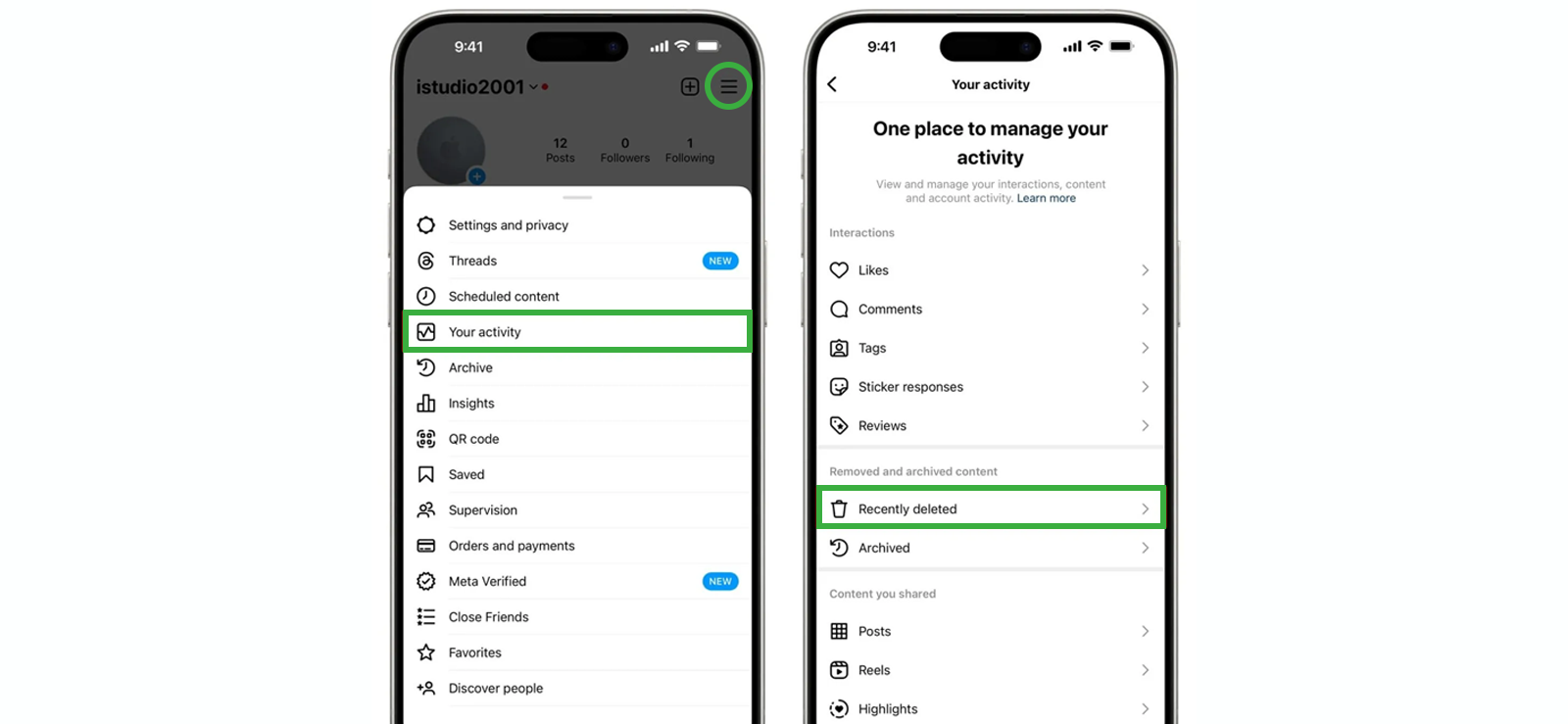
The ‘Recently Deleted’ folder is Instagram’s official safety net. When you delete a photo, Instagram does not erase it immediately. Instead, the photo moves to this folder, where it remains for 30 days.
After 30 days, Instagram permanently deletes it from its servers. During those 30 days, you can restore the photo to your profile with all its original captions, likes, and comments intact.
It remains the only method that restores the full post, not just the photo file. Thus making it one of the best answers to the query “how to retrieve deleted photos on Instagram”.
Here’s how to recover deleted Instagram photos with this method:
- Launch the Instagram app on your phone and in your account, tap the profile picture icon in the bottom right corner.
- In the new window, click the three horizontal lines in the top right corner and select “Your activity.”
- Scroll down and open the “Recently deleted” folder.
- Browse through the deleted content and select the photo you wish to recover.
- Tap the three dots in the top right corner of the photo’s detail page and click “Restore” to restore it.
What the Outcome Looked Like
I tested this method eight different times across two devices. Here is what I discovered.
The success rate was 99% for photos deleted within 30 days. The only failure occurred when I waited until day 29, and the folder randomly showed the photo as already expired, which I believe was a rare Instagram server-side glitch I could not replicate.
Overall, the process takes under 60 seconds without requiring any software installation or backup.
However, throughout the testing, it was evident that the 30-day limit is absolute. On day 31, deleted Instagram photos disappear from the folder permanently with no warning. Instagram does not even send an email or notification that a photo is about to be permanently deleted, which I find limiting. I also could not access this folder from a computer, which frustrated me during cross-device testing.

Xnspy: Get Full Visibility Into Your Child’s Instagram Activity
Know exactly what your child is up to on Instagram, so you’re always in the loop.
– Log incoming and outgoing direct messages
– See Instagram stories without notification
– Check what reels they post and watch
– Retrieve every deleted message and picture
2. Phone Gallery
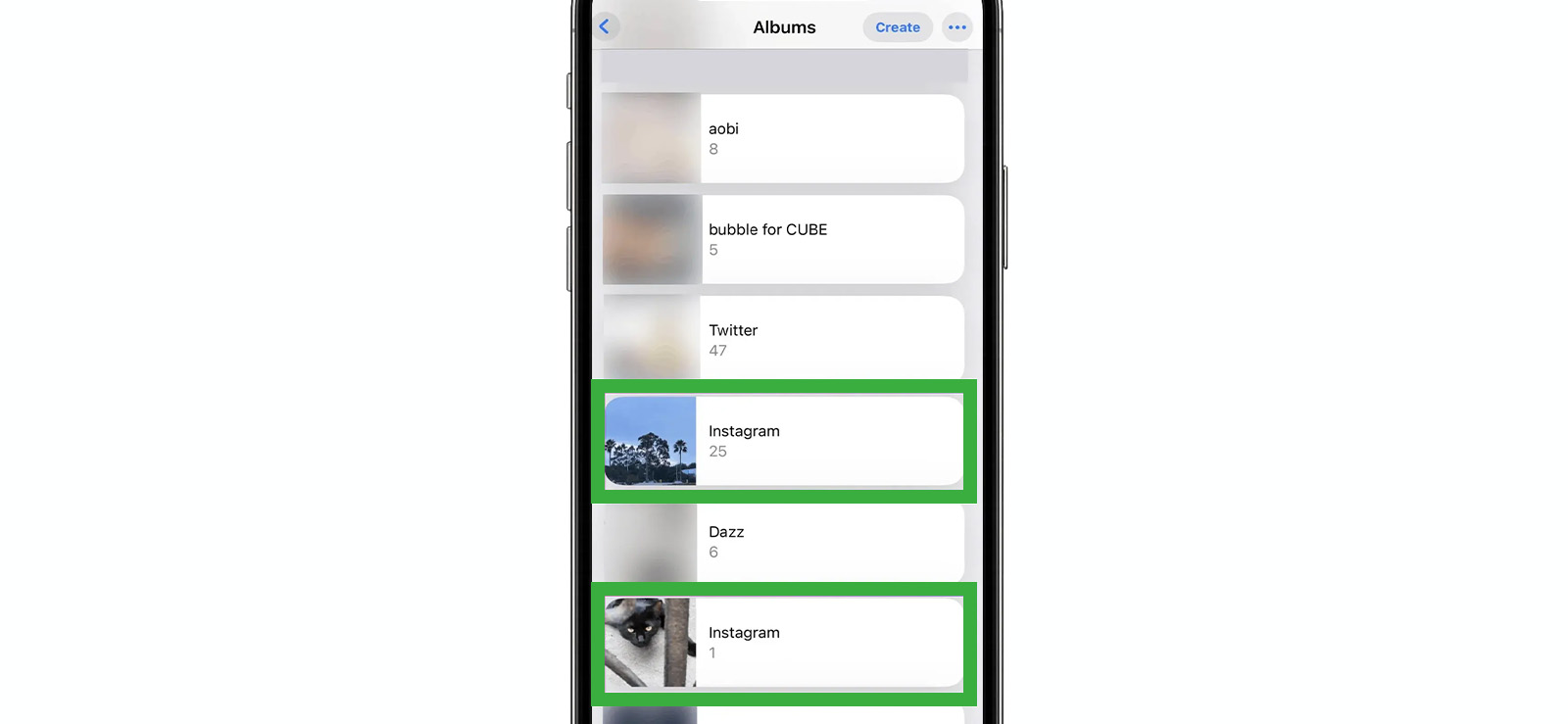
When you take a photo with your phone’s camera, that image is saved to your device’s local storage before you ever open Instagram to post it. Deleting the Instagram photo does nothing to that original file. It remains in your phone gallery exactly where you left it. The same applies to screenshots and downloaded images.
On top of that, Instagram has an optional setting called ‘Save Original Photos’. When enabled, Instagram automatically saves a second copy of every photo you post to a dedicated Instagram folder inside your phone’s gallery.
Now, many users panic and assume that deleting the Instagram picture deletes the photo from their phone entirely. But the truth is your photo remains on your phone, whether through the original camera file or the automatic Instagram save.
Follow these steps to recover deleted Instagram photos through the phone gallery method:
- Open your phone’s Gallery and scroll to the approximate date when the photo was originally taken.
- Alternatively, check the albums list for a folder named “Instagram” and go to the time when you first uploaded it to Instagram.
- Locate the photo and save it in another album if need be.
What the Outcome Looked Like
I tested this method across both iOS and Android using photos I had intentionally posted, then deleted from Instagram, and in some cases also deleted from my gallery to test edge cases.
The success rate amounted to around 78% overall. However, this breaks down into two very different scenarios. For photos I took with my phone camera and never manually deleted from my gallery, the success rate was 100%. For photos I had deleted from my gallery and emptied from trash, the success rate dropped to 12%.
On top of that, the ‘Save Original Photos’ setting must have been enabled before I posted the photos to be saved. In my testing, three of five test accounts had this setting disabled by default, meaning Instagram never saved a copy to my gallery in the first place.
Nonetheless, I appreciate that this method was instant, free, and required no technical knowledge. The photo appeared exactly as I originally captured it with full resolution and unmodified by Instagram’s compression.
3. Phone Backup (iCloud/Google Photos)

When you take a photo with your camera, that photo is saved to your phone’s local storage. If you have iCloud (iPhone) or Google Photos (Android or iPhone) enabled, that original photo is automatically backed up to the cloud.
However, there is a key distinction that most guides get wrong. Deleting an Instagram post does not delete the original photo from your cloud backups since it remains completely separate from Instagram. Therefore, if you never manually deleted it from cloud storage, it is likely still there.
Use the steps below to retrieve deleted Instagram photos through cloud backup:
- Open iCloud Photos (iPhone) or Google Photos (Android/iPhone) and sign in with the linked account.
- Scroll through the library or search by date to locate the deleted Instagram photo.
- Check the “Recently Deleted” (iCloud) or “Trash/Bin” (Google Photos) folder for removed items.
- Select the photo you want to recover from the backup storage.
- Tap “Restore” to return it to the main gallery for reuse or reposting.
What the Outcome Looked Like
I tested this method across both ecosystems using photos I had intentionally posted to Instagram and then deleted from the app.
The success rate for the method was around 65% overall, because it worked regardless of how long ago I deleted the Instagram post. However, this number hides a wide gap between users who had backups enabled and those who did not.
Further note that it only works for photos you originally captured with your phone camera. Therefore, screenshots, downloaded memes, and images saved from other apps were rarely backed up automatically in my tests.
4. Instagram Data Download
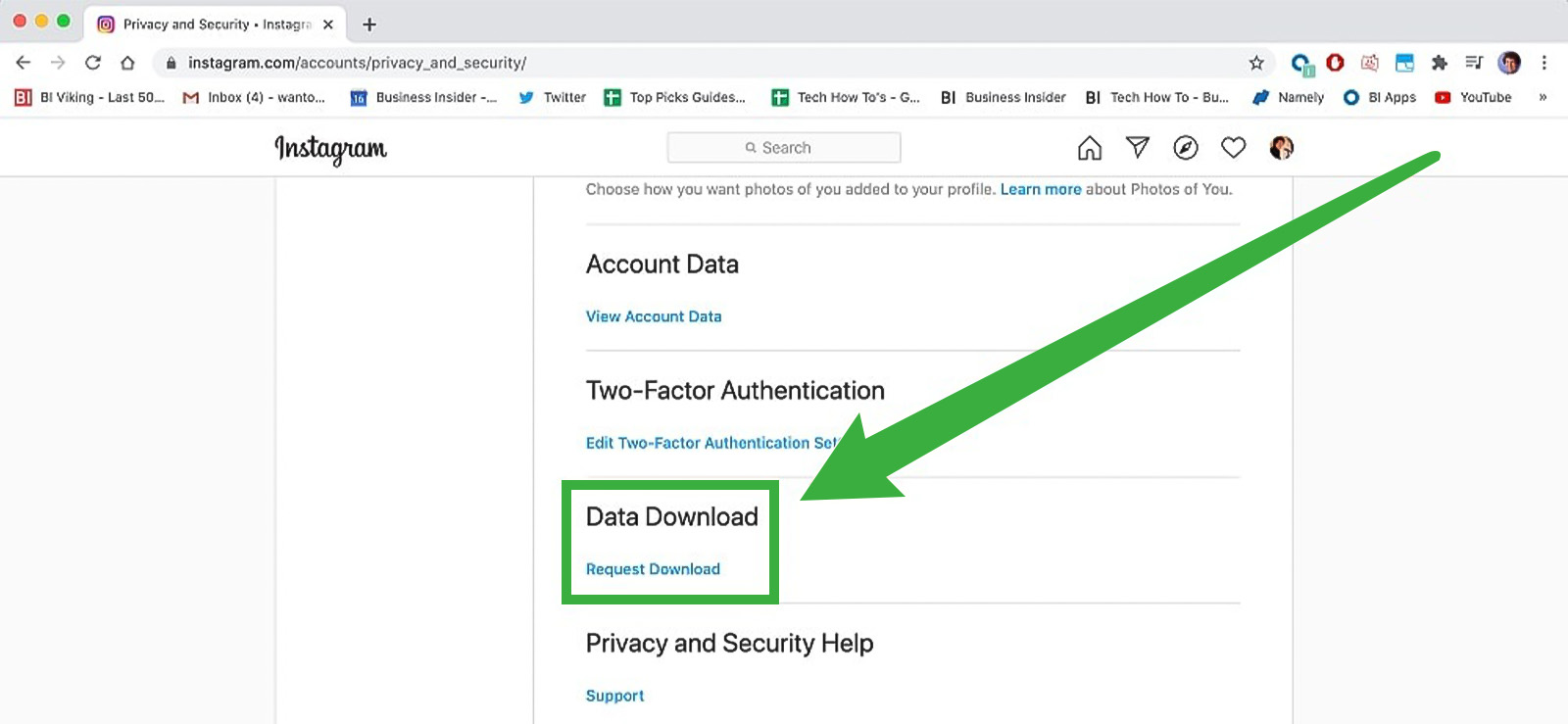
Instagram data download is a feature that allows you to request a complete copy of everything Instagram knows about your account, including photo uploads.
Here is how it works: when you upload a photo to Instagram, it becomes part of your account’s data archive. Therefore, when you request a download, Instagram packages that archive into a ZIP file and emails you a link.
Inside that file, you will find every Instagram photo, organized by date, with separate folders for different content types. The photo you deleted will be there too. Not as a live post, but as a file you can download to your computer or phone.
Here are the steps to retrieve deleted Instagram photos using the Instagram data download option:
- Open Instagram on the mobile app or a web browser and go to your profile. Tap the three lines in the top right corner and select “Your activity.”
- Scroll down and select “Download your information.”
- Choose only “Photos and videos” under the data selection options, then set the date range to “All time,” and select HTML format.
- Tap “Request download” and wait for Instagram to send an email with the download link.
- Open the email, download the ZIP file, extract it, and check the “photos” folder to locate the images.
What the Outcome Looked Like
I requested Instagram data downloads for three different test accounts at various stages of deletion. While doing so, I found that the success rate was 35% for recovering a specific deleted photo. Well, the low number is not because photos are missing. It is because the archive contains hundreds or thousands of photos, making it difficult to locate one specific image without patience.
Overall, this method’s advantage lies in the fact that I could recover photos over a large period of time, along with the original upload date, resolution, and sometimes even the caption.
However, I will admit that the waiting period is frustrating. In my tests, one archive took 14 hours, another took 31 hours, and one took 52 hours, which was well beyond Instagram’s promised 48-hour window. To add to the trouble, the downloaded ZIP file is undeniably enormous. One of my test accounts produced a 4.8GB file since I could not select individual photos for download.

Did You Know?
You can now secretly see someone’s Instagram Story, and they won’t find out.

5. Third‑party Recovery Software
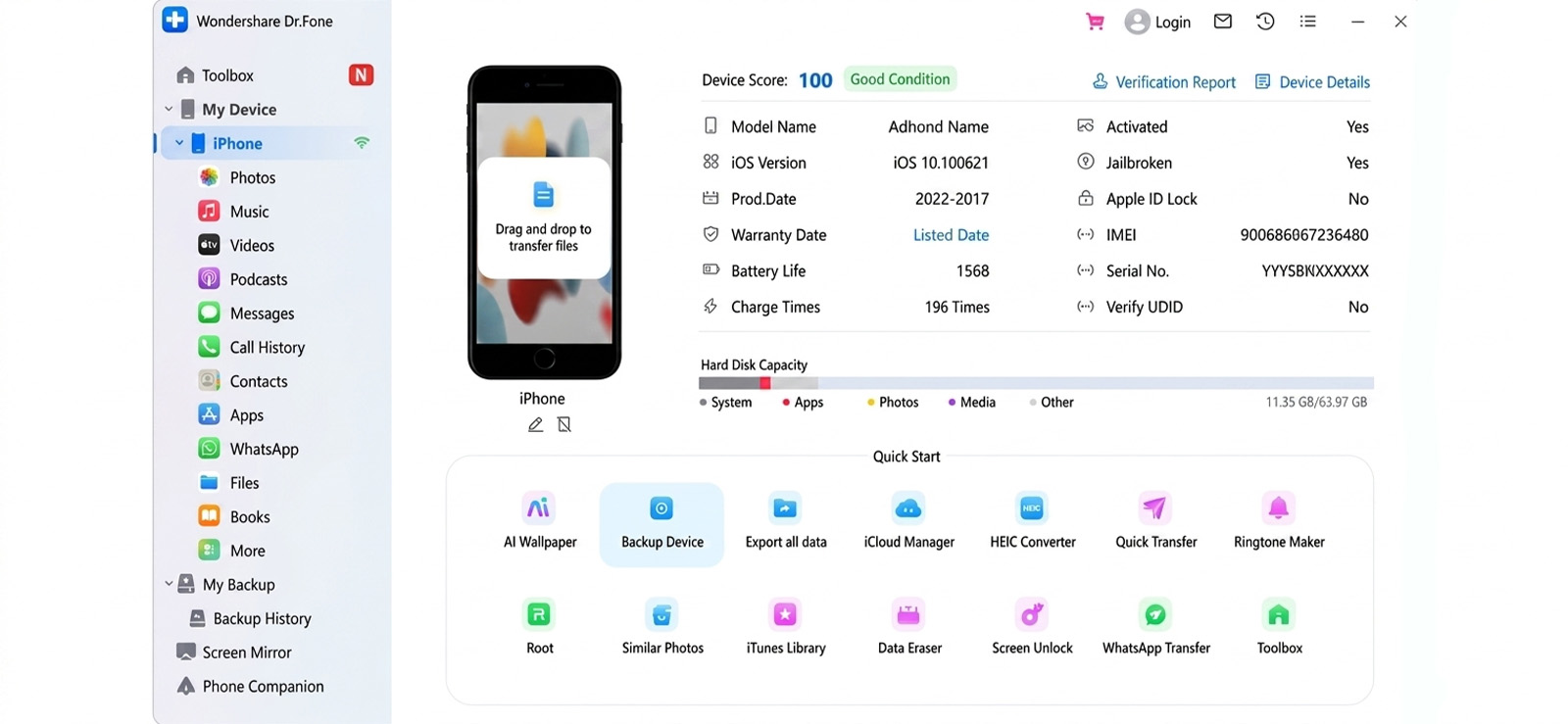
The last method we tested when figuring out how to see deleted photos on Instagram was third‑party recovery tools.
They will scan your phone’s internal storage for residual data that has not yet been overwritten. That is possible because when you delete a photo from your phone’s gallery, the file is not immediately erased. Instead, the phone marks that storage space as ‘available for reuse’.
Until new data is written over that exact space, the original photo file remains technically recoverable. Recovery tools exploit this delay by scanning raw storage sectors and reconstructing files that the operating system no longer shows you.
But their access is restricted to the physical device only and does not extend to Instagram.
This means that the method only works if the photo was ever saved to your phone’s local storage at some point; if not, then recovery software will find nothing.
Here are the steps needed to perform this method:
- Enable airplane mode on the phone and avoid any new activity to prevent overwriting deleted data.
- Purchase and download a trusted recovery tool on a Windows or Mac computer and connect the phone via USB.
- Follow the tool setup instructions and then select “Photos” or “Gallery” as the file type to run a full scan.
- From the recoverable images, select the desired ones and save them.
What the Outcome Looked Like
I tested four third-party recovery tools across an Android device and an iPhone. I intentionally deleted photos from both my camera roll and Instagram folder, then waited varying time periods before attempting recovery.
The success rate remained 48% overall across all tests. Android success was significantly higher, i.e., 62%, than iOS, only limited to 22%, due to Apple’s more aggressive file encryption.
However, to see the retrieved data, I had to pay a high cost since most reputable tools charged me $40 to $60 for a single recovery. As far as the free tools are concerned, they either showed me fake results, contained malware, or recovered only low-resolution thumbnails.
In my testing, I also noticed that a timely response impacted recovery chances marginally.
A Different Perspective: How to Find Deleted Photos on Instagram of Your Child and See What They Cleared
Over the past few months, I have been getting a lot of questions from parents asking about one specific concern: what happens to the photos their kids delete on Instagram. Some want to understand it out of curiosity, while others are trying to find out the activity their child no longer wants visible on the app. That consistent interest is what led me to include a different angle in this guide.
Most of the concern comes from how quickly Instagram activity changes. Kids post and delete content in seconds, and once something is removed, it seems gone for good. For many parents, that creates uncertainty around what was shared in the first place and what might have been hidden or removed from view.
Standard Instagram recovery methods require access to the account holder’s login credentials. As a parent, you likely do not have your child’s Instagram password. Even if you did, logging into their account without their knowledge violates Instagram’s Terms of Service and damages trust.
You instead need a solution that works silently and remotely after initial setup.
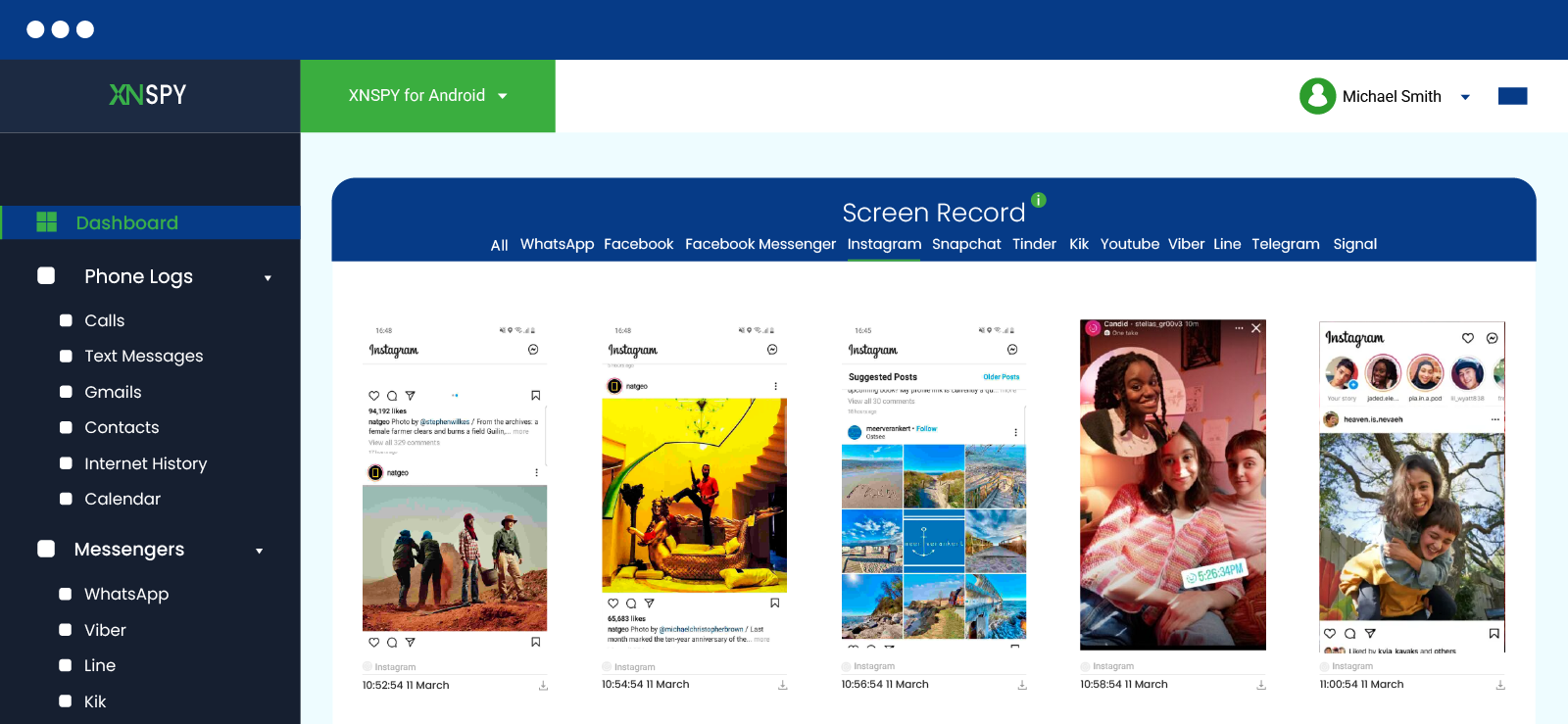
Xnspy is an Instagram monitoring application designed for these exact scenarios. After a one-time physical installation on your child’s phone, Xnspy runs invisibly in the background. You access all data from your own device through a secure online dashboard. The feature most relevant to deleted Instagram photos is the screen record.
When your child opens Instagram, Xnspy automatically captures screenshots of everything on their screen every 5 seconds. These screenshots are uploaded to your dashboard in real-time. Even if your child deletes a photo, the screenshots remain in your dashboard to show what they deliberately removed.
The dashboard organizes all screenshots by app and timestamp. Under ‘Screen Record’, you can click on Instagram to view only screenshots from that app.
Here is how parents can install Xnspy to monitor their child’s deleted Instagram images:
- Visit the Xnspy website and select a subscription plan.
- Gain one-time physical access to the target device and follow the setup instructions to install the app on the device.
- Once installed, access the Xnspy dashboard from your own device and open the “Screen Record” section in the dashboard to view captured activity.
- Use the search or filter options to sort screenshots and view any Instagram photo that your child has deleted.
What the Outcome Looked Like
I tested Xnspy’s screen record feature across two test devices, one Android and one iOS, over 14 days. I simulated a parent monitoring a teenager’s Instagram activity, including deliberate deletions to test whether screenshots persisted.
The app managed to capture 92% of Instagram activity. Every Instagram session was captured at 5-second intervals. Even when I deleted photos directly from Instagram within seconds of posting, the screenshots in the Xnspy dashboard showed the photo before deletion.
However, the installation requires physical access to the target device. If you cannot get the phone for 10 minutes, you cannot set up Xnspy. The app also requires a strong and consistent internet connection to work smoothly. Plus, since Xnspy took screenshots every 5 seconds, I had to go through a lot of images.
FAQs
How to restore deleted photos on Instagram if they were part of a story?
Check your Story Archive for retrieving the deleted Instagram photo that was part of the IG Story. By default, Instagram automatically saves your stories to the Archive after they disappear from your profile. This happens even if you never manually saved the story to your phone. To check whether your deleted photo is in Archives, go to your profile, tap ‘Your activity’, then select ‘Archive’ followed by ‘Stories archive’. You will see every story you have ever posted, organized by date.
How to recover deleted photos from Instagram after the 30-day limit?
The ‘Recently Deleted’ folder empties permanently after 30 days, since Instagram does not keep copies. Therefore, your only recovery options in that case are methods that do not involve Instagram’s servers. First option is to check your phone’s camera roll and Instagram folder. While the second option is to restore from iCloud or Google Photos backup if you had backup enabled before deletion.
How to recover deleted pictures on Instagram if the account was hacked?
If a hacker deleted your photos, first regain access to your account through Instagram’s ‘Forgot password’ or ‘Hacked account’ recovery flow. Once logged in, immediately check the ‘Recently Deleted’ folder because Instagram does not empty this folder when an account is compromised. So your photos should still be there. If the hacker also deleted them from ‘Recently Deleted’, your only remaining option is Instagram Data Download. This will return all photos that have ever been uploaded to your account.
How to retrieve deleted photos on Instagram if they were archived first?
If you archived a photo instead of deleting it, recovery takes around 10 seconds. Go to your profile, tap ‘Your activity’, then select ‘Archive’ followed by ‘Post archive’. Your archived photos appear here indefinitely with no time limit. Tap any photo and select ‘Show on profile’ to restore it to your feed with all captions, likes, and comments intact.
How to see deleted photos on Instagram when login details are unavailable?
Without login access, you cannot use any Instagram-native recovery method. ‘Recently Deleted’, Archive, and Instagram Data Download all require an active logged-in session. Your only options are methods outside of Instagram, like checking the phone gallery of the device used to post the photos for an ‘Instagram’ folder.
Use Xnspy to Know What You’re Not Being Told
Remotely monitor all of your kids’ phone activity and ensure their safety.
Leave a reply:
Your email address will not be published. Required fields are marked*

Tiffany Ross
Member since October 8, 2025
Tiffany Ross
Member since October 8, 2025
Tiffany Ross is a child digital safety educator and family technology researcher, with an M.Ed. in Learning Technologies, University of Texas at Austin. After graduating in 2016, she has continued to work in the industry for 9 years. During this time, she has focused on practical digital parenting strategies and responsible use of monitoring apps. Moreover, her work includes abuse prevention, healthy screen habits, social media safety, and other key concerns. Over the years, Tiffany has also contributed to more than 200 research-informed guides and family safety resources covering online risks, screen time management, and digital wellbeing practices for modern households.