Does Tinder Notify Screenshots? Answer, Tips, and 4 Best Ways
 By Mike Everett
The complete monitoring experience for your phone
Get XNSPY and start tracking calls, texts, multimedia, locations and more on any phone!
Get Started Now Live DemoTinder is full of surprises, some good, some… well, let’s just say you have probably seen a profile or message that made you want to hit that screenshot button. Maybe it is a hilarious bio, a cringeworthy pickup line, or something you just need to show the group chat.
But wait, does Tinder notify when you take a screenshot? The last thing you want is getting an awkward “Hey, why would you screenshot that?” message.
Do not worry, I am going to break it all down. Get your answer to whether the other person gets Tinder screenshot notification and how to keep them low-key by reading this guide.
What Does the Guide Talk About?
- Tinder does not notify when someone takes a screenshot of a Tinder profile, chat, bio, match, or photo on Android, iPhone, Mac, or Windows.
- Users can capture Tinder screens using built-in screenshot shortcuts without needing special tools.
- Parents concerned about their kids’ Tinder use can document activity using different review methods.
- Xnspy helps parents check installed apps, screen time, and available screen captures to determine whether Tinder activity appears on the device.
- Cloud photo sync can be used if screenshots already exist and backup is enabled.
- Built-in screen recording captures activity across profiles and chats.
- Using another phone to photograph the screen works well when parents only need to save one screen for discussion.
Does Tinder Notify of Screenshots?
No, Tinder does not notify users when you take a screenshot, unlike apps such as Snapchat. As of now, Tinder does not have a built-in screenshot notification feature.
Therefore, if you screenshot Tinder profile of a user or their message thread from Android, iPhone, Windows, or even Mac, they will not receive an alert from the app.
However, that does not mean screenshots should be used carelessly. Since Tinder conversations and profiles often contain personal information, capturing and sharing them without consent can still raise privacy concerns.
Does Tinder Show Screenshots You Take on Someone Else’s Phone?
If you take Tinder screenshots from someone else’s phone, neither the account owner nor the other person involved is notified by the app.
However, this question is different from simply taking a screenshot on your own phone. Once another person’s device or account is involved, privacy and consent become much more important.
The truth is that even if the device belongs to your child, you still have to ensure your actions focus solely on safety and age-appropriate app use. Overall, the priority should be to help them understand the platform’s risks and urge them to leave, since Tinder is designed for adults.
On the contrary, if the phone belongs to another adult, screenshots should not be taken without clear permission.
These Blogs Have Everything You Need

💭 How to Find Hidden Apps on iPhone Remotely: 5 Best Ways
🔥  How To Recover Deleted Snapchat Messages Without the Target Device
🚨  How to View Facebook Stories Anonymously: 6 Easy Ways
✅  How to Find Out if Someone is on Tinder: 5 Easy Ways
How to Take Screenshots on Tinder?
You can take a Tinder chat screenshot the same way you would capture any other app.
As of the latest available information, you can take Tinder snapshots on Android, iPhone, Mac, and Windows. While the steps may vary slightly depending on your operating system and phone model, the details below follow standard screenshot instructions.
How to Screenshot Tinder on Android?
To screenshot Tinder on most Android phones:
- Open the Tinder screen you want to capture.
- Press the Power and Volume Down buttons at the same time.
- Release the buttons when the screen flashes or shows a screenshot preview.
- Find the image in your Photos or Gallery app, usually under the “Screenshots” folder.
Note that on some Android phones, you can also press and hold the Power button and tap Screenshot. If neither method works, check your phone manufacturer’s support instructions, as button layouts can vary by model.
How to Screenshot Tinder on iPhone?
Screenshots can be captured on iPhones using the following steps:
- On iPhones with Face ID, quickly press and release the Side button and Volume Up button together.
- On iPhones with a Home button, quickly press and release the Side or Top button and the Home button together.
- Tap the screenshot preview to edit it, or swipe it away to save it automatically.
- Find the screenshot in the Photos app under “Screenshots.”
How to Screenshot Tinder on Mac?
If you use Tinder through a browser on a Mac, you can use Apple’s built-in screenshot shortcuts:
- Press Shift + Command + 3 to capture the full screen.
- Press Shift + Command + 4 to select a specific area.
- Press Shift + Command + 5 to open more screenshot and screen recording options.
By default, screenshots are usually saved to the desktop, unless your Mac screenshot settings have been changed.
How to Screenshot Tinder on Windows?
For taking a screenshot using the built-in Windows tools:
- Press Windows + Shift + S to open Snipping Tool.
- Select the area of the Tinder screen you want to capture.
- Save or paste the screenshot where needed.
You can also use the Print Screen key to capture your screen, depending on your keyboard and Windows settings. For screen recording or advanced capture options, press Windows + G to open Xbox Game Bar, though this is better suited for recording than basic screenshots.
Since this guide focuses specifically on documenting possible Tinder activity on a child’s phone, I evaluated each method based on whether it was practical, repeatable, and realistic for everyday parental use.
How I Selected Methods for Screenshotting Tinder from Another Phone
Since this guide focuses specifically on capturing Tinder activity on a child’s phone, I evaluated each method based on its practicality and repeatability for everyday parental use.
Here is exactly what I focused on while selecting these methods:
- Capture Reliability: I evaluated how consistently each method produced usable screenshots.
- Setup Requirements: Not every parent wants to install software or change device settings. I compared how much time and effort each method required before it became usable and whether the setup created unnecessary friction.
- Review Efficiency: I measured how quickly information could be located and reviewed afterward. Methods that reduced repeated manual checking scored better than approaches that created extra work.
- Long-Term Practicality: Finally, I looked at sustainability. A method might work once, but would parents realistically continue using it if they needed to review the activity more than once?
How to Capture a Screenshot of Tinder on Your Child’s Phone: 4 Best Ways
While the initial question, i.e., “Does Tinder notify screenshots?” has been answered, some parents remain concerned about how to take screenshots from their kids’ phones to see whether Tinder is in use. For that, I have taken out 4 methods that can work for you.
| Method | Success Rate | Best For | Main Limitation |
| Xnspy | 88% | Centralized reviewing of Tinder activity through one dashboard without repeated manual checking | Results vary based on the operating system |
| Cloud Photo Sync | 92% | Fast retrieval with minimal active effort | Only works if screenshots already exist and sync is enabled |
| Built-In Screen Recorder | 90% | Preserving more context than taking multiple screenshots | Larger files and longer review time; works best under short recording sessions |
| Another Phone to Photograph the Screen | 95% | Quick results with almost no setup required | Glare, blur, and small text can reduce readability |
1. Use Xnspy
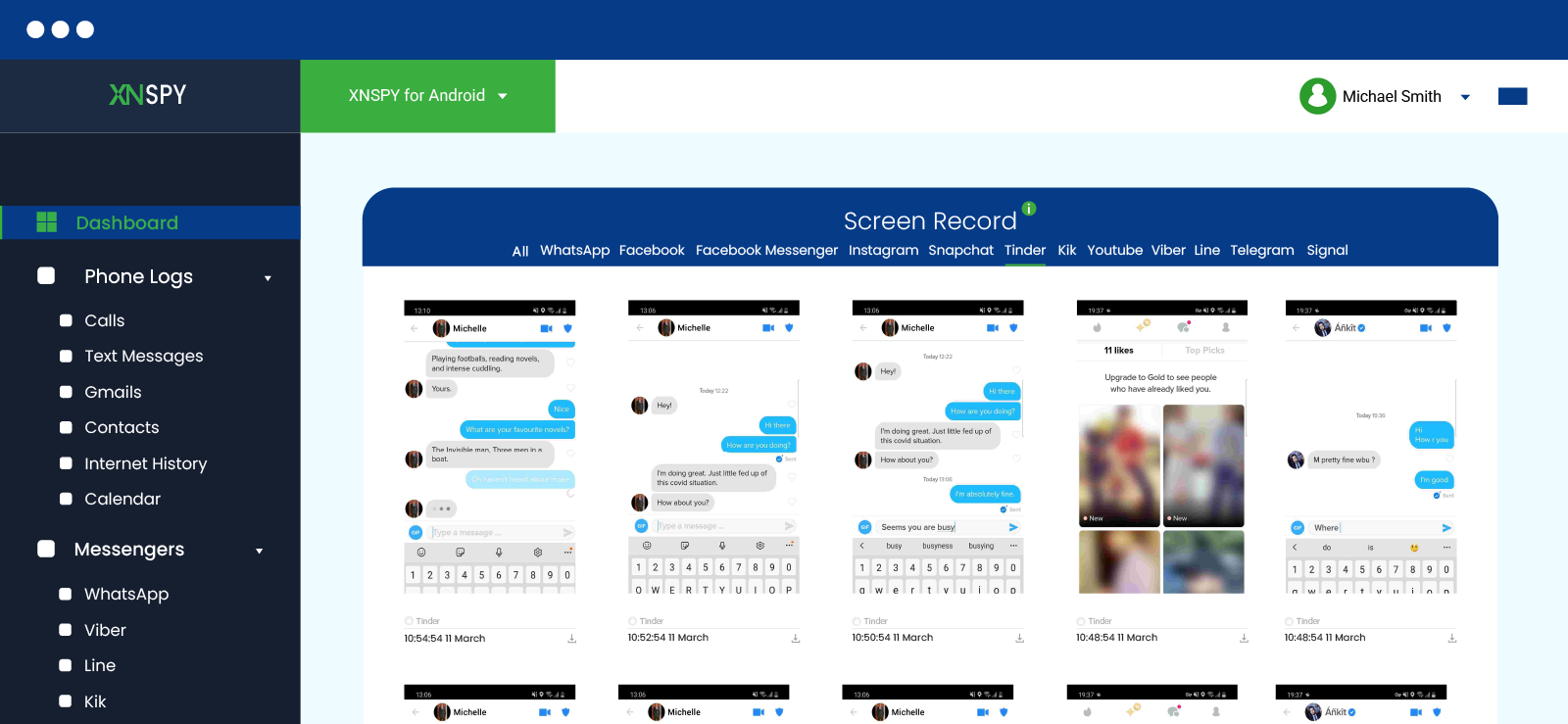
If parents need to document possible Tinder activity on a child’s device, parental monitoring tools can help centralize information instead of relying on repeated manual checks.
For example, Xnspy is designed to provide visibility into complete device usage through a parent dashboard.
Through its screen recorder feature, parents can review snapshots of phone activity captured every 10 seconds, including any Tinder logs.
For additional insights, they can also check the “Installed apps” list on Xnspy to see whether Tinder is installed and then check the screen time of the app.
For capturing Tinder activity through Xnspy, you have to:
- Review Tinder-related information to start conversations.
- Install and configure Xnspy on the child’s device.
- Log in to the parent dashboard.
- Open Installed apps, Screen Time, or the Screen Recorder.
Everything I Found Out
In my testing sessions, Xnspy produced usable documentation in roughly 88% of attempts once setup was completed successfully. The strongest part of the experience was the convenience, because instead of opening the device repeatedly, most of the review could be done from a single dashboard.
However, the success rate dropped depending on the operating system restrictions and enabled settings.

Monitor Complete Tinder Activity in Real-Time
Xnspy gives you full insights into their chats, matches, and swipes.
2. Use Cloud Photo Sync
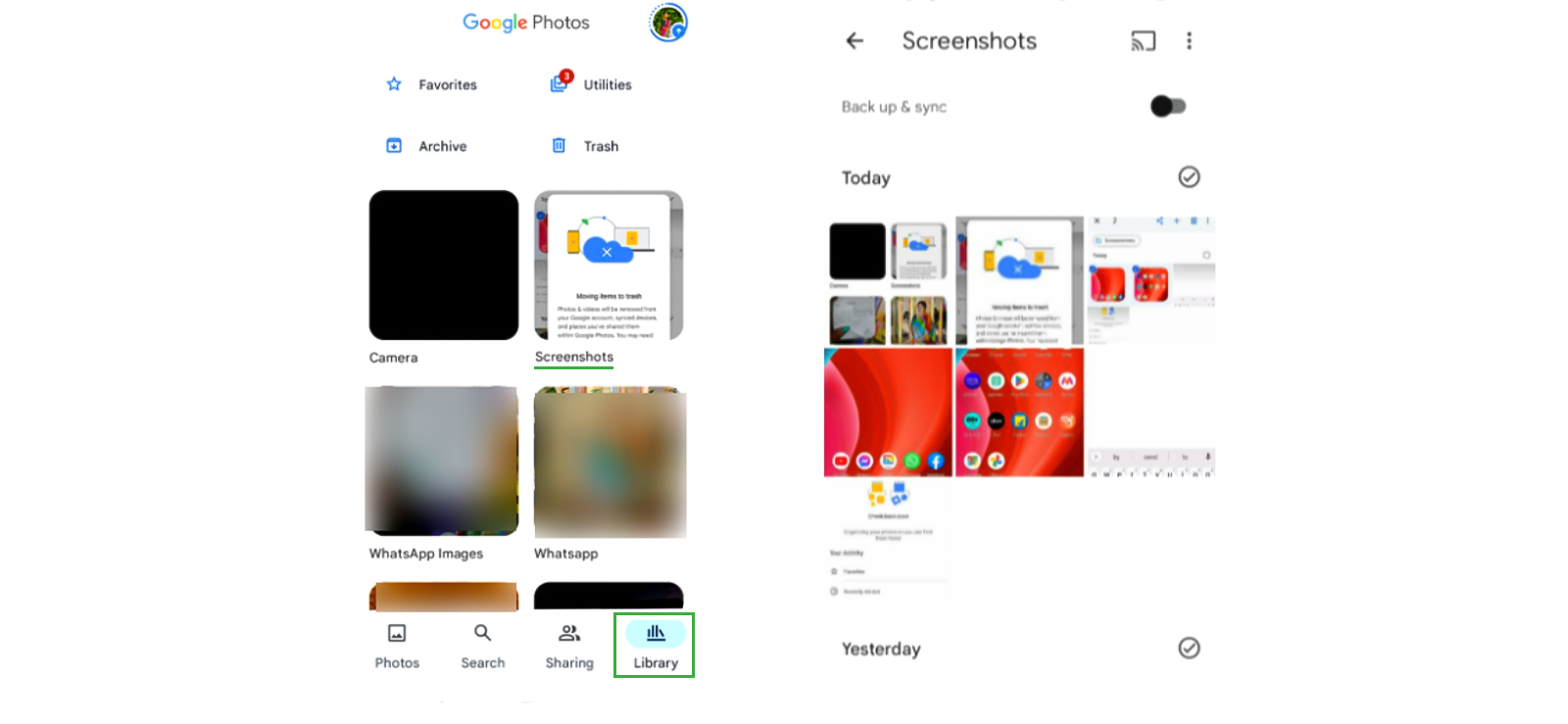
If a child’s device already backs up screenshots and photos automatically, cloud photo sync can become one of the easiest ways to review existing screen captures without creating new ones.
Instead of opening apps repeatedly or manually documenting activity, parents can review existing screenshots in the synced photo library.
However, it only works if your kid has taken screenshots from Tinder and enabled syncing.
To see Tinder screenshots via cloud photo syncing, follow these steps:
- Open the family’s connected photo backup account.
- Navigate to the screenshots or recent uploads folder.
- Look for Tinder-related images or screenshots.
- Open and review the saved content.
Everything I Found Out
Cloud photo sync achieved an estimated 92% retrieval success rate during testing, with automatic backup already enabled. Overall, the lack of setup made it the most consistent method for reviewing previously saved screenshots.
The method also offered great execution speed because most sessions took only under 2 minutes to locate and review existing screenshots.
The main limitation, however, was coverage. If screenshots were never created or sync settings were turned off, success dropped significantly. I also noticed that organizing screenshots became slower once the photo library became crowded, since unrelated images increased review time.
3. Use the Phone’s Built-In Screen Recorder
Built-in screen recording can also help parents document a child’s phone activity that unfolds across multiple screens instead of capturing a single static image.
The method is particularly useful when reviewing profiles, chats, navigation patterns, or account setup screens that would otherwise require several screenshots.
Most modern Android phones and iPhones include screen recording tools directly inside system settings or quick controls.
For iPhone:
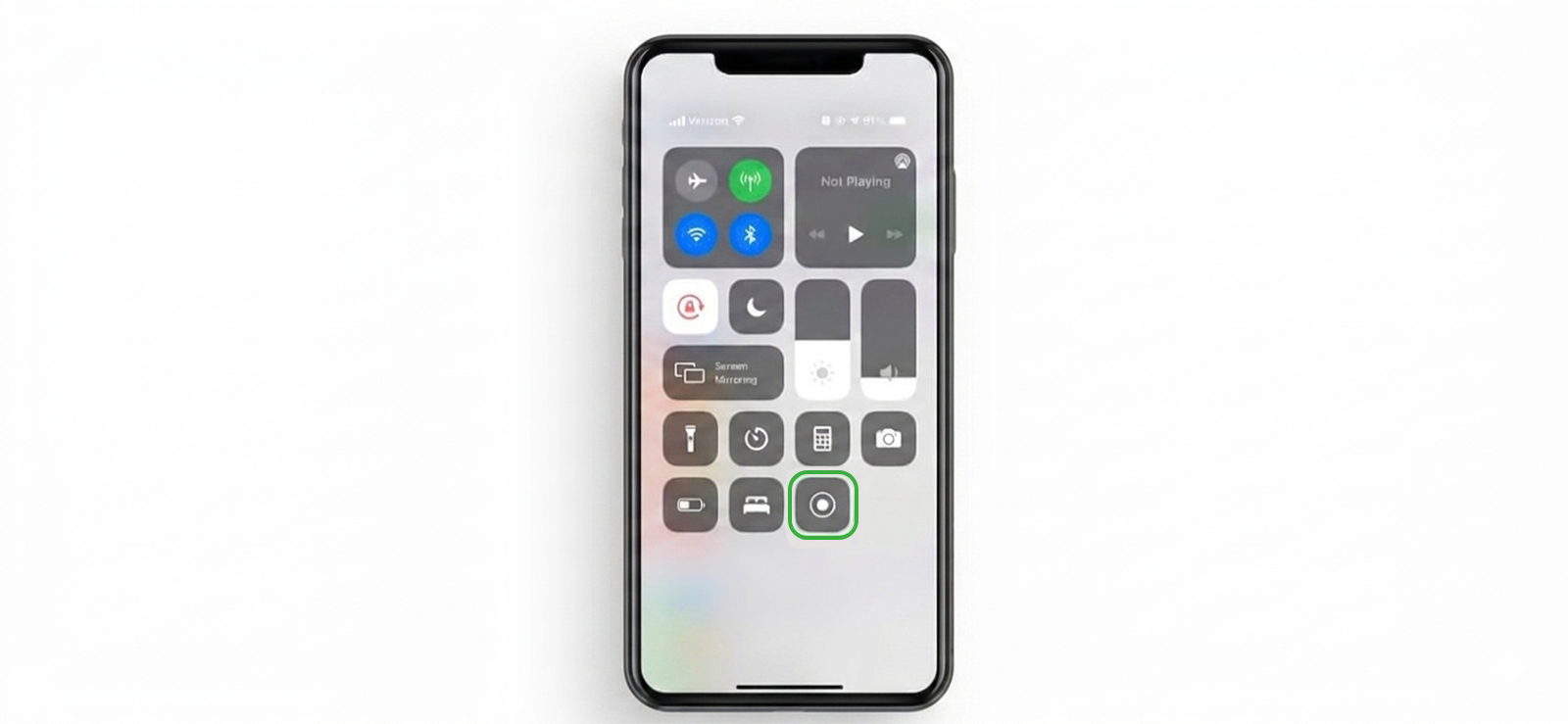
- Go to Settings and tap Control Center. Then add “Screen Recording” to your controls.
- Launch the Tinder app and navigate to the profile or conversation you want to capture.
- Swipe down to access the Control Center and tap the screen recording icon.
- Once done, tap the red bar and stop the recording to review the saved video.
- Optionally, you can also send this recording to yourself.
For Android:
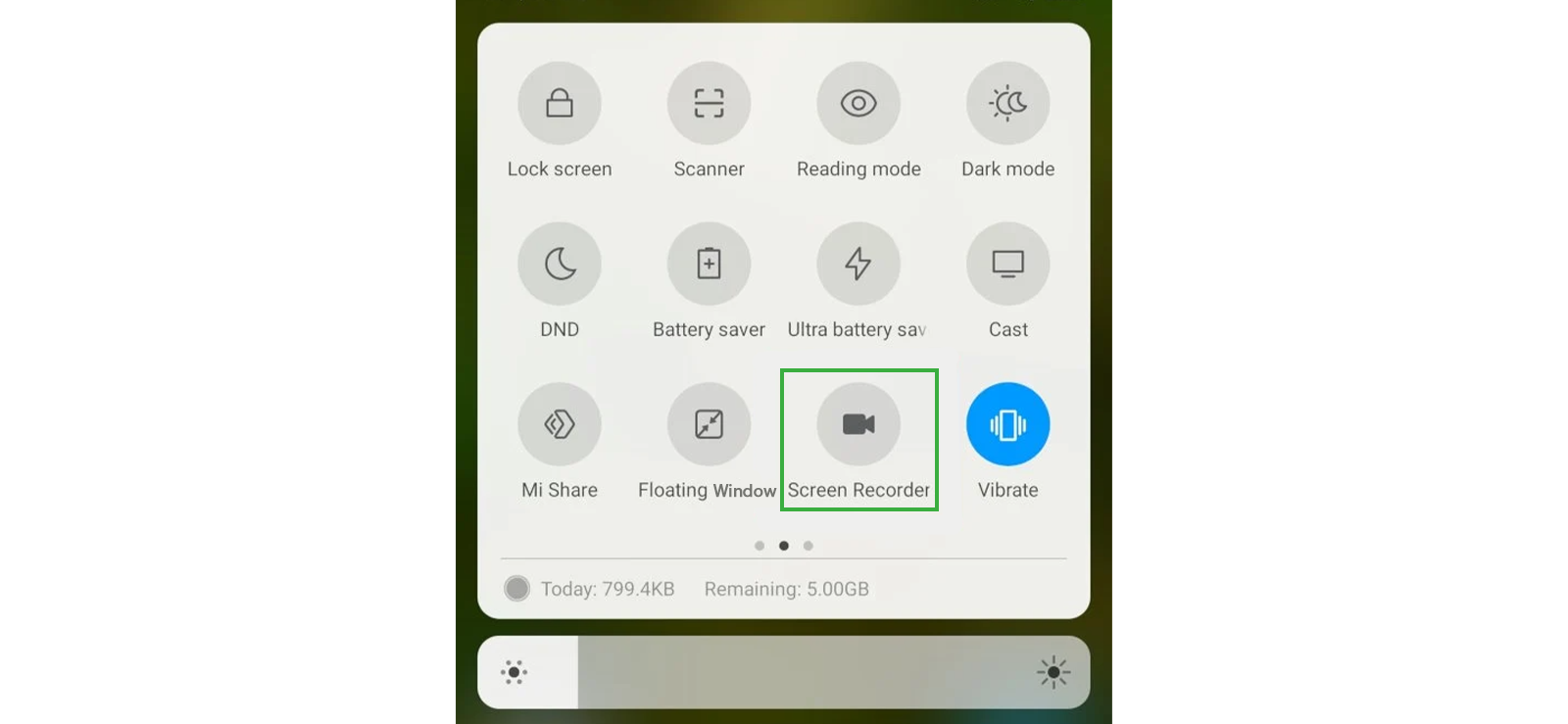
- Swipe down to open Quick Settings and tap the “Screen Recorder” option.
- Open the Tinder app and go to the content you want to capture.
- Tap “Start” on the screen recording tool and capture the content.
- Once finished, tap the stop button to end the recording. Then transfer it to your phone.
Everything I Found Out
Screen recording had an estimated 90% capture success rate for documenting activity that unfolded across multiple screens. As was expected, it consistently preserved more context than static screenshots because profiles and conversations stayed connected in one file.
Nonetheless, the main drawback was file size and review time. Evidently, longer recordings created unnecessary footage and took more time to revisit.
Overall, I found that keeping recordings under 60 seconds produced the best balance between detail and usability.

Did You Know?
Unlike Tinder, Snapchat does send alerts if you screenshot their stories. But you can avoid it.

4. Use Another Phone to Photograph the Screen
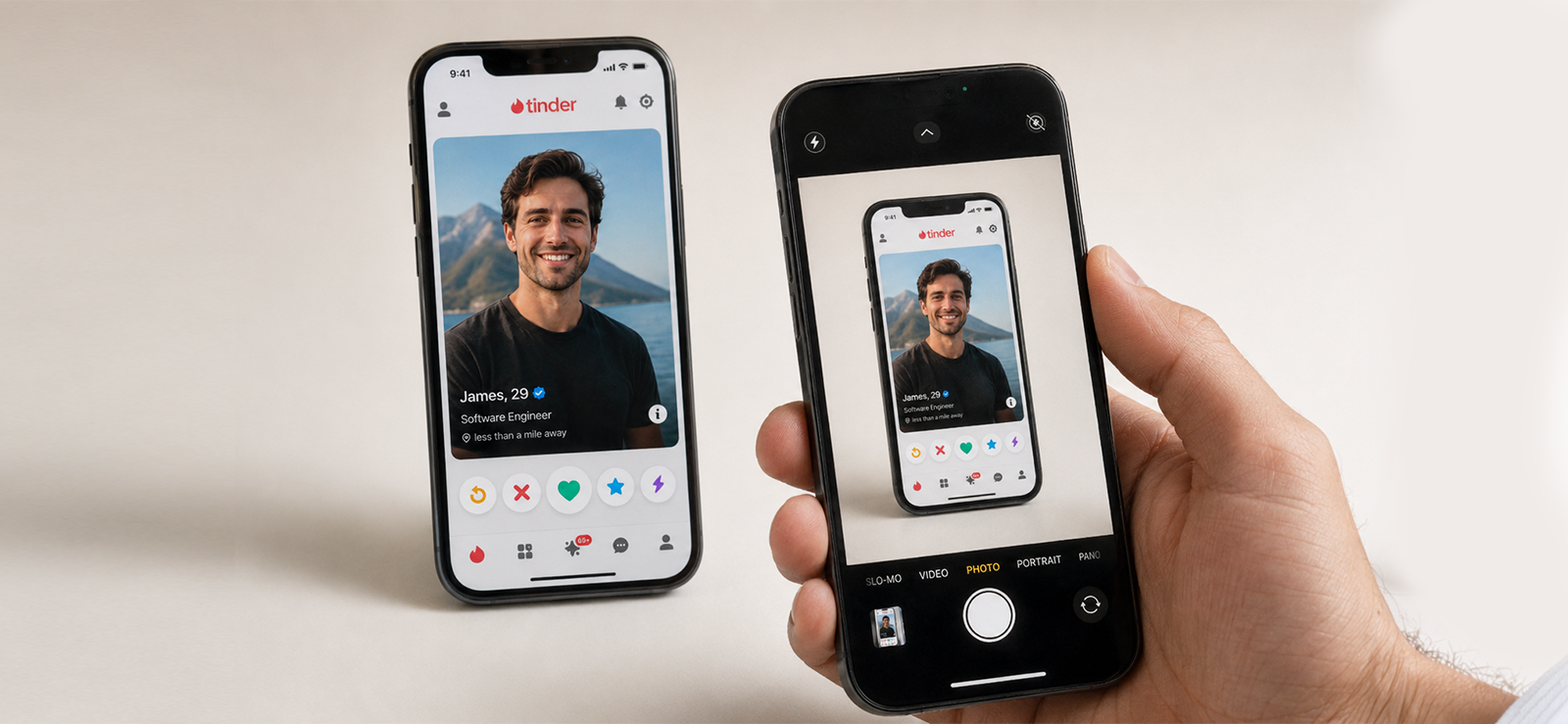
Sometimes the most practical method is also the simplest. Using another phone to photograph the screen creates a quick visual record without changing settings or generating extra files on the reviewed device.
The approach in question works especially well when parents only need to capture one specific screen for discussion or documentation.
To use another phone for capturing Tinder, use these steps:
- Launch the Tinder app on your child’s phone and go to the screen you want to capture.
- Get another phone ready, like your own or a spare one you have lying around.
- Use the second phone’s camera to snap a picture of the screen for later use.
Everything I Found Out
Taking a picture of Tinder from another phone got me an estimated 95% capture success rate, making it the most dependable method from a purely technical standpoint. There was no setup time, no dependency on settings, and almost no failure points.
For this method, its strongest suit was speed since most captures took under 10 seconds from opening the screen to saving the image.
However, image quality was a limitation I could not move past. Around 15-20% of photos needed to be retaken because of glare or motion blur. Small text and dark mode interfaces were also harder to read clearly.
FAQs
Does Tinder show if you screenshot another user’s matches?
Tinder doesn’t notify anyone if you take a screenshot of their matches or chat conversations. While the app has some privacy features, taking screenshots isn’t one of the things it tracks. So, you can easily capture matches, profiles, or chats without triggering any alerts.
Does Tinder tell when you screenshot someone’s bio on their phone?
No, there is no Tinder screenshot notification if you screenshot someone’s bio or profile. The app doesn’t flag or track screenshots of bios, photos, or any other profile details. That said, while the app won’t notify the user, it is still important to be mindful of privacy and not share or store content without permission.
Can you screenshot Tinder profiles on someone’s phone without them knowing?
Yes, you can screenshot Tinder profiles on someone’s phone without alerting them. One of the most discreet ways to do this is by using Xnspy. It operates in stealth mode, so the person won’t know it is being used. With its screen recording feature, you can remotely capture screenshots of Tinder photos, bios, or matches automatically. These screenshots are taken without sending any alerts or notifications, and they can be easily viewed and saved on your phone or laptop.
Does Tinder ban you for screenshotting?
No, Tinder won’t ban you for taking screenshots of profiles or chats. Screenshots aren’t against Tinder’s terms of service, so you are free to capture whatever you see. However, it is always a good idea to be respectful and not share someone’s information without their consent, as that could lead to privacy concerns.
Can you screenshot Tinder without having the target phone?
Yes, but only if you are viewing the profile on your own device. Taking a screenshot on another person’s phone without physically accessing it is tricky. However, tools like Xnspy offer a way to do this remotely. Its screen recording feature automatically captures Tinder activity the moment the app is opened, taking screenshots every 5 seconds and uploading them in real time to your dashboard.
Does Tinder notify if you screenshot pictures on someone else’s phone?
No, Tinder doesn’t notify users if you screenshot their pictures, even on someone else’s phone. Unlike some social media apps, Tinder doesn’t have a feature that alerts users when their profile, photos, or messages are captured. You can take screenshots freely without worrying about notifications being sent.
Leave a reply:
Your email address will not be published. Required fields are marked*

Mike Everett
Member since October 20, 2014
Mike Everett
Member since October 20, 2014
Mike Everett is a consumer technology journalist with expertise in hands-on testing and evaluation of iOS and Android monitoring applications. With over 11 years in the industry, he focuses on how mobile monitoring tools perform in real-world conditions, including accuracy, feature reliability, device compatibility, and practical usability for parents.
He conducts live-device testing of monitoring apps to assess how well their features function beyond marketing claims. His work primarily includes comparative reviews, feature breakdowns, and buyer-focused guides designed to help parents understand which tools actually deliver usable results in everyday scenarios.