How to Find Lost Samsung Phone: 4 Best Ways
 By Jenny Nicole
The complete monitoring experience for your phone
Get XNSPY and start tracking calls, texts, multimedia, locations and more on any phone!
Get Started Now Live DemoYou are going about your day oblivious to the whirlpool of emotions that awaits you. Then, at a random moment, you pat your pockets and find out that your Samsung is not there.
Where did you leave it? A thousand possibilities flood your mind. Was it the dingy winery you last went to or the small coffee shop you frequent? Well, only a thorough search can give you the answer to that. But what if even that does not yield any results?
That is when people turn to the internet for answers. If you, too, have been there and want to know how to find my Samsung phone after it is stolen or lost, continue reading to see 4 proven methods.
Quick Overview of Everything Important
- If your Samsung is lost, stay calm, retrace your steps, and check common spots.
- Use Samsung Find My Phone to track your real-time location.
- Locate phones online and offline with SmartThings Find.
- Go to Google Maps to check the device’s location history.
- On Google Find My Device, locate the device and remotely secure the phone.
- Try out third-party online phone-tracking services for estimated location.
- Track live location, location history, SIM/Wi-Fi logs, and set geofence alerts with Xnspy.
- Inspect the recovered phone for damage, malware, and unauthorized changes.
What to Do Immediately After You Realize Your Samsung Phone Is Lost
1. Stay Calm and Rewind
Without losing your composure and jumping to the worst possible conclusions, take a moment to think through where you last used your phone. Retracing your recent movements often helps you recall possible places.
2. Check Obvious but Ignored Places
Before you go ahead and start using a Samsung lost phone locator, it is best to check in common spots such as bags, pockets, couches, desks, or your car. Many lost phones turn up in places we assume we have already checked.
3. Secure and Monitor Your Accounts
Check banking apps, email alerts, purchase histories, and other accounts’ activities for anything unusual. Then take appropriate actions to protect sensitive data and better prevent unauthorized access while your Samsung phone is missing.
4. Contact Mobile Carrier
Inform your carrier that your phone is lost if all your searches render no results. Ask them to suspend the SIM card or temporarily disable service to stop calls and texts that could lead to misuse.
5. Notify Recent Contacts
Reach out to close contacts and places you visited recently. Someone may have found your phone and could be trying to identify the owner through recent calls or messages.
Not only that, but if the phone has fallen into the wrong hands, the person with your Samsung may also attempt to contact your friends or family with malicious intent, which makes notifying them even more important.
Your Personalized Guide Collection
🤙  How to Record a Phone Call on Android: Safe & Legal Methods
🕵️  How to Find Hidden Spy Apps on Android and Remove Them
💬  How to Retrieve Deleted Text Messages on Android: 5 Easy Ways
🔞  Spotify Porn: How Explicit Audio Bypasses Restrictions & Reaches Teens
How to Find a Lost Samsung Phone: 4 Proven Methods
Stop wondering how to find my Samsung phone after it is stolen or lost. Instead, take action immediately with the 4 methods discussed below.
1. SmartThings Find
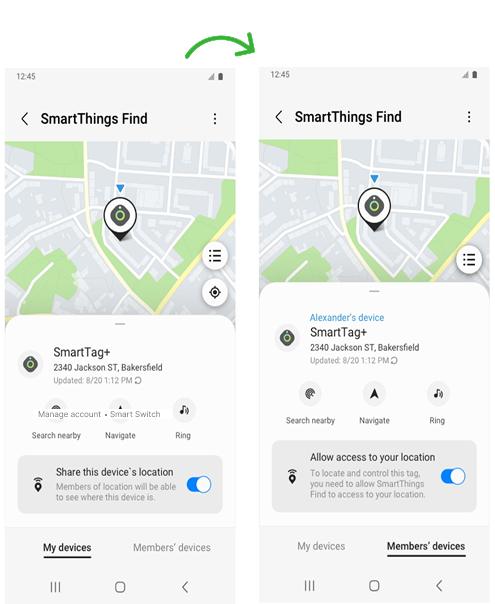
SmartThings Find is a Samsung lost phone locator that helps users recover lost phones, tablets, earbuds, and smartwatches. Combining online and offline technologies increases the chances of locating missing devices.
When enabled, nearby Samsung Galaxy devices can detect your lost phone via Bluetooth signals, even if it is offline. These devices then anonymously relay the location to Samsung’s servers, which makes it visible in your SmartThings Find dashboard.
Contrarily, when the lost device is online, SmartThings Find also uses GPS, Wi-Fi, and mobile networks to provide more accurate, real-time location updates.
To use SmartThings Find:
- Open a web browser or the SmartThings app and sign in to your Samsung account.
- Access SmartThings Find from the SmartThings interface.
- Select the missing device from your list of registered devices.
- View its location and use available options such as locking or securing the device.
However, the feature has limitations. It must be enabled on the device before it is lost, tracking is not possible. Offline detection also relies on nearby Galaxy devices, so effectiveness can be limited.
2. Google Maps
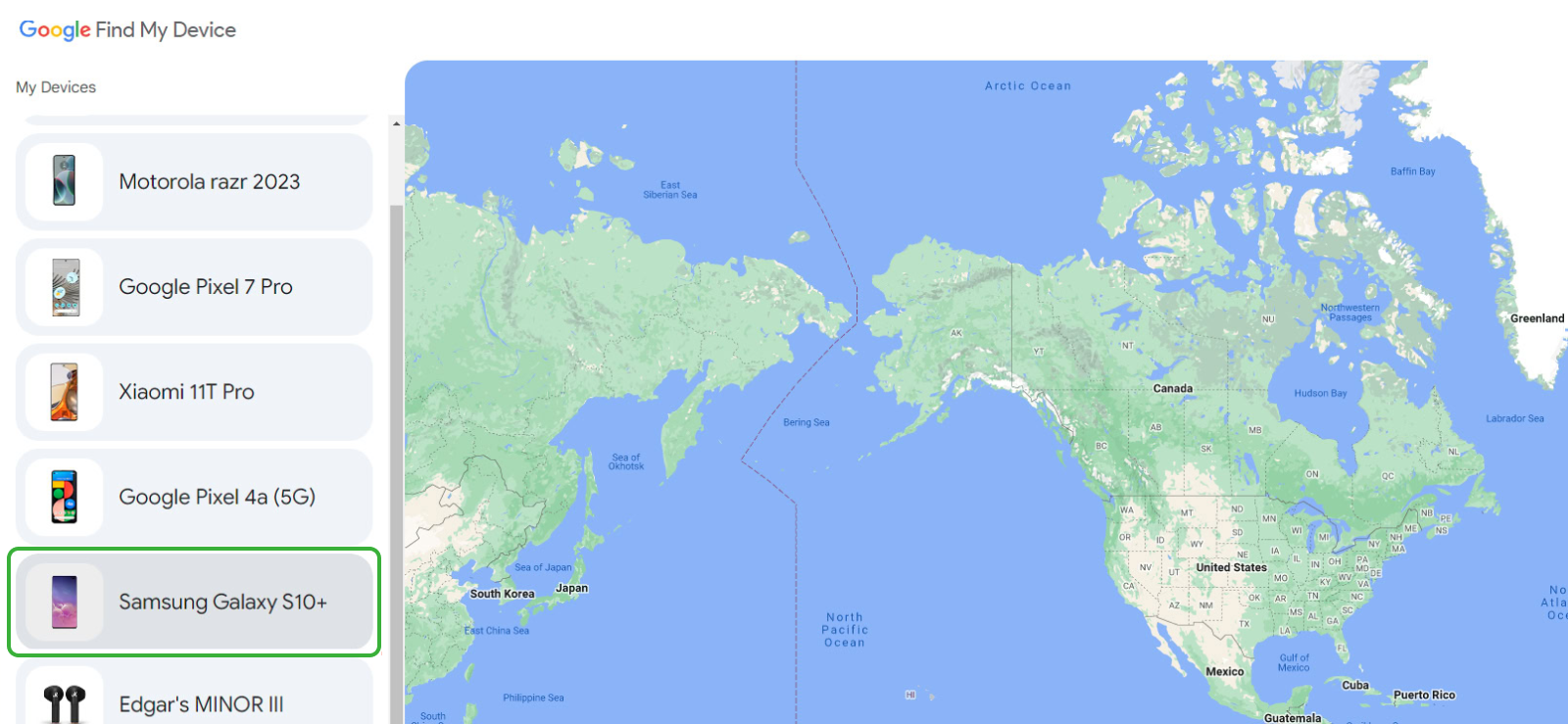
Google Maps is widely known as a navigation app, but it also has features that can find your devices through location history and timeline tracking. When enabled, Google Maps collects location data from your devices that are signed into your Google account.
This data is stored securely in your Google account and can be accessed to see where your device has been over time. The app uses GPS to estimate device location, which allows for real-time tracking and location history insights.
Now, follow the steps below to use Google Maps to find your Samsung phone:
- Open a web browser and sign in to your Google account.
- Go to Google Maps and access the Timeline or Location History section.
- Select the lost device from your registered devices list.
- View its real-time location and take further actions.
But for this method to work, the device must be powered on and connected to the internet. Furthermore, if location history was not enabled before the device was lost, Google Maps will not provide past location data.
3. Online Phone-Tracking Services
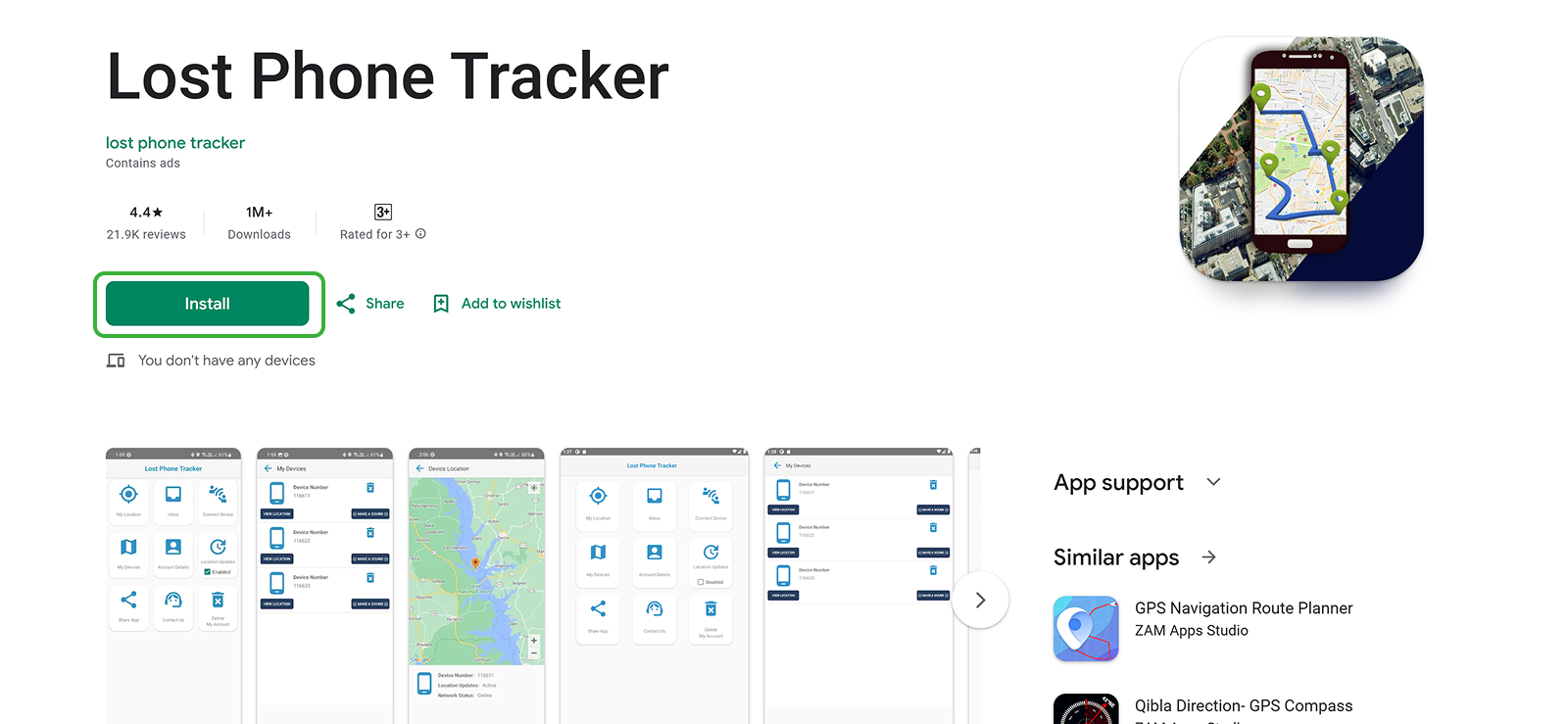
Several online phone-tracking services claim to help locate lost Android devices, including Samsung phones. These platforms typically work by using a phone number or IMEI code to estimate the real-time GPS location of a device.
Such services combine GPS signals, cell tower triangulation, and internet connectivity to determine the phone’s approximate position. Once processed, the location is displayed on a map that can be accessed through a web interface from a computer or another smartphone.
But how can you execute the methods? Refer to the steps below:
- Visit the target service’s website in any browser.
- Enter the lost phone’s number or IMEI code in international format.
- Verify ownership via the prompt sent to your linked email or SMS.
- View the location information shown on the map interface.
While convenient in theory, these services vary in accuracy and reliability. Not only that, but they also often depend on the target device being online and connected to the network. To add to the trouble, such solutions are not free.

Find Their Location Without Any Hassle
Xnspy gives you instant access to your kid’s location.
– Check their real-time location without interruption
– See continuous and detailed location history
– Set geofence alerts for specific areas
– Use SIM and Wi-Fi location logs, too, if needed.
4. Find Hub
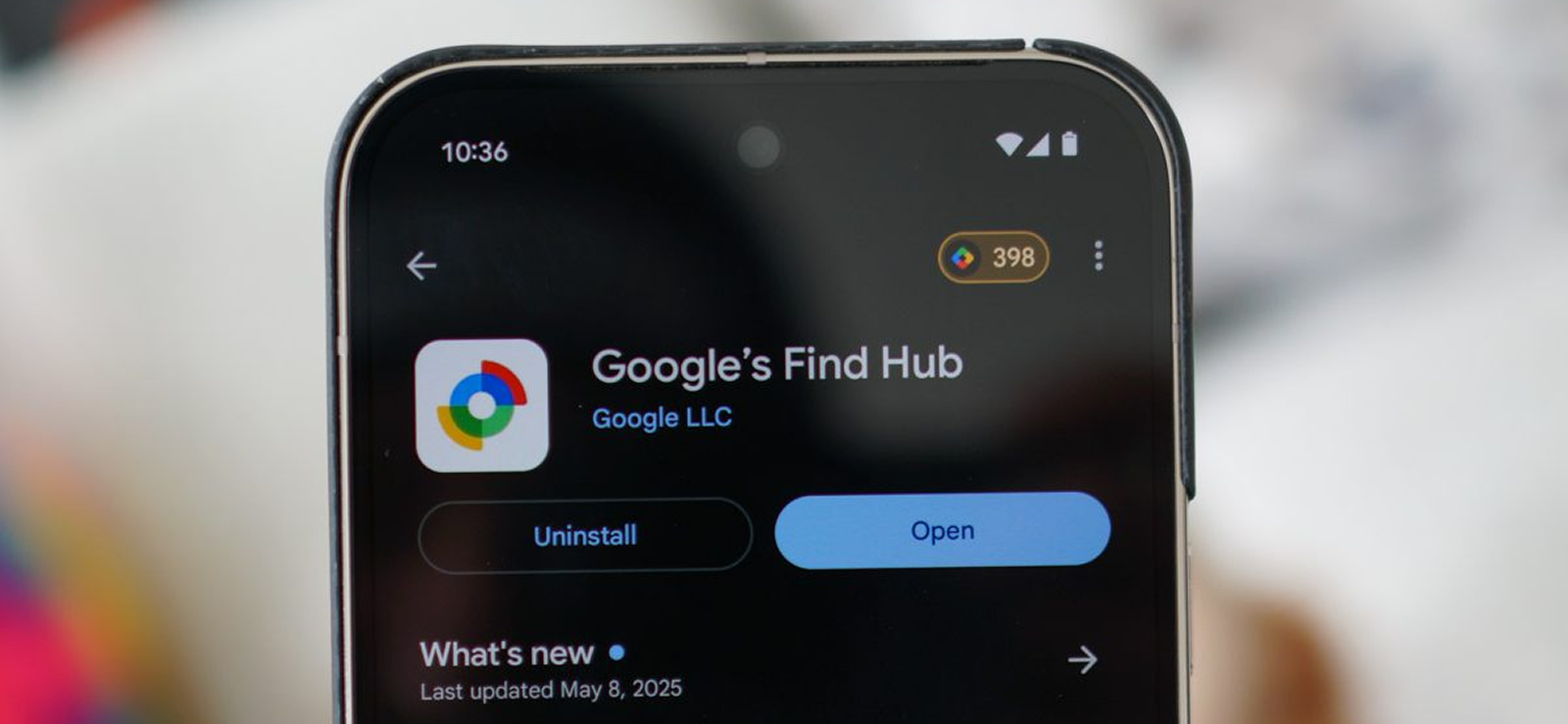
Find My Device, now rebranded as Find Hub, is Google’s official device-tracking solution for Android phones, including Samsung devices. It works by linking your phone’s location services with your Google account to locate the device remotely. When enabled, the phone regularly sends encrypted location data to Google’s servers.
- Open a web browser or the Find Hub app on another device.
- Sign in with the Google account linked to the lost phone.
- Select the missing device and view its location on the map.
However, this method comes with its fair share of drawbacks. Firstly, the phone must be powered on and have location services enabled for accurate tracking. Secondly, real-time location updates depend on internet connectivity; therefore, precision cannot be guaranteed at all times.
What to Do After You Recover Your Samsung Phone
- Inspect the Phone for Damage: Carefully check the screen, buttons, ports, speakers, and cameras. Even if the phone powers on, exposure to heat, dust, moisture, etc., may cause delayed issues that need early attention.
- Review Recently Installed Apps and Permissions: Go through your app list and look for anything unfamiliar. Also, review app permissions for camera, mic, storage, and accessibility to ensure nothing was enabled without your knowledge while the phone was missing.
- Document the Incident for Future Reference: Make a note of when and where the phone was lost and recovered to better recognize patterns. Moreover, improve your phone handling habits and know how to respond faster if a similar situation happens again.
- Check System Settings for Silent Changes: Review settings such as screen lock behavior, notification previews, Bluetooth connections, accessibility options, and background data usage to confirm nothing has been altered.
- Run a Full Device Security Scan: Use a trusted antivirus app to scan for malware that could compromise your phone’s data and privacy. If installed, you can change important passwords and attempt to remove the malicious software.

Pro Tip
Why see only their Samsung’s location when you can do it for all other Androids too?

How to Find Your Kid’s Lost Or Stole Samsung Phone
While losing a phone is equally stressful for all, the situation becomes even more precarious when it is a child’s Samsung phone. Why? Because, unlike adults, kids rarely set up their device’s recovery features beforehand and tend to ignore security settings altogether.
Therefore, when the phone goes missing, parents are left in a rut without any idea of where to look next. For example, they might try using built-in recovery methods but forget that these can work under ideal conditions only, which makes them unreliable when it comes to children’s devices.
So, for a more proactive role in finding a kid’s lost Samsung, concerned parents need tools like Xnspy that are dedicated child monitoring solutions. Since Xnspy was created with parents’ key concerns in mind, it offers features that help locate lost phones.
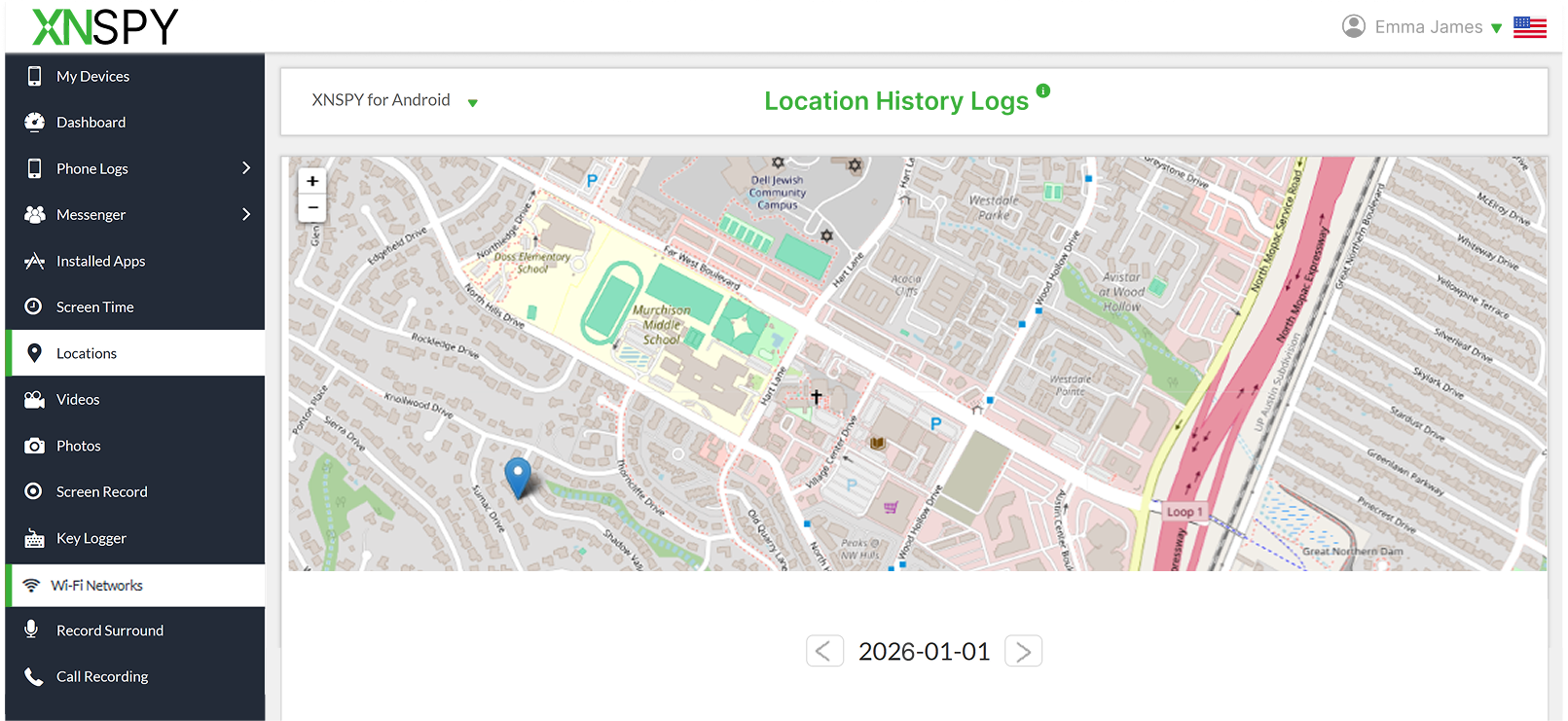
Live and Location History
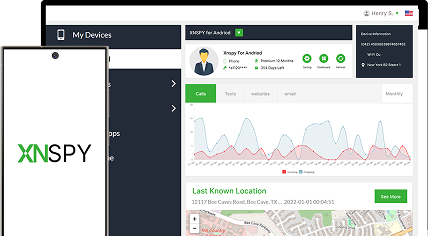
Xnspy uses three different logs to collect a phone’s live location and location history. Through GPS tracking, parents can see the exact address and coordinates of where the target phone is and even navigate to the location using the “Show in maps” button.
On the other hand, the SIM-based location tracking tags the location of the SIM with every sent/received message and call. Lastly, Wi-Fi monitoring enables parents to see the Wi-Fi their phone was connected to, its location, and the timestamp of the last connection.
Geofencing Alerts
Apart from location tracking, Xnspy also has geofencing alerts, which are instantly triggered when the phone enters or leaves predetermined safe zones like school, home, etc.
Other Features
Now, Xnspy is not only about location logs since it also includes comprehensive insights into a child’s online activity so parents can better protect them from dangers.
Not only its features, but also Xnspy’s general functionalities like real-time updates, stealth mode, user-friendly dashboard, and constant remote access make it a reliable solution.
Want to use the app? Here’s how to find lost Samsung phone belonging to your child using Xnspy:
- Visit the Xnspy website and buy a plan that suits your needs.
- Wait for the confirmation email, and upon receiving it, access the kid’s phone once.
- Begin the installation process and grant the requested permissions.
- Log in to the web dashboard to begin seeing their location.
FAQs
How to locate a lost Samsung phone from a computer instead of another phone?
If you don’t have another phone, you can use Samsung Find My Phone via a web browser to locate your device. By simply signing into your Samsung account on a computer and selecting the lost device, you can find its location on the map to speed up recovery. Moreover, within the web interface, you can find other options to lock the phone or erase data too.
How to track my lost Samsung phone if it is switched off?
If your Samsung phone is switched off, real-time tracking is not possible, but you can still prepare for its recovery. For example, SmartThings Find allows you to see the phone’s last known location before it powered down. Moreover, this service can send notifications once the device turns on, allowing you to then lock the phone or display a custom message on the screen. Overall, while offline tracking is limited for powered-off Samsung phones, SmartThings Find increases the chance of recovery once the phone is powered on.
How can I track my lost Samsung phone without having enabled tracking features beforehand?
Tracking a lost Samsung phone without having enabled any tracking features beforehand is challenging, but if the phone is signed in to a Samsung or Google account, you may be able to access its last known location through a web browser once it reconnects to the internet. Therefore, checking location history tied to the account can sometimes reveal where the phone was last active.
How accurate is the location shown for a lost Samsung phone?
The accuracy of a lost Samsung phone’s location depends on the method used and several external factors. Now, built-in Samsung features can provide fairly precise locations when the device is online. So much so that if GPS is enabled, the location can be accurate to within a few meters, but the same cannot be said about all online tracking apps. Moreover, other factors affecting accuracy include internet connectivity, whether the phone is indoors or outdoors, and the app’s ability to access location services.
Does factory resetting the Samsung phone stop all tracking permanently?
When searching for how to find a lost Samsung phone, you must have come across a myriad of solutions, but all of them have one drawback in common, i.e., factory resetting a Samsung phone removes all accounts and settings, including any tracking features previously enabled. Therefore, tools like Samsung Find My Phone, SmartThings Find, Google’s Find Hub, etc., will no longer be able to locate the device, which makes recovery extremely difficult.
3 Comments
Leave a reply:
Your email address will not be published. Required fields are marked*


Jennifer
February 3, 2026 at 2:29 pmI hace not set up anything beforehand or installed any apps. Can I still find my Samsung? Please help
Simon Adam
February 10, 2026 at 8:11 amIf I cannot find my phone, what to do then? Am I supposed to report it missing and get in touch with the authorities?
Saige Fuentes
February 12, 2026 at 8:52 amMy kid is so careless, he is always leaving his phone at random places and then crying about it at the end of the day.