
The complete monitoring experience for your phone
Get XNSPY and start tracking calls, texts, multimedia, locations and more on any phone!
Get Started Now Live DemoThere is something revealing about the moment a “Seen” notification appears. You have read it, and now the sender knows. On the surface, it seems trivial. But as someone who uses Instagram, I can tell you that seen receipts affect conversations more than most people realize.
Whether you are a teenager managing peer pressure or an adult trying to buy time before a difficult reply, knowing how to read an Instagram message without opening it is something that shows up regularly in real use.
So, I tested four methods across different devices and usage scenarios to figure out which ones actually hold up, and I am sharing everything I found here.
Everything About Reading Instagram DMs Without Seen: Quick Overview
- Instagram fires the “Seen” status the moment you open a DM thread inside the app.
- Turn Off Read Receipts: Works for both one-on-one and group DMs, the most straightforward native option.
- Restrict the Sender: Moves their messages to Requests, where seen receipts do not trigger.
- Notifications Previews: Preview message content in your notification tray without ever opening the app. Although it isn’t suitable for longer and media-containing messages.
- Use a Web Extension: Browser-based tools let you read Instagram DMs on desktop without triggering seen receipts.
- For Parents: You can see who your child is chatting with on Instagram via the Xnspy monitoring app.
How Did I Put These Methods To The Test?
Before I share the results, I want to be transparent about how I tested these methods, because the internet is full of tips that look good on paper but fall apart the moment you try them.
I tested all four methods across both Android (a Samsung Galaxy device) and an iPhone running the latest iOS build.
For each method, I created dedicated Instagram test accounts, exchanged messages, and verified whether the seen status appeared on the sender’s end after I had viewed or previewed the message.
To ensure the working, I ran each scenario multiple times, across regular DMs, group chats, and Instagram’s disappearing message feature, to account for inconsistencies. Following is the criteria I considered for each method:
- Read Receipt Prevention: I checked whether the “Seen” status stayed hidden after opening messages, running 40+ individual DM tests to confirm accuracy.
- Consistency Across Scenarios: I tested each method across four chat types – 1:1 DMs, group chats, disappearing messages, and media or voice notes – to see where it held up or failed.
- Ease of Use: A workaround is only useful if people can realistically use it in everyday situations. I measured how practical each method was in real use, from instant actions to steps that sometimes took around 30–60 seconds per message.
- Coverage and Limitations: Not every method works for every type of Instagram message. So I compared results across Android and iOS over three separate testing rounds, noting exactly where each method worked reliably and where it broke down.
More Articles Worth Reading

⚡  How Can Parents Monitor Instagram: 5 Legal Methods
⏰  How to See If Someone Is Active on Instagram: 4 Methods
🕵️  How to See Who Stalks Your Instagram: 100% Working Methods
⛔  How to Check Who Unfollowed You on Instagram: 4 Working Methods
How Does Instagram Seen Status Work Within DMs?
To understand how to beat a system, you first need to understand how the system works, and the “Seen” mechanism inside Instagram is worth looking at closely.
When you receive a direct message on Instagram, the app tracks your interaction with that message at a functional level. A message is marked as “Seen” the moment you open the direct message thread inside the app. It does not matter whether you read the full message or just scrolled past it; opening the conversation window is the trigger.
From a technical standpoint, Instagram’s servers register the read event when your client sends a confirmation back to Instagram’s backend, essentially signaling that the message has been rendered on your screen. That event is what populates the “Seen” text visible to the sender.
How to Open Instagram DM Without Seen: 4 Ways That Work
Here is the honest reality before we get into the specifics: none of these methods is perfect for every situation. Some work only in one-on-one chats, others only in group settings. The right choice depends on your context. The table below gives you a quick reference before I walk through each method in depth.
| Method | Works On | Prevents Seen? | Ease of Use | Success Rate |
| Turn Off Read Receipts | 1-on-1 & Group DMs | Yes | Easy | ~95% |
| Restrict the Sender | 1-on-1 & Group DMs | Yes | Easy | ~95% |
| Read Via Notifications | 1-on-1 & Group DMs | Partial (preview only) | Very Easy | ~75% |
| Use a Web Extension | 1-on-1 & Group DMs, but only on Instagram Web | Yes | Moderate (setup required) | ~80% |
1. Turn Off Read Receipts
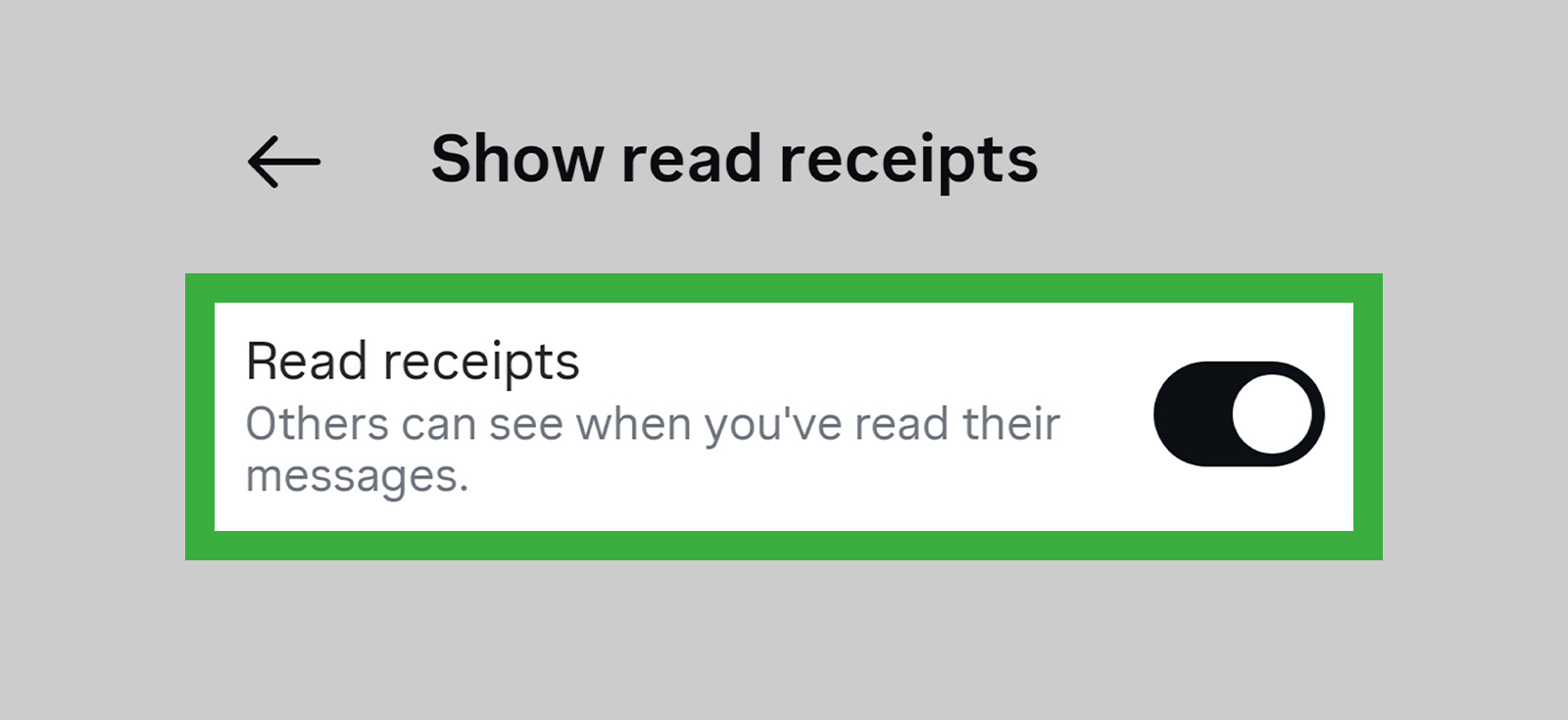
This is the most commonly referenced tip when people ask about how to read Instagram DM without seen, and it is also the most misunderstood one. Instagram does allow users to disable read receipts, but the setting does not work the way most people assume.
Instagram essentially treats it as a two-way privacy measure rather than a one-sided feature. When you disable the setting, it is a mutual toggle. This means you also lose the ability to see when the other person reads your messages.
To turn off read receipts:
- Open the Instagram app and tap your profile picture in the bottom right corner to go to your profile.
- Tap the three lines (☰) in the top right corner, then go to Settings and Privacy.
- Tap Messages and Story Replies, then select Message Delivery.
- Under read receipts, toggle off Show Read Receipts.
Did It Work Out For Me?
Yes, and more consistently than I expected across both types of conversations. In one-on-one test chats, opening messages after disabling the toggle produced no seen receipt on the sender’s side across all 16 test runs, on both Android and iPhone. Out of these 16 tests, 6 were for group chats, and to my surprise, they behaved the same way.
The setting is straightforward, and the results are clean. The only real catch I found was that it cuts both ways. You gain privacy on your reads, but you give up visibility on theirs. So, if you are someone who doesn’t want to give away your information but still wants to know about the person, it is practically impossible for you to toggle the feature on and off repeatedly.
Overall, I’d say that while this is a good, clean method, relying on this solely may not cut it.

Take Control of Instagram Safety with Xnspy
Stay informed with the most advanced parental monitoring app for Instagram.
– Monitor Instagram activity, including disappearing messages
– Capture screenshots of active DM conversations
– Set keyword alerts for suspicious or risky interactions
– Track social media usage patterns from one dashboard
2. Restrict the Sender
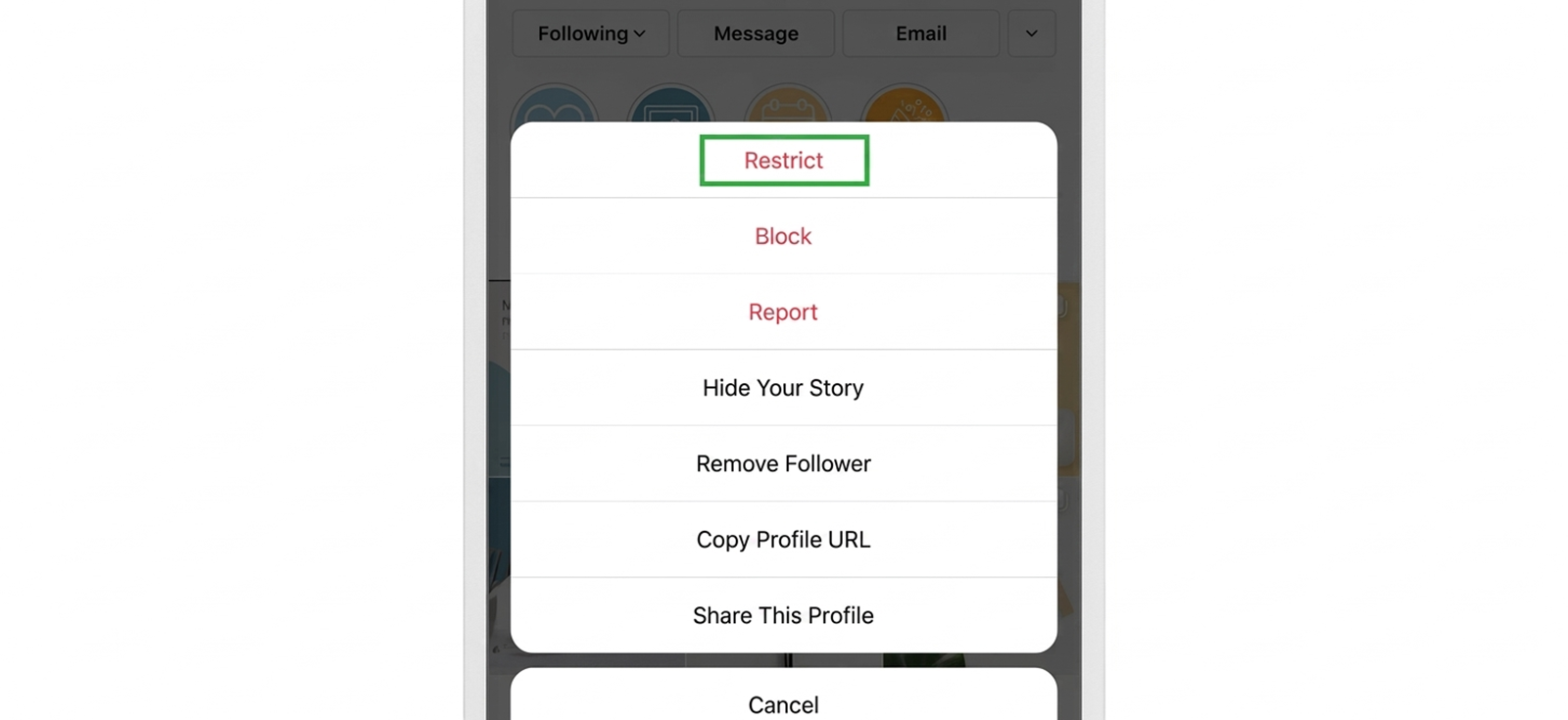
Instagram’s Restrict feature was originally built as a quiet anti-harassment tool, a way to limit someone’s ability to interact with you without alerting them that anything has changed. As a side effect, it happens to be one of the most reliable ways to read dm on Instagram without seen.
When you restrict an account, its messages are rerouted from your main inbox into a separate “Message Requests” folder. Instagram’s read receipt system is tied to your primary inbox threads. Messages sitting in Requests exist outside that system entirely, which means reading them there does not fire a seen notification on the sender’s end at all.
To know how to read DM on Instagram without seen by restricting the sender, follow these steps:
- Go to the Instagram profile of the person whose message you want to read privately.
- Tap the three-dot menu (⋯) in the upper right corner of their profile.
- Select Restrict and confirm by tapping Restrict Account.
- Go back to your Instagram Direct inbox, tap Requests, and read their messages freely; no seen receipt will be triggered.
- To go back to normal, visit their profile again, tap the same menu, and select Unrestrict.
Did It Work Out For Me?
This was the most consistently effective method across all my testing. In every scenario where I restricted a sender and read their messages through the Requests folder, not a single seen receipt fired, across text messages, photos, and voice notes, on both Android and iPhone.
However, I did find a major and practical limitation during testing, and it is worth knowing before you commit to this method. Restricting someone keeps their messages in Requests indefinitely without triggering a seen receipt, but the moment you unrestrict them, and they send a new message, that message lands in your primary inbox. Opening it there will fire a seen receipt as normal.
So if your goal is to read and eventually reply without ever revealing that you’ve seen any new message, unrestricting resets the situation. For this to work, I had to go back and forth between restricting and unrestricting, which was quite annoying, to be honest.
This makes the Restrict method best suited for situations where you need to read something privately and buy time, rather than as a permanent, invisible way to stay in a conversation.
3. Read Messages Via Notifications
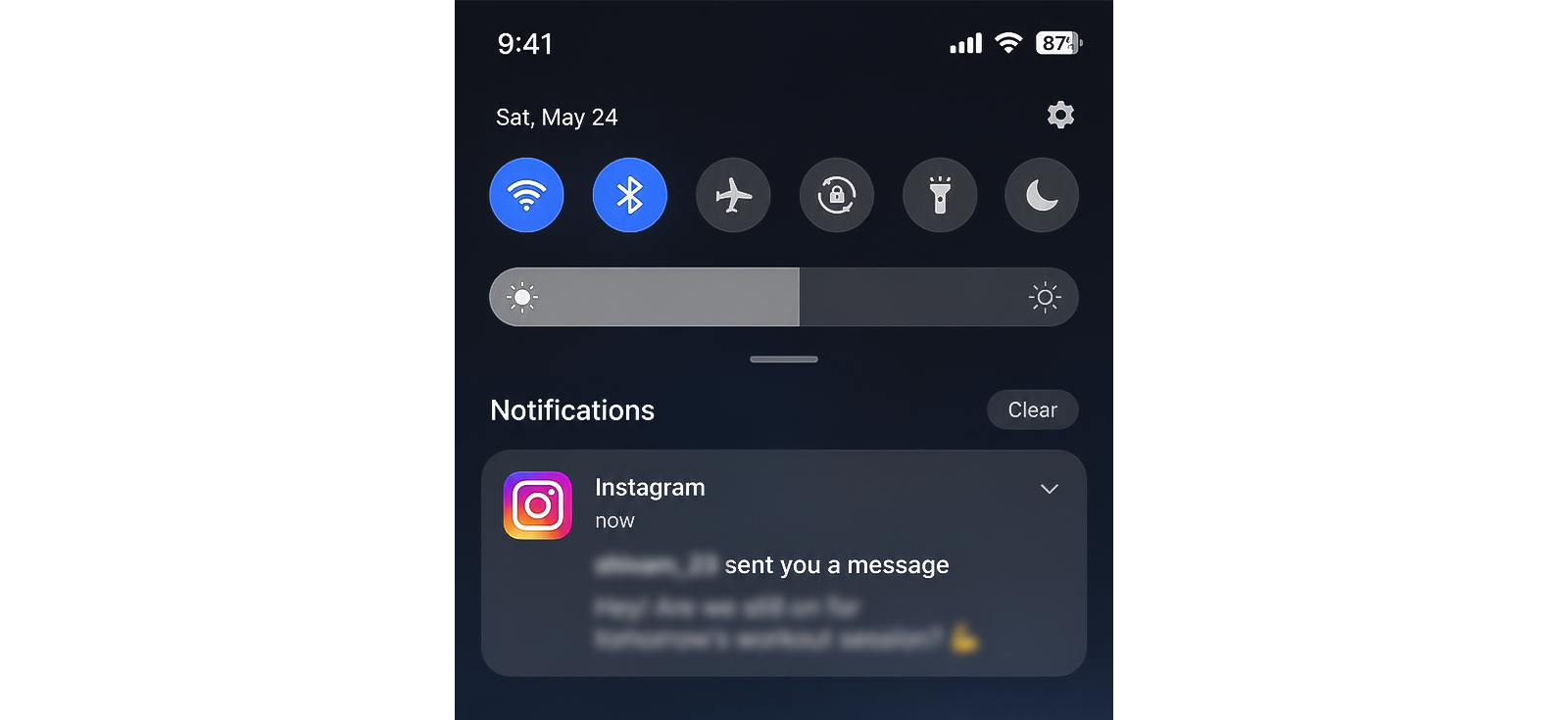
This is the simplest method on the list, no settings to change, no account adjustments, nothing. It works because of one straightforward fact: Instagram can only mark a message as seen when you open the chat thread inside the app.
Your phone’s notification system is entirely separate from Instagram’s read tracking, so anything you read in your notification tray never registers as a read event on Instagram’s end.
Knowing how to open IG message without seen through notifications is simply a matter of reading what your notification preview shows and not tapping through to the app. When a DM arrives, the notification surfaces the beginning of the message, and depending on the length, sometimes the whole thing, without you ever entering the conversation.
Here’s how to read an Instagram DM without opening it using this method:
- Make sure Instagram notifications are turned on. On iPhone: Settings → Notifications → Instagram. On Android: Settings → Apps → Instagram → Notifications.
- Ensure message previews are enabled. On iPhone, set Show Previews to “Always.” On Android, previews are on by default for most devices.
- When a DM arrives, read the notification preview directly from your notification tray or lock screen — without tapping into the app.
- On iPhone, press and hold or swipe down on the notification banner to expand it and reveal more of the message. On Android, pulling down the notification drawer and expanding the notification can show additional text depending on your device.
Did It Work Out For Me?
For shorter messages, this works cleanly and requires essentially zero effort. 17 out of 30 test runs where the full message content appeared in the notification preview came back clean, no seen receipt triggered on the sender’s side, on either platform.
However, in the other 13 trials, I noticed the limitation that notification previews have a fixed character limit. Longer messages were cut off, and for images, videos, or voice notes, the notification indicated an unread message but did not show any content.
4. Use Web Extensions

The three methods above all work within Instagram’s mobile app. This one operates differently as it relies on browser extensions that modify how Instagram’s web interface loads and handles message interactions.
Certain Chrome and Firefox extensions are specifically designed to give you read-only access to Instagram DMs through the browser without triggering the seen receipt that Instagram’s standard web interface would normally fire.
They do so by intercepting the read confirmation that Instagram would ordinarily send back to its servers when you open a conversation, effectively letting you view the message content while suppressing the event that marks it as seen.
A few extensions that have been used for this purpose include Unseen for Instagram and IG Unseen, both available on the Chrome Web Store. The specific availability and functionality of these tools can shift as Instagram updates its web interface, so it is worth checking recent reviews before installing to confirm the extension is still working as expected.
To know how to open Instagram dm without seen via web extensions:
- Open the Chrome Web Store (or Firefox Add-ons for Firefox users) and search for “Unseen for Instagram” or “IG Unseen.”
- Review recent user ratings and comments to confirm the extension is currently functional, as Instagram’s updates occasionally break these tools temporarily.
- Click Add to Chrome (or Add to Firefox) and confirm the installation.
- Once installed, open Instagram in your browser at instagram.com and log in to your account.
- Navigate to your DMs. The extension will suppress the read confirmation when you open a conversation, meaning the sender will not see a “Seen” notification.
Did It Work Out For Me?
Out of the roughly 20 test messages I opened through the browser with a web extension active, 17 came back clean, with no seen receipt on the sender’s side. That is a solid hit rate, and in those sessions, the extension did exactly what it promised.
Where things got messier was consistency over time. Midway through my testing window, the extension crashed and quietly stopped suppressing receipts without any warning. I only caught it because I was checking the sender’s side after every open; a normal user would have had no idea.
I loaded the extension 4 times, and only then did the issue get fixed. So my honest summary is that when it is working, it works well and fails quietly with no indication whatsoever. Personally, I would not use this as my only line of defense.

Did You Know?
Now you can view other people’s Instagram stories anonymously as well.

There Is Another Side to This: Seeing Your Child’s Instagram Messages Without Ignoring Privacy Concerns
Something I hear often, in emails from readers, and in conversations with parents after workshops, is a version of the same concern: “I know my child is constantly in their DMs, but I have no visibility into who they are talking to or what is being said. How do I make sure they are safe?”
It is a question I take seriously, and because it comes up so consistently, I want to address it here directly while we are on the topic of Instagram DMs.
The closed, private nature of Instagram direct messages is part of what makes them feel low-stakes to a teenager, and exactly what makes them worth paying attention to as a parent. As a parent to 2 teenage daughters and a teen psychology & digital behavior specialist, I understand why parents’ concerns.
So, what do I actually have to address these concerns? The answer is: Xnspy, a phone monitoring application designed specifically for parental oversight. Once installed on your child’s device, it gives you a continuously updated dashboard that shows what is happening on that phone, across apps, messages, and media.
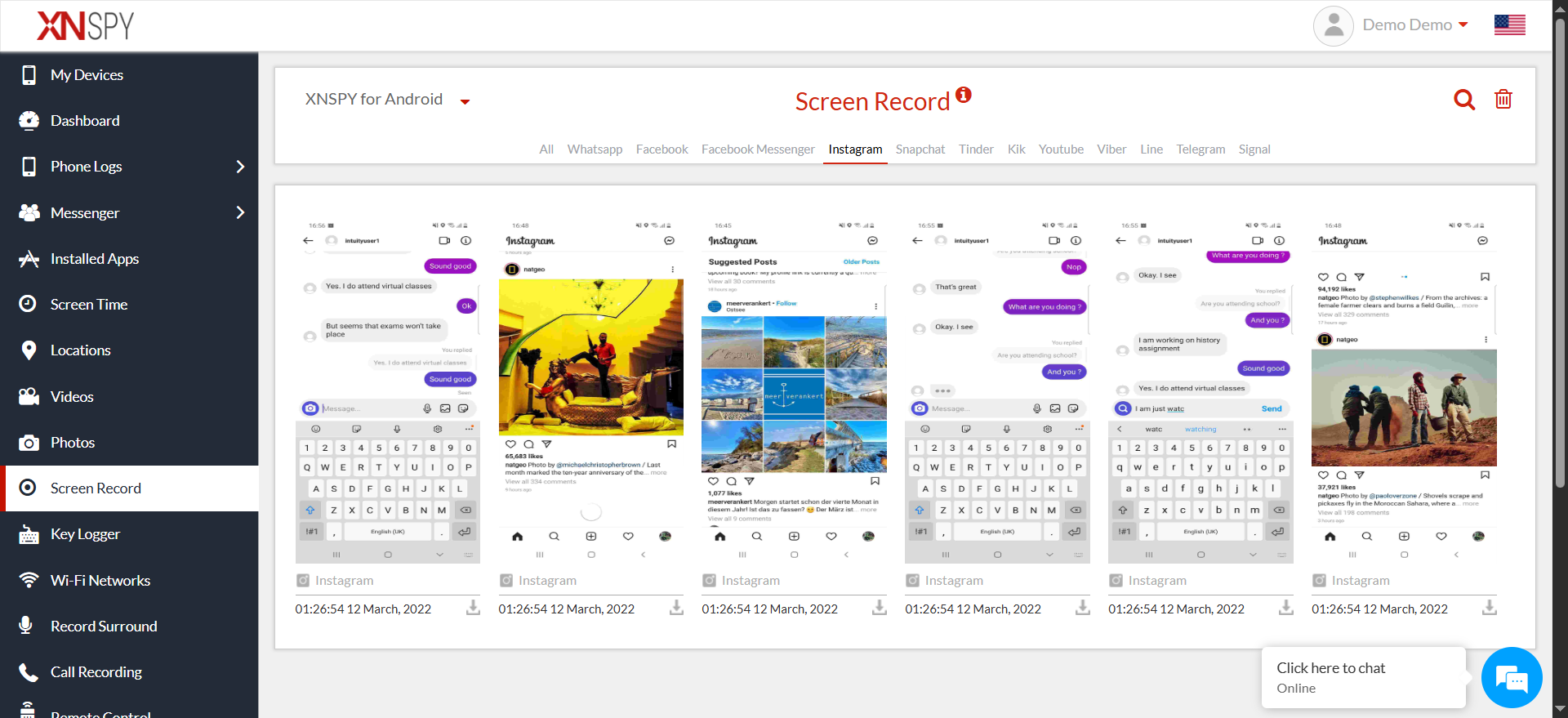
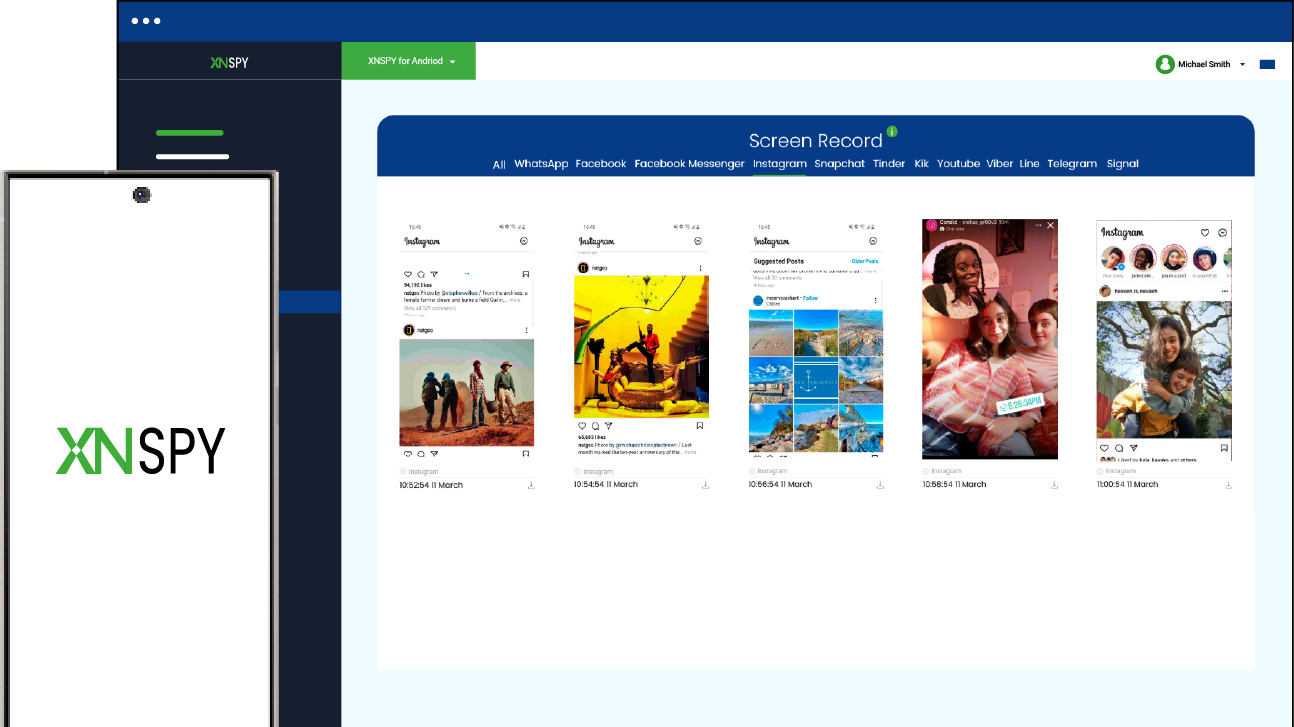
What makes it particularly useful for Instagram DMs, particularly disappearing messages, is its screen recorder feature. Xnspy periodically captures screenshots of whatever is active on the monitored device and sends them to your dashboard. This means that if your child is inside an Instagram DM conversation, those screenshots land on your end, and you can review them without touching their phone.
To set it up:
- Visit Xnspy.com and select a subscription plan.
- Install the Xnspy app on your child’s Android or iPhone; a brief window of physical access to the device is needed for this step.
- From the Xnspy web dashboard, go to screen recorder and select Instagram to begin reviewing DM activity.
- Configure keyword alerts for any terms or phrases you want to be notified about.
One thing I always tell parents: monitoring works best as a tool for staying informed, not as a substitute for conversation. Knowing what is happening in your child’s digital world puts you in a much better position to talk to them about it, and that conversation, handled with understanding rather than confrontation, is where the real safety work happens.
FAQs
Does airplane mode actually help read an Instagram DM without opening it?
It used to, but not anymore. The older method involved switching to airplane mode before opening a message, reading it, then clearing the app’s cache and force-stopping the app before reconnecting to the internet to stop Instagram from syncing the read event. On current versions of the app, Instagram can retroactively register the seen status once connectivity is restored.
How to see Instagram messages without opening a disappearing message?
Disappearing messages are the hardest category to handle. The notification preview method gives you the best shot. If the message is short enough to appear in full in your notification tray, you can read it without opening the thread. For longer content or media-based disappearing messages, there is no reliable native workaround currently.
How to view Instagram messages without opening via incognito mode?
Incognito or private browsing mode does not help here. Logging into Instagram through a private browser window still triggers seen receipts exactly the same way the standard browser does; the privacy setting only relates to your local browser history, not to how Instagram’s servers process your interactions. Opening a DM thread in incognito will mark it as seen just as reliably as opening the app. The web extension method is the desktop approach that actually works.
Does turning off “Active Status” hide seen receipts?
No, and this is one of the most common misconceptions I come across from people trying to figure out how to see an Instagram message without opening it. Active Status and read receipts are two completely separate features. Active Status controls whether others can see the green dot showing you are currently online. Read receipts are an independent system. Turning off Active Status has no effect whatsoever on whether a “Seen” notification appears when you open a DM.
Can I read Instagram messages through email notifications?
If you are wondering how to read an Instagram message without opening it through email notifications, the short answer is that it does not work that way. Instagram email notifications will tell you that a new message has arrived, but they do not include the message content itself. The email is essentially a prompt to open the app; the actual DM text is not included for privacy reasons. So no, email notifications cannot be used as a workaround for reading messages without triggering a seen receipt.
Leave a reply:
Your email address will not be published. Required fields are marked*
Jenny Nicole
Member since October 23, 2014
Jenny Nicole
Member since October 23, 2014
Jenny Nicole is a teen psychology and digital behavior specialist with an MSc Developmental Psychology & Psychopathology from King's College London, graduated 2017. Her work revolves around how adolescents communicate and make decisions in digital environments, particularly on social media and messaging platforms. Over the past 5 years, she has written extensively on teen smartphone behavior, online peer dynamics, the psychological impact of social media, and the need for oversight. Her work has helped parents and educators interpret not just what teens are doing online, but why they are doing it. Overall, she has not only authored over a hundred guides breaking down child psychology for parents but also regularly spoken at family safety and internet governance conferences across the UK and US.