
The complete monitoring experience for your phone
Get XNSPY and start tracking calls, texts, multimedia, locations and more on any phone!
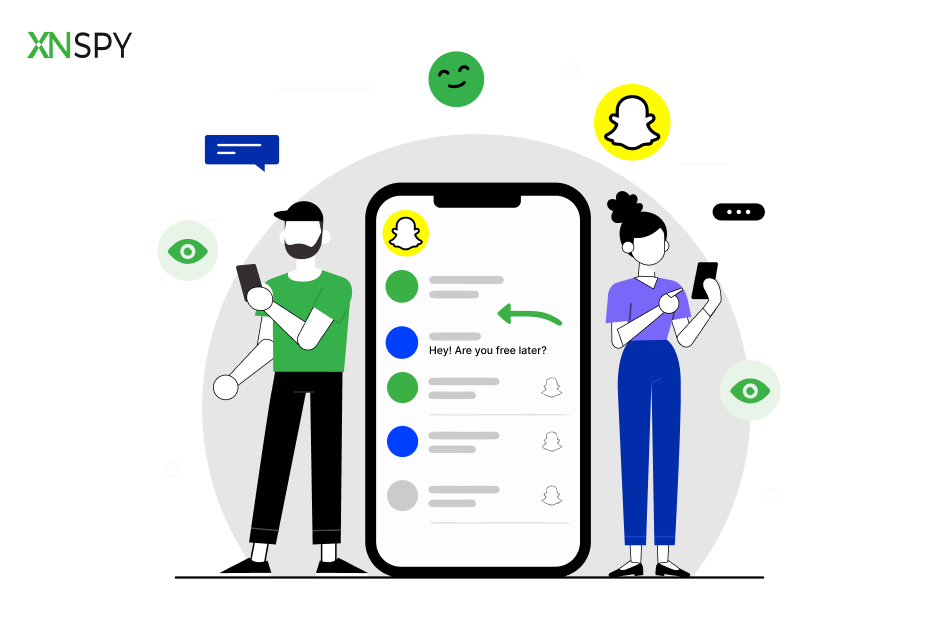
Get Started Now Live DemoIf you’ve ever watched your teen’s phone light up with Snapchat notifications and had no idea who’s actually on the other end, you’re not the only parent stuck there. Snapchat is built to keep conversations private by design; no visible chat history, no public friend list, messages that disappear the moment they’re opened.
That’s exactly why parents stay worried, especially with a recent teen survey showing that just under half of U.S. teens (46%) use Snapchat every day, mostly for direct messaging rather than posting.
So if you’re wondering how to see who someone is snapping without getting locked out or tipping them off, here’s the honest answer: While there’s no single official way, five indirect methods, if used correctly, can get you a reliable picture. I tested all of them against Snapchat accounts under my control to see exactly what each one reveals.
Everything in Under 60 Seconds
- Snapchat doesn’t publish a friend list or chat log to anyone outside the account.
- Xnspy: It allows you to use screen recording and keystroke logging to capture usernames, ongoing chats, and interaction patterns directly from the device, without requiring repeated access to the account.
- Family Center: Snapchat’s own parental tool. Shows a teen’s full friend list, new-friend context, and who they’ve chatted with in the last 7 days, but only once the teen accepts the invite.
- Snapchat Data: A one-time account export can surface a friend list and chat metadata.
- See Email Notifications: Snapchat occasionally sends engagement emails after a stretch of inactivity.
- Android Notification History: If turned on ahead of time, Android keeps a rolling 24-hour log of notifications that can include the sender’s username from a Snapchat alert.
The Importance of Knowing How to See Who Someone Snapchats
Understanding how to see who someone is snapping without them knowing can give valuable insight into their social activity and frequent contacts. Recognizing who they interact with regularly helps form a more accurate picture of their digital habits.
For parents or guardians, this kind of awareness can lead to more informed conversations and encourage healthier online behavior. It is about staying involved in a way that’s respectful and intentional.
Since Snapchat is designed to keep interactions private, finding subtle and responsible ways to observe activity becomes essential.
Helpful Blogs Worth Your Time

🎯  How to See Someone’s Best Friends List on Snapchat
💻  How to Log into Someone Else’s Snapchat: 5 Best Ways
👻  How to Block Inappropriate Content on Snapchat Without the Phone
⛔  How to Find Out if Someone Has an OnlyFans Account
How I Put These Methods to the Test
To see how each of these methods for figuring out who someone is snapping actually held up, I set up two personal Snapchat accounts on a Pixel running Android and an iPhone. I then ran every method against a controlled week of snap and chat activity between them.
I considered the following factors while testing:
- Access Required: Whether the method needs the account password, physical access to the device, or just the target’s cooperation.
- What It Actually Reveals: Usernames and interaction frequency, versus just confirming that Snapchat activity happened at all.
- Real-Time vs. Snapshot: Whether the method keeps updating on its own or only reflects a single moment in time.
- Consistency: Whether results held up the same way across both test devices and repeated attempts, or varied by device settings and notification permissions.
How to See Who Someone is Talking to on Snapchat Without Having Their Phone: 5 Proven Techniques
Want to know who someone is talking to on Snapchat without touching their phone? Here are 5 effective methods that make it possible.
| Method | Reliability | Access Required | Limitations |
| Xnspy | High | One-time app installation on the target device | Requires initial physical access to install |
| Family Center | Medium-High | Teen must accept the Family Center invite | No message content; only a rolling 7-day chat window |
| Snapchat Data Download | Medium | Target’s Snapchat login credentials | One-time snapshot only; emails the account owner |
| Email Notifications | Low-Medium | Access to the inbox linked to the target’s account | Mostly fires after a stretch of inactivity, not for every snap; no message content |
| Android Notification History | Medium | Must be enabled on the target’s Android device beforehand | Android only; 24-hour window; doesn’t work retroactively |
1. Use Xnspy
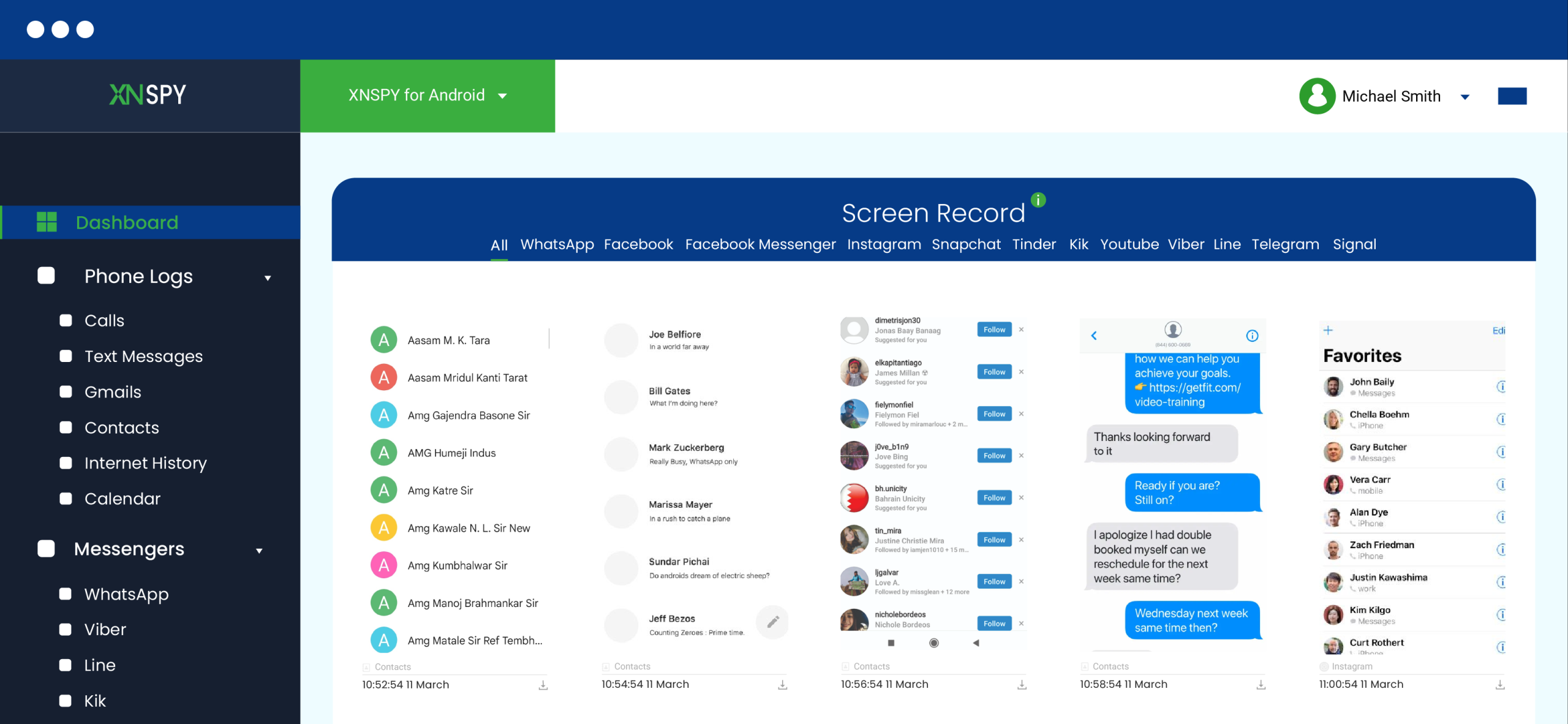
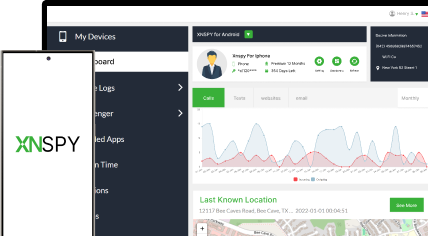
If you want a way to track Snapchat activity without needing to get back into the account every time, Xnspy is built for exactly that. Since Snapchat hides both conversations and friend lists by design, Xnspy works around that by capturing what’s actually happening on the screen and being typed, rather than trying to pull data from Snapchat’s servers.
The screen recorder takes screenshots at short intervals, typically every 5 seconds, which is frequent enough to catch usernames, open chats, and reaction emojis while Snapchat is in use. The keylogger runs alongside it, recording every keystroke entered on the device, from username searches to typed messages, which helps confirm who the account is actively interacting with.
Here’s how to see who someone is snapping using Xnspy:
- Install Xnspy on the target device.
- Activate screen recording from the Xnspy dashboard to start capturing Snapchat activity.
- Enable the keylogger to log every typed word and username on the device.
- Review captured screenshots and keylogs to identify repeating names and interaction patterns.
How Did It Go in My Experience?
This was the only method that gave me a running picture instead of a single snapshot. Over the 7-day test window, the screenshots captured usernames and open chat threads clearly enough to identify which contacts came up most often, and the keylogger backed that up by showing the same usernames being typed into the search bar repeatedly.
However, the main limitation was that I had to get physical access to the device once to install it. Moreover, the fact that the keylogger doesn’t make app-wise categories and logs device-wide strokes chronologically made it somewhat difficult for me to find Snapchat-related keylogs. Thankfully, the data filter eventually helped me narrow the logs down to Snapchat only.

Xnspy Knows Who They’re Snapping
Keep an eye on their digital habits, start tracking today.
2. View Via Family Center

Snapchat’s own Family Center is a built-in parental tool that shows more than just a friend list. Once a teen accepts an invite, a parent gets visibility into who their teen has been friends with, who they’ve chatted with recently, and how much time they’re spending on different parts of the app, all without being able to read the actual messages.
Specifically, Family Center shows a child’s full friend list along with “trust signal” context on any new friend, whether they share mutual friends, are saved in the teen’s phone contacts, or belong to the same school or community. It also lists Recent Conversations, meaning who the teen has messaged over the past 7 days, including group chats, even if the teen has since cleared, blocked, or unfriended that contact.
Here’s how to see who someone is Snapchatting via this method:
- Open Snapchat and go to Settings.
- Tap “Family Center” and send an invite to the teen’s account.
- Wait for the teen to accept the invite from their side.
- Once connected, open the Recent Conversations section to see who they’ve chatted with in the last 7 days.
How Did It Go in My Experience?
Once both test accounts were linked, Family Center did exactly what Snapchat says it does. It showed the full friend list and a Recent Conversations section listing who the “teen” account had actually messaged that week, updating on its own without me having to check the device itself.
What it didn’t do was tell me anything about the content of those chats, or whether a given conversation involved snaps specifically versus text chat. It also depends entirely on the teen accepting the invite in the first place. If that doesn’t happen, this method doesn’t work at all.
3. Download Their Snapchat Data
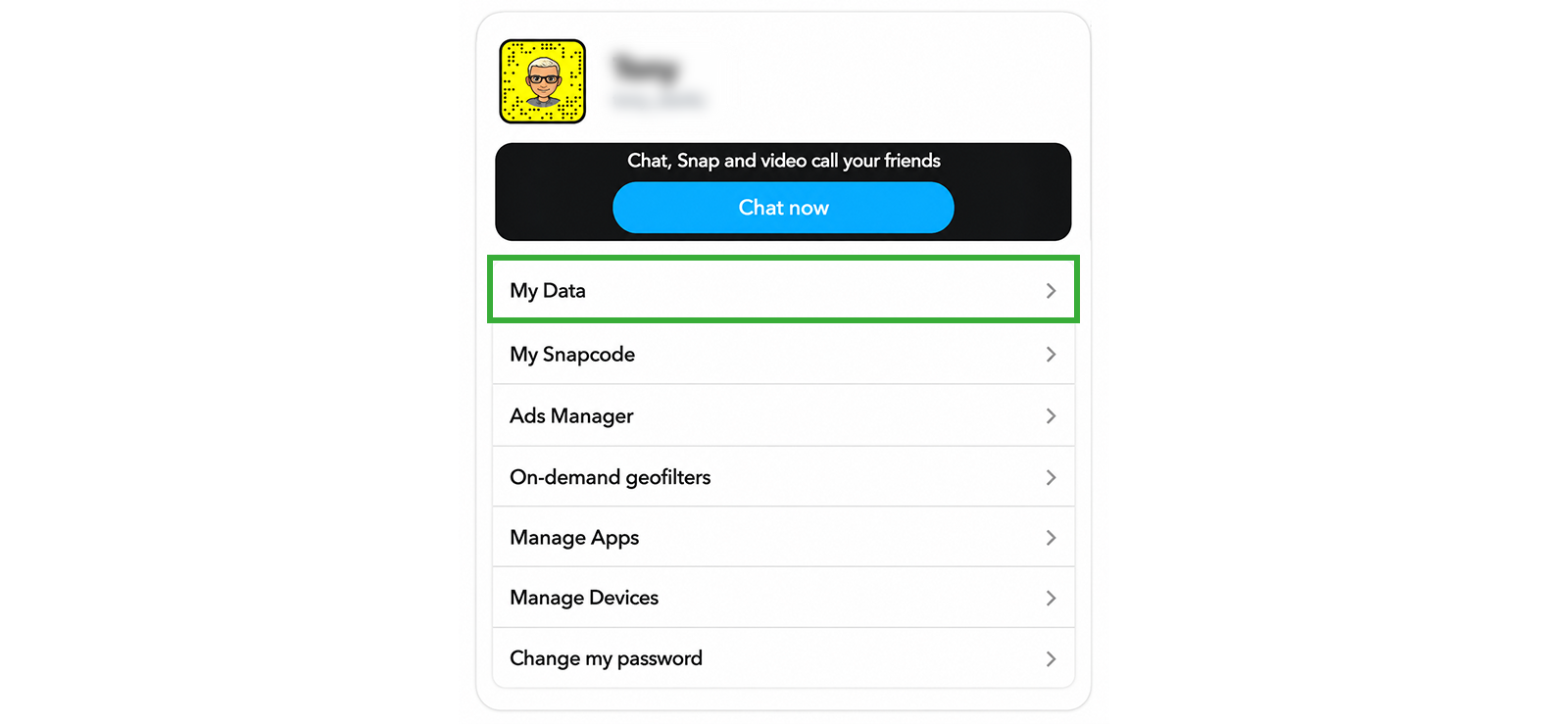
If you’re looking for a direct way on how to see who someone is talking to on Snapchat, requesting their account data can be revealing. Snapchat’s data export includes a range of account details, including friend lists and chat history metadata, that can help identify frequent contacts.
By logging into the target’s account and requesting a data download through Snapchat’s official website, you get access to structured files showing contact names and message metadata tied to the account.
To do this:
- Log in to the target’s Snapchat account using their credentials.
- Click “My Data” from the menu on the left-hand side of the account portal.
- Select “Submit Request” at the bottom of the page.
- Once the email arrives, download the files and check folders like “chat_history” and “friends” for relevant information.
How Did It Go in My Experience?
The export itself was straightforward. It arrived by email within a few hours and did include a friend list along with metadata I could match against the week’s actual activity. However, before requesting the data, I deliberately deleted some of the chats. And the results were as I expected, as it did not include any deleted entries.
Moreover, this method needs the target’s login credentials, which isn’t always realistic. Snapchat also emails the account owner the moment the request is submitted. And because the data only reflects saved content and past activity, it won’t show real-time snapping; it’s a snapshot of what already happened, not what’s happening now.

Did You Know?
You can recover deleted Snapchat messages without having their phone.

4. See Email Notifications
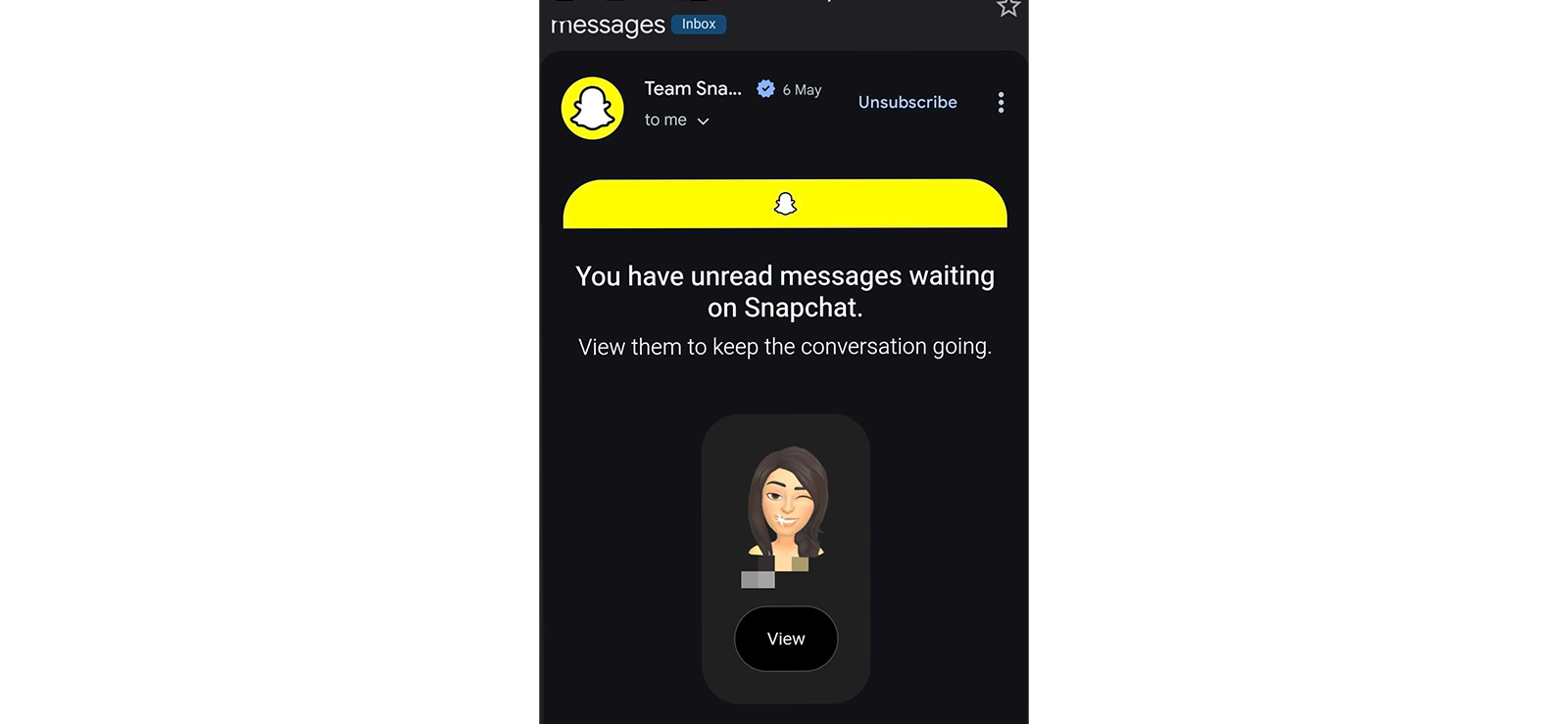
Snapchat doesn’t email you for every single snap the way a chat app might ping your phone, but it does send a separate class of email, typically from an address like [email protected], that can name a friend who’s recently snapped the account and link straight back into the app.
These read more like re-engagement nudges than a running activity log: they’re designed to pull someone back into Snapchat, so they tend to show up more reliably after a stretch of inactivity rather than firing for every incoming snap on an account that’s already being checked daily.
Here’s how to check:
- Access the email inbox linked to the target’s Snapchat account.
- Search the inbox for messages from Snapchat’s snapchat.com and email.snapchat.com domains.
- Open any email that names a friend or references new activity, and note who’s mentioned and when it arrived.
- Cross-reference this against login alerts and data-request emails for a fuller picture of account activity.
How Did It Go in My Experience?
This is the one method where my first pass got it wrong, and it’s worth explaining why. My test account was active every day of the testing window, and re-engagement-style emails like this typically don’t fire for accounts that are already being checked regularly, so none showed up during that first week.
Once I let the same account sit untouched for a few days afterward, an email did arrive from an [email protected] address, naming a friend and linking straight into the app rather than showing any content directly.
So the real limitation isn’t that this method never works, it’s that it’s inconsistent. It’s most useful on an account that’s already gone quiet for a while, and even then, it’s a supporting signal rather than something to rely on for day-to-day tracking.
5. Access Notification History (Only for Android)
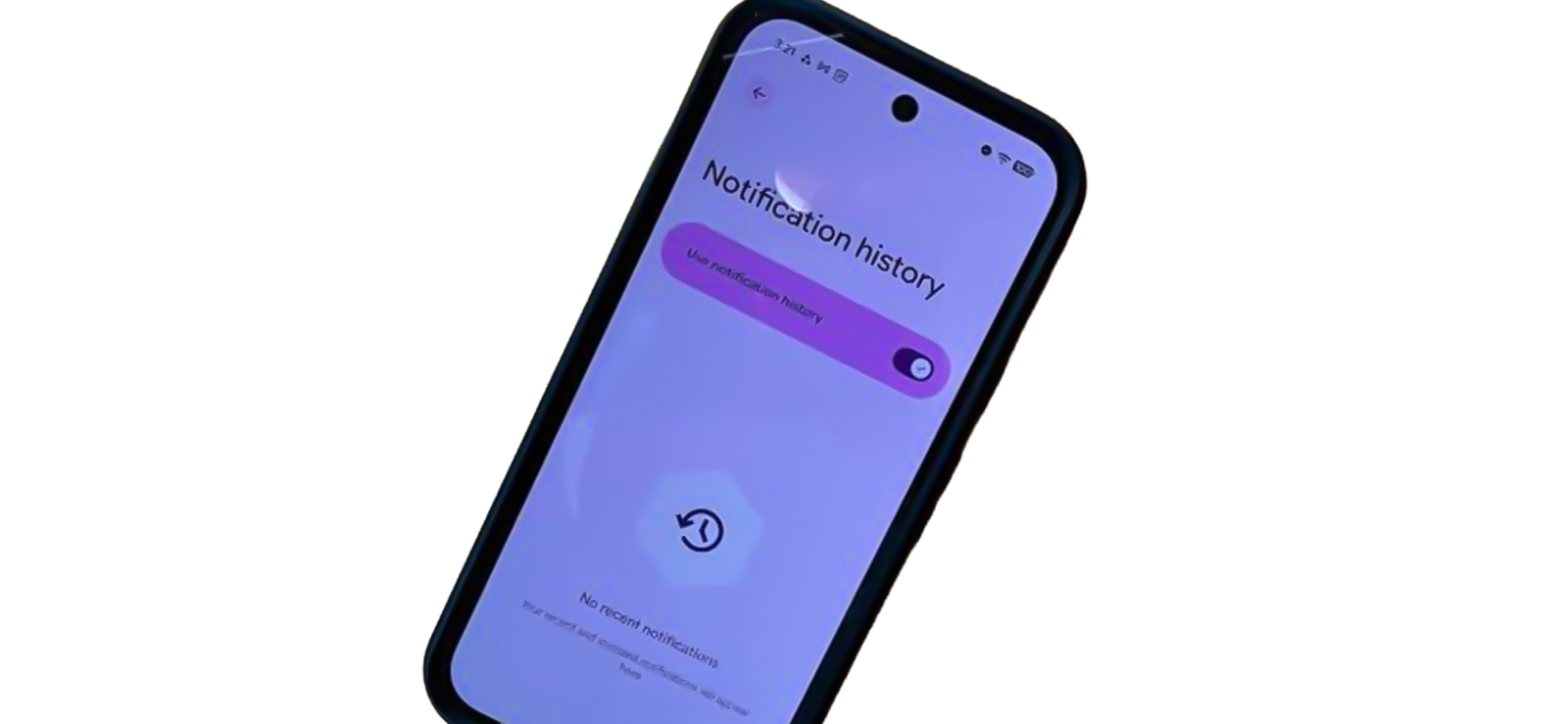
Android has a built-in system feature, Notification History, that keeps a running log of notifications from the past 24 hours, including ones that have already been dismissed.
Since Snapchat’s default notifications typically include the sender’s username in the preview text (for example, “username sent you a Snap”), this can work as a passive way to catch who’s snapping the device, as long as it’s turned on before the notification arrives.
Here’s how to use it:
- Open Settings on the Android device.
- Go to Notifications, then Notification History (on some phones, this is under Advanced Settings).
- Turn on “Use Notification History.”
- Check back periodically. Look for Snapchat entries and note the sender’s username shown in the preview.
How Did It Go in My Experience?
On the Pixel test device, with notification history enabled ahead of time, every test snap generated an entry with the sender’s username visible in the preview text, exactly as expected.
However, the catch here is timing. Because it only logs what happens after it’s switched on, and only keeps a 24-hour window, this only works if it’s already set up before the activity you’re trying to catch happens. It’s also Android-only; there’s no equivalent system-wide feature on iPhone.
FAQs
How to see who someone is Snapchatting without installing software?
Family Center is the most direct option: it displays a teen’s full friend list and who they’ve chatted with over the past 7 days, without showing message content, though it does require the teen to accept an invite. Downloading account data through Snapchat’s website is another no-install route, revealing friend lists and chat metadata, but it needs login credentials and only reflects past, saved activity rather than real-time snapping. Checking the linked email inbox for Snapchat’s re-engagement or security emails is a weaker third option that can occasionally name a contact, but it isn’t consistent enough to rely on by itself.
How to find out who someone is snapping if their account is private?
Account privacy settings don’t really change which methods work here, since none of these approaches depend on what the account shows to outside viewers. Xnspy is the most reliable option on a private account: once installed on the device, its screen recording and keylogging capture usernames and chat activity directly, regardless of the account’s privacy settings. Family Center works the same way too, showing recent contacts once the invite is accepted, private account or not.
How to check who someone is snapping if they have multiple accounts?
If someone splits their activity across more than one Snapchat account, Xnspy is the most consistent way to keep up, since its screen recording and keylogging capture whichever account is active on the device at the time, without needing to be reconfigured per account. Family Center would need to be linked separately to each account the person uses, since it only tracks activity on the one it’s connected to. On Android, Notification History can also help, showing which account a notification came in on, as long as it was turned on in advance and the device stays logged into both.
How to check who someone is talking to on Snapchat without their login info?
Xnspy is the main option here, since it runs on the device itself rather than needing the account password. Once installed, its screen recording and keystroke logging capture usernames, ongoing chats, and interaction patterns without ever needing to log into Snapchat directly. On Android, Notification History can work as a lightweight, no-login supplement, showing sender usernames in the notification preview, but only for activity that happens after it’s been switched on.
How to check who someone is snapping on iPhone?
iPhone doesn’t have a system-level notification history feature the way Android does, so Xnspy and Family Center are the two most reliable options. Downloading account data also works on iPhone, since the request is submitted through Snapchat’s website rather than the device itself, and checking the linked email inbox for re-engagement or security alerts works the same way regardless of which phone the account is used on.
Leave a reply:
Your email address will not be published. Required fields are marked*
Mike Everett
Member since October 20, 2014
Mike Everett
Member since October 20, 2014
Mike Everett is a consumer technology journalist with expertise in hands-on testing and evaluation of iOS and Android monitoring applications. With over 11 years in the industry, he focuses on how mobile monitoring tools perform in real-world conditions, including accuracy, feature reliability, device compatibility, and practical usability for parents.
He conducts live-device testing of monitoring apps to assess how well their features function beyond marketing claims. His work primarily includes comparative reviews, feature breakdowns, and buyer-focused guides designed to help parents understand which tools actually deliver usable results in everyday scenarios.