How to Take a Screenshot on Samsung Phones & Tablets: Quick and Simple Methods
 By Jenny Nicole
The complete monitoring experience for your phone
Get XNSPY and start tracking calls, texts, multimedia, locations and more on any phone!
Get Started Now Live DemoThink of scrolling through an app randomly on your Samsung phone, and the perfect outfit suddenly appears. You are not ready to buy it just yet, but you definitely don’t want to lose it, so you take a quick screenshot. Or maybe you are rereading a long, heartfelt conversation with a friend and want to save it as a lasting memory.
Whatever the case may be, screenshots have become an everyday tool for saving moments and random ideas in the spur of the moment. If you are thinking about how to screenshot on Samsung, there are several quick and simple ways to capture exactly what is on your screen, whether it is a single image or an entire scrolling page.
Let’s explore these methods in detail.
Here’s Everything You Need to Know
- Samsung phones offer multiple screenshot methods, including Power+Volume buttons, gestures, AI assistants, Smart Select, and Scroll Capture.
- Palm Swipe lets users capture screens without buttons, but it may fail with screen protectors or improper swipes.
- Third-party apps provide advanced screenshot features, but they can cause privacy risks, ads, or app instability.
- Google Assistant and Bixby Voice allow hands-free screenshots, though voice recognition and background noise affect reliability.
- Samsung tablets enable S Pen Screen Write, Air Command, and keyboard shortcuts for precise or annotated screenshots.
- Parents can monitor kids’ Samsung devices using Xnspy for scheduled and on-demand screenshots of app activity.
More Blogs Worth Your Time

📲  How to Find Lost Samsung Phone: 4 Best Ways
🌐 How to See Incognito History on Android: 5 Best Methods
🔞  How to Block Websites on Android: 6 Best Ways
How to Take a Screenshot on a Samsung Phone?
Capturing screenshots on a Samsung phone is designed to be flexible and user-friendly. Whether you prefer physical buttons, hands-free commands, built-in smart tools, or advanced scrolling captures, Samsung devices offer a method for everyone. Below, we’ll explore the most reliable ways to take screenshots on a Samsung phone:
1. Power and Volume Buttons
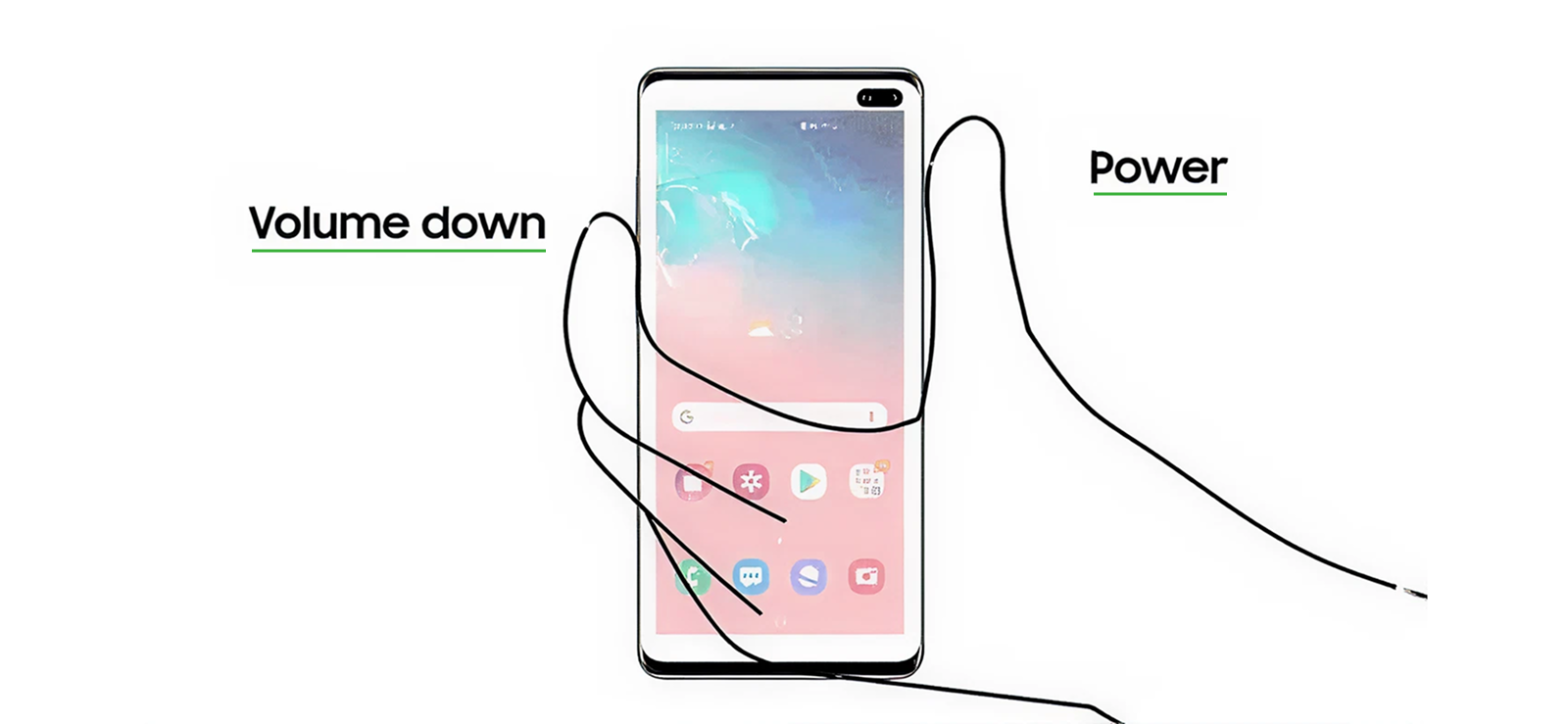
Using a combination of hardware buttons is the most traditional and widely used screenshot method on Samsung phones. When triggered, it instantly captures whatever is currently displayed on the screen. The image is then saved to your Gallery, usually accompanied by a brief animation or sound as confirmation. Because it’s hardware-based, this method works across nearly all Samsung models and Android versions.
To use this method:
- Open the screen you want to capture
- Press and hold the Power and Volume Down buttons simultaneously
- Release quickly when the screen flashes
- Find the screenshot in your Gallery or Screenshots folder
Despite its reliability, this method can feel awkward on larger phones and may require two hands. Pressing too long can accidentally lock the phone or adjust volume, and repeated use may contribute to button wear over time.
2. Palm Gesture
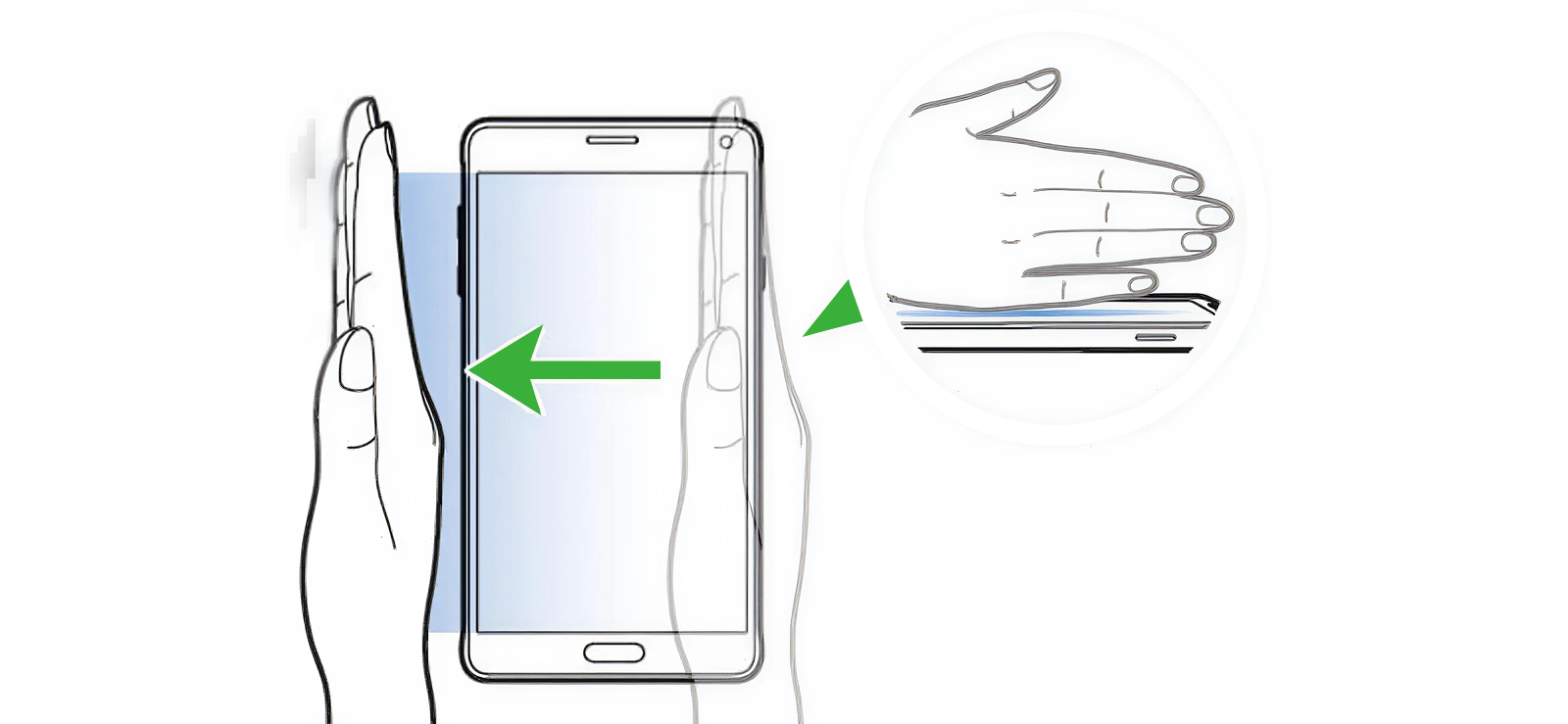
Samsung’s Palm Swipe feature offers a button-free alternative that feels very intuitive. This method uses motion sensors and touch recognition to detect the side of your hand swiping across the screen.
When enabled, sliding your palm from one edge of the display to the other signals the phone to capture a screenshot. It’s especially useful when you want a quick capture without pressing physical buttons.
Here’s how to take a screenshot on a Samsung phone via Palm Gesture:
- Open Settings on your Samsung phone and scroll down to Advanced features.
- Tap Motions and gestures, then locate Palm swipe to capture.
- Toggle the switch ON to activate the feature.
- Go to the screen you want to capture.
- Hold your hand vertically and place the edge of your palm lightly on either the left or right side of the screen.
- Keeping your palm in contact with the display, swipe across the screen in one smooth motion from left to right or right to left.
- Release your hand once the screen flashes or you hear the shutter sound, confirming the screenshot has been taken.
- Access the captured screenshot from the Gallery app within the Screenshots album.
However, this method is not always precise. It may fail if the swipe is too light, too slow, or obstructed by a phone case. It also doesn’t work well with screen protectors or on smaller displays, making it less reliable in certain situations.
3. Third Party App
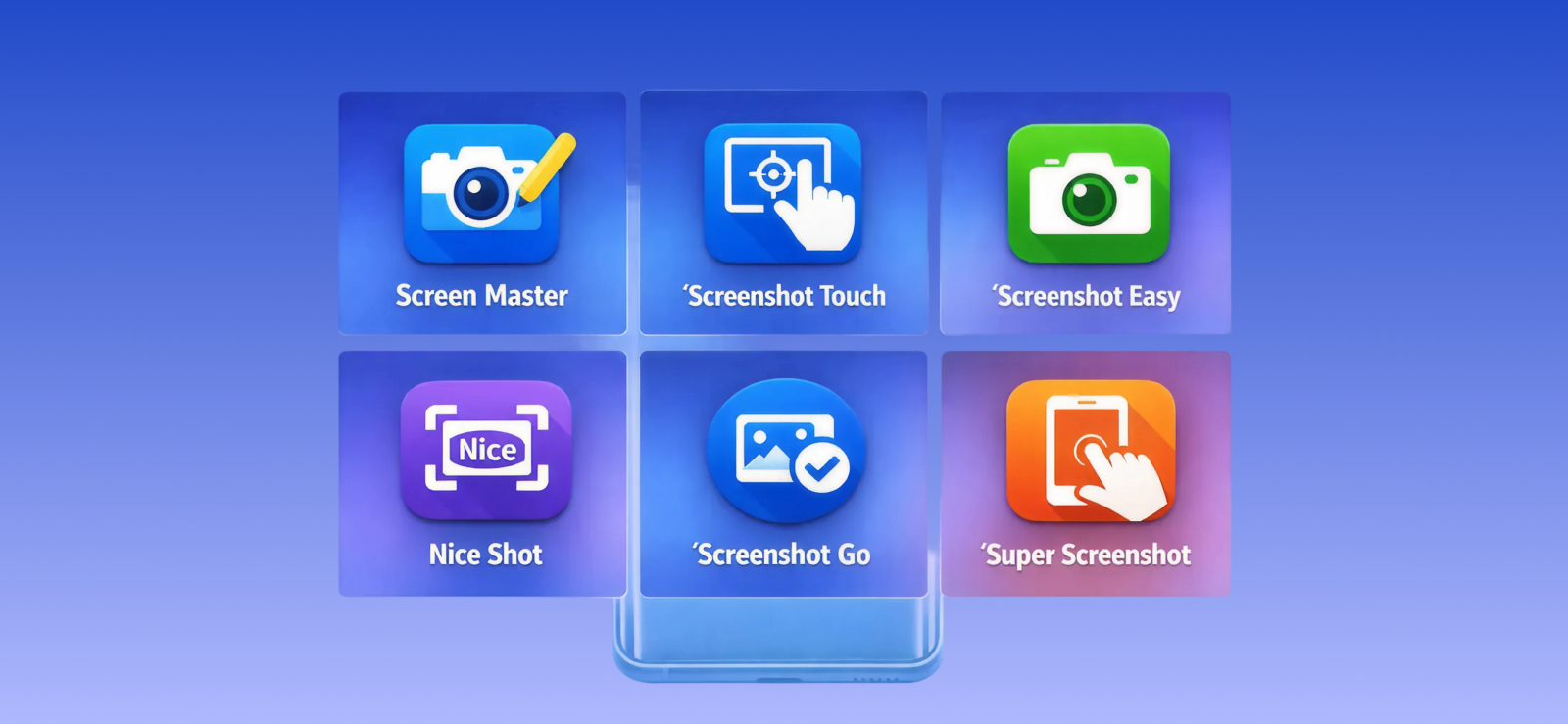
Third-party screenshot apps expand beyond Samsung’s native options by offering customization and advanced features. These apps often allow screenshots through floating buttons, shake gestures, or on-screen shortcuts, and some include built-in editing, annotation, or cloud storage tools. They operate by requesting system permissions that let them detect screen activity and capture images accordingly.
To use a third-party app:
- Download a trusted screenshot app from the Play Store
- Grant the required permissions
- Open the screen you want to capture
- Use the app’s shortcut, button, or gesture to take the screenshot
While flexible, third-party apps come with trade-offs. They may display ads, consume background resources, or pose privacy concerns due to screen recording permissions. Some apps may also stop working after software updates, which makes them less stable than built-in Samsung features.
4. AI Assistant
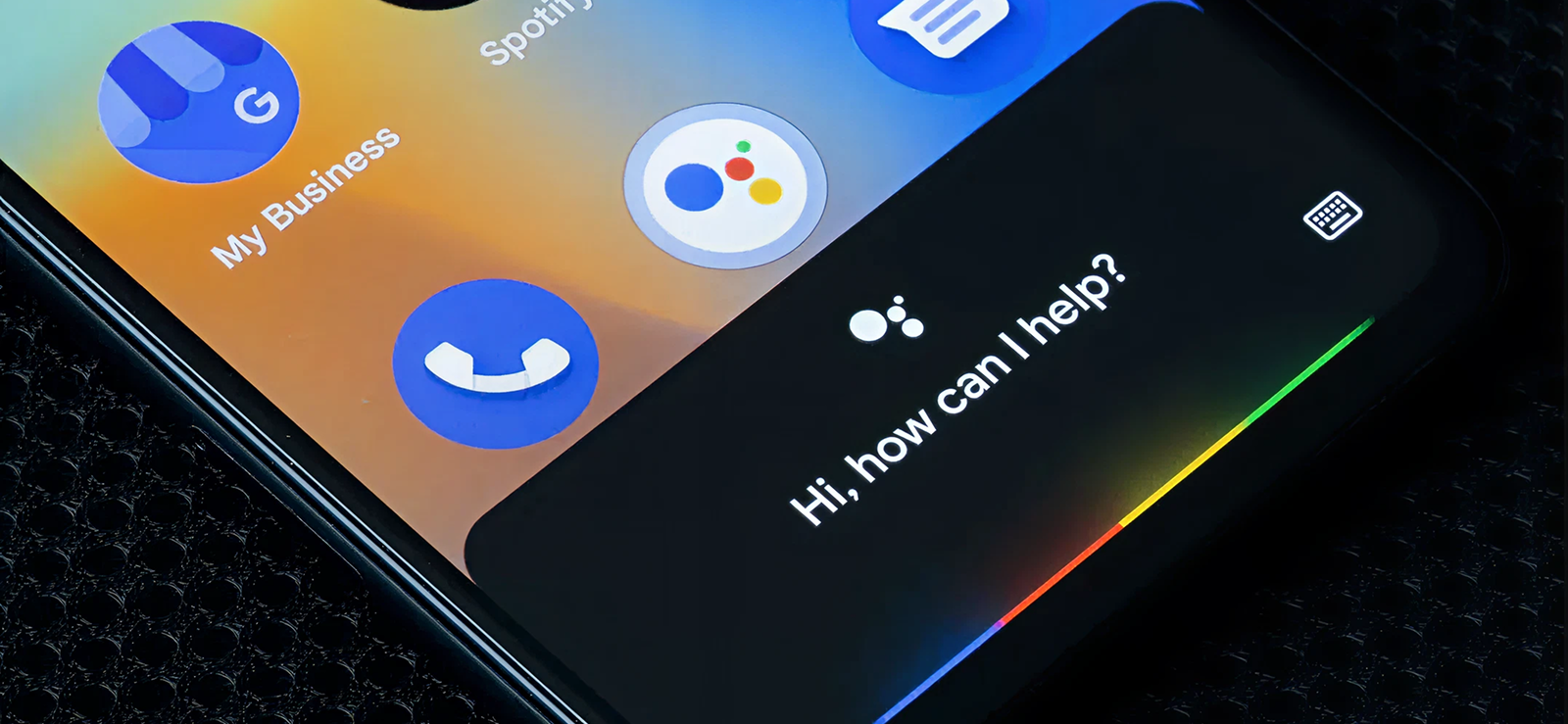
Google Assistant, available on Samsung phones as part of the Android ecosystem, allows you to take screenshots using simple voice commands. Instead of pressing buttons or using gestures, this method relies on Google’s AI-driven voice recognition to understand your request and trigger the screenshot function automatically. It’s a convenient, hands-free option when you’re multitasking.
To use Google Assistant for screenshots:
- Make sure Google Assistant is enabled in your phone’s settings
- Activate it by saying “Hey Google” or by pressing and holding the home button/lock button
- Say a command such as “Take a screenshot.”
- Wait for the confirmation animation or sound
- Open the Gallery app to view the saved screenshot
This method depends heavily on accurate voice recognition and, in some cases, an active internet connection. Plus, background noise, privacy restrictions in certain apps, or disabled voice access can prevent it from working reliably. Moreover, if you want to capture a scrolling screenshot, you won’t be able to do so via this method.
5. Smart Select
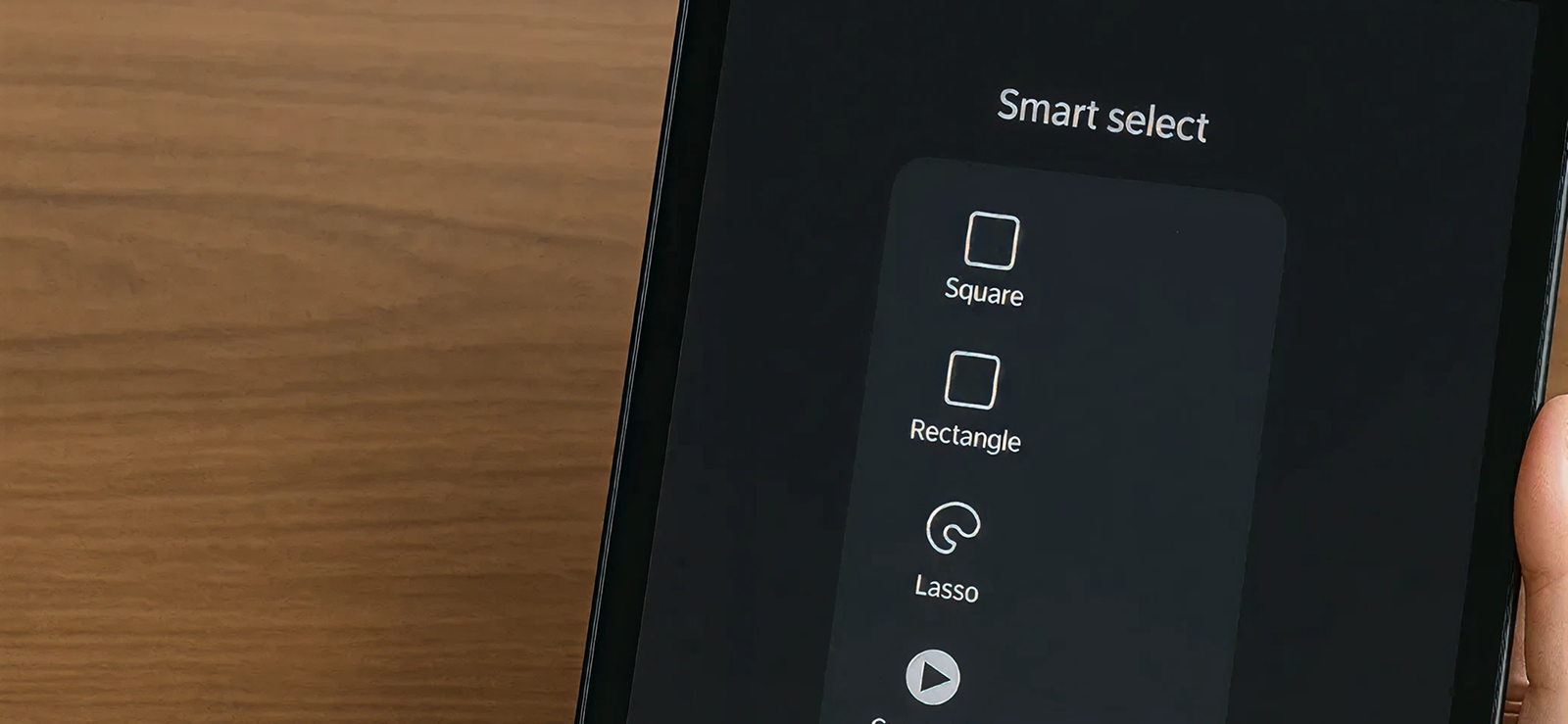
Smart Select is a precision-based screenshot tool found in Samsung’s Edge Panel. It allows you to capture specific portions of the screen instead of the entire display. Using overlay tools, it also lets you draw shapes around content, capture animations, or extract text, making it ideal for focused or creative use cases.
To use Smart Select:
- Open Settings on your Samsung phone and go to Display
- Tap Edge panels and toggle the feature ON if it isn’t already enabled
- From the available panels, make sure Smart Select is checked
- Go back to the screen you want to capture
- Look for a thin, semi-transparent vertical bar (the Edge panel handle) on the left or right edge of your screen and swipe it open. The Edge Panel will slide out, showing available tools
- Scroll through the panels and tap Smart Select
- Choose a capture option such as Rectangle, Oval, Animation, or Pin to screen.
- Drag and resize the selection frame to cover the exact area you want to capture
- Access saved captures later from the Gallery or Smart Select folder
While useful, Smart Select requires multiple steps and isn’t ideal for quick captures. It also depends on Edge Panel availability, which may not be present on all Samsung models.

Screenshot Every Screen Your Child Sees on Their Samsung
Xnspy gives parents complete visibility into their child’s Samsung device activity.
– Take periodic screenshots at regular intervals
– Instantly capture the device screen remotely
– Keep track of apps, social media, and chats in real time
6. Bixby Voice Assistant
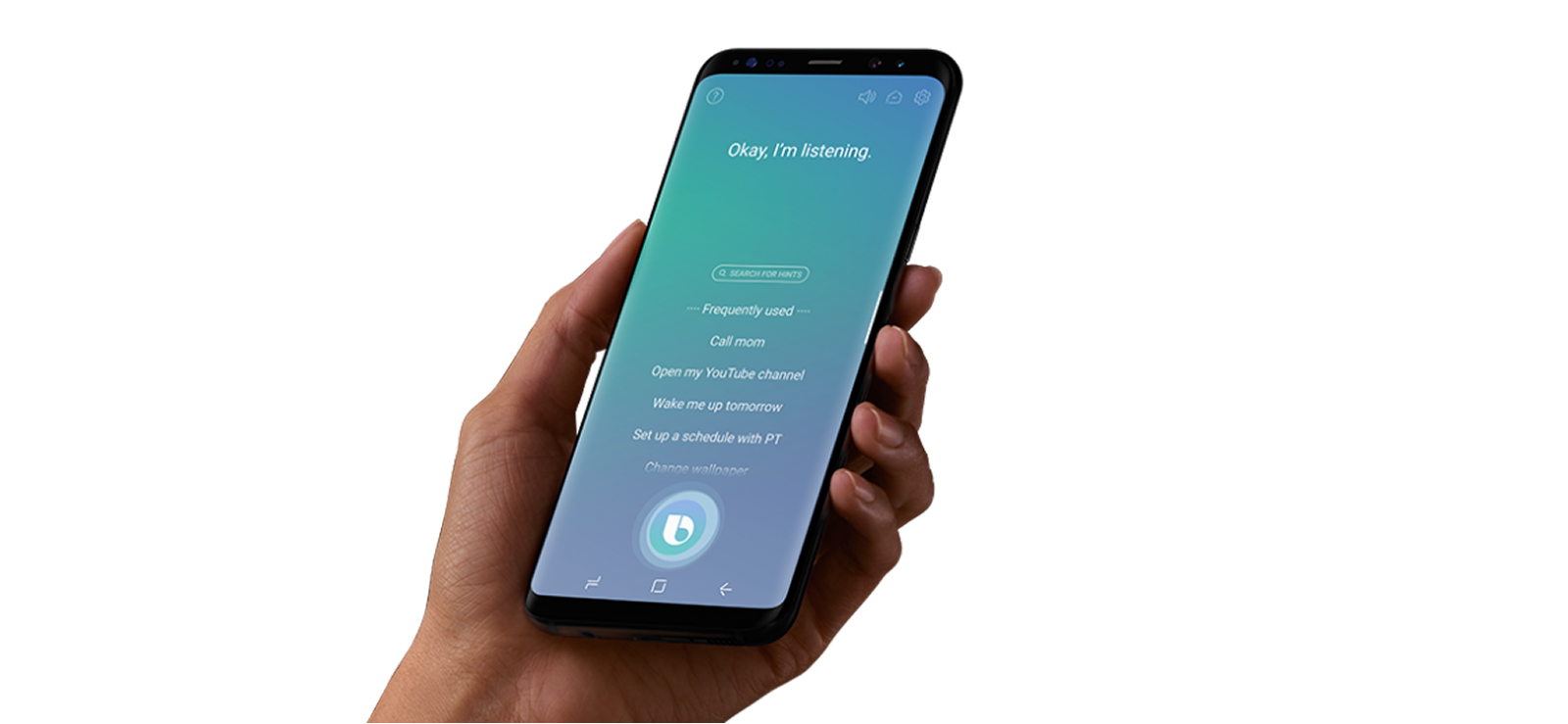
Bixby Voice offers a fully hands-free screenshot option using Samsung’s native voice assistant. Once activated, Bixby listens for commands and performs actions at the system level, including screen capture. This method is particularly helpful for accessibility or when physical interaction isn’t convenient.
Here’s how to take a screenshot on Samsung using the Bixby Voice Assistant:
- Enable Bixby Voice in Settings
- Activate Bixby using the side key or wake phrase
- Say “Take a screenshot.”
- Wait for the capture confirmation
However, Bixby’s effectiveness depends on proper setup and user preference. Some users disable Bixby entirely, and voice recognition may struggle with accents or background noise. Additionally, it may respond more slowly compared to manual screenshot methods.
7. Scroll Capture
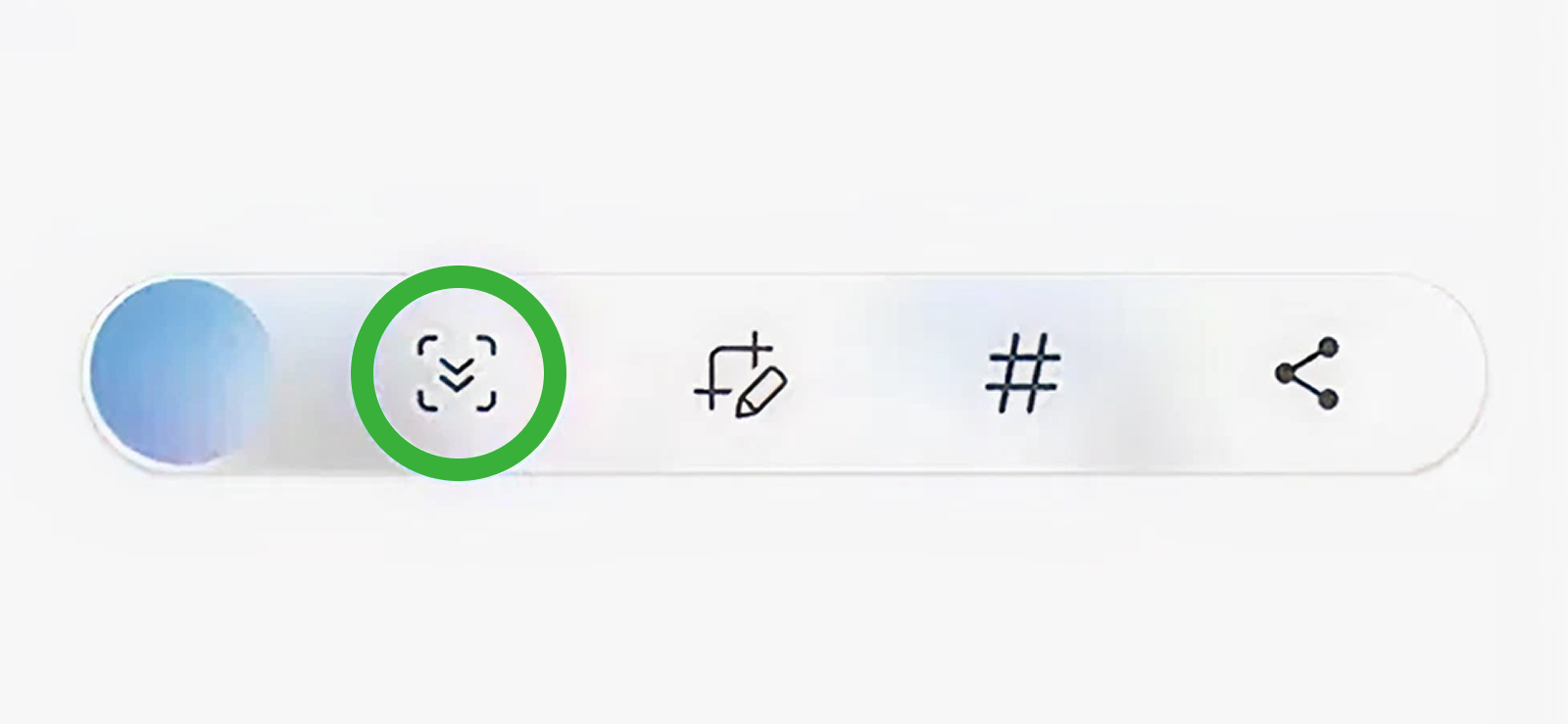
Scroll Capture is a feature built into Samsung phones that allows you to capture long content that extends beyond a single screen, such as webpages, chat conversations, or social media feeds.
Instead of taking multiple screenshots and manually stitching them together, Scroll Capture automatically scrolls the page and combines the images into one continuous screenshot. It works by detecting scrollable content and sequentially capturing portions of the screen as it moves down, creating a single, seamless image.
To use Scroll Capture:
- Take a standard screenshot using any supported method(Power + Volume, Palm Swipe, etc.)
- Look for the Scroll Capture icon (two downward arrows or a page-like icon) in the toolbar that appears immediately after the screenshot
- Tap the icon, and the phone will automatically scroll down a portion of the page and capture the next section
- Keep tapping the icon until all the content you want is captured
- Tap Done or Save to store the long screenshot in your Gallery
While Scroll Capture is very useful, it has some limitations. It doesn’t work in all apps, as some social media or banking apps may block scrolling screenshots for privacy or security reasons. Additionally, very long screenshots can take up significant storage space, and details may appear less sharp when zoomed in.
How to Take a Screenshot on Samsung Tablet?
Samsung tablets offer additional screenshot methods that take advantage of their larger screens and S Pen functionality. Whether you prefer using the stylus, built-in commands, or a special shortcut, these options make capturing content easy and precise. Below, we’ll explore the most effective ways to take screenshots on a Samsung tablet.
1. S Pen Screen Write
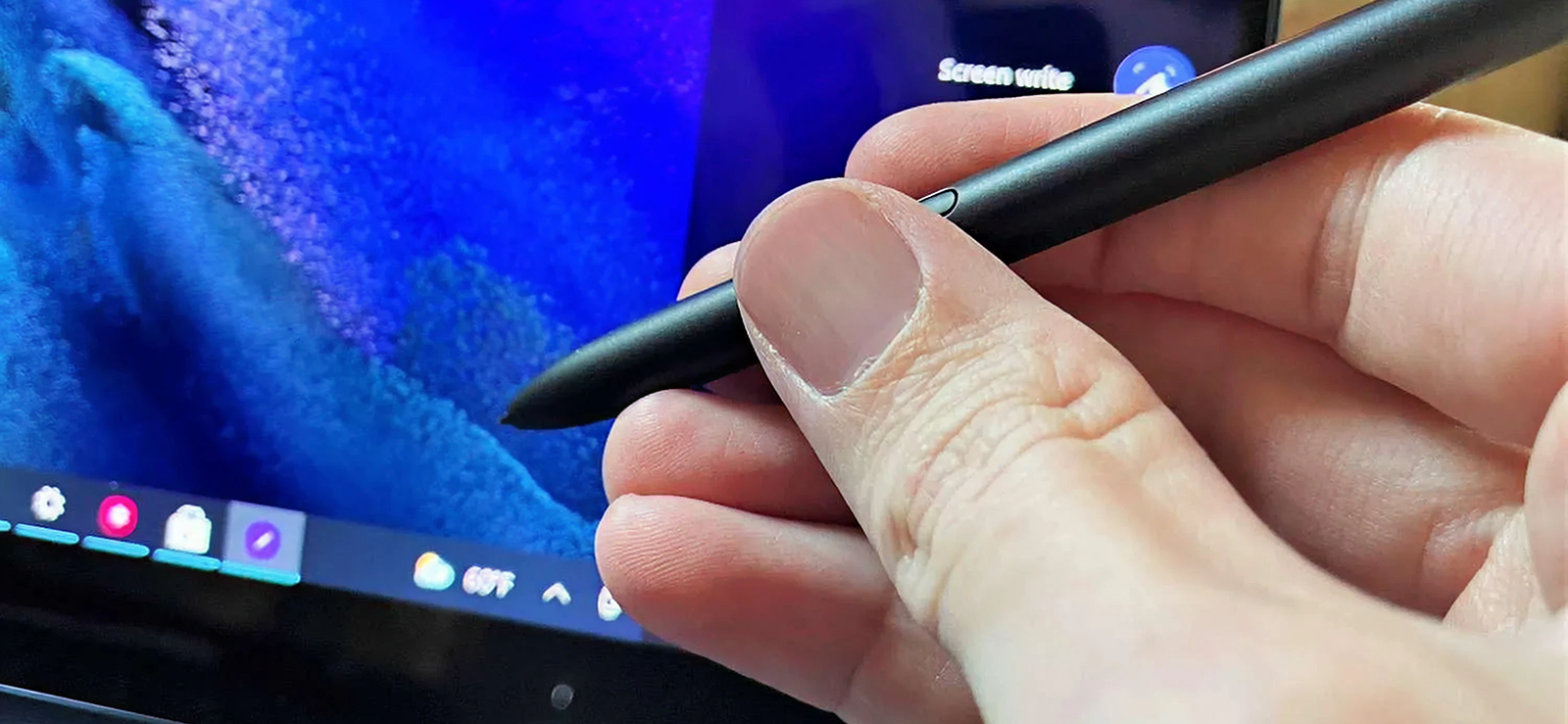
S Pen Screen Write allows you to capture exactly what’s on your tablet’s display and immediately annotate it using the stylus. When you activate this feature, the tablet captures the current screen and opens it in an editing interface, so you can draw, highlight, or add notes before saving or sharing.
This is especially useful for taking notes on documents, marking up images, or quickly sketching over content.
To know how to take a screenshot on Samsung tablet using the S Pen Screen Write:
- Remove the S Pen from its slot to activate Air Command
- Tap Screen Write from the Air Command menu
- The tablet captures the current screen automatically
- Use the available tools to annotate, highlight, or draw on the screenshot
- Tap Save or Share to store the image in the Gallery or send it
The main limitation is that it requires the S Pen, so you can’t use this method without the stylus. If you have a tablet that does not feature an S Pen, the method is of no use to you. It’s also designed for single-screen captures, so long-scroll content requires additional steps or another method.
2. S Pen Air Command
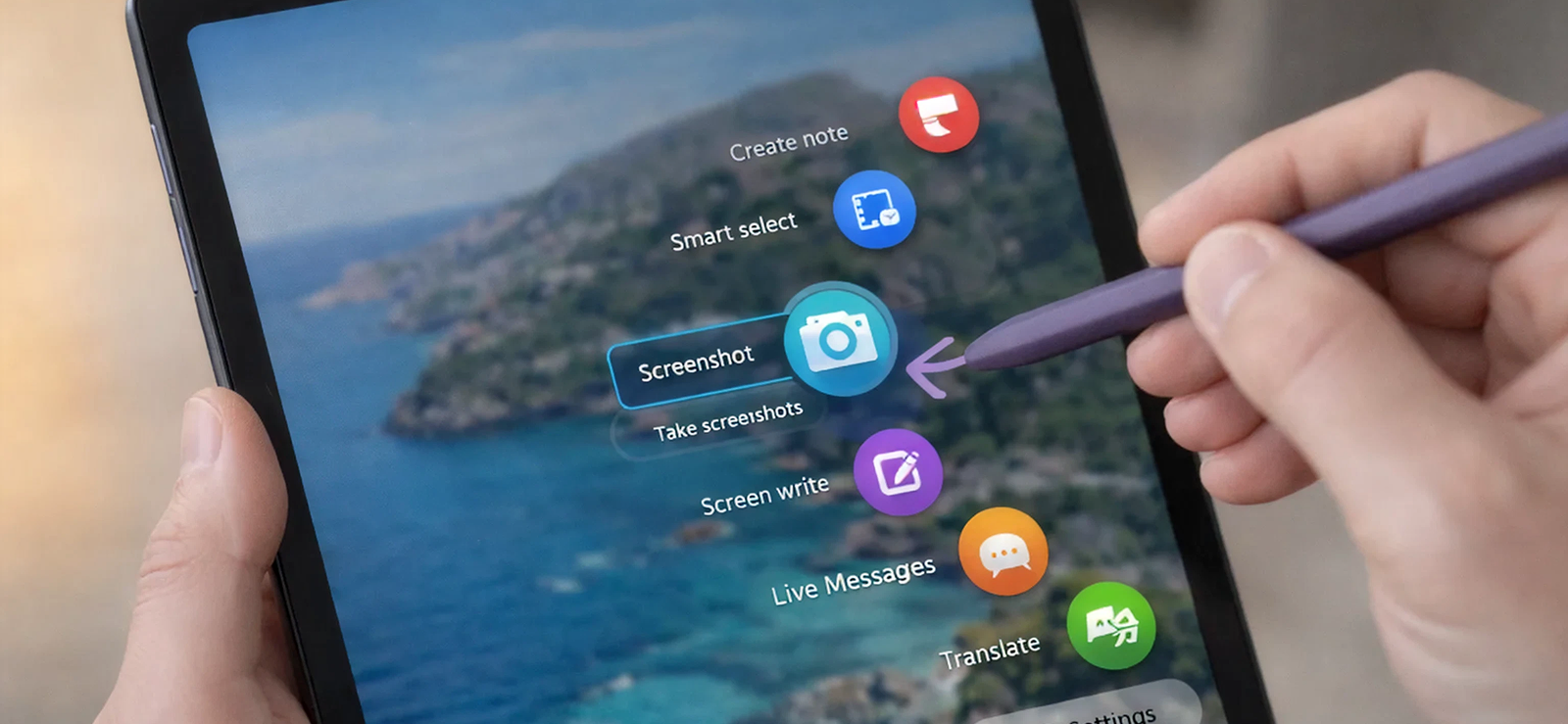
Air Command lets you perform a variety of actions with the S Pen, including capturing screenshots. Unlike Screen Write, this method can include quick access to smart capture tools like scrolling screenshots or cropping. It works by recognizing gestures or menu commands from the S Pen and interacting with the system at a deeper level.
To use S Pen Air Command:
- Remove the S Pen to open the Air Command menu
- Tap Smart Select
- If using Smart Select, choose a shape (rectangle, oval, or animation) and adjust the selection area
- Save or share the screenshot once captured
The limitation is again that not every tablet comes with an S Pen, which limits the use of this method. Moreover, it requires familiarity with the Air Command menu, and some options may not be available if the menu is customized or disabled. Additionally, capturing very long pages still requires combining multiple screenshots.

Did You Know?
You can now also record phone calls on Android devices.

3. Keyboard Shortcut
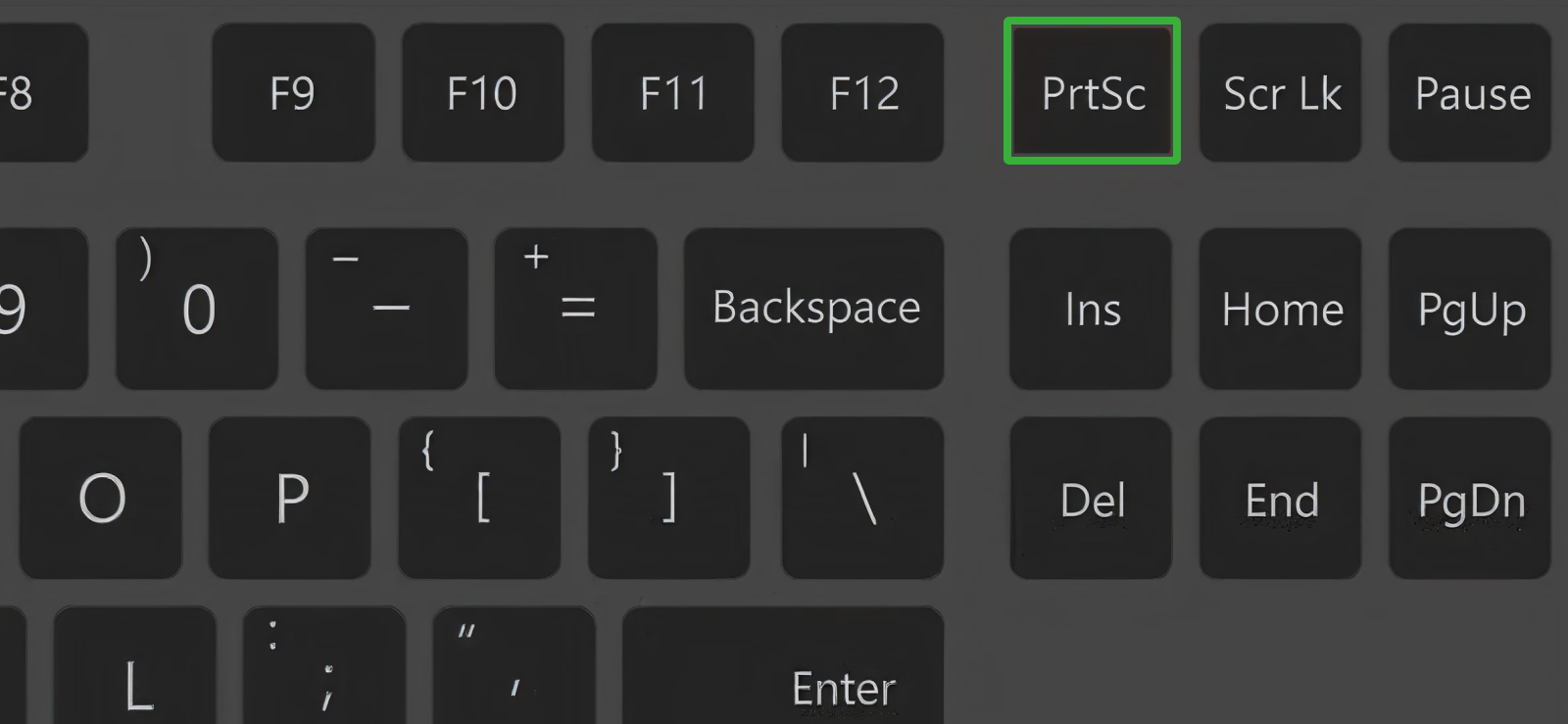
If your Samsung tablet is paired with a physical keyboard, you can capture screenshots quickly using a dedicated shortcut. This method works much like laptop or desktop shortcuts, providing a fast, hands-on way to capture content without touching the screen or using the S Pen.
In order to use this keyboard shortcut:
- Make sure the tablet is connected to a keyboard (official Samsung or compatible)
- Press Fn + Print Screen to capture the screen
- The screenshot is automatically saved to the Gallery.
The main limitation is that it only works with a connected keyboard, so tablets without one require another method. Some keyboard models or software layouts may also use different shortcut combinations, which can be confusing for new users.
How to Screenshot on Samsung Being Used by Your Kid?
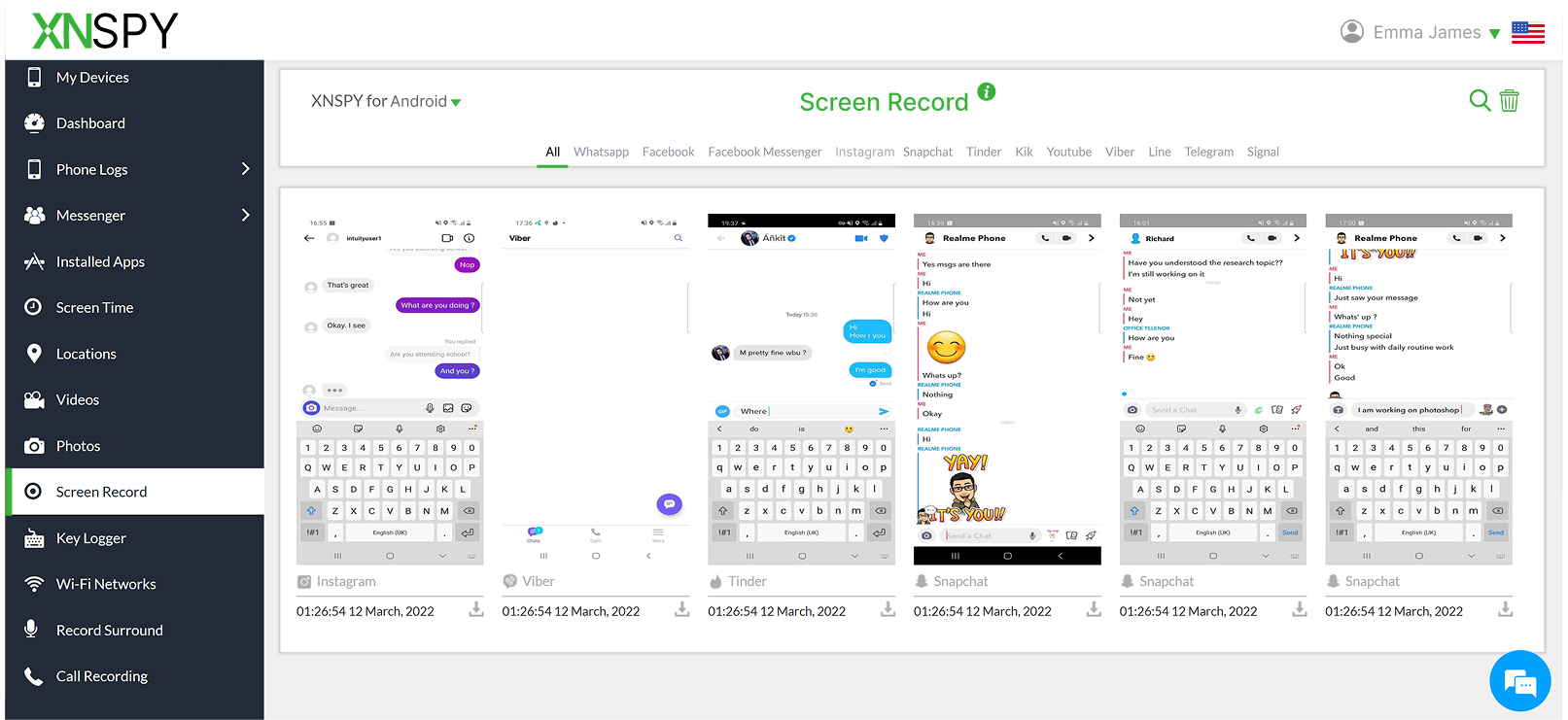
When a child uses a Samsung phone or tablet, screenshots become more than just a convenience; they turn into a valuable monitoring aid for parents. Screenshots can help you understand what your child is actually seeing on their screen in real time: the apps they use most, the content they’re exposed to, the games they play, and even the nature of their online interactions.
Unlike app usage stats or screen-time reports, screenshots provide visual context, which is often crucial for identifying inappropriate content, risky behavior, or excessive screen use early on. But how can you take them while your child is using the device? This is where Xnspy can support parental monitoring efforts.
Xnspy offers automatic screen recording through periodic screenshots, capturing the device’s screen at regular intervals so you, as parents, can review on-screen activity over time without constant supervision. In addition, Xnspy includes an on-command remote screenshot feature that allows parents to instantly view what’s currently displayed on the screen whenever concerns arise.
By combining scheduled screen captures with on-command screenshots, you can gain consistent visibility into your child’s digital environment. Doing so makes it easier to guide safe and responsible device usage without constant interruption or confrontation.
FAQs
How to screenshot on a Samsung while using split screen mode?
When using split screen mode on a Samsung phone, taking a screenshot captures both apps displayed on the screen at the same time. You can use standard methods like pressing the Power + Volume Down buttons or using Palm Swipe if it’s enabled. Samsung does not natively support capturing only one app in split view unless you use Smart Select, which allows you to manually select and capture a specific portion of the screen.
How to take a screenshot on a Samsung when the phone is locked?
On a Samsung phone, taking a screenshot when the device is locked will capture exactly what is visible on the screen at that moment, which is the lock screen itself. Any content behind the lock screen, such as apps or messages, cannot be captured until the phone is unlocked. However, if notifications are displayed on the lock screen, their content (if displayed) can also be captured using traditional methods like Power + Volume Down buttons or Palm Swipe to Capture.
How do you screenshot on Samsung when using secure or restricted apps?
Some apps, such as banking, payment, or private browsing apps, block screenshots to protect sensitive data. When this restriction is active, Samsung disables all screenshot methods, including buttons, gestures, and assistants. In such cases, screenshots cannot be taken unless the app itself offers an internal export or sharing option. This limitation is enforced at the system level and cannot be bypassed without violating security policies.
How to take a screenshot in Samsung without a button?
You can take screenshots on Samsung phones without using physical buttons by enabling Palm Swipe to Capture, using Google Assistant or Bixby Voice, or accessing tools like Smart Select from the Edge Panel. These methods rely on gestures, voice commands, or on-screen tools, making them useful if buttons are damaged or difficult to press.
Can I take a 3-finger screenshot on Samsung?
Samsung phones do not natively support a three-finger swipe gesture for screenshots, unlike some other Android brands. Instead, Samsung offers alternatives such as Palm Swipe to Capture, button combinations, voice assistants, and Edge Panel tools. While third-party apps may add three-finger gestures, they often require extra permissions and may not work reliably across all Samsung devices.
Leave a reply:
Your email address will not be published. Required fields are marked*
Jenny Nicole
Member since October 23, 2014
Jenny Nicole
Member since October 23, 2014
Jenny Nicole is a teen psychology and digital behavior specialist with an MSc Developmental Psychology & Psychopathology from King's College London, graduated 2017. Her work revolves around how adolescents communicate and make decisions in digital environments, particularly on social media and messaging platforms. Over the past 5 years, she has written extensively on teen smartphone behavior, online peer dynamics, the psychological impact of social media, and the need for oversight. Her work has helped parents and educators interpret not just what teens are doing online, but why they are doing it. Overall, she has not only authored over a hundred guides breaking down child psychology for parents but also regularly spoken at family safety and internet governance conferences across the UK and US.