
The complete monitoring experience for your phone
Get XNSPY and start tracking calls, texts, multimedia, locations and more on any phone!
Get Started Now Live DemoIf you are here, a WhatsApp disappearing message probably vanished before you could fully read or save it. I’ve been there as well. So I decided to search and test legitimate recovery methods myself.
What I found was that it’s hard to recover a disappearing message after it fully expires from WhatsApp unless it was captured elsewhere first. So in this article, I will discuss 5 working methods and share step-by-step instructions for each, along with my actual experience testing them.
Here’s a Condensed Version of this Guide
- Recovering a disappearing message is only possible if it was captured elsewhere before expiry.
- Use WhatsApp’s “Keep” feature before a message expires.
- Check your phone’s gallery’s WhatsApp media folders for auto-downloaded photos and videos.
- Restore a cloud backup made before the message expired on Android and iPhone.
- Use the built-in Notification History feature or third-party notification logger apps to view disappearing text.
- Restore an old internal storage backup within 7 days of message disappearance.
- Parental monitoring apps like Xnspy can capture disappearing messages through chat logs and screen recording.
Can I get Disappearing Messages Back on WhatsApp?
Yes, you can, but recovery is possible only if the message was captured somewhere else before it expired. Common disappearing message retrieval sites can be backups, gallery apps, internal storage, and notifications.
Now, you might think some other ways work too, but most of them do not, like:
- Paid recovery tools that claim to restore expired messages,
- Reinstalling WhatsApp without an old backup,
- Any method that promises to pull messages from WhatsApp servers after expiry.
What to Read Next

🛑  How to Recover Deleted WhatsApp Photos: 5 Proven Tactics
💬  How to Check Who Is Chatting With Whom on WhatsApp
📹  How to Record WhatsApp Video Call (Android & iPhone)
🚨  How to View WhatsApp Status Without Being Seen: 6 Easy Ways
How I Put Every WhatsApp Diappearing Message Recovery Method to the Test
A lot of people have been asking me how to recover disappearing messages on WhatsApp. So to accurately answer the query, I set up a controlled testing environment using multiple phones, different timer settings, and dozens of disappearing chats.
Over four weeks, I tested on two devices, i.e., one Android and one iPhone device, and repeated the test multiple times to confirm consistent results.
Overall, I considered the following factors:
- Timer duration before expiry: I tested every method with 24-hour timer and 7-day timer messages to verify whether recovery success changed based on how long a message remained visible.
- Message type being recovered: I sent and received text-only messages, images with captions, videos, voice notes, audio files, and PDFs across every method to understand what each method could and could not recover.
- Pre-existing settings and timing of activation: For every method, I further tested two scenarios. In one scenario, I enabled the required setting before receiving any disappearing messages. In the other scenario, I enabled the same setting after receiving the messages. This confirmed whether the required setting must already be turned on before the message arrives or before it expires.
- Device operating system and manufacturer differences: I tested every method on Android and iOS separately. For methods that worked on both platforms, I compared results between the two operating systems. On the other hand, those that worked for only one platform, I tested across multiple devices from different manufacturers to verify that the feature was consistent across all phones.
How to Retrieve Disappearing Messages On WhatsApp: 5 Best Methods
Here are 5 reliable methods that gave consistent results during real testing. Read more to understand their working mechanism, execution, success rate, limitations, etc.
| Method | Works | Detection Risk | Success Rate | Key Limitation |
| WhatsApp’s “Keep” Feature | Android and iPhone | High | 100% if used before expiry | Sender knows you kept the message |
| Cloud Backup | Android and iPhone | None | 99% if backup ran before expiry; 0% if backup ran after expiry | Loses all messages received after the backup date |
| Auto-Downloaded Media | Android and iPhone | None | 90% on Android for photos/videos; 60% on iPhone | Captions and voice notes are not recoverable |
| Notification History / Third-Party Logger Apps | Android (built-in); iPhone (third-party apps) | None | 100% for text from unmuted chats | Text only; 24-hour storage limit; must be enabled beforehand |
| Internal Storage Backup | Android only | None | 99% if backup exists from before expiry | Overwrites all messages received after the backup date |
1. Use WhatsApp’s Official “Keep” Feature
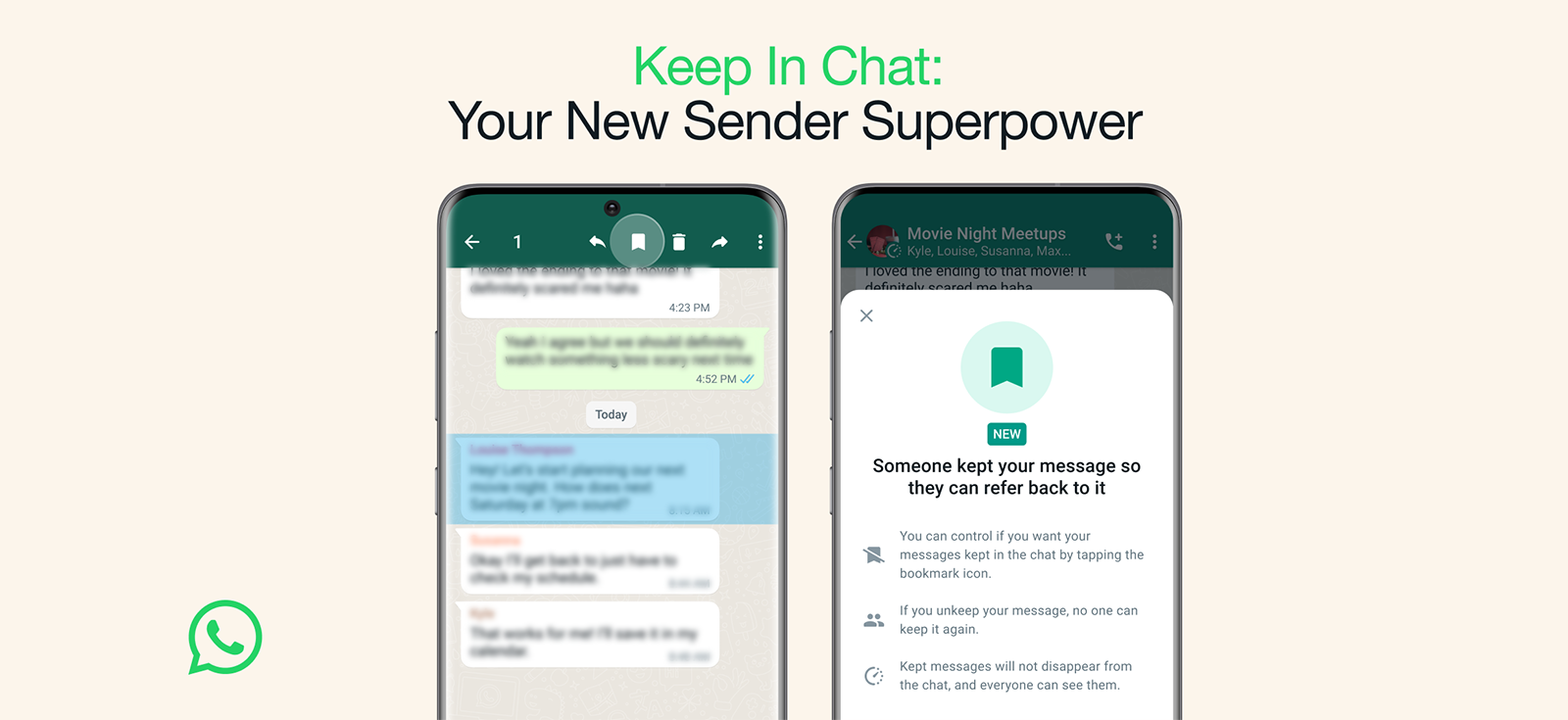
WhatsApp offers only one built-in method to preserve disappearing messages, and that is the ‘Keep” feature.
When someone sends a disappearing message, you can ‘keep’ it even after the timer expires. The message stays in the chat with a bookmark icon after the rest of the disappearing messages vanish. However, the sender is notified that you kept it.
Here’s how to view expired disappearing messages on WhatsApp using this method:
- Open the chat with the disappearing message.
- Long-press (Android) or double-tap (iOS) the message.
- Tap “Keep” from the menu.
- The message now shows a bookmark icon and remains in the chat indefinitely.
What the Results Looked Like
I sent a disappearing message (24-hour timer) from one phone to another. I used the “Keep” feature 10 minutes after receiving it.
The full message, text, and attached image remained visible in the chat even after the 24-hour timer expired. However, the sending phone showed a notification that the message was kept.
I also tried keeping a message after it expired, but the option was greyed out.
The success rate for this method is 100% if used before expiry.

Xnspy: Monitor Your Child’s WhatsApp from Afar
Never miss out on any of their WhatsApp activities ever again.
– Read all WhatsApp conversations
– Hear all incoming and outgoing WhatsApp calls
– View all sent and received photos and videos
– Set up watchlist alerts for instant notifications
2. Restore the Most Recent WhatsApp Backup
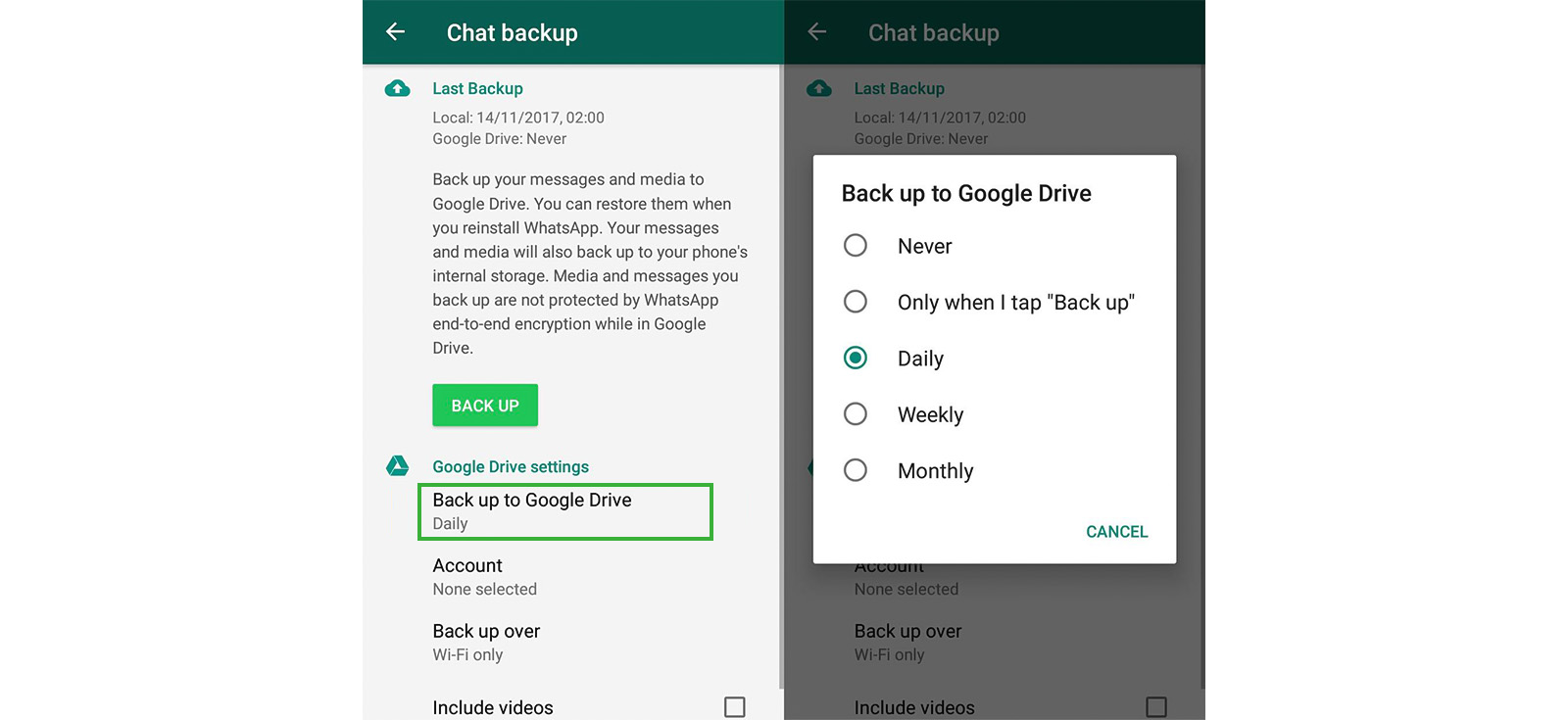
WhatsApp automatically backs up your chat history to Google Drive (Android) or iCloud (iOS) at your chosen frequency.
If a backup ran before a disappearing message expired, that message is stored inside the backup. Therefore, restoring that backup brings back the message along with media, voice notes, stickers, and contacts.
However, you must restore the cloud backup immediately after the message expires and before the next scheduled backup overwrites it. But note that by doing so, you will lose every message and piece of media received between that backup and the present.
Steps for Android (Google Drive):
- Open WhatsApp, go to Settings, then Chats, then Chat Backup to check your backup date.
- Uninstall WhatsApp, reinstall it, and verify your phone number.
- Tap “Restore” when prompted to find the disappearing messages that still exist in the backup.
Steps for iOS (iCloud):
- On WhatsApp, go to Settings, Chats, and then Chat Backup to see your backup date.
- Delete WhatsApp from your phone and reinstall WhatsApp.
- Verify your phone number and then tap “Restore Chat History” when prompted to see disappearing messages in the relevant chats.
What the Results Looked Like
I set the backup frequency to daily and sent 10 disappearing messages set to expire in 24 hours. The daily backup ran while the messages still had time left before expiry. After expiration, I restored the cloud backup on each phone. A total of 9 messages were recovered, and one was lost due to a rare glitch.
Then I tested what happens when the backup runs after the message expires. To do so, I sent 10 disappearing messages set to expire in 1 hour. The daily backup ran later that day, long after the messages were gone. Upon restoring that backup, none of the 10 messages appeared.
Moreover, while testing, I noticed that the disappearing messages I had successfully recovered 24 hours ago were no longer in the chats after I ran another backup. That is because such messages are overwritten from the WhatsApp backup after their disappearance.
3. See Auto-Downloaded Media
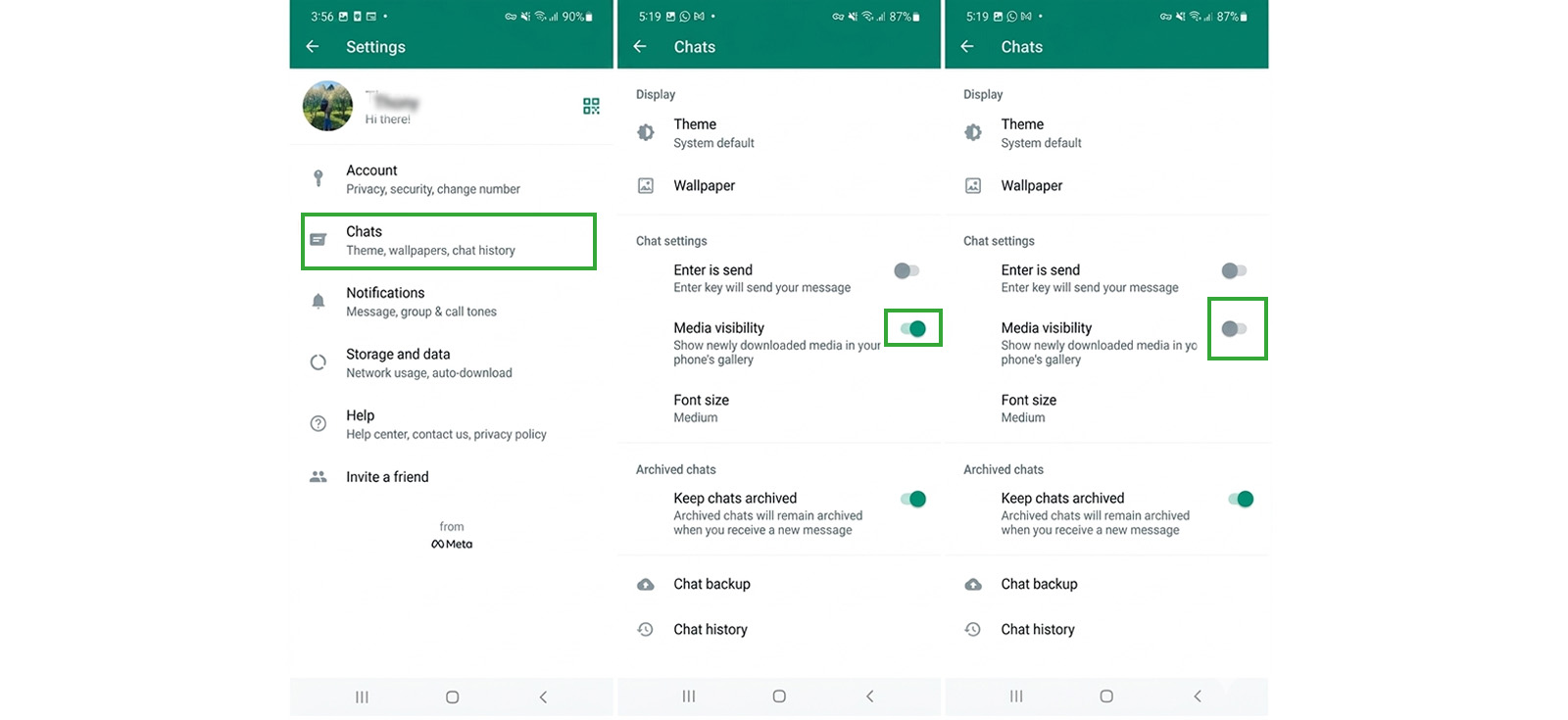
If WhatsApp auto-download is enabled, when a sender sends a photo, video, GIF, or audio file in a disappearing chat, the received media is often saved to your device before the message expires.
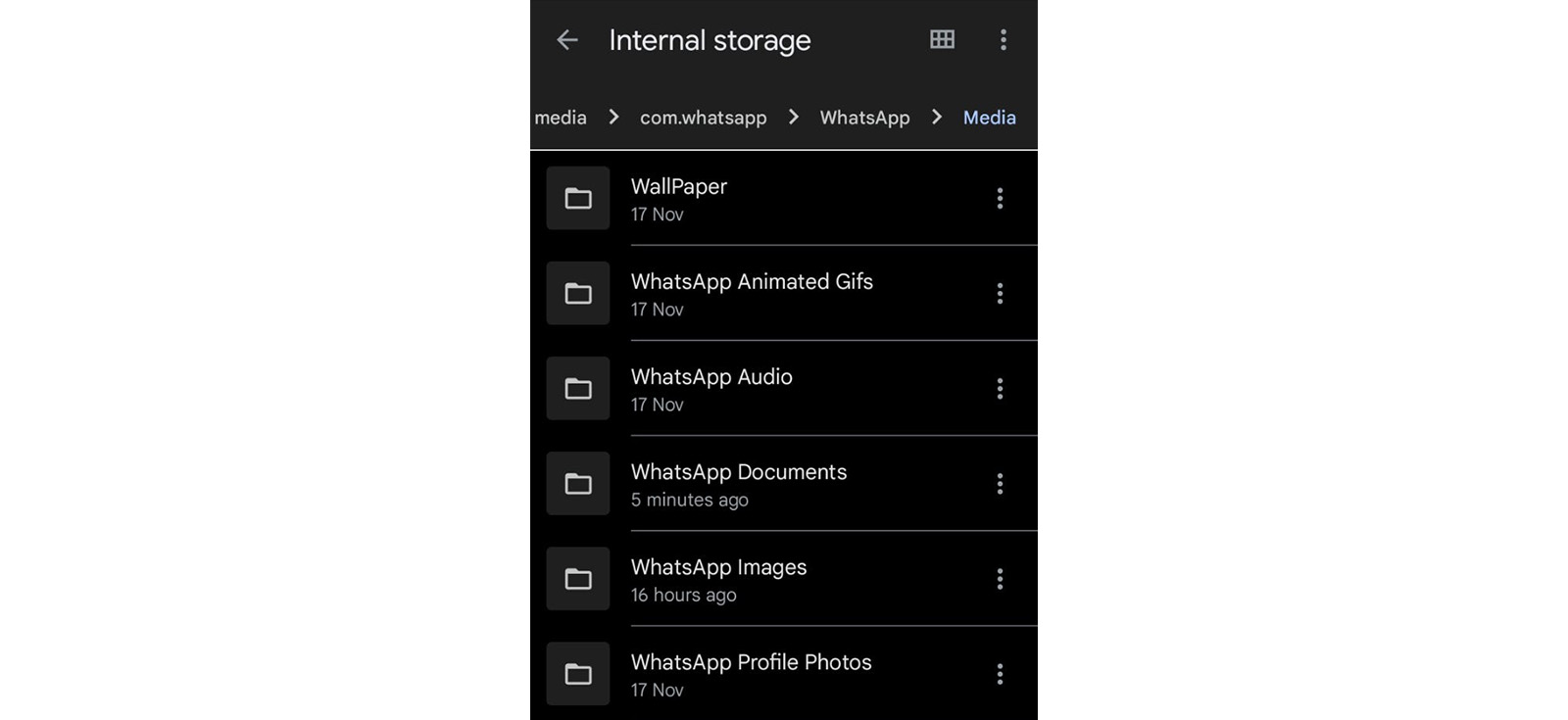
Photos and videos typically end up in your device’s Gallery or Photos app, while GIFs and audio files are stored in your File Manager under WhatsApp’s media folders. Therefore, even after the message disappears from the chat, these files remain on your device’s internal storage.
However, this depends entirely on your auto-download settings and whether the file finished downloading before the message expired.
Step-by-step instructions for Android:
- Check “Recent Files” in your file manager first, as audios, documents, images, and GIFs often appear there.
- If missing, go to Internal Storage/WhatsApp/Media (or /Android/media/com.whatsapp/WhatsApp/Media).
- Browse subfolders like WhatsApp Images, Video, Audio, Documents, and Animated GIFs.
- Copy the file to another folder or external storage to preserve it.
Step-by-step instructions for iPhone:
- Open the Photos app and check Recents and the WhatsApp album (if “Save to Photos” was enabled).
- Open the Files app and check On My iPhone, then WhatsApp for any saved files.
- If you find the media, export or save it to Photos or iCloud to preserve it.
What the Results Looked Like
I enabled auto-download over mobile data and Wi-Fi and sent 20 disappearing messages containing photos, videos, audio files, and PDFs. I let the messages expire, then checked each phone for the media files.
On the Android phone, 18 of the 20 media files were found in the WhatsApp media folders. The two missing files were audio recordings that were not saved properly. Photos and videos, on the other hand, appeared in both the main WhatsApp Images folder and a hidden folder called.Statuses.
On the iPhone, however, only 12 of the 20 media files were recovered. Photos and videos appeared in the Photos app under the WhatsApp album, while the remaining 8 files, i.e., audio and PDFs, were not accessible anywhere on the phone.
I also tested what happens when auto-download is disabled. On both phones, I turned off auto-download and sent 10 disappearing media files. After the messages expired, none of the 10 files were found on either device.
Finally, I tested whether the original captions attached to media were recoverable. On both phones, the caption text was not saved with any of the media files. Only the image, video, or audio file itself was recoverable.
4. Retrieve from Notification History
Disappearing messages can appear as a standard notification on your phone. These texts are often captured and logged. The method to access this log, however, depends entirely on your operating system.
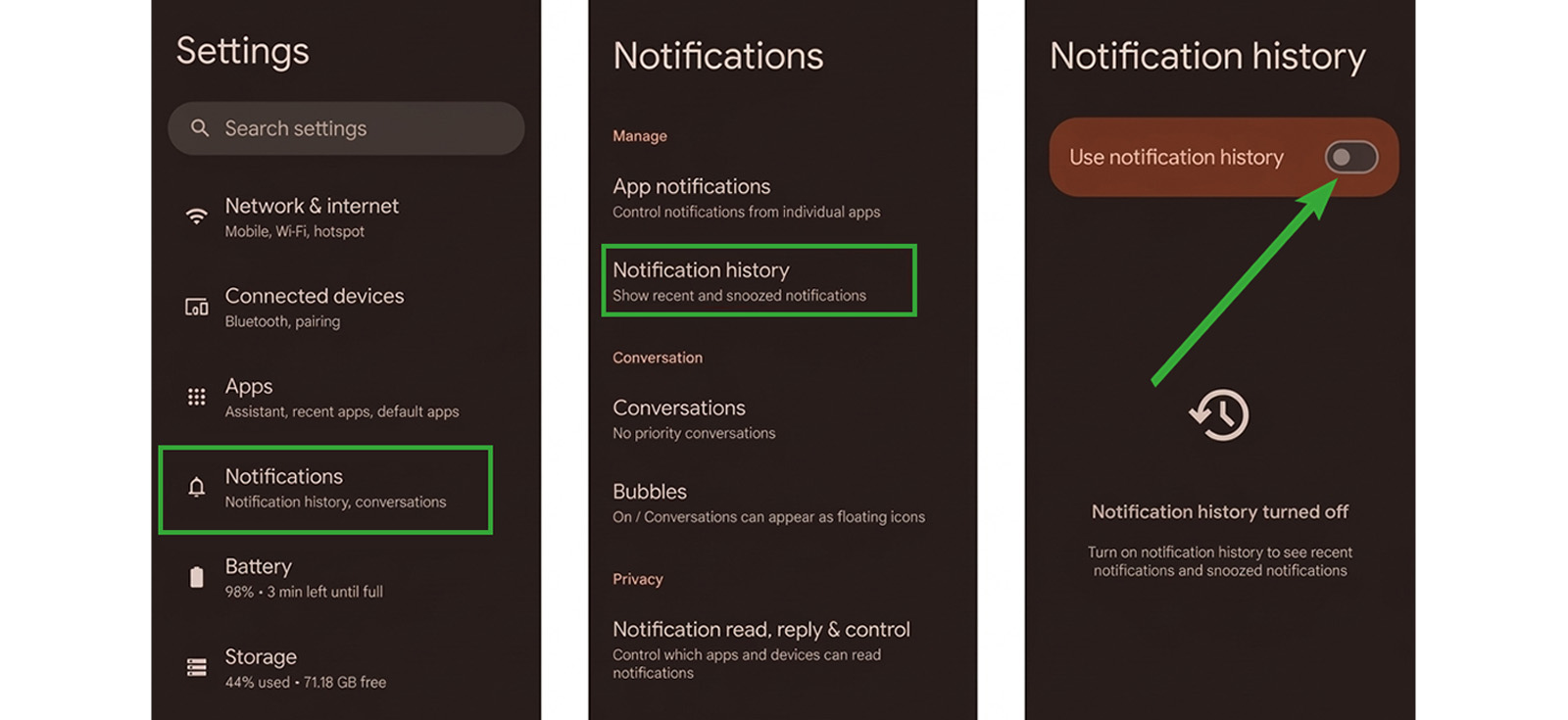
Most modern Android phones have a powerful built‑in feature called Notification History log. This is the most reliable method for Android users because it requires no additional software.
How to set it up and use it:
- Locate and enable the feature by opening your phone’s Settings app.
- Once enabled, go to Settings, then Notifications, and then Notification History. Scroll through the log to find the disappeared message.
As far as iPhones are concerned, iOS does not have a built‑in notification history feature. However, you can fill this gap using a third‑party notification logger app from the App Store. These apps are designed to capture every notification before it disappears.
Here’s how you can apply this approach:
- Open the App Store and search for a notification logger to choose one.
- After installing the app, open it. It will immediately ask for permission to access your notifications.
- Once permission is granted, the app automatically saves a copy of every WhatsApp notification you receive, including disappearing messages, before they can be deleted.
- When a message disappears, open the logger app. You should find the text of the message saved in its log.
What the Results Looked Like
I tested the Android method on two phones. The built‑in Notification History feature was available on one phone but not the other.
On the phone with Notification History enabled, I sent 20 disappearing messages. The 8 text‑only messages were recovered successfully. The 12 messages containing images or voice notes were not recovered at all.
I also sent 5 disappearing messages to a muted chat on the same phone and none appeared in Notification History.
To test the 24‑hour storage limit, I sent 10 text messages, waited 30 hours, then checked the log. Again, none of the 10 messages were there because they had been automatically deleted after 24-hours.
Finally, I sent 10 disappearing messages to the phone before enabling Notification History. After turning it on, none of those 10 messages appeared. The feature only captures messages received after it is enabled.
I then tested the iPhone method using three different third‑party notification logger apps from the App Store. The results were the same for text recovery and media failure. None recovered messages from muted chats or messages that arrived before the app was installed.
Moreover, the disappearing messages, which I received a notification for before installing the logger app, did not appear on the app.

Did You Know?
You can easily read messages on Instagram without being seen.

5. Roll Back WhatsApp Using Android Internal Storage
On Android, WhatsApp automatically creates encrypted local backups of your chats each day and typically retains several recent versions.
By replacing the current local backup file with an older backup and then reinstalling WhatsApp on the same phone and account, you can restore the app to the exact state captured by that older backup.
This can recover text, media, voice notes, stickers, and any disappearing messages that still existed when that backup was made.
However, this method will overwrite any messages received after the backup date.
Here’s how to read disappearing WhatsApp messages after they vanish:
- Copy the entire WhatsApp folder (/Android/media/com.whatsapp/), including both Databases and Media, to a computer or SD card as a safety copy.
- Inside the Databases folder, rename the current msgstore.db.crypt14 file (e.g., to msgstore.current.db.crypt14), then rename an older backup file dated before the message expired to msgstore.db.crypt14.
- Turn on Airplane mode (or completely disable Wi‑Fi and mobile data) so WhatsApp cannot connect to Google Drive during the next steps.
- Uninstall WhatsApp, reinstall it, and verify your phone number.
- When WhatsApp offers to restore from Google Drive, tap “Skip” (otherwise the cloud backup will overwrite your local file and you will lose the old backup forever).
- WhatsApp will then detect the local backup; tap “Restore” and wait for the disappeared messages to appear in chat.
What the Results Looked Like
I sent 15 disappearing messages with 24-hour timers for testing and waited for the daily local backup to run while the messages were still active. After the backup completed, I let the messages expire and then restored that local backup on the phone.
A total of 14 messages were recovered. The text, images, and voice notes all came back exactly as they originally appeared. One message was not recovered due to my phone not being properly updated.
I also tested what happens when the backup is too old. On one phone, I attempted to recover the disappeared messages from 8 days ago. But the phone only stores the last 7 daily backups, so the 8-day-old backup no longer exists on the device and recovery was not possible.
Finally, I tested the risk of losing new messages. After restoring an old backup, all messages received after the backup date were gone. Only the messages from the backup date and earlier remained.
How to Find Disappeared WhatsApp Messages On Your Child’s Device
If you are a parent trying to monitor your child’s WhatsApp activity, you need a solution that captures messages before they disappear. Xnspy can do just that.
After a one-time physical installation on your child’s phone, Xnspy runs invisibly in the background. You access all data from your own device through a secure online dashboard.
To capture disappearing messages before they vanish, the two most relevant Xnspy features are WhatsApp Chat Logs and Screen Record.
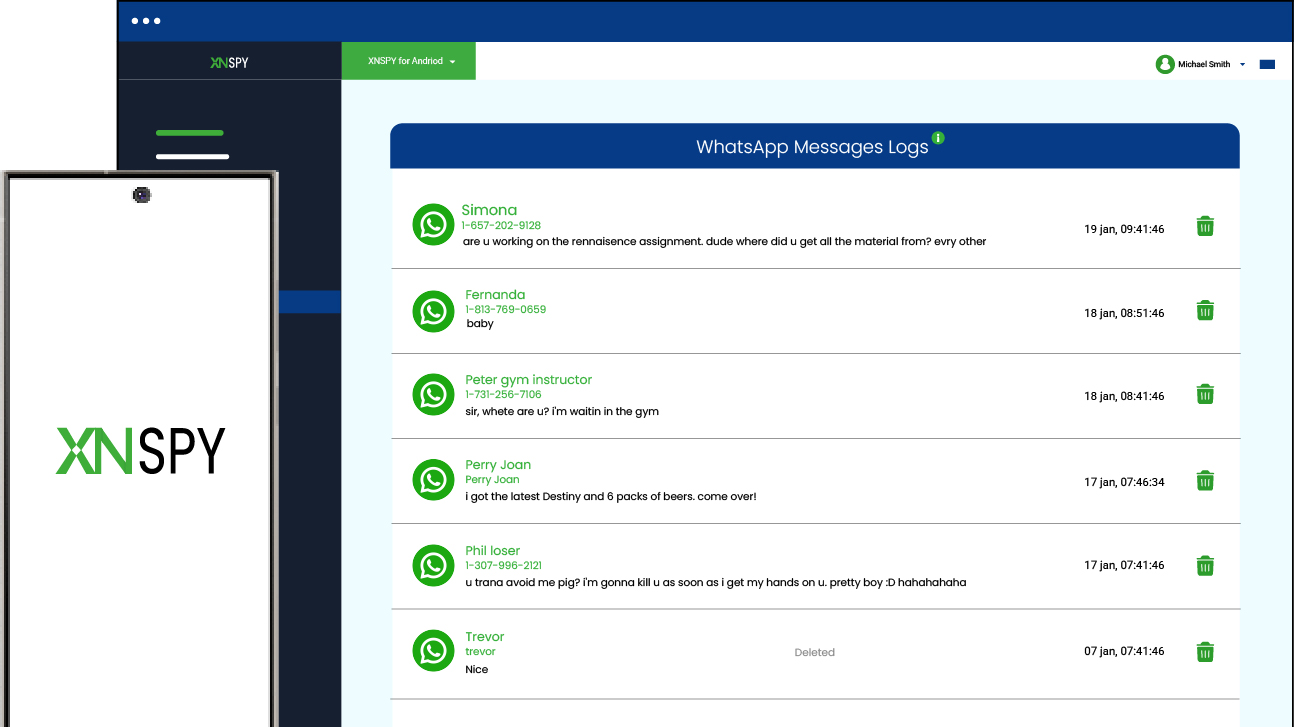
In WhatsApp Chat Logs, you can find all the WhatsApp chats (sent and received) from the monitored device along with their timestamps. And by clicking on a contact’s name, you can see the messages in a conversation view.
As for Screen Record, Xnspy automatically captures screenshots of the target device’s screen every 5 seconds, including WhatsApp. These screenshots are uploaded to your Xnspy dashboard in real-time. Even if a message disappears, its screenshots remain in your dashboard.
You can use WhatsApp Chat Logs to read disappeared text messages. At the same time, Screen Record can be used to view disappeared WhatsApp images.
Here is how parents can install Xnspy:
- Visit the Xnspy website and select a subscription plan.
- Gain one-time physical access to the target device and follow the setup instructions to install the app on the device.
- Once installed, access the Xnspy dashboard from your own device and open the “WhatsApp” or “Screen Record” section in the dashboard to view captured activity.
What the Results Looked Like
After installing Xnspy on the target phone, I sent 15 disappearing WhatsApp messages from my iPhone. The messages included text, photos, and voice notes. I set the timer to 24 hours and let them expire.
In the Xnspy dashboard on my phone, I opened WhatsApp Chat Logs. All 15 messages appeared in the log before they expired. Xnspy presented these messages in both a list view and an individual chat view, making it easy for me to browse through conversations.
However, from the message content alone, I could not tell which messages were disappearing versus regular ones, as the text looked identical. The distinction only became clear when I reviewed the screenshots captured by the screen recorder feature, where WhatsApp disappearing messages were visible briefly before vanishing.
To test real-time capture, I sent 10 disappearing messages on WhatsApp while watching the dashboard. Each message appeared in the chat logs and screenshots within 10 to 15 seconds of arrival. The chat logs captured every single message without exception. However, when internet connectivity was poor, updates occasionally experienced longer delays.
Finally, I tested what happens when the target phone has no internet connection. I sent 5 disappearing messages while the target phone was in airplane mode. None of the WhatsApp messages appeared in the dashboard until the phone reconnected to Wi-Fi. But once the connection was restored, all 5 messages appeared with their original timestamps.
FAQs
How to recover WhatsApp disappearing messages for business account chats?
WhatsApp Business uses the same disappearing-message rules and backup system as regular WhatsApp. The same strict conditions apply, i.e., you can only retrieve messages that were backed up, auto-downloaded as media, kept with the “Keep” feature, or caught in notification history before they expired.
Does WhatsApp notify the sender when I recover disappearing messages?
If you use the “Keep” feature, the sender is immediately and explicitly notified that you kept their message.
How to retrieve WhatsApp disappearing messages when using WhatsApp Web?
You can’t recover WhatsApp disappearing messages on WhatsApp Web. There is no WhatsApp Web cache, log, or hidden storage that retains expired disappearing messages. Taking a screenshot before expiry preserves a copy, but that is manual capture, not recovery.
How to view expired disappearing messages on WhatsApp after reinstalling the app?
To view them, you must restore from a cloud or internal storage backup from a date before the messages expired. This backup must be restored during the reinstallation process. If you reinstall WhatsApp without restoring a backup, expired messages are gone permanently.
How to read disappearing WhatsApp messages after they vanish for free?
Truly free built-in methods on how to retrieve disappearing messages on WhatsApp include notification history, media that auto-downloaded before expiry, and backup restoration. All require that the capture mechanism be set up before the message disappears. Paid apps that were installed beforehand can also capture disappearing messages before they vanish. But their success rate varies. No tool, free or paid, can pull an expired disappearing message from WhatsApp’s servers after it has been deleted. Any service claiming otherwise is a scam.
Leave a reply:
Your email address will not be published. Required fields are marked*


Stephen Hawks
Member since February 26, 2026
Stephen Hawks
Member since February 26, 2026
Stephen Hawks is a mobile app security and digital privacy analyst with over 12 years of experience evaluating mobile monitoring technologies, device tracking applications, smartphone data security risks, and more. He is particularly passionate about how monitoring apps function, what data they access, and how securely that data is stored.
Previously working as an IT forensics consultant, he specialized in analyzing app-level data exposure and digital evidence patterns on smartphones. Today, he focuses exclusively on mobile monitoring tools and tracking applications, with an emphasis on real-world performance and security vulnerabilities.
Moreover, he holds industry certifications including CompTIA Security+ and Certified Ethical Hacker (CEH).