
The complete monitoring experience for your phone
Get XNSPY and start tracking calls, texts, multimedia, locations and more on any phone!
Get Started Now Live DemoThere is an inexplicable parenting frustration that hits at 11:00 PM on a school night. You walk past your child’s room and find them completely absorbed in YouTube, deep inside a recommendation rabbit hole that started with a ‘Scratch Tutorial for Beginners’. The platform is designed to keep users watching, and children are among its most susceptible users.
While it is possible to block YouTube on every device your child uses, the challenge is that a single setting is rarely enough to keep YouTube genuinely inaccessible to your kids.
And that is exactly what I’m going to help you with. I will show you multiple methods for blocking YouTube across different device types, i.e., PC, Chromebook, Android, iPhone, and iPad. I will also discuss a phone-level solution that provides both restrictions and visibility into your kid’s online activity.
Everything You Need to Know About Blocking YouTube
- Get step-by-step methods for blocking YouTube on PCs, Android devices, iPhones, and iPads.
- Screen Time and Microsoft Family Safety can block YouTube through supervised accounts, while the ‘hosts’ file blocks it system-wide across all browsers on computers.
- Google Family Link controls YouTube access in Chrome on Chromebooks, while BlockSite adds password-protected browser blocking.
- Family Link can block YouTube account-wide on Android, while Digital Wellbeing offers a simpler time-limit approach.
- Screen Time combines app, web, and installation restrictions on iPhone, while Downtime blocks YouTube during scheduled hours.
- Guided Access locks the iPad to approved apps while blocking app removal and installation, which helps prevent easy access to YouTube.
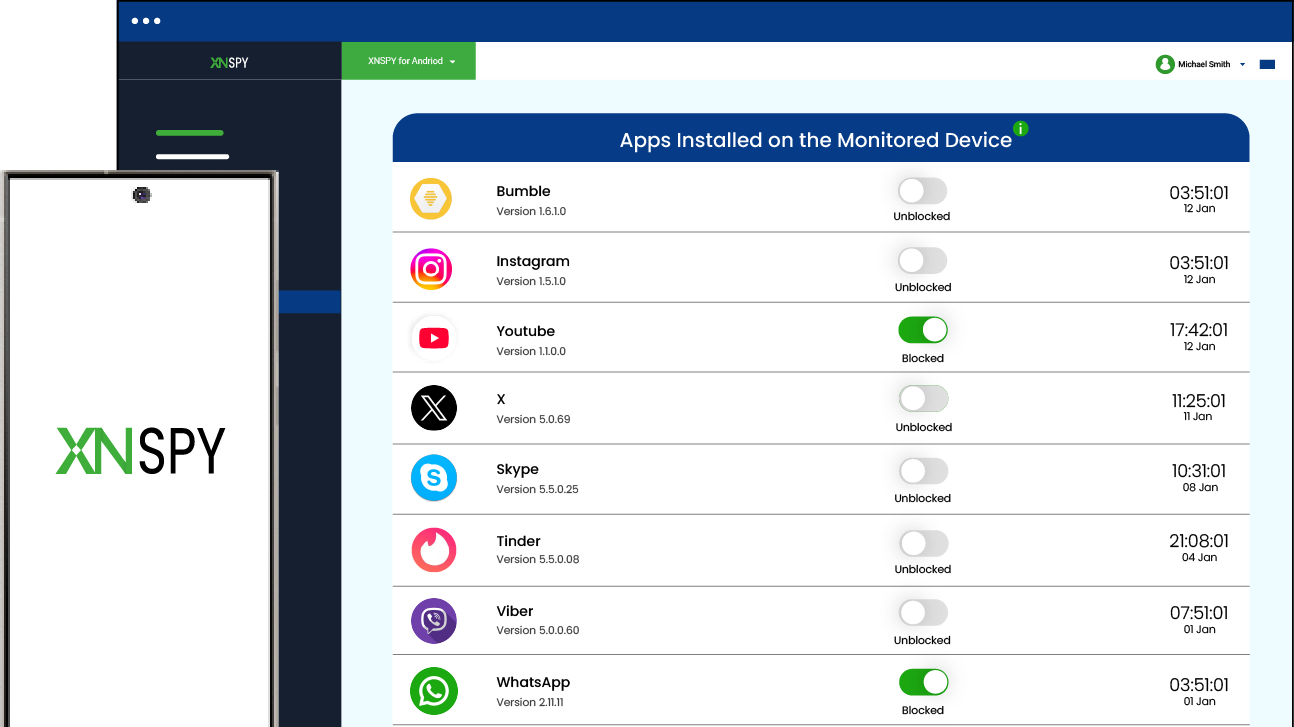
- Xnspy can block YouTube remotely, view browser activity, and check the app usage from a parent dashboard.
Can You Actually Block YouTube Completely for a Child?
Yes, but only if you block both the application and the website.
YouTube is available as a downloadable app and a full-fledged website. That means a child who loses access to the app can reach it through Safari, Firefox, Brave, etc. Some children may also try reinstalling it from the App Store or Play Store.
It is also worth noting that YouTube Kids is not a substitute for phone-level blocking. The application filters content to different degrees, but it does not prevent a child from switching to the main YouTube app or website.
The most comprehensive solution is a device-level block that also provides detailed visibility into children’s YouTube content preferences. After all, visibility and restriction are far more effective together than either is on its own.
One exception worth noting is that school-issued Chromebooks and iPads are managed through MDM (Mobile Device Management). The school’s IT policies regulate these devices, and parent-level controls cannot override them. If your child’s school-issued device allows YouTube and you want it blocked, the appropriate step is to contact the school’s IT department directly.
Editor’s Picks for You

🦺  Is YouTube Kids Really Safe?
⛔  How to Block Inappropriate Content on YouTube: 5 Ways
👻  How to Block Snapchat on iPhone: 5 Effective Methods
🔞  How to Block Porn Sites on Your Teen’s Phone: 7 Techniques
How Did I Choose These YouTube Blocking Methods?
I tested every method listed here on a Google Pixel series smartphone, an iPhone, an iPad, a MacBook, and an HP Elitebook over multiple sessions.
The goal was to replicate real-life scenarios, and not ideal conditions where a cooperative teenager makes every restriction seem foolproof. The following are the factors I evaluated before including a method:
- Ease of Setup: A method that took non-technical parents more than 10-15 minutes to configure was kept only if it meaningfully outperformed easier alternatives.
- Multi–Browser Block: YouTube is reachable in any browser, not just the default one. I only chose methods that covered every browser on a device.
- Stability: Methods that initially looked good, but fell short after a device update or reboot, were removed from the list
- Lock Protection: If a kid could undo a method in under two minutes without needing any credentials, they were excluded.
- Bypass Difficulty: Every method was tested specifically for what happens after that first attempt. If a method had a simple workaround, it did not make it to the list.
How to Block YouTube on Computer?
| Method | Works | Requires Prior Device Access | Success Rate | Key Limitation |
| Mac Screen Time and Microsoft Family Safety | Yes | Yes | 85% | Third-party browsers can bypass it. |
| Hosts File Edit | Yes | Yes, with an Administrator account | 88% | Reversible without the read-only protection step. |
Parents figuring out how to block YouTube on computer will find that the challenge is not the block itself but keeping it cross-browser, as YouTube is accessible through any browser, which means blocking only one browser is not an ideal solution. The methods discussed below work at the OS-level (Operating System) and cannot be easily bypassed.
1. Mac Screen Time and Microsoft Family Safety
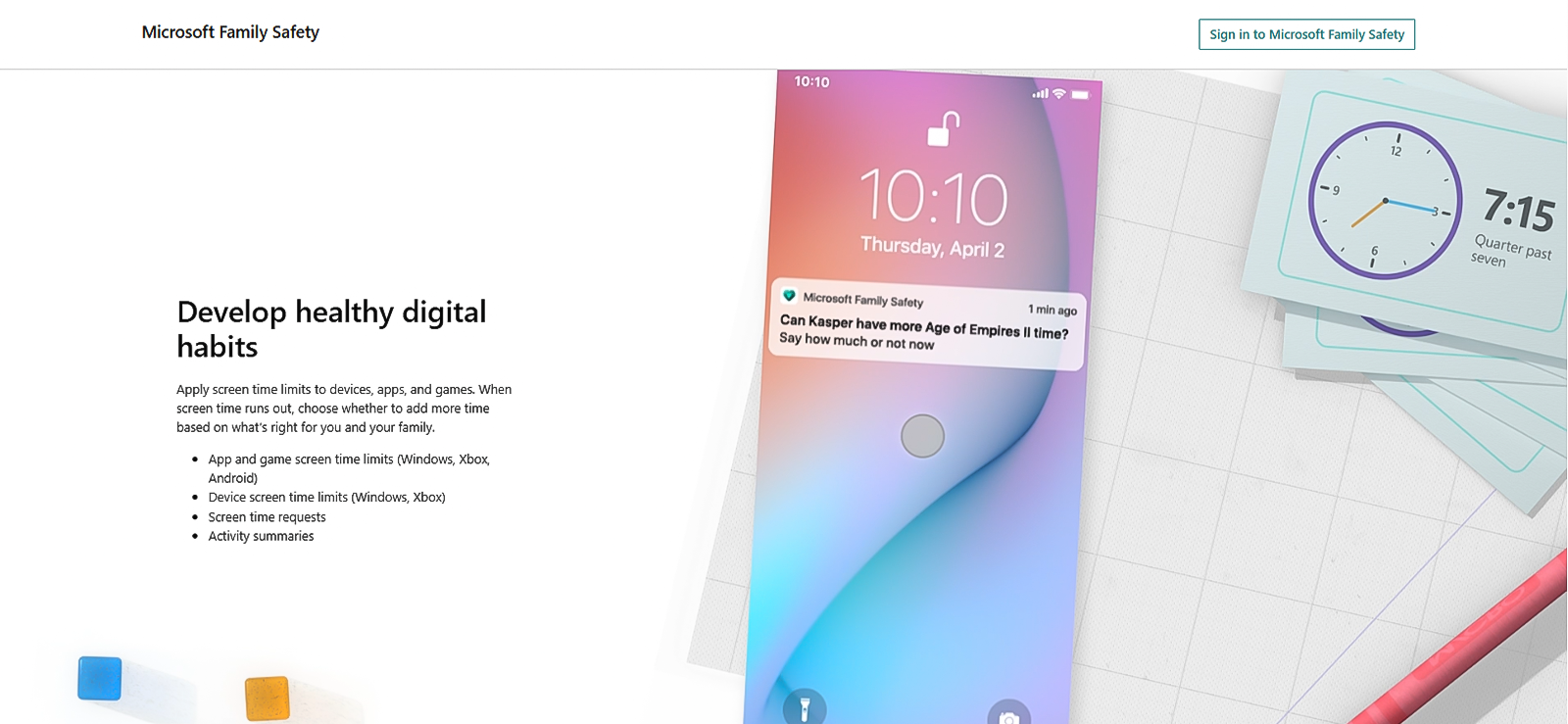
Mac Screen Time, available in macOS Catalina and later, lets you add YouTube to a restricted website list that applies to Safari, Firefox, Chromium, and other browsers. Microsoft Family Safety essentially does the same thing on Windows 10 and Windows 11 across all browsers when the child is signed in to their Microsoft account.
These tools work best when your child has a non-administrator account, so they cannot download new browsers or change OS settings without your password.
Here is how you can set it up on Mac Screen Time:
- Open the System Settings and select Screen Time.
- Go to Options, turn on Screen Time, and set a strong password.
- In the Content and Privacy menu, go to Content Restrictions, and select Web Content.
- Press on Limit Adult Websites.
- Click the ‘+’ button and add different YouTube hostnames, such as:
- https://www.youtube.com/
- https://m.youtube.com/
- https://gaming.youtube.com/
- https://youtube.com/
As for Microsoft Family Safety, you will need to follow these steps:
- Sign in to the Microsoft Family Safety website using your Microsoft account.
- Open your kid’s profile, go to Content Filters, and toggle on Filter Inappropriate Website and Searches.
- Add different YouTube URLs (shared above) under Blocked Sites.
What the Testing Showed?
Mac Screen Time was the more consistent of the two and blocked YouTube in 8 out of 10 sessions across Safari and Firefox. The two failures came when a third-party browser was installed from a separate administrator account, which bypassed Screen Time entirely. Setting the child’s profile to a non-administrator user prevented this in all subsequent tests.
Microsoft Family Safety worked in 8 out of 10 sessions. Similar to the Mac Screen Time issue, both failures involved opening a browser while signed in to an administrator account. You need to check that the child’s account requires a mandatory Microsoft login at startup to resolve this.
2. Hosts File Edit
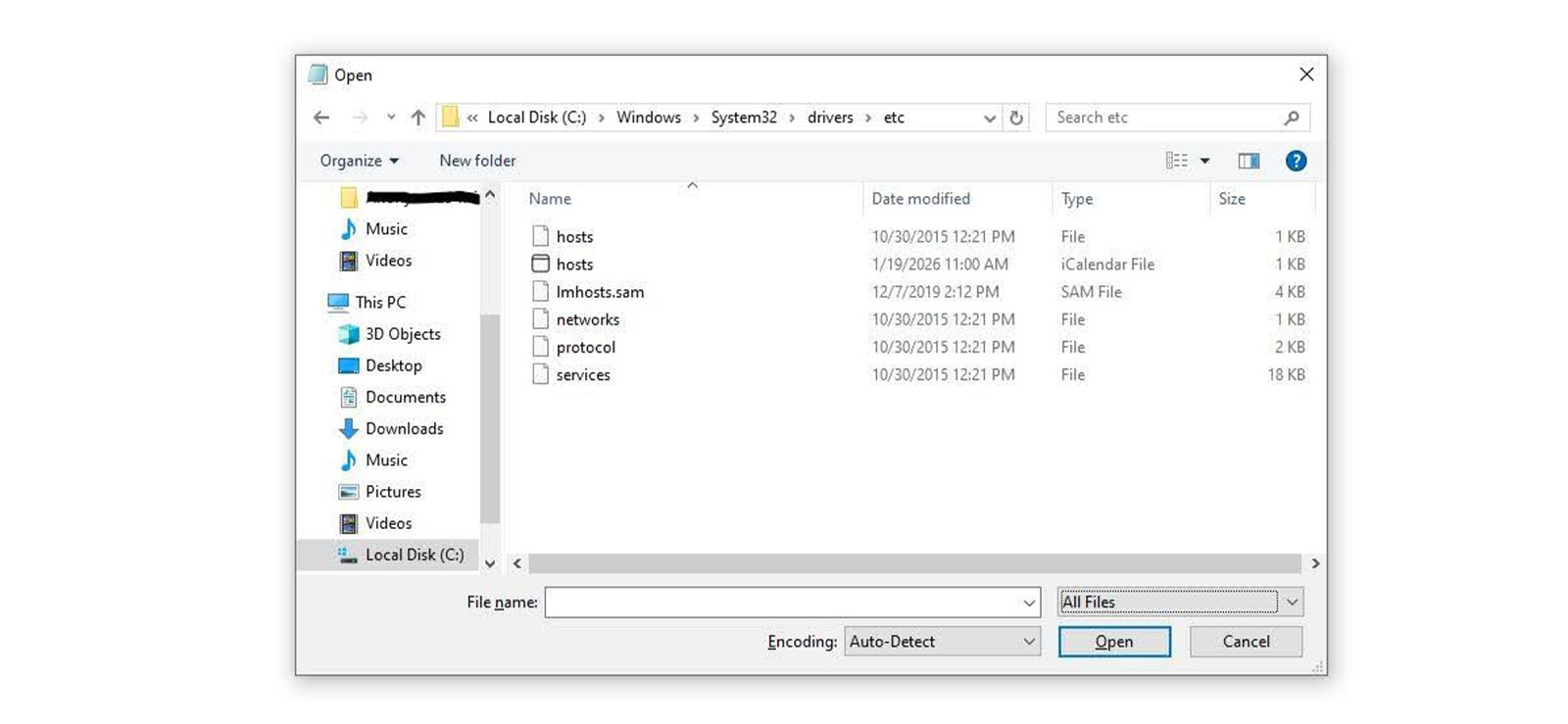
It is an OS-level edit that controls how a computer resolves domain names.
This method redirects YouTube’s domain to a local address that makes it inaccessible in every browser. Unlike the previous method, it is not account-dependent, so even if your child is logged in to an administrator profile, they will still not be able to access YouTube.
Here is how you can edit the files on Windows:
- As an Administrator, run Notepad.
- Then press Ctrl + O and navigate to C:\Windows\System32\drivers\etc, change filter to All Files, and open the file named ‘hosts’.
- Add these lines at the bottom of the file:
- 127.0.0.1 www.youtube.com
- 127.0.0.1 youtube.com
- 127.0.0.1 m.youtube.com
- Save the file, right-click it to open Properties, and check Read-Only.
- Restart any open browsers, and YouTube should no longer be accessible.
As for macOS, you will need to follow these steps:
- Go to Terminal and type ‘sudo nano /etc/hosts’ without apostrophe.
- Enter your password if prompted.
- Scroll to the bottom of the file and add the same three lines:
- 127.0.0.1 www.youtube.com
- 127.0.0.1 youtube.com
- 127.0.0.1 m.youtube.com
- Save the file.
- Flush the existing DNS cache by running these commands:
- sudo dscacheutil -flushcache
- sudo killall -HUP mDNSResponder
- Make the file Read-Only by running ‘sudo chmod 444 /etc/hosts’ without apostrophes.
What the Testing Showed?
YouTube was completely unreachable in 9 out of 10 sessions across Firefox, Safari, and Brave on both platforms. The only successful bypass came from a VPN app, which routes the traffic around the ‘hosts’ file. You can remove any VPN apps present on your child’s computer to close this gap.
Moreover, on macOS, failing to flush the DNS cache caused YouTube to remain accessible for 10-15 minutes because the browser cached the previous DNS response. This step is not optional on macOS. It is also a good idea to make the files Read-Only, so that children cannot reverse the ‘hosts’ file edit by searching unblock instructions.

Xnspy: Monitor What Your Child Watches on YouTube
Blocking YouTube is step one; knowing what replaced it is what keeps kids safe.
– See every app your child opens, including the ones deleted
– View their full browser history, including incognito sessions
– Get instant alerts when flagged words appear
– Block or unblock YouTube from your phone in seconds
How to Block YouTube on Chromebook?
| Method | Works | Requires Prior Device Access | Success Rate | Key Limitation |
| Google Family Link (Chromebook) | Yes | Yes | 88% | Google Chrome only. |
| BlockSite Extension | Yes | Yes | 65% | Bypassed through the Guest Mode. |
Knowing how to block YouTube on Chromebook is slightly easier than on a general computer because Chromebooks mostly rely on Google accounts, which works in parents’ favor. On a Chromebook, Google Family Link is the most reliable solution because it lets you manage your child’s account without much hassle.
1. Google Family Link
Google Family Link is a free parental control service built into the Google ecosystem. When your child’s Chromebook is signed in to a supervised Google account, Family Link lets you easily block YouTube from your phone.
- Install Google Family Link on your phone and link it to your child’s Chromebook.
- Delete all browsers from the Chromebook except Google Chrome because it does not work on third-party browsers.
- Open it, tap on your child’s name, and select Controls.
- Go to Content Restrictions on Google Chrome, tap Managed Sites, then Blocked, and add YouTube.com to it.
- Return to Controls, tap Apps, and block YouTube.
What the Testing Showed?
Google Family Link successfully blocked YouTube during 9 out of 10 testing sessions. The one instance that caused an issue was because Firefox was still installed. Family Link cannot control third-party browsers, so YouTube loaded in under 5 seconds.
2. BlockSite Extension
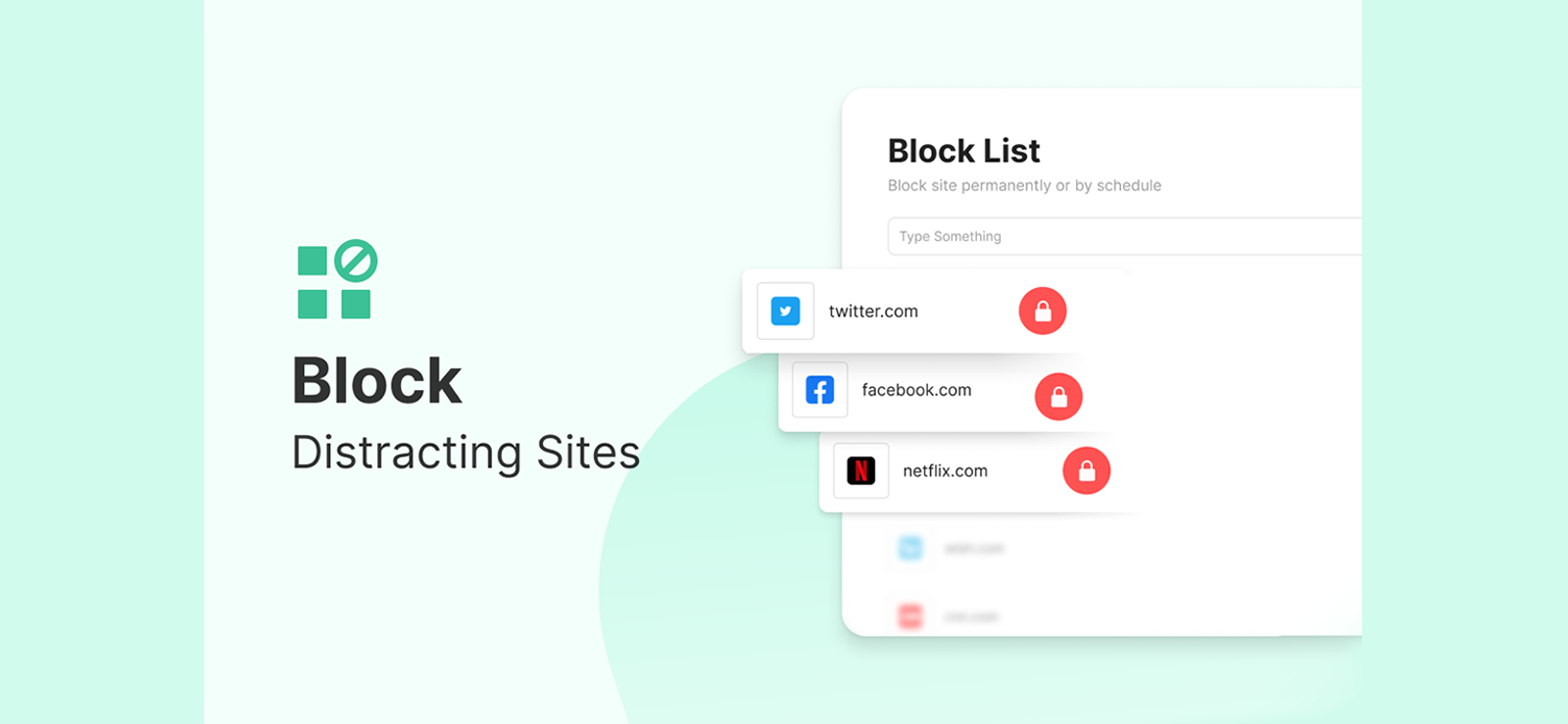
For Chromebooks without Google Family Link, the BlockSite extension is a good alternative.
It comes with password protection to prevent removal and can be enabled in Incognito Mode to close that gap. Here is how it runs:
- Open the Chrome Web Store, search for BlockSite, and click Add to Chrome.
- Click the BlockSite extension in the toolbar, select Block a Site, and add YouTube.
- Go to BlockSite settings and enable Password Protection.
- Go to Extensions, find BlockSite, and toggle on Allow in Incognito.
What the Testing Showed?
BlockSite worked in 6 out of 10 sessions. All 4 failures happened in the Guest Mode, which does not load extensions.
Furthermore, the BlockSite extension is browser-level, so a teenager who installs a different browser or uses Guest Mode will bypass it.
How to Block YouTube on Android?
| Method | Works | Requires Prior Device Access | Success Rate | Key Limitation |
| Digital Wellbeing | Yes | Yes | 85% | No PIN by default. |
| Restricted Mode | Yes | Yes | 65% | Restarting the device can sometimes revoke permissions. |
Blocking YouTube on Android depends on one thing first: whether a parental Google account is already set up on your child’s phone.
1. Digital Wellbeing
It is a built-in app on every smartphone running Android 9.0 or above. You can use it to set YouTube’s daily timer to 0. Doing so will make it inaccessible for the rest of that day. Here’s how to block YouTube on Android using this method:
- Go to Settings on your child’s Android device.
- Open up Digital Wellbeing and Parental Controls.
- Navigate to Dashboard and select YouTube from the list.
- Tap on the ‘Hourglass’ icon and set the daily limit to 0.
What the Testing Showed?
While it works fine, Digital Wellbeing has no PIN protection, so a child can easily go to ‘Settings’ and increase the timer. For parents of younger children, Google Family Link is considerably more dependable.
2. YouTube’s Restricted Mode
YouTube has a built-in Restricted Mode setting, which you can pair with Android’s app permission controls for a two-layer block.
Restricted Mode filters out age-inappropriate content at the YouTube level, while Android’s app settings lock it down to prevent your child from simply turning it off again. Follow the steps provided below to do it:
- Open your child’s YouTube profile on an Android phone.
- Go to Settings > General and toggle Restricted Mode on.
- Now go to your phone’s Settings > Apps.
- Look for YouTube and select Permissions.
- You will need to revoke all permissions, particularly Storage and Network access. This prevents YouTube from loading content while keeping the app present, so your child does not notice that it is gone.
What the Testing Showed?
This combination can fail if your child restarts the phone, which can sometimes revoke the app permissions on Android. On a Google Pixel device, the permissions were not revoked after restarts, but it can vary on other devices.
The Restricted Mode setting, however, worked across all 10 sessions once configured. When combined with the permission revoke, it significantly reduces what a child can actually watch or access on YouTube.

Did You Know?
You can also control the type of content your child watches on Facebook.

How to Block YouTube on iPhone?
| Method | Works | Requires Prior Device Access | Success Rate | Key Limitation |
| Screen Time — Content Restrictions | Yes | Yes | 87% | Passcode security is a critical variable. |
| Screen Time — Downtime Schedule | Yes | Yes | 82% | Only blocks during scheduled hours. |
Apple also has a built-in parental control feature called Screen Time.
It gives parents more control over their children’s phone usage, but under one condition, i.e., a passcode that they do not know.
1. Screen Time — Content Restriction
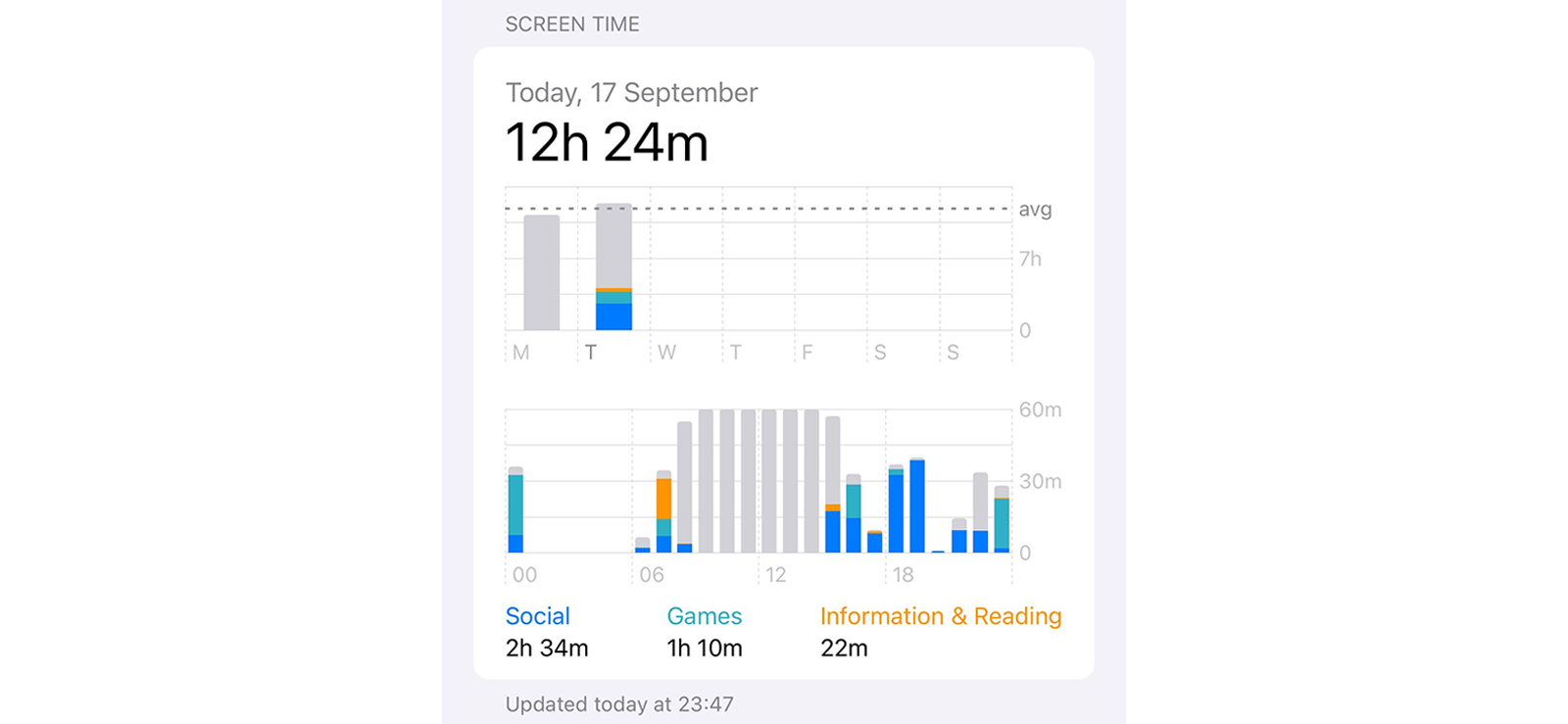
Blocking YouTube on iPhone comes down to Screen Time, Apple’s built-in parental control system, and the single passcode that protects it. It is a 3-in-1 solution that hides the YouTube app, blocks its website across all browsers, and prevents reinstallation from the App Store.
Here’s how to block YouTube on iPhone:
- Go to Settings and tap on Screen Time.
- Toggle on Screen Time, tap on “This is My Child’s iPhone” option, and select Use Screen Time Passcode.
- Enter a strong and enable Content and Privacy Restrictions.
- Tap on Content Restrictions, Apps, and set the age limit to 9+.
- Now go to Web Content, select Limit Adult Websites, and add the following URLs to the ‘Never Allow’ option:
- https://www.youtube.com/
- https://youtube.com/
- https://m.youtube.com/
- https://gaming.youtube.com/
- Lastly, tap iTunes and App Store Purchases and set the ‘Installing Apps’ option to “Don’t Allow”.
What the Testing Showed?
With all three elements applied together, YouTube was inaccessible in all test sessions across Safari, Brave, and Firefox. It is important not to skip the passcode step, as it is the foundation on which everything rests.
Moreover, setting the app age to 9+ will also hide multiple other apps, so it is a good idea to review what disappears before finalizing.
2. Screen Time — Scheduled Downtime
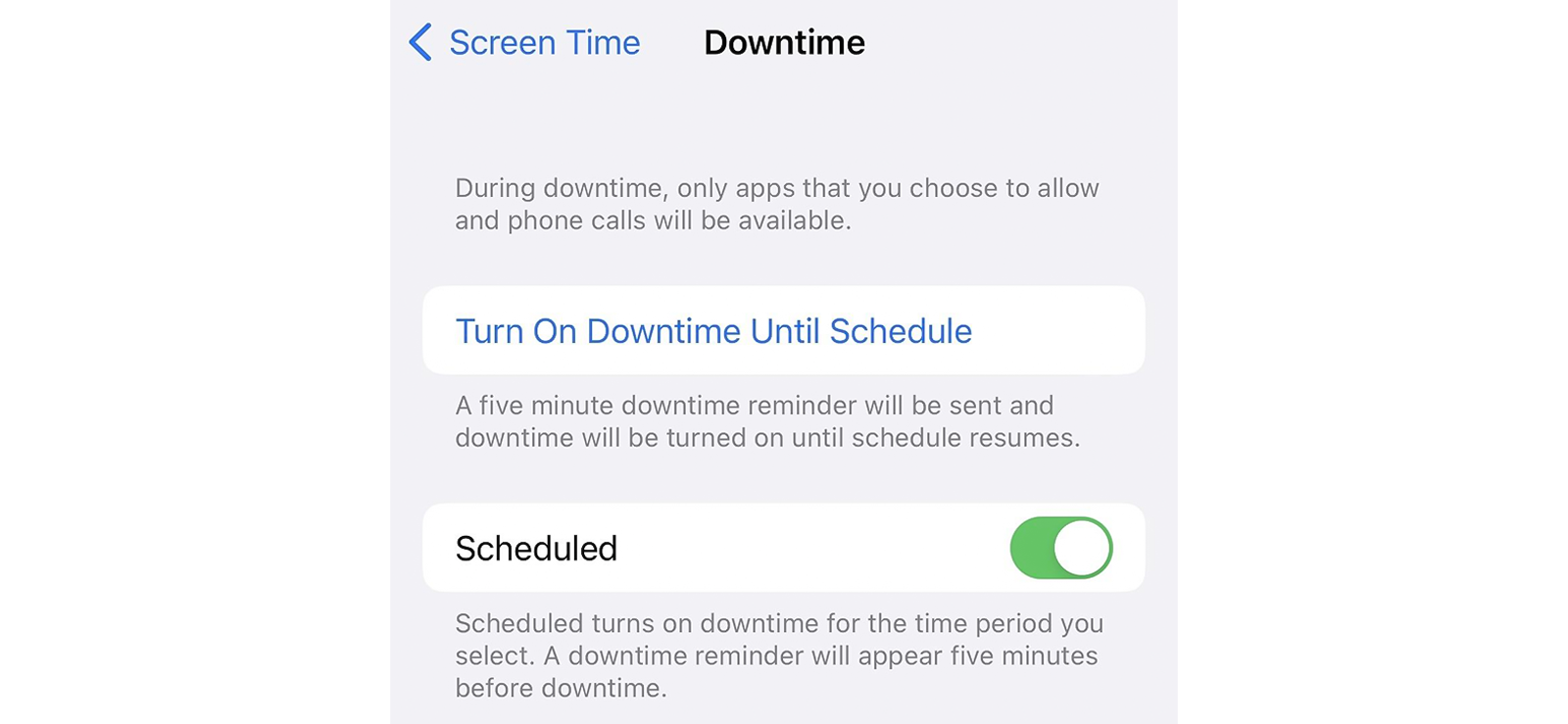
Downtime is Apple’s time-based restriction feature inside Screen Time. You can toggle it on to pause YouTube access during school hours, in the evenings, or overnight.
- Go to Settings and select Screen Time.
- Tap on Downtime, toggle the ‘Scheduled’ option on, and set ‘From’ and ‘To’ times when you want YouTube blocked.
- You can either block it every day or choose specific days.
- Return to Screen Time, open Always Allowed, and check that YouTube is not listed there.
What the Testing Showed?
This feature also consistently worked across all testing sessions. YouTube locked immediately at the start of each scheduled period, even when the application was actively open.
Once again, it is important not to skip the ‘Passcode’. The feature does not work unless you have a strong password in place.
How to Block YouTube on iPad?
| Method | Works | Requires Prior Device Access | Success Rate | Key Limitation |
| Guided Access | Yes | Yes | 83% | Must be activated manually. |
| App Deletion | Yes | Yes | 80% | Does not block YouTube in browsers. |
Parents searching for how to block YouTube on iPad will find that the two methods below work differently from the iPhone methods, specifically because iPads are shared and used within a household.
1. Guided Access
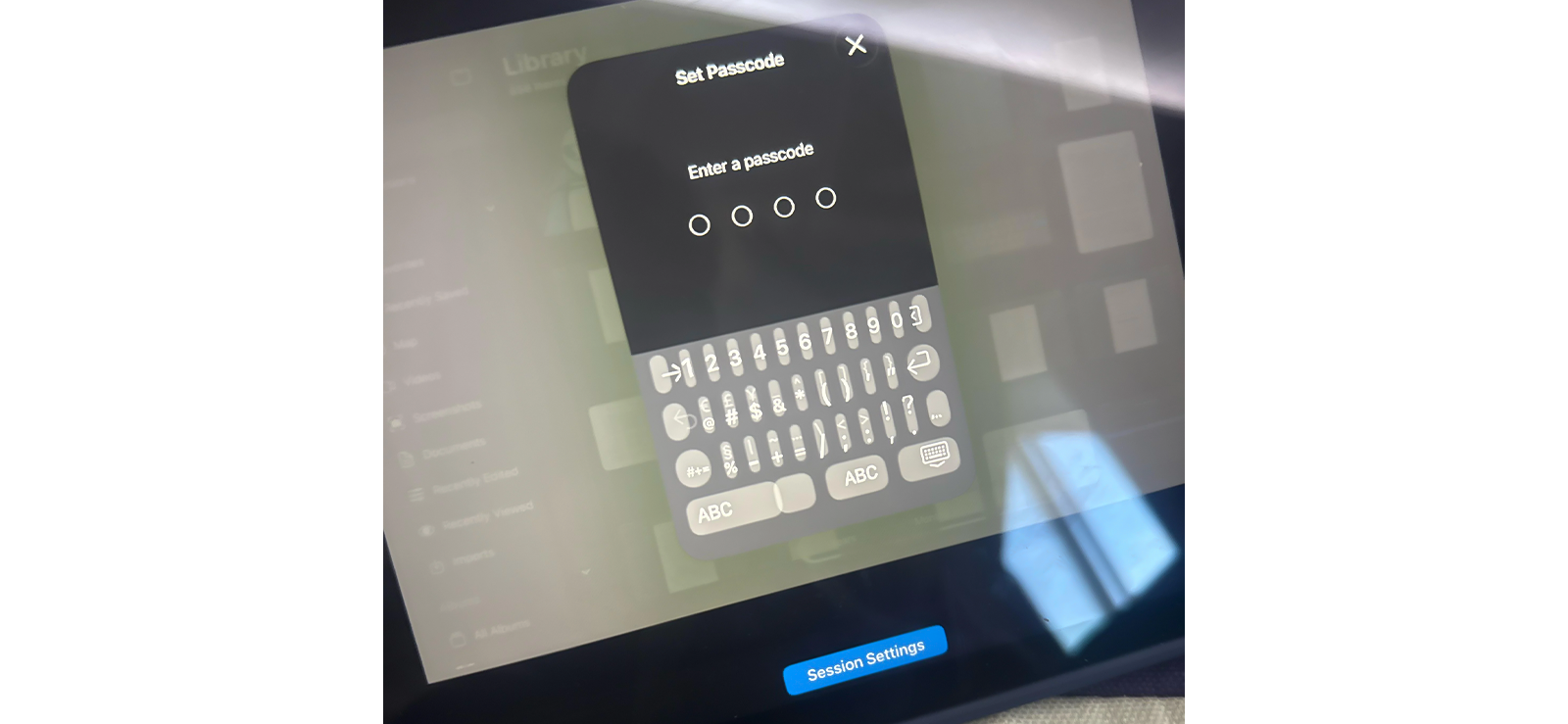
It is an accessibility feature that basically locks the iPad to a single app. Once activated, it turns off everything except the app they are in.
That means they cannot open YouTube, App Store, or any browser at all. It essentially turns the iPad into a single-app device for as long as it is on.
That means instead of blocking YouTube, you lock the iPad to something you approve, e.g., a reading app or a learning platform.
- Go to Settings > Accessibility > Guided Access and toggle it on.
- Enter a Guided Access Passcode.
- Open the app you want the child to use, e.g., DuolingoABC.
- Triple-tap the ‘Home’ button to start Guided Access.
- To end it, triple-tap the ‘Home’ button and enter your passcode.
What the Testing Showed?
Guided Access worked exactly as intended across all 10 test sessions. The iPad was effectively locked to the approved app, and every attempt to access YouTube did nothing. The only caveat is that you must manually activate it each time the iPad is handed over and deactivate it when the session ends.
2. Delete App and Restrict Reinstalls
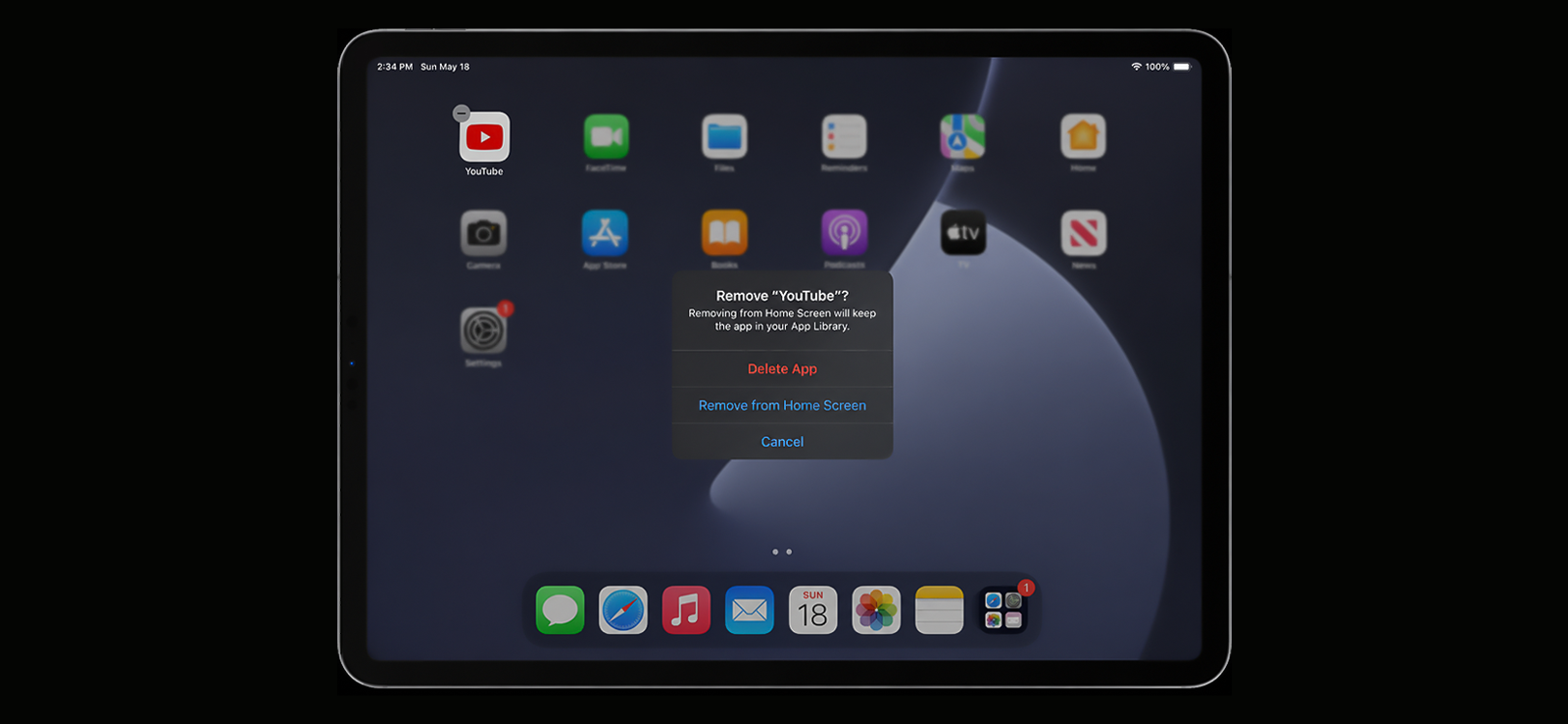
This method is the most direct approach on an iPad, i.e., remove YouTube and prevent it from being redownloaded. To delete YouTube from iPad:
- Hold the ‘YouTube’ icon on the iPad, tap the ‘–’ icon, and select Delete App to remove it.
- Go to Settings > Screen Time > Content and Privacy Restrictions and enable it.
- Tap on iTunes and App Store Purchases and set ‘Installing Apps’ to “Don’t Allow”.
- Now go to Content and Privacy Restrictions > Content Restrictions > Web Content > Limit Adult Websites and add the URLs below to ‘Never Allow’.
- https://www.youtube.com/
- https://youtube.com/
- https://m.youtube.com/
- https://gaming.youtube.com/
What the Testing Showed?
Since this method completely removes YouTube from the iPad, it works. A resourceful teenager can immediately redownload it, which is why it is important to prevent it from the ‘iTunes and App Store Purchases’ menu.
Moreover, removing the app does not prevent a child from accessing YouTube from a browser. You should follow the steps shared above to block the YouTube website as well.
How to Block YouTube on Your Kid’s Phone?
| Method | Works | Requires Prior Device Access | Success Rate | Key Limitation |
| Xnspy | Yes | Yes | 92% | Needs a one-time physical access to the child’s phone. |
If you want a hassle-free way to block YouTube on your child’s phone without jumping through hoops, you can simply use Xnspy.
It is a parental control app you can install on your child’s smartphone to get visibility into everything they do on their device. Xnspy has multiple features, which also include the ability to block YouTube or other apps with a single click.
Xnspy is compatible with smartphones running Android 4.0+ or iOS 6+. You will also need a brief, one-time access to the child’s phone to install it. Once installed, it runs silently on the targeted device and syncs data to an online dashboard you can access from any browser.
It takes 10-15 minutes to set Xnspy up from scratch. Here is how to do it:
- Purchase a subscription plan from the Xnspy official website.
- Follow the step-by-step ‘Installation Tutorial’ sent to your registered email address. It requires a one-time access to your child’s phone.
- Provide the necessary permissions on the targeted device.
- Log in to the Xnspy dashboard using your credentials.
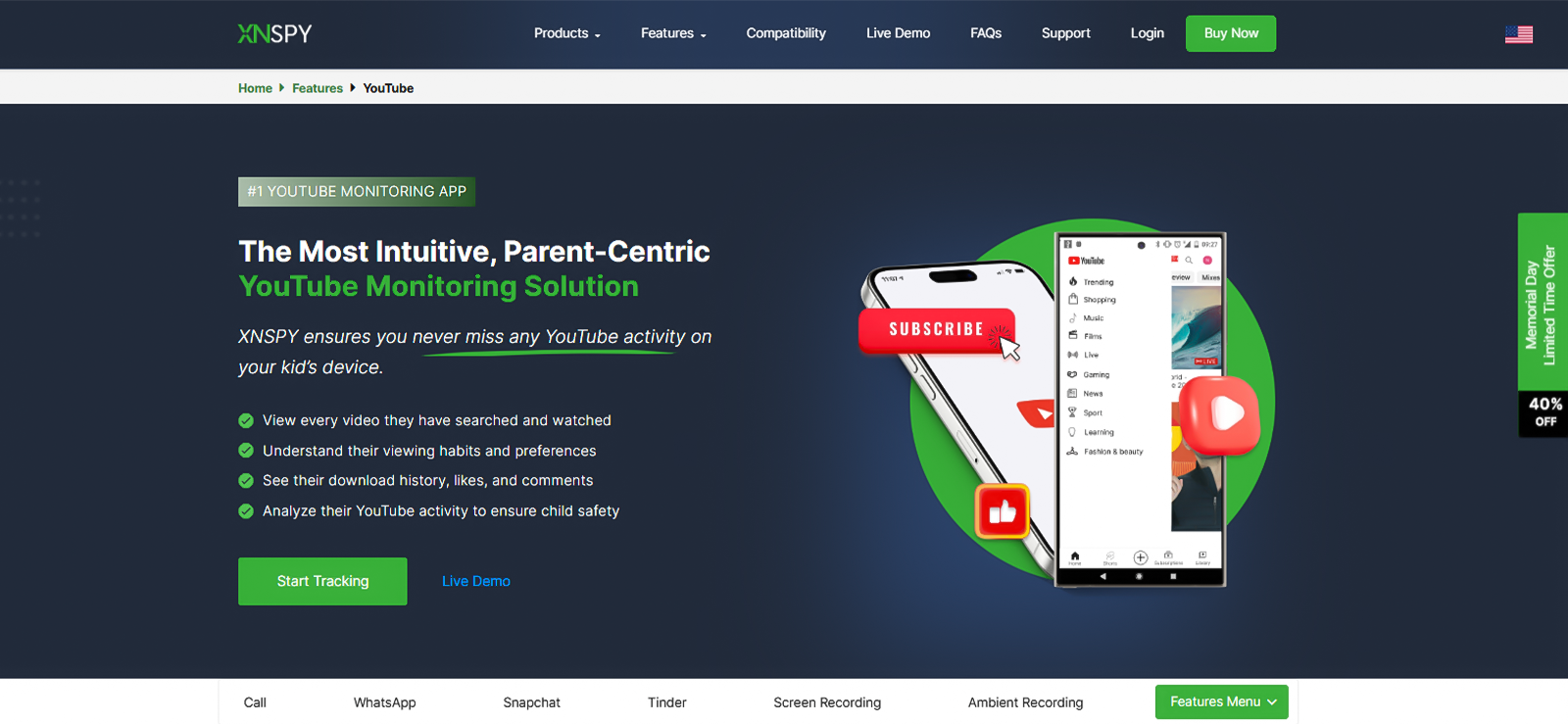
- Select the ‘Installed Apps’ section from the left-side menu.
- Look for YouTube in the list and toggle the ‘Blocked’ button on.
The Installed Apps section displays every app on your teenager’s phone, even if they are ‘Hidden’ or ‘Deleted’.
Using Xnspy, you can block YouTube with a single toggle that applies immediately, without even touching the phone. To unblock it, you can just toggle it off. This makes it easy to allow YouTube during specific times without any device-level adjustments.
Since kids can access YouTube in browsers, you can one-tap block all installed browsers on the device, like Firefox, Brave, etc.
Xnspy offers several other features, such as Screen Record, Keylogger, Screen Time, Internet History, and Keyword Alerts, which provide insights that go beyond basic restrictions.
What the Testing Showed?
I installed Xnspy on a Google Pixel series phone and blocked YouTube and Google Chrome through the online dashboard. The block applied immediately.
I then ran multiple bypass scenarios, i.e., reinstalling YouTube, accessing it through Chrome, running embedded videos in Google Discover, and opening YouTube links sent through WhatsApp.
Xnspy blocked 9 of 10 attempts. The only miss was that YouTube loaded normally but closed immediately after a video was played. It appears the issue was caused by a sync delay, possibly due to an unstable internet connection, and the app was blocked accurately with no noticeable delays.
FAQs
How do I block my child from accessing YouTube if they use multiple devices?
You can block your child from accessing YouTube using multiple devices by editing the ‘hosts’ file on PCs, Family Link on Android, and Screen Time on iPhones and iPads. Alternatively, you can also install Xnspy on your child’s mobile phone and block any unwanted apps, such as YouTube, with a single click.
How to block YouTube for a certain time every day automatically?
On Apple devices, you can use the ‘Scheduled Downtime’ feature to schedule specific blocked hours. On an Android smartphone, Digital Wellbeing can essentially do the same thing. It limits YouTube for the current day and resets at midnight. If you do not want to fiddle with device settings, Xnspy can block YouTube on-demand from your own browser in seconds.
How to block the YouTube website on Firefox?
Firefox falls outside most built-in parental controls, which is why I recommend the ‘hosts’ file method, as it blocks YouTube at the OS-level regardless of which browser is open. You can also install the ‘LeechBlock NG’ extension on Firefox and add YouTube to the blocklist, set a removal password, and enable it in ‘Private Browsing’.
How to block YouTube from browser on Chrome?
To block YouTube on Google Chrome, you can install the ‘BlockSite’ extension, add YouTube to the blocklist, enable PIN protection, and allow it in ‘Incognito Mode’. If you are using an Android smartphone or Chromebook, Google Family Link’s site-blocking feature controls Google Chrome directly from an app.
How to temporarily block YouTube?
To temporarily block YouTube on iPhone or iPad, open Screen Time and set YouTube’s daily limit to 1 minute in App Limits. On an Android phone, set the Digital Wellbeing timer to 0 minutes for YouTube. You can also use Xnspy to temporarily block YouTube from the dashboard in seconds, with no changes needed on your child’s device whatsoever.
Ready to Go Beyond Blocking?
Get Xnspy and see everything happening on your child’s phone.
Leave a reply:
Your email address will not be published. Required fields are marked*
Stephen Hawks
Member since February 26, 2026
Stephen Hawks
Member since February 26, 2026
Stephen Hawks is a mobile app security and digital privacy analyst with over 12 years of experience evaluating mobile monitoring technologies, device tracking applications, smartphone data security risks, and more. He is particularly passionate about how monitoring apps function, what data they access, and how securely that data is stored.
Previously working as an IT forensics consultant, he specialized in analyzing app-level data exposure and digital evidence patterns on smartphones. Today, he focuses exclusively on mobile monitoring tools and tracking applications, with an emphasis on real-world performance and security vulnerabilities.
Moreover, he holds industry certifications including CompTIA Security+ and Certified Ethical Hacker (CEH).