How to See Someone’s Location on iPhone Messages: 5 Safe & Legal Ways for Parents
 By Stephen Hawks
The complete monitoring experience for your phone
Get XNSPY and start tracking calls, texts, multimedia, locations and more on any phone!
Get Started Now Live DemoEver had that moment where you wonder where someone is and whether your iPhone can help without crossing any lines? Apple has built location sharing into messages in a way that’s meant to be transparent and consensual.
If you are a parent checking that a child got home safely, knowing how to check someone’s location on iMessage helps a great deal. And that is exactly what we are going to sort out for you. You will learn how iPhone message location sharing actually works and the different ways you can see someone’s location using iMessage.
The Essentials You Can Read Fast
- iMessage location sharing works only when the other person gives clear permission.
- It uses GPS, Wi-Fi, and cellular data to show accurate, real-time updates.
- You can request someone’s location directly through an iMessage chat.
- You can view a shared location anytime through the contact card section.
- You can check live updates through Check In cards during active trips.
- You can open Apple Maps links shared in messages to view the location.
- Xnspy is a comprehensive child monitoring tool you can use for continuous phone access beyond iMessage sharing limits.
How Does iPhone Message Location Work?
iPhone messages location sharing is done using a combination of Apple’s built-in privacy features and Apple Maps. When someone chooses to share their location, their device uses GPS, Wi-Fi, and cellular data to pinpoint their position and sends it securely through iMessage. The system relies on explicit permission: you can only see a person’s location if they agree to share it, and they can stop sharing at any time.
There are three main options for sharing:
- A one-time snapshot of the current location
- Sharing for a set duration/route
- Continuous sharing until turned off
Apple doesn’t store this data permanently. Moreover, locations are only visible to the people you share with and update in real time while sharing is active. If a phone is offline or turned off, the last known location may be shown temporarily, but it won’t continue updating. This approach balances convenience, safety, and privacy.
Some More Useful Blogs for You

⛔  How To See Blocked Messages On iPhone: 4 Methods
⚡  Does iMessage Notify Screenshots: Here’s the Clear Answer
🛑  How to Know If Someone Blocked You on iMessage: 6 Signs
💬  How to See Someone’s iMessages: 6 Best Methods
How to See Someone’s Location on iMessage: 5 Proven Methods
Now that you understand how iMessage location sharing works, let’s look at 5 practical ways it shows up in everyday use. Apple offers several built-in paths to view someone’s location via messages, each triggered slightly differently depending on how the location is shared.
1. Send Location Request via iMessages
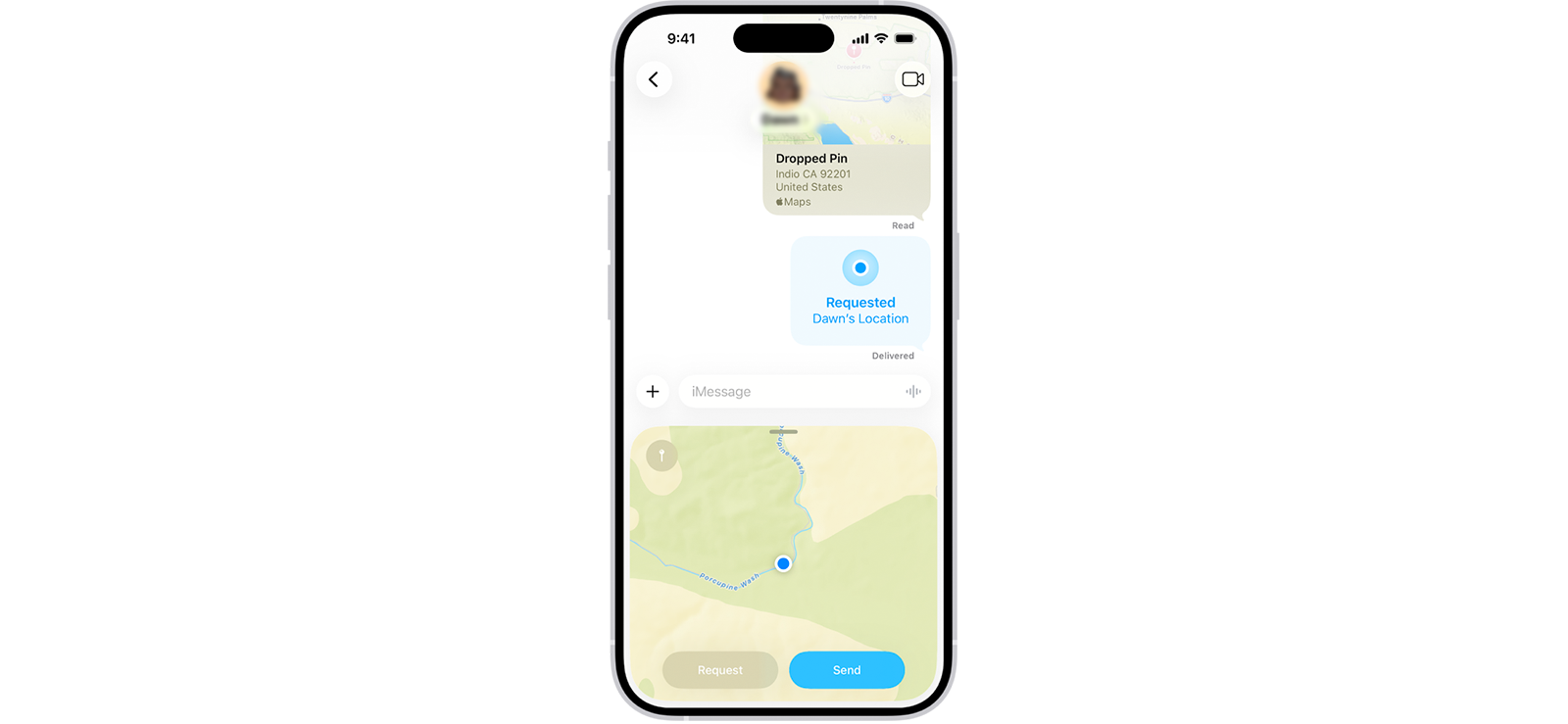
When it comes to viewing someone’s location on iPhone messages, sending a request is the most straightforward method. It involves directly asking someone to share their location through iMessage. In the background, iMessage sends a permission request tied to Apple Maps. The other person must approve it before any location data becomes visible.
To know how to see someone’s location on iMessage via a location request:
- Open the iMessage app and select the conversation.
- Go to the specific person’s chat whose location you want to see.
- Tap the plus sign at the bottom left corner of your screen.
- Select ‘Location’, a map preview will open with two options: ‘Send’ and ‘Request.’
- Choose ‘Request’ from here.
- Wait for the other person to accept the request.
The main limitation here is consent. If the request is ignored or declined, you won’t see anything. Even when accepted, the person controls how long their location stays shared and can stop it at any time without notice.
2. View the Contact Card
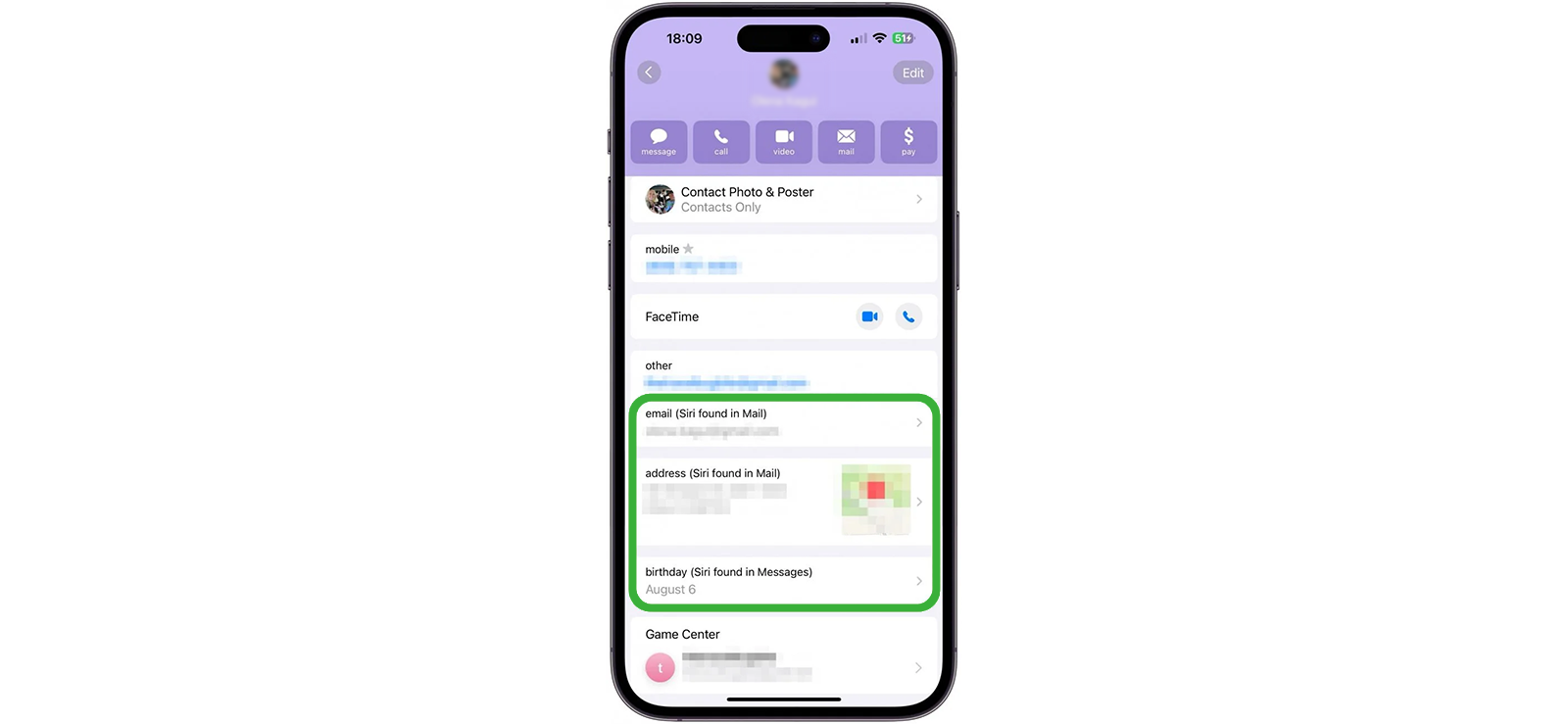
The contact card is essentially a hub for information connected to someone’s Apple ID within iMessage. When a person chooses to share their location with you via messages, either indefinitely or for a set time, iOS ties that permission to their contact profile.
This allows iMessages to pull live location data from Apple Maps and display it directly inside the contact card without needing a separate request each time. The location updates automatically in the background as long as sharing remains active.
To view the location via the iMessages’ contact card:
- Open the iMessage app and select the relevant conversation.
- Tap the person’s name or profile photo at the top of the screen.
- Tap “Info” to open their contact card.
- If location sharing is enabled, you’ll see a map preview showing their current or last known location.
- Tap the map to open Apple Maps for a closer look or directions.
This method is entirely dependent on prior permission. If the person hasn’t shared their location with you or has stopped sharing, the map section won’t appear at all. It also won’t show historical movement, only the current or last available location, making it useful for quick checks rather than continuous updates.

Stay Informed on iMessage Activity with Xnspy
Keep up with your child’s iMessage activity and whereabouts.
– View iMessage activity with shared location details
– Get real-time GPS updates and location history
– Receive geo-fencing alerts for key places
– Access location even when iMessage sharing is off
3. Check Maps Integrated on Social Media Messaging Apps
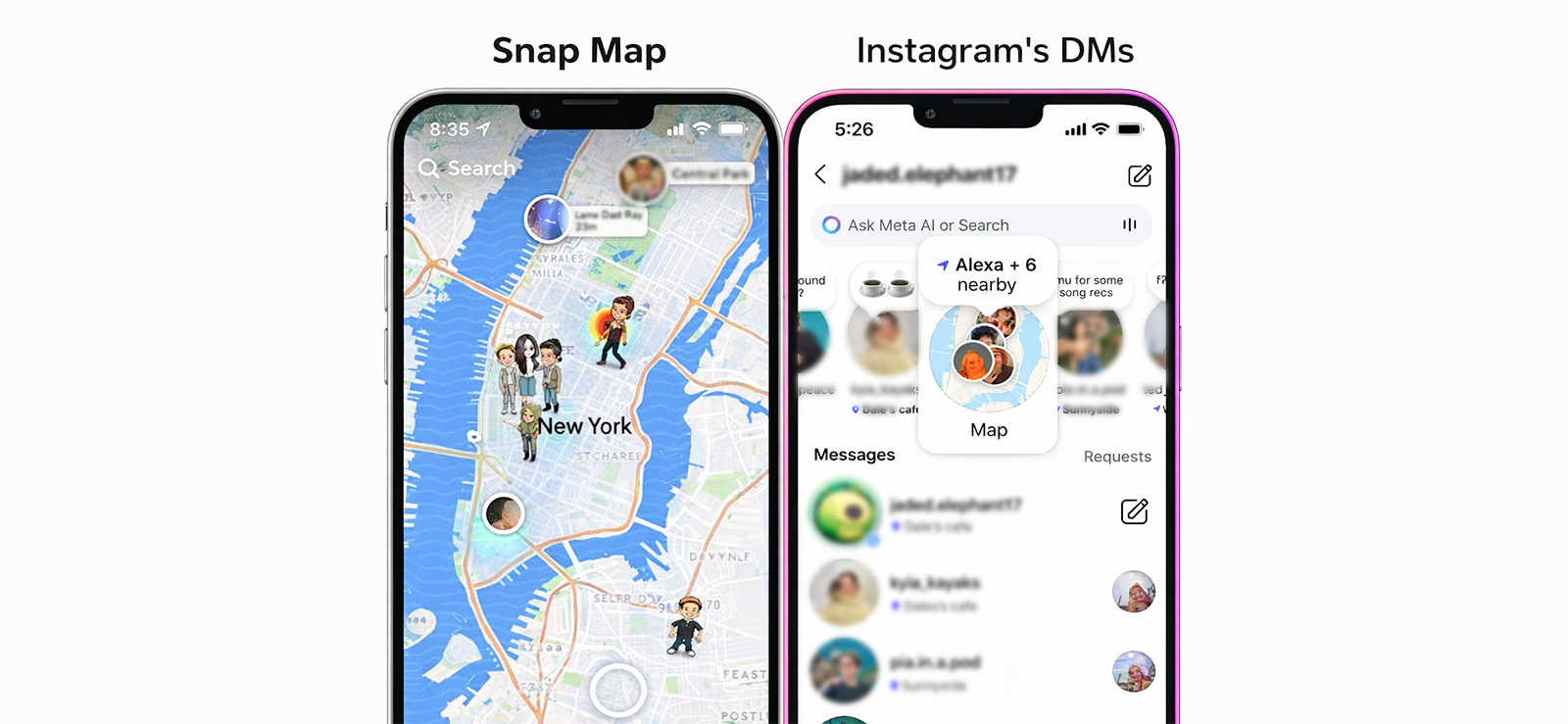
Location sharing doesn’t always happen through iMessage or dedicated map apps. Many social media messaging apps include built-in location features, such as Snap Map on Snapchat or location tags shared through Instagram direct messages, that allow users to share where they are with others.
To check location on Snapchat (Snap Map):
- Open Snapchat on the phone.
- Pinch the screen inward or tap the map icon to open Snap Map.
- Look for the contact’s Bitmoji on the map.
- Tap the Bitmoji to view the last updated or live location.
To check the location on Instagram Direct Messages:
- Open Instagram on the iPhone.
- Tap the Direct Messages (DMs) icon in the top-right corner.
- Look at the top section of the DM inbox, where Notes appear above profile pictures.
- If a contact has shared a location-based Note, it may display a place name or location reference.
- Tap the Note to view the location detail or associated context.
It’s important to note that this method relies entirely on how each social media messaging app handles location permissions and sharing. In many cases, the location shown may be approximate, manually tagged, or based on recent activity rather than real-time movement. It’s also not guaranteed that the person has enabled location-sharing features at all, which means no location data may be visible.
4. See via Check In Card
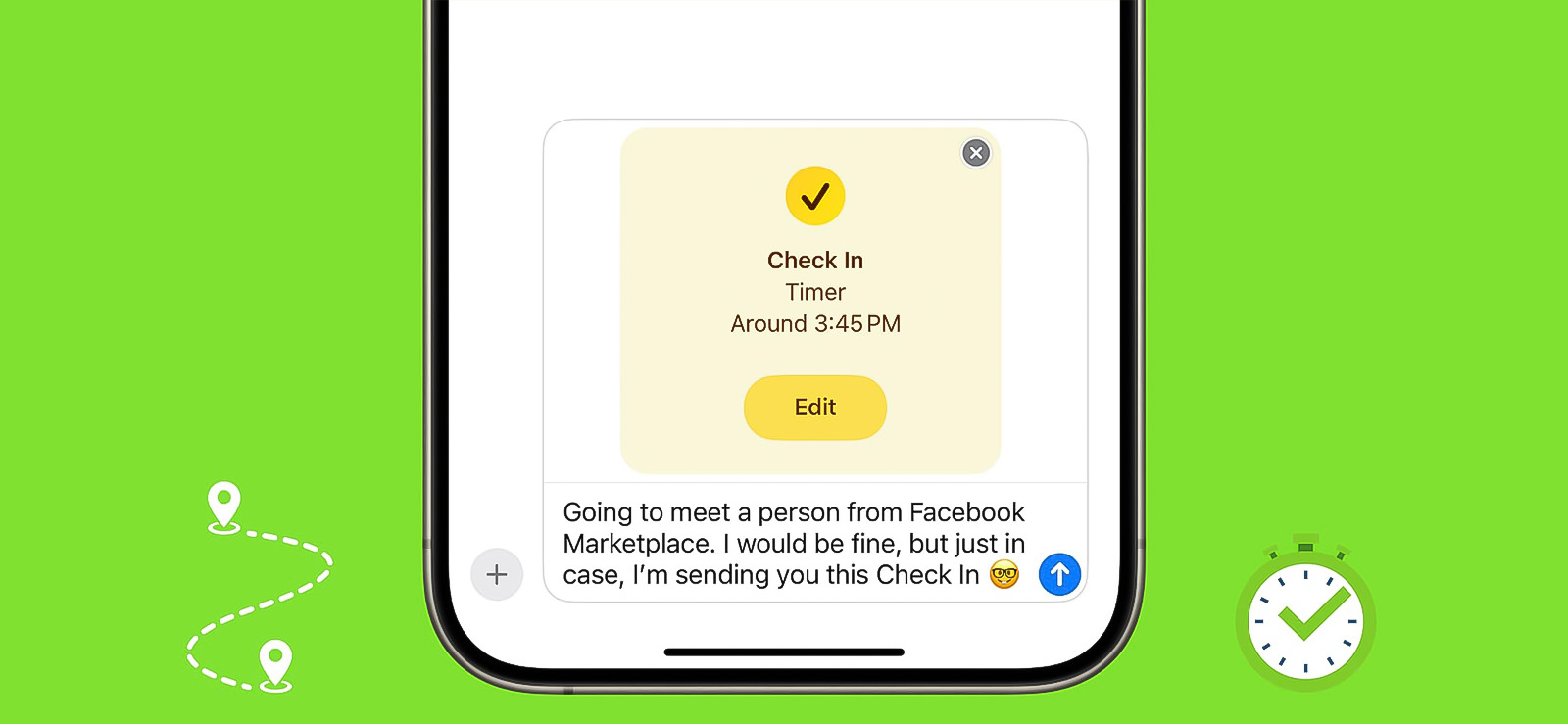
Check In is a feature designed to share your location with a chosen contact during a trip. When someone starts a Check In, their iPhone uses GPS, Wi-Fi, and device sensors to track progress toward the destination. If enabled, it can automatically share the current location and estimated arrival time with the selected contact until the trip ends or the feature is turned off.
Here’s how to see someone’s location on iPhone messages via Check In:
- Open the iMessages app and go to the relevant conversation.
- Look for an active Check In card in the chat.
- Tap the card to see the person’s location and trip status.
The main limitation is that this only works when the person initiates Check In. Once the trip ends, the card disappears, and the location is no longer shared. It also requires both participants to be on a compatible iOS version and have the feature enabled, so it’s not guaranteed to work in all situations.
5. Open Shared Apple Maps Link
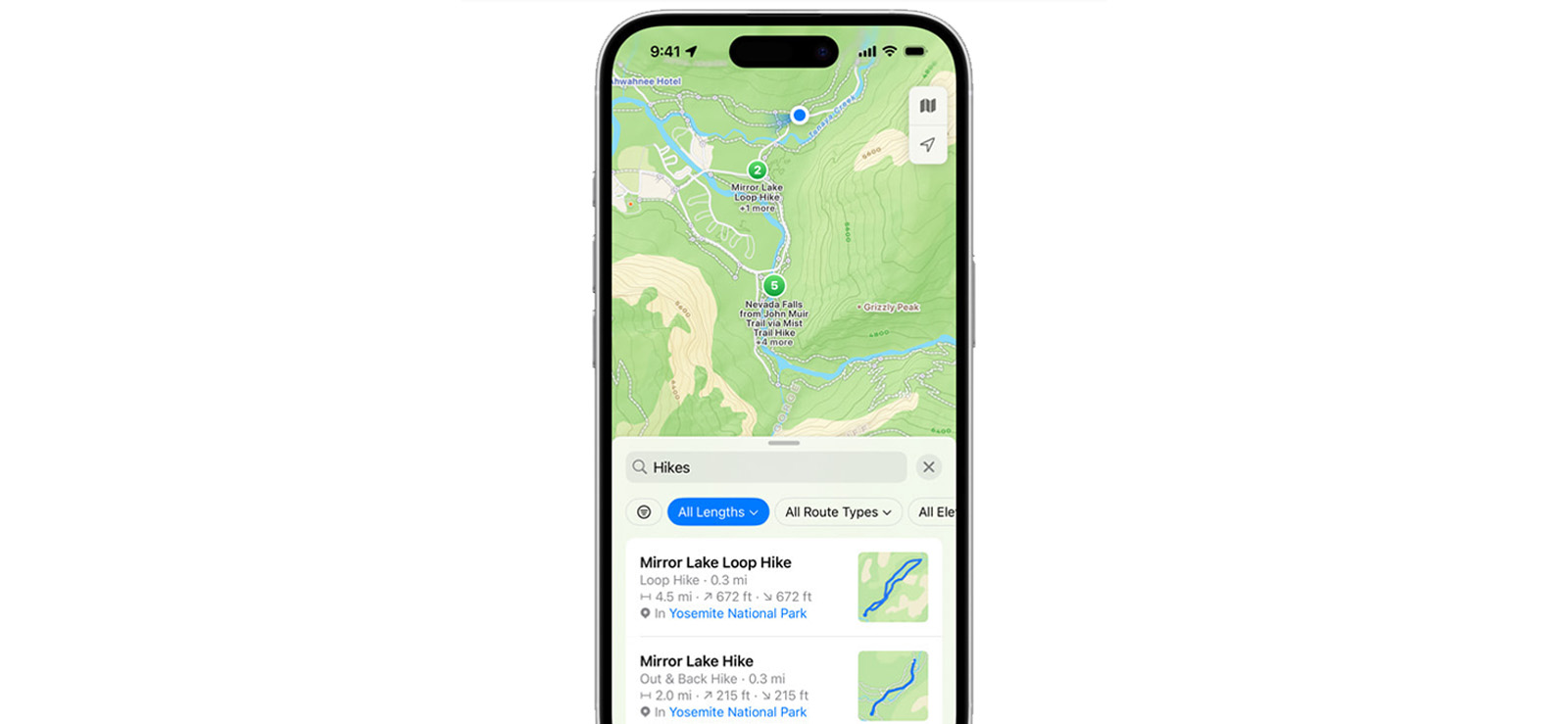
This is the simplest method, where someone sends a direct Apple Maps link showing their location. The link points to a map pin or live location tied to Apple Maps.
To use it:
- Open the message containing the map link.
- Tap the link.
- View the location in Apple Maps.
The downside is that most shared links show a snapshot, not continuous tracking. If the person moves after sending it, you won’t see updates unless they share a new link or enable live sharing. Moreover, this method also depends on the other person sharing their location. If they don’t share it, you cannot see it at all.

Did You Know?
You can type in a phone number and find the location for free.

How Can Parents Keep Track of Their Kids When They Turn Off Location in iPhone Messages?
For many parents, it is important to know where their child is for their safety and to stay connected in a world where kids are growing increasingly independent. iPhone’s built-in location sharing works well, but it also relies on the child keeping it enabled.
When location sharing is turned off in messages, parents can lose visibility entirely, which can be stressful during school commutes, outings with friends, or emergencies. This gap often leaves parents looking for a more consistent way to stay informed without having to constantly ask or rely on manual sharing.
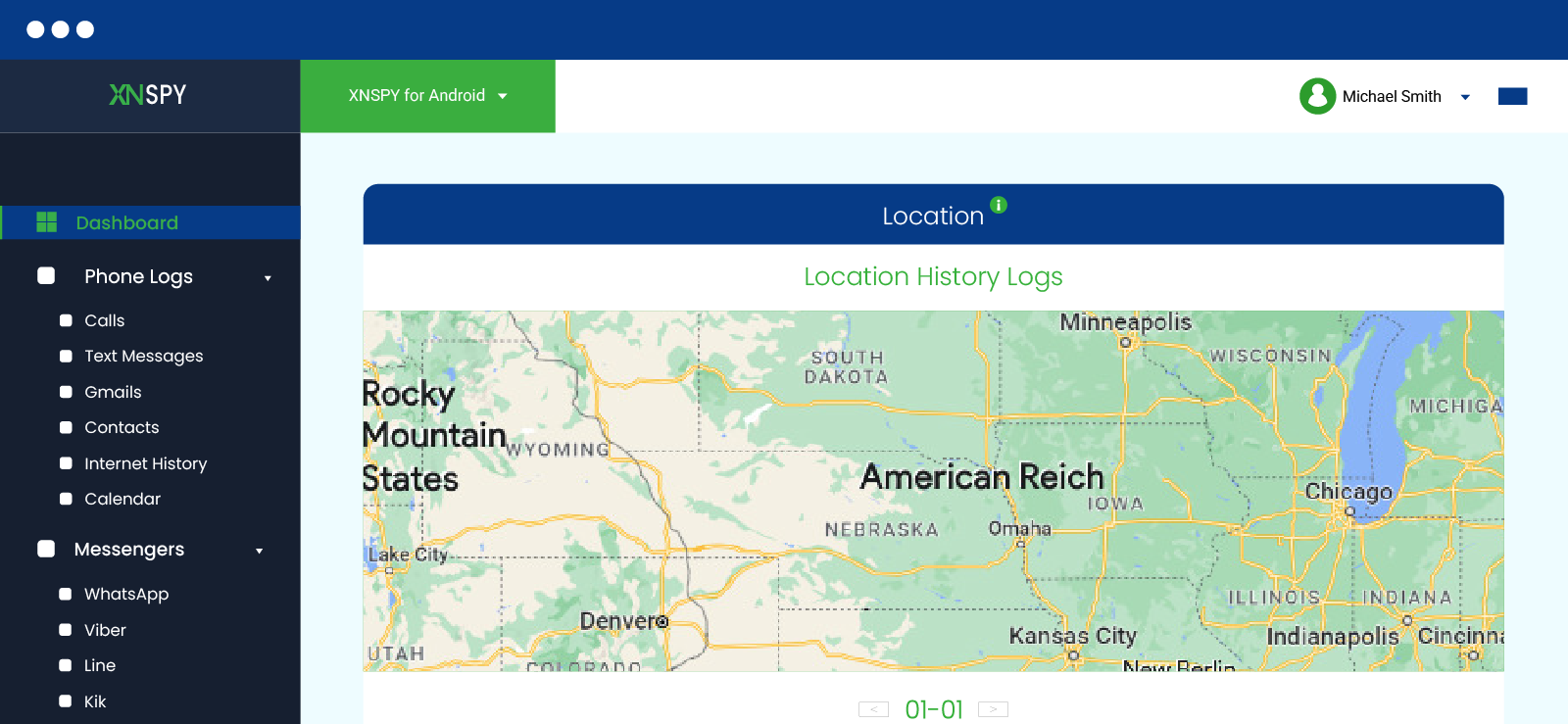
This is where Xnspy offers features such as location tracking, activity reports, chats, alerts, and more, all intended to help parents stay aware of their child’s digital and real-world activity. It operates in the background and presents data through a centralized dashboard.
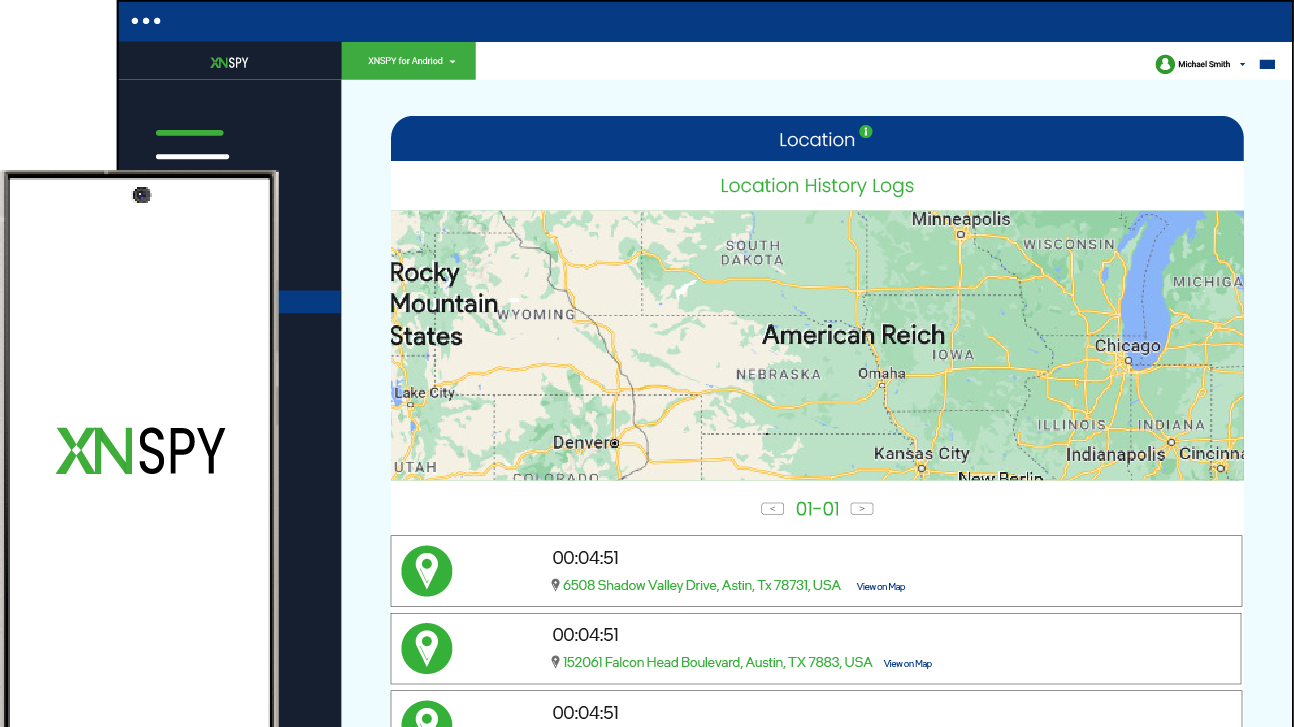
One of Xnspy’s key features is location tracking. It records the device’s location using GPS and displays it on a map, along with timestamps and location history. This allows parents to see movement patterns rather than just a single point on a map.
Xnspy also includes geo-fencing alerts, which notify parents when a child enters or leaves predefined areas like school, home, or extracurricular locations. All you have to do to use this feature is add certain locations with set radii in ‘watchlist locations’ from settings. Every time your child enters or leaves such places, you’ll get an instant email alert.
Used responsibly, this tool can help parents stay informed even when iMessage location sharing is disabled.
FAQs
How to check someone’s location on iMessage for free?
You can check someone’s location on iMessage for free only if they choose to share it with you. iMessage doesn’t allow silent or automatic tracking. A person can share their location temporarily, indefinitely, or send a one-time location snapshot. If they have shared their location with you, you can open it from within the messages, and their location will open by getting redirected to Apple Maps.
Can someone tell if I viewed their location on iPhone messages?
No, iMessage does not notify the other person when you view their shared location. Opening a map, checking the contact card, or tapping a shared Apple Maps link happens privately on your device. However, if read receipts are enabled, the sender may see that you’ve opened the message containing the location, but there’s no indication that you viewed or interacted with the location itself.
Is it possible for someone to fake or spoof their iPhone message location?
Under normal circumstances, iPhone location sharing reflects the device’s actual GPS-based position. Since Apple restricts system-level location spoofing, sharing a fake location is difficult without third-party tools or device modifications. Overall, spoofing is technically possible through external software or jailbreaking, but it is not a native iOS feature and can affect system stability.
Does Apple store location data permanently when shared through messages?
Apple does not permanently store iMessage location data as a retrievable history. Location sharing remains visible only while the sender actively allows it, such as when sharing indefinitely through the ‘Share My Location’. Once location sharing is turned off or expires, the location disappears and cannot be viewed again. While Apple may process location data temporarily to deliver the feature, it isn’t saved as long-term location history within messages.
What happens to the iMessage location if the person’s phone dies or goes offline?
If the person’s iPhone turns off or loses connectivity, live location updates stop immediately. In some cases, you may briefly see the last known location, but it won’t refresh until the device comes back online. Once the phone reconnects, location sharing resumes automatically, provided the sharing period is still active and hasn’t expired.
Leave a reply:
Your email address will not be published. Required fields are marked*
Stephen Hawks
Member since February 26, 2026
Stephen Hawks
Member since February 26, 2026
Stephen Hawks is a mobile app security and digital privacy analyst with over 12 years of experience evaluating mobile monitoring technologies, device tracking applications, smartphone data security risks, and more. He is particularly passionate about how monitoring apps function, what data they access, and how securely that data is stored.
Previously working as an IT forensics consultant, he specialized in analyzing app-level data exposure and digital evidence patterns on smartphones. Today, he focuses exclusively on mobile monitoring tools and tracking applications, with an emphasis on real-world performance and security vulnerabilities.
Moreover, he holds industry certifications including CompTIA Security+ and Certified Ethical Hacker (CEH).