How To See Blocked Messages On iPhone: 4 Methods That Actually Work
 By Stephen Hawks
The complete monitoring experience for your phone
Get XNSPY and start tracking calls, texts, multimedia, locations and more on any phone!
Get Started Now Live DemoWe have all blocked a number on our iPhones at some point. Maybe to stop spam calls or perhaps to avoid an annoying contact. But later on, curiosity kicks in. Did they try to message you after being blocked? Did you miss something important?
iPhone’s blocking feature is great for cutting off unwanted communication, but it can also make messages disappear in ways that feel a bit mysterious.
If you are wondering whether those blocked texts still exist somewhere or how to view blocked messages on iPhone, you are in good company. While iPhones don’t provide a straightforward “blocked messages” folder, there are still a few practical ways to view blocked text on an iPhone.
Key Takeaways
- Blocked messages don’t appear on iPhone. When you block a contact, their SMS and iMessages are prevented from reaching your device.
- iPhone has no “blocked texts” folder. Unlike spam filters, iOS does not store blocked messages in a separate inbox.
- Unblocking only affects future messages. Texts sent while a number was blocked usually cannot be recovered.
- Voicemail may show contact attempts. Blocked contacts can leave voice messages in the Blocked Messages section of the Phone app.
- Your mobile provider might provide SMS activity logs, though message content is typically unavailable.
- Xnspy offers features such as screen captures and remote monitoring that let parents monitor their kids’ complete texting activity on iPhones.
Can You See Blocked Messages on iPhone?
No, you cannot directly see messages sent by a blocked contact on an iPhone. Once a number is blocked, the iPhone prevents its calls, texts, and FaceTime requests from reaching you. This means any SMS or iMessage they send while blocked will not appear in your Messages app.
On iPhone, the messages are not stored in a separate folder or hidden inbox either. Instead, they are simply prevented from being delivered to your device. However, depending on your carrier or certain workarounds, you might still be able to identify if a blocked contact tried to reach you.
More Articles You Should Read Next

🤙  How to See Missed Calls from Blocked Numbers on iPhone [4 Easy Ways]
⛔  How to Know If Someone Blocked You on iMessage: 6 Signs
💬  Does iMessage Notify Screenshots?
🔒  Can I Lock My Child’s iPhone Remotely?
Where Do Blocked Messages Go On iPhone?
Blocked messages on an iPhone generally don’t go anywhere you can access. When someone you have blocked sends a text message, your device automatically filters it out before it reaches your Messages app. As a result, the message is never delivered or stored on your phone.
Unlike emails or filtered messages that might go into a spam or junk folder, iPhones don’t maintain a dedicated storage area for blocked SMS or iMessages. The sender may still see their message as “sent,” but it will not be received or saved on your device. In most cases, those texts remain with the sender’s carrier system temporarily and then expire if undelivered.
How to View Blocked Messages on iPhone: 4 Methods That Are Guaranteed to Work
Although iPhones don’t offer a built-in way to check blocked texts, there are still a few practical workarounds that can help you determine whether someone attempted to message you. So, let’s discuss how to see blocked messages on iPhone in detail.
1. Unblock the Contact
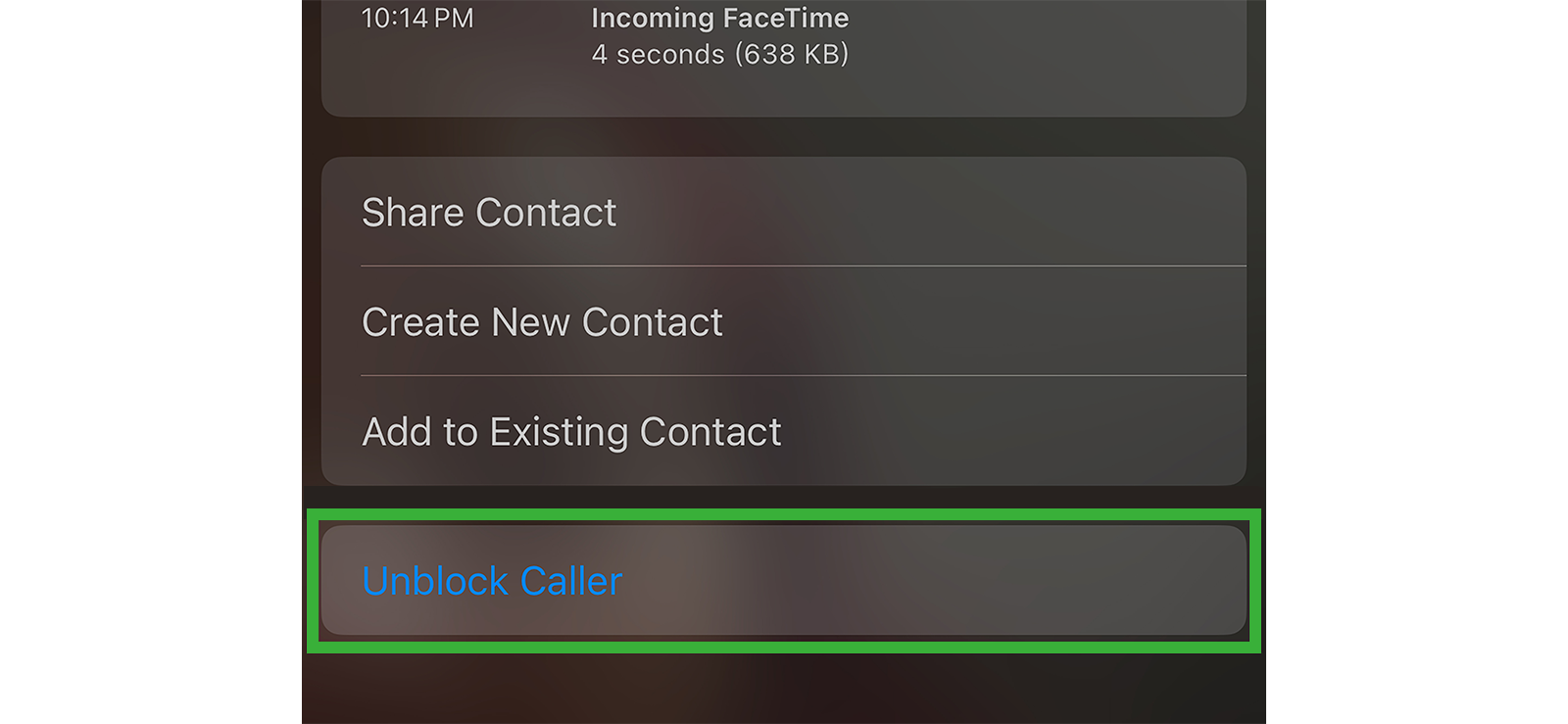
One of the simplest ways to start receiving messages again is by unblocking the contact. Blocking on iPhone works by preventing communication from reaching your device at the system level. Once the block is removed, the iPhone allows the contact to send texts normally again.
Let’s see how to see messages from blocked numbers on iPhone using this method:
- Open Settings on your iPhone.
- Scroll down and tap Phone or Messages.
- Tap Blocked Contacts.
- Find the number you want to unblock.
- Swipe left on the contact and tap Unblock.
Once unblocked, you can ask the person to resend the message if it was important.
However, there is a limitation to this method. The messages sent while the contact was blocked are usually lost and cannot be retrieved. It only helps you receive future messages, not view previously blocked ones.
2. Check Voicemail
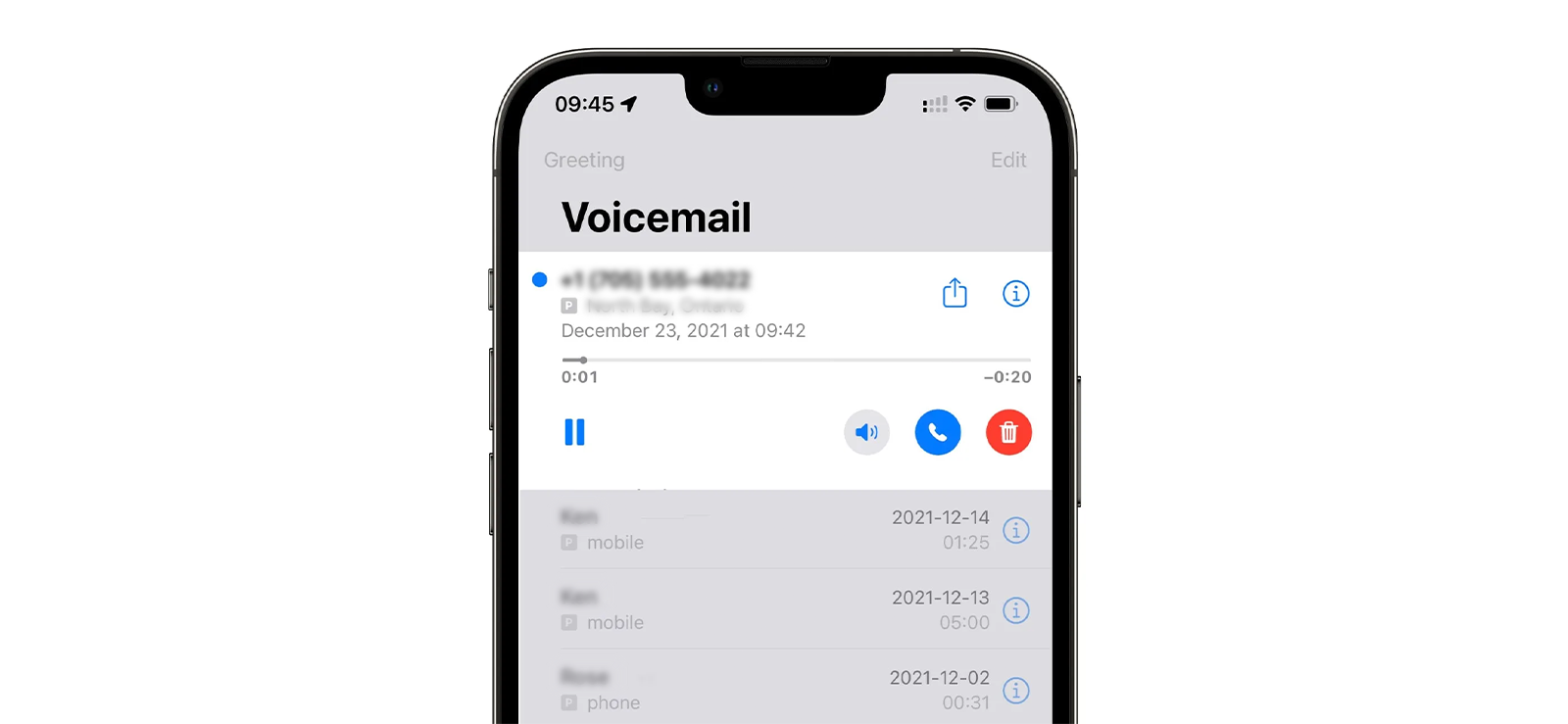
Even when a contact is blocked, iPhones usually redirect their calls to voicemail. While this doesn’t reveal text messages directly, it can confirm whether the person attempted to contact you. In some cases, the caller might leave a voicemail explaining what they wanted to say in a text.
Apple’s system separates these voicemails from your regular inbox so they don’t disturb you, but still keeps them available in case you want to check later.
To check blocked messages for voicemail:
- Open the Phone app.
- Tap Voicemail at the bottom right.
- Scroll down to find Blocked Messages.
- Tap it to view any recordings left by blocked numbers.
- Play the voicemail to hear the message.
This method only works for calls, not text messages. If the blocked contact didn’t call or leave a voicemail, you won’t find any information about attempted texts here.

Xnspy: Track Every Message That Moves Through Their iPhone
Get better visibility into their texting activity on any iPhone.
– Automatic screen recording of on-screen activity
– Remote screenshots to view the screen anytime
– Easy dashboard with organized activity reports
– Simple setup for quick access to insights
3. Request Carrier
Mobile carriers sometimes maintain logs of SMS activity, showing when messages were sent to your number – even if they weren’t delivered because the sender was blocked. While they typically cannot provide the exact message content due to privacy policies, they may confirm whether messages were attempted and when they were sent.
This method works because carriers manage SMS routing before the message reaches your device. If a message fails to deliver due to a block, the system may still record the attempt in account activity logs.
To request this information:
- Contact your mobile carrier’s customer support.
- Verify your account identity.
- Ask if they can provide SMS activity logs or message attempt records.
- Check your account’s online dashboard for message history if available.
- Review the logs to see if the blocked number attempted to text you.
The limitation here is that carriers usually do not store or share the actual text content. You may only see timestamps or confirmation that a message was sent.
4. Install a Third-Party Software
Certain third-party tools designed for iPhone data recovery can scan device backups or system logs to identify communication records. These programs work by analyzing stored data from iTunes or iCloud backups and looking for traces of deleted or filtered information.
While they may not always recover the exact blocked message, they can sometimes reveal messaging records or contacts that attempted communication. Some tools also monitor incoming messages and store them externally before system filters block them.
To know how to see blocked text messages on iPhone with a third-party software, follow these steps:
- Download a reputable iPhone data recovery tool on your computer.
- Connect your iPhone using a USB cable.
- Launch the software and select Scan iPhone or Recover Messages.
- Allow the program to analyze your device or backup files.
- Review any recovered messaging records.
The limitation of this approach is that success rates vary. Many tools require payment, and due to iPhone security restrictions, they may not always recover blocked messages reliably.

Pro Tip
If location sharing on your iPhone isn’t working, these solutions will help.

How Parents Can See Who Their Child Has Blocked on iPhone Messages Without Intruding?
As children grow up and start using smartphones regularly, messaging becomes a major part of their daily communication. Parents often encourage their kids to block suspicious numbers, online bullies, or strangers to stay safe.
However, it can also be helpful for parents to know who their child has blocked on their iPhone, especially if there are concerns about cyberbullying, inappropriate contact, or ongoing conflicts with certain people. The goal isn’t to invade privacy, but to ensure children are safe and handling digital interactions in a healthy way.
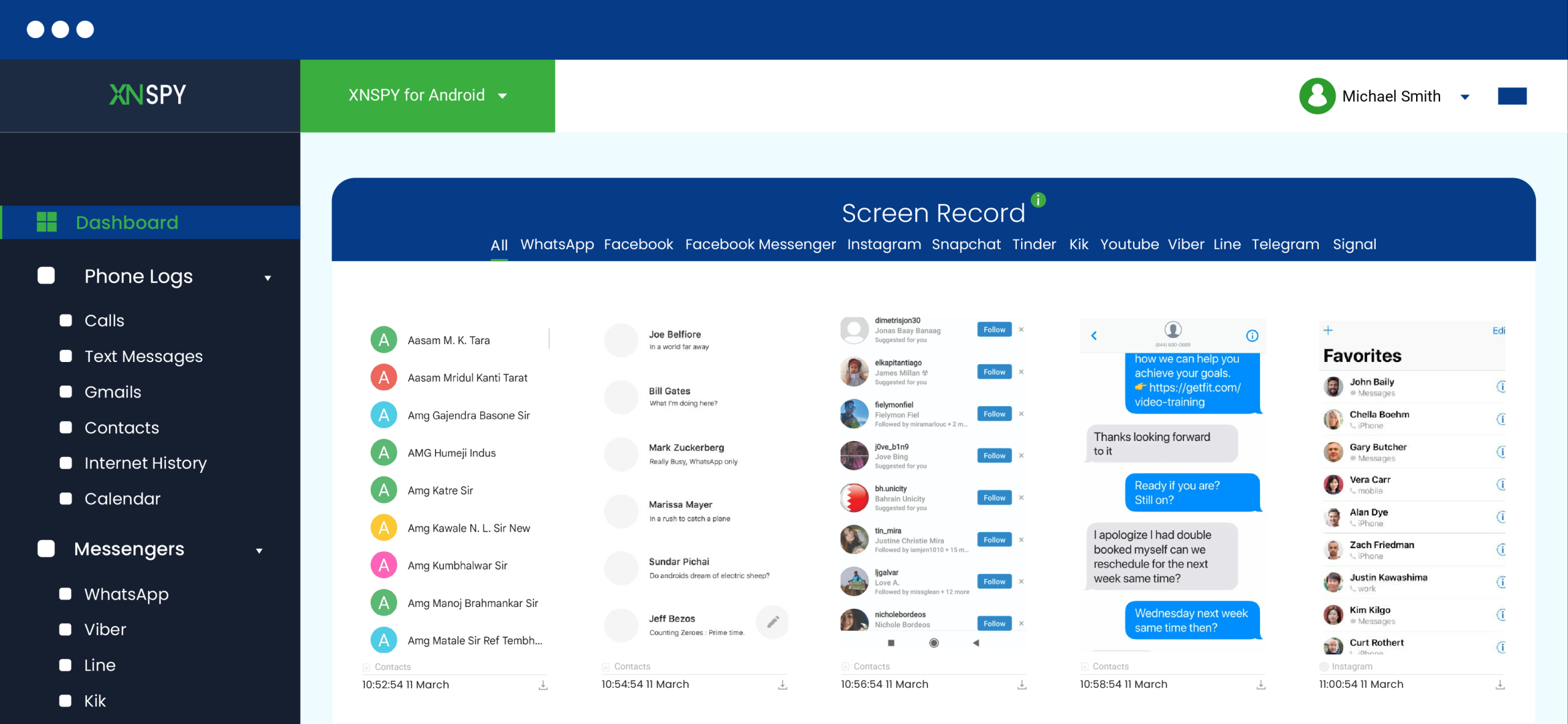
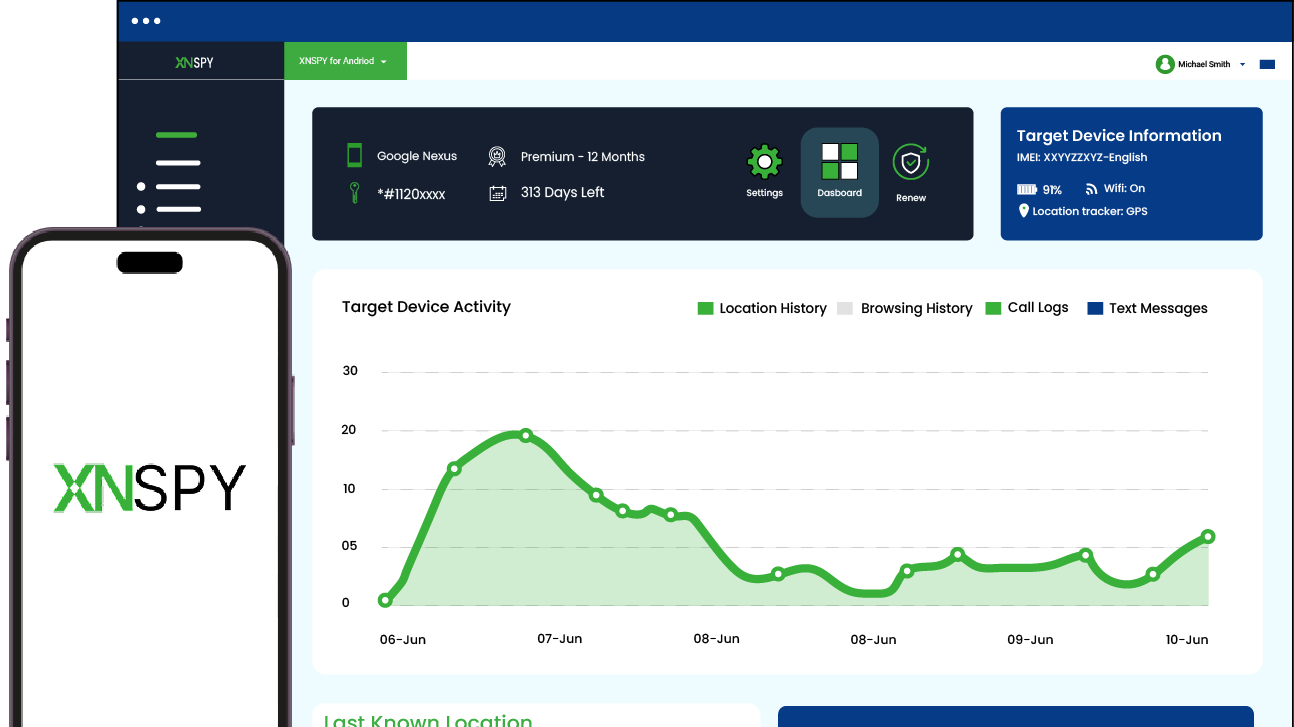
One practical way parents can stay informed without constantly checking their child’s phone is by using Xnspy. Xnspy is an iPhone monitoring solution designed to help parents keep track of important device activities remotely. It updates logs in real-time and offers detailed activity reports through an online dashboard.
Xnspy is known for its relatively simple setup process and an interface that allows parents to review information without needing advanced technical skills. Once installed, it quietly syncs data from the target iPhone to a secure dashboard that parents can access anytime.
Among its many capabilities, one feature that can help parents see who their child has blocked is screen recording. With this feature enabled, Xnspy automatically captures screenshots of the iPhone at regular intervals.
These screenshots are then uploaded to the Xnspy dashboard, creating a visual timeline of the device’s activity. If a child opens settings, messaging options, or the blocked contacts list, those screens can appear in the recorded screenshots.
In addition to automatic captures, Xnspy also offers an ambient screenshot option. This allows parents to trigger a screenshot remotely from the dashboard whenever they want to check the iPhone screen in real time.
If parents suspect their child may have blocked someone important, or want to confirm that harmful contacts have been blocked, they can use Xnspy to capture the screen instantly without physically accessing the iPhone.
FAQs
How to check blocked messages on iPhone without unblocking a contact?
iPhones do not provide a built‑in folder for blocked text messages, so you cannot directly view them while the contact remains blocked. When a number is blocked, the system prevents their SMS or iMessages from reaching your device. However, you can still check indirect indicators, such as call attempts in voicemail or message activity records from your carrier. These sources may confirm communication attempts without requiring you to unblock the contact.
How to see messages from blocked numbers on iPhone after changing phone numbers?
Changing your phone number typically resets communication filters tied to the previous number. If the same contact sends messages to your new number, those texts will arrive normally unless you block them again. Messages sent to your old number while the contact was blocked usually cannot be recovered on the new line. However, your mobile carrier may still have call or SMS activity logs associated with your previous number.
How to find blocked messages on iPhone from multiple contacts?
iPhones block each number individually but apply the same filtering behavior to all blocked contacts. This means messages sent by any blocked numbers are not delivered to your Messages app and are not stored in a visible folder. To determine whether multiple blocked contacts attempted to message you, you may need to review carrier message logs or unblock contacts temporarily so future messages can arrive normally.
How to see blocked text messages on iPhone for unknown numbers?
Unknown numbers that are blocked follow the same system rules as saved contacts. Once blocked, their text messages are automatically filtered and prevented from reaching your Messages inbox. Because iOS does not store blocked texts locally, you cannot directly view them afterward. The only way to receive future messages from that number is to remove it from the blocked list so incoming texts are delivered normally.
How to read blocked messages on iPhone if the device is reset?
If an iPhone is reset, any locally stored data, including message history and block settings, may be erased depending on the reset method. Messages sent while a number was blocked will still not appear after the reset because they were never delivered to the device. In some cases, restoring from an earlier iCloud or computer backup may recover previous message conversations, but it will not retrieve texts that were blocked before delivery.
Everything On Their Device, In One Place
Get Xnspy for real-time insights and remote access to their phone activity.
2 Comments
Leave a reply:
Your email address will not be published. Required fields are marked*
Carly Roach
May 22, 2026 at 2:02 pmMy child has blocked her godfather (my husband's best friend) and there are no message records for me to understand why. My head is spiralling and conjuring up the worst case scenarios
Lola Glass
June 29, 2026 at 1:43 pmIs there a way to unblock someone to receive their messages but not their calls?