How to See Incognito History on Android Without the User Knowing: 4 Best Methods
 By Mike Everett
The complete monitoring experience for your phone
Get XNSPY and start tracking calls, texts, multimedia, locations and more on any phone!
Get Started Now Live DemoIncognito mode on Android is all about being secretive and keeping your search history hidden from everyone. For many, it is a useful feature, but unfortunately, in the hands of an oblivious teen wishing to be secretive, the outcome can be troublesome.
With 256 million new social media users added globally in the recent year, the online world is growing faster than ever. More platforms mean more exposure to trends, challenges, and interactions that parents might not even be aware of—many of which can take place in private browsing sessions.
Therefore, parents should make sure their child is not using Incognito mode on their Android and if they are, then their sessions are being properly supervised.
In this article, we will explore how to see Incognito history secretly on Android phones using 4 simple and effective methods. Before that, though, we need to reflect on why seeing your child’s Incognito history on Android matters.
Here’s a Short Summary of the Guide
- Incognito mode hides browsing history locally on the device but does not make it invisible to every tracking method available.
- Xnspy is a reliable method, as it logs web activity, captures screen recordings, and records keystrokes even during private browsing sessions.
- Router and DNS logs capture every domain visited over the home network, including Incognito sessions, though they do not reveal specific page URLs.
- Google account activity can sometimes contain Incognito search history if the user was signed in and had Web & App Activity enabled.
- Screen Cast lets you mirror the target device’s screen in real time, making it possible to observe Incognito sessions as they happen.
How did I Test and Finalize These Methods?
Before sharing these methods, I want to be transparent about how I verified them.
I ran every test on a Samsung Galaxy A Series phone and a Google Pixel, both running the latest Android version.
For a controlled test environment, I created a dedicated burner Google account and used it exclusively for all Incognito sessions during testing. Each method was tested at least three times across both devices.
Here are the key factors I considered:
- Setup Requirement: I noted whether each method needed any pre-configuration before the Incognito session started, since several methods fail completely if you have not set them up in advance.
- Device Access: I tracked whether physical access to the target phone was required once or repeatedly, since many parents can get the phone briefly but cannot monitor it continuously.
- Visibility to the Target: I observed whether the method left any visible trace on the target device that a tech-savvy teenager might notice or disable.
- Network Dependency: I then tested each method both on a home Wi-Fi network and on a mobile data connection to see how network type affected results.
- History Retention Window: Also, recorded how long each method kept usable logs and whether closing the Incognito window cleared the data entirely.
Why Would You Need to Learn How to See Someone’s Incognito History on Android?
Children often use Incognito mode to browse privately, which isn’t necessarily a problem. However, the real concern is what they are searching for. Many times, kids look up content that parents may find inappropriate or concerning.
Therefore, by knowing how to see incognito history on phone without having access to the device, parents can protect their child’s mental well-being, ensure responsible internet usage, and prevent exposure to harmful content such as adult material, online predators, or excessive screen time.
Also, with 46% of U.S. teens having experienced cyberbullying, it is clear that online risks go beyond just inappropriate content. Harmful interactions, exposure to dangerous challenges, or engaging with strangers can happen without a trace in private browsing sessions.
However, Android’s built-in privacy features make seeing Incognito sessions challenging. Despite this, parents can use certain loopholes and effective methods to stay informed about their children’s digital habits without alerting them.
You Wouldn’t Want to Miss These

🏅  How to Block Websites on Android Without Having the Phone
🛑  How to Find Hidden Apps on Android Without the Owner Knowing
⚡  How to Block TikTok on Android: 5 Proven Methods for Parents
How to View Incognito History on Android Without the Other Person Finding Out: 4 Proven Methods
70% of teenagers feel the need to actively hide their online activities from their parents, and the Incognito mode on Android facilitates it. To make sure your child is safe and away from any danger, you need to know these 4 simple methods on how to find Incognito history on an Android phone without having access to it.
| Method | How It Works | Success Rate | Key Limitations |
| Xnspy | Runs silently on the target phone; logs URLs, keystrokes, and screen captures even in Incognito mode | ~ 95% | Requires one-time physical access to install; paid subscription |
| Router/DNS Logs | Captures all DNS queries at the network level, including Incognito traffic | ~ 70% | Shows domain names only, not full URLs; fails on mobile data |
| Google Account | Reads Web & App Activity logs from the signed-in Google account | ~ 45% | Inconsistent; depends on account settings; sign-in may alert the target |
| Screen Cast | Mirrors the target phone’s screen live via Cast | ~ 80% | Native Cast shows a visible notification; real-time only, no history logs |
1. Use Xnspy
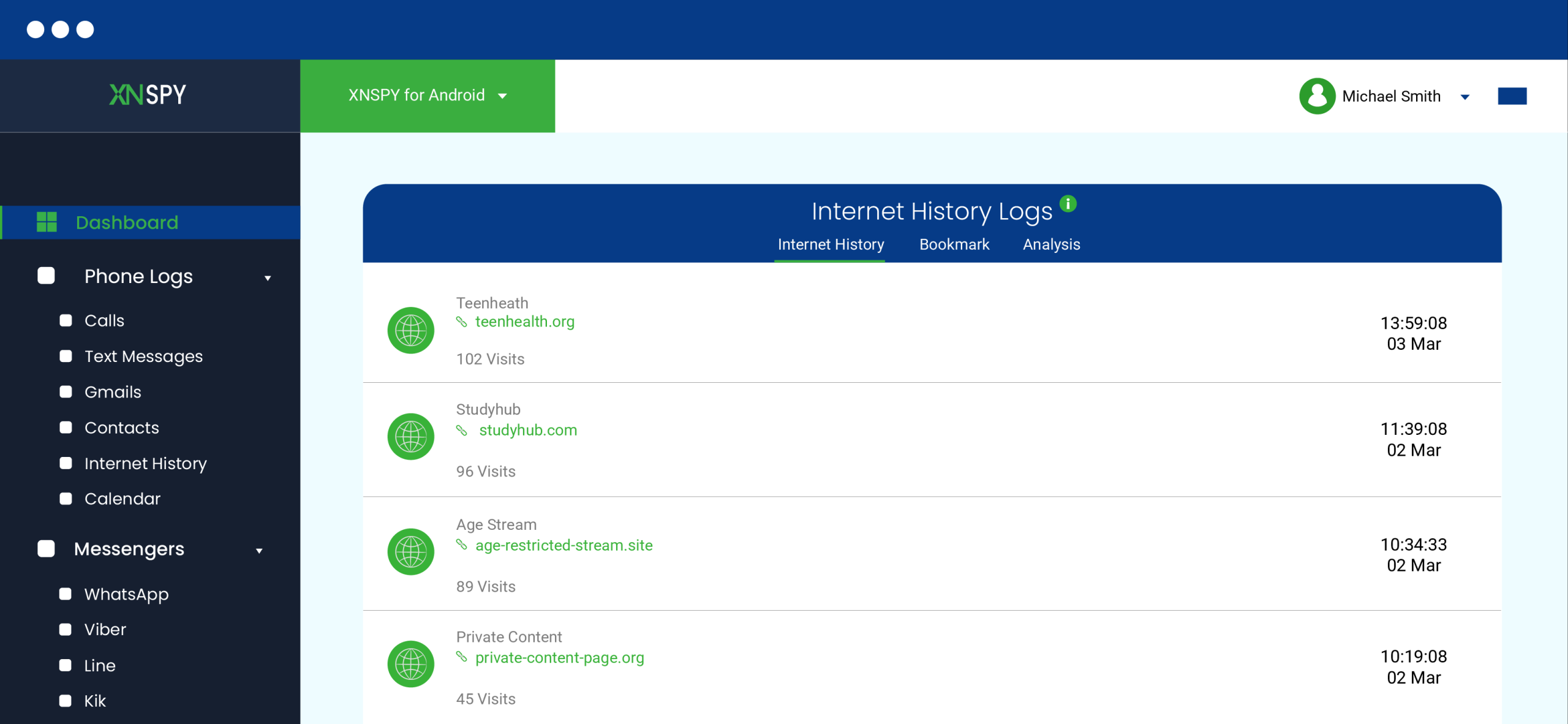
Xnspy is a child monitoring application that allows parents to see their child’s Incognito search and web history on Android. With its advanced tracking features, parents can figure out exactly what their child browses in private mode without needing their login credentials.
Moreover, since it works in the background of the target phone, it is not affected by VPNs or other privacy tools.
To monitor Incognito history on Android, Xnspy offers three powerful features: internet history logging, screen recording, and keylogging. The internet history feature logs all Incognito web activity, including timestamps, URLs, page titles, and visit frequency.
You then have Xnspy’s screen recorder feature that captures screenshots of the active screen every 5-10 seconds. Therefore, it makes sure that no activity is missed.
Plus, the Android keylogger records every keystroke made on the phone’s keyboard, which allows parents to view Incognito search history from Android and the exact search terms their child entered.
Here’s how to check Incognito history without alerting the target using Xnspy:
- Visit the Xnspy website, create an account, and purchase a suitable plan.
- After receiving a confirmation email, install the app on the target Android phone using the provided instructions.
- Log in to the Xnspy dashboard from any web browser.
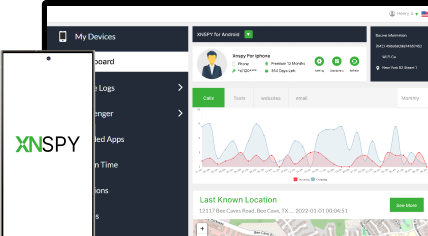
- Navigate to “Internet History,” “Screen Record,” and “Keylogger” to access the Incognito web and search history on Android remotely.
How Did It Go For Me?
I tested Xnspy across both Android devices over seven days, running multiple Incognito sessions each day to simulate typical teen browsing behavior.
The results were the most comprehensive of all four methods. The internet history log captured all of the domains I visited in Incognito mode, complete with timestamps and visit duration. Even when I used a VPN during the Incognito session, Xnspy still logged the browsing activity at the app layer rather than the network layer, which made it unaffected by VPN masking.
The screen recorder triggered automatically every time I opened a browser, capturing screenshots at five-second intervals. I could scroll through Xnspy’s browser-based dashboard and reconstruct exactly what was visible on screen during each session.
The keylogger added a third layer of detail. Every search term I typed into the address bar appeared in the keylogger log with a timestamp, which meant I could see not just what sites were visited but also what was searched for before clicking any result.
The only friction I encountered was the initial setup, which required 10 to 15 minutes of physical access to the target phone. Moreover, there was a minor delay in syncing some logs during periods of weak internet signal. Other than that, everything ran silently in the background with no visible notification on the device.

Nothing Stays Hidden Anymore
No more secrecy about incognito history, Xnspy shows it all.
2. Monitor Router & DNS Logs
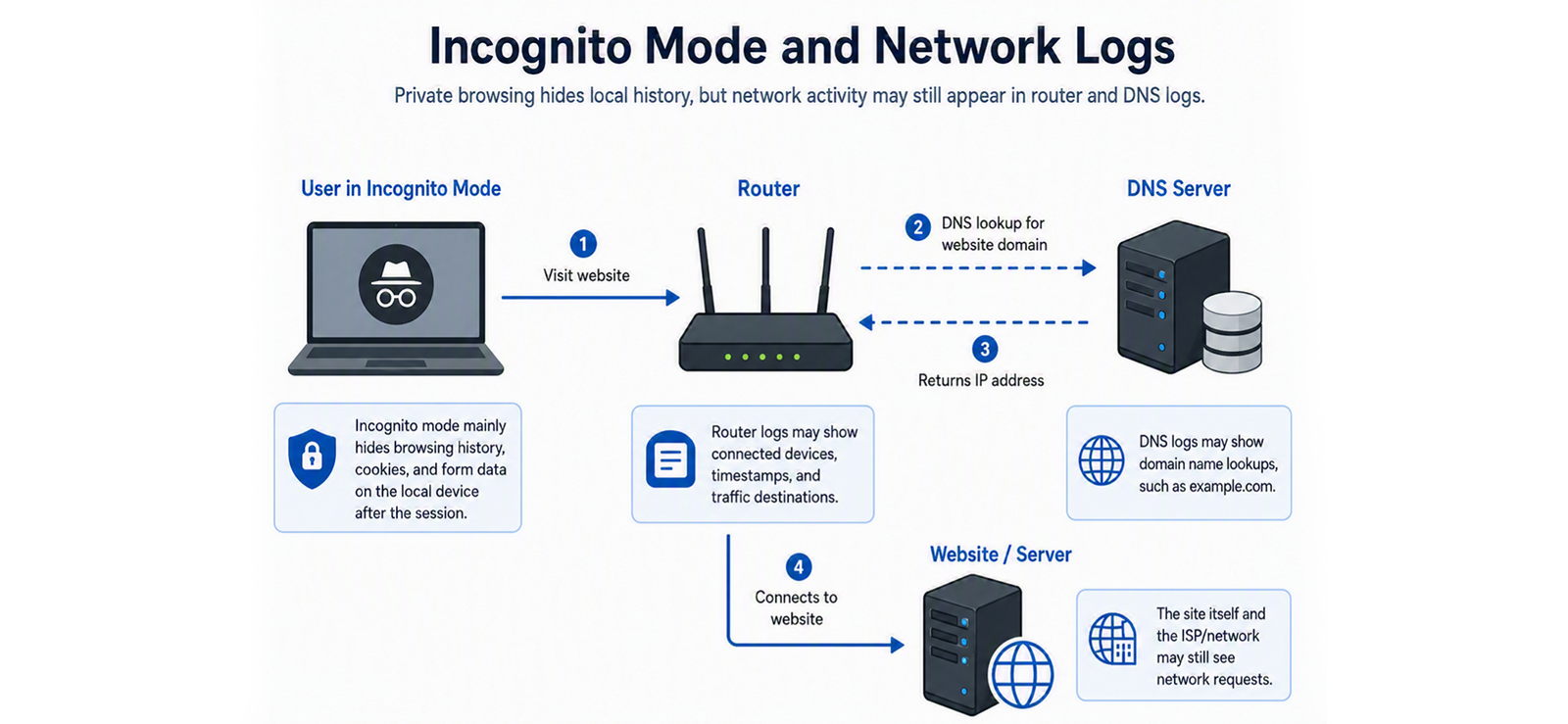
Since the router is the central hub for all internet activity, it stores all network requests, including those made in Incognito mode on Android phones.
While Incognito mode prevents history from being saved on Android, it does not hide network activity from the router. This means that every website your child visits, even in private browsing mode, is still logged in the router’s system logs or through DNS query records.
DNS logging goes one level deeper than basic router logs. Every time a browser loads a website, it sends a DNS query to resolve the domain name. These queries are recorded by most home routers and dedicated DNS services like Google Family Link or OpenDNS, even when the browser is in Incognito mode.
However, one limitation of this method is that only domain names are recorded, not full URLs. For example, you may see youtube.com in the logs, but you won’t be able to determine the exact video or page your child visited.
Despite this, checking router and DNS traffic can still provide valuable insights into Incognito search and web history on Android.
Let’s check out how to see someone’s Incognito history on Android discreetly:
Via Router Logs:
- On any browser, type in your home router’s IP address.
- Log in with the required username and password (default credentials are often printed on the router).
- Once inside the web interface, locate the section labeled “Logs,” “System Logs,” or “Traffic Monitor.”
- View the Incognito history of their Android phone, including timestamps, domain names, and IP addresses.
Via DNS Logging (OpenDNS):
- Sign up for a free OpenDNS account at opendns.com and log in.
- Go to “Settings” and add your home network’s IP address.
- Update your router’s DNS settings to point to OpenDNS servers (208.67.222.222 and 208.67.220.220).
- Wait for DNS traffic to accumulate, then view the full query log under “Stats & Logs” in your OpenDNS dashboard.
How Did It Go For Me?
I tested both the router log method and OpenDNS across two separate Incognito sessions on each device.
The router log method worked immediately on my test router, but required enabling the traffic log feature first, which is off by default on most consumer routers. Once enabled, every domain visited during an Incognito session appeared in the log within seconds. However, the logs were harder to read than I expected, showing raw IP addresses alongside domain names, with no search-term details.
OpenDNS was significantly more useful for ongoing monitoring. After pointing my router to OpenDNS servers, every DNS query from every device on the network appeared in the dashboard, organized by device. The logs persisted for up to 12 months and included timestamps down to the minute.
One important limitation I confirmed during testing: this method only works when the target device is connected to the monitored Wi-Fi network. The moment I switched my test device to mobile data, the router and DNS logs showed nothing. If your child primarily uses mobile data outside the home, this method alone is not ideal.
3. Review Their Google Account
If you are wondering how to see Incognito history on Android phone without having access to the device, an alternative method is to use a Google account. As discussed earlier, Incognito mode on Android only blocks the storage of history locally; however, it can still be stored in a Google account.
Therefore, if the other person has enabled search tracking and is logged into their Google account while using Incognito mode, then their Incognito search history on Android can be stored there.
All you need to do to look through this incognito search history on Android is to use their login credentials to verify your identity and proceed forward.
Let’s see how to view Incognito history on Android without the user knowing by reviewing their Google account:
- Use any device where their Google account is already logged in, such as a laptop or tablet.
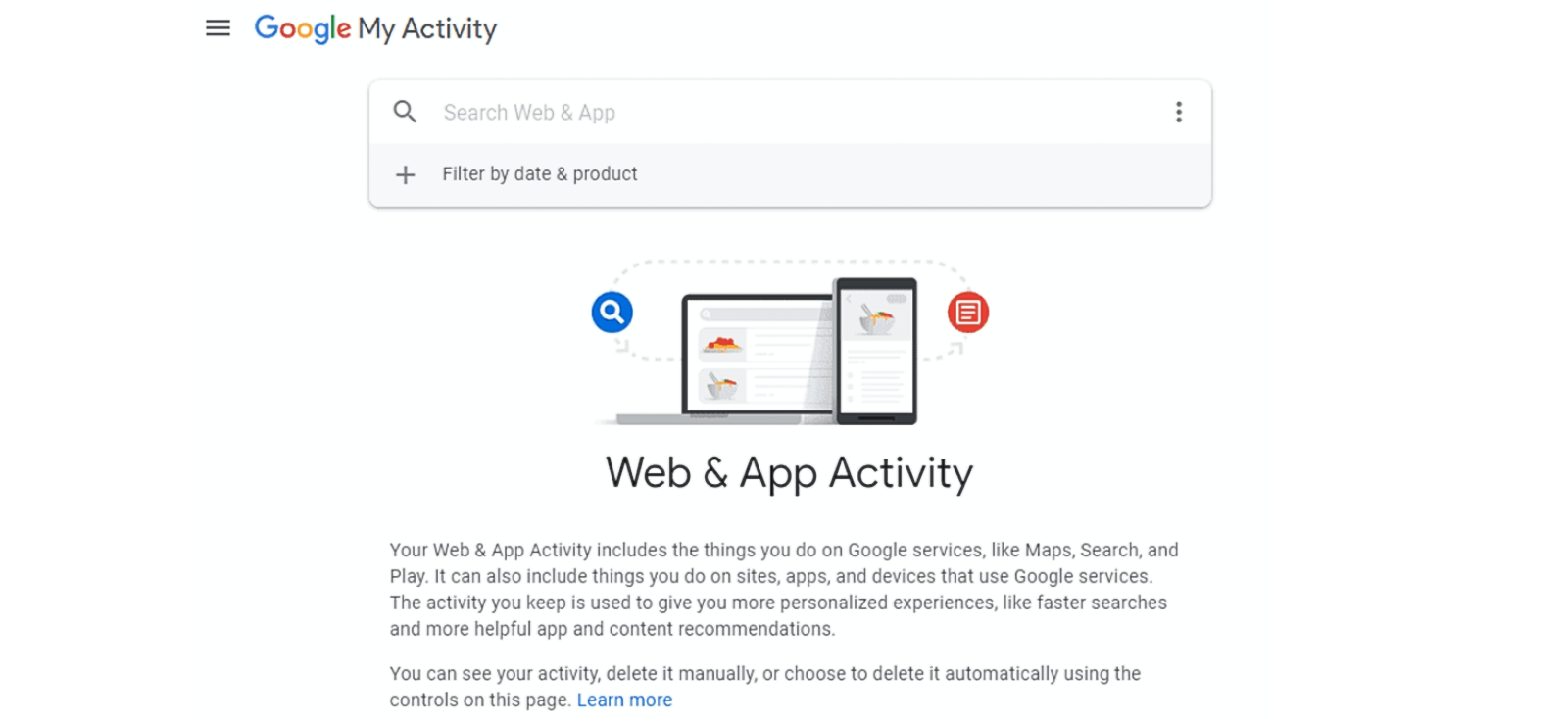
- Go to their Google account settings and navigate to “Web & App Activity.”
- Enter their password for verification to proceed.
- Click “Filter by date & product,” select “Search,” and choose a date if needed.
- Review the results to find their Incognito search history on Android.
How Did It Go For Me?
I tested this method under two different conditions: first, with Web & App Activity enabled on the Google account, and second, with it disabled, since many teens who value their privacy turn this setting off.
When Web & App Activity was enabled, Google did log some search queries made during Incognito sessions, specifically those entered directly into the Google Search app or Google.com while signed in. These appeared in the My Activity dashboard with accurate timestamps.
However, the results were inconsistent. Searches made in Incognito mode through Chrome without being actively signed into the browser did not appear at all. Searches made through other browsers like Firefox or Brave were also absent from the log, regardless of the account setting.
The method also requires knowing the account password, which adds a practical barrier. Additionally, logging into a child’s Google account on another device can trigger a sign-in notification to their phone, which risks alerting them.
 ,
,
Pro Tip
What if we told you that you can see private browsing history on someone’s iPhone too?

4. Activate Screen Cast
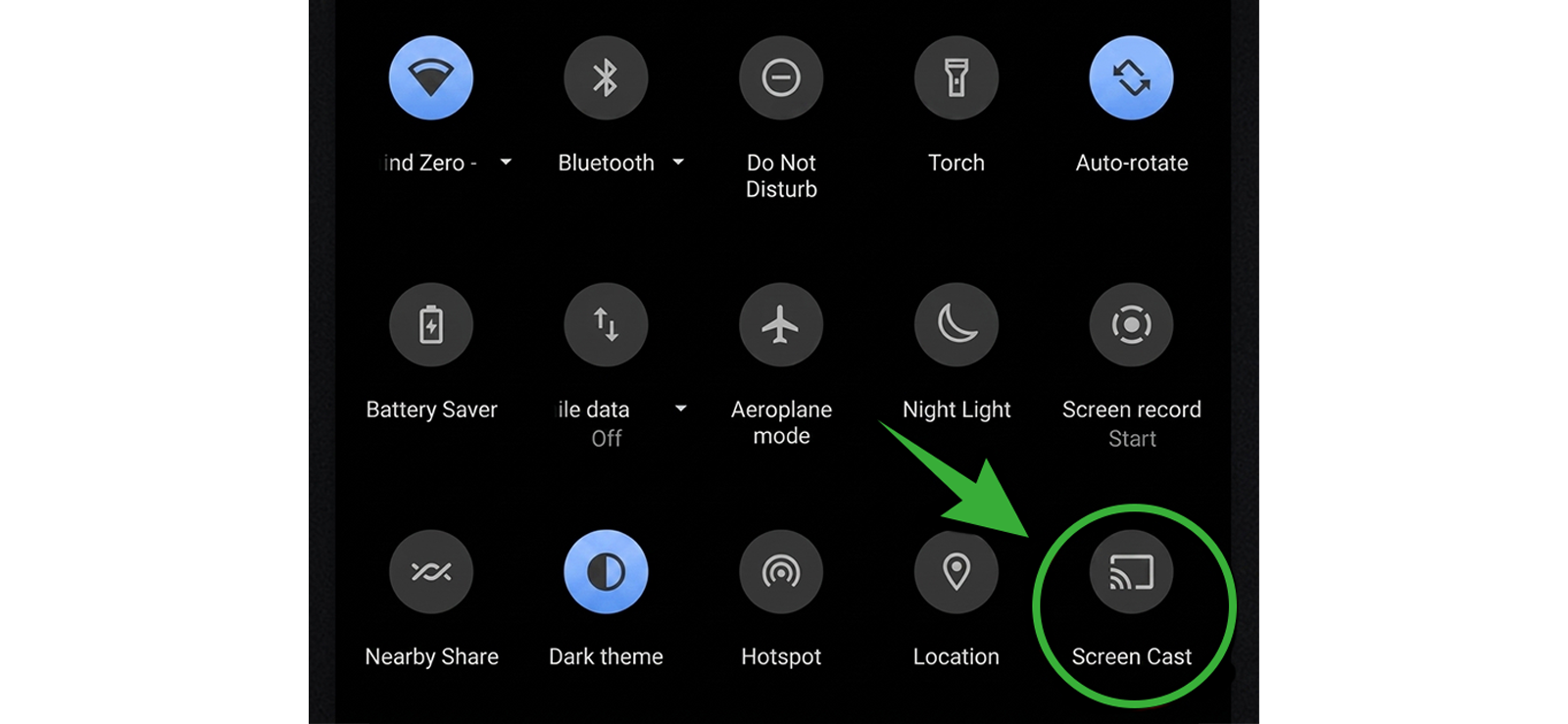
Screen Cast, also known as screen mirroring, allows you to view the exact contents of a target Android device in real time on another screen. Unlike the other methods that analyze logs after the fact, Screen Cast shows you live what is happening on the phone, including Incognito browsing sessions, as they occur.
Android’s built-in Cast feature and third-party screen mirroring apps both support this approach. The main requirement is that both devices be on the same Wi-Fi network during the mirroring session.
Here’s how to see Incognito history on Android using Screen Cast:
- On the target Android phone, open “Settings” and search for “Cast” or “Screen Cast.”
- Enable the Cast feature and make sure both the target phone and your viewing device are connected to the same Wi-Fi network.
- On your viewing device (smart TV, tablet, or another phone), open the corresponding Cast or Screen Mirror receiver app.
- Select the target device from the list of available screens and confirm the connection on the target phone.
- Once connected, everything on the target phone’s screen, including any open Incognito browser tab, will appear live on your viewing device.
How Did It Go For Me?
I tested Android’s native Cast feature alongside AirDroid over multiple sessions on both test devices.
Native Cast worked reliably when both devices were on the same network. The screen appeared on my viewing device within about five seconds of initiating the connection. Incognito tabs were fully visible, including URLs, page content, and search terms as they were typed.
The limitation is that the target phone displays a persistent notification during an active Cast session, which makes it immediately obvious to the phone’s owner that their screen is being shared.
Overall, Screen Cast is most effective when you want to observe a specific browsing session in real time rather than review historical logs. It requires either a brief setup on the target device or a one-time app installation, but once configured, it offers the clearest view of exactly what is being browsed in Incognito mode.
FAQs
How to delete Incognito history on Android without access to their phone?
You can’t directly delete Incognito history on someone else’s Android without physical access, but if the device is linked to a Google account you control, you can access Google My Activity and delete recorded searches. However, Incognito mode typically doesn’t save history, so unless third-party tracking or DNS logs are in place (e.g., router logs), there is no history to delete. For complete removal, reset network logs at the router level or use parental control apps with remote monitoring features.
How to find Incognito history on Android if the target user has deleted it?
If the target user has deleted their Incognito history on Android, you may still be able to find traces of it in the router’s system logs. Since all internet traffic passes through the home network, routers with logging enabled can store a list of visited domains, even from Incognito mode. You can access these logs by signing into the router’s web interface using its IP address. However, keep in mind that system logs typically show only domain names, not specific URLs or pages visited.
Is there a way to see Incognito history without installing software on the target device?
If you’re wondering how to check Incognito history on Android discreetly without installing software, there are a few options, though they have limitations. You can monitor router traffic, see DNS logs, or even check the account’s Google activity. However, Google activity needs account access and doesn’t log every detail, while DNS and router methods fail when the child uses mobile data. So, using a third-party monitoring app like Xnspy might be a more suitable option.
How to check Incognito history on Android if the target phone is locked?
If the target cell phone is locked, checking Incognito history on Android can be challenging. However, if the user has enabled Web & App Activity on their Google account, you may still be able to access their Incognito history from another device. To do this, go to their Google account and navigate to the Web & App Activity section. Once there, verify your identity by logging into the other person’s Google account and proceeding to see their Incognito history.
How to see Incognito history on Android phone if the user has factory reset it?
After a factory reset, Incognito history on Android may still be recoverable if router logs, Google account activity, or backups were enabled beforehand. However, these methods require prior setup and access to the router or account. A more reliable option is Xnspy, which allows parents to track their child’s complete Incognito sessions in real-time without any limitations using its internet history, screen recorder, and keylogger.
Leave a reply:
Your email address will not be published. Required fields are marked*

Mike Everett
Member since October 20, 2014
Mike Everett
Member since October 20, 2014
Mike Everett is a consumer technology journalist with expertise in hands-on testing and evaluation of iOS and Android monitoring applications. With over 11 years in the industry, he focuses on how mobile monitoring tools perform in real-world conditions, including accuracy, feature reliability, device compatibility, and practical usability for parents.
He conducts live-device testing of monitoring apps to assess how well their features function beyond marketing claims. His work primarily includes comparative reviews, feature breakdowns, and buyer-focused guides designed to help parents understand which tools actually deliver usable results in everyday scenarios.